
For many Mac users, the sleek design, powerful operating system, and robust ecosystem are unparalleled. Yet, a common frustration persists: the occasional need to run a specific Windows-only application. Whether it’s industry-standard software, a beloved legacy game, or a niche utility that simply hasn’t made its way to macOS, the quest to bridge the OS gap is real. This guide delves deep into the various methods available, equipping you with the knowledge to seamlessly integrate Windows programs into your Mac environment, ensuring you never feel limited by your choice of operating system again.

The perception that Macs are restrictive in their software compatibility is a persistent myth that we aim to debunk. While it’s true that you can’t simply double-click a .exe file on macOS and expect it to run, the technological landscape has evolved dramatically, offering a wealth of sophisticated solutions. From full-fledged virtual machines that run Windows as a separate application to ingenious compatibility layers and even cloud-based alternatives, there’s a method tailored for every user and every need. Understanding these options, their advantages, and their limitations is key to unlocking the full potential of your Mac, transforming it into a versatile powerhouse capable of handling virtually any software requirement.
Understanding the Challenge: Why Can’t Macs Run Windows Apps Natively?
Before exploring the solutions, it’s crucial to grasp the fundamental reasons why Windows applications don’t run natively on macOS. This understanding will help you appreciate the ingenuity behind the various workarounds and make informed decisions about which method best suits your specific requirements.
Architectural Differences (macOS vs. Windows)
At their core, macOS and Windows are distinct operating systems built on different architectures and programming philosophies. Windows applications are compiled to run on the Windows kernel and utilize its specific Application Programming Interfaces (APIs). These APIs define how software interacts with the operating system, its hardware, and its services. macOS, on the other hand, is built on a Unix-like foundation, using its own set of APIs (Cocoa, Metal, etc.).
When a Windows program tries to run on macOS, it encounters a foreign environment. It expects to find Windows system files, libraries, and specific instructions that simply don’t exist in macOS. It’s akin to trying to play a PlayStation game on an Xbox – while both are gaming consoles, their underlying systems are fundamentally incompatible. This incompatibility extends to file formats (.exe for Windows executables vs. .app bundles for macOS), system calls, memory management, and even how they handle graphics and peripherals. The advent of Apple Silicon Macs (M1, M2, M3 chips) further complicates this, as they use an ARM-based architecture, whereas most traditional Windows applications are designed for Intel x86 processors, adding another layer of incompatibility that requires architectural translation on top of OS translation.
The Need for Bridging Solutions
Given these deep-seated differences, bridging solutions are necessary to create an environment where Windows programs can execute. These solutions effectively “trick” the Windows application into believing it’s running on a Windows machine. This can involve:
- Virtualization: Creating a complete, isolated virtual computer within macOS that runs a full version of Windows. The Mac’s hardware resources are partitioned, and the virtual machine emulates a PC environment.
- Compatibility Layers/Translation: Intercepting the Windows API calls made by an application and translating them on-the-fly into equivalent macOS or Unix-like calls. This method avoids running a full Windows OS but relies on successful translation for each specific API call.
- Boot Camp (for Intel Macs): Installing Windows directly onto a separate partition of your Mac’s hard drive, allowing you to choose which operating system to boot into upon startup. This isn’t running Windows on macOS, but rather turning your Mac into a Windows PC when you need it.
- Cloud Computing: Leveraging remote servers running Windows to execute the application, with the user simply streaming the interface to their Mac.
Each of these approaches offers a unique balance of performance, convenience, cost, and compatibility, making the choice highly dependent on your specific needs and your Mac’s capabilities.
Top Methods for Running Windows Programs on Your Mac
The technological landscape has matured significantly, offering several robust and user-friendly options for running Windows applications on your macOS device. Let’s explore the most popular and effective methods in detail.
Virtual Machines: Running Windows Within macOS
Virtualization is perhaps the most comprehensive and popular method for running Windows programs on a Mac. It involves installing a full version of the Windows operating system inside a virtual machine (VM) application on your Mac. The VM software creates a self-contained, emulated computer environment that behaves exactly like a physical PC, allowing you to install and run Windows, and then all your desired Windows applications, just as you would on a dedicated Windows machine.
What it is: A virtual machine is a software emulation of a computer system. It runs on your Mac’s hardware but presents a virtualized hardware environment to the guest operating system (Windows, in this case). This means Windows operates as if it’s on its own PC, completely isolated from macOS, yet accessible directly from your macOS desktop.
Pros:
- Full Windows Experience: You get a complete, functional Windows operating system, allowing you to install any Windows program that would run on a comparable physical PC.
- Isolation and Security: Windows runs in a sandboxed environment, protecting your macOS system from potential malware or conflicts.
- Seamless Integration: Modern VM software allows for drag-and-drop file sharing, shared clipboards, and even launching Windows apps directly from your macOS Dock.
- Easy Switching: You can switch between macOS and Windows applications instantly without rebooting.
Cons:
- Resource-Intensive: VMs require significant RAM, CPU, and disk space. Performance can suffer if your Mac isn’t powerful enough or if you don’t allocate sufficient resources to the VM.
- Requires Windows License: You will need to purchase a valid Windows license (e.g., Windows 10 or 11 Pro/Home) to install it within the VM.
- Performance Overhead: While good, a virtualized Windows will never perform as fast as a native Windows installation (like with Boot Camp), especially for demanding tasks like high-end gaming or video editing.
Popular Options:
- Parallels Desktop: Widely considered the most user-friendly and feature-rich solution, especially optimized for Apple Silicon Macs. It offers excellent performance, extensive integration features, and a seamless “Coherence” mode that hides the Windows desktop while displaying Windows app windows directly on your Mac desktop. It’s a premium, paid solution.
- VMware Fusion: Another highly capable and mature virtualization platform, often preferred by IT professionals and developers. It provides robust features, good performance, and strong network configurations. It offers a free “Player” version for personal use and a paid “Pro” version with advanced functionalities.
- VirtualBox: A free, open-source virtualization software from Oracle. While it lacks some of the polish and seamless integration features of its paid counterparts, it’s a solid option for those on a budget or needing basic Windows functionality. Setup can be a bit more manual.
Step-by-Step Overview (General):
- Choose and Install VM Software: Download and install Parallels Desktop, VMware Fusion, or VirtualBox.
- Obtain Windows Installation Media: Acquire a Windows ISO file (downloadable from Microsoft’s website).
- Create a Virtual Machine: Follow the VM software’s wizard to create a new VM, allocating RAM, CPU cores, and disk space.
- Install Windows: Boot the VM from the Windows ISO and proceed with a standard Windows installation.
- Install Guest Additions/Tools: Install the VM software’s specific tools (e.g., Parallels Tools, VMware Tools) into the Windows VM for better performance and integration.
- Install Windows Programs: Once Windows is running, install your desired Windows applications just as you would on a physical PC.
Compatibility Layers & Emulators: Running Specific Apps
Compatibility layers and emulators offer an alternative approach by focusing on enabling specific Windows applications rather than running a full Windows operating system. These solutions work by translating Windows API calls into macOS-understandable commands on the fly.
What it is: Instead of running an entire virtual OS, these tools provide an environment that mimics the Windows API. When a Windows application tries to make a system call (e.g., open a file, draw a window), the compatibility layer intercepts it and translates it into the equivalent macOS system call. This means the application thinks it’s interacting with Windows, while it’s actually interacting with macOS through the translation layer.
Pros:
- Less Resource-Intensive: Generally requires less RAM and CPU compared to running a full VM, as there’s no entire operating system to maintain.
- No Windows License Needed (for Wine): Solutions based on Wine do not require you to purchase a Windows operating system license.
- Good for Older/Lighter Apps: Often sufficient for less demanding applications, legacy software, or simple utilities.
- Smaller Footprint: Uses less disk space than a full VM installation.
Cons:
- Variable Compatibility: Not all programs work, and compatibility can range from perfect to completely broken. Complex or newer applications, especially those with advanced graphics or specific hardware dependencies, are often problematic.
- Setup Can Be Complex (for Wine): Directly using Wine can involve command-line usage and troubleshooting, which might be daunting for beginners.
- Limited Integration: Integration with macOS is typically not as seamless as with virtual machines.
Popular Options:
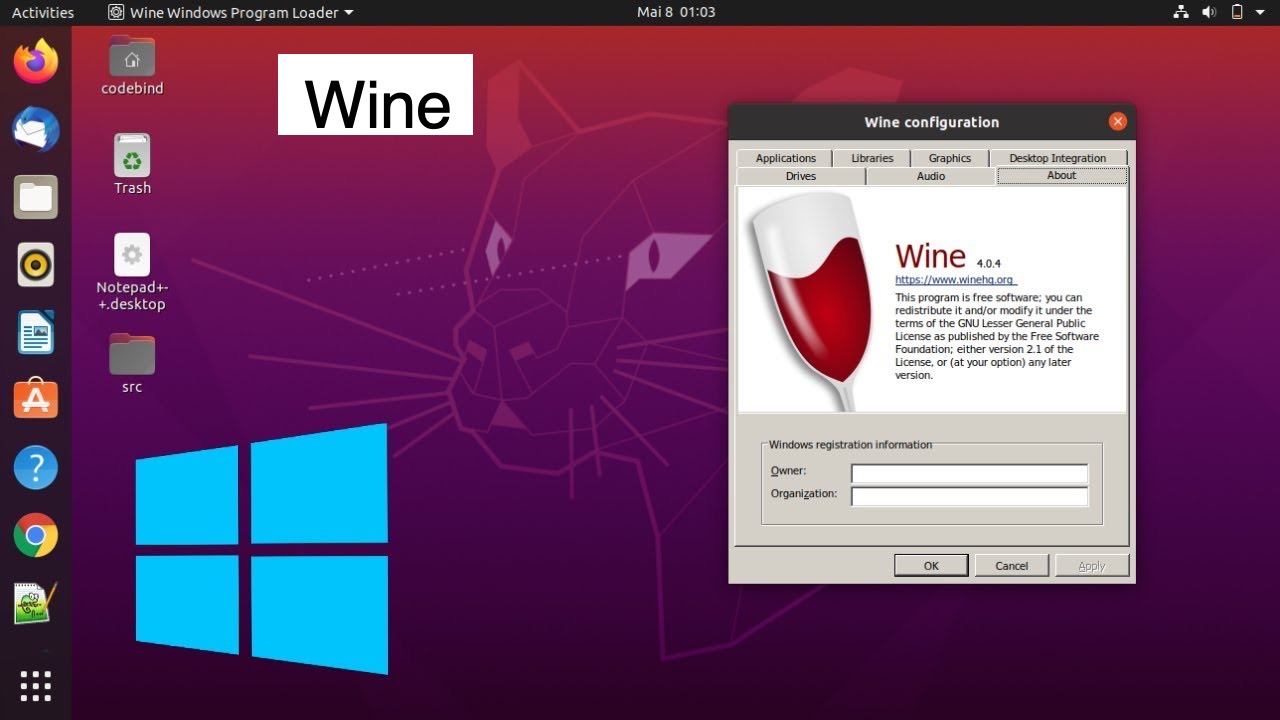
- Wine (Wine Is Not an Emulator): A free, open-source compatibility layer that aims to allow Windows applications to run on Unix-like operating systems. It doesn’t emulate Windows but rather translates its API calls. It’s powerful but can be challenging to set up and configure for specific applications.
- CrossOver Mac: A commercial product built upon Wine. CrossOver makes Wine much more user-friendly by providing a graphical interface, pre-configured “bottles” (isolated environments for specific applications), and dedicated support for a wide range of popular Windows programs, including Microsoft Office, many games, and productivity tools. It simplifies the installation process significantly.
How it Works (Brief):
- Install Wine or CrossOver: Download and install your chosen software.
- Create a “Bottle” (CrossOver) or Prefix (Wine): This creates a self-contained Windows environment for your application.
- Install Windows App: Use Wine or CrossOver to install the
.exefile of your desired Windows program into the created environment. - Launch: Once installed, you can launch the Windows application directly from Wine or CrossOver’s interface, or in the case of CrossOver, often directly from your macOS Applications folder.
Boot Camp: Dual-Booting macOS and Windows (Intel Macs Only)
Boot Camp is Apple’s built-in utility that allows Intel-based Mac users to install a full, native version of Windows directly onto a separate partition of their Mac’s internal storage. This is not running Windows on macOS, but rather installing Windows alongside macOS. When you start your computer, you choose whether to boot into macOS or Windows.
What it is: Boot Camp Assistant guides you through partitioning your hard drive, downloading necessary Windows drivers for your Mac hardware, and installing Windows. Your Mac essentially becomes a Windows PC when you boot into Windows, utilizing the hardware natively without any virtualization layer.
Pros:
- Native Windows Performance: Because Windows runs directly on your Mac’s hardware, it delivers identical performance to what you’d get from a comparable PC. This is ideal for demanding applications like high-end gaming, CAD software, or intensive video editing that require maximum CPU and GPU power.
- Full Hardware Access: Windows has direct access to all your Mac’s hardware, ensuring full compatibility with drivers and peripherals.
- Ideal for Gaming: For many Mac users, Boot Camp is the go-to solution for playing Windows-exclusive games due to its superior performance.
Cons:
- Intel Macs Only: Boot Camp is not supported on Apple Silicon Macs (M1, M2, M3 chips). If you have a newer Mac, this option is unavailable.
- Requires Rebooting: To switch between macOS and Windows, you must restart your computer, which can be inconvenient if you need to frequently switch between applications on both operating systems.
- Uses Significant Disk Space: You need to dedicate a substantial portion of your Mac’s internal storage to the Windows partition (typically 60GB or more), which can be an issue for Macs with smaller SSDs.
- Requires Windows License: Like with virtual machines, you will need to purchase a valid Windows license.
Step-by-Step Overview (General):
- Check Mac Compatibility: Ensure you have an Intel-based Mac.
- Backup Your Mac: Always back up your data before partitioning your drive.
- Obtain Windows ISO: Download a Windows 10 or 11 ISO file from Microsoft.
- Use Boot Camp Assistant: Find “Boot Camp Assistant” in your Utilities folder. It will guide you through partitioning your drive and preparing the installation.
- Install Windows: The assistant will reboot your Mac into the Windows installer. Follow the on-screen prompts to install Windows on the “BOOTCAMP” partition.
- Install Boot Camp Drivers: After Windows is installed, the Boot Camp installer will automatically launch to install all necessary Apple hardware drivers for Windows, ensuring Wi-Fi, graphics, sound, and other features work correctly.
- Switch Between OS: Hold down the Option (Alt) key during startup to choose between macOS and Windows.
Cloud Desktops and Remote Access: Offloading the Work
For those who need occasional access to Windows applications without the hassle of local installation, disk space concerns, or managing a separate OS, cloud desktops and remote access services offer an elegant solution.
What it is: These services involve subscribing to a remote virtual desktop running Windows, hosted on powerful servers in data centers. You access this Windows environment over the internet from your Mac (or any device) via a client application or web browser. The Windows applications run on the remote server, and only the screen output is streamed to your Mac, while your keyboard and mouse inputs are sent back to the server.
Pros:
- No Local Windows Installation: You don’t need to install Windows on your Mac, saving disk space and avoiding local resource consumption.
- Access from Any Device: You can access your cloud desktop and its Windows applications from your Mac, iPad, iPhone, or even another computer, as long as you have an internet connection.
- Ideal for Low-Spec Macs: Since all heavy processing happens on the remote server, even an older or less powerful Mac can run demanding Windows applications smoothly.
- Managed Environment: The service provider typically handles Windows updates, security, and maintenance.
Cons:
- Requires Internet Connection: A stable and reasonably fast internet connection is essential for a smooth experience. Latency can be an issue, especially for graphics-intensive applications.
- Subscription Costs: These services typically come with recurring monthly or annual fees, which can add up over time.
- Data Security Concerns: While providers implement strong security, you are entrusting your data to a third party.
- Potential Latency: Input lag or visual artifacts can occur, particularly for real-time or fast-paced applications like gaming or detailed design work.
Examples:
- Windows 365 (Cloud PC): Microsoft’s own cloud PC service, providing a personalized Windows desktop (Windows 10 or 11) accessible from anywhere.
- Amazon WorkSpaces: A fully managed, secure desktop computing service from AWS, offering Windows or Linux desktops.
- Google Cloud Desktop (via various partners): Google Cloud Platform offers infrastructure that many third-party services use to provide remote Windows desktops.
- Shells.com, Paperspace, etc.: Various other providers offer similar virtual desktop infrastructure (VDI) services.
Considerations Before You Choose Your Method
Selecting the right method to run Windows programs on your Mac isn’t a one-size-fits-all decision. Several factors should influence your choice, aligning the solution with your specific needs, hardware, and budget.
Performance Requirements: Gaming vs. Office Apps
- High Performance (Gaming, CAD, Video Editing): If you need native-like performance for demanding applications or the latest PC games, Boot Camp (for Intel Macs) is generally the best choice due to direct hardware access. For Apple Silicon Macs, a highly optimized VM like Parallels Desktop is the next best option, though still with some overhead. Cloud desktops can also be a viable alternative if your internet connection is robust.
- Moderate Performance (Productivity Suites, Older Games): Virtual machines (Parallels, VMware) offer excellent performance for most productivity software, development tools, and less graphically intensive games.
- Low Performance (Utilities, Legacy Software): Compatibility layers like CrossOver or Wine are often sufficient for simple utilities, very old games, or applications that don’t push hardware limits.
Budget & Licensing: Windows OS, Software Licenses, VM Costs
- Free Options: VirtualBox (for VMs) and Wine (compatibility layer) are free, open-source solutions, though they might require more technical setup and potentially have less polished performance/integration.
- Paid Software: Parallels Desktop and VMware Fusion Pro are premium VM solutions that offer superior performance, features, and ease of use. CrossOver Mac is a paid, user-friendly wrapper for Wine.
- Windows OS License: All methods involving a full Windows installation (Virtual Machines, Boot Camp) require a legitimate Windows license, which is an additional cost. Compatibility layers (Wine/CrossOver) generally do not.
- Cloud Desktops: These involve ongoing subscription costs, which can vary based on the resources you provision.
Mac Hardware Compatibility: Intel vs. Apple Silicon (M-series chips)
- Intel Macs: Have the broadest range of options. Boot Camp is available, and all major VM solutions (Parallels, VMware, VirtualBox) and compatibility layers (Wine, CrossOver) work well.
- Apple Silicon Macs (M1, M2, M3):
- Boot Camp is NOT SUPPORTED. This is a critical distinction.
- Virtual Machines: Parallels Desktop and VMware Fusion have versions specifically optimized for Apple Silicon, allowing you to run the ARM version of Windows 11. Performance is remarkably good. VirtualBox’s support for Apple Silicon is still developing.
- Compatibility Layers: CrossOver has been optimized for Apple Silicon and can run many Windows games and applications by translating x86 Windows apps to ARM instructions on top of its API translation. Wine also works via Rosetta 2.
Ease of Use & Setup: Beginner-Friendly Options vs. More Technical
- Beginner-Friendly: Parallels Desktop is renowned for its straightforward setup and intuitive user interface. CrossOver Mac also simplifies the process of installing Windows apps.
- Intermediate: VMware Fusion offers a good balance of features and usability, though it might have a slightly steeper learning curve than Parallels. Boot Camp Assistant is generally easy to follow for Intel Macs.
- Technical/Advanced: Directly using Wine or VirtualBox can involve more manual configuration, troubleshooting, and potentially command-line interaction, making them better suited for users comfortable with technical details.
Disk Space & Resources: How Much Space/RAM Each Method Consumes
- Boot Camp: Requires the most dedicated disk space (60GB+ for Windows partition).
- Virtual Machines: Need substantial disk space for the Windows OS installation and applications (often 50-100GB or more) plus adequate RAM (4GB-8GB minimum recommended for the VM itself).
- Compatibility Layers: Consume the least disk space and RAM, as they only install the necessary files for the applications themselves.
- Cloud Desktops: Use virtually no local disk space or RAM, as everything runs remotely, only requiring a client app.
Carefully evaluating these factors will guide you toward the most appropriate and satisfying solution for running Windows programs on your Mac.
The Alternative: Finding Mac-Native Solutions
While the various methods for running Windows programs on a Mac are incredibly powerful, it’s essential not to overlook the simplest and often most elegant solution: finding a native macOS alternative.
Why Consider Alternatives
Mac-native applications are designed from the ground up to integrate seamlessly with macOS. This means they typically offer:
- Superior Performance: Optimized for your Mac’s hardware and operating system.
- Better User Experience: Adhering to macOS design guidelines for a consistent and intuitive interface.
- Deeper Integration: Leveraging macOS features like Quick Look, Notification Center, iCloud, and Continuity.
- Enhanced Stability and Security: Less prone to compatibility issues or system conflicts.
- No Additional Overhead: No need for virtual machines, compatibility layers, or rebooting.
In many cases, the need for a specific Windows program stems from a lack of awareness about equally capable, or even superior, macOS alternatives. Before committing to a complex setup, a quick search for a Mac equivalent can save you time, money, and system resources.
How to Find Them
- Direct Search: The most straightforward approach is to search online for “[Windows Program Name] Mac alternative” or “best [program category] software for Mac.”
- Developer Websites: Check if the developer of your desired Windows software also offers a macOS version. Many do (e.g., Microsoft Office, Adobe Creative Suite).
- App Stores: Explore the Mac App Store for a vast array of applications across various categories.
- Review Sites and Communities: Tech review websites, forums (like Reddit’s r/macapps or r/macos), and specialized blogs often compile lists of great macOS alternatives for common Windows software.
- Open Source Projects: Many powerful open-source tools have cross-platform support or direct Mac versions (e.g., GIMP for Photoshop, LibreOffice for Microsoft Office).
Examples
- Microsoft Office: While Microsoft Office for Windows is ubiquitous, a fully featured and robust Microsoft 365 for Mac suite exists, including Word, Excel, PowerPoint, Outlook, and Teams, specifically designed for macOS.
- Adobe Creative Suite: All major Adobe applications (Photoshop, Illustrator, Premiere Pro, etc.) are available as native macOS versions, often leveraging Mac-specific hardware optimizations.
- Video Players: Instead of Windows Media Player, Macs have QuickTime Player, and excellent third-party options like VLC Media Player or IINA that play almost any format.
- Note-Taking & Productivity: Windows users might use OneNote or Evernote, both of which have excellent Mac apps. Apple’s own Notes, Pages, Numbers, and Keynote are also powerful alternatives.
- File Managers: While Windows Explorer is familiar, macOS Finder is a powerful tool, supplemented by utilities like ForkLift or Commander One for advanced features.
Exploring these native alternatives should always be your first step. It often leads to a more integrated, performant, and enjoyable user experience on your Mac.

Conclusion: Empowering Your Mac for Any Software
The perception that Macs are inherently limited in their software compatibility is a notion firmly rooted in the past. Today, with the remarkable advancements in virtualization, compatibility layers, and cloud computing, your macOS machine is more versatile than ever. Whether you’re a gamer yearning for Windows-exclusive titles, a professional relying on industry-specific software, or simply someone who occasionally needs a legacy application, a robust solution exists to bridge the operating system divide.
We’ve explored a spectrum of powerful methods: the full Windows experience offered by Virtual Machines like Parallels Desktop and VMware Fusion, ideal for comprehensive software suites and development environments; the targeted efficiency of Compatibility Layers such as CrossOver, perfect for lighter applications and older games without the overhead of a full OS; the uncompromised native performance of Boot Camp for Intel Mac users, delivering true Windows power for the most demanding tasks; and the flexible, remote accessibility of Cloud Desktops, freeing your local machine from any installation burdens.
Before diving into these technical solutions, always consider the possibility of a native macOS alternative. These options often provide the most seamless and performant experience, fully leveraging your Mac’s capabilities. However, when a native solution isn’t available, remember that your Mac is a powerful and adaptable platform. By carefully weighing your performance needs, budget, hardware (especially if you have an Apple Silicon Mac), and comfort with technical setup, you can choose the method that best empowers your Mac to run virtually any Windows program, ensuring that you’re never held back by your operating system choice. Embrace the versatility, and unlock the full potential of your Mac.
aViewFromTheCave is a participant in the Amazon Services LLC Associates Program, an affiliate advertising program designed to provide a means for sites to earn advertising fees by advertising and linking to Amazon.com. Amazon, the Amazon logo, AmazonSupply, and the AmazonSupply logo are trademarks of Amazon.com, Inc. or its affiliates. As an Amazon Associate we earn affiliate commissions from qualifying purchases.