
In today’s rapidly evolving digital landscape, the ability to effectively manage and maintain your operating system is paramount. Whether you’re a tech enthusiast looking to perform a clean install, a professional needing to set up a new workstation, or someone troubleshooting persistent issues, installing Windows from a USB drive has become the go-to method. It’s a versatile, efficient, and often faster alternative to traditional methods like using DVDs. This comprehensive guide will walk you through the entire process, from preparing your USB drive to booting from it and successfully installing your chosen Windows operating system. We’ll cover the essentials, ensuring you have the knowledge and confidence to tackle this task, whether you’re a seasoned tech expert or embarking on your first OS installation.

This guide is structured to provide a clear, step-by-step approach, making the process accessible to everyone. We’ll break down each stage into manageable sections, offering practical advice and highlighting key considerations along the way. Our aim is to equip you with the skills to confidently install Windows, thereby enhancing your digital security, improving your productivity, and keeping your technology up-to-date.
Preparing Your Windows Installation Media
The foundation of a successful Windows installation from a USB drive lies in the proper preparation of your bootable media. This involves two primary components: a USB flash drive with sufficient storage and the Windows installation files themselves. The process is relatively straightforward, but attention to detail is crucial to avoid potential hiccups.
Choosing the Right USB Drive
The first step is selecting an appropriate USB flash drive. Microsoft recommends a minimum of 8GB of storage space for Windows 10 and Windows 11 installation media. However, it’s always a good idea to opt for a drive that offers a little more headroom, perhaps 16GB or even 32GB. This accounts for potential updates to the installation files or if you decide to create a multi-boot USB in the future.
Beyond storage capacity, the speed of your USB drive can also impact the installation time. A USB 3.0 or newer drive will significantly expedite the file copying and installation processes compared to an older USB 2.0 drive. While not strictly necessary, investing in a faster drive can save you considerable time, especially during the initial file transfer to the USB and the subsequent OS installation.
Before proceeding, ensure that the USB drive does not contain any critical data you need. The process of creating bootable media will format the drive, erasing everything on it. Therefore, back up any important files or documents from the USB drive to another location before you begin.
Downloading the Official Windows Media Creation Tool
The most reliable and recommended method for creating bootable Windows USB drives is by using Microsoft’s official Media Creation Tool. This tool simplifies the entire process by allowing you to download the latest version of Windows directly from Microsoft’s servers and automatically create the bootable USB for you.
You can download the Media Creation Tool for your desired Windows version from the official Microsoft website:
- For Windows 11: Search for “Download Windows 11” on Microsoft’s website.
- For Windows 10: Search for “Download Windows 10” on Microsoft’s website.
Once downloaded, run the executable file. You will be presented with license terms, which you need to accept. The tool will then prompt you to select what you want to do: “Upgrade this PC now” or “Create installation media (USB flash drive, DVD, or ISO file) for another PC.” For creating a bootable USB, choose the latter option.
The tool will then ask you to select the language, edition, and architecture (32-bit or 64-bit) of Windows you wish to install. It’s generally recommended to use the “Use the recommended options for this PC” setting if you’re creating media for the current computer. If you’re creating media for a different computer, ensure you select the correct options that match the target machine’s specifications.
The next crucial step is choosing the media type. Select “USB flash drive.” The tool will then detect the connected USB drives on your system. Ensure you select the correct USB drive from the list, as the selected drive will be formatted. After selecting your drive, the Media Creation Tool will begin downloading the Windows installation files and transferring them to your USB drive, making it bootable. This process can take a considerable amount of time, depending on your internet speed and the size of the Windows image.
Alternatively: Creating a Bootable USB with an ISO File
While the Media Creation Tool is the most straightforward method, there might be instances where you already have an ISO file of the Windows operating system. An ISO file is a disc image that contains the entire contents of an optical disc, in this case, your Windows installation. If you have an ISO file, you can use a third-party tool to create a bootable USB drive.
Popular and reliable tools for this purpose include:
- Rufus: A small, free, and open-source utility that is highly regarded for its speed and flexibility. It offers numerous options for formatting and creating bootable USB drives.
- Ventoy: A more advanced tool that allows you to create a multi-boot USB drive. You can simply copy multiple ISO files (Windows, Linux, etc.) onto the Ventoy USB, and it will present you with a boot menu to select which OS you want to boot from.
To create a bootable USB using Rufus with an ISO file:
- Download and run Rufus.
- Select your USB drive from the “Device” dropdown menu.
- Under “Boot selection,” click “SELECT” and browse to your downloaded Windows ISO file.
- Partition scheme and Target system: For modern computers (UEFI BIOS), select GPT for the Partition scheme and UEFI (non CSM) for the Target system. For older computers (Legacy BIOS), select MBR for the Partition scheme and BIOS (or UEFI-CSM) for the Target system. If you’re unsure, GPT/UEFI is the standard for most new hardware.
- File system and Cluster size: Leave these at their default settings (usually NTFS and 4096 bytes) unless you have specific reasons to change them.
- Click “START.” Rufus will warn you that all data on the USB drive will be destroyed. Confirm by clicking “OK.”
Rufus will then create the bootable USB drive. This process is generally faster than using the Media Creation Tool if you already have the ISO file.
Booting from the USB Drive
Once your bootable Windows USB drive is ready, the next step is to configure your computer to boot from it. This involves accessing your computer’s BIOS or UEFI settings and changing the boot order.
Accessing BIOS/UEFI Settings
The method for accessing BIOS/UEFI settings varies depending on your computer’s manufacturer and model. Generally, you need to press a specific key repeatedly immediately after powering on your computer, before the Windows logo appears. Common keys include:
- DEL (Delete)
- F2
- F10
- F12
- ESC (Escape)
Look for on-screen prompts during the boot process that indicate which key to press for “Setup,” “BIOS,” or “Boot Menu.” If you miss the prompt, you’ll need to restart your computer and try again. Many manufacturers provide a list of these keys on their support websites.
Configuring the Boot Order
Within the BIOS/UEFI interface, you’ll need to locate the “Boot” or “Boot Order” section. This is where you control the sequence in which your computer attempts to load the operating system. You will typically see a list of storage devices, such as your hard drive, CD/DVD drive, and USB drives.
Your goal is to move the USB drive to the top of the boot order. The interface for manipulating the boot order varies between BIOS/UEFI systems. Often, you’ll use arrow keys to navigate and keys like ‘+’ and ‘-‘ or ‘Page Up’/’Page Down’ to change the position of the listed devices. Look for instructions within the BIOS/UEFI screen itself.

Important Note for UEFI Systems: Some UEFI systems may list USB drives under a “Hard Drive” or “Removable Devices” category. You might need to expand these categories to find your USB drive. Also, ensure that “Secure Boot” is either disabled or configured to allow booting from your USB drive. For a standard Windows installation, it’s usually fine to leave Secure Boot enabled if your USB was created correctly with the Media Creation Tool or Rufus in GPT/UEFI mode.
Once you have placed the USB drive at the top of the boot order, you need to save your changes and exit the BIOS/UEFI settings. Look for an option like “Save and Exit” or “Exit Saving Changes.” This is usually accessed by pressing the F10 key. Your computer will then restart.
Initiating the Windows Setup
If you have correctly configured the boot order, your computer should now boot from the USB drive. You will see a prompt that says something like “Press any key to boot from USB…” or a similar message. Quickly press any key on your keyboard when you see this prompt. If you miss this window, your computer will attempt to boot from the next device in the boot order, and you’ll need to restart and try again.
Upon successfully booting from the USB, you will be greeted by the Windows Setup screen. This is where the actual installation process begins. The first screen will typically ask you to select your language, time and currency format, and keyboard or input method. Click “Next” to proceed.
On the next screen, you’ll see a prominent “Install now” button. Click this to begin the installation. You may be prompted to enter a product key. If you have a valid product key, enter it now. If you are reinstalling Windows on a machine that previously had an activated version, you can often click “I don’t have a product key,” and Windows will activate automatically once it connects to the internet.
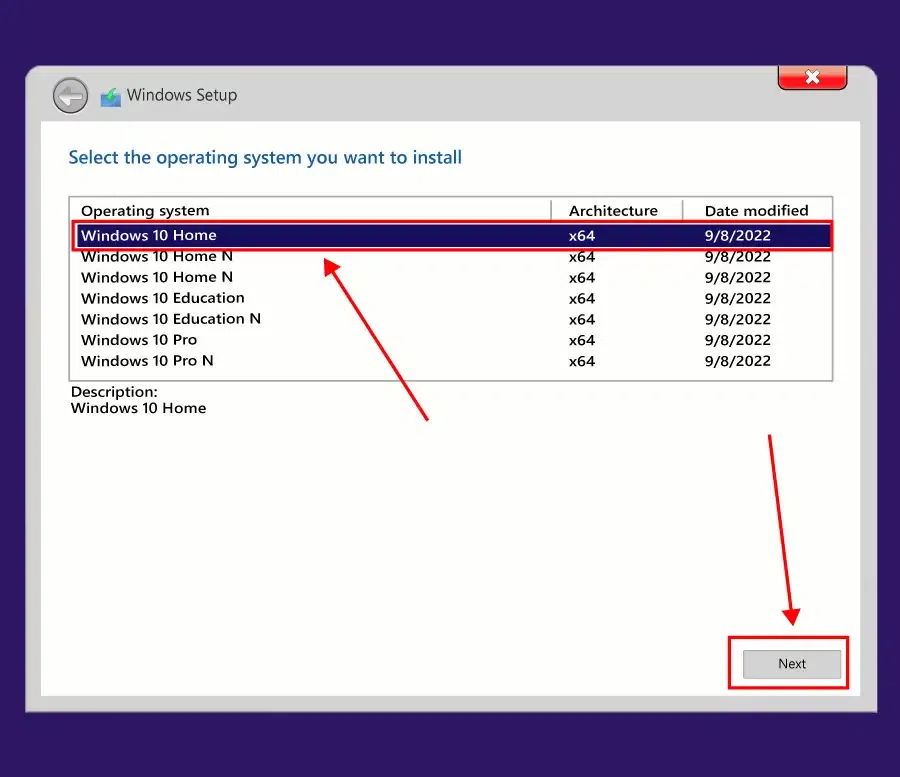
Next, you will need to select the version of Windows you wish to install (e.g., Windows 11 Home, Windows 11 Pro, Windows 10 Home, Windows 10 Pro). Make sure to choose the edition that corresponds to your product key if you have one.
Installing Windows: Step-by-Step
The Windows Setup wizard will guide you through the rest of the installation process.
Custom Installation (Advanced)
The most common scenario for a clean installation is to select “Custom: Install Windows only (advanced).” This option allows you to manage your hard drive partitions and install Windows on a specific partition, which is ideal for a fresh start.
You will then be presented with a screen showing all the drives and partitions on your computer. This is where careful attention is crucial.
- Identifying the Target Drive: Select the drive where you want to install Windows. If you’re performing a clean install on a new hard drive, it will likely appear as “Unallocated Space.” If you’re reinstalling on an existing drive, you might see multiple partitions (e.g., System Reserved, Recovery, Primary).
- Deleting Existing Partitions (for a clean install): To ensure a truly clean installation, it’s best to delete all existing partitions on the drive where you intend to install Windows. Select each partition one by one and click “Delete.” Be absolutely certain you are deleting partitions from the correct drive, as this action is irreversible. Once you’ve deleted all relevant partitions, you will have a large block of “Unallocated Space” on your chosen drive.
- Creating New Partitions: With the unallocated space selected, click “New” to create new partitions. Windows will automatically create necessary system partitions (like a System Reserved or EFI System Partition for UEFI systems) and a primary partition for the OS. You can specify the size of the primary partition if you wish, or let Windows allocate the remaining space.
- Selecting the Primary Partition: Once the partitions are created, select the primary partition where you want Windows to be installed and click “Next.”
The Installation Process
Windows will now begin copying files and installing the operating system. This process involves several restarts. Do not remove the USB drive during this time. The computer might boot back into the USB a couple of times, but it will eventually proceed to the “Getting devices ready” or “Getting ready” stage of the Windows setup.
Once the core installation is complete, the computer will restart, and this time, it should boot directly from the hard drive into the Windows Out-Of-Box Experience (OOBE).
Configuring Windows Post-Installation
After the main Windows installation is complete, you’ll go through a series of setup screens to personalize your experience. This is where you’ll set up your user account, privacy settings, and connect to a network.
Initial Setup and Personalization
The OOBE will guide you through:
- Region and Keyboard Layout: Confirm your region and keyboard layout.
- Network Connection: Connect to your Wi-Fi network or plug in an Ethernet cable. This is important for driver downloads and Windows activation.
- Account Setup: You can choose to sign in with a Microsoft account or create a local account. Using a Microsoft account offers benefits like syncing settings across devices and access to the Microsoft Store.
- PIN Setup: For faster logins, you’ll be prompted to create a PIN for your account.
- Privacy Settings: Review and adjust various privacy settings related to location, diagnostic data, tailored experiences, and advertising ID. It’s recommended to read through these carefully and choose the options that best suit your preferences and digital security concerns.
- Cortana: You may be asked if you want to set up Cortana, Microsoft’s virtual assistant.
Installing Drivers and Updates
Once you reach the Windows desktop, your system will likely be functional, but it’s crucial to ensure all hardware components are recognized and running optimally.
Driver Installation
Drivers are essential software components that allow your operating system to communicate with your hardware (graphics card, sound card, network adapter, etc.).
- Windows Update: The first and most effective step is to run Windows Update. Go to
Settings > Update & Security > Windows Updateand click “Check for updates.” Windows will automatically search for and install most necessary drivers. - Manufacturer Websites: For critical components like your graphics card or motherboard, it’s often best to download the latest drivers directly from the manufacturer’s website (e.g., NVIDIA, AMD, Intel, or your laptop manufacturer like Dell, HP, Lenovo). This ensures you have the most stable and up-to-date drivers, especially for performance-critical hardware.
- Device Manager: You can check if any drivers are missing or problematic in Device Manager. Press
Windows Key + Xand select “Device Manager.” Any devices with a yellow exclamation mark indicate a driver issue. You can right-click on these devices and select “Update driver.”
System Updates
After installing drivers, run Windows Update again to ensure you have the latest security patches and feature updates. This is vital for both stability and digital security.
Essential Software Installation
With your OS installed and drivers updated, you can now install your essential software:
- Web Browsers: Chrome, Firefox, Edge (which is now Chromium-based and excellent).
- Productivity Suites: Microsoft Office, Google Workspace, LibreOffice.
- Antivirus/Security Software: While Windows Defender is quite capable, you might prefer third-party solutions.
- Media Players: VLC Media Player.
- Utility Software: Archiving tools (7-Zip), PDF readers.
- Specific Applications: Any software relevant to your work or hobbies.
By following these steps, you’ll have successfully installed Windows OS from a USB drive, providing a clean, efficient, and up-to-date system ready for your personal and professional needs. This process not only enhances your productivity but also contributes to your overall digital security by ensuring you’re running the latest, most secure version of the operating system.
aViewFromTheCave is a participant in the Amazon Services LLC Associates Program, an affiliate advertising program designed to provide a means for sites to earn advertising fees by advertising and linking to Amazon.com. Amazon, the Amazon logo, AmazonSupply, and the AmazonSupply logo are trademarks of Amazon.com, Inc. or its affiliates. As an Amazon Associate we earn affiliate commissions from qualifying purchases.