
In the ever-evolving landscape of personal computing, the lines between operating systems often blur, driven by user needs for specific software or a desire to leverage the best of both worlds. macOS, renowned for its elegant design, robust security, and intuitive user experience, has long been a favorite among creatives, developers, and everyday users alike. However, the vast ecosystem of Windows-exclusive applications – ranging from specialized engineering software and legacy business tools to certain gaming titles – can sometimes pose a challenge for Mac users. The good news is that owning a Mac doesn’t mean you’re locked out of the Windows software universe.

This comprehensive guide delves into the various effective methods available for installing and running Windows applications on your Mac. Whether you’re a seasoned tech enthusiast or a casual user looking to bridge the software gap, we’ll explore the possibilities, weigh the pros and cons, and equip you with the knowledge to make an informed decision, ultimately enhancing your productivity and expanding your computing horizons. From full-fledged virtualized environments to clever compatibility layers and cloud-based solutions, running Windows apps on your Mac is not just possible, but often surprisingly seamless.
Why Run Windows Apps on Your Mac? Unlocking Cross-Platform Potential
The decision to run Windows applications on a Mac often stems from a combination of necessity, productivity, and convenience. While macOS boasts an impressive array of native applications and powerful alternatives, there are legitimate reasons why users might seek to bridge this software divide. Understanding these motivations helps in appreciating the value of the solutions we’re about to explore.
Bridging the Software Gap
Perhaps the most common reason is the existence of exclusive Windows software. Many industries, particularly in engineering, architecture, finance, and specialized scientific research, rely heavily on proprietary applications that are only developed for Windows. For professionals in these fields, switching from a Mac to a Windows PC might not be an option due to personal preference, existing hardware, or the macOS ecosystem’s advantages for other tasks. Instead, running these crucial Windows-only tools on their Mac becomes a vital workaround, enabling them to complete their work without compromise.
Furthermore, there are instances where specific versions of software, even if available on both platforms, perform better or offer more complete feature sets on Windows. This can also apply to certain demanding video games, which often receive primary development on Windows, leading to better optimization and support. Legacy applications, particularly those from older businesses or educational institutions that haven’t updated their software, also fall into this category. Macs are powerful machines, and users want to leverage that power for all their software needs, not just those native to macOS.
Enhancing Productivity and Workflow
Integrating Windows applications into a macOS workflow can significantly enhance productivity. Imagine a scenario where a user prefers macOS for its user interface and development environment but needs to access an older accounting package or a niche data analysis tool that only runs on Windows. Rather than maintaining two separate physical machines or constantly switching between computers, running the Windows app directly on the Mac streamlines the process. This avoids the disruption of transferring files, reconnecting peripherals, and adjusting to a different operating system, saving valuable time and effort.
For individuals making the transition from a long history with Windows to a new Mac, the ability to run familiar applications provides a comfortable bridge. It allows them to gradually adapt to macOS while still having access to their essential tools, easing the learning curve and preventing a complete overhaul of their digital life overnight. Students, educators, and small business owners often find themselves in situations where specific software is mandated or simply more convenient on Windows, and the flexibility of running it on a Mac allows them to meet these requirements without sacrificing their preferred computing environment. Ultimately, the goal is to create a seamless, efficient, and versatile computing experience that caters to all software demands, irrespective of the underlying operating system.
Top Methods for Running Windows Applications on macOS
Over the years, several ingenious solutions have emerged to address the challenge of running Windows apps on a Mac. Each method has its unique characteristics, trade-offs, and ideal use cases. Understanding these approaches is key to selecting the one that best fits your specific needs, whether you prioritize performance, cost, or ease of use.
Virtual Machines: The Full Windows Experience
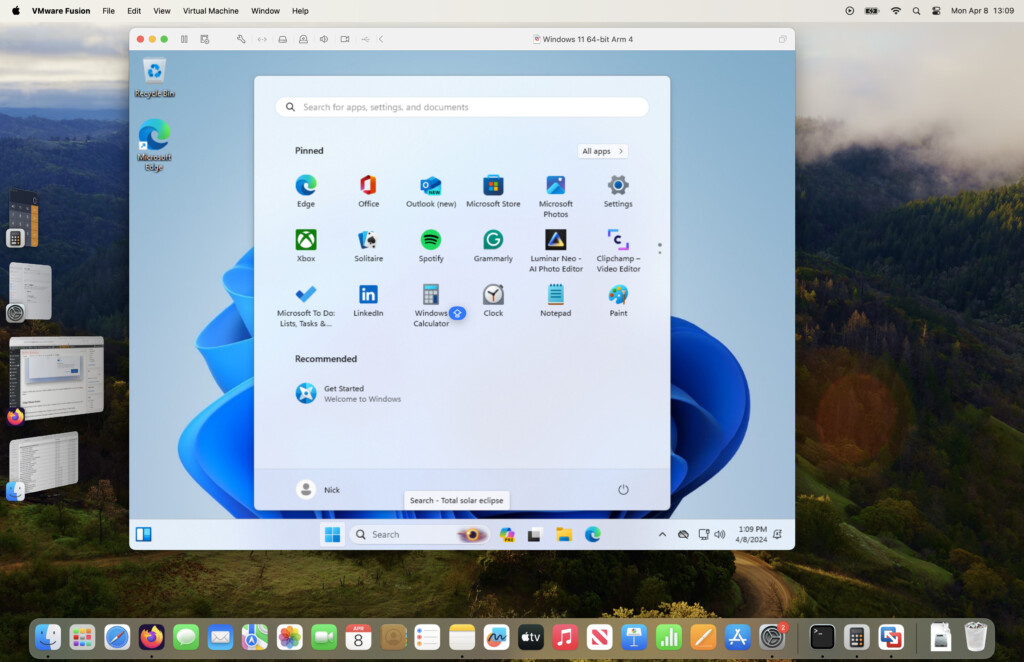
Virtualization is arguably the most popular and robust method for running Windows on a Mac. A virtual machine (VM) essentially creates a “computer within a computer.” It allows you to install a full version of the Windows operating system (or any other OS) as a guest OS on your macOS host system. This means you get a complete, isolated Windows environment, capable of running virtually any Windows application, just as if it were installed on a dedicated Windows PC.
Parallels Desktop: The Premium Choice
Parallels Desktop is widely regarded as the most user-friendly and highly optimized commercial virtualization software for Mac. It offers exceptional performance, particularly for gaming and graphically intensive applications, and boasts tight integration with macOS. Features like Coherence mode allow Windows applications to run seamlessly alongside macOS apps, appearing as native Mac applications without showing the Windows desktop. Drag-and-drop functionality, shared clipboards, and shared folders between macOS and Windows further enhance the integrated experience. While it comes with a subscription or one-time purchase cost, its ease of use, performance, and feature set often justify the investment for demanding users.
VMware Fusion: Robust and Reliable
VMware Fusion is another professional-grade virtualization solution, often preferred by IT professionals and developers due to its strong networking features, robust stability, and integration with the broader VMware ecosystem. It offers excellent performance and compatibility, although some users find its user interface slightly less intuitive than Parallels. Fusion also supports features like snapshots, which allow you to save the state of your VM at any point and revert to it later – invaluable for testing software or recovering from issues. Like Parallels, it’s a paid solution, offering various editions for different user needs.
VirtualBox: The Free Open-Source Option
For those on a budget or who only need occasional access to Windows applications, Oracle’s VirtualBox is an excellent free and open-source alternative. While it may not offer the same level of performance optimization or seamless integration as its commercial counterparts, VirtualBox is highly capable of running a full Windows OS and most applications. It provides essential features like shared folders, USB device support, and snapshots. Setting it up might require a bit more technical know-how, but the extensive community support and zero cost make it an attractive option for many users.
Boot Camp: Native Performance (Intel Macs Only)
Boot Camp is Apple’s built-in utility that allows Intel-based Macs to install and run a full, native version of Windows as a separate operating system. Unlike virtualization, where Windows runs on top of macOS, Boot Camp creates a dual-boot setup. This means you choose to boot into either macOS or Windows when you start your computer.
The primary advantage of Boot Camp is native performance. When running Windows via Boot Camp, the operating system has direct access to all of your Mac’s hardware resources, including the CPU, GPU, and RAM, without the overhead of a hypervisor. This makes it the ideal choice for demanding applications like high-end gaming, CAD software, or video editing suites that require maximum performance. However, there are significant limitations: Boot Camp is only available on Intel-based Macs and is not supported on newer Apple Silicon (M1, M2, M3) Macs due to architectural differences. Additionally, switching between macOS and Windows requires restarting your computer, which can interrupt workflow.
Compatibility Layers: Running Apps Without Windows OS
Compatibility layers offer a fascinating alternative by allowing you to run some Windows applications without installing a full copy of Windows. These tools translate Windows API calls into macOS API calls on the fly, effectively “tricking” the application into thinking it’s running on Windows.
Wine: The Open-Source Foundation
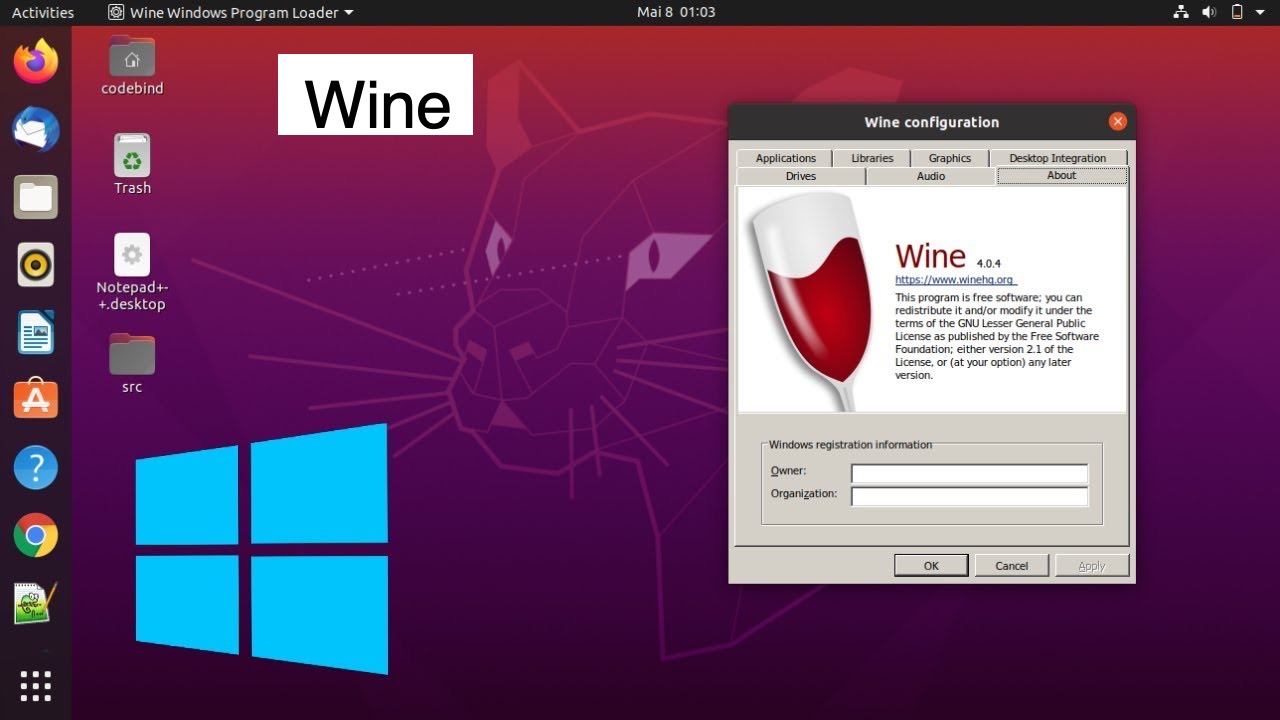
Wine (Wine Is Not an Emulator) is the original open-source compatibility layer project. It’s a complex piece of software that provides a Windows compatibility layer to UNIX-like operating systems. While highly powerful, using raw Wine can be challenging for average users, often requiring command-line interaction and extensive configuration for specific applications. Its strength lies in its ability to run many older or less demanding Windows programs directly on macOS, often with surprisingly good performance, as there’s no virtualized OS overhead.
Crossover: User-Friendly Wine Implementation
Crossover by CodeWeavers is a commercial product built upon the open-source Wine project, designed to make Wine accessible and user-friendly. It provides a graphical interface, pre-configured “bottles” for popular applications (isolated environments for each app), and dedicated technical support. Crossover streamlines the process of installing and running many Windows applications, especially productivity software, utility tools, and some games, without needing a Windows license. It’s an excellent choice for users who want the benefits of a compatibility layer without the complexity of managing Wine manually, offering a good balance between performance and convenience.
Cloud-Based Windows Solutions: Access Anywhere
A more recent and increasingly popular method involves accessing a Windows environment hosted in the cloud. These services provide you with a remote Windows desktop that you can access from your Mac (or any other device) via an internet connection.
Services like Windows 365, Amazon WorkSpaces, Shadow PC, or even setting up your own remote desktop connection to a Windows server offer incredible flexibility. The actual processing power comes from the cloud server, meaning your Mac only needs to handle the display and input. This is particularly advantageous for users with older or less powerful Macs (including Apple Silicon Macs, which face fewer limitations here), as the heavy lifting is done elsewhere. It also provides platform independence and the ability to access your Windows environment from multiple devices. However, reliable internet connectivity is essential, and costs can accumulate over time through subscription fees or data usage.
Choosing the Right Method: Factors to Consider
With multiple viable options at your disposal, selecting the best method for running Windows applications on your Mac requires careful consideration of several factors. Your choice will depend heavily on your specific needs, the type of applications you intend to run, and your hardware capabilities.
Performance Requirements and Hardware Compatibility
The demand for performance is perhaps the most critical factor. If you need to run high-performance applications like intensive video games, CAD software, or professional video editing suites, then Boot Camp (for Intel Macs) or Parallels Desktop/VMware Fusion (with ample RAM and CPU allocated) are your best bets. Boot Camp offers native speed, leveraging your Mac’s hardware without overhead. Virtual machines introduce some overhead, but modern Macs and optimized software like Parallels can still deliver excellent performance. For Apple Silicon Macs, virtualization solutions like Parallels Desktop and VMware Fusion are the primary options for running ARM versions of Windows, offering impressive performance for most tasks. Compatibility layers like Crossover are efficient for many applications but may struggle with highly graphically intensive or niche software. Cloud-based solutions shift the performance burden to the server, making them suitable for any Mac as long as your internet connection is robust.
Hardware compatibility is also crucial. As mentioned, Boot Camp is strictly for Intel-based Macs. Apple Silicon Macs (M1, M2, M3, etc.) require virtualization software that supports Windows on ARM. While these VMs can run many x86 (Intel-designed) Windows applications through emulation within Windows on ARM, performance for certain x86 apps can vary. Compatibility layers and cloud solutions are largely hardware agnostic on the Mac side, as they don’t require a full Windows OS installation directly on your local hardware.
Cost, Ease of Use, and Technical Expertise
Your budget and comfort level with technology will significantly influence your decision.
- Cost:
- VirtualBox and Wine: Free. Requires a Windows license if you’re installing a full OS.
- Parallels Desktop, VMware Fusion, Crossover: Paid commercial software. Often requires an additional Windows license for full OS installation.
- Boot Camp: Free (built into macOS). Requires a Windows license.
- Cloud Services: Subscription-based, with costs varying by usage and features.
- Ease of Use:
- Parallels Desktop: Extremely user-friendly, highly integrated with macOS, straightforward setup.
- Crossover: User-friendly for many applications, good graphical interface.
- VMware Fusion: User-friendly but sometimes less intuitive than Parallels for beginners.
- Boot Camp: Relatively straightforward setup using Apple’s assistant, but requires partition management and reboots.
- VirtualBox: Requires more manual configuration, potentially intimidating for novices.
- Wine: Highly technical, best for experienced users or specific niche applications.
- Cloud Services: Setup can vary; daily use is often as simple as launching a remote desktop client.
- Technical Expertise: If you prefer a “set it and forget it” solution, Parallels or Crossover are excellent. If you’re comfortable with more hands-on configuration or command-line tools, VirtualBox or even raw Wine might be suitable.
Application Type and Specific Needs
Consider the nature of the Windows applications you need to run:
- Office Productivity & Business Software: For applications like Microsoft Office, QuickBooks, or specific business tools that don’t have good Mac equivalents, Virtual Machines (Parallels, Fusion) or Compatibility Layers (Crossover) are generally excellent choices. Cloud-based solutions also work well here.
- Legacy Software: Older, less demanding applications often run well in Virtual Machines or through Wine/Crossover, as they don’t tax system resources heavily.
- Demanding Software (CAD, Engineering, Graphics, Gaming): For these, Boot Camp (Intel Macs) offers the best performance. On Apple Silicon, Parallels Desktop (running Windows on ARM) is the primary contender, but performance will vary depending on the x86 emulation layer within Windows on ARM.
- Niche or Highly Specific Tools: Sometimes, only a full Windows environment will do, making Virtual Machines the most reliable choice.
- Portability & Accessibility: If you need to access your Windows environment from multiple devices or locations, Cloud-based solutions are ideal.
By carefully evaluating these factors against your own requirements, you can confidently choose the most effective and efficient method for bringing Windows applications to your macOS ecosystem.
Step-by-Step Walkthroughs: Getting Started
To give you a clearer picture of how these solutions work, let’s walk through the basic steps for setting up two popular methods: a virtual machine using Parallels Desktop and a compatibility layer using Crossover.
Installing Windows via Parallels Desktop (Example Virtual Machine)
Parallels Desktop makes the process of installing Windows remarkably straightforward, even for novice users.
- Purchase and Download Parallels Desktop: Visit the Parallels website and purchase a license. Download and install the application on your Mac.
- Obtain a Windows ISO File: You’ll need an installation image for Windows. Microsoft offers official ISO downloads for Windows 10 and 11 from their website. You’ll also need a valid Windows license key.
- Launch Parallels Desktop: The first time you open Parallels, it will guide you through creating a new virtual machine.
- Create a New Virtual Machine:
- Parallels can often automatically detect a Windows ISO file if it’s in your Downloads folder or if you have an installation USB drive.
- If not, choose “Install Windows or another OS from a DVD or image file” and browse to your downloaded Windows ISO.
- Follow the prompts to enter your Windows product key (optional during installation, but required for activation).
- Choose how you want to use Windows (e.g., productivity, games, software development). This helps Parallels optimize the VM settings.
- Give your virtual machine a name and choose a location to save its files.
- Windows Installation: Parallels will then boot the virtual machine and begin the standard Windows installation process. This is identical to installing Windows on a physical PC. Follow the on-screen instructions, selecting your language, time zone, and other preferences.
- Install Parallels Tools: Once Windows is installed and running inside the VM, Parallels will prompt you to install “Parallels Tools.” This crucial software package installs drivers and utilities that enable seamless integration between macOS and your Windows VM (e.g., Coherence mode, shared folders, drag-and-drop, dynamic resolution scaling). Install these tools and restart the Windows VM when prompted.
- Start Using Windows Apps: Your Windows virtual machine is now ready! You can launch Windows apps from the Windows Start Menu within the VM, or, if using Coherence mode, launch them directly from the macOS Dock or Applications folder, making them appear almost as native Mac apps.
Running Windows Apps with Crossover (Example Compatibility Layer)
Crossover simplifies the process of using Wine to run specific Windows applications without a full Windows OS installation.
- Purchase and Download Crossover: Go to the CodeWeavers website, purchase Crossover, and download the application. Install it on your Mac.
- Launch Crossover: Open Crossover from your Applications folder.
- Choose “Install a Windows Application”: Crossover has a user-friendly interface. Click the “Install a Windows Application” button.
- Search for Your Application: Crossover maintains a large database of Windows applications. Start typing the name of the app you want to install (e.g., “Microsoft Office,” “Quicken,” “Steam”). If it’s officially supported, Crossover will guide you.
- Select Installer Source: Crossover will often offer to download the installer directly if it’s a popular free application. For commercial software, you’ll need to point Crossover to your own installer file (e.g., an
.exeor.msifile you’ve downloaded). - Create a Bottle: Crossover works by creating isolated “bottles” for each application or group of applications. A bottle is essentially a mini-Windows environment tailored to run specific software. Crossover will usually suggest creating a new bottle or using an existing one.
- Installation Process: Crossover will then run the Windows installer for your chosen application within its bottle. Follow the standard Windows installation steps as you normally would.
- Launch Your Application: Once the installation is complete, Crossover will create an icon for your Windows application in the macOS Applications folder or within the Crossover interface. You can now launch it directly, and it will run on your Mac, often feeling very much like a native macOS application.
Optimizing Performance and Troubleshooting Common Issues
While running Windows apps on a Mac offers incredible flexibility, it’s not always a plug-and-play experience. Optimizing performance and knowing how to troubleshoot common issues can significantly enhance your cross-platform workflow.
Performance Tips for Virtual Machines
Virtual machines, by their nature, share your Mac’s resources. Here’s how to get the best out of them:
- Allocate Sufficient Resources: In your VM’s settings, assign an appropriate amount of RAM and CPU cores. Don’t over-allocate (e.g., giving 12GB RAM to Windows when your Mac only has 16GB, leaving too little for macOS), but ensure critical apps have enough. For general use, 4-8GB RAM and 2-4 CPU cores are a good starting point for Windows.
- SSD is Key: Ensure both macOS and your VM files are on an SSD. The read/write speeds of SSDs drastically improve VM performance, especially during startup and heavy disk operations.
- Keep VM Software Updated: Developers constantly release updates for Parallels, VMware Fusion, and VirtualBox to improve performance, compatibility, and support for new macOS and Windows versions.
- Install Integration Tools: Always install “Parallels Tools” or “VMware Tools” within your Windows VM. These driver packages are crucial for optimal graphics performance, shared clipboard, drag-and-drop, and other seamless integration features.
- Limit Background Processes: Within Windows, disable unnecessary startup programs, services, and background apps to free up resources for the applications you actually want to run.
- Adjust Graphics Settings: For graphics-intensive apps, experiment with the virtual machine’s allocated video memory. For games, reduce in-game graphics settings just like you would on a physical Windows PC.
Addressing Compatibility Layer Challenges
Crossover and Wine are clever but not perfect. You might encounter specific challenges:
- Check Compatibility Databases: Before attempting to install an app, check CodeWeavers’ compatibility database for Crossover or WineHQ’s database for Wine. These resources provide user reports on how well specific applications run, along with any necessary tweaks.
- Missing Dependencies: Many Windows applications rely on specific system components (like .NET Framework, Visual C++ Redistributables, DirectX). Crossover often tries to install these automatically, but sometimes you might need to install them manually within the bottle.
- Graphics Issues: Some graphically demanding games or specialized software might not run perfectly or at all due to the translation layer.
- Networking Problems: Occasionally, applications requiring specific network configurations might struggle. Ensure your firewall settings (both macOS and within the Crossover bottle) are not blocking necessary connections.
- Updates Can Break Compatibility: Updates to Wine, Crossover, macOS, or the Windows application itself can sometimes introduce new bugs or break existing compatibility. If an app stops working after an update, check forums or roll back to a previous bottle state if possible.
Security Best Practices for Mixed Environments
Running Windows, even in a virtualized or compatibility layer environment, introduces potential security risks that should be managed proactively.
- Antivirus and Anti-malware: Install and maintain an antivirus solution within your Windows virtual machine. While the VM offers some isolation, malware within Windows can still cause issues, and in some rare cases, sophisticated threats could potentially escape.
- Keep Windows Updated: Ensure your Windows VM is kept up-to-date with the latest security patches from Microsoft.
- Sandbox with Snapshots: For VMs (Parallels, Fusion, VirtualBox), use snapshots before installing new software or visiting risky websites. This allows you to revert your VM to a clean state if something goes wrong.
- Firewall Configuration: Configure both macOS and Windows firewalls correctly. If you’re using shared folders, be mindful of what you’re sharing between the two environments.
- Isolate Sensitive Data: Avoid storing highly sensitive data solely within your Windows VM. Consider using macOS for critical data or cloud storage with strong encryption.
- Backup Regularly: Back up your entire Mac, including your virtual machine files, using Time Machine or other backup solutions. Losing a VM with critical data can be as detrimental as losing data on your primary OS.
By understanding these optimization techniques and potential pitfalls, you can create a more stable, efficient, and secure environment for running your essential Windows applications on your Mac, truly harnessing the power of a hybrid computing setup.
Conclusion: Embracing a Hybrid Computing Future
The journey through the various methods of installing Windows applications on a Mac reveals a landscape rich with solutions, each tailored to different needs and technical appetites. From the full-fledged power of virtual machines like Parallels Desktop and VMware Fusion, offering a seamless and integrated Windows experience, to the raw native performance of Boot Camp for Intel Mac users seeking maximum horsepower, the options are diverse. Compatibility layers like Crossover provide a clever, lightweight approach for many applications without the overhead of an entire operating system, while cloud-based Windows solutions unlock unparalleled accessibility and platform independence.
Ultimately, the goal is to enhance productivity and remove barriers, allowing users to leverage the best software regardless of its native operating system. Macs, with their robust hardware and intuitive macOS, can truly become powerhouses for a wide array of tasks when combined with the flexibility to run Windows-exclusive software. Whether you’re a creative professional needing a specific design tool, a student accessing legacy educational software, a business user relying on proprietary applications, or even a casual gamer, there’s a method outlined here that can bridge the gap.
As technology continues to evolve, particularly with the advancements in Apple Silicon and further refinements in virtualization and compatibility layers, the ability to run Windows apps on a Mac will only become more efficient and integrated. Embracing this hybrid computing future means unlocking greater versatility, ensuring that your Mac remains at the heart of your digital life, capable of handling every software demand thrown its way. With this comprehensive guide, you are now equipped to choose the right path and embark on your own journey of cross-platform productivity.
aViewFromTheCave is a participant in the Amazon Services LLC Associates Program, an affiliate advertising program designed to provide a means for sites to earn advertising fees by advertising and linking to Amazon.com. Amazon, the Amazon logo, AmazonSupply, and the AmazonSupply logo are trademarks of Amazon.com, Inc. or its affiliates. As an Amazon Associate we earn affiliate commissions from qualifying purchases.