
In the modern era of computing, portability and versatility are paramount. Whether you are a system administrator troubleshooting a fleet of machines, a developer testing software in a clean environment, or a power user who needs their desktop setup accessible on any hardware, knowing how to install Windows 10 to a USB drive is an essential technical skill.
This process generally serves two distinct purposes: creating a “bootable installation media” (to install Windows onto a computer’s hard drive) or creating a “Windows To Go” environment (running the full operating system directly from the USB drive). This guide will delve into the technical nuances of both, providing you with the insights needed to master this utility.

Prerequisites and Hardware Specifications
Before diving into the software side of things, it is critical to understand the hardware requirements. Not all USB flash drives are created equal, and the performance of your portable Windows environment depends heavily on the interface and the controller of the drive you select.
Selecting the Right USB Drive
For a standard bootable installer, a 16GB USB 2.0 drive is often sufficient. However, if your goal is to run the operating system directly from the USB (Portable Windows), you must use a USB 3.0 or 3.1 drive, preferably one with high random read/write speeds. Standard “thumb drives” often struggle with the constant data paging required by Windows 10. For the best experience, consider using an external SSD (Solid State Drive) connected via a USB-C or USB 3.1 interface. A minimum of 32GB is required, but 64GB or 128GB is recommended to allow for software installations and updates.
System Architecture and Compatibility
You must ensure that the version of Windows 10 you intend to install matches the architecture of the target machine. Most modern computers utilize 64-bit (x64) architecture, which allows for better RAM utilization and security features. Additionally, you should be aware of the difference between BIOS (Legacy) and UEFI boot modes. Modern installations almost exclusively favor UEFI with GPT (GUID Partition Table) partitioning, as it supports larger drives and faster boot times.
Creating a Bootable Installation Media via the Official Tool
Microsoft provides a streamlined utility known as the Media Creation Tool. This is the most reliable method for users who simply want to create a tool to install Windows 10 on a new or corrupted PC.
Downloading and Preparing the Media Creation Tool
To begin, navigate to the official Microsoft Windows 10 download page. The Media Creation Tool is a lightweight executable that handles the heavy lifting—it downloads the latest stable ISO file and formats the USB drive automatically.
- Launch the tool and accept the license terms.
- Select “Create installation media (USB flash drive, DVD, or ISO file) for another PC.”
- Choose your preferred language, edition (Windows 10), and architecture (64-bit).
The Technical Process of Media Creation
Once you click “Next,” the tool will ask you to select which media to use. Select “USB flash drive.” The tool will then begin downloading the Windows 10 image files. Internally, the tool is performing several complex tasks: it formats the drive using the FAT32 file system (to ensure compatibility with UEFI systems), marks the partition as active, and extracts the install.esd or install.wim files along with the bootloader.
While this method is the most straightforward, its primary limitation is that it creates an installer, not a portable operating system. To run Windows directly from the drive, we must look toward third-party software solutions.
Deploying a Portable Windows Environment (Windows To Go)
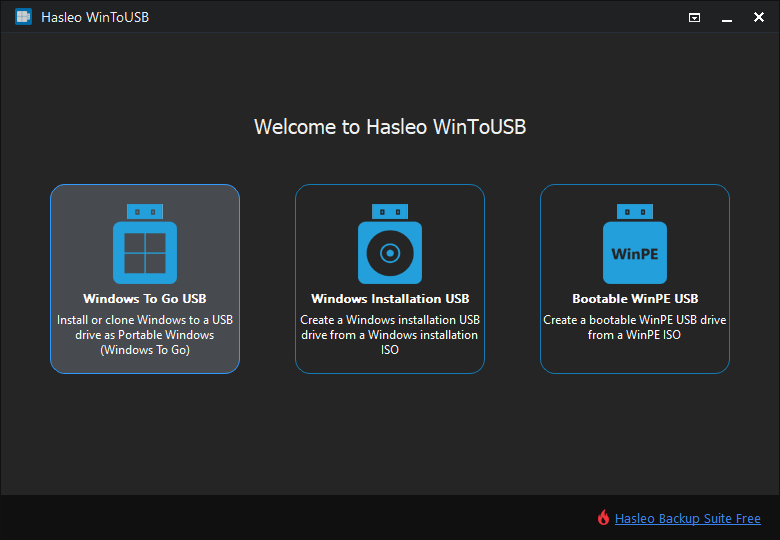
Microsoft officially deprecated the “Windows To Go” feature for Enterprise users a few years ago, but the tech community has kept the functionality alive through powerful third-party tools like Rufus and WinToUSB. This method allows you to carry your entire OS, files, and settings in your pocket.

Utilizing Rufus for Persistent Installations
Rufus is an open-source utility that offers far more control over the creation process than official Microsoft tools. To create a portable Windows 10 environment:
- Obtain a Windows 10 ISO file (you can use the Media Creation Tool to download the ISO specifically).
- Insert your high-speed USB drive and open Rufus.
- Select the ISO file under “Boot selection.”
- Under “Image option,” change the setting from “Standard Windows installation” to “Windows To Go.”
- Choose the Partition Scheme. GPT is recommended for modern systems, while MBR (Master Boot Record) is better for older hardware.
Technical Advantages of the Portable Environment
When you choose the Windows To Go option, the software creates a VHD (Virtual Hard Disk) or direct partition on the USB that behaves like a local C: drive. This setup includes a persistence layer, meaning that any changes you make—installing Chrome, saving a Word document, or changing your wallpaper—will be saved to the USB drive and will remain there when you plug the drive into a different computer. This is an invaluable tool for digital security professionals who wish to work in a sandboxed environment without touching the host machine’s internal storage.
Booting from the USB: BIOS and UEFI Configuration
Once your USB is prepared, the next technical hurdle is instructing the computer to boot from the external device rather than the internal hard drive.
Accessing the Boot Menu and BIOS Settings
Every motherboard manufacturer has a different key assigned to the boot menu. Common keys include F12, F11, F10, F8, or Esc.
- Restart your computer and tap the boot menu key repeatedly.
- Select your USB drive from the list.
- If the drive does not appear, you may need to enter the BIOS/UEFI settings (usually via the Del or F2 key) and disable “Secure Boot” or enable “Legacy Support/CSM” if you are using an older partition scheme.
Troubleshooting Common Boot Failures
A common issue during this phase is the “Security Policy” violation. Modern UEFI systems utilize Secure Boot to prevent unauthorized code from running during the boot process. If you are using a custom-built Windows image or a drive created with older tools, you might need to temporarily disable Secure Boot in the BIOS settings. Another frequent issue is the USB port itself; always use a port directly connected to the motherboard (on the back of a desktop) rather than a front-panel hub to ensure consistent power and data transfer.
Post-Installation Optimization and Digital Security
Running Windows 10 from a USB drive presents unique challenges, particularly regarding disk longevity and data security.
Optimizing Performance on Flash Storage
Flash memory has a limited number of write cycles. To extend the life of your USB drive and improve speed:
- Disable Indexing: Windows Search Indexing performs frequent writes. Right-click the C: drive on your USB, go to Properties, and uncheck “Allow files on this drive to have contents indexed.”
- Manage the Page File: If your host machine has plenty of RAM, consider reducing or disabling the page file on the USB drive to prevent unnecessary “thrashing” of the flash cells.
- Use USB 3.0+ Ports: Never plug your portable OS into a USB 2.0 port (usually black). Always look for the blue (3.0) or red/teal (3.1/3.2) ports for the bandwidth required to run an OS smoothly.
Security Best Practices for Portable Systems
Because a USB drive is easily lost or stolen, security is a major concern. If you are using a portable Windows environment, it is highly recommended to enable BitLocker Drive Encryption. This ensures that even if someone gains physical possession of the USB, they cannot access your files without the recovery key or password.
Furthermore, be cautious when plugging your USB into unknown hardware. While the USB OS is isolated from the host’s software, sophisticated hardware-level malware (like keyloggers) on a compromised host machine could theoretically capture your keystrokes. For high-security tasks, always ensure the host hardware is trusted.
Conclusion
Installing Windows 10 to a USB drive is a versatile solution that bridges the gap between static workstations and mobile productivity. Whether you utilize the official Media Creation Tool for system recovery or Rufus for a full Windows To Go experience, the technical benefits are undeniable. By selecting the right hardware, understanding partition schemes, and optimizing the OS for flash storage, you can create a powerful, portable technical toolkit that fits in the palm of your hand. In an age where digital flexibility is a necessity, mastering the deployment of Windows on external media is a hallmark of a proficient tech professional.
aViewFromTheCave is a participant in the Amazon Services LLC Associates Program, an affiliate advertising program designed to provide a means for sites to earn advertising fees by advertising and linking to Amazon.com. Amazon, the Amazon logo, AmazonSupply, and the AmazonSupply logo are trademarks of Amazon.com, Inc. or its affiliates. As an Amazon Associate we earn affiliate commissions from qualifying purchases.