
In the modern digital landscape, a robust home Wi-Fi network is no longer a luxury; it is a fundamental utility. Whether you are a remote professional relying on low-latency video conferencing, a creative leveraging AI-driven cloud tools, or a tech enthusiast building a sophisticated smart home ecosystem, the quality of your wireless connection dictates your digital productivity. Installing Wi-Fi at home involves more than simply plugging in a box; it requires a strategic understanding of networking hardware, signal physics, and digital security protocols.
This guide provides a deep dive into the technical process of installing and optimizing your home Wi-Fi, ensuring your infrastructure is prepared for the high-bandwidth demands of today and the emerging technologies of tomorrow.
Choosing the Right Hardware for Your Digital Ecosystem
Before the first cable is connected, you must select hardware that aligns with your specific technological needs. The “one-size-fits-all” approach rarely works in complex digital environments.
Understanding the Modem-Router Relationship
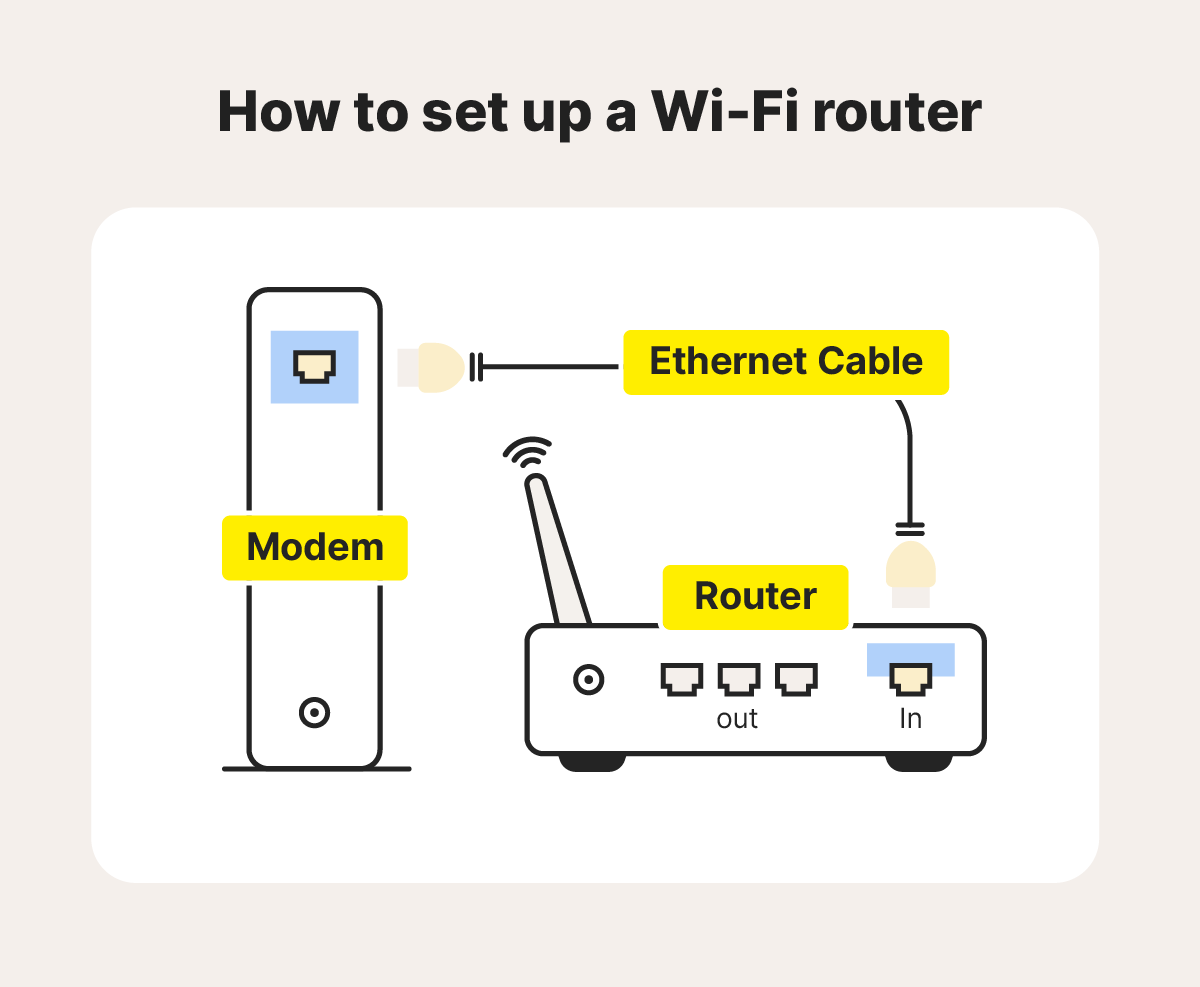
The foundation of your home network starts with the modem and the router. The modem is your gateway to the internet, translating signals from your Internet Service Provider (ISP) into a digital format. When selecting a modem, ensure it supports the latest standards, such as DOCSIS 3.1 for cable internet, which allows for gigabit speeds and improved efficiency.
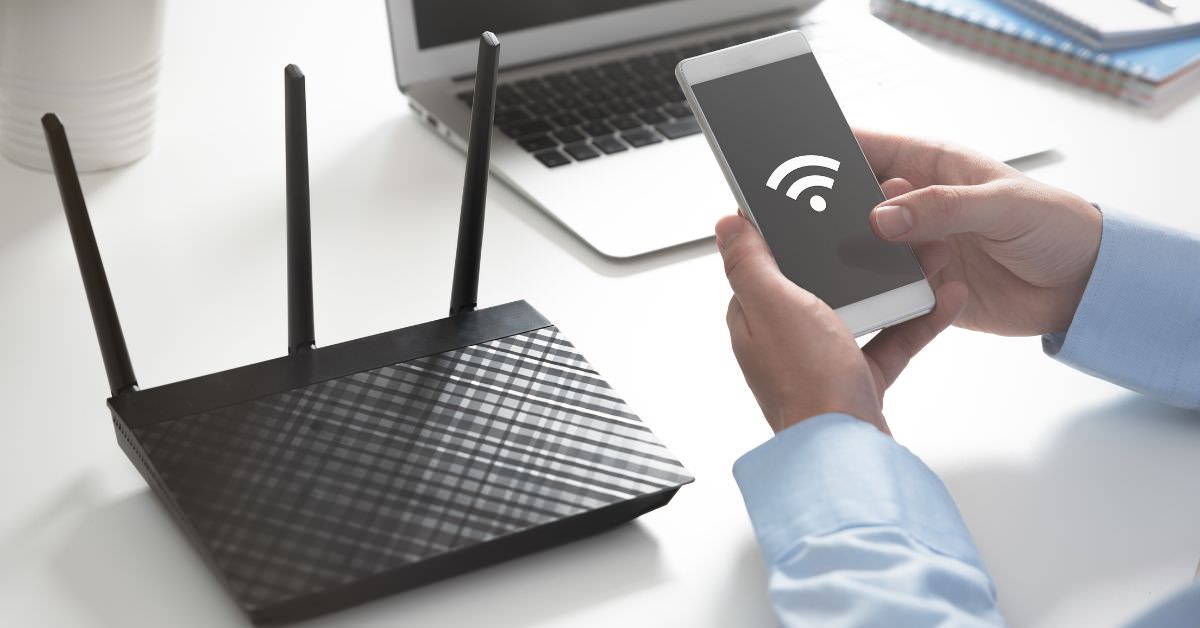
The router, conversely, is the brain of your local area network (LAN). It takes the internet connection from the modem and broadcasts it wirelessly to your devices. While many ISPs provide a “gateway” (a combined modem and router), tech-savvy users often prefer standalone units to gain better control over firmware updates, security features, and signal strength.
Wi-Fi 6, 6E, and the Evolution of Speed
When purchasing a router, the current gold standard is Wi-Fi 6 (802.11ax) or the newer Wi-Fi 6E. Unlike previous generations, Wi-Fi 6 is designed to handle a high density of devices simultaneously without significant latency. Wi-Fi 6E takes this further by opening the 6GHz band, providing a “high-speed lane” free from the interference of older gadgets and household appliances. If you are using high-end laptops or the latest smartphones, investing in a Wi-Fi 6E router is essential for future-proofing your home.
Mesh Networks vs. Traditional Routers
For larger homes or spaces with architectural interference (such as concrete walls or metal framing), a single router may not suffice. Mesh Wi-Fi systems utilize a “main” router and several “nodes” placed throughout the home. Unlike traditional range extenders—which often create a separate, weaker network—mesh systems create a single, seamless fabric of connectivity. This allows your devices to hand off signals from one node to another without dropping the connection, which is critical for mobile applications and seamless roaming.
The Step-by-Step Installation Process
Once you have secured your hardware, the physical installation and initial configuration phase begins. Proper execution here prevents a multitude of connectivity issues later.
Strategic Placement for Maximum Coverage
The physics of radio waves dictates that placement is the most significant factor in Wi-Fi performance. To maximize coverage, place your router in a central, elevated location. Avoid placing it inside cabinets, behind televisions, or near large metal objects, as these act as electromagnetic shields. Since Wi-Fi signals travel outward and downward, a shelf at eye level or higher in a central hallway is often the optimal “sweet spot.”
Physical Connections and Power-Up
- Connect the Modem: Connect your modem to the ISP’s wall outlet (coaxial, fiber, or phone line). Power it on and wait for the status lights to indicate a stable connection.
- Bridge to Router: Using a high-quality Ethernet cable—preferably Cat6 or Cat6a to support higher data transfer rates—connect the modem’s “WAN” or “Internet” port to the router’s “Internet” port.
- Power Cycle: It is a best practice to power cycle both devices. Turn them off, wait 30 seconds, power the modem first, wait for it to sync, and then power the router.
Accessing the Gateway Interface
To configure the network, you must access the router’s firmware. This is typically done by connecting a computer to the router via Ethernet and typing the router’s default IP address (commonly 192.168.1.1 or 192.168.0.1) into a web browser. Most modern manufacturers also offer dedicated mobile apps that simplify this process via Bluetooth during the initial setup.

Optimizing Network Configuration and Security
With the hardware active, the focus shifts to software optimization. A default configuration is often a security risk and rarely offers peak performance.
Setting Up SSIDs and WPA3 Encryption
Your SSID (Service Set Identifier) is the name of your Wi-Fi network. It is advisable to create two separate SSIDs if your router supports dual-band or tri-band broadcasting: one for the 2.4GHz band (slower but longer range) and one for the 5GHz/6GHz bands (faster but shorter range).
Security is paramount. You must move away from the aging WPA2 standard and implement WPA3 encryption if your devices support it. WPA3 provides more robust protection against “brute-force” attacks and ensures that even if a password is weak, the encryption layer is much harder to penetrate.
Firmware Updates and Why They Matter
Router manufacturers frequently release firmware updates to patch security vulnerabilities and improve hardware efficiency. During the setup, navigate to the “Advanced” or “System” tab and check for updates immediately. Enabling “Auto-Update” is highly recommended for maintaining a secure digital environment without manual intervention.
Quality of Service (QoS) Settings
For households with multiple users, Quality of Service (QoS) is a vital software tool. QoS allows you to prioritize bandwidth for specific applications or devices. For example, you can assign high priority to your work laptop for Zoom calls and AI data processing, ensuring that a large file download on a gaming console in another room does not cause your video to lag.
Troubleshooting and Future-Proofing Your Home Connectivity
Even the best-installed networks can encounter issues. Understanding how to diagnose and resolve these ensures long-term stability.
Identifying Dead Zones and Interference
If certain areas of your home experience slow speeds, use a Wi-Fi analyzer app to visualize signal strength. Interference often comes from neighboring networks or devices operating on the 2.4GHz frequency, such as microwaves and baby monitors. Switching your router to a “less crowded” channel—specifically channels 1, 6, or 11 for the 2.4GHz band—can significantly reduce congestion and packet loss.
Integrating IoT and Smart Home Devices Safely
The proliferation of the Internet of Things (IoT) presents a unique security challenge. Smart bulbs, thermostats, and cameras often have weaker security protocols than laptops. A professional tech setup involves creating a “Guest Network” specifically for these IoT devices. By isolating your smart home gadgets on a separate network, you ensure that if a smart plug is compromised, the attacker cannot easily traverse the network to access your primary computer or sensitive data.
Wired Backhaul for Maximum Throughput
For the ultimate tech-heavy home, consider a “wired backhaul” for your mesh system. This involves connecting the mesh nodes via Ethernet cables rather than wireless signals. This removes the “wireless tax” on the connection between nodes, allowing for the full bandwidth of your ISP to be available at every point in the house. This is particularly beneficial for 4K/8K streaming and large-scale software development environments.
Conclusion: The Value of a High-Performance Infrastructure
Installing Wi-Fi at home is an exercise in both physical placement and digital precision. By selecting high-tier hardware like Wi-Fi 6E routers, implementing advanced security protocols like WPA3, and strategically managing your network via QoS and Guest Networks, you transform a basic internet connection into a professional-grade digital hub.
As we move further into an era dominated by AI tools, remote collaboration, and high-fidelity digital media, your home network serves as the backbone of your technological life. Taking the time to install it correctly ensures that your connection remains a tool for empowerment rather than a source of frustration. In the world of technology, a stable, secure, and fast network is the foundation upon which all other digital successes are built.
aViewFromTheCave is a participant in the Amazon Services LLC Associates Program, an affiliate advertising program designed to provide a means for sites to earn advertising fees by advertising and linking to Amazon.com. Amazon, the Amazon logo, AmazonSupply, and the AmazonSupply logo are trademarks of Amazon.com, Inc. or its affiliates. As an Amazon Associate we earn affiliate commissions from qualifying purchases.