
In today’s increasingly interconnected digital landscape, privacy and security are paramount. For streaming enthusiasts, particularly those who rely on Amazon’s Fire TV Stick for their entertainment, this holds especially true. While the Firestick offers a gateway to a universe of content, it also presents potential vulnerabilities and limitations. This is where a Virtual Private Network (VPN) becomes an indispensable tool. This comprehensive guide will walk you through the process of installing a VPN on your Firestick, unlocking enhanced security, privacy, and the ability to bypass geo-restrictions, all while optimizing your streaming experience.
The convenience of the Amazon Fire TV Stick is undeniable. It transforms any television into a smart TV, providing access to popular streaming applications like Netflix, Hulu, Amazon Prime Video, and many more. However, this ease of access comes with a caveat: your online activity on the Firestick, like on any internet-connected device, can be monitored. Your Internet Service Provider (ISP) can see the websites you visit and the content you stream, and potentially even throttle your connection speeds based on your activity. Furthermore, content availability often varies significantly by geographical location, leading to frustration when your favorite shows or movies are unavailable in your region.
A VPN acts as a digital shield, encrypting your internet traffic and routing it through a server in a location of your choosing. This not only masks your IP address, making your online presence anonymous, but also allows you to appear as if you are browsing from a different country, effectively circumventing geo-blocks. For Firestick users, this translates to a more secure streaming environment, greater privacy from prying eyes, and access to a wider range of content.
The process of installing a VPN on your Firestick is surprisingly straightforward, even for those who consider themselves less tech-savvy. Amazon’s Fire OS is built on Android, which means that many Android applications, including VPN apps, can be sideloaded onto the device. While some VPN providers offer dedicated Firestick apps that can be downloaded directly from the Amazon Appstore, others require a slightly more manual installation process. We will cover both scenarios to ensure you have all the information needed to get your VPN up and running.
Why a VPN is Essential for Your Firestick
Before diving into the “how-to,” it’s crucial to understand the multifaceted benefits a VPN brings to your Firestick experience. Moving beyond mere convenience, a VPN addresses critical aspects of digital security, personal privacy, and content access.
Enhancing Digital Security and Privacy
The internet, while a powerful tool, is not without its risks. When you use your Firestick without a VPN, your internet traffic is transmitted in a relatively unprotected state. This means that your ISP can see everything you do online. They can log your browsing history, the streaming services you use, and the specific content you consume. While this data might be used for targeted advertising or network management, it also represents a significant privacy concern. In some regions, ISPs are even mandated to retain this data for extended periods.
Furthermore, when connected to public Wi-Fi networks, your Firestick becomes particularly vulnerable to malicious actors. These networks often lack robust security, making it easier for hackers to intercept your data, including login credentials and personal information. A VPN encrypts your internet traffic, rendering it unreadable to anyone attempting to snoop on your connection. This encryption creates a secure tunnel between your Firestick and the VPN server, ensuring that your online activities remain private and protected from unauthorized access.
Beyond the risk of ISP monitoring and public Wi-Fi threats, a VPN also protects you from potential cyberattacks. By masking your IP address, you become a less attractive target for hackers who often seek to exploit vulnerabilities associated with identifiable IP addresses. This added layer of security is particularly important when you consider the sensitive information that might be associated with your streaming accounts, such as payment details.
Unlocking a World of Content: Bypassing Geo-Restrictions
One of the most compelling reasons for Firestick users to adopt a VPN is the ability to bypass geographical restrictions. Many streaming services offer different libraries of content depending on the user’s location. This means that a show or movie available in the United States might be inaccessible in the United Kingdom, or vice versa.
A VPN allows you to overcome these limitations by connecting to a server in a country where the desired content is available. For instance, if you’re traveling abroad and want to access your usual streaming subscriptions from your home country, simply connect to a VPN server in your home country. Similarly, if you wish to explore the content library of another region, you can connect to a server in that specific country. This significantly expands your entertainment options, ensuring you don’t miss out on the shows and movies you want to watch.
This ability to circumvent geo-blocks also extends to sports broadcasting and live events. Many sporting events are geographically restricted, making it difficult for fans to watch their favorite teams if they are not in the designated broadcasting region. A VPN can provide access to these events by allowing you to connect to a server in a region where the broadcast is permitted.
Improving Streaming Performance and Avoiding Throttling
While not always the primary reason, a VPN can sometimes lead to improved streaming performance. ISPs sometimes engage in bandwidth throttling, which means they intentionally slow down your internet connection when they detect high-bandwidth activities like streaming. This can result in buffering, pixelation, and a generally frustrating viewing experience.
By encrypting your traffic, a VPN makes it difficult for your ISP to identify that you are streaming. This can prevent them from throttling your connection based on your activity, potentially leading to a smoother and more stable streaming experience. Additionally, if your ISP’s routing to streaming servers is inefficient, connecting to a VPN server that has a more direct or optimized route might actually improve your connection speed.
Installing a VPN on Your Firestick: Step-by-Step Guides
The process of installing a VPN on your Firestick generally involves two main approaches, depending on whether the VPN provider offers a dedicated app on the Amazon Appstore or requires a sideloading method.
Method 1: Installing a VPN App from the Amazon Appstore
This is the simplest and most recommended method, as it involves using official channels and is designed for ease of use. Many leading VPN providers recognize the popularity of the Firestick and have developed dedicated applications that are readily available on the Amazon Appstore.
-
Subscribe to a VPN Service: Before you begin, you’ll need to choose a reputable VPN provider and subscribe to their service. Look for providers that explicitly state they support Firestick and offer user-friendly apps. Popular choices include ExpressVPN, NordVPN, Surfshark, CyberGhost, and Private Internet Access (PIA). Ensure you have an active account with your chosen VPN.
-
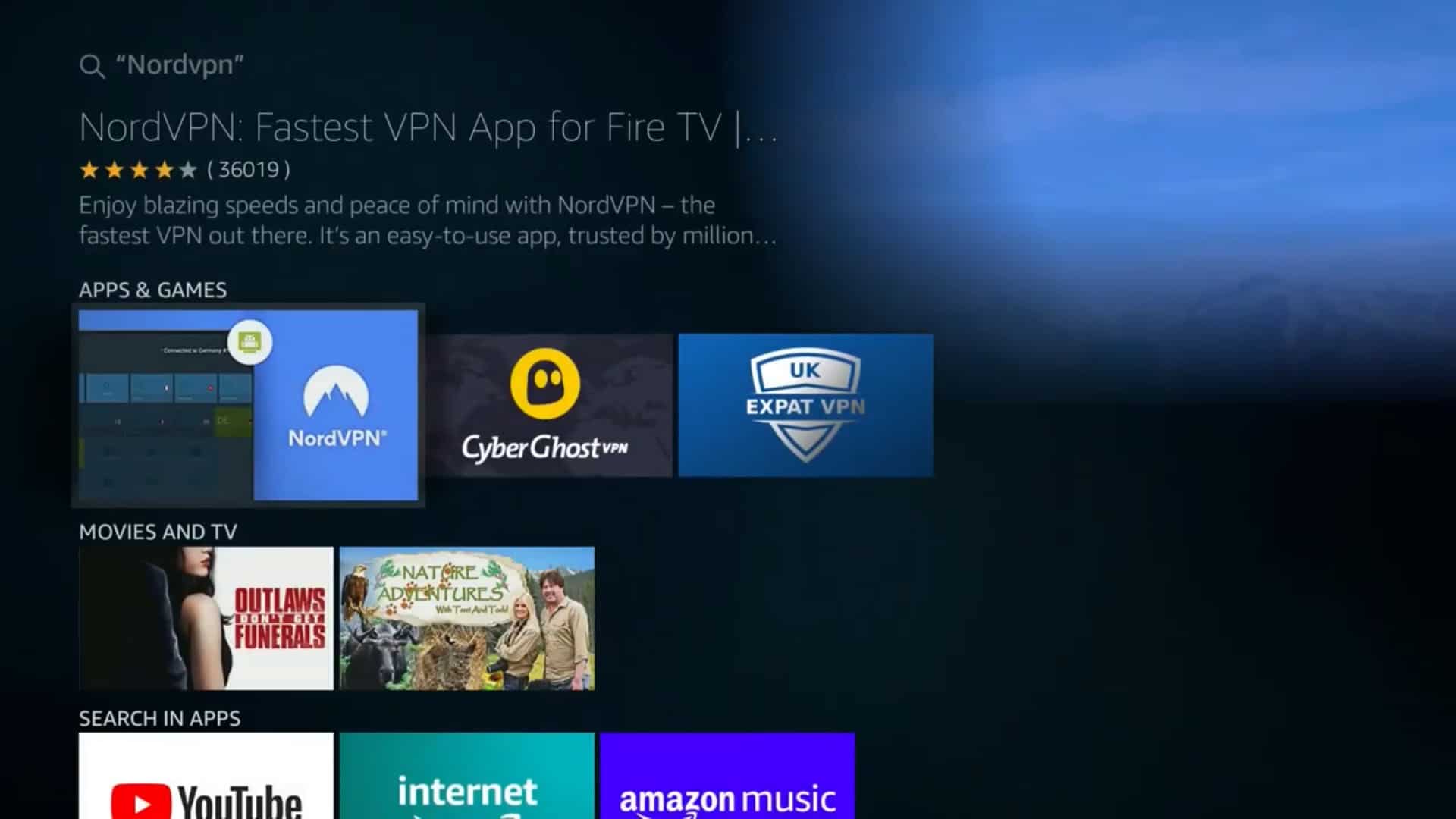
Access the Amazon Appstore on Your Firestick: Navigate to the home screen of your Firestick. You should see a search icon (magnifying glass) in the top menu bar. Select it.
-
Search for Your VPN Provider: In the search bar, type the name of your VPN provider (e.g., “ExpressVPN,” “NordVPN”). As you type, suggestions will appear. Select the correct app from the search results.
-
Download and Install the App: Once you’ve found the VPN app, select it. You will see an “Get” or “Download” button. Click on it to download and install the application onto your Firestick. The installation process is usually automatic and takes only a few moments.
-
Launch the VPN App: After the installation is complete, you will find the VPN app in your Firestick’s “Apps” section. Launch the application.
-
Log In to Your Account: The first time you open the app, you’ll be prompted to log in using your VPN service credentials (username and password) that you created when you subscribed.
-
Connect to a Server: Once logged in, you’ll be presented with the VPN app’s interface. Typically, there’s a large “Connect” button to connect to the nearest or recommended server. You can also choose to connect to a server in a specific country by browsing through the server list. Select your desired location and click “Connect.”
-
Grant Permissions: The app may ask for permission to create a VPN connection. You will need to accept this to allow the VPN to function.
-
Verify Connection: The app will indicate when you are successfully connected to the VPN. You might see a confirmation message or a change in the app’s interface. You can now proceed to stream content securely.
Method 2: Sideloading a VPN App (for Apps Not on the Appstore)
Some VPN providers, while excellent, may not have their official apps listed on the Amazon Appstore. In such cases, you can use a process called “sideloading” to install their Android application directly onto your Firestick. This requires enabling a setting on your Firestick and using a file manager app.
Enabling “Apps from Unknown Sources”
Before you can sideload any app, you need to allow your Firestick to install applications from sources other than the Amazon Appstore.
-
Go to Settings: From the Firestick home screen, navigate to the “Settings” icon (gear symbol) in the top menu bar.
-
Select “My Fire TV”: In the Settings menu, scroll down and select “My Fire TV.”
-
Choose “Developer Options”: Within “My Fire TV,” you’ll find “Developer Options.” Select it.
-
Enable “Apps from Unknown Sources”: You will see an option for “Apps from Unknown Sources.” If it’s off, select it and choose “On” to enable it. You might see a warning message; confirm that you understand the risks.
Downloading and Installing a File Manager
You’ll need a file manager app to download and install the VPN APK file. “Downloader” is a popular and free option available on the Amazon Appstore.
-
Search for “Downloader”: Go back to the Firestick home screen, select the search icon, and type “Downloader.”
-
Install Downloader: Select the Downloader app from the search results and install it.
Downloading and Installing the VPN APK
Now, you’ll use Downloader to get the VPN app’s APK file.
-
Open Downloader: Launch the Downloader app. You will likely see a browser interface within Downloader.
-
Enter the VPN APK URL: You need to find the direct download URL for your VPN provider’s Android APK file. This is usually available on the VPN provider’s website. On the Downloader app’s URL bar, carefully type the exact URL provided by your VPN service for their Android TV APK.
-
Download the APK: Once the URL is entered, click “Go.” Downloader will navigate to the URL and begin downloading the APK file.
-
Install the APK: After the download is complete, Downloader will prompt you to install the application. Follow the on-screen instructions to install the VPN app.
-
Launch and Log In: Once installed, you can launch the VPN app from your Firestick’s “Apps” section. Log in with your VPN credentials and connect to a server as you would with an app from the Appstore.
-
Disable “Apps from Unknown Sources” (Optional but Recommended): For enhanced security, it’s advisable to go back to Settings > My Fire TV > Developer Options and turn “Apps from Unknown Sources” back to “Off” once you have successfully installed your VPN.
Choosing the Right VPN for Your Firestick
With a plethora of VPN providers available, selecting the best one for your Firestick requires careful consideration. Not all VPNs are created equal, especially when it comes to performance and compatibility with streaming devices.
Key Features to Look For
When evaluating VPNs for your Firestick, prioritize the following features:
- Firestick Compatibility: This is the most crucial factor. Ensure the VPN offers either a dedicated app on the Amazon Appstore or provides a reliable APK file for sideloading.
- Speed and Performance: Streaming requires good internet speeds. Look for VPNs known for their fast servers and minimal impact on connection speeds. Read reviews and consider providers that offer protocols like WireGuard for optimal performance.
- Server Network: A vast server network across numerous countries is essential for bypassing geo-restrictions effectively. The more server locations a VPN has, the more options you have for accessing global content.
- Security and Privacy Policies: Choose a VPN with strong encryption (AES-256), a strict no-logs policy (meaning they don’t track your online activity), and features like a kill switch, which automatically disconnects your internet if the VPN connection drops.
- Ease of Use: For Firestick users, an intuitive interface is vital. The VPN app should be easy to navigate and connect to servers.
- Simultaneous Connections: If you use your VPN on multiple devices, check how many simultaneous connections the provider allows.
- Customer Support: Responsive customer support can be invaluable if you encounter any issues during setup or usage.
Top VPN Recommendations for Firestick
Based on these criteria, several VPN providers consistently rank high for Firestick users:
- ExpressVPN: Often lauded for its exceptional speeds, extensive server network, and user-friendly Firestick app available on the Amazon Appstore. It’s a premium option but generally worth the investment for its reliability.
- NordVPN: Known for its robust security features, vast server count, and a dedicated Firestick app. It offers excellent speeds and a good balance of features for both security and streaming.
- Surfshark: A budget-friendly yet powerful option that allows unlimited simultaneous connections, making it ideal for households with multiple devices. Its Firestick app is easy to use, and it offers good speeds.
- CyberGhost: Boasts a user-friendly interface, a large server network, and specific servers optimized for streaming. Its Firestick app is straightforward to install and use.
- Private Internet Access (PIA): Offers a highly customizable experience with a strong focus on privacy and security. While its Firestick app might require a bit more initial setup for advanced features, it’s a reliable choice.
Troubleshooting Common Issues
Even with a straightforward process, you might encounter occasional hiccups. Here are some common issues and their solutions:
- VPN App Not Found in Amazon Appstore: Double-check the spelling of the VPN provider’s name. If it’s still not there, you’ll need to use the sideloading method.
- “Apps from Unknown Sources” Not Visible: Ensure you are navigating correctly through the Firestick settings. If the option is still missing, you might need to update your Firestick’s software.
- Slow Streaming Speeds:
- Try connecting to a different server location.
- Choose servers closer to your physical location for potentially better speeds.
- Ensure your internet connection is stable and not the bottleneck.
- Restart your Firestick and your router.
- Check if your VPN offers different VPN protocols (e.g., WireGuard, OpenVPN UDP) and try switching between them.
- VPN Not Connecting:
- Verify your VPN login credentials are correct.
- Ensure you have a stable internet connection.
- Try a different VPN server.
- Restart the VPN app and your Firestick.
- Contact your VPN provider’s customer support for assistance.
- Geo-Restrictions Still Active:
- Clear your Firestick’s cache and cookies (though less common on Firestick apps, it’s a general troubleshooting step for streaming issues).
- Ensure you are connected to a server in the correct country.
- Some streaming services are very aggressive in blocking VPNs. Try a different server location or a different VPN provider if the issue persists.
By following these steps and understanding the benefits, you can significantly enhance your Firestick experience, enjoying your favorite content with greater security, privacy, and freedom. The investment in a quality VPN is a small price to pay for a more secure and unrestricted digital life.
aViewFromTheCave is a participant in the Amazon Services LLC Associates Program, an affiliate advertising program designed to provide a means for sites to earn advertising fees by advertising and linking to Amazon.com. Amazon, the Amazon logo, AmazonSupply, and the AmazonSupply logo are trademarks of Amazon.com, Inc. or its affiliates. As an Amazon Associate we earn affiliate commissions from qualifying purchases.