
In the dynamic landscape of online gaming, few titles have captured the global imagination quite like Valorant. Developed by Riot Games, the creators of League of Legends, Valorant has cemented its place as a premier tactical first-person shooter (FPS) that blends precise gunplay with unique agent abilities. Its accessibility as a free-to-play title, combined with a fiercely competitive esports scene and a vibrant community, makes it an attractive proposition for both seasoned gamers and newcomers alike. For those eager to dive into its intense 5v5 action, understanding the installation process is the first crucial step. This guide will walk you through everything from preparing your system to optimizing your gameplay, ensuring a smooth entry into the world of Valorant.

Beyond the mere technicalities of installation, Valorant represents a fascinating intersection of technology, brand strategy, and even potential economic opportunities. As a cutting-edge piece of software, its installation requires an understanding of system requirements and digital security. As a global brand, its success relies not just on gameplay but on a seamless user experience, starting with installation. And for many, the journey into Valorant isn’t just about playing; it’s about engaging with an ecosystem that can foster personal branding, content creation, and even online income. Let’s embark on this journey, starting with the technical groundwork.
Preparing for Battle: System Requirements and Pre-installation Checks
Before you can join the ranks of Valorant agents, it’s essential to ensure your system is ready for the challenge. A smooth installation and optimal gameplay experience hinge on meeting (or ideally, exceeding) the game’s specifications. This preparatory phase is a critical aspect of digital productivity and security, ensuring you don’t encounter unnecessary frustrations later on.
Minimum and Recommended System Specifications
Riot Games has done an excellent job of making Valorant accessible on a wide range of hardware, offering different tiers of performance based on your system. Understanding these specifications is key to managing expectations and troubleshooting potential issues.
- Operating System (OS): Valorant is exclusively for Windows.
- Minimum: Windows 7/8/10 (64-bit).
- Recommended: Windows 10/11 (64-bit).
- Note: It’s highly advisable to use the latest version of Windows 10 or 11 for optimal compatibility, security updates, and performance enhancements. Keeping your OS up-to-date is a fundamental aspect of digital security, protecting against vulnerabilities that could impact not just your gaming, but your overall system integrity.
- Processor (CPU): The brain of your computer, responsible for processing game logic.
- Minimum (30 FPS): Intel Core 2 Duo E8400 or AMD Athlon 200GE. These are older processors, suitable for basic gameplay.
- Recommended (60 FPS): Intel Core i3-4150 or AMD Ryzen 3 1200. These offer a much smoother experience.
- High-End (144+ FPS): Intel Core i5-9400F or AMD Ryzen 5 2600X. For competitive players seeking the highest frame rates.
- RAM (Memory): How much data your computer can actively work with.
- Minimum/Recommended: 4 GB RAM.
- Note: While 4GB is listed, 8GB or even 16GB is highly recommended for overall system stability and multi-tasking, especially if you plan to run other applications or stream while playing.
- Graphics Card (GPU): Responsible for rendering the visuals on your screen.
- Minimum (30 FPS): Intel HD 4000 or AMD Radeon R5 200. Integrated graphics might struggle.
- Recommended (60 FPS): NVIDIA GeForce GT 730 or AMD Radeon R7 240. Entry-level dedicated GPUs.
- High-End (144+ FPS): NVIDIA GeForce GTX 1050 Ti or AMD Radeon RX 470. For crisp visuals and high refresh rates.
- Crucial Tip: Ensure your graphics drivers are up-to-date. Outdated drivers are a common cause of performance issues and crashes. Visit NVIDIA, AMD, or Intel’s official websites to download the latest drivers for your specific card. This is a vital tech maintenance practice.
- Storage: The space required on your hard drive or SSD.
- Minimum: Approximately 30 GB of free space.
- Note: While 30 GB is the initial requirement, Valorant frequently receives updates, so having ample spare space (50-100 GB) is a good practice to avoid future storage issues. Installing on an SSD (Solid State Drive) is highly recommended for faster loading times and a snappier overall experience compared to a traditional HDD (Hard Disk Drive). This technological upgrade significantly enhances productivity by reducing waiting times.
To check your current system specifications, you can press Windows Key + R, type dxdiag, and hit Enter. This will open the DirectX Diagnostic Tool, providing detailed information about your OS, CPU, RAM, and graphics card.
Ensuring a Smooth Download Environment
Once you’ve confirmed your system is capable, a few pre-installation checks can prevent headaches during the download and setup phases.
- Stable Internet Connection: Valorant’s installer is relatively small, but the game client itself requires a substantial download. A stable, high-speed internet connection is crucial to avoid corrupted downloads or excessive wait times. Wired (Ethernet) connections are generally more reliable than Wi-Fi for large downloads and competitive online gaming.
- Sufficient Disk Space: Double-check that you have enough free disk space on the drive where you intend to install Valorant. Use Windows’ built-in Disk Cleanup tool to free up space if needed, or uninstall old, unused programs and files. This proactive approach to digital hygiene streamlines your tech environment.
- Temporarily Disable Antivirus/Firewall (with caution): While Valorant is a legitimate program, sometimes overzealous antivirus software or firewalls can interfere with game downloads or installations, flagging components as suspicious. If you encounter issues, temporarily disabling your antivirus/firewall during the download and installation might resolve it. However, immediately re-enable them afterward. This should be done with extreme caution and only if necessary, as it momentarily compromises your digital security. A better approach might be to add Valorant and Riot Games directories to your antivirus’s exclusion list.
The Valorant Download and Installation Process
With your system prepped and ready, the actual installation process is straightforward. Riot Games has streamlined this to be user-friendly, but understanding each step ensures a seamless experience.
Navigating to the Official Website and Account Creation
The first and most critical step is to download the game installer from the official Valorant website. This is paramount for your digital security, as unofficial sources may distribute compromised files containing malware.
- Open your web browser and navigate to
playvalorant.com. - Look for the “Play Free” or “Download Game” button. This is typically prominent on the homepage.
- Riot Account: If you don’t already have one, you’ll be prompted to create a Riot Account. This single account serves as your login for all Riot Games titles (League of Legends, Wild Rift, Legends of Runeterra, etc.).
- Click “Make an Account” or “Sign Up.”
- You’ll need to provide your email, date of birth, and create a strong password. Choose a password that is complex (a mix of uppercase, lowercase, numbers, and symbols) and unique to your Riot Account. This is a fundamental principle of good digital security and protects your personal gaming brand.
- Agree to the Terms of Service and Privacy Policy.
- Once your account is created, you may need to verify your email address.
- Log in: After account creation (or if you already have one), log in with your credentials.
Downloading the Installer and Running the Setup
After successfully logging in or creating your account, you’ll be directed to the download page or the download will start automatically.
- Download the Installer: Click the download button. A small executable file (e.g.,
Install VALORANT.exe) will be downloaded to your computer, usually in your “Downloads” folder. - Run the Installer: Locate the downloaded
.exefile and double-click it.- User Account Control (UAC): Windows might prompt you with a UAC window asking, “Do you want to allow this app to make changes to your device?” Click “Yes.” This is a standard security measure.
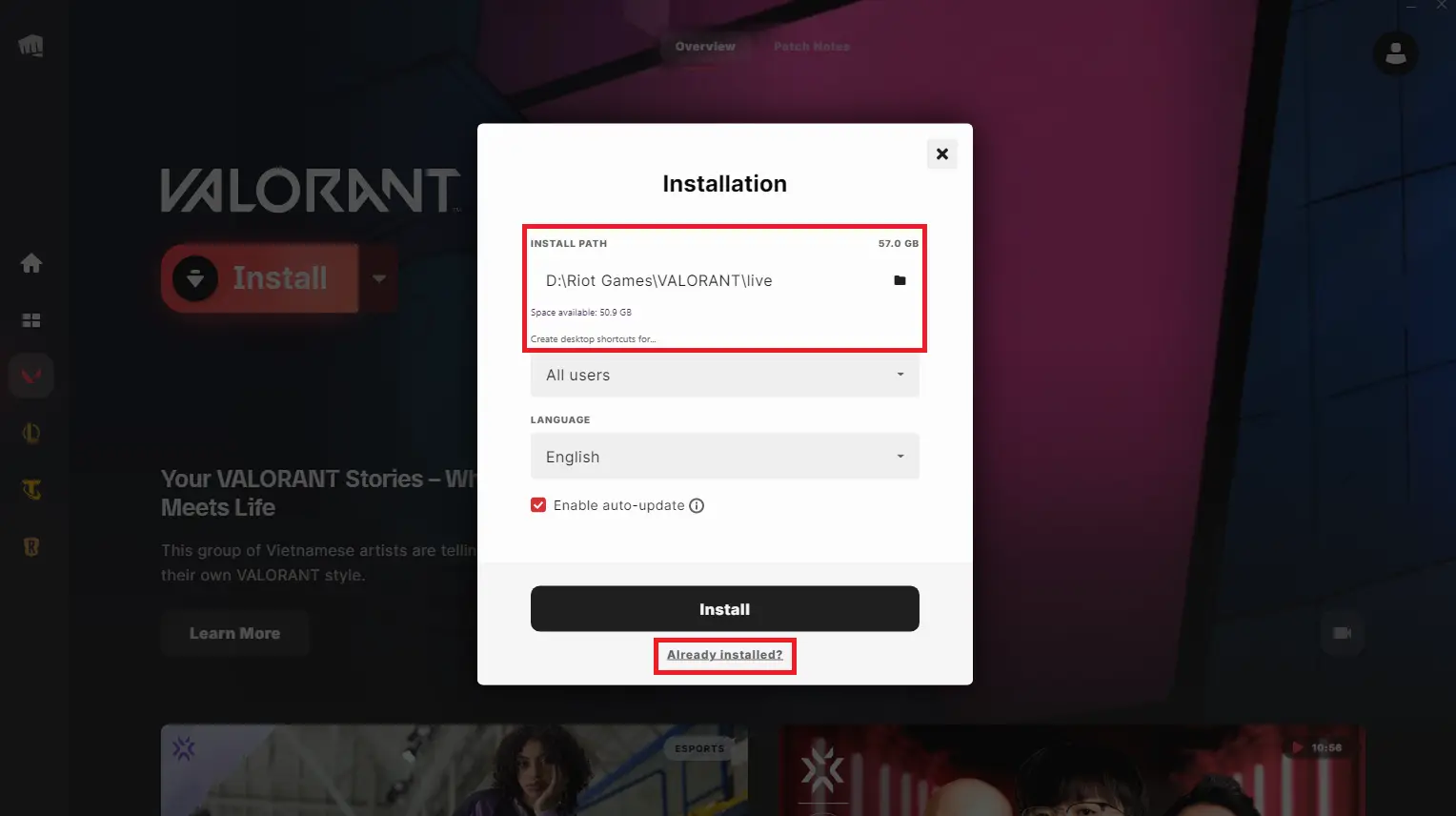
- Choose Installation Location: The Valorant installer will launch. It will present you with an option to choose the installation path. By default, it usually selects a location on your primary drive (e.g.,
C:Riot GamesValorant).- If you have an SSD, ensure Valorant is installed there for faster loading times. You can click “Advanced Options” or a similar button to change the directory.
- Once you’re satisfied with the location, click “Install.”
- Download and Install Game Files: The installer will now download the main game files. This is the largest part of the process and can take some time depending on your internet speed.
- The installer will display a progress bar. You might also see it pause or fluctuate, which is normal as it downloads, unpacks, and installs various components.
- Do not close the installer or shut down your computer during this phase. Interrupting it can lead to corrupted files and require you to restart the entire process.
The Vanguard Anti-Cheat System
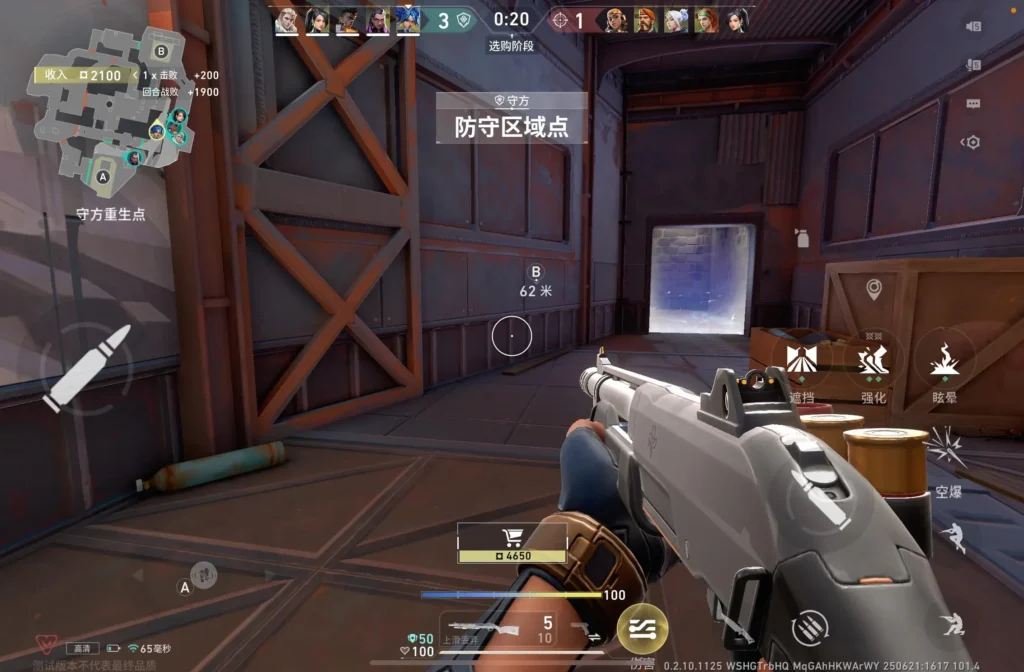
One unique and critical component of Valorant’s installation is Riot Vanguard, its proprietary anti-cheat software. Vanguard is designed to ensure fair play and maintain the competitive integrity that is central to Valorant’s brand and community.
- Vanguard Installation: As part of the Valorant installation, Vanguard will also be installed. It operates at a kernel level, meaning it has deep access to your system to detect and prevent cheating software.
- System Restart Required: Once Valorant and Vanguard are fully installed, you will almost certainly be prompted to restart your computer. This restart is mandatory for Vanguard to properly initialize and function. Without it, Valorant will not launch.
- Understanding Vanguard: While its deep system access has raised privacy concerns for some, Riot Games asserts that Vanguard is built with player privacy in mind and only targets processes related to cheating. Its presence is a testament to Riot’s commitment to protecting the integrity of its game, which is a key part of maintaining its brand reputation and fostering a healthy competitive environment. If you encounter issues launching Valorant later, Vanguard is often the first place to troubleshoot.
First Launch, Configuration, and Optimizing Your Experience
After the installation is complete and your system has restarted, you’re ready to launch Valorant for the first time. This initial setup involves logging in, updating, and configuring settings to get the best possible experience.
Initial Login and Game Updates
- Launch Valorant: You’ll find a Valorant shortcut on your desktop. Double-click it to launch the game.
- Riot Client Login: The Riot Client (a central launcher for all Riot Games) will open. Log in using your Riot Account credentials. If you chose “Keep me logged in” during account creation, you might skip this step.
- Game Updates: Even after the initial installation, Valorant frequently receives patches and updates. The client will automatically check for these.
- If updates are available, the client will download and install them. This process can take a few minutes to a significant amount of time, depending on the update size and your internet speed.
- Patience is key: Let the updates complete fully. Interrupting them can lead to corrupted game files and force a re-download.
Essential In-Game Settings for Performance and Playability
Once all updates are complete, you’ll finally enter the game. Before jumping into a match, take some time to adjust your settings. Optimal configuration enhances both your performance and overall enjoyment, directly impacting your gaming productivity.
- Video Settings: Access these via the ‘Settings’ icon (gear) in the top right, then ‘Video’ tab.
- Resolution: Match your monitor’s native resolution for the sharpest image (e.g., 1920×1080).
- Display Mode: Fullscreen is generally recommended for optimal performance and to minimize input lag.
- Frame Rate Limit:
- Always Off: If you have a high refresh rate monitor (144Hz, 240Hz) and a powerful GPU, let it run uncapped for the lowest latency.
- Limit on Battery: Useful for laptops.
- Limit FPS Always/Limit FPS in Menus: Cap your FPS if your system struggles or if you experience screen tearing without V-Sync.
- Graphics Quality: This is where you balance visuals and performance. For competitive play, lower settings are often preferred to maximize frame rate and reduce visual clutter.
- Material Quality, Texture Quality, Detail Quality: Set these to Medium or Low for better FPS.
- UI Quality: Can be left high.
- Vignette, VSync, Anti-Aliasing, Anisotropic Filtering: Generally turn VSync off (unless you have screen tearing and don’t have G-Sync/FreeSync). Lower Anti-Aliasing (or turn off) for more FPS.
- Improve Clarity, Bloom, Distortion, Shadows: Turn these off for maximum performance and a cleaner visual experience. Shadows, especially, can impact competitive visibility.
- Audio Settings: Located in the ‘Audio’ tab.
- Master Volume: Adjust to your preference.
- Voice Chat: Configure microphone and speaker settings. Ensure your preferred input/output devices are selected. Clear communication is vital in Valorant, especially for those aiming for competitive play or content creation.
- Controls (Keybinds & Sensitivity): Located in the ‘Controls’ tab.
- Mouse Sensitivity: This is highly personal. Start with a moderate setting and adjust in the practice range until it feels comfortable and precise for aiming. Low sensitivity is common among professional FPS players for better accuracy.
- Keybinds: Customize key assignments for movement, abilities, weapons, and communication to suit your playstyle. Ergonomic keybinds can significantly improve your reaction time and overall playability, boosting your personal productivity within the game.
Troubleshooting Common Installation Issues
Even with careful preparation, problems can arise. Here are some common issues and their solutions:
- Download Stuck or Slow:
- Check your internet connection stability.
- Temporarily disable VPNs, proxies, or antivirus software (with caution, as mentioned before).
- Restart the Riot Client or your computer.
- If using Wi-Fi, try moving closer to the router or switching to a wired connection.
- Vanguard Errors (Error Code 128, 1067, 1069, etc.):
- Ensure your system has restarted after Vanguard installation.
- Temporarily disable any other anti-cheat software or system monitoring tools.
- Update Windows: Ensure your operating system is fully up-to-date.
- Reinstall Vanguard: Navigate to
C:Program FilesRiot Vanguardand rununinstall.exe. Then restart your computer and relaunch Valorant to trigger a fresh Vanguard installation. - Check your antivirus/firewall: Add Vanguard to exclusion lists.
- Game Not Launching/Crashing:
- Update Graphics Drivers: This is the most common fix.
- Run as Administrator: Right-click the Valorant shortcut and select “Run as administrator.”
- Verify Game Files: In the Riot Client, sometimes there’s an option to “Repair” or “Verify” game files. If not, a full reinstallation might be necessary as a last resort.
- Close Background Applications: Resource-intensive programs can conflict with Valorant.
- Check System Resources: Ensure your RAM and CPU are not maxed out by other processes.
- Contact Riot Support: If all else fails, Riot Games has an excellent support team. Visit
support.riotgames.com, submit a ticket with detailed information about your issue, including any error codes and steps you’ve already taken.
Beyond Installation: Engaging with the Valorant Ecosystem
Successfully installing and configuring Valorant is just the beginning. The game offers a rich ecosystem that extends beyond the purely technical aspects, touching upon its brand identity, community engagement, and even avenues for personal branding and online income.
Why Valorant Stands Out: A Brand Perspective
Valorant’s meteoric rise is not solely due to its gameplay mechanics; it’s a testament to Riot Games’ meticulous brand strategy and understanding of the competitive gaming market.
- Unique Blend of Genres: Valorant skillfully merges the precise, low-TTK (time-to-kill) gunplay of games like Counter-Strike with the hero-shooter elements and diverse abilities found in Overwatch. This hybrid approach created a fresh experience that appealed to a broad audience, fostering a strong brand identity from the outset.
- Deep Lore and Character Design: Each agent in Valorant boasts a unique personality, backstory, and voice lines, adding depth to the game’s world. This commitment to narrative and character development enhances player immersion and creates strong emotional connections, a hallmark of successful branding.
- Commitment to Esports: From its inception, Valorant was built with esports in mind. Riot Games invests heavily in professional leagues, tournaments, and a robust competitive circuit. This dedication fosters a high-stakes environment that attracts top talent and viewers, solidifying Valorant’s reputation as a legitimate competitive esport. A strong esports scene is a significant driver of brand loyalty and recognition.
- Free-to-Play Model: The “free-to-play” strategy is a powerful brand-building tool, significantly lowering the barrier to entry. While the game itself is free, Riot monetizes through cosmetic items like weapon skins and agent bundles. This model allows a massive player base to form, which in turn fuels the competitive scene and content creation, reinforcing the brand’s presence in the gaming world.
Monetizing Your Passion: From Player to Creator
For many, gaming is more than just a hobby; it’s a potential pathway to online income and personal brand development. Valorant, with its massive viewership and active community, offers several avenues for players to turn their passion into a side hustle or even a career.
- Streaming on Twitch and YouTube: Talented players, charismatic personalities, or those who can provide insightful commentary can build a following by streaming their Valorant gameplay. Platforms like Twitch and YouTube offer direct monetization through subscriptions, donations, and ad revenue. A well-optimized setup (good internet, quality microphone, stable frame rate) is crucial for a professional-looking stream, linking back to efficient tech configuration.
- Content Creation: Beyond live streaming, there’s a huge demand for pre-recorded Valorant content. This includes:
- Guides and Tutorials: Helping new players understand agents, maps, or strategies.
- Highlight Reels and Montages: Showcasing impressive plays.
- Educational Videos: Deep dives into game mechanics, economy, or competitive meta.
- Lore Explanations: Exploring the backstories of agents and the Valorant universe.
- Successful content creators build a personal brand around their expertise and creativity, attracting sponsorships and partnerships.
- Esports Opportunities: For the exceptionally skilled, Valorant’s robust esports scene offers direct financial rewards through tournament prize pools, team salaries, and sponsorships. While incredibly competitive, it’s the pinnacle of monetizing skill within the game.
- Coaching: Experienced players can offer coaching services to those looking to improve their game, providing personalized feedback and strategies for a fee.
- Understanding In-Game Purchases: While Valorant is free, players can spend money on cosmetic items. For content creators, showcasing new skins or battle passes can also be a form of content, engaging their audience with the latest in-game trends. Managing these discretionary spending habits is a subtle aspect of personal finance, even within a free game.
In essence, a smooth Valorant installation isn’t just about getting the game to run; it’s about laying the groundwork for countless hours of entertainment, competitive growth, and potentially, the development of a personal brand and even financial opportunities within the thriving digital economy.
In conclusion, installing Valorant is a straightforward process when approached systematically. By understanding system requirements, utilizing official channels for download, ensuring a stable internet connection, and meticulously following the installation steps, you can seamlessly integrate this popular tactical shooter into your gaming library. Beyond the technical setup, remember that Valorant is more than just a game; it’s a technological marvel, a global brand with a loyal following, and a platform that offers creative and financial avenues for dedicated players. So, prepare your system, download the client, and get ready to deploy as a new agent, joining millions in the tactical world of Valorant!
aViewFromTheCave is a participant in the Amazon Services LLC Associates Program, an affiliate advertising program designed to provide a means for sites to earn advertising fees by advertising and linking to Amazon.com. Amazon, the Amazon logo, AmazonSupply, and the AmazonSupply logo are trademarks of Amazon.com, Inc. or its affiliates. As an Amazon Associate we earn affiliate commissions from qualifying purchases.