
The Amazon Fire Stick has revolutionized how we consume media, transforming our televisions into powerful smart hubs. While Amazon’s official app store is vast and ever-growing, it doesn’t encompass every application imaginable. For enthusiasts seeking to expand their entertainment options beyond the curated marketplace, the ability to install “unknown apps” – often referred to as sideloading – becomes a key skill. This process unlocks a world of possibilities, from specialized streaming services to productivity tools and even emulators for classic games.
This guide will demystify the process of installing unknown apps on your Fire Stick, breaking down the necessary steps and providing context within the broader landscape of technology and digital freedom. We’ll explore why you might want to sideload, the inherent risks and precautions, and the step-by-step technical execution. Understanding this process not only enhances your Fire Stick’s functionality but also provides valuable insight into the decentralized nature of software distribution in the digital age.
Understanding “Unknown Apps” and the Sideloading Process
Before we dive into the technicalities, it’s crucial to understand what “unknown apps” truly are in the context of a Fire Stick. Amazon, like most app store operators, maintains a level of control over the applications available for download. These are vetted for security and compliance with Amazon’s policies. “Unknown apps” are simply applications that haven’t gone through this official vetting process and aren’t available on the Amazon Appstore.
Why Sideload?
The motivations for sideloading are diverse and often tied to personal preferences and specific needs:
- Access to Niche Content: Many streaming apps that offer specialized content (e.g., international channels, niche sports, or independent film platforms) might not be available on the Amazon Appstore. Sideloading allows you to bypass these restrictions and access a broader range of entertainment.
- Productivity Tools and Utilities: Beyond entertainment, there are numerous utility apps that can enhance your Fire Stick’s functionality. These might include file managers, advanced media players, or even tools for remote access or system monitoring.
- Emulators and Gaming: For retro gaming enthusiasts, emulators that run classic game ROMs are often not found on official app stores due to copyright concerns. Sideloading is the primary method to install these.
- Customization and Advanced Features: Developers often release beta versions or applications with features not yet approved or integrated into mainstream app stores. Sideloading provides early access and greater customization options.
- Exploring the “Uncurated” Digital Landscape: In a broader sense, sideloading allows users to explore a less curated, more open digital ecosystem, mirroring the spirit of early internet exploration.
The Technicality of Sideloading
Sideloading, in essence, means installing an application from a source other than the designated official app store. On the Fire Stick, this involves enabling a specific setting that allows the device to accept installations from “unknown sources” and then using a file management or download application to fetch and install the desired APK (Android Package Kit) file.
Enabling Developer Options and “Apps from Unknown Sources”
The first hurdle to overcome is enabling the necessary settings on your Fire Stick that permit the installation of apps from outside the Amazon Appstore. This is done through the device’s security and privacy settings, specifically by enabling “Developer Options.”
Navigating to Developer Options
- Go to Settings: From the Fire Stick’s home screen, navigate to the “Settings” icon, usually located on the far right of the top menu bar.
- Select “My Fire TV”: Within the Settings menu, scroll down and select “My Fire TV.”
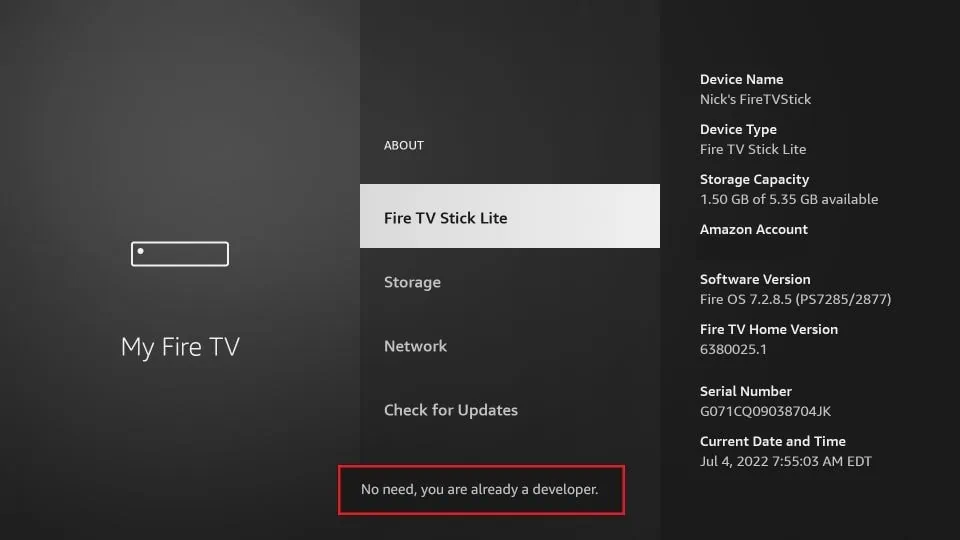
- Choose “Developer Options”: You will find “Developer Options” listed here. If you don’t see it immediately, you might need to perform a specific action to reveal it.
- If Developer Options are Hidden: If “Developer Options” is not visible, you need to expose it. Go back to “My Fire TV,” and then select “About.” Now, continuously press the select button (the center button on your remote’s directional pad) on the “Serial Number” field approximately seven times. You should see a notification confirming that “Developer options are now enabled.” Once this is done, go back to “My Fire TV,” and “Developer Options” will be available.
Enabling “Apps from Unknown Sources”
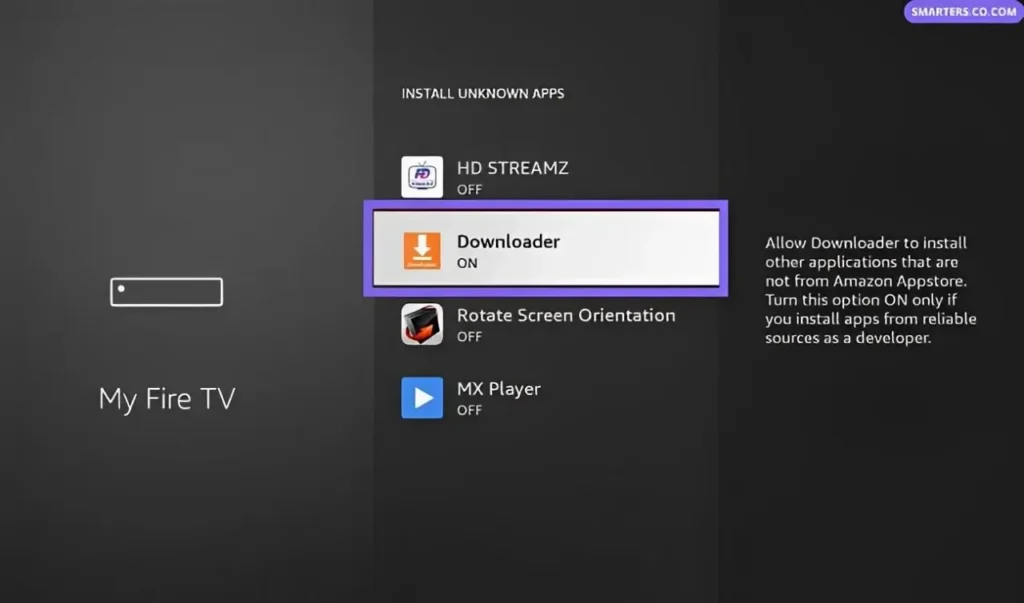
Once you’re in “Developer Options,” you’ll find a toggle labeled “Apps from Unknown Sources.”
- Select “Apps from Unknown Sources”: Highlight this option.
- Turn On: Press the select button on your remote to turn it ON.
- Acknowledge the Warning: You will be presented with a warning message explaining the potential risks of installing apps from unverified sources. This is Amazon’s way of ensuring users are aware of the security implications. Read the warning carefully and, if you understand and accept the risks, select “Turn On” to confirm.
Crucial Note on Security: It is highly recommended to disable “Apps from Unknown Sources” once you have finished sideloading any applications you intended to install. Leaving this setting enabled leaves your device more vulnerable to malware and other security threats. Re-enable it only when you intend to sideload again.
Methods for Sideloading Apps
With the necessary settings enabled, you can now proceed with installing unknown apps. There are several popular and effective methods to achieve this, each with its own advantages.
Method 1: Using the “Downloader” App (Most Common and Recommended)
The “Downloader” app is a simple yet powerful tool available on the Amazon Appstore. It acts as a web browser and file manager, allowing you to directly download and install APK files from URLs. This is the most straightforward method for many users.
- Install Downloader:
- Go to the Amazon Appstore on your Fire Stick.
- Search for “Downloader.”
- Select the “Downloader” app and install it.
- Launch Downloader: Open the Downloader app.
- Enter the URL: You will see a search bar within the Downloader app. Here, you will need to enter the direct URL of the APK file you wish to download. These URLs are typically provided by the developers of the app or reputable websites dedicated to Fire Stick app distribution. For example, if you wanted to install a file manager, you might enter a URL like
apkmirror.com/apk/some-developer/some-app/and then find the specific APK download link. - Download the APK: Once you enter the URL and press “Go,” Downloader will fetch the file.
- Install the APK: After the download is complete, Downloader will automatically prompt you to install the application. Follow the on-screen prompts to complete the installation.
- Clean Up (Optional but Recommended): After installation, Downloader will ask if you want to delete the downloaded APK file. It’s a good practice to delete it to save storage space on your Fire Stick.
Important Considerations for Downloader:
- Reliable Sources: Always obtain APK download links from trusted and reputable websites. Avoid downloading from unknown or suspicious sources, as these can contain malware.
- Direct APK Links: Downloader works best with direct links to APK files. If a link leads to a webpage with multiple download options, you might need to navigate that page to find the correct APK link.
- Typing URLs: Typing long URLs with a remote can be cumbersome. Many users find it easier to use a keyboard connected to their Fire Stick (if supported) or use a smartphone app that can control the Fire Stick and facilitate easier text input.
Method 2: Using ES File Explorer (Requires a Sideloaded App Itself)
ES File Explorer was once a popular choice for sideloading due to its robust file management capabilities, including network access and FTP support. However, its availability and reputation have fluctuated, and it might require sideloading itself before it can be used for further sideloading.
- Sideload ES File Explorer: You would typically use the Downloader app (as described above) to download and install the ES File Explorer APK.
- Enable Network/Remote Manager: Within ES File Explorer, navigate to its settings and enable features like “Remote Manager” or “FTP Server.” This allows you to transfer files to your Fire Stick from another device on your network.
- Transfer APK: Using your computer or another device, connect to the Fire Stick via FTP or network sharing and transfer the APK file of the app you want to install.
- Install via ES File Explorer: Once the APK is on your Fire Stick, use ES File Explorer to locate the file and initiate the installation process.
Note on ES File Explorer: While powerful, ES File Explorer has faced criticism regarding its advertising practices and potential for bundled unwanted software. Use with caution and ensure you are downloading a legitimate version.
Method 3: Using ADB (Android Debug Bridge) – For Advanced Users
ADB is a command-line tool that allows you to communicate with your Android device (including the Fire Stick) from a computer. This method offers the most control and is often used for more complex tasks or troubleshooting, but it requires a bit more technical setup.
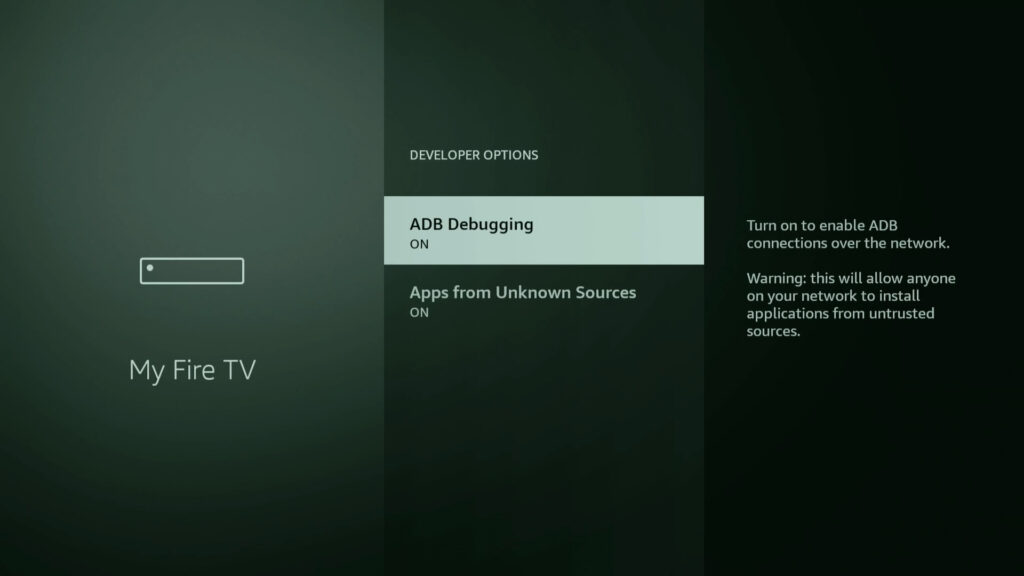
- Enable ADB Debugging:
- Go to “Settings” > “My Fire TV” > “Developer Options.”
- Turn ON both “ADB debugging” and “Apps from Unknown Sources.”
- Install ADB on Your Computer: Download and install the Android SDK Platform-Tools for your operating system (Windows, macOS, or Linux).
- Connect to Fire Stick:
- Find your Fire Stick’s IP address (Settings > My Fire TV > About > Network).
- Open a command prompt or terminal on your computer.
- Navigate to the directory where you installed ADB.
- Type
adb connect <Fire Stick IP Address>and press Enter. You may need to authorize the connection on your Fire Stick.
- Install the APK: Once connected, use the following command to install an APK file:
adb install <path_to_your_apk_file.apk>
Replace<path_to_your_apk_file.apk>with the actual path to the APK file on your computer.
When to Use ADB: This method is best for users who are comfortable with command-line interfaces, need to automate installations, or are troubleshooting complex issues. It’s not typically necessary for casual sideloading.
Navigating the Digital Landscape Responsibly
Installing unknown apps on your Fire Stick opens up a world of possibilities, but it’s essential to approach this with a degree of caution and digital responsibility. This practice intersects with concepts of digital freedom, the ownership of your devices, and the importance of robust digital security.
The Importance of Digital Security and Due Diligence
While the ability to sideload is empowering, it also introduces potential security risks. Amazon’s Appstore provides a layer of protection, as apps are reviewed before being made available. When you bypass this, you take on the responsibility of vetting the sources yourself.
- Malware and Viruses: Malicious apps can contain viruses, spyware, or ransomware that could compromise your personal data or damage your device.
- Privacy Concerns: Some apps might request excessive permissions or track your activity without your explicit consent.
- System Instability: Poorly coded or incompatible apps can cause your Fire Stick to freeze, crash, or become generally unstable.
Best Practices for Digital Security:
- Stick to Reputable Sources: Only download APKs from well-known and trusted websites that specialize in Android app repositories. Look for sites with active communities and positive reviews.
- Read Reviews and Comments: Before downloading, check for reviews or comments about the app and its source from other users.
- Review App Permissions: When an app asks for permissions during installation, read them carefully. If an app seems to be asking for more permissions than it reasonably needs for its function, it’s a red flag.
- Use a VPN: For enhanced privacy and security, especially when streaming from unofficial sources, consider using a Virtual Private Network (VPN) on your Fire Stick. This encrypts your internet traffic and masks your IP address.
- Keep Your Fire Stick Updated: Ensure your Fire Stick’s operating system is always up-to-date, as updates often include security patches.
- Disable “Apps from Unknown Sources”: As mentioned earlier, disable this setting immediately after you are done sideloading.
The Broader Context: Personal Branding, Reputation, and Digital Choices
The act of customizing your devices and seeking out content and tools beyond mainstream offerings can be seen as an extension of personal branding and the desire for a tailored digital experience. Just as individuals curate their online presence through social media and personal websites, they can also curate their entertainment and utility platforms.
Your choice of applications, the sources you trust, and how you manage your digital footprint all contribute to your overall digital reputation. By understanding the risks and rewards of sideloading, you are making informed choices that align with your personal brand and your approach to technology. This proactive engagement with your devices fosters a sense of control and ownership in an increasingly complex digital world.
In conclusion, installing unknown apps on your Fire Stick is a powerful way to unlock its full potential. By following the steps outlined, particularly using the Downloader app, and by remaining vigilant about digital security, you can expand your entertainment horizons and tailor your Fire Stick experience to your exact needs. Embrace the possibilities, but always do so with awareness and responsibility.
aViewFromTheCave is a participant in the Amazon Services LLC Associates Program, an affiliate advertising program designed to provide a means for sites to earn advertising fees by advertising and linking to Amazon.com. Amazon, the Amazon logo, AmazonSupply, and the AmazonSupply logo are trademarks of Amazon.com, Inc. or its affiliates. As an Amazon Associate we earn affiliate commissions from qualifying purchases.