
In the modern digital landscape, data is the engine that drives innovation, business strategy, and personal productivity. Whether you are a budding developer looking to build your first app, a data analyst streamlining a workflow, or an entrepreneur managing customer insights for your brand, having a reliable database management system is essential. Among the myriad of options available, SQLite3 stands out as one of the most versatile, lightweight, and powerful tools in a technologist’s arsenal.
SQLite is not just another database; it is a C-language library that implements a small, fast, self-contained, high-reliability, full-featured, SQL database engine. Unlike traditional databases like MySQL or PostgreSQL, SQLite is serverless, meaning it doesn’t require a separate server process to run. This makes it an ideal choice for local storage, mobile applications, and rapid prototyping. In this guide, we will walk you through the step-by-step process of installing SQLite3 on Windows, macOS, and Linux, while exploring how this tool fits into the broader themes of technology, branding, and financial growth.
1. Understanding the Power of SQLite in the Tech Ecosystem
Before diving into the installation steps, it is important to understand why SQLite3 is a cornerstone of modern technology. In our current era of “Big Data,” the ability to manage “Small Data” efficiently is often overlooked. SQLite bridges this gap perfectly.
Why Choose SQLite?
SQLite is unique because it is “zero-configuration.” You don’t need to “install” it in the traditional sense of setting up a background service, managing users, or configuring permissions. The database is stored in a single ordinary disk file. This simplicity is why it is used by tech giants like Google, Apple, and Microsoft. It is integrated into every Android and iOS device, every Chrome and Firefox browser, and even into most modern television sets.
SQLite for Productivity and Brand Development
From a branding perspective, consistency is key. If you are building a personal brand or a corporate identity, you likely need a way to manage content, track leads, or organize project milestones. SQLite allows you to build internal tools—such as custom CRMs or inventory trackers—without the overhead costs of cloud database subscriptions. By mastering SQLite, you enhance your technical “Brand Strategy,” positioning yourself as a developer or manager who understands how to build lean, efficient, and cost-effective systems.
2. How to Install SQLite3 on Windows
Installing SQLite on Windows requires a few manual steps because, unlike macOS or Linux, Windows does not come with SQLite pre-installed. However, the process is straightforward and provides a great introduction to managing environment variables—a vital skill for any tech enthusiast.
Step 1: Download the SQLite Binary Files
- Navigate to the official SQLite Download Page.
- Look for the section titled “Precompiled Binaries for Windows.”
- Download the ZIP file labeled sqlite-tools-win32-x86-xxxxxxx.zip. This package contains the command-line shell (sqlite3.exe) and other essential utilities.
- (Optional but recommended) Download the sqlite-dll-win32-x86-xxxxxxx.zip if you plan on doing advanced development work.
Step 2: Create a Dedicated Folder
To keep your system organized, create a new folder on your C: drive. A common practice is to create a folder named C:sqlite. Extract the contents of the downloaded ZIP files into this folder. You should see files like sqlite3.exe, sqldiff.exe, and sqlite3_analyzer.exe.
Step 3: Configure Environment Variables (The PATH)
To run SQLite from any command prompt window without navigating to the C:sqlite folder every time, you must add it to your System PATH.
- Open the Start Search, type “Edit the system environment variables,” and press Enter.
- Click the Environment Variables button.
- Under “System variables,” find the variable named Path and click Edit.
- Click New and type
C:sqlite. - Click OK on all windows to save the changes.
Step 4: Verification
Open a new Command Prompt or PowerShell window and type:
sqlite3
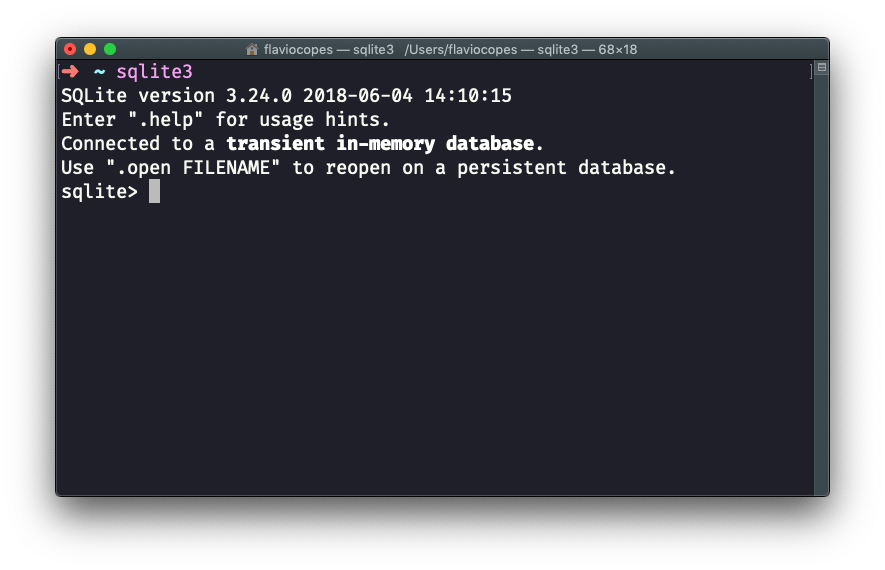
If successful, you will see the SQLite version number and a prompt that looks like sqlite>. You are now ready to start building your data structures.
3. Installing SQLite3 on macOS and Linux
For users on macOS and Linux, the installation process is typically much faster because these systems are built on Unix-like architectures that often utilize SQLite for internal processes.
macOS: The Developer’s Choice
Most versions of macOS come with SQLite3 pre-installed. To check if you have it, open the Terminal and type sqlite3 --version.
However, the pre-installed version is often outdated. To get the latest version for professional development, it is best to use Homebrew, the popular package manager for macOS.
- If you don’t have Homebrew, install it by pasting the installation script from brew.sh into your terminal.
- Once Homebrew is ready, simply run:
brew install sqlite - To ensure your system uses the Homebrew version instead of the system version, follow the instructions provided by the terminal output to update your
.zshrcor.bash_profile.
Linux: Speed and Efficiency
On Linux distributions like Ubuntu, Debian, or Linux Mint, installing SQLite is a matter of a single command.
- Open your terminal.
- Update your package list:
sudo apt update - Install SQLite3:
sudo apt install sqlite3 - Verify by typing
sqlite3 --version.
For Fedora or RedHat-based systems, use:
sudo dnf install sqlite
This ease of installation is one reason why SQLite is the “go-to” database for local development environments in the tech world. It allows developers to focus on the logic of their applications rather than the complexities of database administration.
4. Getting Started: Basic Commands and Practical Application
Now that SQLite3 is installed, how do you actually use it to drive value? Whether you are looking to create a side hustle or optimize your business finance tracking, knowing the basics is crucial.
Creating Your First Database
To create a new database file, simply type:
sqlite3 mybrand.db
This command creates a file named mybrand.db in your current directory. This file will hold all your tables, indexes, and data.
Essential SQL Commands
Once inside the SQLite prompt, you can run standard SQL queries:
- Create a Table:
CREATE TABLE products (id INTEGER PRIMARY KEY, name TEXT, price REAL); - Insert Data:
INSERT INTO products (name, price) VALUES ('Digital Marketing E-book', 29.99); - Query Data:
SELECT * FROM products; - Exit SQLite: Type
.exitor.quit.
Integrating SQLite with Programming Languages
SQLite’s true power is realized when it is integrated with languages like Python. Python comes with a built-in sqlite3 module. This allows you to automate data entry, scrape website information into a database, or perform complex financial analysis. For anyone looking to generate “Online Income” or build “Side Hustles,” learning Python + SQLite is a high-ROI skill. You can build bots that track price changes on e-commerce sites or scripts that manage your personal investment portfolio.
5. SQLite for Business: Branding, Money, and Security
In the context of the website’s main topics—Brand and Money—SQLite plays a subtle but pivotal role.
Personal Branding through Technical Literacy
In the modern job market, “Personal Branding” isn’t just about a logo; it’s about your skill set. Being able to say you can manage relational databases and perform SQL queries adds significant value to your professional identity. It signals that you are data-driven and capable of handling technical tasks that many others shy away from.
Financial Tools and Online Income
From a “Money” perspective, SQLite is a cost-saver. Small businesses often overpay for enterprise-grade database solutions when a local SQLite setup would suffice. If you are developing a “Financial Tool” for personal use or as a SaaS product, SQLite is the perfect starting point. It allows you to build a Minimum Viable Product (MVP) with zero hosting costs for the database. As your business grows and your “Corporate Identity” strengthens, you can easily migrate the data to a larger system like PostgreSQL if needed.
Digital Security
Finally, we must touch upon “Digital Security.” Because SQLite stores data in a single file, securing your data is as simple as securing that file. You can encrypt the file, back it up to a secure cloud drive, or put it on an encrypted USB stick. For personal finance records or sensitive business strategies, this level of control is invaluable.

Conclusion
Installing SQLite3 is the first step toward mastering data management in the digital age. Whether you are navigating the complexities of the Windows PATH variable or using a one-liner on Linux, the result is the same: you gain access to a world-class database engine that is both powerful and lightweight.
By integrating SQLite into your technical repertoire, you aren’t just learning a tool; you are enhancing your productivity, securing your digital assets, and building a foundation for future financial and professional success. Start small, experiment with the commands, and soon you’ll find that SQLite is the “silent partner” behind your most successful tech projects.
aViewFromTheCave is a participant in the Amazon Services LLC Associates Program, an affiliate advertising program designed to provide a means for sites to earn advertising fees by advertising and linking to Amazon.com. Amazon, the Amazon logo, AmazonSupply, and the AmazonSupply logo are trademarks of Amazon.com, Inc. or its affiliates. As an Amazon Associate we earn affiliate commissions from qualifying purchases.