
SQLite is a remarkable piece of technology. Unlike traditional client-server database systems, SQLite is an in-process library that implements a self-contained, serverless, zero-configuration, transactional SQL database engine. This means it doesn’t require a separate server process to run, making it incredibly lightweight and easy to deploy. Its popularity spans across a vast range of applications, from mobile apps and embedded systems to simple websites and even large-scale data analysis projects. If you’re embarking on a new software development project, optimizing a data-intensive application, or simply looking to understand a fundamental database technology, learning how to install and use SQLite is an invaluable skill.
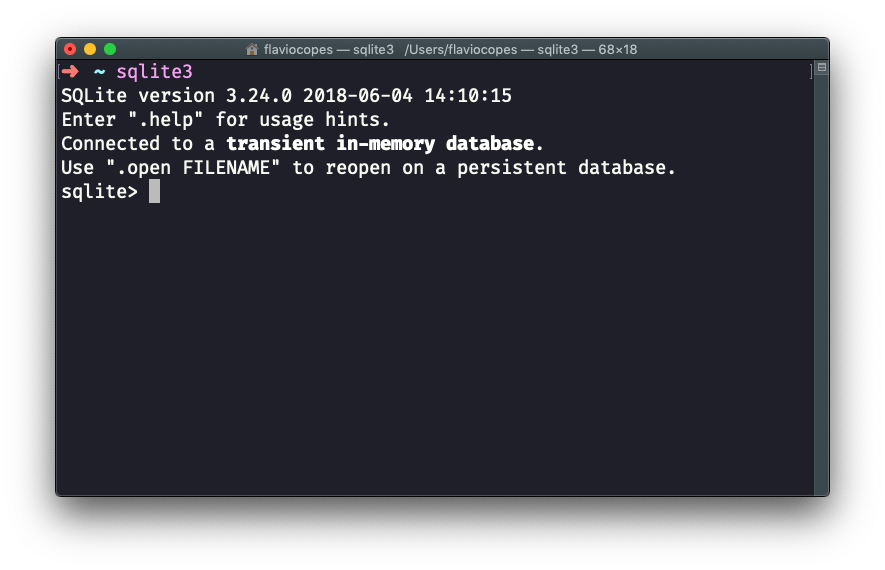
This guide will walk you through the process of installing SQLite, covering its benefits and providing step-by-step instructions for various operating systems. We’ll explore its versatility across the tech landscape, touching upon how it fits within broader technology trends, its potential impact on project development (relevant to brand strategy), and even its implications for managing data effectively (linking to personal and business finance).
Why SQLite? The Power of a Serverless Database
Before diving into the installation process, it’s crucial to understand why you might choose SQLite over other database solutions. Its unique architecture offers several compelling advantages:
- Simplicity and Ease of Use: SQLite databases are stored in a single, ordinary disk file. This eliminates the complexities of setting up and managing a separate database server. For developers, this means faster setup times and less administrative overhead.
- Portability: Because the entire database is contained within a single file, it can be easily copied, moved, or shared. This makes it ideal for applications that need to function offline or across different environments.
- Performance: For many common use cases, SQLite offers excellent performance, especially for read operations. Its in-memory processing capabilities can further enhance speed.
- Reliability and ACID Compliance: SQLite fully supports ACID (Atomicity, Consistency, Isolation, Durability) properties, ensuring data integrity even in the event of system crashes or power failures. This is a critical feature for any database, and SQLite delivers it without the complexity of a server.
- Small Footprint: The SQLite library is incredibly small, typically just a few hundred kilobytes. This makes it an excellent choice for resource-constrained environments like mobile devices, embedded systems, and IoT devices.
- No Dependencies: SQLite has no external dependencies, making it easy to integrate into almost any project.
The principles behind SQLite’s design resonate with several of the core topics on this website. In the Tech realm, its serverless nature aligns perfectly with trends towards lightweight, efficient, and easily deployable solutions. For Brand building, a robust and reliable database foundation like SQLite can contribute to a positive user experience and a reputation for stability. When it comes to Money, efficient data management powered by SQLite can lead to cost savings in development and operational expenses, and for individuals, understanding its use can be beneficial for managing personal data projects or even developing small applications that generate online income.
Installing SQLite: A Platform-Specific Approach
The installation process for SQLite varies depending on your operating system. We’ll cover the most common platforms, providing clear, actionable steps.
Installing SQLite on Linux
Linux users typically have access to SQLite through their distribution’s package manager, making installation straightforward.
Ubuntu/Debian-Based Systems
- Open your terminal.
- Update your package list:
bash

sudo apt update
This command ensures that you have the latest information about available software packages. - Install the SQLite3 package:
bash

sudo apt install sqlite3
This command will download and install the SQLite3 command-line shell and associated libraries. - Verify the installation:
You can check the installed version by running:
bash

sqlite3 --version
This should output the installed SQLite version number.
Fedora/CentOS/RHEL-Based Systems
- Open your terminal.
- Install the SQLite package:
bash

sudo dnf install sqlite
or for older versions of CentOS/RHEL:
bash

sudo yum install sqlite
- Verify the installation:
Similar to Ubuntu, you can verify by checking the version:
bash

sqlite3 --version
Arch Linux
- Open your terminal.
- Install the SQLite package:
bash

sudo pacman -S sqlite
- Verify the installation:
bash

sqlite3 --version
Installing SQLite on macOS
macOS comes with SQLite pre-installed, so you often don’t need to perform any manual installation for basic usage. However, if you need a more recent version or specific build options, you can install it using package managers like Homebrew.
Using the Pre-installed Version
You can access the command-line interface directly from your terminal:
- Open your Terminal application.
- Run the
sqlite3command:
bash

sqlite3
This will launch the SQLite interactive shell. You can then type.versionto see the installed version.
Installing with Homebrew
Homebrew is a popular package manager for macOS that simplifies the installation of software.
- If you don’t have Homebrew installed, open your Terminal and run:
bash

/bin/bash -c "$(curl -fsSL https://raw.githubusercontent.com/Homebrew/install/HEAD/install.sh)"
Follow the on-screen instructions to complete the installation. - Once Homebrew is installed, install SQLite:
bash

brew install sqlite
- Verify the installation:
bash

sqlite3 --version
Homebrew typically installs SQLite in a way that makes it accessible via thesqlite3command.
Installing SQLite on Windows
Windows users have a few options for installing and using SQLite. The most common approach is to download the pre-compiled binaries.
Downloading Pre-compiled Binaries
- Visit the official SQLite Download Page:
Go to https://www.sqlite.org/download.html. - Locate the “Precompiled Binaries for Windows” section.
You’ll typically find options for “32-bit DLL (x86)” and “64-bit DLL (x64)”. Choose the one that matches your system architecture. You’ll also want to download the “command-line shell” for that architecture. - Download the files.
This will usually give you a ZIP archive. - Extract the contents.
Extract the contents of the ZIP file to a directory on your computer. For example, you might create a folder likeC:sqlite. Inside this folder, you’ll findsqlite3.exe(the command-line shell) and potentially other DLL files. - Add SQLite to your system’s PATH (Recommended):
To use thesqlite3command from any directory in your command prompt, you need to add its location to your system’s PATH environment variable.- Search for “Environment Variables” in the Windows search bar and select “Edit the system environment variables.”
- Click on the “Environment Variables…” button.
- In the “System variables” section, find the variable named
Pathand click “Edit…”. - Click “New” and add the full path to the directory where you extracted
sqlite3.exe(e.g.,C:sqlite). - Click “OK” on all open windows to save the changes.
- Verify the installation:
- Open a new Command Prompt window (important, as old ones won’t have the updated PATH).
- Type:
cmd

sqlite3 --version
- If the PATH variable was set correctly, you should see the SQLite version number.
Using the SQLite Browser (GUI Tool)
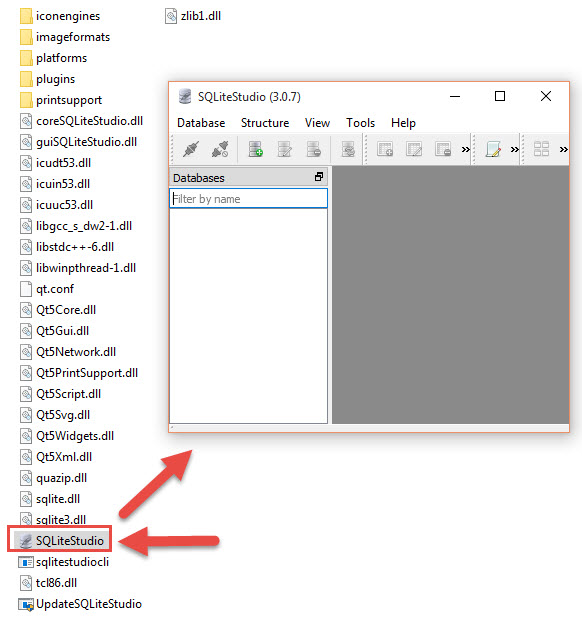
For those who prefer a graphical interface, the DB Browser for SQLite is an excellent option. It includes the SQLite engine and a user-friendly interface for creating, editing, and querying SQLite databases.
- Visit the DB Browser for SQLite website:
Go to https://sqlitebrowser.org/. - Download the installer for Windows.
- Run the installer and follow the on-screen instructions.
- Once installed, you can launch DB Browser for SQLite to create new databases or open existing ones.
Using the SQLite Command-Line Interface
Once SQLite is installed, you can interact with it using the command-line interface (CLI). This is a powerful tool for creating databases, defining tables, inserting data, and running queries.
Creating a New Database
To create a new SQLite database, you simply run the sqlite3 command followed by the desired database file name. If the file doesn’t exist, it will be created.
sqlite3 my_database.db
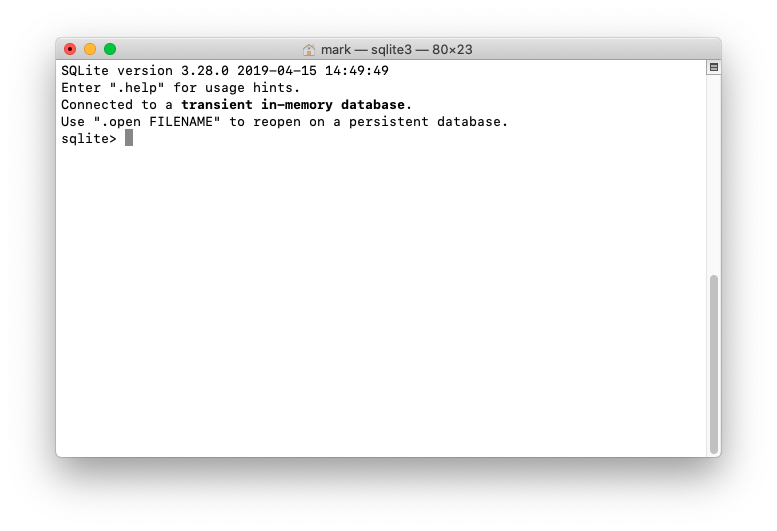
This command will launch the SQLite interactive shell, and you’ll see a prompt like sqlite>. The database file my_database.db will be created in your current directory.
Basic SQL Commands
Within the SQLite shell, you can execute standard SQL commands. Here are a few basic examples:
- Create a table:
sql

CREATE TABLE users (

    id INTEGER PRIMARY KEY AUTOINCREMENT,

    name TEXT NOT NULL,

    email TEXT UNIQUE

);
- Insert data:
sql

INSERT INTO users (name, email) VALUES ('Alice', 'alice@example.com');

INSERT INTO users (name, email) VALUES ('Bob', 'bob@example.com');
- Select data:
sql

SELECT * FROM users;
- Exit the shell:
sql

.quit
SQLite Shell Commands
The SQLite CLI also has several helpful “dot commands” (commands starting with a dot) that provide meta-information and control over the shell. Some useful ones include:
.help: Displays a list of available dot commands..tables: Lists all tables in the current database..schema <table_name>: Shows the schema (structure) of a specific table..mode <mode>: Sets the output mode for query results (e.g.,list,column,html,json).columnis often very readable..output <filename>: Redirects output to a file.
Integrating SQLite into Your Projects
The true power of SQLite lies in its ability to be embedded directly into applications. Most programming languages have excellent libraries for interacting with SQLite.
Python and SQLite
Python has built-in support for SQLite through its sqlite3 module.
import sqlite3

# Connect to the database (creates it if it doesn't exist)
conn = sqlite3.connect('my_app_database.db')
cursor = conn.cursor()

# Create a table
cursor.execute('''
CREATE TABLE IF NOT EXISTS products (
    id INTEGER PRIMARY KEY AUTOINCREMENT,
    name TEXT NOT NULL,
    price REAL
)
''')

# Insert data
cursor.execute("INSERT INTO products (name, price) VALUES (?, ?)", ('Laptop', 1200.50))
cursor.execute("INSERT INTO products (name, price) VALUES (?, ?)", ('Mouse', 25.99))

# Commit changes
conn.commit()

# Query data
cursor.execute("SELECT * FROM products")
rows = cursor.fetchall()
for row in rows:
    print(row)

# Close the connection
conn.close()
This Python example demonstrates how easily you can create, manipulate, and query SQLite databases directly within your code. This is fundamental for many Tech applications, from data analysis scripts to backend services for websites.
Other Programming Languages
Similar libraries and bindings exist for almost every popular programming language, including:
- Java:
sqlite-jdbc - Node.js:
sqlite3npm package - PHP:
PDOwith the SQLite driver - C#/.NET:
System.Data.SQLite
The availability of robust libraries further cements SQLite’s position as a versatile and accessible database solution for developers across the tech spectrum.
Conclusion: SQLite as a Cornerstone Technology
Installing and using SQLite is a foundational skill for anyone involved in software development, data management, or even those looking to build simple, self-contained applications. Its ease of use, portability, and reliability make it an ideal choice for a wide array of projects. From the smallest mobile app to intricate data processing pipelines, SQLite provides a powerful yet unintimidating database solution.
Understanding how to install and integrate SQLite not only enhances your technical capabilities within the Tech domain but also contributes to more efficient and cost-effective project development, indirectly supporting Brand building through reliable product delivery. Furthermore, for those managing personal or business Money, efficient data handling is paramount, and SQLite can be a silent but crucial partner in achieving that.
This guide has provided a comprehensive overview of installing SQLite across major operating systems and introduced its basic usage. As you continue your journey in technology, remember the quiet power of this serverless database – it’s a tool that can empower you to build, innovate, and manage data with remarkable simplicity and effectiveness.
aViewFromTheCave is a participant in the Amazon Services LLC Associates Program, an affiliate advertising program designed to provide a means for sites to earn advertising fees by advertising and linking to Amazon.com. Amazon, the Amazon logo, AmazonSupply, and the AmazonSupply logo are trademarks of Amazon.com, Inc. or its affiliates. As an Amazon Associate we earn affiliate commissions from qualifying purchases.