
The macOS operating system, renowned for its intuitive interface, robust security, and powerful performance, has long been a favorite among creatives, professionals, and everyday users alike. A core part of maximizing your Mac’s potential lies in its vast ecosystem of software, ranging from essential productivity suites to cutting-edge design tools and entertainment applications. While installing software on a Mac is generally a straightforward process, understanding the various methods, security implications, and best practices is crucial for maintaining a healthy, efficient, and secure system.
This comprehensive guide will demystify the process of installing software on your Mac, exploring the primary avenues available to users. We’ll delve into the convenience and security of the App Store, the traditional methods involving downloadable packages, and even touch upon more advanced techniques for power users. By the end of this article, you’ll be equipped with the knowledge to confidently install, manage, and secure software on your Apple device, enhancing your digital experience and productivity.
The Apple App Store: Your Safest and Simplest Bet
For most Mac users, the App Store is the first and often only stop needed for acquiring new software. Introduced in 2011, the Mac App Store mirrors its iOS counterpart, providing a curated marketplace for applications developed specifically for macOS. It offers an unparalleled combination of security, convenience, and seamless integration with your Apple ecosystem.
Accessing and Browsing the App Store
Locating the App Store is simple: it’s typically found in your Dock or can be launched via Spotlight Search (Command + Space and type “App Store”). Once open, you’re greeted with a beautifully organized interface designed for easy navigation. The main screen often features “Today” stories, highlighting new and noteworthy applications, developer interviews, and useful collections.
You can browse apps by categories such as Productivity, Creativity, Games, Utilities, and more, allowing you to quickly narrow down your search based on your needs. The search bar, located in the top-left corner, is incredibly efficient. Simply type the name of the app you’re looking for, or keywords related to its function, and the App Store will instantly display relevant results. Each app listing provides detailed information, including screenshots, user reviews, ratings, a description of its features, release notes for updates, and compatibility requirements (e.g., macOS version). This wealth of information empowers you to make informed decisions before downloading.
Installing and Updating Apps via the App Store
Installing an app from the App Store is exceptionally user-friendly. Once you’ve found the desired application, simply click the “Get” button (or the price if it’s a paid app). If you’re downloading a free app for the first time or purchasing a paid one, you’ll be prompted to authenticate with your Apple ID password, Touch ID (on compatible Macs), or Face ID (if using an iPhone/iPad for approval). This authentication step is a crucial security measure, ensuring that only authorized users can initiate downloads or purchases.
Once authenticated, the app will begin downloading and automatically install itself into your Applications folder. A progress bar will appear in your Dock, and once complete, you can launch the app directly from there, via Launchpad, or by navigating to your Applications folder in Finder.
One of the significant advantages of the App Store is its built-in update mechanism. macOS automatically checks for and notifies you of available updates for your installed App Store applications. You can choose to install these updates individually or enable automatic updates in System Settings (or System Preferences on older macOS versions) under “App Store.” Keeping your software updated is vital for security, performance, and access to the latest features, and the App Store streamlines this process effortlessly. Furthermore, apps from the App Store often benefit from Apple’s “sandboxing” technology, which restricts an app’s access to system resources and user data, adding an extra layer of digital security. This controlled environment minimizes the risk of malicious software impacting your entire system, providing peace of mind to users concerned about their privacy and data.
Traditional Installation: Downloading and Dragging (.dmg, .pkg)
While the App Store offers a walled garden of trusted applications, many powerful and specialized software titles are distributed directly by developers through their websites. These traditional installation methods typically involve downloading disk images (.dmg files) or installer packages (.pkg files). This approach offers developers greater flexibility and control over their software’s distribution, but it also places more responsibility on the user to ensure they are downloading from reputable sources.
Understanding Disk Images (.dmg files)
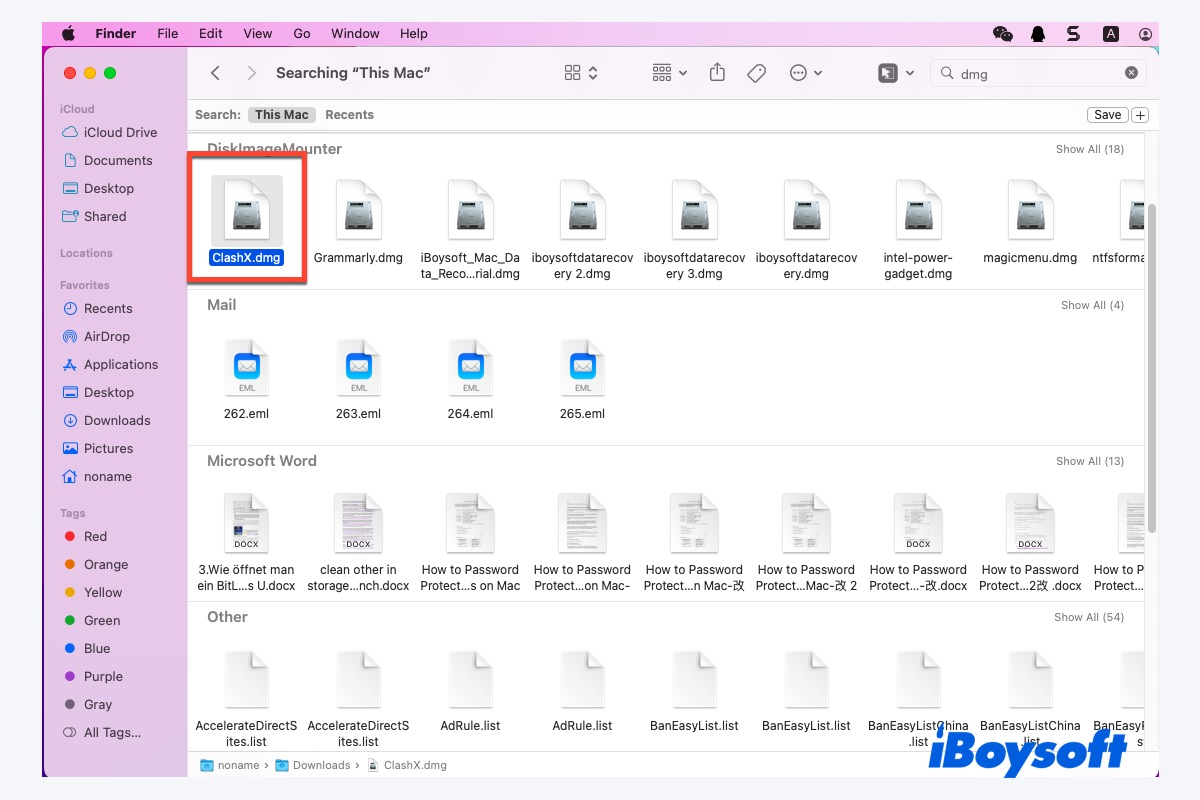
A .dmg file, or Apple Disk Image, is a popular format for distributing software on macOS. Think of it as a virtual disc or external drive that contains the application and sometimes additional files. When you download a .dmg file from a developer’s website (e.g., Google Chrome, VLC Media Player), it typically appears in your Downloads folder.
To install software from a .dmg file:
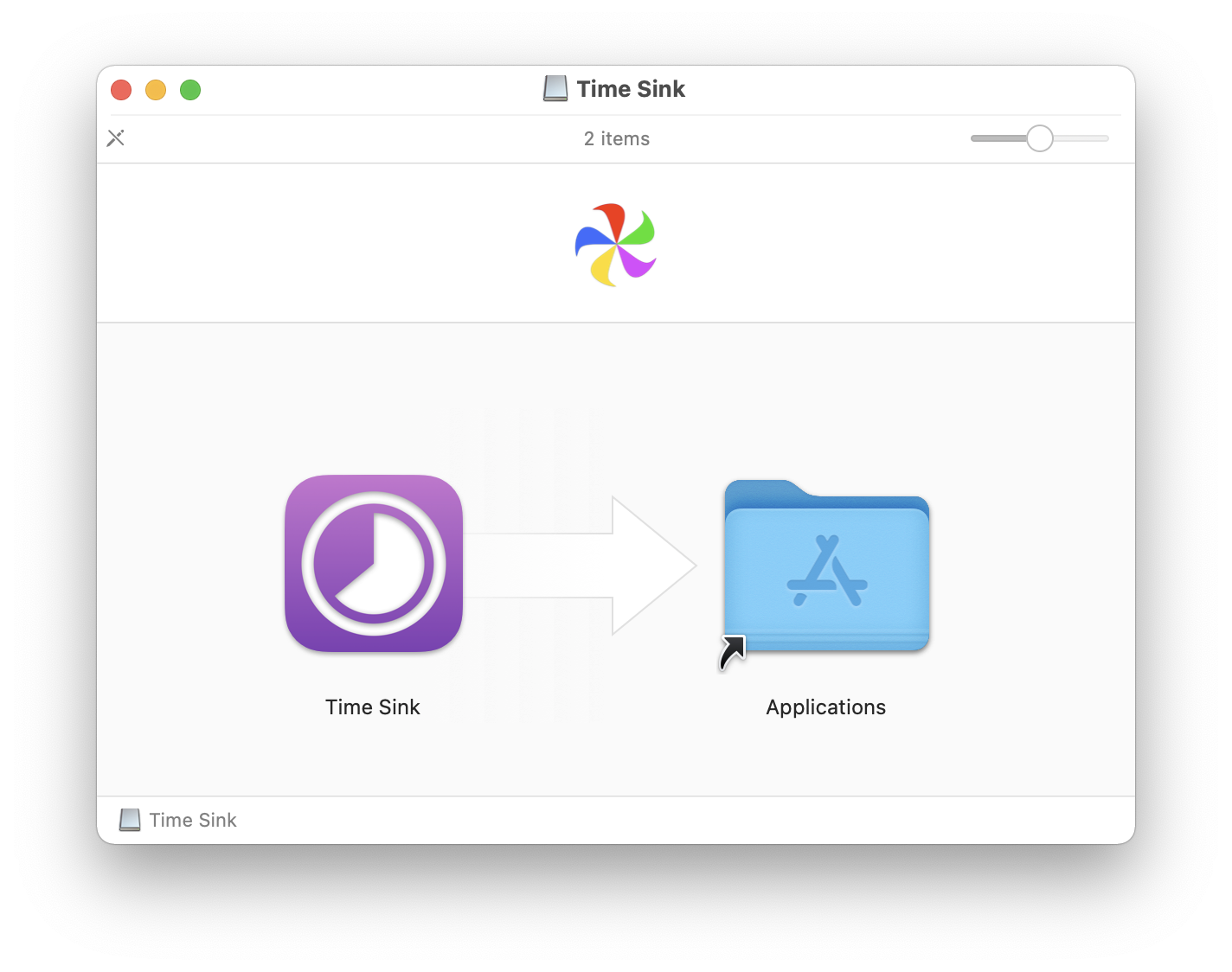
- Mount the Disk Image: Double-click the
.dmgfile. Your Mac will “mount” it, making its contents appear like a connected drive on your desktop and in the Finder sidebar. A new Finder window usually opens, displaying the contents of the disk image. - Locate the Application: Inside the
.dmgwindow, you’ll almost always see the application’s icon, often accompanied by an alias to your Applications folder. - Install the Application: Drag the application icon directly into the Applications folder alias. This action copies the application from the disk image to your Mac’s Applications directory.
- Eject the Disk Image: Once the copying is complete, drag the mounted disk image icon from your desktop to the Trash (which will transform into an “Eject” symbol), or right-click the icon on your desktop/Finder sidebar and select “Eject [Disk Image Name]”.
- Clean Up: After ejecting, you can safely delete the original
.dmgfile from your Downloads folder to free up space. It’s no longer needed, as the application is now installed on your system.
This method is prevalent for its simplicity and directness, often used for applications that don’t require complex system integrations.
Using Installer Packages (.pkg files)
Some software, particularly larger applications, complex suites, or those requiring specific system-level configurations, are distributed as .pkg (package) files. These are essentially self-contained installers that guide you through a wizard-like setup process, similar to installations on Windows.
To install software from a .pkg file:
- Launch the Installer: Double-click the
.pkgfile. This will launch the macOS Installer utility. - Follow the Wizard: The installer will present a series of screens:
- Introduction: Provides an overview of the software.
- License Agreement: Requires you to agree to the software’s terms and conditions.
- Destination Select: Allows you to choose where to install the software (usually your main hard drive, but sometimes offers custom locations).
- Installation Type: For some complex software, you might be able to select specific components to install.
- Summary: Confirms your choices before proceeding.
- Authenticate: At some point, the installer will ask for your administrator password to authorize the installation. This is necessary because
.pkgfiles often install components outside of your user folder, such as system extensions or shared libraries. - Complete Installation: The installer will copy files, configure settings, and provide a confirmation message upon completion.
- Clean Up: After the installation is finished, the installer will usually offer to move the
.pkgfile to the Trash. It’s good practice to allow this to keep your Downloads folder tidy.
Installer packages are designed for more intricate installations, ensuring all necessary dependencies and files are placed correctly throughout your system.
Key Considerations for Third-Party Downloads
When downloading software directly from developer websites, security and vigilance are paramount. Unlike the App Store’s curated environment, you are responsible for vetting the source.
- Verify Sources: Always download software directly from the official developer’s website. Avoid third-party download sites, as they may bundle legitimate software with adware, malware, or outdated versions. Look for secure (HTTPS) connections in your browser’s address bar.
- Gatekeeper Security: macOS includes a security feature called Gatekeeper. When you try to open an app downloaded from the internet that isn’t from the App Store, Gatekeeper verifies if it’s from an “identified developer.”
- If the developer is identified, macOS generally allows it to open after a one-time confirmation.
- If the developer is “unidentified” (meaning the app isn’t notarized by Apple), macOS will block the app from opening with a message stating, “‘[App Name]’ cannot be opened because the developer cannot be verified.”
- To open such an app (only if you absolutely trust the source and understand the risk), go to System Settings (or System Preferences) > Privacy & Security. Scroll down, and you should see a message about the blocked app with an “Open Anyway” button. Click this button, and you’ll be prompted to confirm again. Use this feature with extreme caution.
- Granting Permissions: After installation, many third-party apps will require specific permissions to function correctly, such as access to your Downloads folder, Camera, Microphone, or Accessibility features. macOS will prompt you for these permissions, which you can manage later in System Settings > Privacy & Security. Always review these requests and only grant necessary access.
Advanced Installation Methods
While the App Store and traditional downloads cover most user needs, some power users and developers prefer or require more advanced installation methods. These often offer greater control, automation, or access to specialized tools.
Command-Line Tools with Homebrew
For those comfortable with the command line, Homebrew is an invaluable, free, and open-source package manager for macOS. It simplifies the installation of command-line tools, utilities, and even graphical applications (via Homebrew Cask) that aren’t available on the App Store or are cumbersome to install manually. Homebrew automates the process of downloading, compiling (if necessary), and installing software and its dependencies.
To install Homebrew, open Terminal (Applications > Utilities > Terminal) and paste the command found on the official Homebrew website (brew.sh). Once installed, you can:
- Install command-line tools:
brew install <package-name>(e.g.,brew install git) - Install GUI applications (via Cask):
brew install --cask <app-name>(e.g.,brew install --cask vlc)
Homebrew is particularly useful for developers, system administrators, and anyone who needs quick access to a wide array of open-source software, ensuring consistent installations and easy updates. It drastically streamlines the process of setting up a development environment or acquiring specialized utilities.
Browser Extensions and Web Applications
Though not “installed” in the traditional sense of a native macOS application, browser extensions and Progressive Web Apps (PWAs) are increasingly important components of the digital software landscape.
- Browser Extensions: These small programs extend the functionality of your web browser (Safari, Chrome, Firefox, Edge). They are “installed” directly through your browser’s extension store or from a developer’s website (e.g., a password manager extension, an ad blocker). While they run within the browser, they can significantly impact your online experience and often require permissions to access your browsing data. Always ensure you download extensions from official browser stores or trusted developers, as malicious extensions can pose significant digital security risks.
- Web Applications (PWAs): Many modern websites offer PWA capabilities, allowing you to “install” them as standalone applications. These run in their own browser window, separate from your main browser, often with their own icon in the Dock. While they are essentially enhanced bookmarks, they provide an app-like experience for services like social media, email clients, or productivity tools. The “installation” process usually involves an option within the website itself or your browser’s menu (e.g., “Add to Dock” or “Install [Website Name]”).
Managing Your Software: Updates, Uninstallation, and Security
Installing software is just the first step. Effective software management – including keeping apps updated, knowing how to remove them properly, and understanding Mac’s security features – is vital for optimal performance, stability, and digital security.
Keeping Software Up-to-Date
Updates are not merely about getting new features; they are critical for maintaining the health and security of your Mac. Software developers frequently release updates to fix bugs, improve performance, and, most importantly, patch security vulnerabilities that could be exploited by malicious actors.
- App Store Apps: As mentioned, App Store apps update automatically or notify you through the App Store app. Ensure automatic updates are enabled in your System Settings for convenience and security.
- Third-Party Apps (outside App Store): Many applications downloaded from the internet include their own built-in updater. These might prompt you upon launch or have an “Check for Updates” option within their menus (e.g.,
[App Name] > Check for Updates). It’s a good habit to check for updates regularly, especially for frequently used or internet-facing applications. - Homebrew Apps: If you use Homebrew, you can update all your installed packages with two simple commands in Terminal:
brew update(to update Homebrew’s definitions) followed bybrew upgrade(to upgrade your installed packages). This is an incredibly efficient way to keep a large number of command-line and Cask applications current.
Neglecting updates can leave your system vulnerable to cyber threats and can also lead to compatibility issues or degraded performance over time. Make it a part of your routine to review and apply software updates.
Properly Uninstalling Software
Just as important as installing software is knowing how to uninstall it cleanly. Simply dragging an app to the Trash often leaves behind preference files, caches, and support files that can clutter your system and consume valuable disk space.
- App Store Apps: For apps installed from the App Store, the easiest way to uninstall is via Launchpad. Click and hold an app icon until all icons jiggle, then click the “X” that appears on the app you want to delete. Alternatively, you can drag the app from your Applications folder to the Trash.
- Apps from .dmg files: For most applications installed by dragging them from a
.dmgfile, you can simply drag the application from your Applications folder to the Trash. Then, empty the Trash. While this removes the main application, it often leaves behind support files. - Apps from .pkg files: Applications installed via
.pkgfiles may come with a dedicated uninstaller, usually located within the original.pkgor within the application’s folder in Applications. If no uninstaller is present, dragging the app to the Trash is the first step. - Thorough Uninstallation (Using Third-Party Tools): To ensure a complete removal, including associated files often scattered across various Library folders (
~/Library/Application Support,~/Library/Preferences,~/Library/Caches, etc.), consider using a third-party uninstaller utility like AppCleaner or CleanMyMac. These tools scan your system for all files related to a specific application and allow you to delete them thoroughly. This is particularly useful for reclaiming disk space and resolving potential conflicts caused by leftover files.
Mac Security Features and Best Practices
macOS is built with security in mind, offering several features to protect users. Understanding and utilizing these, coupled with good practices, forms a robust defense.
- Gatekeeper: We’ve already discussed Gatekeeper’s role in verifying developers. By default, macOS only allows apps from the App Store and identified developers. Adhering to this default setting is the safest approach. Only override Gatekeeper (using the “Open Anyway” option in Privacy & Security) when you are absolutely certain of an app’s legitimacy.
- Permissions and Privacy Controls: macOS granularly manages app permissions. When an app requests access to your photos, contacts, calendar, microphone, camera, or full disk access, a clear prompt appears. Review these requests carefully and only grant access that is essential for the app’s functionality. You can review and modify these permissions anytime in System Settings > Privacy & Security. Restricting unnecessary access is a fundamental aspect of safeguarding your digital security and personal data.
- Downloading from Reputable Sources: This cannot be stressed enough. The vast majority of malware infections occur because users download software from untrusted websites, torrents, or suspicious links. Always verify the authenticity of the download source.
- Firewall: Ensure your macOS firewall is enabled (System Settings > Network > Firewall). While not a substitute for antivirus, it helps block unwanted incoming network connections.
- System Updates: Beyond app updates, ensure your macOS operating system itself is always up-to-date. Apple regularly releases security patches and performance improvements through system updates, which are crucial for protecting your Mac.
Conclusion
Installing software on a Mac is a generally seamless experience, offering a variety of methods to suit different needs and types of applications. Whether you prefer the secure and curated environment of the Apple App Store, the direct approach of downloading .dmg or .pkg files from developers, or the powerful automation of tools like Homebrew, macOS provides flexible options.
However, convenience should never overshadow caution. By prioritizing digital security, always downloading from reputable sources, keeping your software and macOS up-to-date, and understanding proper uninstallation techniques, you can ensure your Mac remains a fast, reliable, and secure platform for all your technology needs. Mastering these installation and management practices will not only enhance your productivity but also safeguard your digital life, allowing you to fully leverage the power of your Apple device with confidence.
aViewFromTheCave is a participant in the Amazon Services LLC Associates Program, an affiliate advertising program designed to provide a means for sites to earn advertising fees by advertising and linking to Amazon.com. Amazon, the Amazon logo, AmazonSupply, and the AmazonSupply logo are trademarks of Amazon.com, Inc. or its affiliates. As an Amazon Associate we earn affiliate commissions from qualifying purchases.