
Linux, the open-source powerhouse, underpins an immense portion of the digital world, from personal desktops to enterprise servers and cloud infrastructure. At the heart of managing software on many popular Linux distributions lies the Red Hat Package Manager, better known as RPM. If you’ve ever used Fedora, Red Hat Enterprise Linux (RHEL), CentOS, AlmaLinux, Rocky Linux, or openSUSE, you’ve interacted with RPM packages, whether you knew it or not. Understanding how to install, manage, and troubleshoot these files is a fundamental skill for anyone looking to harness the full potential of these robust operating systems.
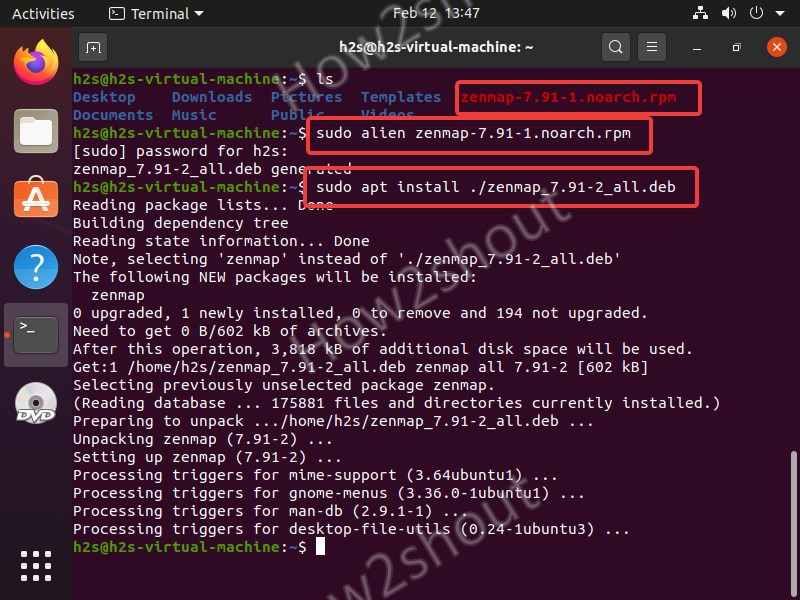
This guide will demystify RPM files, walking you through the core concepts, essential commands, and best practices for seamless software installation. We’ll delve into both the low-level rpm command and the higher-level yum/dnf package managers, equipping you with the knowledge to confidently handle any RPM-based software deployment.
Understanding the Core of Linux Package Management: What are RPM Files?
Before we dive into installation procedures, it’s crucial to grasp what an RPM file is and why it’s such a pivotal component of the Linux ecosystem.
The Philosophy Behind RPM: Simplifying Software Distribution
An RPM file, typically ending with the .rpm extension, is essentially an archive that contains all the necessary components for a piece of software to be installed on a Linux system. This includes the compiled binary code, configuration files, documentation, and metadata about the package itself. Think of it as a neatly wrapped box containing an application, ready to be unwrapped and set up.
The introduction of RPM in the mid-1990s by Red Hat revolutionized software distribution on Linux. Prior to package managers, installing software often involved downloading source code, compiling it – a process that required specific development tools and could be prone to errors due to missing libraries or incompatible versions – and then manually placing files in their correct system directories. This was time-consuming, error-prone, and challenging for novices.
RPM was designed to simplify this process by providing a standardized, consistent, and reliable method for software installation, upgrading, verification, and uninstallation. Its key advantages include:
- Dependency Resolution: RPM packages specify their dependencies (other software libraries or packages they need to function). While the base
rpmcommand doesn’t automatically resolve these, higher-level tools likeyumanddnfleverage this information to fetch and install all required components automatically. - Ease of Installation and Upgrade: A single command can install or upgrade an application, handling file placement and basic configuration.
- Verification: RPM allows for verification of installed packages, ensuring files haven’t been tampered with and that all components are present as expected.
- Clean Uninstallation: When you remove an RPM package, it removes all associated files, preventing “package residue” that can clutter your system.
- Security: Packages can be digitally signed using GPG keys, allowing users to verify the authenticity and integrity of the software, ensuring it comes from a trusted source and hasn’t been maliciously altered.
In essence, RPM transformed the act of installing software from a complex, manual compilation task into a straightforward, automated process, making Linux more accessible and manageable for a wider audience.
The Ecosystem of RPM-based Distributions
RPM is not universally used across all Linux distributions. It is the cornerstone of distributions that trace their lineage back to Red Hat. The most prominent examples include:
- Red Hat Enterprise Linux (RHEL): The commercial enterprise-grade Linux distribution from Red Hat.
- Fedora: Red Hat’s community-driven, cutting-edge distribution, serving as a testbed for future RHEL features.
- CentOS Stream: A community-driven upstream development platform for RHEL. (Historically, CentOS was a free, downstream rebuild of RHEL, but its role has shifted).
- AlmaLinux and Rocky Linux: Free, community-supported, 1:1 binary-compatible forks of RHEL, emerging after CentOS shifted to Stream.
- OpenSUSE: Another popular community and enterprise distribution that uses RPM, though it employs its own package management front-end called
zypper.
Understanding that you are working with an RPM-based distribution is the first step in knowing which package management tools to use.
Prerequisites for a Smooth RPM Installation Journey
Before you embark on installing RPM packages, a few preparatory steps can save you from common headaches and ensure a smooth process.
User Permissions: The Power of sudo and root
Installing system-wide software on Linux typically requires elevated privileges. This is a fundamental security measure designed to prevent unauthorized modifications to your operating system. You’ll primarily encounter two ways to gain these privileges:
rootuser: The superuser account with unrestricted access. While powerful, logging in directly asrootfor routine tasks is generally discouraged due to the risk of accidental system damage.sudocommand: The preferred method.sudo(short for “substitute user do”) allows a permitted user to execute commands as therootuser (or another user) while providing an audit trail. Most modern Linux installations configure the initial user withsudoaccess.
You’ll notice that most installation commands in this guide will be prefixed with sudo. When you execute a sudo command, you’ll be prompted to enter your own user password, not the root password. This confirms that you are an authorized administrator.
System Updates: Laying a Stable Foundation
Before installing new software, especially if it’s not from your distribution’s official repositories, it’s always a good practice to ensure your existing system is up to date. This minimizes potential compatibility issues and ensures you have the latest security patches and library versions.
On RPM-based systems using yum (older RHEL/CentOS 7 and earlier) or dnf (Fedora, RHEL 8+, AlmaLinux, Rocky Linux):
sudo dnf update -y # For modern RPM systems
# OR
sudo yum update -y # For older RPM systems
The -y flag automatically answers “yes” to any prompts, making the update process non-interactive.
Identifying Your Distribution and Architecture
While RPMs are generally standard, some packages might be specific to certain distribution versions or CPU architectures (e.g., x86_64 for 64-bit systems, aarch64 for ARM). Knowing your system’s specifics can help in choosing the correct package.
You can check your distribution details with:
cat /etc/os-release
This will output information like NAME="Fedora Linux", VERSION="39 (Workstation Edition)", ID=fedora, etc.
To check your system’s architecture:
uname -m
This will typically return x86_64 for most desktop/server systems, but could be aarch64 or others.
Step-by-Step Installation Methods for RPM Packages
Now, let’s get to the core of the matter: installing RPM packages. We’ll cover the rpm command for direct package manipulation and yum/dnf for more intelligent, dependency-aware installations.
Method 1: The rpm Command – The Low-Level Workhorse
The rpm command is the foundational tool for managing RPM packages. It’s powerful but often requires manual dependency resolution, making it less convenient for everyday use compared to yum or dnf. However, understanding rpm is crucial for specific scenarios and deeper troubleshooting.
Let’s assume you’ve downloaded an RPM file, for example, my-application-1.0-1.x86_64.rpm, to your current directory.
Basic Installation
To install a package, use the -i (install) option. It’s often combined with -v (verbose) for more output and -h (hash) to show progress with hash marks.
sudo rpm -ivh my-application-1.0-1.x86_64.rpm
If the package has unmet dependencies (other packages it requires that are not installed), rpm will tell you and refuse to install it. You would then need to manually find and install those dependencies first, which can quickly become tedious – this is where yum/dnf shine.
Upgrading a Package
To upgrade an existing package to a newer version, use the -U (upgrade) option. This will install the new package and remove the old one, preserving configuration files where possible.
sudo rpm -Uvh my-application-1.1-1.x86_64.rpm
If the package isn’t already installed, -Uvh will install it. If an older version exists, it will upgrade it. This makes -Uvh a versatile option.
Force Installation (with caution)
Sometimes, you might encounter conflicts (e.g., a file from another package interferes). rpm offers a --force option to override some checks, but use this with extreme caution, as it can lead to system instability. It’s generally a last resort.
sudo rpm -ivh --force my-application-1.0-1.x86_64.rpm
Querying Packages
The rpm command is excellent for querying information about installed packages or even about an RPM file itself.
-
List all installed RPM packages:
rpm -qa(The
astands for “all”) -
Query information about an installed package:
rpm -qi package_name # Example: rpm -qi firefoxThis shows detailed information like version, release, size, license, and description.
-
List files owned by an installed package:
rpm -ql package_name # Example: rpm -ql firefox -
Query an RPM file (not yet installed):
bash

rpm -qip my-application-1.0-1.x86_64.rpm # Information

rpm -qpl my-application-1.0-1.x86_64.rpm # List files

rpm -qilp my-application-1.0-1.x86_64.rpm # List files and more info
Thepflag stands for “package file.”
Uninstalling a Package
To remove an installed package, use the -e (erase) option, followed by the package name (not the full filename, just the name).
sudo rpm -e package_name # Example: sudo rpm -e my-application
If other installed packages depend on the one you’re trying to remove, rpm will refuse to uninstall it unless you also remove the dependent packages or use the --nodeps option (again, with extreme caution).
Method 2: Leveraging YUM and DNF – The Smart Package Managers
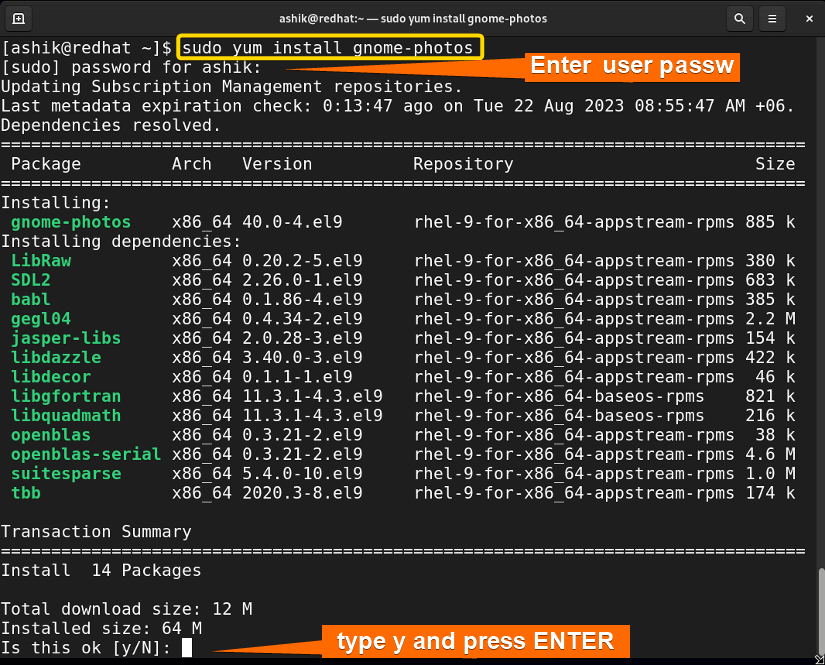
For most users and scenarios, yum (Yellowdog Updater, Modified) and its modern successor, dnf (Dandified YUM), are the preferred tools for managing RPM packages. These are high-level package managers that sit on top of rpm, automatically handling dependencies, fetching packages from configured repositories, and simplifying the entire software management process.
YUM: Used in older RHEL/CentOS 7 and earlier.DNF: The default in Fedora since version 18, and RHEL 8+, AlmaLinux, Rocky Linux.dnfoffers improved performance, better dependency resolution, and a more robust API. While the commands are largely similar toyum,dnfis the recommended tool for modern RPM-based systems.
For the remainder of this section, we’ll primarily use dnf syntax, but remember that for older systems, you can often substitute yum directly.
Installing a Local RPM with YUM/DNF
Even if you’ve downloaded an RPM file manually, dnf (or yum) can install it while automatically resolving and installing any missing dependencies from your configured repositories.
sudo dnf install my-application-1.0-1.x86_64.rpm
# OR
sudo yum localinstall my-application-1.0-1.x86_64.rpm # 'localinstall' is specific to yum for local files
With dnf, you generally just use install for both local RPMs and packages from repositories. dnf is smart enough to detect it’s a local file.
Installing from Repositories
This is the most common and recommended way to install software. dnf/yum will search your configured repositories (lists of software sources) for the package and its dependencies.
sudo dnf install package_name # Example: sudo dnf install neofetch
Searching for Packages
If you don’t know the exact package name, you can search repositories for keywords.
dnf search keyword # Example: dnf search text editor
Updating Packages
To update a specific package, or all packages on your system:
sudo dnf update package_name # Updates a specific package
sudo dnf update # Updates all installed packages to their latest versions
Removing Packages
To remove a package and its automatically installed dependencies (if no other package requires them):
sudo dnf remove package_name # Example: sudo dnf remove neofetch
Managing Repositories
dnf/yum use .repo files, typically located in /etc/yum.repos.d/, to define repositories. You can enable or disable them as needed.
- List enabled repositories:
bash

dnf repolist
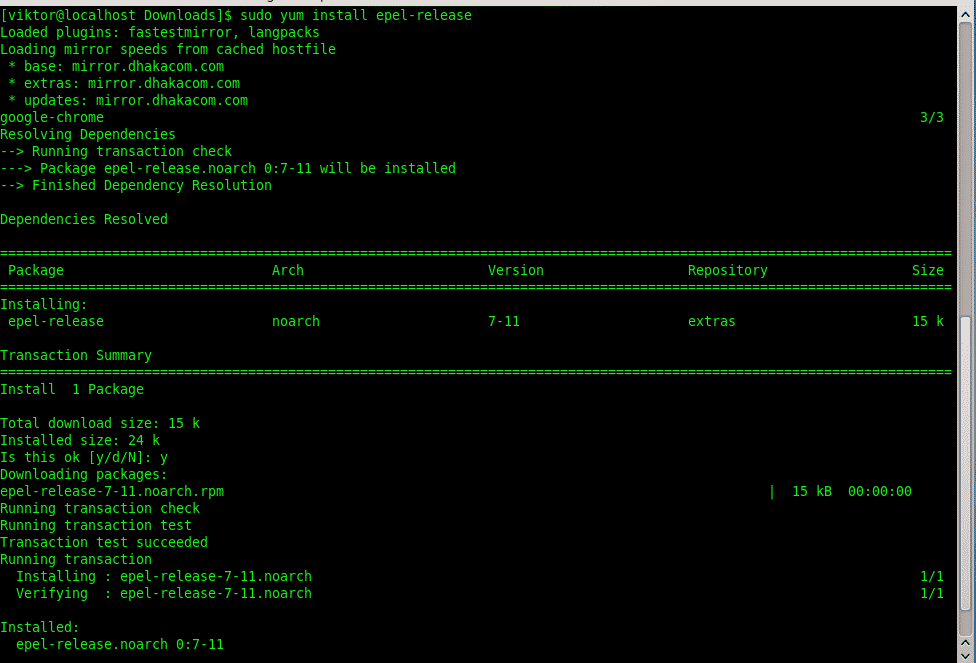
- Install a repository (e.g., EPEL – Extra Packages for Enterprise Linux):
bash

sudo dnf install epel-release
Method 3: Graphical Package Managers (Brief Mention)
Many desktop Linux environments offer user-friendly graphical package managers (e.g., GNOME Software Center, KDE Discover). These tools provide a visual interface to search, install, and manage software. Under the hood, they often utilize dnf or yum as their backend, offering a more approachable experience for users less comfortable with the command line. While convenient, the command line offers more control and diagnostic information, making it essential for advanced users and server management.
Troubleshooting Common RPM Installation Challenges
Even with the best tools, you might encounter issues. Here are some common problems and their solutions.
Dependency Hell: Resolving Missing Libraries and Packages
This is perhaps the most frequent challenge when using the raw rpm command. If rpm -i fails due to unmet dependencies, dnf or yum are your best friends.
-
Solution with
dnf/yum: If you usedrpm -iand it failed, try usingsudo dnf install /path/to/your/package.rpm.dnfwill automatically attempt to find and install all necessary dependencies from your configured repositories. -
Finding what provides a missing dependency: If
dnfalso struggles or you need to manually investigate, you can search for packages that provide a specific file or capability:
bash

dnf provides /usr/bin/some_missing_command

dnf provides "libxyz.so.1"
GPG Key Errors: Verifying Package Authenticity
When installing an RPM, especially from a third-party source, you might encounter an error related to GPG keys, like “Public key for [package] is not installed.” This means the package’s digital signature cannot be verified against a trusted key on your system. This is a security feature.
- Understanding GPG Keys: GPG (GNU Privacy Guard) keys are used to digitally sign packages, ensuring their integrity and authenticity. When you install a signed package, your system checks the signature against its keyring of trusted keys.
- Importing a GPG Key: For official repositories, the key is usually imported automatically when you install the repository’s
releasepackage (e.g.,epel-release). For individual RPMs from trusted third parties, you might need to manually import their public key:
bash

sudo rpm --import /path/to/repo_gpg_key.asc
Always obtain GPG keys from official, trusted sources. - Disabling GPG Check (with extreme caution): If you absolutely trust the source and cannot import the key, you can disable the GPG check with
rpm --nogpgcheckordnf --nogpgcheck. This is highly discouraged for security reasons as it bypasses a critical integrity check.
“Package is already installed” and Version Conflicts
If you try to install an RPM with rpm -i and an older version is already present, rpm will report a conflict.
- Solution: Use
sudo rpm -Uvh /path/to/new_package.rpmfor upgrades.dnf updateordnf installwill handle upgrades seamlessly from repositories. If you need to downgrade, it’s more complex and often involvesdnf downgrade package_nameor carefully managingrpm -Uvh --oldpackage.
Broken Packages and Database Issues
Rarely, the RPM database itself can become corrupted, leading to errors.
- Rebuilding the RPM database:
bash

sudo rpm --rebuilddb
This command rebuilds the RPM database from the installed package headers, which can resolve inconsistencies. - Cleaning
dnf/yumcache: Sometimes, cached metadata or packages can cause issues.
bash

sudo dnf clean all # Clears DNF cache

# OR

sudo yum clean all # Clears YUM cache
Best Practices and Advanced Tips for RPM Management
Effective RPM management goes beyond basic installation; it involves strategic choices for security, stability, and system health.
Prioritizing Official Repositories
Always prefer installing software from your distribution’s official repositories (e.g., Fedora’s default repositories, RHEL’s subscription repositories). These packages are:
- Tested and Stable: They are built and tested to work seamlessly with your specific distribution version.
- Secure: They are signed with official GPG keys and regularly updated with security patches.
- Dependency-Managed:
dnf/yumcan reliably resolve dependencies from these sources.
Enabling and Disabling Third-Party Repositories Wisely
Sometimes, you’ll need software not available in official repositories. Third-party repositories like EPEL (Extra Packages for Enterprise Linux) and RPM Fusion are invaluable.
- EPEL: Provides high-quality, extra packages for RHEL and its derivatives. It’s widely trusted.
bash

sudo dnf install epel-release
- RPM Fusion: Offers packages that Red Hat or Fedora cannot ship due to legal or patent restrictions (e.g., multimedia codecs, proprietary graphics drivers).
- Caution: When enabling third-party repositories, be aware of potential package conflicts or stability issues. Only enable reputable sources, and consider disabling them after installing what you need if you’re concerned about system stability.
Keeping Your System Updated
Regularly updating your system is critical for security, bug fixes, and performance improvements.
sudo dnf update
Make this a routine task, especially for servers or production environments.
Understanding Package Signatures for Digital Security
Always verify package signatures. If dnf or rpm report a GPG key error, do not proceed with installation unless you have explicitly verified the package source and obtained the correct key. This is a fundamental layer of defense against malicious software.
Automating Updates (with caution) for Productivity Gains
For certain low-risk environments or personal use cases, you might consider automating system updates. Tools like dnf-automatic can download and even apply updates automatically.
sudo dnf install dnf-automatic
sudo systemctl enable --now dnf-automatic.timer
However, for critical servers, it’s generally best to manually review and apply updates after testing them in a staging environment to prevent unforeseen breaking changes. This balances the need for security with operational stability.
Conclusion: Empowering Your Linux Journey with Effective RPM Management
Mastering the art of RPM package management is an essential skill for anyone operating within the world of Fedora, RHEL, CentOS, AlmaLinux, Rocky Linux, or openSUSE. From the foundational rpm command to the intelligent dependency resolution of dnf and yum, these tools provide robust, secure, and efficient methods for deploying and maintaining software.
By understanding the underlying principles, utilizing the correct commands, and adhering to best practices like prioritizing official repositories and regularly updating your system, you can ensure a stable, secure, and highly functional Linux environment. This proficiency not only simplifies your daily tasks but also unlocks the vast potential of the Linux ecosystem, allowing you to confidently manage your technological infrastructure and focus on innovation. Embrace these tools, and you’ll find your Linux journey to be far more productive and enjoyable.
aViewFromTheCave is a participant in the Amazon Services LLC Associates Program, an affiliate advertising program designed to provide a means for sites to earn advertising fees by advertising and linking to Amazon.com. Amazon, the Amazon logo, AmazonSupply, and the AmazonSupply logo are trademarks of Amazon.com, Inc. or its affiliates. As an Amazon Associate we earn affiliate commissions from qualifying purchases.