
In today’s data-driven world, mastering database interaction is a cornerstone skill for anyone involved in technology, from seasoned developers to aspiring data scientists. PostgreSQL stands out as a powerful, open-source relational database management system (RDBMS) renowned for its robustness, feature set, and ACID compliance. While PostgreSQL itself is the engine, psql is its indispensable command-line client – a direct, efficient, and highly capable interface that allows users to interact with their databases, execute SQL queries, manage tables, and configure server settings.
For Mac users, getting psql up and running is a straightforward process, primarily facilitated by the popular package manager Homebrew. This guide will walk you through every step, ensuring you have psql configured and ready to empower your data management tasks. Beyond just installation, we’ll explore why psql is a crucial tool, touch upon its broader implications in the tech landscape, and provide initial steps to get you productive. Embracing tools like psql not only streamlines your workflow but also significantly enhances your technical proficiency, contributing to your professional “brand” in the competitive tech space and potentially optimizing “money” through efficient data handling.
Understanding psql and Its Importance
Before diving into the installation, let’s take a moment to appreciate what psql is and why it holds such significance in the developer’s toolkit. At its core, psql is an interactive terminal program that comes bundled with PostgreSQL. It allows you to send SQL queries to a PostgreSQL server and view the results directly in your terminal. Think of it as your primary communication channel with your PostgreSQL databases.
Why Every Mac User Working with Data Needs psql
The importance of psql extends beyond mere convenience; it’s a fundamental utility for several reasons:
- Direct Database Interaction:
psqloffers an unmediated connection to your database. This is invaluable for rapid prototyping, debugging, and executing complex administrative tasks that might be cumbersome or impossible with GUI tools alone. For developers, this direct access often means faster iterations and a deeper understanding of database operations. - Efficiency and Scripting: For repetitive tasks or automation,
psqlexcels. You can pipe SQL scripts directly intopsql, making it a powerful tool for deployment, data migration, and batch operations. This level of efficiency can save significant development time, which indirectly translates to cost savings and faster project delivery – a clear benefit from a “money” perspective. - Learning and Exploration: For those new to SQL or PostgreSQL,
psqlprovides an excellent environment for learning. Its extensive set of meta-commands (commands starting with, likelto list databases ordtto list tables) provides insights into your database structure and server configuration. It’s a hands-on way to understand how your data is organized and how queries affect it. - Resource Lightness: Unlike heavy graphical user interface (GUI) clients,
psqlis lightweight and consumes minimal system resources. This makes it ideal for remote connections or environments where system performance is a concern. - Universal Compatibility: As a command-line tool,
psqlbehaves consistently across different Unix-like operating systems, including macOS, Linux, and WSL on Windows. This consistency makes it a universal skill for anyone working with PostgreSQL, enhancing a developer’s adaptability across various tech stacks.
In essence, psql is more than just a terminal client; it’s a gateway to effective database management, a tool that enhances productivity, fosters learning, and underpins robust application development.
Preparing Your Mac for PostgreSQL Installation
Before we initiate the installation of PostgreSQL and its psql client, there are a couple of prerequisites that will ensure a smooth process. The primary tool we’ll rely on is Homebrew, the “missing package manager for macOS.”
1. Installing Xcode Command Line Tools
Homebrew itself often requires Xcode Command Line Tools, a collection of essential development tools from Apple. Even if you don’t develop iOS applications, these tools are crucial for compiling software on your Mac.
To install them, open your Terminal (you can find it in Applications/Utilities or by searching with Spotlight Command + Space):
xcode-select --install
A dialog box will appear, prompting you to install the tools. Click “Install” and agree to the license terms. This process might take a few minutes, depending on your internet connection.
2. Installing Homebrew
If you don’t already have Homebrew installed, now is the time. Homebrew simplifies the installation of thousands of open-source packages, including PostgreSQL, making it the most recommended method for Mac users.
To install Homebrew, paste the following command into your Terminal and press Enter:
/bin/bash -c "$(curl -fsSL https://raw.githubusercontent.com/Homebrew/install/HEAD/install.sh)"
The script will prompt you to enter your administrator password and might ask for confirmation to proceed. Follow the on-screen instructions. Once completed, Homebrew will display a message indicating a successful installation. It’s a good practice to run brew doctor afterwards to ensure everything is set up correctly:
brew doctor
This command checks for potential issues in your Homebrew environment and suggests fixes. Addressing any warnings here will prevent future headaches.
Installing PostgreSQL and psql Using Homebrew
With Homebrew firmly in place, installing PostgreSQL and its psql client becomes incredibly straightforward. Homebrew handles all dependencies and ensures the correct versions are installed.
1. Installing PostgreSQL
In your Terminal, simply run the following command:
brew install postgresql
Homebrew will download and install the latest stable version of PostgreSQL, along with psql and other client utilities. This process usually takes a few minutes, displaying the progress in your Terminal.
2. Starting the PostgreSQL Service
After installation, PostgreSQL needs to be running in the background as a service for you to connect to it. Homebrew provides convenient commands for managing services.
To start the PostgreSQL server immediately and have it launch automatically upon system startup, use:
brew services start postgresql
If you only want to start it once and not automatically on login:
pg_ctl -D /opt/homebrew/var/postgresql start
(Note: The path /opt/homebrew/var/postgresql is common for Apple Silicon Macs; for Intel Macs, it might be /usr/local/var/postgresql. Homebrew usually symlinks pg_ctl into your path, so pg_ctl start might work directly without specifying -D.)
To check the status of the PostgreSQL service:
brew services info postgresql
You should see output indicating that the service is started.
3. Verifying the psql Installation and Database Connection
Once the PostgreSQL service is running, you can verify that psql is correctly installed and can connect to the database.
First, check the version of psql to confirm it’s in your PATH:
psql --version
You should see output similar to psql (PostgreSQL) 15.x, indicating the installed version.
Next, attempt to connect to the default PostgreSQL database. By default, PostgreSQL creates a database with the same name as your macOS username, and you can connect to it directly:
psql
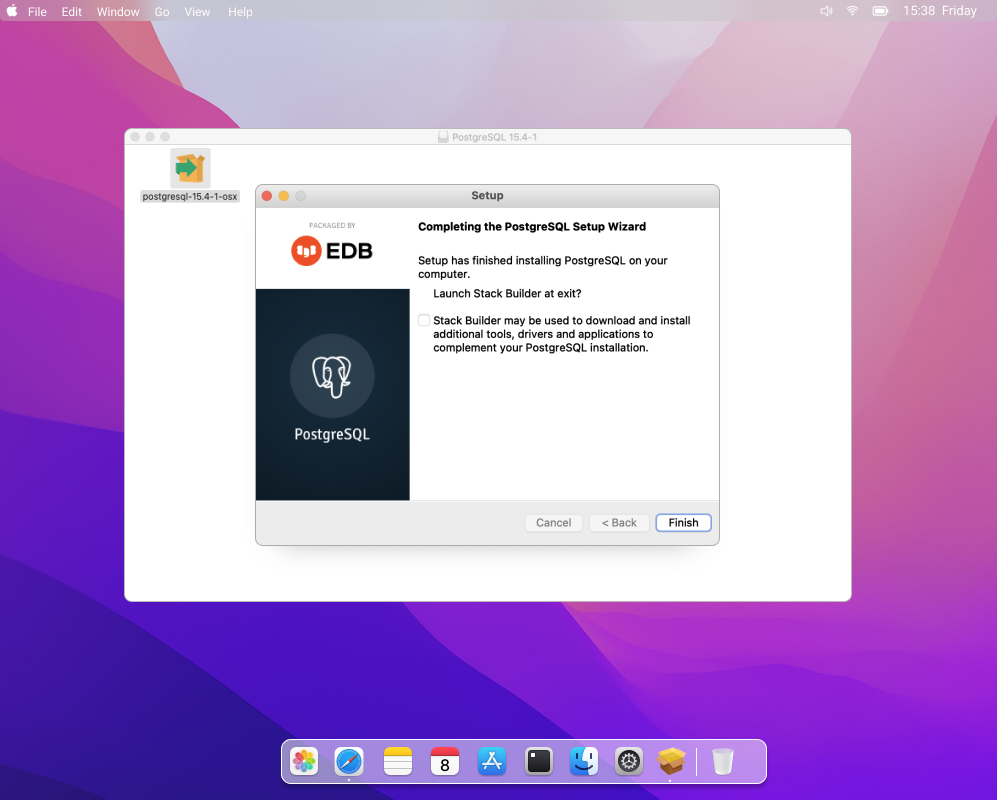
If successful, your prompt will change to your_username=# (e.g., canh=#), indicating you are now connected to the PostgreSQL server. Congratulations, psql is installed and operational!
To exit psql, simply type q and press Enter:
q
Basic psql Usage and Initial Configuration
Now that you have psql installed and connected, let’s explore some fundamental commands to get you started with database interaction.
1. Creating a New User and Database
While you can use the default user and database, it’s good practice to create specific users and databases for your projects. This enhances security and organization.
First, connect to the default postgres database as the superuser:
psql postgres
Inside the psql prompt:
-
Create a new user:
CREATE USER myuser WITH PASSWORD 'mysecurepassword';Replace
myuserandmysecurepasswordwith your desired username and a strong password. -
Create a new database and assign ownership:
CREATE DATABASE mydatabase OWNER myuser;Replace
mydatabasewith your desired database name. -
Grant all privileges on the new database to the new user:
GRANT ALL PRIVILEGES ON DATABASE mydatabase TO myuser; -
Exit psql:
sql

q
Now, you can connect to your new database using your new user:
psql -d mydatabase -U myuser
You’ll be prompted for the password you set for myuser.
2. Essential psql Commands (Meta-Commands)
psql offers a rich set of meta-commands (commands starting with ) that are incredibly useful for managing and inspecting your database.
-
lorlist: List all databases on the server.l -
c [database_name]orconnect [database_name]: Connect to a different database.c mydatabase -
dt: List tables in the current database.dt -
d [table_name]: Describe a table, showing its columns, types, and constraints.d mytable -
du: List all users (roles).du -
timing: Toggle query execution timing. Useful for performance analysis.timing -
h [command]: Get help on a specific SQL command (e.g.,h SELECT).h SELECT -
q: Quitpsql.
3. Executing SQL Queries
Of course, the primary purpose of psql is to execute SQL queries. Simply type your SQL statements at the prompt and end them with a semicolon ;:
CREATE TABLE users (
    id SERIAL PRIMARY KEY,
    name VARCHAR(100),
    email VARCHAR(100) UNIQUE
);

INSERT INTO users (name, email) VALUES ('Alice', 'alice@example.com');
INSERT INTO users (name, email) VALUES ('Bob', 'bob@example.com');

SELECT * FROM users;
This hands-on interaction demonstrates the true power of psql. The ability to rapidly test queries and understand database schema through these commands is a significant advantage, directly impacting productivity and the quality of data-driven projects.
Troubleshooting Common Issues and Further Steps
While Homebrew makes installation generally smooth, you might occasionally encounter issues. Here are a few common ones and how to address them:
Common Troubleshooting Scenarios
-
“psql: error: connection to server on socket “/tmp/.s.PGSQL.5432″ failed: No such file or directory”
This usually means the PostgreSQL server is not running. Try starting it again:brew services start postgresqlVerify its status:
brew services info postgresql. -
“FATAL: database “your_username” does not exist”
If you haven’t created a database for your user, or if you’re trying to connect to a non-existent database, you’ll get this error. Connect to thepostgresdatabase (psql postgres) and create your user and database as described above. -
“FATAL: role “your_username” does not exist”
Similar to the database issue, this means the PostgreSQL server doesn’t recognize your macOS username as a valid role. You might need to create a role for yourself within PostgreSQL if you’re not using the defaultpostgressuperuser. -
Port Already in Use:
If you have another PostgreSQL instance or another service using port 5432, Homebrew’s PostgreSQL might fail to start. You might need to stop the conflicting service or configure PostgreSQL to use a different port (a more advanced topic).
Next Steps and Complementary Tools
- Learning SQL: With
psqlinstalled, the next logical step is to deepen your SQL knowledge. Numerous online resources, courses, and documentation are available. - GUI Tools: While
psqlis powerful, graphical tools likepgAdminorDBeavercan complement your workflow, offering visual database management, query builders, and data visualization. These tools often provide a more user-friendly interface for certain tasks, especially for beginners or those who prefer a visual approach. - Environment Variables: For advanced users, configuring environment variables like
PGDATABASE,PGUSER, andPGPASSWORDcan streamline connections to frequently used databases, reducing the need to type full connection strings every time. - Backup and Restore: Learn how to use
pg_dumpandpg_restore(also installed with PostgreSQL) for backing up and restoring your databases. This is a critical aspect of responsible data management.
Conclusion: Empowering Your Data Journey on Mac
Installing psql on your Mac via Homebrew is a foundational step for anyone serious about working with data and PostgreSQL. It equips you with a direct, efficient, and robust command-line interface to manage your databases, execute complex queries, and perform administrative tasks with precision.
As we’ve seen, this process is not just about installing software; it’s about gaining a powerful tool that enhances your technical capabilities. Mastering psql contributes significantly to your professional toolkit, aligning perfectly with the “Tech” theme by empowering you with cutting-edge data management skills. From a “Brand” perspective, proficiency in such fundamental tools distinguishes you as a competent and versatile professional. Moreover, leveraging open-source powerhouses like PostgreSQL and psql provides enterprise-grade functionality without the hefty license fees, offering tangible “Money” savings for individuals and businesses alike.
By following this guide, you’ve successfully installed psql and taken the first leap into direct database interaction. Continue to explore its extensive features, practice your SQL queries, and integrate it into your development workflow. The world of data is vast and exciting, and with psql at your fingertips, you’re well-equipped to navigate it effectively on your Mac.