
The dreaded “low ink” warning. It’s a message that can bring productivity to a grinding halt, whether you’re a student needing to print an essay, a professional finalizing a crucial report, or a creative individual working on a personal project. While the concept of installing printer ink might seem straightforward, a few common pitfalls and best practices can make the process smoother, more efficient, and ultimately prevent potential damage to your valuable printing hardware. This comprehensive guide will walk you through everything you need to know, from identifying the right ink to safely swapping out cartridges and ensuring your printer is ready to go.

Understanding Your Printer and Ink Cartridges
Before you even reach for a new ink cartridge, it’s essential to understand the specifics of your printer model. Not all ink is created equal, and using the wrong type can lead to poor print quality, or worse, damage to your printer’s delicate internal mechanisms. This foundational knowledge is key to a successful ink installation.
Identifying the Correct Ink for Your Printer
This is perhaps the most critical first step. Your printer manufacturer designs its machines to work with specific ink formulations. Attempting to use a generic or incompatible cartridge is a gamble with potentially expensive consequences.
- Consult Your Printer Manual: This is your ultimate source of truth. Most printer manuals will clearly list the exact cartridge numbers or series recommended for your model. If you’ve misplaced your physical manual, a quick search online for “[Your Printer Model] manual PDF” should yield the necessary information.
- Check Your Printer’s Display: Many modern printers have an on-screen display that will indicate the ink levels and often provide the specific cartridge model numbers when they are running low. This is a convenient way to get the information directly from the source.
- Look at Existing Cartridges: If you have a cartridge currently installed, you can often find the model number printed directly on its label. This is a reliable way to identify the correct replacement. Just be sure to note down the complete number, including any letters or symbols.
- Utilize Manufacturer Websites: Printer manufacturers have extensive support sections on their websites. You can usually enter your printer model, and it will direct you to the compatible ink and toner cartridges. This is also a great place to find genuine replacement parts and information about their warranty.
- Consider Ink Type: Dye vs. Pigment: While this is a more advanced consideration, it’s worth noting. Dye-based inks are typically more vibrant and cheaper, but they can fade over time and are more prone to smudging on certain paper types. Pigment-based inks are generally more durable, water-resistant, and archival, but they can be more expensive. Your printer manual will usually specify which type is recommended or if it supports both. For most home and office users, sticking to the manufacturer’s recommendation is the safest bet.
- Original Equipment Manufacturer (OEM) vs. Third-Party: OEM cartridges are made by your printer manufacturer. They guarantee compatibility and are generally the most reliable option. Third-party or compatible cartridges are made by other companies. They can be significantly cheaper, but the quality can vary. Some reputable third-party brands offer good value, but it’s essential to research their reputation and read reviews before purchasing. If your printer is under warranty, using non-OEM cartridges could potentially void it, so be aware of this.
Understanding Ink Cartridge Types
Ink cartridges come in various forms, and knowing the difference can help you make an informed purchase.
- Standard Capacity: These are the most common and generally the most affordable. They are suitable for users with moderate printing needs.
- High-Yield (XL) Cartridges: These cartridges contain more ink than their standard counterparts, meaning they can print more pages. While the upfront cost is higher, the cost per page is often lower, making them a cost-effective choice for frequent printers.
- Integrated Printhead Cartridges: Some inkjet printers have cartridges where the printhead (the part that sprays the ink onto the paper) is integrated into the cartridge itself. This means that when you replace the cartridge, you are also replacing the printhead, which can improve print quality over time but can also make cartridges more expensive.
- Separate Ink Tanks: More advanced or professional-grade printers often use a system with individual ink tanks. This allows you to replace only the color that has run out, which is more economical and reduces waste.
The Step-by-Step Ink Installation Process
Once you have the correct ink cartridges, the installation process is usually quite simple. However, following these steps carefully will ensure a smooth transition and prevent any mishaps.
Preparing for the Ink Replacement
Proper preparation can save you time and prevent mess.
- Power On Your Printer: This is a crucial first step. Most modern printers will automatically move the printhead to the correct position for cartridge replacement when powered on. If your printer has an automatic cartridge access mechanism, turning it on will initiate this. If your printer’s manual specifies otherwise, follow its instructions.
- Gather Your Supplies: You’ll need your new ink cartridge(s) and potentially some paper towels or a clean, lint-free cloth. This is for any minor drips or spills that might occur.
- Open the Printer Cover: Locate the access panel for the ink cartridges. This is usually on the top or front of the printer and might be labeled with an icon. Gently lift or slide the cover to reveal the ink carriage.
- Identify the Empty Cartridge: The printer’s display or lights should indicate which cartridge is empty. You may also be able to visually inspect the ink levels on the cartridges themselves.
Removing the Old Ink Cartridge
This step requires a gentle touch to avoid damaging the carriage or the cartridge.
- Wait for the Carriage to Stop Moving: As mentioned, powering on the printer usually positions the carriage. Ensure it has come to a complete stop before proceeding. Forcing it while it’s in motion can cause mechanical issues.
- Release the Cartridge: Ink cartridges are typically held in place by a clip or latch. Gently press down on the clip or lever that secures the cartridge. This should release it from its slot.
- Gently Pull the Cartridge Out: Once released, carefully pull the old cartridge straight up and out of its slot. Avoid twisting or yanking, as this could damage the contacts or the carriage.
- Dispose of Old Cartridges Responsibly: Many retailers and manufacturers offer recycling programs for used ink cartridges. Check with your local office supply store or the printer manufacturer’s website for options. This is a great way to reduce electronic waste.
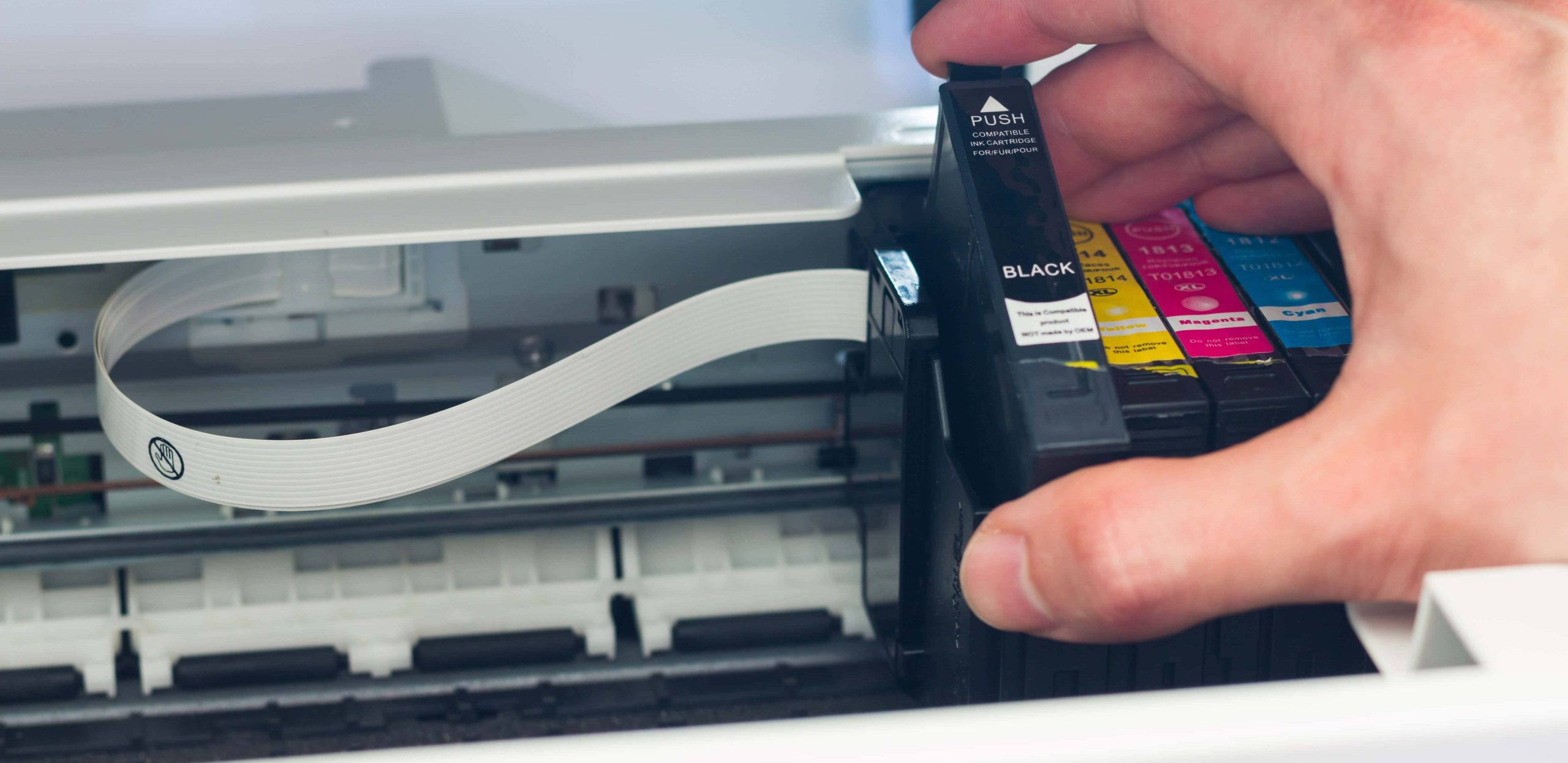
Installing the New Ink Cartridge
This is where the new ink breathes life back into your printer.
- Unpack the New Cartridge: Carefully remove the new ink cartridge from its packaging. Avoid touching the electrical contacts and the ink nozzles, as oils from your skin can interfere with performance.
- Remove Protective Tape or Tabs: Most new cartridges come with a protective strip of tape or a plastic tab covering the ink nozzles or electrical contacts. Carefully remove this according to the instructions on the cartridge packaging. Crucially, do not touch the ink nozzles or the copper-colored contact points with your fingers.
- Insert the New Cartridge: Align the new cartridge with the empty slot, ensuring it is facing the correct direction (usually indicated by a shape or label on the cartridge and the slot). Gently slide the cartridge into the slot until it clicks into place. You should feel it seat firmly.
- Close the Printer Cover: Once both cartridges are securely installed, close the printer’s access panel.
Post-Installation Steps: Alignment and Testing
After the physical replacement, your printer needs a little help to recognize and utilize the new ink.
- Follow On-Screen Prompts: Your printer will likely prompt you to begin an alignment process. This is essential for ensuring that the printheads are correctly calibrated and that colors are accurately reproduced. Select the option to align the printheads.
- Print an Alignment Page: The printer will print a special alignment page. This page usually contains a series of test patterns or a barcode.
- Scan the Alignment Page: Follow the instructions on your printer’s display to scan the alignment page. This is typically done by placing the page on the scanner bed and initiating a scan through the printer’s control panel or software.
- Confirm Alignment: The printer will process the scanned page and confirm the alignment. If the alignment is successful, you’re ready to print. If it fails, you might need to repeat the alignment process or consult your printer’s troubleshooting guide.
- Perform a Test Print: To confirm everything is working correctly, print a test page. This could be a simple document, a photo, or a page from your printer’s utility software. Check for any smudges, streaks, or color inaccuracies.
Troubleshooting Common Ink Installation Issues
Even with careful attention, you might encounter a hiccup or two. Here are solutions to common problems.
Cartridge Not Recognized by the Printer
This is a frustrating but often fixable issue.
- Ensure Correct Installation: The most common reason is that the cartridge isn’t seated properly. Remove it and reinsert it, ensuring it clicks into place.
- Check for Protective Material: Double-check that all protective tape, tabs, or plastic coverings have been completely removed from the new cartridge. Even a small piece can prevent proper connection.
- Clean the Contacts: Gently wipe the electrical contacts on both the cartridge and the printer carriage with a dry, lint-free cloth or a cotton swab lightly dampened with distilled water or isopropyl alcohol. Allow it to dry completely before reinserting.
- Restart Your Printer: Turn the printer off, wait 30 seconds, and then turn it back on. This can sometimes reset the printer and help it recognize the new cartridge.
- Try a Different Cartridge: If you have a spare of the same cartridge, try installing that one to rule out a faulty new cartridge.
- Consult Your Manual: Your printer’s manual may have specific troubleshooting steps for cartridge recognition issues.
Poor Print Quality After Installation
If your prints are streaky, faded, or have missing colors, it’s likely an issue with ink flow or printhead alignment.
- Run a Printhead Cleaning Cycle: Most printers have a built-in utility for cleaning the printheads. Access this through your printer’s control panel or the printer software on your computer. You might need to run this cycle a couple of times.
- Perform a Printhead Alignment: As detailed in the post-installation steps, a proper alignment is crucial for accurate color and sharp text.
- Check Ink Levels: Ensure that all cartridges, including those you didn’t replace, have sufficient ink. Sometimes, one low cartridge can affect the overall print quality.
- Use Quality Paper: The type and quality of paper can significantly impact print results. Ensure you are using paper suitable for your printer and the type of ink it uses.
- Check for Clogged Nozzles: If cleaning cycles and alignment don’t resolve the issue, the printhead nozzles might be severely clogged. This can sometimes be resolved with more advanced cleaning procedures found in your manual or by contacting support.

Ink Leaks or Messes
Accidents happen, but they can usually be cleaned up.
- Immediate Cleanup: If ink spills, gently blot the area with a paper towel or lint-free cloth. Avoid rubbing, which can spread the ink.
- Use Appropriate Cleaners: For stubborn ink stains on surfaces, a mild detergent or an ink-specific cleaner might be necessary. Always test on an inconspicuous area first.
- Preventative Measures: Handle cartridges carefully, especially when removing protective tape. Ensure cartridges are properly seated before closing the printer cover.
By following these detailed steps and understanding the potential issues, you can confidently install printer ink and keep your documents and creative projects printing flawlessly. A well-maintained printer, with correctly installed ink, is an indispensable tool in both personal and professional life.
aViewFromTheCave is a participant in the Amazon Services LLC Associates Program, an affiliate advertising program designed to provide a means for sites to earn advertising fees by advertising and linking to Amazon.com. Amazon, the Amazon logo, AmazonSupply, and the AmazonSupply logo are trademarks of Amazon.com, Inc. or its affiliates. As an Amazon Associate we earn affiliate commissions from qualifying purchases.