
In the vast and dynamic landscape of software development, image processing stands as a cornerstone for countless applications. From web development and data science to graphic design automation and machine learning, the ability to manipulate images programmatically is indispensable. For Python developers, this capability is primarily delivered through a robust and widely-adopted library known as Pillow. A friendly fork of the classic Python Imaging Library (PIL), Pillow has evolved into the de facto standard for handling image operations in Python, offering a rich set of features for everything from basic resizing to complex filtering and format conversion.

This comprehensive guide is designed to equip you with all the knowledge required to successfully install Pillow in your Python environment, ensuring a smooth and efficient setup. We’ll delve into the foundational concepts, walk through step-by-step installation procedures, explore best practices like virtual environments, and provide insightful solutions to common troubleshooting challenges. By the end of this article, you’ll not only have Pillow up and running but also a solid understanding of how to leverage its power for your projects, enhancing your technical toolkit and potentially unlocking new avenues for innovation in branding, productivity, and even financial applications that rely on visual data.
Understanding Pillow: The Essential Python Imaging Library
Before we dive into the mechanics of installation, it’s crucial to grasp what Pillow is, its historical context, and why it has become such an indispensable tool for Python developers. Understanding its core capabilities and wide range of applications will underscore its value within the broader technology ecosystem.
What is Pillow and its Legacy?
Pillow is an open-source library that provides extensive image processing capabilities for Python. It is a modern, actively maintained fork of the original Python Imaging Library (PIL), which was a groundbreaking project but saw its last update in 2009. As Python continued to evolve and new versions were released, PIL became increasingly incompatible and challenging to install. Recognizing the vital role PIL played, a community effort led to the creation of Pillow, breathing new life into the library and ensuring its continued relevance and compatibility with contemporary Python versions.
Pillow maintains the intuitive API of PIL while adding support for modern operating systems, Python 3.x, and a multitude of new features and bug fixes. It’s essentially the same powerful imaging engine, but updated, optimized, and ready for today’s development challenges. The transition from PIL to Pillow was seamless for most developers, making it the go-to choice for anyone needing to work with images in Python.
Why Use Pillow? Core Capabilities and Applications
Pillow’s utility extends across a vast spectrum of applications, making it a versatile tool for various technology-driven tasks. Its core capabilities revolve around opening, manipulating, and saving many different image file formats.
Core Capabilities:
- Image File Format Support: Pillow can read and write a wide array of image formats, including popular ones like JPEG, PNG, GIF, BMP, TIFF, and WebP, as well as less common formats. This extensive support makes it a universal translator for image data.
- Image Manipulation: It provides robust functions for fundamental image operations:
- Resizing and Cropping: Essential for optimizing images for web display, mobile devices, or specific layouts.
- Rotation and Flipping: Adjusting image orientation.
- Color Operations: Converting between color spaces (e.g., RGB to grayscale), adjusting brightness, contrast, and color balance.
- Filtering and Enhancements: Applying various filters (blur, sharpen, emboss, smooth) and enhancing image quality.
- Drawing: Adding text, lines, polygons, and other shapes to images.
- Compositing: Merging multiple images, adding watermarks, or creating collages.
- Pixel-Level Access: For advanced users, Pillow allows direct access to pixel data, enabling highly customized image processing algorithms.
Applications Across Tech, Brand, and Money:
- Web Development (Tech/Brand): Automatically resizing and optimizing images uploaded by users, generating thumbnails, creating dynamic image content, and applying watermarks to protect brand assets. E-commerce platforms, content management systems, and social media sites heavily rely on such functionalities.
- Data Science and Machine Learning (Tech): Preprocessing image datasets for computer vision tasks, such as resizing images to a uniform dimension, applying augmentations (rotations, flips) to increase dataset size, or converting images to arrays for model input.
- Automation and Scripting (Tech/Productivity): Batch processing large collections of images for various purposes – e.g., converting an entire directory of
.pngfiles to.webpfor web optimization, adding company logos to all product images, or generating reports with embedded visuals. - Graphic Design Automation (Brand): Creating personalized marketing materials, generating variations of designs for A/B testing, or producing specific image assets for different platforms at scale, all programmatically. This can significantly reduce manual design effort and ensure brand consistency.
- E-commerce and Online Business (Money): Optimizing product images for faster load times on online stores, which can directly impact conversion rates and user experience. Generating image previews, creating banner ads dynamically, or even building tools for visual inventory management. Efficient image handling can lead to cost savings and increased revenue.
Pillow’s versatility makes it an invaluable asset in a Python developer’s toolkit, enabling a vast range of creative and practical solutions.
Prerequisites for a Seamless Pillow Installation
Before initiating the Pillow installation process, ensuring your development environment is correctly set up is crucial. Addressing these prerequisites will prevent common installation hiccups and guarantee a smoother experience.
Python Installation and Environment Setup
Pillow is a Python library, so the first and most fundamental requirement is a working Python installation on your system. Pillow supports Python versions 3.7 and newer.
How to Check Your Python Installation:
Open your terminal or command prompt and type:
python --version
or
python3 --version
You should see an output indicating your installed Python version, for example: Python 3.9.7. If Python is not installed or the version is too old, you’ll need to install it.
Installing Python:
- Windows: Download the official installer from the Python website. During installation, make sure to check the box that says “Add Python to PATH” to make it easily accessible from the command line.
- macOS: Python 3 is often pre-installed or can be easily installed via Homebrew (
brew install python). - Linux: Python 3 is usually pre-installed. If not, use your distribution’s package manager (e.g.,
sudo apt-get install python3on Debian/Ubuntu,sudo yum install python3on CentOS/RHEL).
Package Managers: Pip, Your Best Friend
pip is the standard package installer for Python. It allows you to install and manage Python packages (like Pillow) that are hosted on the Python Package Index (PyPI). Most modern Python installations (from Python 3.4 onwards) include pip by default.
How to Check Your Pip Installation:
In your terminal or command prompt, type:
pip --version
or
pip3 --version
You should see an output like pip 21.2.4 from /path/to/python/lib/site-packages/pip (python 3.9). If pip is not found, you might need to install or upgrade it.
Upgrading Pip (Recommended):
Even if pip is installed, it’s a good practice to ensure it’s up to date to avoid potential issues:
python -m pip install --upgrade pip
Virtual Environments: Best Practice for Project Isolation
While not strictly a prerequisite for installing Pillow, using a virtual environment is a highly recommended best practice for Python development. It creates an isolated environment for your Python projects, allowing you to manage dependencies separately for each project. This prevents conflicts between different projects that might require different versions of the same library. This is a crucial aspect of good “Tech” practices and significantly boosts “Productivity.”
Why use a Virtual Environment?
Imagine Project A needs Pillow version 9.0 and Project B needs Pillow version 8.0. Without virtual environments, installing one might break the other. With virtual environments, each project has its own set of installed packages.
Creating and Activating a Virtual Environment:
-
Navigate to your project directory:
cd my_python_project -
Create a virtual environment (e.g., named
venv):python -m venv venv -
Activate the virtual environment:
- On Windows:
bash

venvScriptsactivate
- On macOS/Linux:
bash

source venv/bin/activate
- On Windows:
Once activated, your terminal prompt will usually show (venv) or a similar indicator, signifying that you are now operating within the isolated environment. All pip commands executed here will install packages only for this specific environment.
Step-by-Step Guide to Installing Pillow
With your Python environment configured and a virtual environment activated (highly recommended), you are now ready to install Pillow. The process is straightforward using pip.
Standard Installation via Pip
The most common and recommended method to install Pillow is using pip. This command downloads the latest stable version of Pillow from PyPI and installs it along with any necessary dependencies.
- Ensure your virtual environment is active. (If you skipped the virtual environment step, proceed with caution, as packages will be installed globally.)
- Run the installation command:
bash

pip install Pillow
You will see output indicating the download and installation progress. Something like:
Collecting Pillow

  Downloading Pillow-X.Y.Z-cp39-cp39-win_amd64.whl (some_size_mb)

Installing collected packages: Pillow

Successfully installed Pillow-X.Y.Z
TheX.Y.Zwill correspond to the latest version number.
Upgrading an Existing Pillow Installation

If you already have an older version of Pillow installed and wish to update to the latest release, you can use the --upgrade flag with the pip install command. This is crucial for staying current with bug fixes, performance improvements, and new features, ensuring your applications benefit from the latest “Tech” advancements.
pip install --upgrade Pillow
This command will check the installed version against the latest available on PyPI and upgrade it if a newer version is found.
Installing Specific Pillow Versions
Occasionally, you might need to install a specific version of Pillow to maintain compatibility with an existing project or to test a particular feature. pip allows you to specify the version number directly.
For example, to install Pillow version 9.0.0:
pip install Pillow==9.0.0
This is particularly useful in “Tech” projects where strict dependency management is critical, preventing unforeseen breaking changes.
Verifying Your Installation
After installation, it’s good practice to verify that Pillow has been successfully installed and is accessible within your Python environment.
-
Open a Python interpreter:
Make sure your virtual environment is active, then typepython(orpython3) in your terminal. This will open the Python interactive shell. -
Import Pillow and check its version:
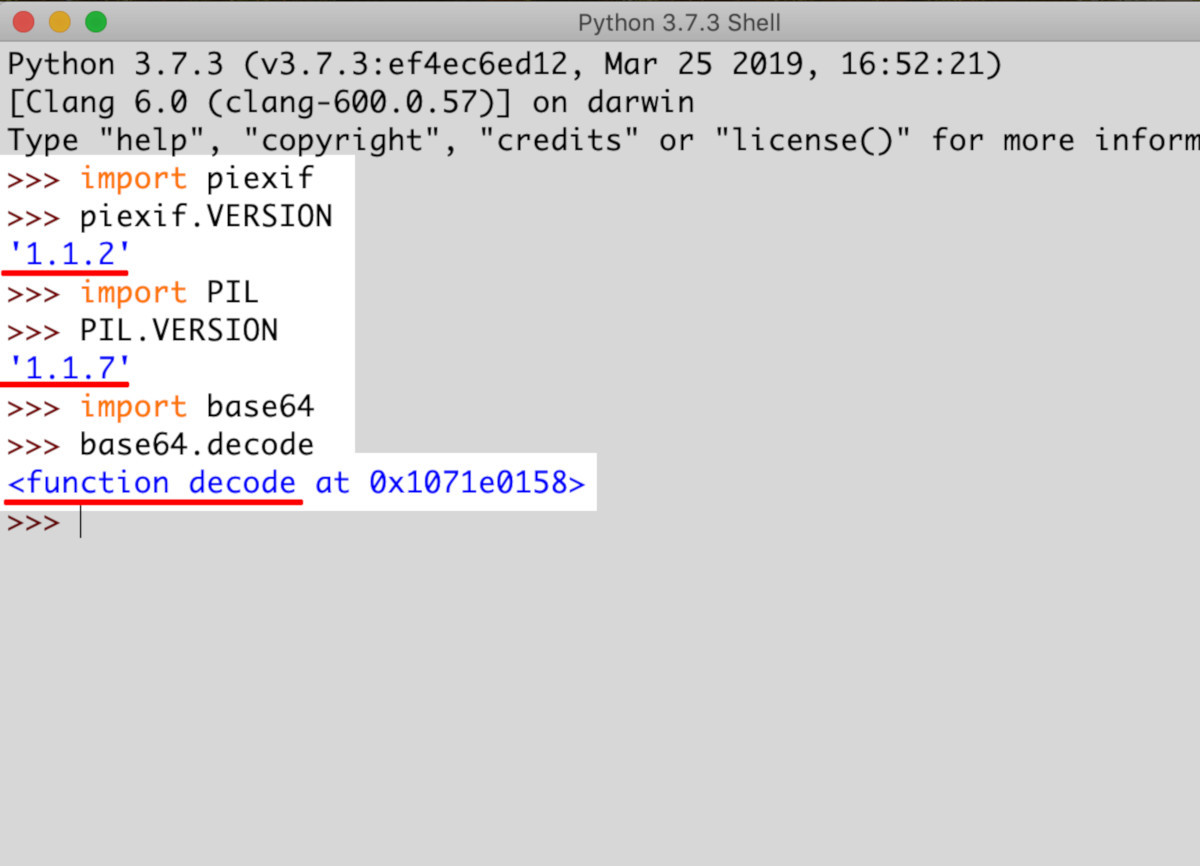
Inside the Python interpreter, type the following:import PIL print(PIL.__version__)You should see the version number of Pillow printed to the console (e.g.,
9.4.0). If anImportErroroccurs, it indicates that Pillow was not installed correctly or is not accessible in your current environment. -
Exit the interpreter:
Typeexit()and press Enter, or pressCtrl+Zthen Enter on Windows, orCtrl+Don macOS/Linux.
This simple verification step confirms Pillow’s readiness for use in your projects.
Advanced Considerations and Troubleshooting
While Pillow’s installation is typically smooth, developers might occasionally encounter issues. Understanding common problems and their solutions is key to maintaining productivity and efficiently resolving technical roadblocks.
Resolving Common Installation Issues
1. pip Command Not Found:
- Symptom: You get an error like
'pip' is not recognized as an internal or external commandorpip: command not found. - Cause: Python’s
Scriptsdirectory (wherepipresides) is not in your system’s PATH environment variable. - Solution:
- Ensure Python is correctly installed and its
Scriptsdirectory is added to PATH. On Windows, reinstall Python and check the “Add Python to PATH” option. - Alternatively, you can often call
pipdirectly via the Python interpreter:python -m pip install Pilloworpython3 -m pip install Pillow.
- Ensure Python is correctly installed and its
2. Permission Errors:
- Symptom: Errors like
Permission deniedorCould not install packages due to an OSError: [WinError 5] Access is deniedwhen installing globally. - Cause: You’re trying to install packages into a system-wide Python installation without sufficient administrative privileges.
- Solution:
- Recommended: Use a virtual environment. This is the most secure and effective solution, as it doesn’t require elevated permissions.
- Alternative (use with caution): On Linux/macOS, you can try
sudo pip install Pillow. On Windows, run your command prompt/PowerShell as Administrator. However, installing globally withsudois generally discouraged for application dependencies due to potential conflicts and security implications.
3. Compiler Errors / Missing System Libraries (Especially on Linux):
- Symptom: Installation fails with errors mentioning
gcc,cl.exe(on Windows),jpeg,zlib,tiff, orfreetype. This often happens when Pillow tries to compile certain image codecs from source because pre-built wheels aren’t available for your specific system or Python version. - Cause: Pillow often relies on underlying system libraries to handle various image formats (e.g.,
libjpegfor JPEG,zlibfor PNG,libtifffor TIFF,libwebpfor WebP,libfreetypefor text rendering). If these development headers are missing, Pillow cannot compile the necessary components. - Solution (Linux/macOS): Install the development versions of these libraries using your system’s package manager.
- Debian/Ubuntu:
bash

sudo apt-get update

sudo apt-get install build-essential libjpeg-dev zlib1g-dev libtiff-dev libfreetype6-dev liblcms2-dev libwebp-dev tcl-dev tk-dev python3-tk
- CentOS/RHEL/Fedora:
bash

sudo yum install gcc libjpeg-devel zlib-devel libtiff-devel freetype-devel lcms2-devel libwebp-devel tcl-devel tk-devel
- macOS (with Homebrew):
bash

brew install jpeg zlib libtiff webp freetype little-cms2
After installing these, trypip install Pillowagain.
- Debian/Ubuntu:
4. Network Issues:
- Symptom: Errors like
Could not fetch URL,Connection refused, orRead timed out. - Cause: Problems with your internet connection, corporate proxy settings, or PyPI being temporarily unreachable.
- Solution: Check your internet connection. If you’re behind a corporate firewall, configure
pipto use your proxy (refer topipdocumentation for proxy settings). You can also try installing from a mirror if PyPI is down.
Installing Pillow with Optional Features (Image Formats)
Pillow’s basic installation supports common image formats. However, for full functionality with all supported formats (like specific TIFF features, WebP, etc.), it relies on external C libraries being present on your system. The pip install Pillow command generally attempts to link against these if they are found during the installation process (especially when building from source).
As seen in the troubleshooting section, installing development headers for libraries like libjpeg, zlib, libtiff, libwebp, and libfreetype before installing Pillow ensures that Pillow can compile with full support for these formats. If you install Pillow first and then add the system libraries, you might need to reinstall Pillow to pick up the new dependencies:
pip install --upgrade --no-binary :all: Pillow
The --no-binary :all: flag forces pip to recompile Pillow from source, allowing it to link against any newly installed system libraries. This ensures complete image format support, which is vital for “Brand” and “Tech” applications dealing with diverse visual assets.
Building from Source (Advanced Users)
While pip install Pillow typically handles everything, very advanced users or those with specific system configurations might need to build Pillow directly from source. This involves downloading the source code, installing development tools (like setuptools and a C compiler), and then running python setup.py install. This is rarely necessary for most users and is usually only pursued when dealing with highly customized environments or contributing to Pillow’s development. The --no-binary :all: flag (as shown above) achieves a similar result without needing to manually handle source code.
Leveraging Pillow: Basic Usage and Beyond
Once Pillow is successfully installed, you can immediately begin integrating its powerful image processing capabilities into your Python projects. This section offers a quick introduction to basic usage and then touches upon the broader implications for your “Tech,” “Brand,” and “Money” endeavors.
A Quick Dive into Image Manipulation
Let’s illustrate some fundamental Pillow operations with simple Python code.
1. Opening an Image:
from PIL import Image

try:
    img = Image.open("example.jpg")
    print(f"Image format: {img.format}")
    print(f"Image size: {img.size}")
    print(f"Image mode: {img.mode}")
    img.show() # Opens the image in your default image viewer
except FileNotFoundError:
    print("Error: example.jpg not found. Make sure it's in the same directory.")
except Exception as e:
    print(f"An error occurred: {e}")
Make sure you have an example.jpg file in the same directory as your Python script.
2. Resizing an Image:
Resizing is crucial for web optimization and creating thumbnails.
from PIL import Image

try:
    img = Image.open("example.jpg")
    new_size = (300, 200) # Width, Height
    resized_img = img.resize(new_size)
    resized_img.save("example_resized.jpg")
    print(f"Image resized and saved as example_resized.jpg with size {resized_img.size}")
except FileNotFoundError:
    print("Error: example.jpg not found.")
except Exception as e:
    print(f"An error occurred: {e}")
3. Cropping an Image:
from PIL import Image

try:
    img = Image.open("example.jpg")
    # (left, upper, right, lower)
    # Cropping a 100x100 square from the top-left corner
    box = (0, 0, 100, 100)
    cropped_img = img.crop(box)
    cropped_img.save("example_cropped.jpg")
    print("Image cropped and saved as example_cropped.jpg")
except FileNotFoundError:
    print("Error: example.jpg not found.")
except Exception as e:
    print(f"An error occurred: {e}")
4. Adding Text to an Image (Requires Pillow with libfreetype support):
from PIL import Image, ImageDraw, ImageFont

try:
    img = Image.open("example.jpg").convert("RGB") # Convert to RGB to ensure compatibility for drawing
    draw = ImageDraw.Draw(img)

    # You might need to specify a path to a font file on your system
    # For example, on Windows: "arial.ttf" or "C:/Windows/Fonts/arial.ttf"
    # On Linux: "/usr/share/fonts/truetype/dejavu/DejaVuSans-Bold.ttf"
    # Or simply use ImageFont.load_default() for a basic font
    try:
        font = ImageFont.truetype("arial.ttf", 40) # Adjust font size as needed
    except IOError:
        print("Could not load Arial font, using default.")
        font = ImageFont.load_default()

    text = "Hello, Pillow!"
    text_color = (255, 255, 255) # White
    text_position = (10, 10) # X, Y coordinates

    draw.text(text_position, text, font=font, fill=text_color)
    img.save("example_with_text.jpg")
    print("Image with text saved as example_with_text.jpg")
except FileNotFoundError:
    print("Error: example.jpg not found.")
except Exception as e:
    print(f"An error occurred: {e}")
These examples demonstrate just a fraction of Pillow’s capabilities, but they lay the groundwork for more complex operations.
Real-World Applications and Strategic Impact
With Pillow installed and a basic understanding of its use, the doors open to a multitude of impactful applications across the main topics of this website:
- Enhancing Tech Infrastructure: Automate image processing pipelines for content delivery networks, build custom tools for photo management, or integrate advanced computer vision pre-processing into AI models. Pillow makes these “Tech” innovations more accessible and efficient.
- Boosting Brand Consistency and Presence: Imagine automatically resizing and watermarking all product images before uploading them to an e-commerce site, ensuring consistent branding and copyright protection. Or dynamically generating social media graphics with event-specific text and dates. Pillow empowers “Brand” managers to scale their visual content efforts without compromising quality or requiring extensive manual labor.
- Driving Financial Efficiency and New Revenue Streams: By automating tedious image-related tasks, businesses can save significant “Money” in operational costs. This includes batch processing images for online catalogs, generating visual reports for financial data, or even building platforms that offer image manipulation as a service. Pillow enables developers to create tools that directly impact the bottom line, turning manual overhead into automated assets.
The power of Pillow lies not just in its technical capabilities but in its potential to transform how businesses and individuals interact with visual information, fostering efficiency, creativity, and strategic advantage in the digital age.
Conclusion
Pillow stands as an indispensable library for Python developers venturing into the realm of image processing. From its humble beginnings as a fork of the classic PIL to its current status as the robust, actively maintained standard, Pillow has continually empowered users to open, manipulate, and save a vast array of image formats with ease and efficiency.
In this comprehensive guide, we’ve navigated the essential steps to get Pillow up and running in your Python environment. We started by understanding what Pillow is and why its capabilities are so crucial across various sectors, from web development to machine learning. We then meticulously covered the prerequisites, emphasizing the importance of a properly configured Python installation, the utility of pip as your package manager, and the critical role of virtual environments for maintaining clean, isolated project dependencies.
The step-by-step installation process, including standard pip commands, upgrading existing installations, and specifying particular versions, ensures you can manage Pillow precisely to suit your project’s needs. We also delved into vital verification techniques to confirm a successful installation and provided a thorough breakdown of common troubleshooting scenarios, offering practical solutions for permission issues, missing system libraries, and compiler errors that might arise. Finally, we glimpsed Pillow’s practical application through basic code examples, showcasing how simple it is to open, resize, crop, and add text to images, thereby unlocking a world of possibilities.
Whether you’re looking to optimize images for a faster website, standardize branding across digital assets, automate visual content creation, or prepare datasets for advanced AI models, Pillow offers the foundational tools to achieve your goals. By mastering its installation and fundamental usage, you’re not just adding another library to your toolkit; you’re gaining a powerful ally in enhancing productivity, driving innovation in technology, reinforcing brand identity, and ultimately, creating value in the digital economy. Embrace Pillow, and let your Python applications truly come alive with visual intelligence.
aViewFromTheCave is a participant in the Amazon Services LLC Associates Program, an affiliate advertising program designed to provide a means for sites to earn advertising fees by advertising and linking to Amazon.com. Amazon, the Amazon logo, AmazonSupply, and the AmazonSupply logo are trademarks of Amazon.com, Inc. or its affiliates. As an Amazon Associate we earn affiliate commissions from qualifying purchases.