
A well-performing PC isn’t just about raw processing power; it’s also about managing the heat generated by those powerful components. Overheating can lead to throttling, performance degradation, and in the worst-case scenarios, permanent damage. This is where PC fans come in. Installing additional or replacement fans is a fundamental yet crucial step in ensuring your computer runs smoothly and efficiently, extending its lifespan and maintaining optimal performance. Whether you’re a seasoned gamer, a creative professional, or simply someone who wants to keep their workstation cool and quiet, understanding how to install PC fans is an essential skill.

This comprehensive guide will walk you through the entire process, from understanding the different types of fans and their placement to the hands-on installation steps. We’ll cover everything you need to know to successfully upgrade your PC’s cooling system, ultimately contributing to a more stable and enjoyable computing experience.
Understanding Your Cooling Needs: Why More Fans Might Be Necessary
Before diving into the physical installation, it’s vital to assess your current cooling situation and determine if adding or replacing fans is indeed the right solution for your PC. Several factors can indicate that your system is struggling with heat.
Signs Your PC Needs Better Cooling
- Performance Throttling: If you notice your PC’s performance dips significantly during demanding tasks like gaming, video editing, or running complex simulations, it’s a strong indicator of thermal throttling. Components like the CPU and GPU reduce their clock speeds to prevent overheating, directly impacting performance.
- Loud Fan Noise: While fans do make noise, exceptionally loud and persistent fan noise, especially when the PC is not under heavy load, suggests they are working overtime to dissipate heat. This could mean existing fans are insufficient or struggling.
- Hot Chassis: If the exterior of your PC case feels unusually hot to the touch, it’s a clear sign that heat isn’t being effectively expelled from the interior.
- System Instability and Crashes: Unexpected shutdowns, blue screens of death (BSODs), or general system instability can often be attributed to overheating components.
- Dust Buildup: Accumulated dust acts as an insulator, trapping heat within your components. Regularly cleaning your PC is crucial, but if despite cleaning, you still experience heat issues, it might be time to improve airflow.
Types of PC Fans and Their Roles
PC fans are categorized primarily by their size and intended function:
-
Case Fans: These are the most common type and are responsible for moving air in and out of your PC case. They are typically mounted on the front, rear, top, and sometimes the bottom or sides of the case.
- Intake Fans: These fans draw cool air from outside the case into the system, supplying fresh air to components. They are usually mounted on the front or bottom of the case.
- Exhaust Fans: These fans push hot air out of the case, expelling the heat generated by components. They are typically mounted on the rear or top of the case.
- Positive vs. Negative Airflow:
- Positive Airflow: More intake fans than exhaust fans. This creates slight positive pressure inside the case, which can help minimize dust accumulation by forcing air out through small gaps.
- Negative Airflow: More exhaust fans than intake fans. This creates negative pressure, which can pull in dust through any unfiltered openings. Generally, a balanced or slightly positive airflow is preferred for optimal cooling and dust management.
-
CPU Cooler Fans: These fans are attached to the heatsink of your CPU cooler (either air coolers or AIO liquid coolers). Their primary job is to direct airflow over the heatsink’s fins, dissipating the CPU’s heat effectively.
-
GPU Fans: Graphics cards usually come with integrated fans as part of their cooling solution. While you can’t typically install additional GPU fans directly onto the card (unless using aftermarket cooling solutions), ensuring the case fans provide adequate airflow to the GPU is crucial.
Fan Sizes and Connectors
PC fans come in various standard sizes, measured by their diameter in millimeters: 40mm, 60mm, 80mm, 92mm, 120mm (most common), 140mm, and even 200mm. The size of the fan dictates how much air it can move (measured in CFM – Cubic Feet per Minute) and its noise level.
Fan connectors are also important:
- 3-pin Connectors: These provide power and are typically connected to the motherboard or fan controllers. They usually run at a fixed speed or can be controlled via voltage adjustment, which is less common.
- 4-pin PWM (Pulse Width Modulation) Connectors: These are the modern standard. They provide power and allow for much more precise speed control via PWM signals from the motherboard. This means fans can ramp up their speed under load and slow down when idle, saving power and reducing noise.
Preparing for Installation: What You’ll Need
Before you unscrew a single panel, gather your tools and ensure you have everything you need for a smooth installation. This preparation phase is key to preventing frustration and potential damage.
Essential Tools and Supplies
- Your New PC Fan(s): Make sure you’ve chosen fans that are compatible with your case’s mounting points and your motherboard’s fan headers. Consider CFM, noise level (dBA), and connector type.
- Screwdriver Set: A Phillips head screwdriver is essential. Magnetic tips can be incredibly helpful for preventing dropped screws inside your PC.
- Anti-Static Wrist Strap: This is highly recommended to protect your sensitive PC components from electrostatic discharge (ESD), which can cause permanent damage. Connect it to an unpainted metal part of your PC case.
- Zip Ties or Velcro Straps: For cable management. Tidy cables improve airflow and make your build look cleaner.
- Optional: Fan Filters: If your case doesn’t have them, especially for intake fans, filters can significantly reduce dust buildup.
- Optional: Thermal Paste (if replacing CPU fan): If you’re replacing a CPU cooler fan or the entire cooler, you’ll need new thermal paste to ensure good contact between the heatsink and the CPU.
Safety First: Taking Precautions
Working inside a computer requires caution to prevent damage to yourself and your components.
- Power Down and Unplug: Before opening your PC, completely shut down your computer. Then, turn off the power supply switch on the back of the PSU (if it has one) and unplug the power cord from the wall outlet.
- Discharge Residual Power: Press the power button on your PC a few times after unplugging the power cord. This helps discharge any residual electricity stored in capacitors.
- Ground Yourself: Use an anti-static wrist strap. Attach one end to your wrist and the other to an unpainted metal part of your PC case. This will safely equalize the electrical potential between you and the computer, preventing ESD.
- Work on a Clean Surface: Find a well-lit, stable, and clean workspace. Avoid working on carpet, as it can generate static electricity.
The Installation Process: Step-by-Step Guide
With your preparation complete and safety measures in place, you’re ready to begin the physical installation of your PC fans. The process is similar for most case fans, with minor variations for CPU cooler fans.
Installing Case Fans
This section covers the installation of intake and exhaust fans into your PC case.
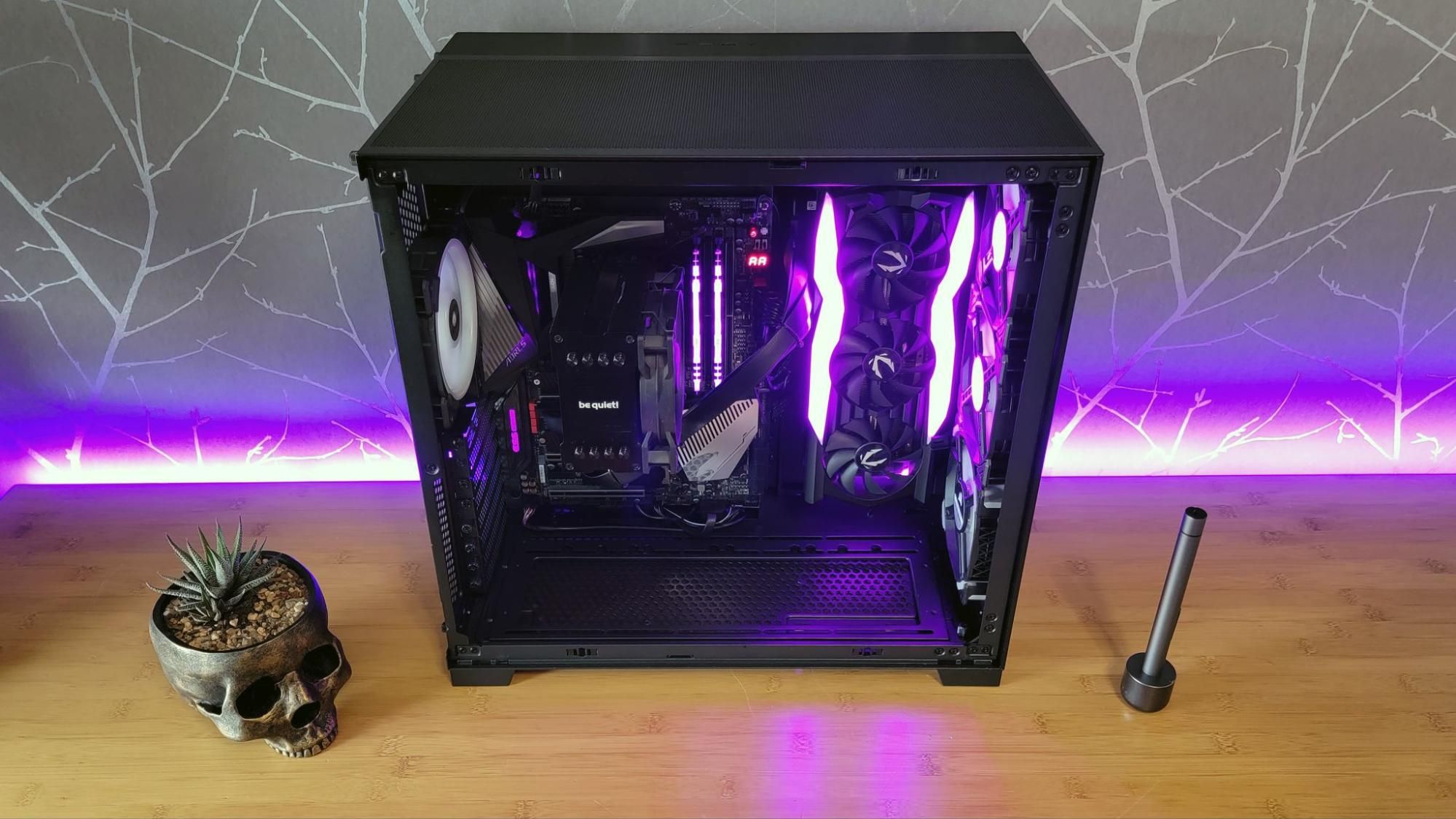
1. Accessing the Interior of Your PC Case
- Open the Case: Most PC cases have side panels that are secured by thumbscrews or regular screws at the rear. Carefully remove these screws and gently slide or lift the panel off. Refer to your case manual if you’re unsure.
- Identify Mounting Locations: Look for pre-drilled holes or fan brackets designed for fans. These are typically found on the front, rear, top, and sometimes the bottom or side panels.
2. Determining Airflow Direction
- Fan Design: Most fans have arrows printed on the side of the housing. One arrow indicates the direction of the fan blades’ rotation, and the other indicates the direction of airflow. It’s crucial to pay attention to these.
- Intake vs. Exhaust:
- For intake fans (drawing air in), the arrows should point into the case.
- For exhaust fans (pushing air out), the arrows should point out of the case.
- Strategic Placement:
- Front/Bottom: Typically used for intake, bringing cool air to components.
- Rear/Top: Typically used for exhaust, expelling hot air.
- Aim for a balanced airflow or slightly positive pressure for optimal dust management.
3. Mounting the Fan
- Align with Mounting Holes: Position the fan over the desired mounting location, ensuring the screw holes on the fan align with the corresponding holes on the case.
- Secure with Screws: Use the screws that came with your fan. Gently insert the screws through the fan’s mounting holes and into the case. Tighten them until the fan is snug, but avoid overtightening, which can strip the threads or crack the fan frame.
- Consider Vibration Dampening: Some fans come with rubber grommets or standoffs. If yours do, install them between the fan and the case to reduce vibration and noise.
4. Connecting the Fan to the Motherboard
- Locate Fan Headers: On your motherboard, find the “SYSFAN” or “CHAFAN” (chassis fan) headers. These are usually 3-pin or 4-pin connectors. Refer to your motherboard manual for their exact locations.
- Connect the Cable: Match the connector on the fan’s cable to the header on the motherboard. For 4-pin PWM fans, ensure the pin aligns correctly; they are keyed to prevent incorrect insertion.
- If you have more fans than headers, you may need a fan splitter cable or a dedicated fan controller.
- Cable Management: Once connected, neatly route the fan cables using zip ties or Velcro straps. Keep them away from moving parts like other fans or heatsinks. Tucking them along the edges of the case or behind the motherboard tray (if your case allows) is a good practice.
Installing or Replacing CPU Cooler Fans
If you’re upgrading your CPU cooler or replacing a fan on an existing cooler, the process is slightly different.
1. Accessing the CPU Cooler
- Remove Existing Fan (if applicable): If you’re replacing a fan on an existing CPU cooler, you’ll need to detach the old fan. This usually involves releasing clips or removing screws.
- Remove Cooler (if necessary): If you’re installing a new cooler or replacing the fan on a cooler that’s difficult to access, you might need to remove the entire cooler. This involves unscrewing it from the motherboard. Be careful when doing this, as the thermal paste can create suction. Gently twist the cooler before pulling it straight up.
2. Applying Thermal Paste (if needed)
- Clean Surfaces: If you removed the cooler, clean the old thermal paste from both the CPU’s integrated heat spreader (IHS) and the base of the cooler using isopropyl alcohol and a lint-free cloth.
- Apply New Thermal Paste: Apply a small amount (pea-sized or a thin line) of new thermal paste to the center of the CPU’s IHS. You don’t need much; the pressure from the cooler will spread it.
3. Mounting the CPU Cooler
- Follow Cooler Instructions: Each CPU cooler has a specific mounting mechanism. Carefully follow the manufacturer’s instructions for securing the cooler to the motherboard. Ensure it’s seated firmly and evenly.
- Attach the Fan: Once the cooler is mounted, attach the new fan(s) to the heatsink. This is usually done with clips or screws provided with the fan or cooler.
4. Connecting the CPU Fan
- Locate CPUFAN Header: Find the “CPUFAN” header on your motherboard. This header is specifically designed to monitor your CPU cooler’s fan speed and is crucial for system stability.
- Connect the Cable: Plug the CPU fan’s connector into the CPU_FAN header.
Post-Installation Checks and Optimization
After completing the physical installation, it’s time to ensure everything is working correctly and to fine-tune your new cooling setup.
Verifying Fan Operation
- Power On: Reattach your PC’s side panel, plug in the power cord, and turn on your computer.
- Listen and Observe: As the system boots up, listen for any unusual noises. Visually confirm that all installed fans are spinning.
- BIOS/UEFI Check: During the boot process, you can usually access your system’s BIOS or UEFI (often by pressing DEL, F2, or F10). Within the BIOS/UEFI, there’s typically a hardware monitoring section that shows CPU temperature and fan speeds. Verify that your new fans are being detected and are spinning.
Monitoring Temperatures and Performance
- Software Monitoring Tools: Download and install reputable system monitoring software. Popular options include:
- HWiNFO: A comprehensive tool that provides detailed information on hardware, including temperatures, voltages, and fan speeds.
- MSI Afterburner: Primarily for GPU overclocking, but also excellent for monitoring CPU and GPU temperatures and fan speeds.
- Core Temp: Specifically designed for monitoring CPU temperatures.
- Stress Testing: To truly gauge the effectiveness of your new fans, run stress tests. These applications push your CPU and/or GPU to their limits, generating maximum heat.
- CPU Stress Tests: Prime95, AIDA64 (System Stability Test).
- GPU Stress Tests: FurMark, Unigine Heaven/Superposition.
- Compare Temperatures: Run a stress test before installing new fans (if possible) and then after. Compare the peak temperatures to see the improvement. Also, monitor temperatures during your regular daily tasks and gaming sessions.

Fan Curve Adjustment (Advanced)
Modern motherboards allow you to customize how your fans respond to temperature changes. This is often done within the BIOS/UEFI or through motherboard-specific software.
- Fan Curves: A fan curve is a graph that maps fan speed (as a percentage) to temperature. You can set a baseline speed for idle periods and then program the fans to ramp up more aggressively as temperatures rise.
- Balancing Cooling and Noise: Experiment with different fan curves to find a balance between effective cooling and acceptable noise levels. A quiet PC is often just as important as a cool one.
By following these steps, you can confidently install PC fans, significantly improving your computer’s thermal management. A cooler system is a happier system, leading to better performance, greater stability, and a longer operational life for your valuable hardware.
aViewFromTheCave is a participant in the Amazon Services LLC Associates Program, an affiliate advertising program designed to provide a means for sites to earn advertising fees by advertising and linking to Amazon.com. Amazon, the Amazon logo, AmazonSupply, and the AmazonSupply logo are trademarks of Amazon.com, Inc. or its affiliates. As an Amazon Associate we earn affiliate commissions from qualifying purchases.