
Python, a versatile and powerful programming language, has earned its reputation as a go-to tool for everything from web development and data science to artificial intelligence and automation. A significant part of Python’s widespread adoption and incredible utility stems from its vast ecosystem of packages and libraries. These pre-written modules provide specialized functionalities, allowing developers to build complex applications efficiently without having to reinvent the wheel for every task. Understanding how to effectively install and manage these packages is not just a fundamental skill; it’s the gateway to unlocking Python’s true potential and significantly boosting your productivity as a developer or data scientist.
This comprehensive guide will walk you through the essential steps and best practices for installing packages in Python. We’ll cover everything from the basics of using pip, Python’s standard package installer, to the critical role of virtual environments in maintaining clean and conflict-free project dependencies. Whether you’re a beginner just starting your coding journey or an experienced developer looking to refine your package management skills, mastering these techniques is paramount for robust and scalable Python development.
The Power of Python Packages: Expanding Your Capabilities
Python’s strength lies not just in its elegant syntax, but profoundly in its rich collection of packages. These packages are essentially directories of Python modules, often accompanied by additional resources, that bundle related functionalities. They are developed by the community, openly shared, and readily available for use, transforming Python from a simple scripting language into an incredibly powerful platform for a multitude of applications.
What are Python Packages and Why are They Essential?
Imagine you’re building a web application. Instead of writing all the code for handling HTTP requests, routing URLs, or interacting with a database from scratch, Python packages like Django or Flask provide these functionalities ready-made. Similarly, for data analysis, packages like NumPy and Pandas offer high-performance tools for numerical operations and data manipulation, saving countless hours of development time.
The core essence of Python packages can be summarized by a few key advantages:
- Efficiency and Productivity: They allow developers to leverage existing, well-tested code, significantly reducing development time and effort. You can focus on solving the unique problems of your project rather than on boilerplate code.
- Specialized Functionality: Packages provide highly specialized tools for niche areas. Whether it’s machine learning (scikit-learn), image processing (Pillow), or scientific computing (SciPy), there’s likely a package for it.
- Community Contribution and Reliability: The vast majority of Python packages are open-source and maintained by a global community of developers. This collaborative effort ensures packages are continuously improved, bugs are fixed, and best practices are integrated, leading to more reliable and robust software.
- Standardization: Using common packages across projects helps standardize development practices, making code more readable, maintainable, and easier for others to understand and contribute to.
Without packages, Python would be a far less compelling language. They are the building blocks that allow developers to push the boundaries of what’s possible, enabling rapid prototyping and deployment of sophisticated solutions across virtually every industry touched by technology.
A Glimpse into the Python Ecosystem: PyPI and Beyond
The central repository for Python packages is the Python Package Index (PyPI, often pronounced “Py-P-I” or “Py-Pie”). This is where most open-source Python packages are published and discovered. As of late 2023, PyPI hosts over half a million projects, with millions of releases, encompassing an incredible diversity of tools and libraries. Whenever you install a package, pip (which we’ll discuss next) typically fetches it from PyPI by default.
Beyond PyPI, some larger data science or scientific computing projects might use alternative distribution channels, most notably Conda (managed by Anaconda), which handles both Python packages and non-Python dependencies. However, for the vast majority of Python development, PyPI and pip remain the standard and primary method for package management. Exploring PyPI is an excellent way to discover new tools and understand the breadth of what Python offers.
Getting Started: Prerequisites for Package Installation
Before you can begin harnessing the power of Python packages, you need to ensure your development environment is properly set up. This involves having Python itself installed and understanding its built-in package installer, pip.
Ensuring Python is Installed
The very first step is to confirm that Python is installed on your system. Python 3 is the current standard, and it’s highly recommended to use a version of Python 3.6 or newer for compatibility with modern packages.
To check if Python is installed and to see its version, open your terminal or command prompt and type:
python --version
or
python3 --version
If you see a version number (e.g., Python 3.9.7), you’re good to go. If not, or if you have an older Python 2 version, you’ll need to install Python 3. The official Python website (python.org) provides installers for Windows, macOS, and instructions for various Linux distributions. During installation, especially on Windows, make sure to check the option “Add Python to PATH” or “Add Python 3.x to PATH” to make it easily accessible from your command line.
Understanding Pip: Python’s Package Installer
pip stands for “Pip Installs Packages” (or “Pip Installs Python” – it’s a recursive acronym!). It is the standard package-management system used to install and manage software packages written in Python. When you install Python 3, pip is almost always installed automatically alongside it.
pip simplifies the process of downloading, installing, and managing Python packages from PyPI. It handles dependencies, ensuring that if a package requires other packages to function, pip will install those too.
To verify that pip is installed and to check its version, open your terminal or command prompt and type:
pip --version
or
pip3 --version
You should see output similar to pip 21.2.4 from /path/to/python/lib/site-packages/pip (python 3.9). If pip is not found, you might need to install it separately (though this is rare with modern Python 3 installations) or ensure your Python installation correctly added pip to your system’s PATH. On Linux, you might need to install python3-pip using your distribution’s package manager (e.g., sudo apt install python3-pip on Debian/Ubuntu).
Setting Up Your Development Environment
While not strictly a prerequisite for installing packages, having a comfortable development environment significantly enhances your coding experience. This typically includes:
- An Integrated Development Environment (IDE) or Text Editor: Popular choices include VS Code, PyCharm, Sublime Text, Atom, or even basic editors like Vim or Emacs. These tools often provide features like syntax highlighting, code completion, and integrated terminals, making it easier to write code and execute commands.
- Command Line Interface (CLI): Familiarity with your operating system’s terminal (Command Prompt/PowerShell on Windows, Terminal on macOS/Linux) is essential, as
pipcommands are executed here.
With Python and pip ready, you’re now equipped to dive into the core process of package installation.
Mastering Pip: Your Gateway to Python’s Package Universe
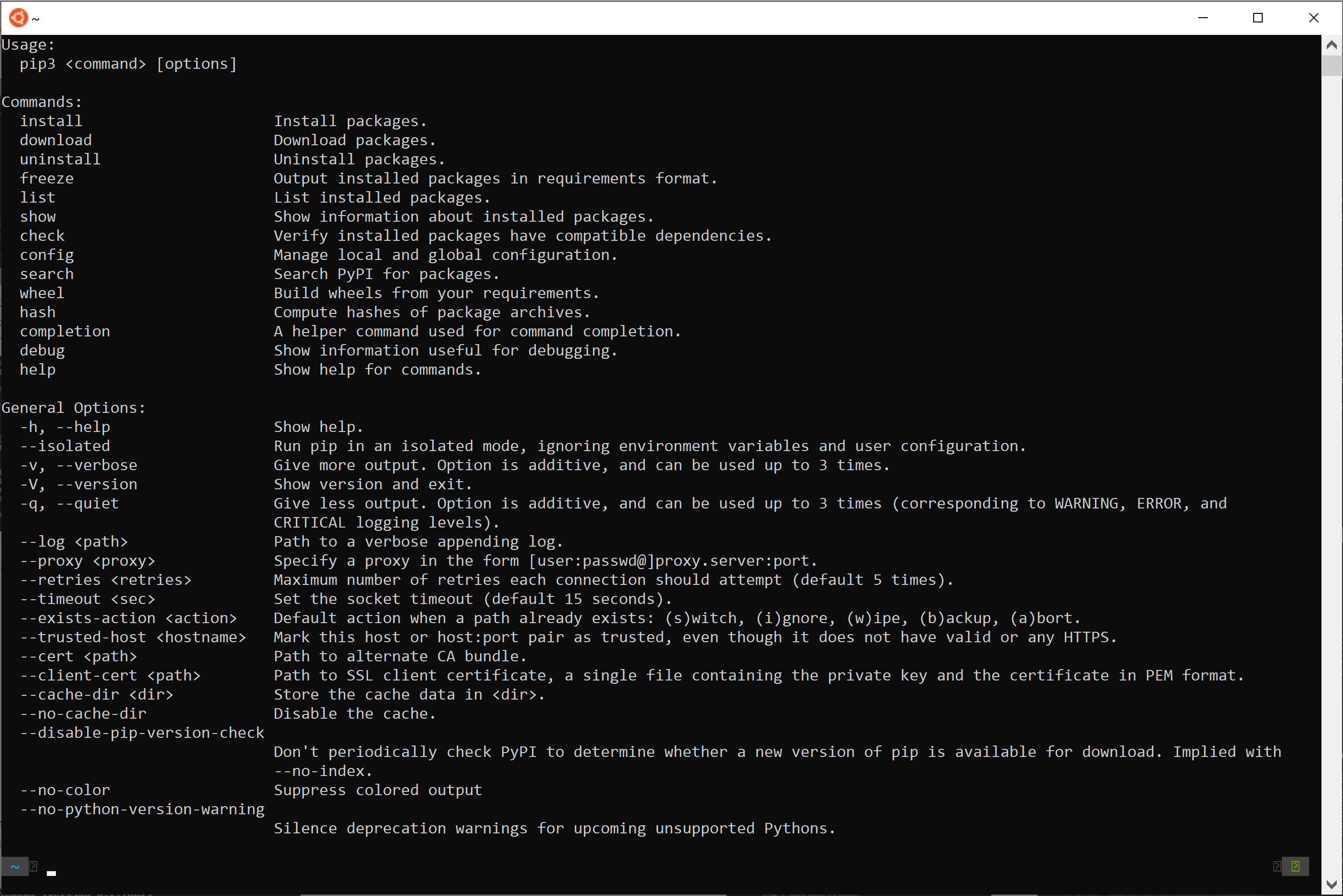
pip is your primary tool for interacting with Python packages. Understanding its core commands will empower you to efficiently manage dependencies for all your Python projects.
Basic Package Installation Command: pip install
The most fundamental pip command is pip install. This command tells pip to fetch a specified package from PyPI and install it into your Python environment.
Syntax:
pip install <package_name>
Let’s illustrate with a common example: the requests package, which simplifies making HTTP requests in Python.
Example 1: Installing a single package
To install the requests package:
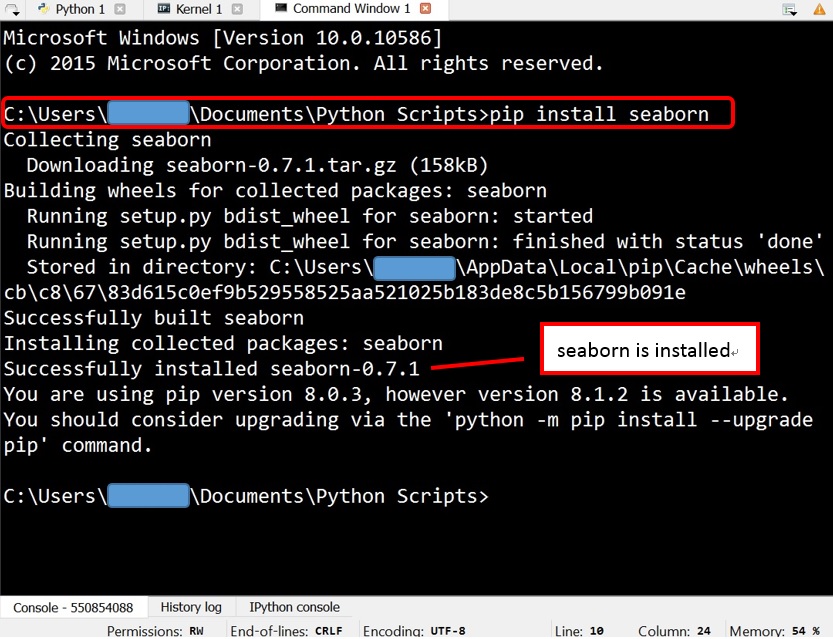
pip install requests
You’ll see output indicating that pip is collecting the package, downloading it, and installing it, along with any dependencies it might have. Once complete, you can import and use requests in your Python scripts.
import requests

response = requests.get("https://www.google.com")
print(response.status_code)
Installing Multiple Packages:
You can install several packages at once by listing them after pip install:
pip install numpy pandas matplotlib
This command will install NumPy (for numerical operations), Pandas (for data manipulation), and Matplotlib (for plotting), all at once.
Installing a Specific Version:
Sometimes, you might need to install a particular version of a package to ensure compatibility with other parts of your project or to avoid breaking changes introduced in newer versions.
Syntax:
pip install <package_name>==<version_number>
Example 2: Installing an older version of Django
If your project requires Django version 3.2.0:
pip install Django==3.2.0
You can also specify a minimum version (>=), maximum version (<=), or a range. For example, to install any version of Django that is 3.2.x but less than 3.3:
pip install Django~=3.2.0
This ~= operator (compatible release) means “install the latest version that is compatible with 3.2.0, meaning anything from 3.2.0 up to, but not including, 3.3.0”.
Upgrading and Updating Packages
It’s good practice to keep your packages updated to benefit from bug fixes, performance improvements, and new features.
To upgrade an already installed package to its latest version:
Syntax:
pip install --upgrade <package_name>
Example 3: Upgrading the requests package
pip install --upgrade requests
If you want to see all currently installed packages and their versions, you can use:
pip list
Installing from a requirements.txt File
For professional Python projects, especially those involving multiple packages or intended for collaboration, manually installing packages one by one is impractical and prone to errors. This is where requirements.txt files become indispensable.
A requirements.txt file is a plain text file that lists all the direct and indirect dependencies of a project, often with their specific versions. This ensures that anyone setting up the project can install the exact same environment, preventing “works on my machine” issues.
Example of requirements.txt:
Django==4.2.7
djangorestframework==3.14.0
requests>=2.28.1,<3.0.0
gunicorn
psycopg2-binary
To install all packages listed in a requirements.txt file, navigate to the directory containing the file in your terminal and run:
pip install -r requirements.txt
This command is crucial for project setup, deployment, and ensuring consistent environments across development, testing, and production.
Uninstalling Packages
If you no longer need a package or wish to replace it, pip can also uninstall it.
Syntax:
pip uninstall <package_name>
Example 4: Uninstalling the requests package
pip uninstall requests
pip will ask for confirmation before removing the package and its related files.
Essential Tools for Robust Python Development: Virtual Environments
While global package installation seems straightforward, it quickly leads to problems. Different projects often require different versions of the same package, or entirely different sets of packages. Installing everything globally can lead to dependency conflicts, where one project’s requirements break another’s. This is where Python virtual environments become absolutely critical.
Why Virtual Environments Are Indispensable
A virtual environment is a self-contained directory that holds a specific Python interpreter and its own set of installed packages. It’s isolated from the system’s global Python installation and other virtual environments.
The benefits of using virtual environments are immense:
- Dependency Isolation: Each project can have its own dependencies, preventing conflicts between projects that might require different versions of the same library.
- Cleanliness: Your global Python installation remains uncluttered, containing only the base Python installation.
- Reproducibility: By specifying project dependencies in a
requirements.txtfile generated from a virtual environment, you can easily replicate the exact development environment on other machines or for other developers. - Development and Deployment Consistency: Ensures that your production environment mirrors your development environment, reducing deployment issues.
For any non-trivial Python project, virtual environments are a non-negotiable best practice.
Creating and Activating a Virtual Environment
Python 3 includes the venv module as a standard way to create virtual environments.
1. Navigate to your project directory:
cd /path/to/my_project
(If you don’t have one, create it: mkdir my_project and then cd my_project)
2. Create the virtual environment:
python -m venv venv
This command creates a directory named venv (you can name it anything, but venv is common) inside your project folder. This directory will contain the Python interpreter and pip specific to this environment.
3. Activate the virtual environment:
Activating the environment modifies your shell’s PATH variable to use the Python and pip executables within the virtual environment instead of the global ones.
-
On macOS/Linux:
source venv/bin/activate -
On Windows (Command Prompt):
venvScriptsactivate.bat -
On Windows (PowerShell):
venvScriptsActivate.ps1
Once activated, your terminal prompt will usually change to indicate the active environment (e.g., (venv) /path/to/my_project$). Now, any pip install or python command you run will operate within this isolated environment.
Managing Packages within a Virtual Environment
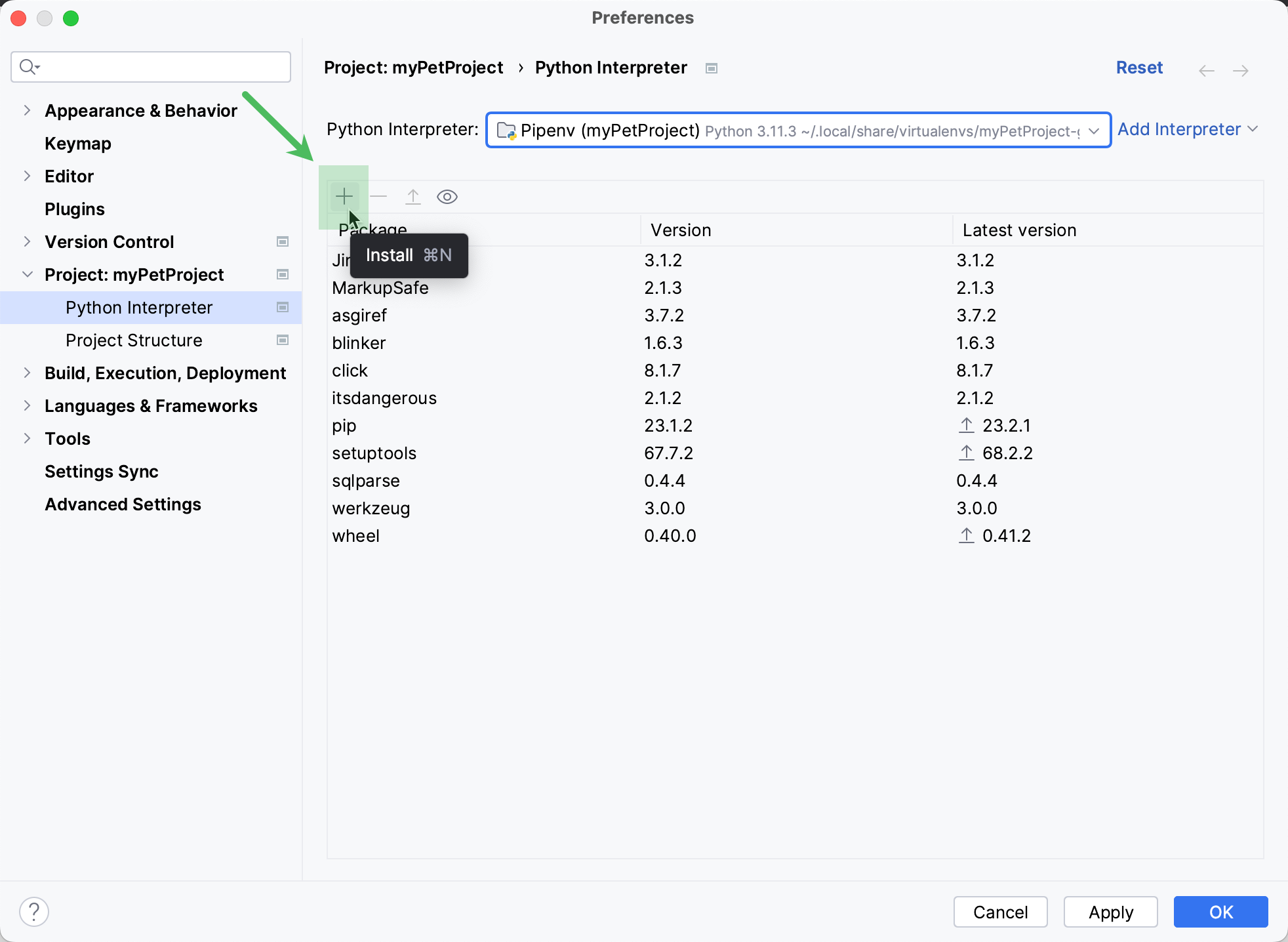
With your virtual environment activated, you can now install packages without affecting your global Python installation.
Example 5: Installing packages in a virtual environment
(venv) $ pip install flask sqlalchemy
These packages will only be available when this specific venv is activated. If you deactivate it and run pip list globally, you won’t see Flask or SQLAlchemy.
Generating requirements.txt:
Once you’ve installed all necessary packages for your project within the activated virtual environment, it’s crucial to generate a requirements.txt file to document your dependencies.
(venv) $ pip freeze > requirements.txt
The pip freeze command outputs a list of all installed packages in the current environment, formatted in the package==version style, perfect for requirements.txt.
Deactivating and Deleting Virtual Environments
When you’re done working on a project, you can deactivate its virtual environment.
To deactivate:
(venv) $ deactivate
Your terminal prompt will return to its normal state, and your shell will once again use the global Python and pip.
To delete a virtual environment:
Simply delete the venv directory (or whatever you named your virtual environment folder).
rm -rf venv  # On macOS/Linux
rd /s /q venv # On Windows Command Prompt
This cleanly removes all installed packages and the isolated Python interpreter for that project.
Beyond the Basics: Advanced Considerations and Best Practices
While the previous sections cover the essentials, a few more considerations can help you navigate common challenges and develop a more robust workflow.
Common Installation Pitfalls and Troubleshooting
Even with pip and virtual environments, you might encounter issues. Here are some common ones and how to approach them:
- Permissions Errors (
Permission denied): If you try to install packages globally without sufficient permissions,pipwill fail. This is a primary reason to use virtual environments. If you must install globally (not recommended), usesudo pip install <package_name>on macOS/Linux (use with caution!) or run your command prompt as administrator on Windows. - Network Issues: If
pipcan’t connect to PyPI, check your internet connection or any corporate proxy settings that might be blocking access. You can configurepipto use a proxy. - C Compiler Errors (for binary packages): Some Python packages (especially in data science, like NumPy, SciPy) contain C or Fortran extensions that need to be compiled during installation. If you encounter errors mentioning
gccorMicrosoft Visual C++ is required, it means you’re missing the necessary compilers.- On Windows: Install “Build Tools for Visual Studio” from Microsoft’s website and select the “Desktop development with C++” workload.
- On macOS: Install Xcode Command Line Tools (
xcode-select --install). - On Linux: Install
build-essential(sudo apt install build-essentialon Debian/Ubuntu,sudo yum install gcc-c++on RHEL/CentOS).
pipnot found / Using wrongpip: Ensure your PATH is correctly set up. If you have multiple Python versions, you might need to usepython3 -m pip install <package_name>to explicitly use thepipassociated with your Python 3 installation. This is also a strong argument for always using virtual environments, aspipinside an activatedvenvis guaranteed to be the correct one.- Package not found on PyPI: Double-check the package name for typos. Some packages might be hosted on private repositories or have different installation instructions (e.g., from a Git repository).
Exploring Other Package Managers (Briefly)
While pip is the standard for Python, it’s worth briefly mentioning conda. conda is a cross-platform package and environment manager that handles not only Python packages but also non-Python libraries (like scientific libraries compiled in C/C++). It’s very popular in the data science and scientific computing communities, often used with the Anaconda distribution. If your work heavily involves these areas, you might encounter conda and choose to use it for its integrated environment and package management capabilities, which go beyond Python-specific needs. However, for general Python development, pip remains the universal tool.
Security Best Practices with Packages
With the vastness of the package ecosystem, security becomes an important consideration:
- Source Verification: Only install packages from trusted sources (like PyPI). Be wary of installing packages directly from unknown GitHub repositories unless you’ve thoroughly audited the code.
- Keep Packages Updated: Regularly update your packages (
pip install --upgrade <package_name>) to receive security patches. - Audit Dependencies: For critical applications, consider using tools that scan your
requirements.txtfor known vulnerabilities (e.g., Snyk, Dependabot). - Minimal Dependencies: Install only the packages you truly need to minimize your project’s attack surface.
The Role of Packages in Modern Software Development
In the landscape of modern software development, Python packages are more than just convenience; they are fundamental enablers of advanced methodologies:
- DevOps and CI/CD: Package management with
requirements.txtis crucial for Continuous Integration/Continuous Deployment pipelines, ensuring automated tests and deployments run on consistent environments. - Microservices: Python microservices heavily rely on packages to provide specialized functionalities, with each service maintaining its isolated set of dependencies.
- Cloud Computing: When deploying Python applications to cloud platforms (AWS Lambda, Google Cloud Functions, Azure Functions), packages are bundled with your code, forming the core functionality of your serverless or containerized applications.
Understanding and effectively managing Python packages is not just about writing code; it’s about building scalable, maintainable, and secure software systems that leverage the collective intelligence of the global Python community.
Conclusion: Unleash the Full Potential of Python
The ability to install and manage Python packages is a foundational skill that every Python developer must master. We’ve explored the sheer power and necessity of these pre-built modules, which collectively transform Python into a Swiss Army knife for almost any computational task. From making simple HTTP requests with requests to building complex data pipelines with Pandas and sophisticated web applications with Django, packages are the engines that drive Python’s utility.
By understanding how to use pip for basic installations, specific versioning, and upgrading, you gain immediate control over your project’s components. More critically, by embracing virtual environments, you ensure project isolation, prevent dependency conflicts, and lay the groundwork for reproducible and robust development workflows. These practices are not mere suggestions; they are industry standards that safeguard your projects against common pitfalls and pave the way for seamless collaboration and deployment.
As you continue your journey with Python, remember that the wealth of its ecosystem is always at your fingertips. With the knowledge of package installation and management you’ve gained, you are now well-equipped to explore, integrate, and contribute to the vast and dynamic world of Python packages, truly unleashing the full potential of this remarkable language in your technological endeavors.
aViewFromTheCave is a participant in the Amazon Services LLC Associates Program, an affiliate advertising program designed to provide a means for sites to earn advertising fees by advertising and linking to Amazon.com. Amazon, the Amazon logo, AmazonSupply, and the AmazonSupply logo are trademarks of Amazon.com, Inc. or its affiliates. As an Amazon Associate we earn affiliate commissions from qualifying purchases.