
Microsoft Outlook remains the gold standard for professional communication, scheduling, and personal information management. Whether you are an entrepreneur managing a growing team or a corporate professional streamlining your workflow, knowing how to properly install and configure Outlook is the first step toward digital efficiency. In an era where “software as a service” (SaaS) dominates the landscape, the installation process has evolved from simple discs to sophisticated cloud-integrated deployments.
This guide provides an exhaustive walkthrough for installing Microsoft Outlook across various platforms, ensuring that your digital security and synchronization are optimized from the very first click.

Preparing for Installation: System Requirements and Licensing
Before initiating the download, it is critical to understand the technical environment required to run Outlook efficiently. Microsoft has transitioned most of its software suite to the Microsoft 365 ecosystem, which means installation is often tied to a subscription rather than a one-time product key.
Understanding Different Versions: Desktop vs. Web vs. Mobile
Microsoft offers Outlook in several flavors. The “Classic” desktop application provides the most robust feature set, including advanced rules, local archiving, and extensive add-in support. The “New Outlook for Windows” is a web-based evolution designed to unify the experience across devices. For most power users, the desktop application included in the Microsoft 365 Apps for Enterprise or Business is the preferred choice for its offline capabilities and deep integration with the Windows operating system.
Minimum Hardware and Software Requirements
To ensure a smooth installation, your hardware must meet specific benchmarks. For Windows users, a 1.6 GHz or faster dual-core processor, 4GB of RAM (64-bit), and at least 4GB of available disk space are required. For macOS, Microsoft supports the three most recent versions of macOS. Ensuring your operating system is up to date is not just about compatibility; it is a vital step for digital security, as modern versions of Outlook utilize advanced encryption protocols that older operating systems may not support.
Choosing the Right Subscription Plan
The installation path is determined by your license. Personal and Family plans are ideal for individuals, while Business Basic, Standard, and Premium plans offer varying levels of administrative control. If you are installing Outlook for a corporate environment, ensure your IT department has assigned a license to your Azure Active Directory (now Microsoft Entra ID) account before attempting to sign in.
Step-by-Step Installation on Windows and macOS
Once the prerequisites are met, the installation process is relatively streamlined. Microsoft uses a “Click-to-Run” technology that allows you to start using the applications before the entire package has finished downloading.
Installing via the Microsoft 365 Portal
The most reliable way to install Outlook is through the official Microsoft 365 portal.
- Navigate to
www.office.comand sign in with your work, school, or personal Microsoft account. - On the home page, select “Install apps.”
- Choose “Microsoft 365 apps” to download the setup executive.
- Run the downloaded file (e.g.,
Setup.X64.en-us_O365ProPlusRetail...exe). - Follow the on-screen prompts. The installer will automatically download the entire suite, including Outlook, Word, and Excel.
Setting Up Outlook on Windows 10 and 11
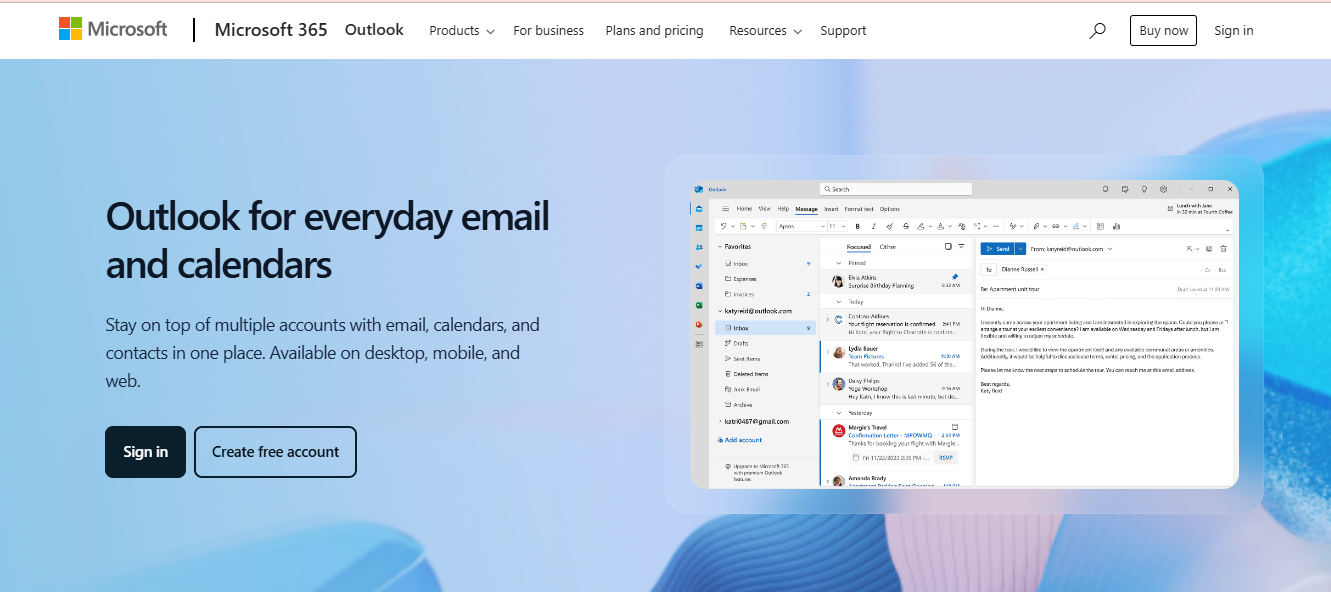
Windows users often find Outlook pre-installed in a “lite” version or as part of a trial. It is recommended to perform a clean installation from the portal to avoid version conflicts. Once the installation is complete, search for “Outlook” in the Start menu. Upon the first launch, the software will prompt you for an email address. If you are signed into Windows with a Microsoft account, Outlook may automatically detect your credentials and attempt to configure the profile using Autodiscover technology.
Configuring Outlook for macOS
For Mac users, the process is slightly different. After downloading the .pkg file from the Microsoft portal, you will run the installer which adds Outlook to your Applications folder. Outlook for Mac has undergone significant design changes to align with the “Big Sur” and “Monterey” UI aesthetics. When you open the app, you may be asked to choose between the “Legacy Outlook” and the “New Outlook.” For the best integration with macOS features like Widgets and Focus modes, the New Outlook is recommended.
Mobile Integration: Installing Outlook on iOS and Android
In a mobile-first world, having Outlook on your smartphone is essential for maintaining productivity. The mobile app is not merely a companion but a powerful tool that handles triaging emails and managing calendar invites with gesture-based controls.
Getting Started with the App Store and Google Play
To install Outlook on mobile, avoid third-party APKs or unofficial stores to maintain digital security.
- Open the Apple App Store or Google Play Store.
- Search for “Microsoft Outlook.”
- Tap “Install” or “Get.”
The mobile version is free to download, but its advanced features are unlocked when you sign in with a qualifying Microsoft 365 subscription.
Synchronizing Accounts for On-the-Go Productivity
Once the app is installed, the configuration is remarkably simple. Microsoft uses a cloud-based service to help move your accounts to the mobile device. When you enter your email address, the app identifies the provider (Office 365, Google, Yahoo, or iCloud) and redirects you to the appropriate login page. A key tech tip for mobile users is to enable “Background App Refresh,” which ensures that your inbox is synchronized even when the app isn’t actively open, preventing delays in receiving urgent notifications.
Initial Configuration and Email Account Setup
Installation is only half the battle; the configuration determines how well the software performs. Outlook acts as a “client,” meaning it fetches data from a “server.” How it talks to that server is defined by the protocol you choose.
Adding IMAP, POP, and Exchange Accounts
Modern Outlook installations prioritize Exchange accounts. This protocol syncs everything: emails, folders, contacts, and calendars. However, if you are using a third-party ISP or a custom domain, you might need to use IMAP or POP3.
- IMAP (Internet Message Access Protocol): Best for users who access email on multiple devices. It leaves the messages on the server.
- POP3 (Post Office Protocol): Generally outdated, it downloads the email to one device and often deletes it from the server.
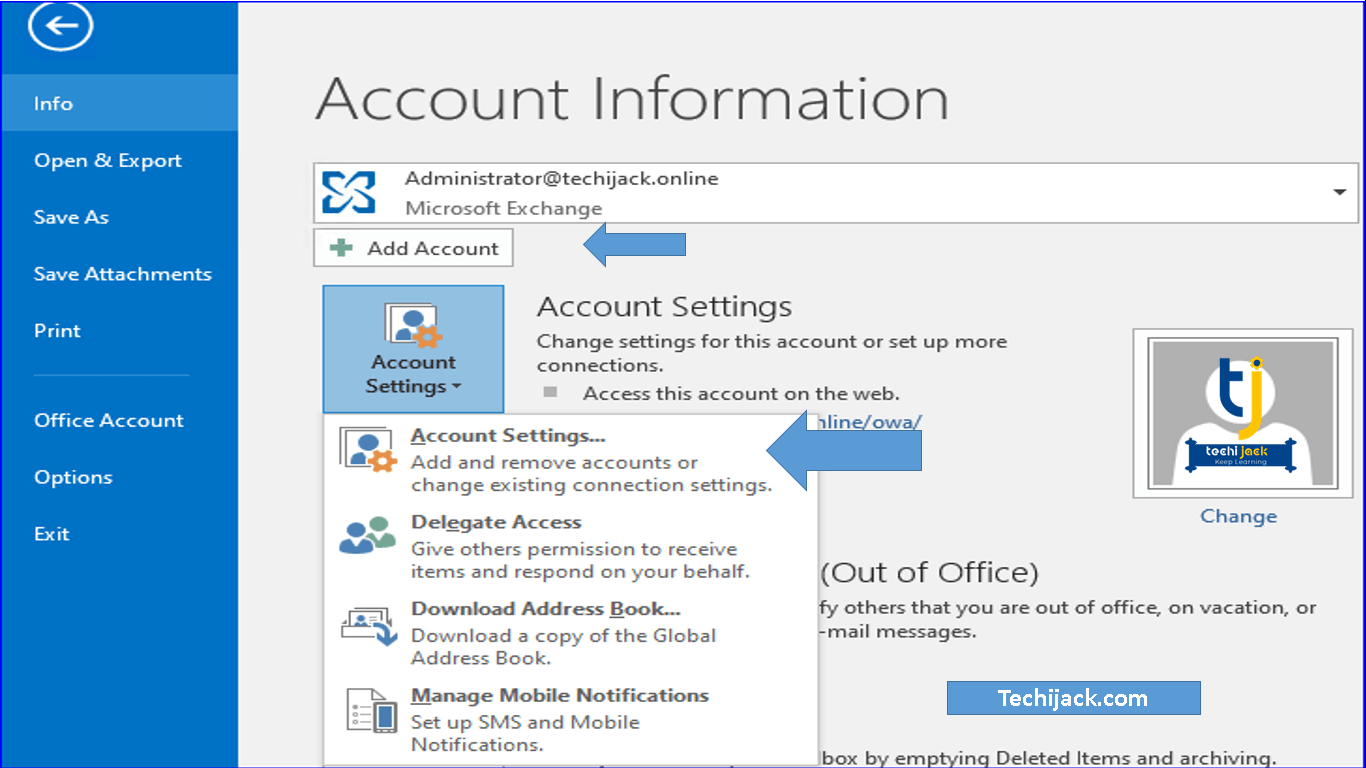
To add an account manually, go to File > Add Account, enter your details, and select “Advanced options” to manually configure server ports and encryption methods (SSL/TLS).
Troubleshooting Common Connection Issues
If Outlook fails to connect after installation, the culprit is often a firewall or an incorrect DNS setting. Ensure that ports 443 (HTTPS), 993 (IMAP), and 587 (SMTP) are open. Another common issue is the “Credential Prompt Loop,” where Outlook repeatedly asks for a password. This is often solved by clearing the “Windows Credentials” in the Control Panel or ensuring that Multi-Factor Authentication (MFA) is properly handled through an App Password or the Microsoft Authenticator app.
Optimizing Your Outlook Experience for Professional Efficiency
With Outlook installed and your accounts connected, the final step is to tailor the software to your professional needs. This involves setting up security layers and leveraging the latest AI-driven tools.
Essential Security Settings and Two-Factor Authentication
Digital security should be a top priority during setup. Within Outlook, navigate to your account settings to ensure that “Modern Authentication” is active. This allows the use of Two-Factor Authentication (2FA). By requiring a secondary code from a mobile device, you significantly reduce the risk of unauthorized access. Furthermore, go to the “Trust Center” in the desktop app to manage macro settings and protected view options, which shield your system from malicious attachments.
Leveraging AI Features and Add-ins
The latest versions of Outlook include “Copilot” (for eligible subscriptions) and “Focused Inbox.” These AI tools analyze your communication patterns to prioritize important emails and help draft responses. Additionally, explore the “Store” or “Get Add-ins” button. Tech-savvy users can integrate Outlook with tools like Jira, Trello, or Zoom, turning the email client into a centralized hub for project management.
By following this comprehensive installation and optimization guide, you ensure that Microsoft Outlook is not just another app on your computer, but a robust, secure, and highly efficient engine for your professional life. Properly installed, it provides the reliability needed to manage complex digital workflows in today’s fast-paced tech landscape.
aViewFromTheCave is a participant in the Amazon Services LLC Associates Program, an affiliate advertising program designed to provide a means for sites to earn advertising fees by advertising and linking to Amazon.com. Amazon, the Amazon logo, AmazonSupply, and the AmazonSupply logo are trademarks of Amazon.com, Inc. or its affiliates. As an Amazon Associate we earn affiliate commissions from qualifying purchases.