
For developers, system administrators, and anyone who spends significant time in the terminal, the command line is more than just a way to interact with a computer; it’s a powerful workspace. However, the default shell experience on many systems can feel rudimentary, lacking the features and customization that can dramatically boost productivity and make the process more enjoyable. This is where Oh My Zsh comes in. Oh My Zsh is a rapidly growing, open-source community project that aims to transform your Zsh experience into a streamlined, feature-rich, and highly personalized environment.
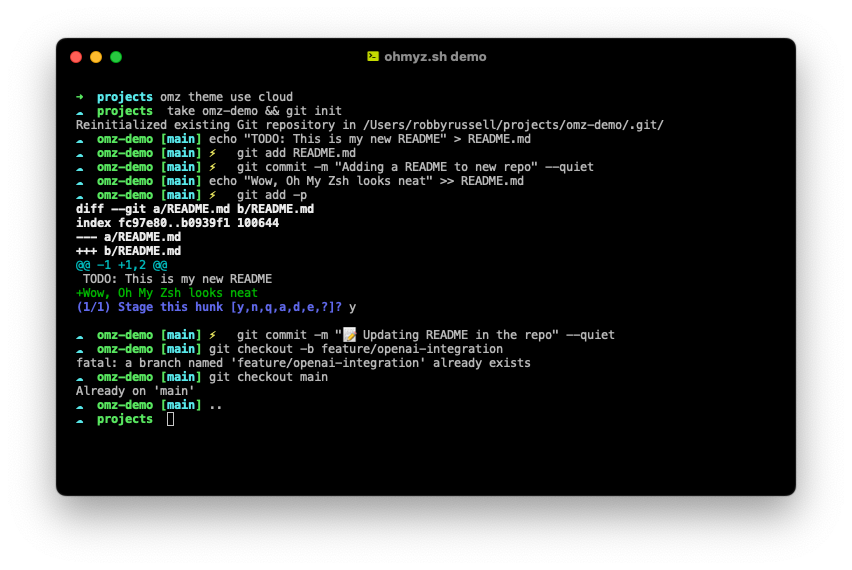
If you’ve ever found yourself wishing for better autocompletion, slicker prompts, easier plugin management, or a more visually appealing terminal, then learning how to install Oh My Zsh is a crucial step towards achieving that. This guide will walk you through the entire process, from understanding what Zsh is and why Oh My Zsh is so beneficial, to the practical steps of installation and initial configuration. We’ll also touch upon how this powerful tool can integrate with your broader tech workflow, especially in areas of productivity and digital security.
Understanding Zsh and the Oh My Zsh Advantage
Before diving into the installation process, it’s essential to understand the foundation: Zsh itself. Zsh, or Z shell, is a powerful Unix shell that has gained significant popularity due to its extensive features and flexibility. It’s an enhanced Bourne shell that includes a wealth of improvements over Bash, the shell commonly found on many Linux distributions and macOS by default.
What Makes Zsh Superior?
Zsh offers a suite of enhancements that directly address common pain points of other shells:
- Superior Autocompletion: Zsh’s autocompletion is remarkably intelligent. It can complete commands, file paths, and even options for commands with context-aware suggestions. Imagine typing
gitand then hitting Tab, and seeing a list of relevant Git commands likecommit,push,pull, and so on, with further options appearing as you narrow down your input. - Spell Correction: If you mistype a command, Zsh can often detect the error and offer a correction, saving you the frustration of “command not found” errors.
- Enhanced Globbing: Zsh’s globbing (pattern matching for filenames) is more powerful and flexible, allowing for more complex file selections.
- Shared History: Zsh can be configured to share command history across multiple terminal sessions, meaning commands you run in one window are available in another.
- Programmability and Extensibility: Zsh is highly customizable through configuration files and its robust scripting capabilities.
The Role of Oh My Zsh
While Zsh is inherently powerful, its configuration can be daunting for newcomers. This is where Oh My Zsh shines. It acts as a framework for managing your Zsh configuration, providing a structured way to install and manage plugins, themes, and custom settings. Think of it as a curated, community-driven collection of best practices and useful additions for Zsh.
The core benefits of using Oh My Zsh include:
- Simplified Configuration: Oh My Zsh abstracts away much of the complexity of Zsh configuration, making it accessible to users of all skill levels.
- Vast Plugin Ecosystem: It offers a vast library of plugins that extend Zsh’s functionality. These range from Git integration, Docker support, and Kubernetes commands to productivity tools for specific languages and frameworks.
- Beautiful Themes: Oh My Zsh comes with a plethora of themes that can dramatically change the appearance of your command prompt, making it more informative and visually appealing. From minimalist designs to feature-rich prompts displaying Git status, branch, and more, there’s a theme for everyone.
- Community Support: As a popular open-source project, Oh My Zsh benefits from a large and active community, meaning extensive documentation, frequent updates, and a wealth of shared configurations.
By installing Oh My Zsh, you’re not just installing a piece of software; you’re investing in a more efficient, enjoyable, and powerful command-line experience that can significantly impact your productivity, especially in tech-related workflows.
Prerequisites and Installation Steps
Before you can experience the magic of Oh My Zsh, there are a few prerequisites and a straightforward installation process. This section will guide you through everything you need to get started.
Ensuring Zsh is Installed
The first and most crucial step is to ensure that Zsh is installed on your system. On most modern macOS versions, Zsh is the default shell, so it’s likely already there. For Linux distributions, you might need to install it.
How to Check if Zsh is Installed:
Open your terminal and type:
zsh --version
If Zsh is installed, you’ll see its version number printed. If you receive a “command not found” error, you’ll need to install it.
Installing Zsh (if necessary):
- On Debian/Ubuntu:
bash

sudo apt update

sudo apt install zsh
- On Fedora:
bash

sudo dnf install zsh
- On macOS (using Homebrew):
bash

brew install zsh
Installing Oh My Zsh
Oh My Zsh can be installed using curl or wget. It’s a simple one-line command that fetches and executes the installation script.
Using curl:
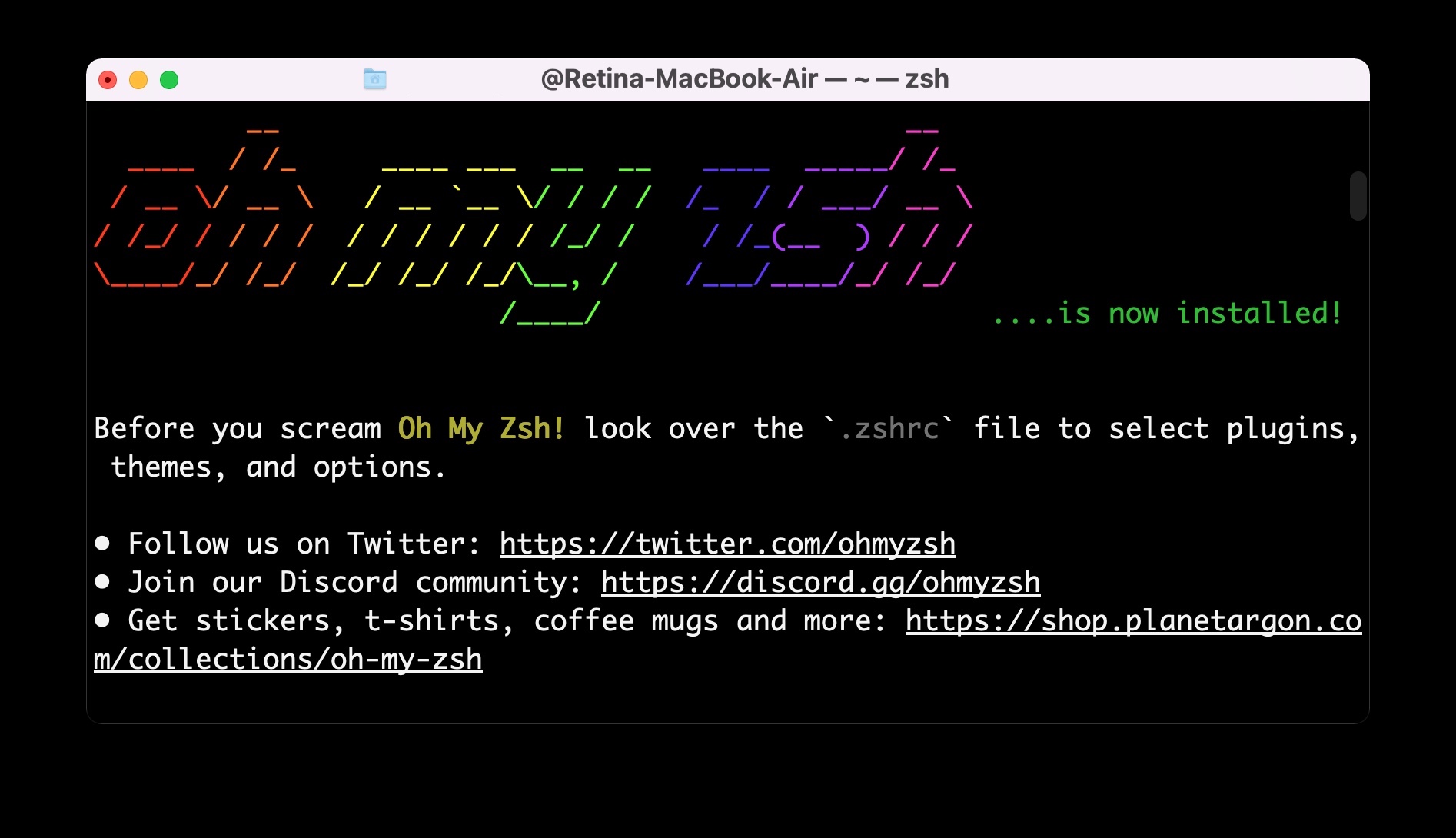
sh -c "$(curl -fsSL https://raw.githubusercontent.com/ohmyzsh/ohmyzsh/master/tools/install.sh)"
Using wget:
sh -c "$(wget -O- https://raw.githubusercontent.com/ohmyzsh/ohmyzsh/master/tools/install.sh)"
When you run this command, the script will:
- Download Oh My Zsh.
- Create the necessary configuration directory (
~/.oh-my-zsh). - Backup your existing
.zshrcfile (if one exists) to~/.zshrc.pre-oh-my-zsh. - Create a new
.zshrcfile for Oh My Zsh, which is your main configuration file. - Prompt you to change your default shell to Zsh. It’s highly recommended to agree to this.
Setting Zsh as your Default Shell:
After the installation script completes, it will likely ask if you want to change your default shell to Zsh. To do this manually, you can use the chsh command:
chsh -s $(which zsh)
You will be prompted for your password. After running this command, you’ll need to close and reopen your terminal for the changes to take effect. You’ll know it’s working if your prompt looks different and you can start exploring Oh My Zsh’s features.
Customizing Your Terminal with Themes and Plugins
The real power of Oh My Zsh lies in its ability to be customized. This is primarily achieved through themes and plugins, which can transform your terminal into a highly functional and visually appealing environment tailored to your specific needs.
Choosing and Applying Themes
Themes control the appearance of your command prompt. They can range from minimalist designs to highly informative prompts that display Git status, the current directory, time, and more.
How to Browse and Select Themes:
Oh My Zsh comes with many pre-installed themes. You can find them in the ~/.oh-my-zsh/themes/ directory. A good starting point is to explore the official Oh My Zsh documentation, which showcases many popular themes.
Applying a Theme:
To apply a theme, you need to edit your .zshrc file. Open it with your favorite text editor:
nano ~/.zshrc
Look for the line that starts with ZSH_THEME. It will likely be set to "robbyrussell" by default. Change the value within the quotes to the name of the theme you want to use. For example, to use the popular agnoster theme (which often requires specific Powerline fonts for full effect), you would change it to:
ZSH_THEME="agnoster"
Important Note on Fonts: Some themes, like agnoster, use special characters (e.g., for Git status icons). For these characters to display correctly, you’ll need to install and configure a “powerline” or “Nerd Font” on your terminal emulator.
After saving the .zshrc file, you need to reload your Zsh configuration for the changes to take effect. You can do this by:
- Closing and reopening your terminal.
- Running the command:
source ~/.zshrc
Leveraging Plugins for Enhanced Productivity
Plugins are the backbone of Oh My Zsh’s extensibility. They add new commands, features, and integrations to your shell. The Oh My Zsh plugin directory is massive and constantly growing.
How to Find and Install Plugins:
Plugins are also managed through your .zshrc file. You’ll find a line that looks like this:
plugins=(git)
The git plugin is enabled by default. To enable more plugins, you simply add their names to this array, separated by spaces.
Popular Plugin Categories:
- Version Control:
git(essential!),github,git-flow - Development Tools:
docker,kubectl,npm,yarn,python,node - System Utilities:
ssh,aws,gcloud - Productivity:
autojump(for quickly navigating directories),extract(for archive extraction),history(enhanced history search)
Enabling Plugins:
To enable a plugin, add its name to the plugins array in your .zshrc file. For example, to enable Git, Docker, and autojump:
plugins=(git docker autojump)
Installing Custom Plugins:
If you find a plugin not included in Oh My Zsh, you can usually install it by cloning its repository into the ~/.oh-my-zsh/custom/plugins/ directory. After cloning, you’ll add the plugin’s directory name to the plugins array in your .zshrc.
Reloading Configuration:
As with themes, after modifying your plugins array, remember to save your .zshrc file and reload your Zsh configuration:
- Close and reopen your terminal.
- Run:
source ~/.zshrc
By intelligently selecting and enabling themes and plugins, you can tailor your command line to be an incredibly powerful extension of your workflow, whether you’re deep into software development, managing cloud infrastructure, or even tracking personal finances through command-line tools.
Integrating Oh My Zsh with Your Workflow and Security
Oh My Zsh isn’t just about making your terminal look pretty or providing convenient shortcuts; it has tangible benefits for productivity and can even contribute to better digital security practices.
Boosting Productivity in Tech
For anyone in the tech industry, efficiency in the command line is paramount. Oh My Zsh significantly accelerates common tasks:
- Faster Development Cycles: With plugins for your preferred programming languages and tools (like
node,python,docker,kubectl), command completion and syntax highlighting become incredibly fast. Imagine typingnpm iand havinginstallautocompleted instantly. - Streamlined DevOps: Managing cloud environments or containerized applications becomes much smoother. Plugins for
aws,gcloud, ordockerprovide quick access to common commands and options, reducing the mental load and potential for errors. - Improved File Navigation: Plugins like
autojumplearn your frequently visited directories and allow you to jump to them with just a few characters, saving you time spent typing longcdcommands. - Enhanced Git Workflow: The
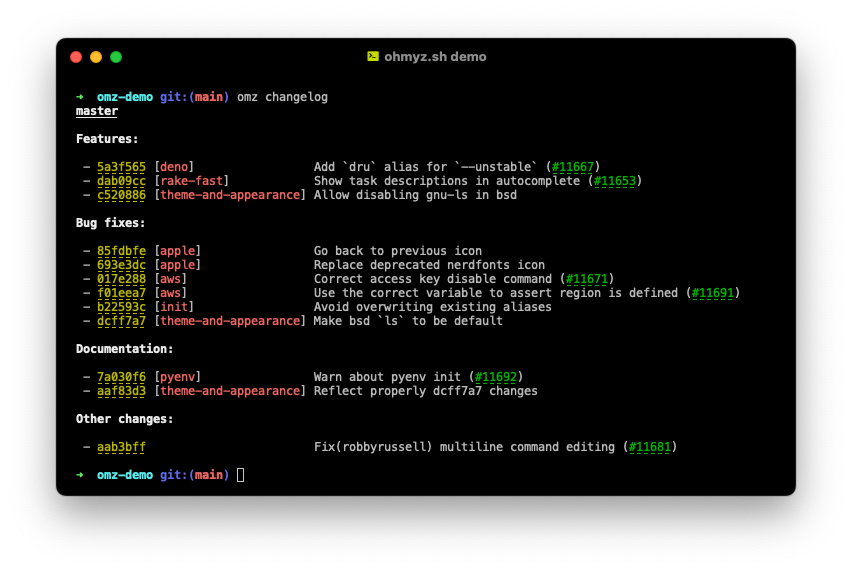
gitplugin, often enhanced by themes, provides instant feedback on your repository status, current branch, and staged changes directly in your prompt, making it easier to stay on top of your version control.
This enhanced productivity translates directly into more time spent on complex problem-solving and less time wrestling with the basics of the command line.
Digital Security Considerations
While Oh My Zsh itself is a productivity tool, the Zsh shell and its extensions can indirectly impact your digital security:
- Reduced Typos, Fewer Mistakes: The spell-checking and robust autocompletion features of Zsh, amplified by Oh My Zsh, can help prevent you from accidentally executing the wrong command due to a typo. Executing a
rm -rfcommand with a mistaken path can have catastrophic consequences, and preventing such mistakes is a form of digital safety. - Secure Plugin Management: It’s crucial to be discerning about the plugins you install. Always download plugins from reputable sources and review their code if possible. Malicious plugins could potentially execute harmful commands or expose sensitive information. Stick to well-maintained plugins within the Oh My Zsh ecosystem or from trusted developers.
- Environment Variables and Secrets: Be mindful of how you manage sensitive information like API keys or passwords. While Zsh and Oh My Zsh can help manage environment variables, they are not inherently secret storage solutions. Tools like
direnvor dedicated secrets management solutions are more appropriate for sensitive data. - Keeping Software Updated: Regularly updating Zsh, Oh My Zsh, and all installed plugins is a fundamental security practice. Updates often patch vulnerabilities and improve stability.
By understanding how to use Oh My Zsh effectively and responsibly, you can create a command-line environment that is not only highly productive but also contributes to a safer and more secure digital practice. The power and flexibility it offers, when harnessed correctly, can be a significant asset to anyone working extensively with technology.
aViewFromTheCave is a participant in the Amazon Services LLC Associates Program, an affiliate advertising program designed to provide a means for sites to earn advertising fees by advertising and linking to Amazon.com. Amazon, the Amazon logo, AmazonSupply, and the AmazonSupply logo are trademarks of Amazon.com, Inc. or its affiliates. As an Amazon Associate we earn affiliate commissions from qualifying purchases.