
In today’s fast-paced digital landscape, having the right tools is paramount to success, whether you’re a burgeoning startup, a seasoned professional, or simply managing your personal digital life. Microsoft 365, formerly known as Office 365, stands out as an indispensable suite of productivity applications and cloud services designed to meet these diverse needs. It’s more than just Word, Excel, and PowerPoint; it’s a dynamic ecosystem that continually evolves to offer cutting-edge features, robust security, and seamless collaboration capabilities. This guide will walk you through the entire process of installing Microsoft 365, delving into how this powerful software package can transform your approach to technology, enhance your brand, and empower your financial aspirations.
Understanding Microsoft 365: More Than Just Software
Before diving into the installation process, it’s crucial to grasp the comprehensive nature of Microsoft 365. Unlike traditional, one-time purchase software licenses, Microsoft 365 operates on a subscription model, offering continuous updates, cloud integration, and a suite of online services. This model ensures you always have access to the latest versions of applications like Word, Excel, PowerPoint, Outlook, OneNote, and Publisher (PC only), alongside powerful cloud services like OneDrive, Exchange, and SharePoint, plus communication tools such as Microsoft Teams.
What is Microsoft 365 and Why is it Essential?
Microsoft 365 is a subscription service that combines the familiar Office desktop applications with cloud-based productivity services. This integration is critical because it moves beyond static software installations to a dynamic, connected environment. For individuals, this means having consistent access to your documents and tools across multiple devices – from your desktop to your tablet to your smartphone. For businesses, it translates into enhanced collaboration, streamlined workflows, and a unified platform for communication and data management.
The subscription model also brings significant advantages in terms of features and security. Microsoft continually rolls out updates, bringing new functionalities, performance enhancements, and, crucially, the latest security patches. This proactive approach to software development and maintenance means users benefit from state-of-the-art tools and robust protection against evolving digital threats, minimizing downtime and safeguarding sensitive information.
Integrating with Website Topics: The Tech Advantage
From a technology perspective, Microsoft 365 is a powerhouse. It embodies current tech trends, such as cloud computing, AI integration, and mobile accessibility. OneDrive, for instance, offers secure cloud storage and synchronization, allowing you to access files anywhere, anytime. Features like “Ideas” in Excel leverage AI to help you analyze data more effectively, while “Presenter Coach” in PowerPoint utilizes AI to refine your presentation skills.
Furthermore, Microsoft 365 is a prime example of software as a service (SaaS), a fundamental shift in how applications are delivered and consumed. It promotes productivity by centralizing tools and data, offering robust digital security features like advanced threat protection, data loss prevention, and multi-factor authentication. For anyone interested in software reviews, apps, and digital security, understanding the installation and capabilities of Microsoft 365 is foundational, providing a gateway to leveraging modern tech for personal and professional growth.
Pre-Installation Checklist: Preparing for a Seamless Setup
A smooth installation process begins long before you click the ‘install’ button. Proper preparation can save you considerable time and frustration, ensuring that Microsoft 365 integrates seamlessly with your existing system. This pre-installation checklist covers essential steps, from verifying your subscription to preparing your computer, laying the groundwork for optimal performance.
Verifying Your Subscription and Account Details
The first and most critical step is to confirm you have an active Microsoft 365 subscription linked to your Microsoft account. Whether you purchased a personal, family, or business plan, you need the associated login credentials. Your subscription dictates the number of installations allowed (e.g., Microsoft 365 Personal typically allows one user on multiple devices, while Family allows up to six users), and the specific features available. If you’re part of an organization, your IT administrator will likely provide you with the necessary account information. Double-check your subscription status by logging into the Microsoft account portal (account.microsoft.com/services) before proceeding.
System Requirements: Ensuring Compatibility
Microsoft 365 is designed to run on a wide range of devices, but it does have minimum system requirements. These typically include:
- Operating System: Windows 10/11 for PCs, or the three most recent versions of macOS for Macs. Specific versions of Android and iOS are also supported for mobile apps.
- Processor: 1.6 GHz or faster, 2-core (for PCs); Intel processor for Macs.
- Memory (RAM): 4 GB RAM (64-bit); 2 GB RAM (32-bit) for PCs; 4 GB RAM for Macs.
- Hard Disk Space: 4 GB available disk space for PCs; 10 GB for Macs.
- Display: 1280 x 768 resolution for PCs; 1280 x 800 for Macs.
- Internet Connection: Required for installation, activation, and access to cloud services.
Ensure your device meets or exceeds these specifications. Attempting to install on an underpowered system can lead to slow performance and an unsatisfactory user experience.
Preparing Your System: Uninstalling Old Versions & Backing Up Data
For the best experience, it’s often recommended to uninstall older versions of Microsoft Office (like Office 2010, 2013, 2016, or 2019) before installing Microsoft 365. While Microsoft 365 can sometimes coexist with older versions, this can lead to software conflicts or issues with file associations. A clean slate ensures maximum compatibility and optimal performance. Use the “Add or Remove Programs” feature in Windows or the Applications folder in macOS to uninstall old Office suites.
Before any major software installation, and especially before uninstalling older programs, it’s always wise to back up your critical data. While installing Microsoft 365 shouldn’t typically affect your personal files, unforeseen circumstances can occur. Use a cloud service like OneDrive (which you’ll get with M365), an external hard drive, or another reliable backup method to safeguard your documents, photos, and other important files.
Integrating with Website Topics: The Financial Prudence
From a financial perspective, this preparation phase highlights the cost-effectiveness of a planned approach. By checking system requirements, you avoid potential hardware upgrade costs that could be necessary if your machine isn’t up to par. Uninstalling old versions prevents license conflicts that might lead to purchasing issues or unnecessary support calls, saving you time and potentially money. Moreover, understanding your subscription details ensures you’re utilizing your license efficiently, particularly in a business context where managing multiple user licenses can impact overall IT expenditure. Microsoft 365’s subscription model also offers predictable budgeting, eliminating large, infrequent outlays for software upgrades, a valuable aspect for personal finance and business finance planning.
Step-by-Step Installation Guide: Your Path to Productivity
With your preparations complete, you’re ready to embark on the actual installation of Microsoft 365. This section provides a detailed, step-by-step walkthrough, designed to make the process as straightforward as possible.
Accessing Your Microsoft Account Portal
The installation process begins by accessing your Microsoft account online.
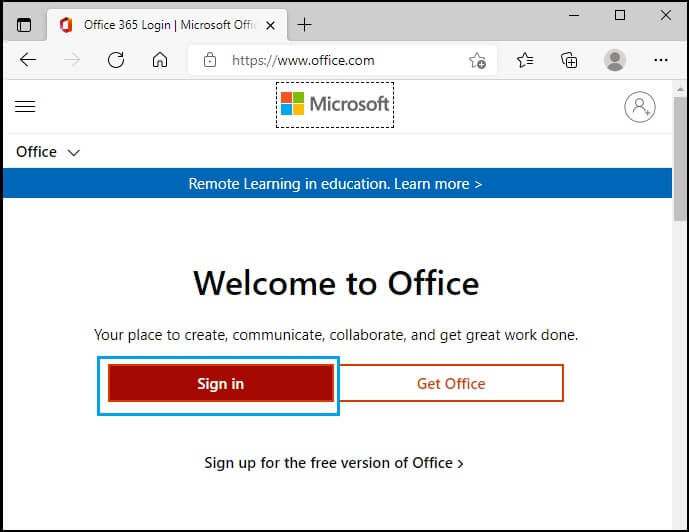
- Open your web browser: Go to www.office.com or account.microsoft.com/services.
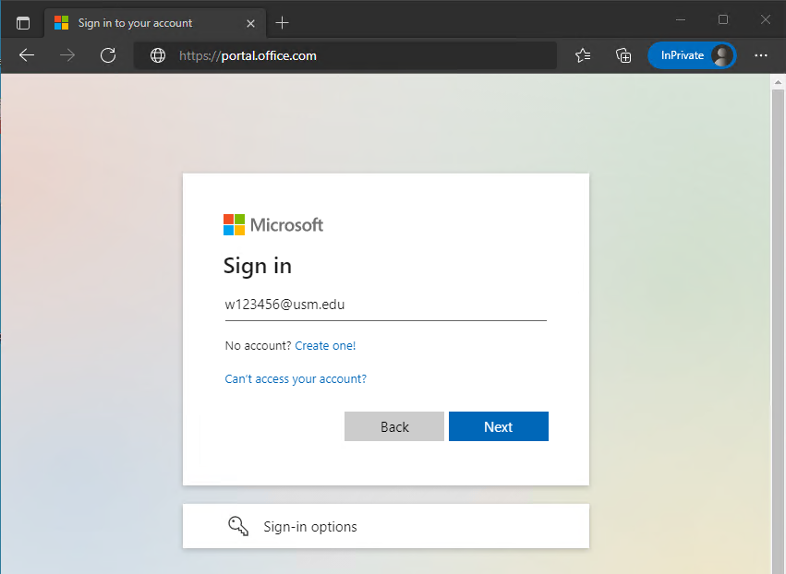
- Sign in: Enter the email address and password associated with your Microsoft 365 subscription. If you have multiple accounts, ensure you’re using the one linked to your active subscription. You might encounter a multi-factor authentication prompt if you have it enabled (which is highly recommended for digital security).
Once signed in, you’ll land on your Microsoft 365 dashboard or the Services & Subscriptions page. Here, you’ll see an overview of your active subscriptions and associated benefits.
Locating and Downloading the Microsoft 365 Installer
On your Microsoft 365 dashboard:
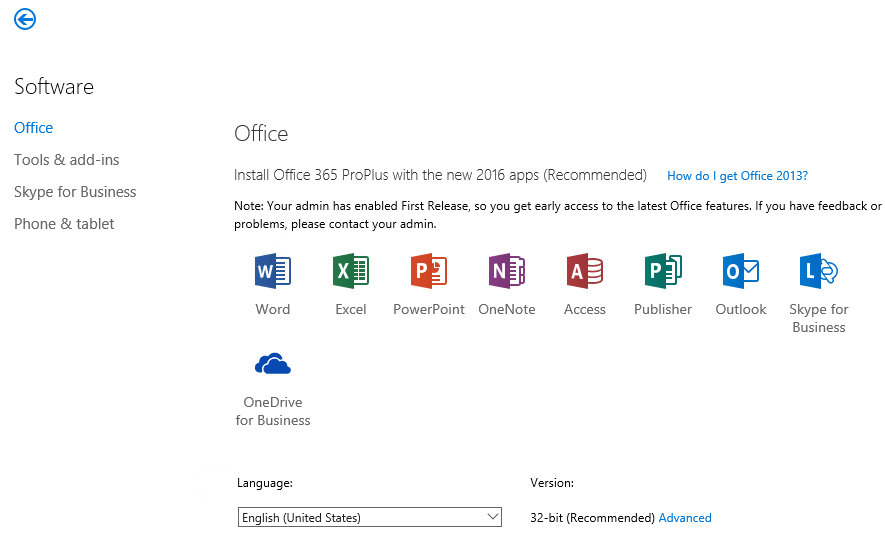
- Find the “Install Office” button: This button is usually prominently displayed on the main page. Depending on your subscription type, it might appear as “Install apps” or simply “Install.”
- Select your installation options (if prompted): Some accounts might give you the option to choose between a 32-bit or 64-bit version. For most modern computers (running Windows 10/11), the 64-bit version is recommended as it can utilize more RAM and often performs better. However, if you have specific legacy add-ins or applications that require 32-bit compatibility, you might choose that option. If not prompted, the default download is typically 64-bit.
- Initiate the download: Click the “Install” button to download the setup file. This file is relatively small (a few MB) and acts as an installer client, which will then download the full suite of applications. Save it to a location you can easily find, such as your “Downloads” folder.
Running the Setup File: Initiating the Installation
Once the setup file (e.g., Setup.exe for Windows, Microsoft_Office_Installer.pkg for Mac) has downloaded:
- Locate the downloaded file: Navigate to your Downloads folder or wherever you saved the file.
- Run the installer:
- For Windows: Double-click the
Setup.exefile. If prompted by User Account Control (UAC), click “Yes” to allow the app to make changes to your device. - For Mac: Double-click the
Microsoft_Office_Installer.pkgfile. You might need to enter your macOS administrator password.
- For Windows: Double-click the
- Allow the installation to begin: A window will appear, indicating that Microsoft 365 is preparing to install. This usually involves downloading the actual application files from Microsoft’s servers, so an active internet connection is essential throughout this stage.
Following On-Screen Prompts: Customization and Completion
The installation process is largely automated, but you’ll see progress indicators and potentially a few prompts:
- Wait for the download and installation: The installer will download the necessary files and install them in the background. A progress bar will show you how far along the process is. This can take anywhere from a few minutes to an hour or more, depending on your internet speed and system performance.
- No user interaction is typically required: Unlike older Office versions, Microsoft 365 often installs all components by default without asking you to select individual applications.
- Completion notification: Once the installation is complete, you’ll see a message like “You’re all set! Office is installed now.” or a similar confirmation. You can then close the installer window.
Activating Your Microsoft 365 Subscription
After installation, the final step is activation:
- Open an Office application: Launch any Microsoft 365 application, such as Word or Excel, for the first time.
- Sign in to activate: You’ll likely be prompted to sign in to activate your software. Use the same Microsoft account credentials you used to download the installer. The software will detect your active subscription and automatically activate.
- Accept terms (if prompted): You might be asked to accept the Microsoft Office License Agreement.
- Start using your applications: Once activated, you’re ready to fully utilize the Microsoft 365 suite.
If you encounter activation issues, double-check your account login and ensure your subscription is current. Sometimes, a simple restart of the application or your computer can resolve minor glitches.
Optimizing Your Microsoft 365 Experience: Beyond Installation
Installing Microsoft 365 is just the beginning. To truly harness its power, you need to optimize its settings, explore its extensive application suite, and leverage its integrated cloud services. This optimization phase transforms mere software into a dynamic toolkit for productivity, collaboration, and strategic growth.
Initial Setup and Personalization
Upon first launching an M365 application, you might be guided through some initial setup steps. Take advantage of these to personalize your experience:
- Theme selection: Choose a visual theme (e.g., Colorful, Dark Gray, White) for your applications to match your preferences.
- Default apps: Set your preferred default applications for opening various file types (e.g., always open .docx files with Word).
- Add-ins: Explore the vast marketplace of add-ins that can extend the functionality of your Office apps, catering to specific workflows or industry needs. From project management tools to data analysis aids, these can significantly boost efficiency.
- OneDrive sync: Configure OneDrive to automatically sync your documents, ensuring your files are always backed up and accessible across your devices.
Exploring Key Applications for Enhanced Productivity
Microsoft 365 isn’t just a collection of apps; it’s an integrated ecosystem. Dive into each component:
- Word, Excel, PowerPoint: Master these core applications for document creation, data analysis, and compelling presentations. Look for features like “Co-authoring” for real-time collaboration, “Version History” for easy rollbacks, and advanced templates.
- Outlook: Centralize your email, calendar, contacts, and tasks for superior time management and communication.
- Microsoft Teams: This hub for teamwork combines chat, video conferencing, file storage, and application integration. It’s essential for modern communication and collaboration, especially in remote or hybrid work environments.
- OneNote: A versatile digital notebook for capturing ideas, organizing research, and managing personal or project notes across devices.
- OneDrive: Beyond storage, OneDrive offers robust file sharing controls, versioning, and seamless integration with all other Microsoft 365 apps.
Leveraging Cloud Services for Collaboration and Security
The true power of Microsoft 365 lies in its cloud integration:
- Real-time Co-authoring: Work simultaneously with colleagues on the same document, presentation, or spreadsheet. This dramatically reduces review cycles and enhances team productivity, regardless of geographical location.
- SharePoint: For businesses, SharePoint provides a secure platform for document management, team sites, and intranet portals, fostering a centralized knowledge base.
- Data Loss Prevention (DLP): For business subscriptions, M365 offers DLP policies that help prevent sensitive information from leaving your organization, adding a critical layer of digital security.
- Mobile Accessibility: Install Microsoft 365 apps on your smartphones and tablets to maintain productivity on the go, with seamless synchronization across all your devices.
Integrating with Website Topics: Boosting Your Brand & Money
Optimizing Microsoft 365 directly impacts your brand and financial health.
Brand:
- Consistent Corporate Identity: Use Word and PowerPoint templates to ensure all your documents and presentations adhere to your corporate identity and brand guidelines. This consistency builds professionalism and reinforces your brand image.
- Collaborative Marketing: Teams and SharePoint facilitate seamless collaboration on marketing campaigns, content creation, and design reviews, speeding up time-to-market for new initiatives.
- Professional Communication: Outlook and Teams ensure professional, efficient communication, crucial for maintaining client relationships and a strong brand reputation.
Money:
- Financial Tracking & Analysis: Excel’s advanced features are invaluable for personal finance management, budgeting, investment tracking, and complex business financial modeling.
- Online Income & Side Hustles: By enhancing your productivity and collaboration capabilities, Microsoft 365 indirectly supports online income generation. Whether you’re a freelancer managing projects in Teams, a content creator drafting in Word, or an e-commerce entrepreneur analyzing sales data in Excel, efficient tools translate directly into more profitable ventures.
- Reduced IT Costs: The cloud-based nature and subscription model of M365 eliminate the need for significant upfront software purchases and reduce IT maintenance overheads, contributing to better business finance management.
Troubleshooting Common Installation Issues and Maximizing Your Investment
Even with careful preparation, occasional issues can arise during installation or activation. Knowing how to troubleshoot these common problems and how to continually maximize your investment in Microsoft 365 will ensure a smooth, productive experience.
Addressing Download and Installation Errors
- Internet Connection Issues: A stable internet connection is crucial. If the download or installation stalls, check your Wi-Fi or Ethernet connection. Try pausing and resuming the download, or restarting your router.
- Corrupted Download File: If the installer won’t run or gives an error, the download file might be corrupted. Delete the downloaded
Setup.exe(orpkg) and try downloading it again from your Microsoft account portal. - Insufficient Disk Space: Ensure you have enough free disk space (at least 10 GB is a good buffer). Clear temporary files or move large files to another drive if necessary.
- Software Conflicts: Other programs, especially security software like antiviruses, can sometimes interfere. Temporarily disable your antivirus during installation, then re-enable it immediately afterward. Older Office versions can also cause conflicts, reiterating the importance of uninstalling them beforehand.
- Windows Installer Service Issues (Windows only): If you encounter errors related to the Windows Installer, run the Microsoft Support and Recovery Assistant. This free tool can diagnose and fix various Office installation problems.
Resolving Activation Problems
- Incorrect Account: The most common activation issue is using the wrong Microsoft account. Always ensure you’re signing in with the account linked to your active Microsoft 365 subscription.
- Expired Subscription: Verify your subscription status on account.microsoft.com/services. If it has expired, you’ll need to renew it.
- Too Many Installations: If you’ve used all your allotted installations for your subscription (e.g., a Personal subscription allows one user on multiple devices, but a Family subscription allows up to six users), you might need to deactivate an existing installation from your account portal before activating on a new device.
- Network Firewall/Proxy: Corporate firewalls or proxy servers can sometimes block activation. If you’re on a corporate network, consult your IT department.
- Microsoft Support and Recovery Assistant: For persistent activation issues, this tool is invaluable. It can identify and fix a wide range of Office activation problems.
Ongoing Maintenance: Updates and Security
Maximizing your investment in Microsoft 365 means staying current.
- Automatic Updates: Microsoft 365 is designed to update automatically in the background. Ensure this feature is enabled (File > Account > Update Options in any Office app) to receive the latest features, performance improvements, and critical security patches. Regular updates are crucial for digital security and keeping pace with technology trends.
- Regular Backups: While OneDrive provides cloud backup, consider additional local or cloud backups for extremely critical data, following the 3-2-1 backup rule (3 copies, 2 different media types, 1 offsite).
- Explore New Features: Microsoft regularly introduces new functionalities. Keep an eye on Microsoft’s official blogs or in-app notifications to discover how these new features can further enhance your productivity and workflow.
Integrating with Website Topics: Financial Tools & Digital Security
Financial Tools: By ensuring your Microsoft 365 suite is always functional and up-to-date, you protect your access to vital financial tools like Excel for budgeting, investment analysis, and business financial planning. Any downtime due to installation or activation issues directly impacts your ability to manage your money effectively.
Digital Security: A correctly installed and continually updated Microsoft 365 is a cornerstone of robust digital security. The latest security patches protect against malware, phishing attempts, and other cyber threats that could compromise your financial data, personal information, and brand reputation. Features like advanced threat protection (available in some business plans), data loss prevention, and multi-factor authentication are critical for safeguarding your digital assets. Proactive troubleshooting and maintenance are not just about convenience; they are about protecting your investments and ensuring your data remains secure in an increasingly complex digital world.
By following this comprehensive guide, you’ll not only successfully install Microsoft 365 but also gain a deeper understanding of how to leverage its capabilities to enhance your technological prowess, strengthen your brand identity, and achieve your financial objectives.
aViewFromTheCave is a participant in the Amazon Services LLC Associates Program, an affiliate advertising program designed to provide a means for sites to earn advertising fees by advertising and linking to Amazon.com. Amazon, the Amazon logo, AmazonSupply, and the AmazonSupply logo are trademarks of Amazon.com, Inc. or its affiliates. As an Amazon Associate we earn affiliate commissions from qualifying purchases.