
In the dynamic landscape of digital communication, emojis have evolved from simple ideograms to an indispensable language of their own. They add nuance, emotion, and personality to our messages, bridging the gap that plain text often leaves. For MacBook users, harnessing the latest emoji sets is not just about staying trendy; it’s about enhancing communication clarity, expressing oneself more fully, and keeping pace with the ever-evolving standards of digital interaction. As a cornerstone of the modern “Tech” experience, understanding how to manage and install new emojis on your MacBook is essential for anyone who values effective and expressive communication.
This comprehensive guide will walk you through the official and most reliable methods to bring the newest emojis to your Apple laptop, alongside tips for mastering their use and troubleshooting common issues. We’ll delve into why staying updated is paramount, not just for emojis, but for your MacBook’s overall performance, security, and productivity.
The Core Method: Keeping Your macOS Updated
At the heart of receiving new emojis on your MacBook lies a simple, yet profoundly important, principle: keeping your macOS operating system up to date. Unlike app-specific features that might update independently, system-wide emojis are intrinsically tied to the core software of your device. Apple, in collaboration with the Unicode Consortium, rolls out new emoji sets with major macOS releases and sometimes with smaller supplementary updates.
Why macOS Updates are Crucial for Emojis
The world of emojis is governed by the Unicode Consortium, a non-profit organization that develops and maintains text encoding standards, including emojis. Each year, they release new versions of the Unicode Standard, which include new emoji characters. Apple, along with other tech giants, then adopts these standards and integrates them into their operating systems. This means that when you update your macOS, you’re not just getting performance improvements or new features; you’re also receiving the latest standardized emoji characters and variations that have been approved globally.
Ignoring macOS updates can leave you stuck with an outdated emoji library, leading to frustrating communication gaps. You might send an emoji that your friend can’t see, or worse, see blank squares or question marks where new emojis should be. This isn’t just a minor inconvenience; it reflects a broader principle in technology: staying current is key to seamless interoperability and leveraging the full capabilities of your devices and software. Beyond emojis, these updates also bring crucial security patches, performance enhancements, and new functionalities that enrich your MacBook experience, making it a pivotal aspect of digital security and overall productivity within the “Tech” sphere.
Step-by-Step: Updating Your MacBook’s Operating System
Updating your macOS is a straightforward process, but it requires a few preparatory steps to ensure a smooth transition and safeguard your data. Think of it as a vital maintenance ritual for your digital life, ensuring longevity and optimal performance.
-
Check Compatibility: Before embarking on an update, especially a major one, verify that your MacBook model supports the latest macOS version. Apple usually provides a list of compatible devices for each new OS release. You can find your MacBook’s model year by clicking the Apple menu () in the top-left corner and selecting “About This Mac.”
-
Backup Your Mac (Absolutely Crucial!): This step cannot be overstated. While macOS updates are generally reliable, unforeseen issues can arise. Backing up your data ensures that your documents, photos, applications, and settings are safe.
- Time Machine: The easiest and most recommended method. Connect an external hard drive, open System Settings/Preferences, search for Time Machine, and follow the prompts to set up and initiate a backup.
- iCloud: For smaller files and documents, iCloud can keep your Desktop, Documents folders, and photos synchronized and backed up.
- Other cloud services: Dropbox, Google Drive, or manual copying to an external drive are also viable options.
-
Ensure Power and Internet Connection: Plug your MacBook into a power source to prevent it from shutting down during the update process, which could corrupt your system. A stable Wi-Fi connection is also necessary for downloading the update files.
-
Initiate the Update:
- Click the Apple menu () in the top-left corner of your screen.
- Select System Settings (or System Preferences on older macOS versions).
- In System Settings, click on General in the sidebar.
- Click on Software Update.
- Your Mac will check for available updates. If an update is available (e.g., “macOS Sonoma” or a smaller security update), click “Upgrade Now” or “Update Now.”
- Follow the on-screen prompts. You may need to enter your administrator password.
-
Download and Install: The download size can be significant (several gigabytes), so it might take some time depending on your internet speed. Once downloaded, the installation process will begin, which often requires your MacBook to restart multiple times. Allow it to complete without interruption.
-
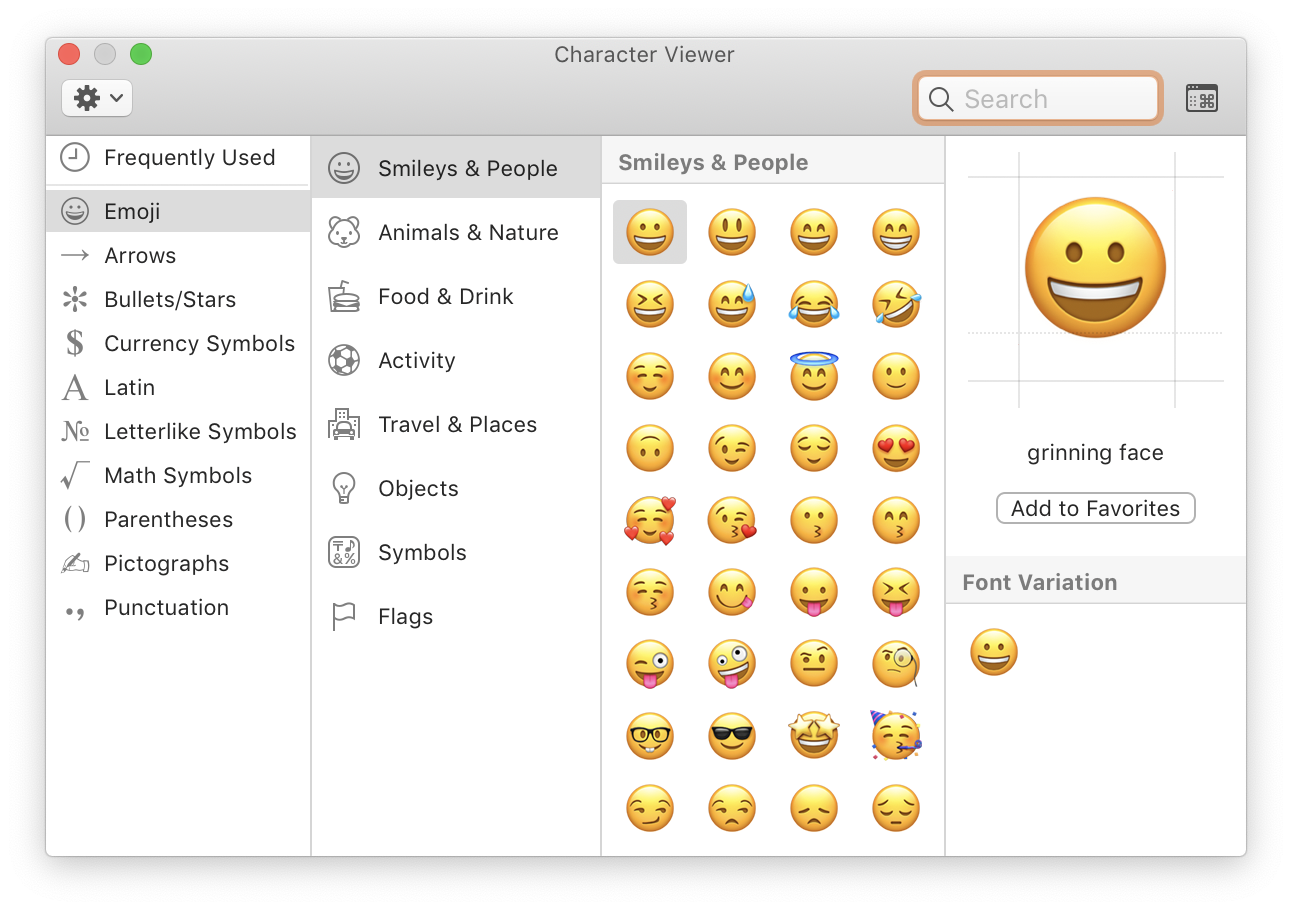
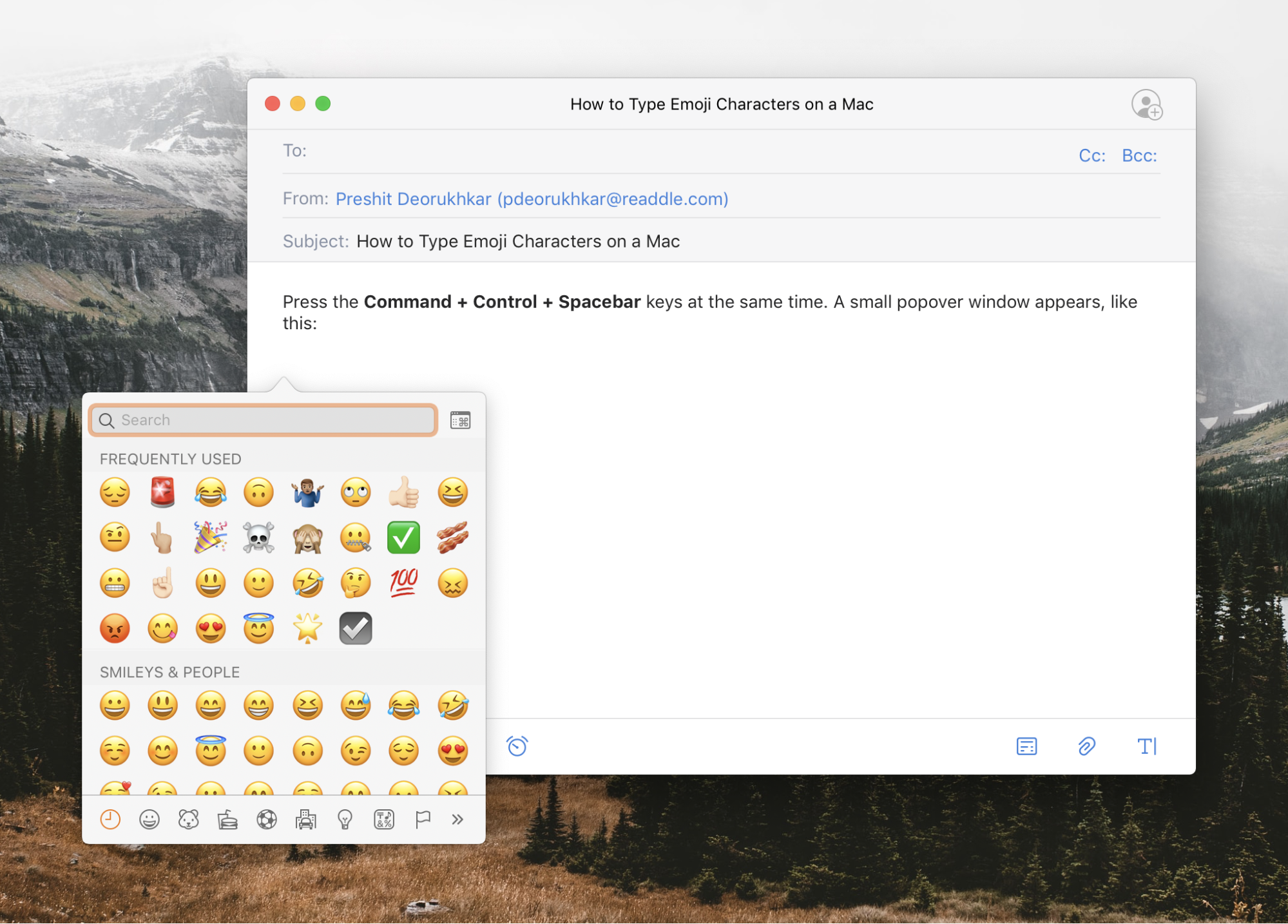
Verify New Emojis: After your MacBook restarts and you’ve logged back in, you can verify the presence of new emojis. Open any application where you can type (e.g., Messages, Pages, Safari search bar), then press Control (⌃) + Command (⌘) + Spacebar. This brings up the Character Viewer (Emoji & Symbols) palette. Browse through the categories or search for specific new emojis you were expecting to see.
Beyond Emojis: The Broader Benefits of macOS Updates
While the quest for new emojis might be your immediate motivation, regularly updating your macOS brings a plethora of benefits that align perfectly with the “Tech” focus of this website:
- Security Patches: Each update often includes critical security fixes that protect your MacBook from emerging threats, vulnerabilities, and malware. This is paramount for digital security, safeguarding your personal data, and maintaining a secure online presence.
- Performance Enhancements: Updates can optimize your system, improve responsiveness, and resolve bugs that might be slowing down your MacBook. This translates to a smoother, more efficient user experience, boosting your productivity.
- New Features and App Improvements: Apple consistently introduces innovative features with each macOS release, ranging from enhanced multitasking capabilities and improved privacy controls to new functionalities for built-in apps like Safari, Mail, and Photos. These features can significantly improve your workflow and overall user experience.
- Compatibility with Latest Software and Hardware: Many third-party applications and new hardware accessories require the latest macOS versions to function correctly. Staying updated ensures you can run the newest software and connect to the latest peripherals without compatibility issues.
- Battery Life Optimization: Apple often includes power management improvements in its updates, which can lead to better battery life for portable MacBooks, a crucial factor for mobile productivity.
In essence, a habit of regular macOS updates is not just about installing new emojis; it’s about maintaining a secure, efficient, and modern computing environment that keeps you at the forefront of technology.
Accessing and Mastering Your Emoji Keyboard
Once your MacBook is updated and shimmering with the latest emoji library, the next step is to master how to access and efficiently use them. macOS provides a robust and user-friendly “Emoji & Symbols” viewer that makes finding and inserting emojis incredibly simple.
Unlocking the Emoji & Symbol Viewer
The primary gateway to your entire emoji collection on a MacBook is the Emoji & Symbol viewer, also known as the Character Viewer. It’s an invaluable tool not just for emojis, but for special characters, symbols, and even different language scripts.
- Keyboard Shortcut (The Power User’s Way): The fastest and most convenient method is a simple keyboard shortcut: Control (⌃) + Command (⌘) + Spacebar. Pressing these three keys simultaneously will instantly bring up a compact pop-up window brimming with emojis near your cursor, ready for selection.
- Menu Bar Access: For those who prefer a menu-driven approach, you can access the viewer by clicking on Edit in the menu bar of most applications, then selecting Emoji & Symbols. This will open a more comprehensive window, often allowing for resizing and a broader view of characters.
Within the viewer, you’ll find a well-organized layout:
- Categories: Emojis are grouped into intuitive categories like Smileys & People, Animals & Nature, Food & Drink, Activity, Travel & Places, Objects, Symbols, and Flags.
- Search Functionality: At the top of the viewer, there’s a search bar. This is incredibly powerful for finding specific emojis quickly. Just type a keyword (e.g., “heart,” “pizza,” “laptop,” “wave”), and the relevant emojis will appear.
- Favorites and Frequently Used: The viewer intelligently keeps track of your most frequently used emojis, making them easily accessible under a “Frequently Used” section. You can also add emojis to a “Favorites” section for quick retrieval.
Tips for Efficient Emoji Usage on Mac
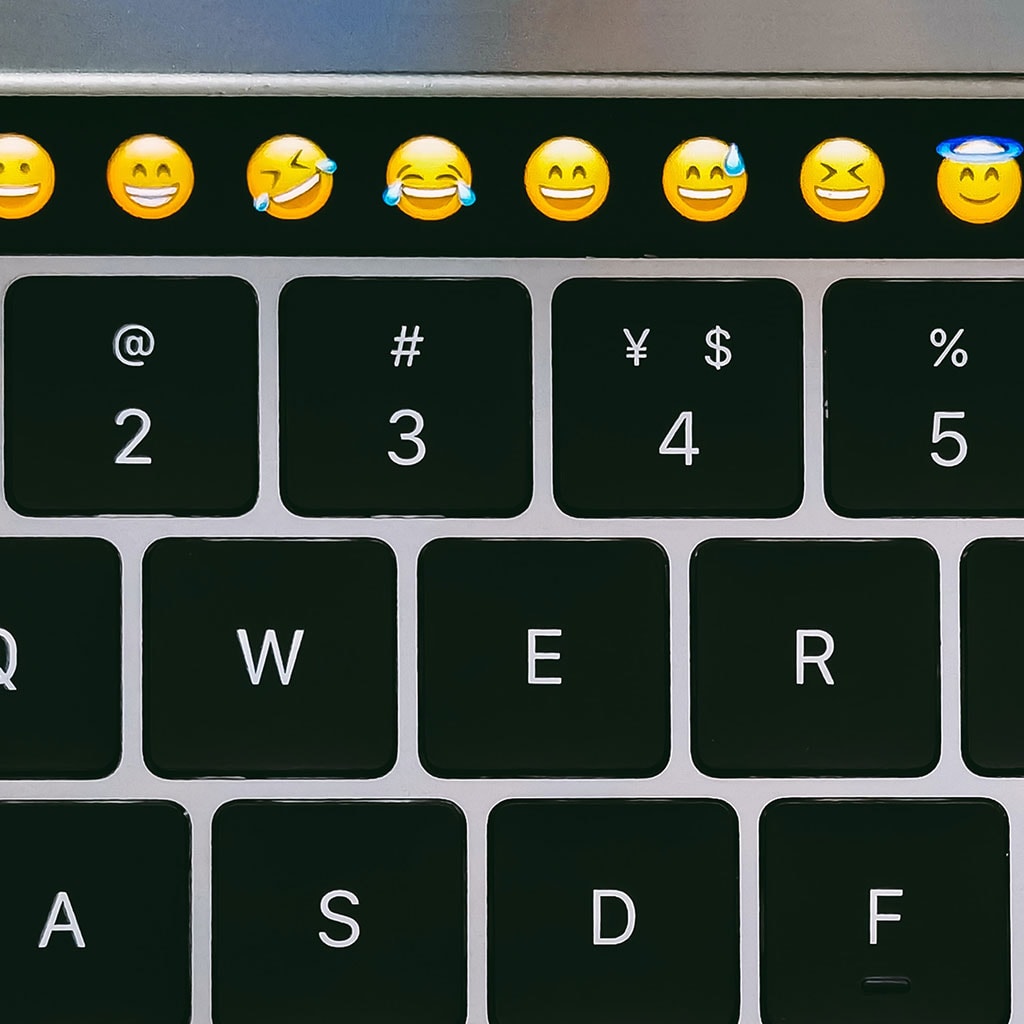
Leveraging emojis effectively can significantly enhance your digital communication. Here are some tips to become an emoji master on your MacBook:
- Predictive Text and Suggestions: In many macOS applications (like Messages, Mail, and even some third-party apps), if you start typing a word that corresponds to an emoji (e.g., “happy,” “burger,” “car”), macOS might suggest an emoji to replace or accompany your text. Look for the small emoji icon that appears in the predictive text bar or even directly highlight a word to see if an emoji suggestion pops up.
- Skin Tone Modifiers: For human-like emojis, many offer different skin tone options. To access these, simply click and hold down on the emoji in the Character Viewer (or the pop-up shortcut). A small palette of skin tones will appear, allowing you to select your preferred variation. macOS remembers your last chosen skin tone for future use.
- Using Emojis Across Applications: The beauty of system-level emojis is their universality. Once available on your Mac, you can use them in virtually any text field across various applications:
- Messages: For lively conversations with friends and family.
- Mail: To add a friendly touch or emphasis to your emails.
- Pages, Numbers, Keynote: To visually enhance documents and presentations.
- Social Media: For engaging posts on Twitter, Facebook, Instagram, LinkedIn, and more.
- Browser Input: In search bars, forms, or web-based communication platforms.
- Emoji as Productivity Enhancers: While often seen as casual, emojis can also boost productivity. Quick reactions in team chat apps (like Slack or Microsoft Teams) save typing time. A checkmark emoji can signify completion, a lightbulb emoji can represent an idea, or a simple thumbs-up can acknowledge receipt. They add an immediate, visual layer of communication that can often be more efficient than words alone.
Mastering these techniques transforms emojis from mere decorative elements into powerful tools for clear, concise, and emotionally resonant communication, further solidifying your command over your digital toolkit.
Exploring Alternative and Custom Emoji Solutions (When Official Isn’t Enough)
While macOS updates are the definitive way to get official, system-wide emojis, there are scenarios where users might seek alternative or custom emoji solutions. It’s important to understand the distinctions and limitations of these options, especially when dealing with the “Tech” aspects of compatibility and security.
Third-Party Emoji Fonts and Packs (Use with Caution)
It’s crucial to understand that “installing” new emojis in the same way you install an app is generally not how official emojis work on a Mac. Official emojis are part of the system’s core font libraries, managed by Apple. However, the concept of “third-party emoji fonts” sometimes arises, though it’s often misunderstood.
- What they are: Some third-party developers create custom icon sets or fonts that mimic emojis, or offer variations on existing ones. These are typically used in specific design software (like Adobe Photoshop, Illustrator) for graphic design purposes, or might be available as custom icon libraries.
- Limitations and Disclaimers:
- Not System-Wide: These custom fonts generally do not integrate into your macOS emoji keyboard (Control + Command + Spacebar) for general text input. You cannot type a standard text message and expect a custom emoji font to automatically render your unique emoji.
- Compatibility Issues: If you use a custom emoji font in a document or image, and the recipient doesn’t have that specific font installed on their device, they will see a default character (like a square or question mark) or a different, less desirable fallback font. This defeats the purpose of universal communication.
- Security Risks: Sourcing and installing arbitrary fonts from untrusted third-party websites can pose security risks. Malicious actors can embed malware or exploits within font files. Always exercise extreme caution and only download from reputable sources.
- Display Problems: Even if installed, these fonts might not display correctly across all applications or render consistently with other system fonts, leading to a fragmented visual experience.
For these reasons, relying on official macOS updates for your emoji needs is overwhelmingly the most secure, reliable, and universally compatible approach. Third-party emoji fonts are niche tools for specific creative projects, not general communication.
Integrating Custom Emojis into Specific Platforms
While you can’t typically install system-wide custom emojis, many popular communication platforms allow for custom emoji uploads within their specific ecosystems. This is a powerful feature for “Brand” identity, team cohesion, and adding a unique flair to platform-specific interactions.
- Slack Custom Emojis: Slack is a prime example where custom emojis thrive. Teams can upload their own images (often company logos, inside jokes, or specific reactions) to be used as emojis within their Slack workspace.
- How it works: Workspace administrators or members with permission can go to Workspace Settings > Customize > Emoji and upload image files (PNG, JPG, GIF) to create custom emojis.
- Impact: This fosters team culture, enables quick and context-specific reactions, and can even reinforce internal branding elements.
- Discord Custom Emojis: Similar to Slack, Discord servers can have their own sets of custom emojis. Server boosters can unlock more emoji slots, allowing communities to create highly personalized reaction sets.
- How it works: Server owners and those with “Manage Emojis” permission can upload images via Server Settings > Emoji.
- Impact: Crucial for community building and expressing server-specific humor or themes, deeply engaging users within the platform.
- Other Platforms: Many other platforms, including some forums, gaming communities, and specialized communication tools, offer similar custom emoji functionalities. These are always platform-dependent and do not impact your MacBook’s system-wide emoji capabilities.
The key takeaway here is that platform-specific custom emojis are excellent for enhancing communication within those platforms. They offer a unique way to express “Brand” identity (be it corporate, personal, or community-based) and add value to platform-specific interactions. However, they are distinct from, and not a replacement for, the system-wide emojis provided by macOS.
Troubleshooting Common Emoji Issues
Even with the best intentions and the latest updates, you might occasionally encounter issues with emojis on your MacBook. Understanding common problems and their solutions can save you time and frustration, reinforcing your tech-savvy approach.
Missing or Outdated Emojis
- The Prime Culprit: Outdated macOS: As repeatedly emphasized, the most frequent reason for missing or outdated emojis is an outdated operating system. If you see blank squares or question marks where new emojis should be, it almost certainly means your MacBook (or the recipient’s device) doesn’t support the latest Unicode version.
- Solution: Immediately check for and install any pending macOS updates via System Settings > General > Software Update. Encourage others you communicate with to do the same.
- Application-Specific Issues: Occasionally, a particular application might not fully support the latest emoji rendering, even if your macOS is up to date. This is rare for mainstream apps but can happen with niche or older software.
- Solution: Try the emojis in a different application (e.g., Messages vs. an old text editor). If it works elsewhere, the issue is with the specific app. Check for app updates or contact the developer.
- Corrupted Preferences (Rare): In very rare cases, user preferences related to fonts or display might become corrupted.
- Solution: A simple restart of your MacBook can often resolve minor glitches. If persistent, you might consider creating a new user account to see if the issue persists there (indicating a system-wide problem vs. a user-specific one).
Emoji Display Problems
- Seeing Squares or Question Marks on Recipient’s Device: This is the most common display problem, and it’s almost always due to the recipient’s device being outdated. Your MacBook sends the correct emoji character, but their device’s operating system lacks the font data to render it.
- Solution: Politely inform the recipient that they might need to update their device’s operating system (whether it’s an iPhone, Android, or another Mac/PC) to see the latest emojis.
- Inconsistent Emoji Rendering: Sometimes, an emoji might look slightly different across platforms (e.g., Apple’s interpretation versus Google’s). While generally minor, this is due to each company designing their own emoji glyphs based on the Unicode standard.
- Solution: This is not a “problem” to be fixed but rather an inherent characteristic of the emoji ecosystem. Be aware that subtle visual differences exist.
- Text Size or Font Issues: If you’re using highly customized text sizes or unusual fonts in certain applications, it could theoretically interfere with emoji rendering, especially if the font lacks robust emoji support.
- Solution: Test with standard font settings and default text sizes.
In most cases, ensuring your MacBook runs the latest macOS version resolves the vast majority of emoji-related problems. It’s the single most effective step you can take to keep your emoji communication smooth, expressive, and universally understood.
By understanding the technical underpinnings of emoji integration and maintaining your MacBook’s software, you ensure that your digital expressions remain vibrant and effective. The journey to installing new emojis is, ultimately, a journey into staying updated and connected in our increasingly visual digital world.
Conclusion
In the realm of modern digital communication, emojis are far more than mere embellishments; they are integral components of how we convey emotion, tone, and personality in our text-based interactions. For MacBook users, embracing the latest emoji sets is a direct path to richer, more nuanced conversations, aligning perfectly with the productivity and communication demands of today’s “Tech” landscape.
As we’ve explored, the primary and most reliable method for installing new emojis on your MacBook is to consistently keep your macOS operating system updated. These updates are Apple’s official delivery mechanism for new Unicode emoji standards, ensuring you have access to the full spectrum of expressive characters. Beyond emojis, regular macOS updates are foundational for maintaining your MacBook’s digital security, optimizing its performance, and unlocking new features that enhance your overall user experience and productivity.
We’ve also delved into mastering the Emoji & Symbols viewer—your quick access portal to a world of visual language—and shared tips for efficient emoji usage that can streamline your communication. While alternative custom emoji solutions exist for specific platforms like Slack or Discord, it’s critical to understand their platform-specific nature and to prioritize official macOS updates for universal, system-wide emoji compatibility and security.
Finally, knowing how to troubleshoot common emoji issues, primarily by verifying your macOS version, empowers you to maintain seamless communication. In a world where digital security and up-to-date software are paramount, ensuring your MacBook is current is not just about having the latest smiley faces; it’s about being a responsible, effective, and fully equipped digital citizen.
So, take a moment to check your MacBook’s Software Update settings today. Embrace the ever-evolving language of emojis and ensure your digital voice is heard, understood, and seen in its most vibrant form. Your MacBook is a powerful tool; keep it sharp, secure, and full of expressive potential.
aViewFromTheCave is a participant in the Amazon Services LLC Associates Program, an affiliate advertising program designed to provide a means for sites to earn advertising fees by advertising and linking to Amazon.com. Amazon, the Amazon logo, AmazonSupply, and the AmazonSupply logo are trademarks of Amazon.com, Inc. or its affiliates. As an Amazon Associate we earn affiliate commissions from qualifying purchases.