
Stardew Valley, the charming pixel-art farming simulation RPG, has captured the hearts of millions with its idyllic rural life, engaging characters, and endless possibilities. But for many players, the journey doesn’t end with the vanilla game. The vibrant modding community surrounding Stardew Valley has elevated the experience to an entirely new level, offering everything from minor quality-of-life tweaks to massive content expansions that breathe fresh air into Pelican Town. If you’re looking to personalize your farm, streamline your gameplay, or even add entirely new story elements, installing mods is the way to go. This comprehensive guide, tailored for anyone from a tech-curious farmer to an experienced digital explorer, will walk you through the process, ensuring a smooth and enjoyable modding experience.

Why Mod Stardew Valley? Enhancing Your Farming Life
The appeal of modding lies in its power to transform and customize. While Stardew Valley is a masterpiece in its own right, mods allow players to tailor the game to their exact preferences, addressing minor annoyances or expanding on beloved features. This level of personalization is a cornerstone of the game’s enduring popularity and a testament to the creativity of its community.
From a technological perspective, modding is an act of user-driven innovation. It allows players to interact with the game’s underlying code in a structured way, adding functionality that might not have been envisioned by the original developers. This creates a symbiotic relationship where the game’s brand is strengthened by an ever-evolving ecosystem of content. For the user, the benefits are numerous:
- Quality-of-Life Improvements: These are often the first mods players seek out. Think about “Lookup Anything,” which provides instant information on objects, crops, or NPCs, saving countless wiki searches. Or “Chests Anywhere,” allowing you to access all your storage from a single location. These mods don’t change the game’s core identity but make the day-to-day grind much more efficient and enjoyable.
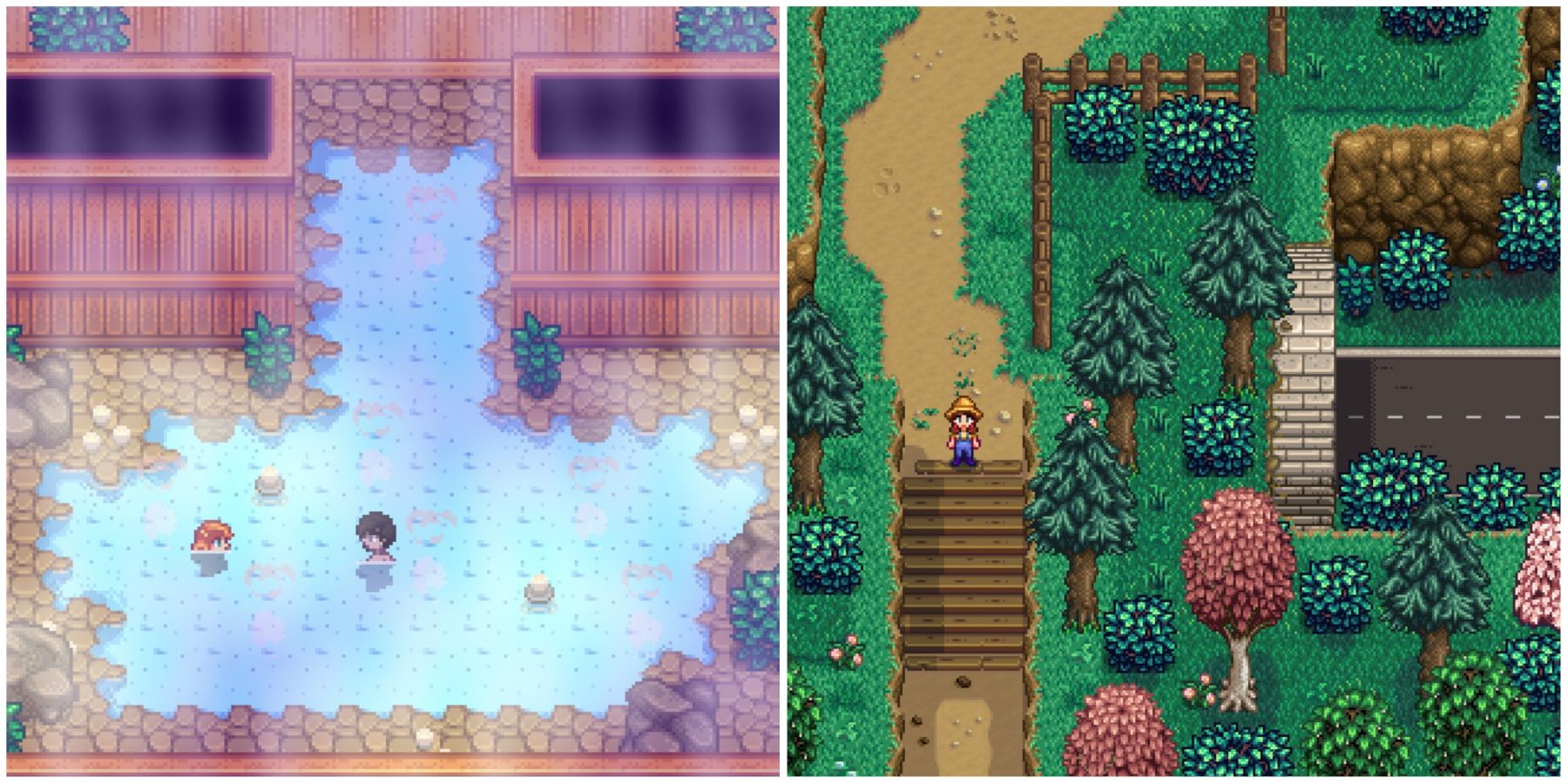
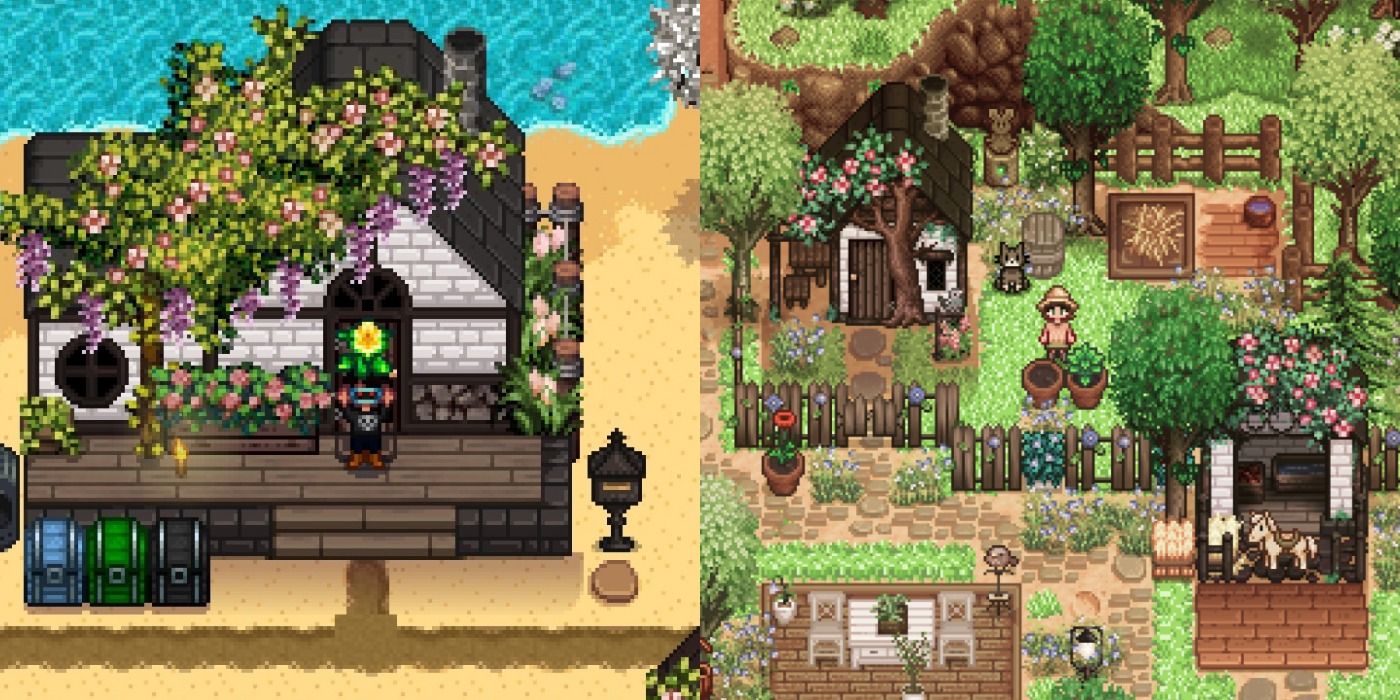
- Visual Enhancements: Want a different aesthetic for your farm buildings, character sprites, or even the user interface? There are countless re-texture mods available. These can range from subtle alterations to complete overhauls, allowing you to craft a unique visual identity for your game.
- Content Expansions: This is where mods truly shine for long-term players. Mods like “Stardew Valley Expanded” add new NPCs, locations, questlines, and even marriage candidates, effectively creating a massive expansion pack that feels seamlessly integrated into the original game. These additions provide hundreds of hours of new gameplay, significantly extending the life of the game.
- Gameplay Overhauls: Some mods introduce entirely new mechanics, such as complex farming systems, new crafting recipes, or even changes to the game’s economy. These are for players looking for a fresh challenge or a completely different take on the Stardew Valley experience.
- Bug Fixes and Performance Optimizations: Sometimes, modders take it upon themselves to fix minor bugs that might have slipped through official patches or to optimize certain aspects of the game for better performance, especially on older systems or with many mods installed.
By enabling such diverse modifications, modding ensures that Stardew Valley remains fresh, engaging, and relevant for years, a significant factor in the game’s lasting brand appeal. It’s an investment of time that pays dividends in enjoyment and extended gameplay.
The Essential Toolkit: Prerequisites for Modding
Before diving into the exciting world of custom content, you’ll need a few fundamental tools. Think of these as the foundation upon which your modded Stardew Valley will be built. Understanding these components is crucial for a stable and manageable modding setup.
The most important prerequisite, of course, is a legitimate copy of Stardew Valley. Whether you own it on Steam, GOG, or Xbox Game Pass for PC, the modding process is largely the same for all PC versions.
Understanding SMAPI: The Heart of Stardew Valley Modding
The vast majority of Stardew Valley mods require a crucial piece of software called SMAPI (Stardew Modding API). SMAPI acts as a compatibility layer and a mod loader. Instead of directly altering the game’s core files (which can lead to instability and difficulties updating), SMAPI intercepts the game’s code at runtime, allowing mods to integrate cleanly and safely.
Why is SMAPI indispensable?
- Mod Loading: It loads all your compatible mods when the game starts.
- Conflict Resolution: It helps manage potential conflicts between different mods, often preventing crashes.
- Error Reporting: If a mod causes an issue, SMAPI provides detailed log files that are invaluable for troubleshooting.
- Game Updates: It ensures that most mods remain compatible even after game updates, reducing the need for modders to constantly rewrite their code.
Essentially, SMAPI is the framework that makes modern Stardew Valley modding possible and relatively stable. Without it, installing anything beyond simple file replacements would be a nightmare. From a technology standpoint, SMAPI is an elegant solution that centralizes mod management and enhances system stability.
Finding Your Perfect Mods: Navigating Nexus Mods and ModDrop
Once SMAPI is in place, your next step is to find the mods themselves. The Stardew Valley modding community primarily congregates around two major platforms:
- Nexus Mods: This is arguably the largest and most comprehensive repository for Stardew Valley mods. It hosts thousands of mods, from the smallest tweaks to the most ambitious expansions.
- Pros: Enormous selection, detailed mod pages with instructions, images, and user comments, robust search and filtering tools.
- Cons: Can be overwhelming for new users due to the sheer volume. Requires a free account to download files.
- ModDrop: While smaller than Nexus Mods, ModDrop offers a more streamlined experience, particularly with its desktop application which can help manage mod installations and updates semi-automatically.
- Pros: User-friendly interface, desktop app for easier management, good for discovering popular and curated mods.
- Cons: Smaller selection compared to Nexus Mods.
When browsing for mods, always prioritize sources like Nexus Mods and ModDrop. These platforms are generally safe and have community moderation. Avoid downloading mods from unofficial, obscure websites as they may contain malicious software or outdated, broken files. Digital security is paramount, even when enhancing your gaming experience.
On any mod page, pay close attention to:
- Requirements: Does the mod need SMAPI? Does it require other specific mods (dependencies)?
- Compatibility: Which version of Stardew Valley is the mod compatible with? (e.g., Stardew Valley 1.5.6)
- Installation Instructions: While this guide provides general steps, always check the mod author’s specific instructions.
- Last Updated Date: Indicates if the mod is actively maintained.
- Posts/Comments Section: A great place to check for common issues, bug reports, and solutions.
A Step-by-Step Guide to Mod Installation
With your prerequisites understood and your mod sources identified, it’s time for the hands-on process of installing mods. This section breaks down the installation into clear, manageable steps.
Installing SMAPI: Your First Crucial Step
Installing SMAPI is straightforward and typically involves an automated installer.
- Download SMAPI: Go to the official SMAPI page on Nexus Mods (search “SMAPI” on Nexus Mods) or
smapi.iofor the direct download link. Always download the latest stable version. - Extract the Files: SMAPI usually comes as a
.zipfile. Download it to a temporary location (e.g., your Downloads folder) and extract its contents. You should see a few files, includinginstall.exe(for Windows),install.sh(for Linux), orinstall.command(for macOS). - Run the Installer:
- Windows: Double-click
install.exe. A command prompt window will open. - Linux/macOS: Open a terminal, navigate to the extracted SMAPI folder using the
cdcommand, and then run./install.sh(or./install.commandfor macOS). You might need to grant execute permissions withchmod +x install.sh.
- Windows: Double-click
- Follow On-Screen Prompts: The installer will detect your Stardew Valley installation and ask you to confirm. Type
1(or the corresponding number) and press Enter to install. - Important – Steam/GOG Launch Options: After successful installation, the SMAPI installer will provide instructions on how to set your game launcher (Steam, GOG Galaxy) to always launch Stardew Valley through SMAPI. This is crucial!
- For Steam: Go to your Steam Library, right-click Stardew Valley > Properties > General. In the “Launch Options” field, paste the path provided by the SMAPI installer. It will look something like
"C:Program Files (x86)SteamsteamappscommonStardew ValleyStardewModdingAPI.exe" %command%(the path before%command%will vary). - For GOG Galaxy: Go to your GOG Galaxy Library, select Stardew Valley > Settings icon (next to Play button) > Manage Installation > Configure. Under “Features,” check “Custom executables / arguments.” Add a new executable, browse to
StardewModdingAPI.exein your Stardew Valley folder, set it as the “Default executable,” and optionally add%command%in the arguments if recommended.
- For Steam: Go to your Steam Library, right-click Stardew Valley > Properties > General. In the “Launch Options” field, paste the path provided by the SMAPI installer. It will look something like
- First Launch: Launch Stardew Valley through Steam/GOG. A console window (the SMAPI console) should appear alongside the game. This confirms SMAPI is working. You can then close the game. SMAPI will have created a
Modsfolder inside your Stardew Valley game directory.
Adding Mods to Your Game: Content Patcher and SMAPI Mods
Now that SMAPI is installed and configured, adding individual mods is much simpler. Most modern Stardew Valley mods fall into one of two main categories for installation: Content Patcher mods or direct SMAPI API mods. Both follow a very similar, easy process.
- Download Your Chosen Mod: Locate the mod you want on Nexus Mods or ModDrop and download its file, usually a
.zipor.rararchive. - Extract the Mod Files: Use an archiving tool (like 7-Zip, WinRAR, or your OS’s built-in extractor) to extract the contents of the downloaded archive.
- Crucial Step: When extracting, ensure that you get a single folder for each mod. For example, if you download “Custom Farmhouses,” after extraction, you should have a folder named
[CP] Custom Farmhouses(the[CP]prefix often indicates a Content Patcher mod) orCustomFarmhousesModcontaining the mod’s actual files (likemanifest.json). Avoid situations where you have a folder inside a folder (e.g.,Custom Farmhouses_1.0/Custom Farmhouses_1.0/manifest.json). If this happens, you need to navigate into the extracted folder and move the innermost mod folder.
- Crucial Step: When extracting, ensure that you get a single folder for each mod. For example, if you download “Custom Farmhouses,” after extraction, you should have a folder named
- Place the Mod Folder into the
ModsDirectory: Take the correctly extracted mod folder (e.g.,[CP] Custom Farmhouses) and copy or move it directly into theModsfolder that SMAPI created in your Stardew Valley game directory.- Typical Path (Windows):
C:Program Files (x86)SteamsteamappscommonStardew ValleyMods - Typical Path (GOG):
C:Program Files (x86)GOG GalaxyGamesStardew ValleyMods - Typical Path (macOS/Linux):
~/.steam/steam/steamapps/common/Stardew Valley/Mods/(or similar depending on installation)
- Typical Path (Windows):
- Launch the Game: Launch Stardew Valley through Steam/GOG (which should now automatically launch SMAPI). The SMAPI console window will appear and list all the mods it has successfully loaded. If everything went well, your new mod should be active in the game!
Important Note on Older Mod Types (XNB Mods): Some very old mods might require you to replace .xnb files directly in the game’s Content folder. This method is generally not recommended for beginners as it involves altering core game files, can easily break your game, and is much harder to troubleshoot or remove. Most modern mods use SMAPI for a reason. If a mod requires .xnb replacement, proceed with extreme caution and back up your Content folder beforehand. For the scope of this guide, we focus on the safer, SMAPI-based modding.
Managing Your Modded Experience
Installing mods is just the first step. To ensure a long-lasting, stable, and enjoyable modded Stardew Valley experience, you need to understand how to manage your mods effectively. This includes keeping them updated and knowing how to troubleshoot when things inevitably go wrong.
Keeping Mods Up-to-Date
The Stardew Valley game receives updates, and mod authors frequently update their mods to add new features, fix bugs, or maintain compatibility with the latest game version. Keeping your mods updated is key to a smooth experience.
- Monitor Mod Pages: Regularly check the mod pages on Nexus Mods or ModDrop for new versions. Most mod authors will clearly indicate new updates.
- Update SMAPI First: When Stardew Valley itself updates, SMAPI usually needs an update too. Always update SMAPI to the latest version compatible with your game version before updating other mods. You’ll get a notification in the SMAPI console if your SMAPI version is outdated.
- Replace Old Mod Files: To update a mod:
- Download the new version of the mod.
- Delete the old mod folder from your
Modsdirectory. - Extract the new mod files and place the new mod folder into your
Modsdirectory, just as you did during initial installation. - Do not simply overwrite files without deleting the old folder first, as this can sometimes leave behind outdated files that cause issues.
Troubleshooting Common Modding Issues
Modding, by its nature, introduces variables, and occasionally, things can go wrong. The good news is that SMAPI provides excellent tools for diagnosing problems.
- Read the SMAPI Log: This is your best friend for troubleshooting. When you launch the game with SMAPI, a console window opens. If there are errors, warnings, or compatibility issues, they will often be displayed here.
- Use the SMAPI Log Parser: The most powerful troubleshooting tool is the official SMAPI log parser.
- After experiencing an issue (like a crash, freeze, or mod not working), close Stardew Valley.
- Go to your Stardew Valley game folder and find the
smapi-latest.txtfile (orsmapi-crash.txtif it crashed). - Upload this file to
smapi.io/log. - The parser will analyze your log file and provide a report, telling you exactly which mods are outdated, which are causing errors, and often suggesting solutions. This is an incredible resource that saves countless hours of frustration.
- Check Mod Requirements and Dependencies: Did you install all the prerequisite mods for your new mod? (e.g., Content Patcher, Json Assets, etc.) Make sure they are also present in your
Modsfolder. - Disable Mods Systematically: If the log parser isn’t clear or you suspect a conflict, try disabling mods one by one. Move a suspected mod’s folder out of your
Modsdirectory (e.g., to a temporary “Disabled Mods” folder next to it) and relaunch the game. If the problem disappears, you’ve found the culprit. - Re-read Mod Pages: Sometimes the solution to a problem is clearly stated on the mod’s Nexus Mods or ModDrop page, either in the description, requirements, or comments section.
- Verify Game Files (Steam/GOG): If you suspect a corruption in your base game files, you can use Steam or GOG Galaxy to verify the integrity of game files. Be aware that this might remove SMAPI if you haven’t properly set your launch options or if SMAPI had to directly modify game files (which is rare but possible). You might need to reinstall SMAPI afterward.
- Seek Community Help: If you’re truly stuck, don’t hesitate to ask for help on the Stardew Valley subreddit, Nexus Mods forums, or the official Stardew Valley Discord server. Always provide your SMAPI log (uploaded to
smapi.io/log) when asking for help – it’s the first thing experienced modders will ask for.
Advanced Tips and Best Practices for a Smooth Modding Journey
To further enhance your modding experience and avoid common pitfalls, consider these advanced tips and best practices.
- Back Up Your Save Files: Before installing any major new mods or making significant changes, always back up your Stardew Valley save files. They are typically located in
%appdata%StardewValleySaveson Windows. Copy the entireSavesfolder to a safe location. This simple step can save you from heartbreak if a mod corrupts your game. - Read Everything: This cannot be stressed enough. Always read the mod description, requirements, installation instructions, and any “Known Issues” sections on the mod page. Mod authors put this information there for a reason.
- Understand Mod Dependencies: Many mods rely on other mods to function (e.g., Content Patcher is a dependency for most content mods, Json Assets for custom items, etc.). Always install these “framework” mods first.
- Use Descriptive Folder Names: When you extract mods, sometimes the folder name is generic. Rename it to something easily identifiable, like
[CP] Custom Farmhousesinstead of justCustom_Farmhouses_v1.0. This helps with organization, especially when you have dozens of mods. - Organize Your Mod Downloads: Create a dedicated folder outside your game directory (e.g.,
DocumentsStardew Valley ModsDownloaded) to store the original.zipfiles of your mods. This makes it easy to reinstall or revert to older versions if needed. - Don’t Overdo It (Initially): While it’s tempting to download every cool mod you see, start with a few quality-of-life mods and one or two larger content mods. Get comfortable with the process, then gradually add more. A heavily modded game increases the chances of conflicts and performance issues.
- Regularly Check for Updates: As mentioned, both SMAPI and your mods will update. Make it a habit to check for updates every couple of weeks or whenever you notice a game update.
- Be Patient and Persistent: Modding can sometimes be a puzzle. Don’t get discouraged if something doesn’t work right away. With the tools and community resources available, most issues can be resolved with a bit of patience.
- Support Mod Authors: Modding is a labor of love. If you appreciate a mod, consider endorsing it on Nexus Mods, leaving a kind comment, or even donating to the author if they have a Patreon or similar. This helps sustain the vibrant modding community.
Conclusion: Cultivating Your Ultimate Stardew Valley Experience
Modding Stardew Valley opens up a universe of possibilities, allowing you to tailor your farming adventure to perfection. By understanding SMAPI, responsibly sourcing your mods, and following these step-by-step instructions and best practices, you’re well-equipped to transform your game. From small tweaks that streamline your daily chores to vast expansions that offer hundreds of hours of new content, mods ensure that your journey through Pelican Town remains fresh, exciting, and uniquely yours for years to come. Dive in, experiment, and enjoy cultivating the Stardew Valley experience you’ve always dreamed of!
aViewFromTheCave is a participant in the Amazon Services LLC Associates Program, an affiliate advertising program designed to provide a means for sites to earn advertising fees by advertising and linking to Amazon.com. Amazon, the Amazon logo, AmazonSupply, and the AmazonSupply logo are trademarks of Amazon.com, Inc. or its affiliates. As an Amazon Associate we earn affiliate commissions from qualifying purchases.