
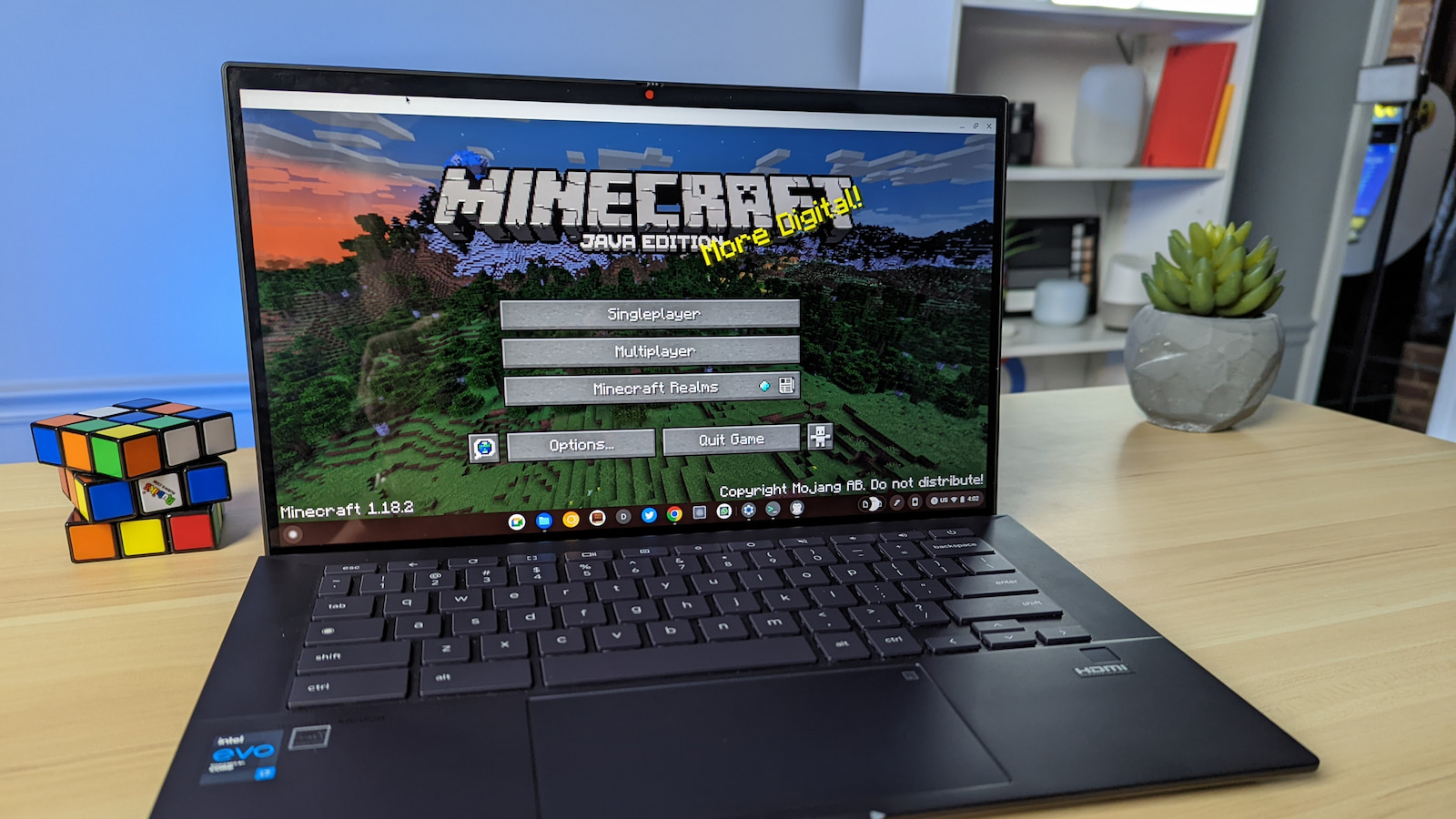
Chromebooks, once seen primarily as devices for web browsing and light productivity, have evolved significantly. With enhanced hardware, the integration of Android apps, and the powerful addition of Linux (Beta) support, these versatile machines are now capable of running a much wider range of software – including beloved games like Minecraft. For many users, the prospect of combining the portability and simplicity of a Chromebook with the endless creative possibilities of Minecraft is incredibly appealing. This comprehensive guide will walk you through the various methods of installing Minecraft on your Chromebook, addressing compatibility, performance, and common troubleshooting steps to get you building and exploring in no time.
Preparing Your Chromebook for the Minecraft Adventure
Before diving into the installation process, it’s crucial to ensure your Chromebook is ready. Minecraft, particularly the Java Edition, can be resource-intensive, and proper preparation will significantly improve your gaming experience.
Checking Compatibility and System Requirements
Not all Chromebooks are created equal, and their ability to run Minecraft will depend heavily on their specifications.
- Processor: An Intel Core i3 (8th Gen or newer) or an AMD Ryzen 3 (3000 series or newer) is generally recommended for a smooth experience with Minecraft Java Edition. While some Celeron or Pentium processors might run it, performance could be sluggish. For cloud gaming or Minecraft Education Edition (Android app), processor requirements are less stringent.
- RAM: Aim for at least 8GB of RAM. While 4GB might technically run it, you’ll likely encounter lag, especially in larger worlds or with multiple applications open. More RAM means better multitasking and smoother gameplay.
- Storage: Minecraft Java Edition itself doesn’t take up a massive amount of space (a few GBs), but you’ll need ample free storage for the Linux environment, game files, updates, and any worlds you create. It’s advisable to have at least 10-15GB of free space.
- Chromebook Model & Age: Newer Chromebooks (released in the last 3-4 years) are more likely to have the necessary hardware and support for Linux (Beta). You can check your Chromebook’s model and specifications in the ‘About ChromeOS’ section of your settings.
Enabling Linux (Beta) on Your Chromebook
The most robust way to run Minecraft Java Edition on a Chromebook is through its built-in Linux (Beta) environment. This feature allows you to install and run desktop Linux applications.
- Open Settings: Click on the time/status area in the bottom-right corner of your screen, then select the gear icon to open “Settings.”
- Navigate to Linux: In the left-hand menu, scroll down and click on “Advanced.”
- Developers Section: Expand the “Developers” section.
- Turn on Linux (Beta): You should see an option for “Linux development environment.” Click “Turn on.”
- Follow On-screen Prompts: A setup wizard will appear. Click “Next.”
- Choose a Username: Select a username for your Linux environment. This is separate from your Chromebook’s username.
- Allocate Disk Size: This is a crucial step. By default, Chromebooks usually allocate around 10GB for Linux. For Minecraft, especially if you plan on having multiple worlds or mods, it’s highly recommended to increase this. If you have a 128GB or 256GB Chromebook, allocate at least 20-30GB. If you have less internal storage, allocate as much as you comfortably can, keeping the 10-15GB minimum in mind. You can always change this later in settings if needed, but it’s easier to set it correctly from the start.
- Install: Click “Install” and wait for the process to complete. This can take several minutes as your Chromebook downloads and sets up the Linux container. Once finished, a Linux terminal window will automatically open.
Updating and Configuring Linux
After enabling Linux, it’s good practice to update its packages and install Java, which Minecraft Java Edition requires.
- Open Terminal: If the terminal window closed, you can open it by searching for “Terminal” in your Chromebook’s app launcher (press the Everything button/search key).
- Update Linux Packages: In the terminal, run the following commands, pressing Enter after each. You may be prompted to confirm with ‘Y’.
bash

sudo apt update

sudo apt upgrade -y
sudo apt updaterefreshes the list of available packages, andsudo apt upgrade -yinstalls any updates for your existing packages. This ensures your Linux environment is current and secure. - Install Java Development Kit (OpenJDK): Minecraft Java Edition requires a Java Runtime Environment (JRE) to run. It’s best to install the OpenJDK package. Minecraft 1.17 and newer generally require Java 17 or newer.
bash

sudo apt install openjdk-17-jre -y
If you’re installing an older version of Minecraft, you might need Java 8 or 11.sudo apt install openjdk-8-jre -yorsudo apt install openjdk-11-jre -y. Generally, OpenJDK 17 is a safe bet for modern Minecraft. - Verify Java Installation: To confirm Java is installed correctly, run:
bash

java --version
You should see output displaying the Java version.
Methods to Install Minecraft on Chromebook
With your Chromebook prepared, let’s explore the different ways to get Minecraft up and running. Each method caters to different versions of the game and has its own set of advantages and limitations.
Installing Minecraft Java Edition via Linux
This is the most popular and versatile method, allowing you to play the full, unadulterated Minecraft Java Edition with all its modding potential.
- Download the Minecraft Launcher for Debian/Ubuntu:
- Open your Chromebook’s browser (Chrome).
- Go to the official Minecraft website:
www.minecraft.net/en-us/download. - Scroll down to the “Download for Debian/Ubuntu” section.
- Click the “Download” button to get the
.debfile (e.g.,Minecraft.deb). This file will be saved in your Chromebook’s “Downloads” folder.
- Move the
.debfile to Linux:- Open the “Files” app on your Chromebook.
- Navigate to your “Downloads” folder.
- Right-click (or two-finger tap) on the
Minecraft.debfile. - Select “Move” and then choose “Linux files.” This copies the installer into your Linux environment, making it accessible to the terminal.
- Install the Minecraft Launcher:
- Open your Linux terminal (search “Terminal” in the app launcher).
- Navigate to the directory where you moved the file. If you moved it to “Linux files,” it’s usually in your home directory or directly accessible.
- Run the following command. Replace
Minecraft.debwith the exact filename you downloaded if it’s different (e.g.,Minecraft_something_something.deb).
bash

sudo apt install ./Minecraft.deb
The./tells the command to look for the file in the current directory. Thesudo apt installcommand will install the package, resolving any dependencies automatically.
- Launch Minecraft:
- Once the installation is complete, close the terminal.
- Open your Chromebook’s app launcher.
- You should now see a “Minecraft Launcher” icon under your “Linux apps” section. Click on it to start the game.
- Log In and Play:
- The launcher will open. You’ll need to log in with your Microsoft account (if you own Minecraft Java Edition) or Mojang account.
- Once logged in, you can select your desired game version and click “Play.” The first launch might take a while as it downloads all the necessary game files.
Performance Optimization Tips for Java Edition:
- Allocate More RAM in Launcher: In the Minecraft Launcher, go to “Installations,” hover over your desired version, click “…” (more options), then “Edit.” Under “JVM Arguments,” you’ll see a line like
-Xmx2G(meaning 2GB RAM). You can change2Gto4Gor6Gdepending on your Chromebook’s total RAM (e.g.,Xmx4G). Do not allocate more than half of your total system RAM. - Install OptiFine: OptiFine is a performance mod for Minecraft Java Edition that significantly improves FPS and allows for more graphics settings control. Download it from the official OptiFine website and install it through the Minecraft Launcher.
- Lower Graphics Settings: Within Minecraft’s video settings, reduce render distance, turn off fancy graphics, disable clouds, and lower particle effects.
- Close Background Apps: Ensure no other demanding applications or browser tabs are open while playing Minecraft.
Exploring Minecraft Education Edition
Minecraft Education Edition is a special version of the game designed for learning environments, but it’s also accessible to individual users. It often runs more smoothly on Chromebooks than Java Edition due to its optimized nature and availability as an Android app.
- Via Google Play Store (Android App):
- Ensure your Chromebook supports Android apps (most modern Chromebooks do).
- Open the Google Play Store from your app launcher.
- Search for “Minecraft Education Edition.”
- Click “Install.”
- Once installed, open it from your app launcher.
- You’ll need an Office 365 Education account (provided by a school) or a personal Microsoft 365 account to log in. Some individual users can purchase a license.
- Direct Download (for Managed Devices/IT Admins):
- Schools or organizations managing Chromebooks can deploy Minecraft Education Edition directly through the Google Admin Console using its Linux or Android versions. Individual users typically find the Play Store method easier.
Minecraft Education Edition includes unique features like Code Builder, special blocks, and lessons, making it a great option for those interested in its educational aspects or seeking a lighter version of Minecraft.

Running Minecraft Bedrock Edition (Unofficial Methods/Limitations)
Minecraft Bedrock Edition (the version found on consoles, mobile, and Windows 10/11) is not officially supported on Chromebooks via the Google Play Store for most devices. This is primarily due to architectural differences (many Android apps on Chromebooks are compiled for ARM processors, while many Chromebooks use x86 Intel/AMD processors). While some newer ARM-based Chromebooks might see it in the Play Store, it’s rare for x86 Chromebooks.
Potential Unofficial Workarounds (Use with Caution):
- Sideloading APKs: It’s technically possible to download the Minecraft Bedrock APK (Android Package Kit) from third-party sources and sideload it onto your Chromebook. However, this is highly discouraged for several reasons:
- Security Risk: APKs from unofficial sources can contain malware, viruses, or modified code.
- Compatibility Issues: Even if you install it, it might not run properly due to hardware incompatibility, lack of Google Play Services, or being designed for ARM architecture.
- Performance: Performance is often poor, if it runs at all.
- Updates: You won’t receive automatic updates, requiring manual re-sideloading.
Given these significant drawbacks and risks, it is generally not recommended to attempt installing Minecraft Bedrock Edition via sideloading. For a superior Bedrock experience on a Chromebook, consider cloud gaming.
Cloud Gaming Solutions
For the best and most seamless Bedrock (or even Java) experience on a Chromebook, cloud gaming is an excellent alternative. These services stream the game to your device, offloading all the processing power to powerful remote servers. Your Chromebook only needs a stable internet connection.
- Xbox Cloud Gaming (Requires Xbox Game Pass Ultimate):
- Subscription: You need an active Xbox Game Pass Ultimate subscription.
- Access: Open your Chrome browser and go to
xbox.com/play. - Login: Log in with your Microsoft account linked to your Game Pass Ultimate subscription.
- Play Minecraft: Search for “Minecraft” (this typically includes Minecraft Dungeons and sometimes Bedrock Edition, depending on what’s available through Game Pass).
- Controller Recommended: While some games support touch or keyboard/mouse, a Bluetooth Xbox controller is highly recommended for the best experience.
- Benefits: Play Bedrock Edition smoothly, access to other Game Pass titles, no local installation, works on virtually any Chromebook with good internet.
- NVIDIA GeForce NOW (Requires Subscription/Free Tier):
- Account: Sign up for a GeForce NOW account (there’s a free tier with time limits, and paid tiers for longer sessions and priority access).
- Access: Open your Chrome browser and go to
play.geforcenow.com. - Login: Log in to your GeForce NOW account.
- Connect Game Store: You’ll need to link your Steam or Epic Games Store account where you own Minecraft Java Edition (or other supported games).
- Launch Minecraft: Search for “Minecraft Java Edition” and launch it. GeForce NOW essentially streams a powerful Windows PC running your Minecraft launcher.
- Benefits: Play Minecraft Java Edition (or Bedrock if you own it on a compatible platform), access to mods and full Java features, excellent performance, supports keyboard/mouse.
Cloud gaming provides a fantastic way to enjoy Minecraft without taxing your Chromebook’s resources, making it accessible even on lower-end models, provided you have a fast and stable internet connection.
Troubleshooting Common Issues
Even with careful preparation, you might encounter issues. Here’s how to address some common problems when installing and playing Minecraft on your Chromebook.
Performance Optimization Tips
If Minecraft Java Edition is running slowly via Linux:
- Revisit JVM Arguments: As mentioned, allocate more RAM to Minecraft in the launcher settings (e.g.,
-Xmx4G). - Install OptiFine: This is often the single biggest performance booster.
- Lower In-Game Settings: Reduce render distance, graphics quality, particles, and turn off V-Sync.
- Resolution Scaling: If your Chromebook has a very high-resolution screen, consider lowering the in-game resolution or using a lower resolution for the Linux container itself (though this is more advanced).
- Dedicated GPU: Remember that most Chromebooks do not have a dedicated GPU, relying on integrated graphics. This is the primary bottleneck for performance. Don’t expect desktop-level frame rates.
- Close Chrome Tabs: Chrome is a RAM hog. Close unnecessary tabs and apps before launching Minecraft.
Linux-Specific Problems
- “No space left on device” error: This means your Linux container has run out of allocated storage.
- Solution: Go to Chromebook Settings > Advanced > Developers > Linux development environment > “Disk size” and increase the allocated space. You might need to free up space on your Chromebook first.
- “Could not get lock” or
apterrors: This usually means anotheraptprocess is running or crashed.- Solution: Wait a few minutes and try the
sudo apt updateorsudo apt installcommand again. If it persists, trysudo rm /var/lib/dpkg/lock-frontendandsudo rm /var/lib/apt/lists/lockthen runsudo apt updateagain.
- Solution: Wait a few minutes and try the
- Minecraft Launcher won’t open/crashes:
- Check Java: Ensure you have the correct Java version installed (
java --version). If you installed an older Java, try installing OpenJDK 17. - Reinstall Launcher: Try uninstalling (
sudo apt remove minecraft-launcher) and reinstalling the.debfile. - Reboot Linux: Sometimes simply restarting the Linux container (by right-clicking the Terminal icon in the shelf and choosing “Shut down Linux (Beta)”) can fix transient issues.
- Check Java: Ensure you have the correct Java version installed (
- Graphics issues/Rendering problems:
- Ensure your Chromebook’s ChromeOS is up to date.
- Some older Chromebooks might have limited Linux graphics driver support, making certain game versions or mods problematic.
Network and Login Errors
- “Failed to log in” or “Can’t connect to Minecraft services”:
- Internet Connection: Verify your Chromebook has a stable internet connection.
- Firewall: Although rare on stock Chromebooks, ensure no local firewall rules in Linux are blocking Minecraft’s access.
- Account Credentials: Double-check your Microsoft/Mojang login details.
- Minecraft Servers: Check the official Minecraft server status page to ensure their login servers are operational.
- Cloud Gaming stuttering/lag:
- Internet Speed: Cloud gaming requires a fast and stable connection (ideally 20 Mbps or higher for HD).
- Wi-Fi Strength: Ensure you’re close to your Wi-Fi router or consider using an Ethernet adapter for a wired connection.
- Router Congestion: Reduce other network activity (downloads, streaming) on your network.
- Server Load: Sometimes cloud gaming servers can be busy, especially during peak hours.

Enjoying Your Minecraft Adventure
Installing Minecraft on a Chromebook has become a genuinely viable option, offering flexibility for different user needs. Whether you prefer the full customization of Java Edition via Linux, the educational focus of Minecraft Education Edition, or the effortless streaming experience of cloud gaming, your Chromebook is likely capable of delivering a satisfying Minecraft adventure.
Remember to prioritize your Chromebook’s specifications and your internet connection when choosing your installation method. While Java Edition offers the classic experience, it demands more from your hardware. For a smoother, less resource-intensive option, especially on older or less powerful Chromebooks, Minecraft Education Edition or a cloud gaming service like Xbox Cloud Gaming or GeForce NOW might be the better choice.
With this guide, you should now have all the tools and knowledge to get Minecraft running on your Chromebook. Happy crafting, exploring, and building!
aViewFromTheCave is a participant in the Amazon Services LLC Associates Program, an affiliate advertising program designed to provide a means for sites to earn advertising fees by advertising and linking to Amazon.com. Amazon, the Amazon logo, AmazonSupply, and the AmazonSupply logo are trademarks of Amazon.com, Inc. or its affiliates. As an Amazon Associate we earn affiliate commissions from qualifying purchases.