
In today’s fast-paced digital landscape, effective communication and collaboration are no longer luxuries but absolute necessities for individuals and organizations alike. From multinational corporations to small startups, and even personal productivity, the demand for integrated platforms that can keep teams connected and productive has skyrocketed. Microsoft Teams has emerged as a frontrunner in this space, offering a robust suite of tools designed to streamline workflows, foster real-time interaction, and centralize information.
This comprehensive guide will walk you through every step of installing Microsoft Teams, ensuring you can harness its power across various devices and platforms. Whether you’re a tech enthusiast looking to optimize your digital toolkit, a business owner aiming to enhance your corporate identity through better communication, or an individual seeking to boost personal productivity and manage your “money” (time is money, after all), understanding how to properly set up Teams is your first crucial step.
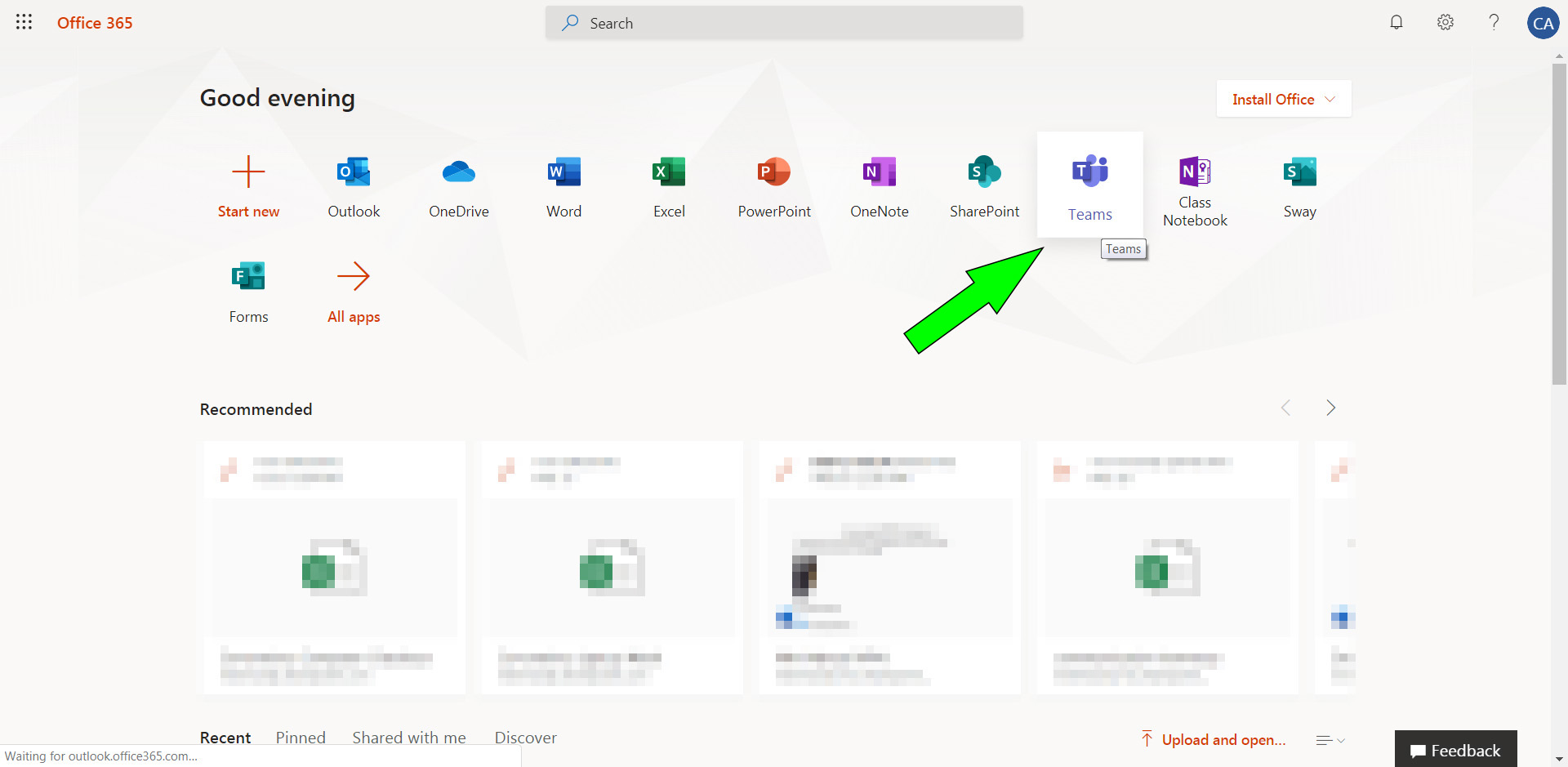
The Indispensable Role of Microsoft Teams in Modern Workflows
The way we work, learn, and connect has undergone a monumental transformation. The traditional office environment has given way to hybrid models, remote workforces, and global teams, making tools that bridge geographical distances more critical than ever. Microsoft Teams stands at the forefront of this evolution, offering more than just a chat application; it’s a dynamic ecosystem designed to bring people and resources together.
What is Microsoft Teams? A Brief Overview
At its core, Microsoft Teams is a unified communication and collaboration platform that combines workplace chat, video meetings, file storage (integrated with SharePoint and OneDrive), and application integration. It’s part of the Microsoft 365 family, seamlessly blending with other Microsoft services like Outlook, Word, Excel, and PowerPoint. More than just a tool, Teams provides a digital hub where conversations, content, assignments, and apps live together, allowing teams to stay organized and informed.
Imagine a single digital space where you can:
- Chat instantly with colleagues, individuals, or entire groups.
- Host crystal-clear video conferences and online meetings, complete with screen sharing and recording capabilities.
- Share and co-edit documents in real-time, eliminating version control nightmares.
- Integrate essential apps and services directly into your workspace, from project management tools to CRM systems.
- Organize projects with dedicated channels for different topics, departments, or initiatives.
This holistic approach means less context switching, fewer emails, and more focused work, directly contributing to improved productivity—a key “Tech” advantage that impacts your bottom line.
Why Install Microsoft Teams? Unlocking Productivity and Connection
The benefits of installing and effectively utilizing Microsoft Teams extend far beyond basic communication. For individuals, it means a more organized and less fragmented workday. For organizations, it translates into tangible improvements in efficiency, collaboration, and even brand perception.
- Enhancing Team Collaboration (Tech/Brand): Teams breaks down silos. Its channel-based communication structure ensures that discussions are organized, searchable, and accessible to relevant team members. This transparency fosters a culture of shared knowledge and collective problem-solving, which in turn strengthens your internal “brand” and operational agility. Real-time co-authoring of documents means projects move faster, iterations are smoother, and creativity flows more freely.
- Streamlining Communication (Tech): Bid farewell to overflowing inboxes. Teams centralizes conversations, whether they are quick chats, formal meeting discussions, or project-specific updates. This reduces email clutter and ensures that vital information is easy to find, preventing miscommunication and delays. The ability to instantly connect via video or audio removes barriers to immediate problem-solving.
- Boosting Productivity and Efficiency (Tech/Money): By providing a single hub for all collaborative activities, Teams minimizes the time spent switching between different applications. This saved time is a direct boost to productivity. For businesses, this means more efficient project delivery, reduced operational overheads, and ultimately, better resource allocation—a clear “money” benefit. Employees can focus on high-value tasks rather than navigating disparate communication tools.
- Centralizing Tools and Information (Tech): Teams acts as an intelligent dashboard, allowing you to integrate various third-party applications and Microsoft services directly into your workspace. This means project management tools, customer relationship management (CRM) systems, and development tools can all be accessed and utilized without ever leaving the Teams interface. This level of integration ensures that all necessary information and tools are at your fingertips, making decision-making faster and more informed.
Getting Started: Prerequisites and System Requirements
Before you dive into the installation process, it’s wise to ensure your system meets the necessary requirements. This pre-check can save you from potential headaches and ensure a smooth, efficient setup. Microsoft Teams is designed to be highly accessible, running on a wide range of devices and operating systems.
Essential Requirements for a Smooth Installation
While Teams is quite versatile, meeting these basic prerequisites will ensure optimal performance and a seamless user experience.
- Operating System Compatibility:
- Windows: Windows 8.1 or later (including Windows 10 and 11).
- macOS: One of the three most recent versions of macOS.
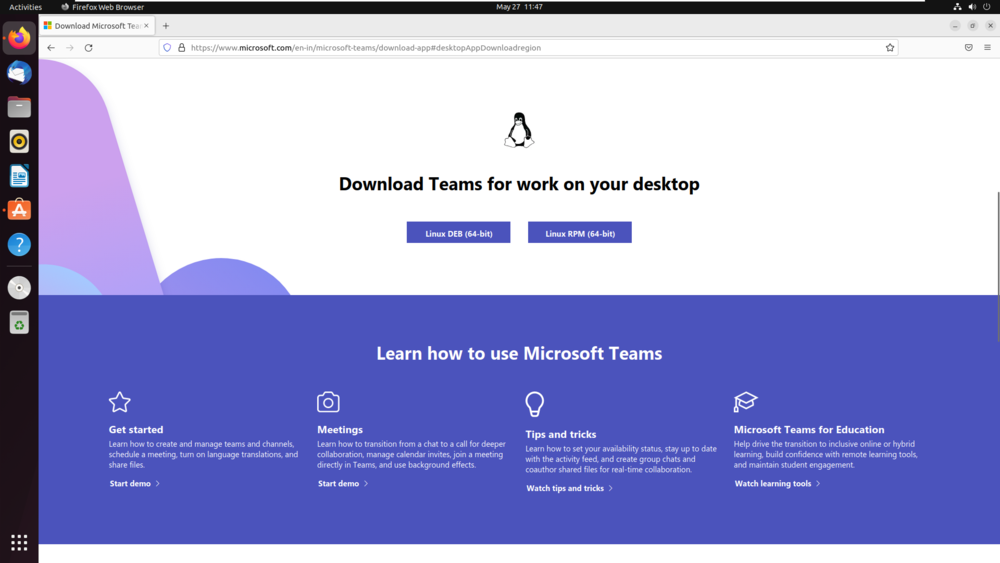
- Linux: Various distributions supported; check Microsoft’s official documentation for specifics.
- Mobile: iOS 12.0 or later for Apple devices; Android 5.0 or later for Android devices.
- Web: Compatible with the latest versions of Edge, Chrome, Firefox, and Safari.
- Hardware Specifications:
- Processor: Minimum 1.6 GHz or faster (dual-core recommended).
- RAM: 4 GB RAM (8 GB recommended for optimal performance, especially during video calls).
- Hard Disk Space: At least 3 GB of available disk space.
- Display: 1024 x 768 screen resolution.
- Peripherals: Microphone, speakers, and a webcam (optional but highly recommended for video conferencing).
- Internet Connectivity: A stable and reliable internet connection is crucial for real-time communication and file synchronization. Bandwidth requirements vary depending on usage (e.g., video calls consume more).
- Microsoft 365 Account (Optional but Recommended): While you can use Teams with a free personal Microsoft account, a Microsoft 365 Business or Enterprise subscription unlocks the full suite of features, including advanced administration, larger storage, and deeper integration with other Microsoft 365 services. This investment can represent significant “money” value for organizations looking for a comprehensive productivity suite.
Choosing the Right Teams Version: Desktop, Web, or Mobile
Microsoft Teams offers flexibility in how you access and use its features. Understanding the strengths of each platform can help you choose the best fit for your specific needs.
- Desktop Client Advantages: The dedicated desktop application (for Windows, macOS, and Linux) offers the most robust experience. It boasts superior performance, deeper integration with your operating system (e.g., native notifications, better access to system resources like cameras and microphones), and offline access to certain functionalities. For heavy users, this is typically the preferred option.
- Web App Convenience: The web application provides excellent accessibility. You can log in from any computer with an internet connection and a compatible browser without needing to install any software. It’s lightweight, quick to launch, and perfect for guest users or when you’re on a shared device. Modern browsers like Edge and Chrome also allow you to install the Teams web app as a Progressive Web App (PWA), giving it a more native feel without a full installation.
- Mobile App for On-the-Go Productivity: The mobile apps for iOS and Android are indispensable for staying connected while away from your desk. They offer a streamlined interface optimized for touchscreens, allowing you to participate in chats, join meetings, access files, and manage your schedule from anywhere. This flexibility is key to maintaining productivity in a hybrid work environment, maximizing your “money” (time) efficiency even when commuting or traveling.
Step-by-Step Installation Guides Across All Platforms
Now that you’ve checked the prerequisites, let’s get down to the actual installation. The process is straightforward, but it varies slightly depending on your operating system or preferred access method.
Installing Microsoft Teams on Windows
This is perhaps the most common installation scenario.
- Downloading the Installer:
- Open your web browser and navigate to the official Microsoft Teams download page:
https://www.microsoft.com/en-us/microsoft-teams/download-app. - Look for the “Download Teams for desktop” section and click the “Download Teams” button. The system will automatically detect if you need the 32-bit or 64-bit version. The download file will typically be named
Teams_windows_x64.exeor similar.
- Open your web browser and navigate to the official Microsoft Teams download page:
- Running the Setup File:
- Once the download is complete, locate the installer file in your Downloads folder (or wherever your browser saves files).
- Double-click the
Teams_windows_x64.exefile to start the installation. - Teams will install silently in the background. You usually won’t see a traditional installation wizard or prompts. It will typically install to your user profile (
%userprofile%AppDataLocalMicrosoftTeams).
- First Launch and Automatic Updates:
- After the installation is complete, Microsoft Teams will launch automatically.
- Teams is designed to keep itself updated, ensuring you always have the latest features and security patches.
- Signing In (Personal vs. Work/School):
- You will be prompted to sign in with your Microsoft account.
- If you’re using Teams for work or school, enter your organizational email address. Your organization might have single sign-on (SSO) set up, automatically logging you in, or you may need to enter your password.
- If you’re using Teams for personal use (e.g., family and friends), enter your personal Microsoft account email address.
Installing Microsoft Teams on macOS
Mac users can also enjoy the full desktop client experience.
- Downloading the .pkg File:
- Navigate to the official Microsoft Teams download page:
https://www.microsoft.com/en-us/microsoft-teams/download-app. - Under “Download Teams for desktop,” click the “Download Teams” button. The downloaded file will be a
.pkginstaller, typically namedTeams_osx.pkg.
- Navigate to the official Microsoft Teams download page:
- Running the Installer Package:
- Locate the
Teams_osx.pkgfile in your Downloads folder and double-click it. - The macOS installer wizard will appear. Click “Continue” through the introduction.
- You’ll be prompted to agree to the software license agreement. Click “Agree.”
- Choose an installation location (usually your main hard drive) and click “Install.”
- You may need to enter your macOS administrator password to authorize the installation.
- Locate the
- Granting Permissions:
- After installation, Teams will launch. macOS might ask for permissions to access your microphone, camera, and screen recording capabilities. Grant these permissions for full functionality, especially for meetings. You can manage these in
System Settings > Privacy & Security > Microphone/Camera/Screen Recording.
- After installation, Teams will launch. macOS might ask for permissions to access your microphone, camera, and screen recording capabilities. Grant these permissions for full functionality, especially for meetings. You can manage these in
- Signing In:
- Enter your Microsoft account credentials (work/school or personal) when prompted.
Accessing and Installing Teams via Web Browser
For a quick, temporary, or lightweight solution, the web browser offers excellent flexibility.
- Navigating to Teams Web App:
- Open your preferred web browser (Edge, Chrome, Firefox, Safari) and go to
https://teams.microsoft.com. - Sign in with your Microsoft account credentials.
- Open your preferred web browser (Edge, Chrome, Firefox, Safari) and go to
- Using the Browser-Based Client:
- Once logged in, you’ll have access to most of Teams’ core functionalities directly within your browser. This includes chat, meetings, file sharing, and channel interactions.
- Note: While feature-rich, the web app might have slight limitations compared to the desktop client (e.g., certain integrations, background effects in video calls).
- Option to Install as a PWA (Progressive Web App) for Chrome/Edge:
- If you’re using Microsoft Edge or Google Chrome, you can “install” the web app to your computer for a more native experience. This creates a shortcut and runs Teams in its own window, separate from your browser tabs.
- In Edge: Click the three dots (ellipsis) in the top-right corner, go to “Apps,” and select “Install this site as an app.”
- In Chrome: Click the three dots (ellipsis) in the top-right corner, go to “More tools,” and select “Create shortcut…” (then check “Open as window”) or “Install Microsoft Teams.”
Installing Microsoft Teams on Mobile Devices (iOS & Android)
Staying connected on the go is essential, and the Teams mobile app is designed for just that.
- Searching in App Store/Google Play:
- For iOS (iPhone/iPad): Open the “App Store” app.
- For Android: Open the “Google Play Store” app.
- In the search bar, type “Microsoft Teams.”
- Downloading and Installing the App:
- Locate the official “Microsoft Teams” app (published by Microsoft Corporation) and tap “Get” or “Install.”
- You may need to authenticate with your device password, Face ID, or fingerprint.
- The app will download and install automatically.
- Initial Setup and Sign-in:
- Once installed, open the Teams app.
- Enter your Microsoft account credentials (work/school or personal).
- Grant any requested permissions (e.g., for notifications, camera, microphone, contacts) to ensure full functionality. This step is critical for a smooth experience when joining meetings or receiving chat alerts.
Post-Installation: First Launch, Configuration, and Troubleshooting
Once Teams is installed, there are a few steps to ensure it’s set up optimally for your needs and to address any common issues that might arise.
Your First Sign-in and Workspace Setup
The initial sign-in process is where you truly begin to personalize your Teams experience.
- Differentiating Between Personal and Organizational Accounts: When you sign in, Teams will usually ask if it’s for work/school or personal use. This distinction is important because the features and interface can differ. Work/school accounts connect you to your organization’s environment, while personal accounts offer features tailored for family and friend communication.
- Joining Existing Teams or Creating New Ones: If you’re part of an organization, you might automatically be added to existing teams, or you’ll receive invitations. If you’re starting a new project or group, you can create a new team and invite members. This structured approach helps in segmenting conversations and files, a core “Tech” advantage for managing complex projects.
- Initial Interface Tour: Take a few moments to explore the Teams interface. Familiarize yourself with the left-hand navigation bar (Activity, Chat, Teams, Calendar, Calls, Files, Apps), the search bar at the top, and your profile settings. This quick tour will make you more comfortable and efficient right from the start.
Optimizing Your Teams Experience: Essential Settings
Customizing Teams to your preferences can significantly enhance your daily productivity.
- Notification Management: Teams can be chatty. Go to your profile picture (top right) > “Settings” > “Notifications” to tailor how and when you receive alerts. You can choose banner notifications, email notifications, or mute specific channels. Finding the right balance prevents distractions while ensuring you don’t miss critical updates.
- Audio and Video Device Setup: For smooth meetings, ensure your microphone, speakers, and camera are correctly configured. In “Settings” > “Devices,” you can test your audio devices, select your preferred camera, and even enable noise suppression. Good audio/video quality improves communication and reflects positively on your “brand” in professional interactions.
- Privacy Settings: Review your privacy settings under “Settings” > “Privacy.” You can manage read receipts, block calls, and set quiet hours, giving you more control over your digital presence.
Common Installation Issues and Quick Fixes
Even with the best preparation, you might encounter minor hiccups. Here are some common problems and their solutions:
- Installer Not Launching or Getting Stuck:
- Solution: Ensure your operating system is up to date. Temporarily disable your antivirus or firewall, as they might sometimes block installers. Restart your computer and try again. Download the installer once more to ensure it’s not corrupted.
- Sign-in Errors:
- Solution: Double-check your email address and password. If using a work/school account, confirm with your IT administrator that your account is active and licensed for Teams. Clear your browser’s cache and cookies if using the web app. Try signing in through a different browser or the desktop client.
- Performance Problems After Installation:
- Solution: Ensure your computer meets the recommended system requirements. Close unnecessary applications running in the background. Check for Teams updates (Teams updates automatically, but you can force a check by clicking your profile picture > “Check for updates”). If issues persist, try clearing the Teams cache (instructions vary by OS, but generally involve deleting specific folders in
AppDatafor Windows orLibrary/Application Supportfor macOS).
- Solution: Ensure your computer meets the recommended system requirements. Close unnecessary applications running in the background. Check for Teams updates (Teams updates automatically, but you can force a check by clicking your profile picture > “Check for updates”). If issues persist, try clearing the Teams cache (instructions vary by OS, but generally involve deleting specific folders in
- Audio/Video Not Working in Meetings:
- Solution: Go to Teams “Settings” > “Devices” and ensure the correct microphone, speakers, and camera are selected. Check your OS privacy settings to ensure Teams has permission to access these devices. Test your devices outside of Teams to confirm they are functioning correctly.
- Notifications Not Appearing:
- Solution: Check Teams “Settings” > “Notifications” to ensure they are enabled. Also, check your operating system’s notification settings to confirm Teams is allowed to send alerts. For mobile devices, ensure the app has permissions to send notifications.
Beyond Installation: Leveraging Teams for Enhanced Collaboration and Business Value
Installing Microsoft Teams is just the beginning. The true power and “money” value lie in its strategic integration into your daily operations and how it helps shape your business’s “brand” and productivity.
Integrating Teams into Your Digital Ecosystem
Teams shines when it works in concert with other tools.
- Connecting with Other Microsoft 365 Apps: Teams seamlessly integrates with Outlook (calendar sync, email sharing), SharePoint (team sites, document management), OneDrive (personal file storage), and the entire Office suite. This creates a powerful, interconnected ecosystem where information flows freely and work gets done efficiently.
- Utilizing Third-Party App Integrations: The Teams App Store offers thousands of integrations with popular tools like Trello, Asana, Jira, Salesforce, Adobe Creative Cloud, and many more. By bringing these essential tools directly into your Teams channels, you reduce context switching and keep all project-related conversations and actions in one place, a massive “Tech” boon for efficiency.
Strategic Benefits for Businesses and Personal Brands
Implementing Teams effectively can have profound impacts on an organization’s bottom line and its public image.
- Fostering a Culture of Transparent Communication (Brand): Teams promotes open and accessible communication. Organized channels mean that everyone can stay informed, reducing miscommunication and fostering a more inclusive and transparent workplace culture. This positive internal dynamic often translates into a stronger external brand reputation.
- Improving Project Delivery and Client Engagement (Brand/Money): With all project-related communications, files, and tasks centralized, project managers can track progress more effectively, identify bottlenecks sooner, and deliver projects on time and within budget. Using Teams with clients for collaborative meetings and shared document reviews can also enhance client satisfaction and strengthen business relationships, directly impacting future “money” opportunities.
- Driving Operational Efficiency and Cost Savings (Money): By consolidating communication and collaboration tools into one platform, businesses can often reduce expenses associated with disparate software licenses. More importantly, the efficiency gains from streamlined workflows and reduced administrative overhead directly contribute to cost savings and improved ROI. Remote work capabilities facilitated by Teams can also lower office space costs.
- Empowering Remote and Hybrid Workforces (Tech/Brand): Teams is built for flexibility. Its robust meeting capabilities, persistent chat, and file sharing ensure that remote employees feel just as connected and productive as their in-office counterparts. This empowerment attracts and retains talent, creating a more resilient and modern “brand” image.

Conclusion: Empowering Your Digital Workspace with Microsoft Teams
Installing Microsoft Teams is more than just adding another application to your computer; it’s an investment in enhanced collaboration, streamlined productivity, and a more connected digital workflow. From its robust features for communication and file sharing to its seamless integration with a vast ecosystem of applications, Teams offers a powerful solution for individuals and organizations navigating the complexities of modern work.
By following this comprehensive guide, you can confidently install Teams on your preferred platform and begin to unlock its immense potential. Embrace the future of work by leveraging this essential “Tech” tool, watching as it transforms your communication, boosts your team’s “Brand” cohesion, and ultimately contributes to greater “Money” value through increased efficiency and smarter collaboration. Get started today and empower your digital workspace with Microsoft Teams.
aViewFromTheCave is a participant in the Amazon Services LLC Associates Program, an affiliate advertising program designed to provide a means for sites to earn advertising fees by advertising and linking to Amazon.com. Amazon, the Amazon logo, AmazonSupply, and the AmazonSupply logo are trademarks of Amazon.com, Inc. or its affiliates. As an Amazon Associate we earn affiliate commissions from qualifying purchases.