
The allure of Apple’s macOS operating system is undeniable. Renowned for its elegant user interface, robust security features, powerful suite of creative applications, and seamless integration with Apple’s ecosystem, macOS has captured the hearts of millions. However, for many, the investment in Apple’s premium hardware can be a significant barrier. What if you could experience the best of both worlds – the versatility and hardware choice of a Windows PC combined with the distinctive charm and functionality of macOS?
This comprehensive guide delves into the fascinating world of running macOS on a Windows machine. Whether you’re a developer needing to test applications across platforms, a creative professional curious about Mac-exclusive software, or simply an enthusiast looking to explore new digital frontiers, installing macOS on your Windows PC opens up a realm of exciting possibilities. While it’s not a straightforward “install from an executable” process, we’ll explore the primary methods, focusing on the most accessible and practical approach: virtualization. We’ll also briefly touch upon the more advanced and complex “Hackintosh” route, ensuring you understand the full spectrum of options, including their technical demands and crucial legal considerations.
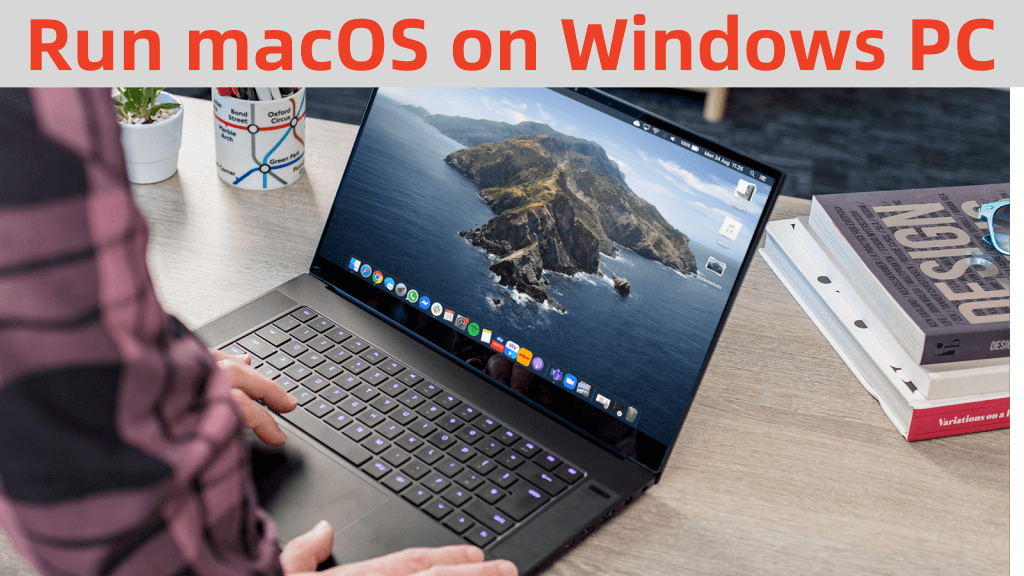
Why Run macOS on Your Windows PC? Unlocking Cross-Platform Potential
The motivation behind installing macOS on non-Apple hardware is multifaceted, appealing to a diverse range of users from developers to budget-conscious enthusiasts. Understanding these reasons highlights the significant value proposition and the growing demand for cross-platform flexibility in today’s digital landscape.
Bridging Ecosystems: Accessing Mac-Exclusive Software
One of the most compelling reasons to bring macOS to your Windows environment is to gain access to its exclusive software ecosystem. Many powerful and industry-leading applications are developed solely for macOS, creating a barrier for Windows users.
For developers, particularly those working on iOS or iPadOS applications, Xcode is an indispensable tool available only on macOS. Running a virtualized macOS instance on a Windows machine allows them to develop, test, and debug their applications without needing to purchase dedicated Apple hardware. This is a game-changer for independent developers or small teams operating primarily on Windows. Beyond Xcode, other specialized development tools and environments may also be Mac-exclusive, making a virtual macOS invaluable for cross-platform compatibility testing.
Creative professionals often eye software like Final Cut Pro for video editing, Logic Pro X for music production, or Affinity Photo/Designer, which while available on Windows, often feel more at home or integrate more smoothly within the macOS environment for many users. While direct hardware acceleration might be limited in a VM, it can still provide a functional environment for learning, testing features, or performing less hardware-intensive tasks.
For the general user, it might simply be curiosity. Experiencing the polished user interface, gestures, and unique applications that define the macOS user experience without committing to an expensive hardware purchase is a common motivator. It allows users to understand Apple’s “brand” through its core software offering, providing insights that could inform future technology decisions.
Cost-Effectiveness and Resource Optimization
The price tag associated with Apple’s hardware can be prohibitive for many. MacBooks and iMacs, while premium devices, come with a premium cost. Installing macOS on an existing Windows PC offers a significantly more cost-effective solution to access the Apple ecosystem.
Instead of investing thousands in a new Mac, you can leverage the powerful hardware you already own. Many modern Windows desktops and laptops boast robust processors, ample RAM, and fast SSD storage – components that are more than capable of running macOS smoothly within a virtualized environment. This approach allows individuals, small businesses, and startups to optimize their financial resources by extending the utility of their current investments. For instance, a small agency might use their existing Windows machines for day-to-day tasks but have a virtual macOS instance readily available for client projects that specifically require Mac software or testing on the Apple platform, thus generating potential online income or side hustles by expanding their service offerings without significant capital outlay.
This strategic use of existing hardware represents a smart financial decision, aligning perfectly with principles of efficient business finance and personal finance by minimizing unnecessary expenditures while maximizing operational capabilities. It’s about achieving high productivity without the high price tag.
The Primary Path: Virtualizing macOS on Windows
When it comes to running macOS on a non-Apple device, virtualization stands out as the most accessible, safest, and widely recommended method for the majority of users. It offers a sandbox environment that protects your main Windows installation while providing a functional macOS experience.
Understanding Virtual Machines: Safe & Flexible Emulation
A Virtual Machine (VM) is essentially a computer simulated within another computer. It operates like an independent machine, complete with its own virtual hardware (CPU, RAM, storage, network card), all running on top of your host operating system (Windows, in this case). The software that enables this simulation is called a hypervisor. Popular hypervisors for home and professional use include VMware Workstation (Pro/Player) and Oracle VirtualBox.
The primary pros of using virtualization are numerous:
- Safety: The macOS VM runs in an isolated environment. Any issues within the VM (crashes, malware) won’t affect your underlying Windows installation.
- No Hardware Changes: You don’t need to modify your physical hardware in any way.
- Ease of Setup (Relative): While it involves several steps, setting up a VM is generally less daunting than a Hackintosh, requiring no specialized hardware knowledge.
- Flexibility and Reversibility: You can easily create snapshots of your VM, revert to previous states, or even delete the VM entirely without impacting your host system. You can run multiple VMs with different macOS versions or other operating systems.
However, there are also cons:
- Performance Overhead: Because the VM shares resources with your host system and adds a layer of abstraction, performance will never be as fast or responsive as a native installation.
- Limited Direct Hardware Access: Graphics acceleration can be challenging or limited, and certain hardware components (like specific Wi-Fi cards or dedicated GPUs) might not be fully accessible or performant within the VM.
- Not Truly Native: It’s an emulated experience, meaning some highly hardware-dependent features or extremely resource-intensive tasks might struggle.
Essential Prerequisites for a Smooth Setup
Before embarking on the virtualization journey, ensuring your Windows PC meets certain requirements and having the necessary tools at hand is crucial for a successful and relatively smooth installation.
Powerful Windows PC
Your host machine’s specifications directly impact the performance of your macOS VM.
- CPU: An Intel processor with VT-x (Virtualization Technology) or an AMD processor with AMD-V enabled in the BIOS/UEFI is absolutely essential. These hardware virtualization extensions significantly boost VM performance. Modern CPUs typically have this, but you might need to enable it.
- RAM: While 4GB might technically run, 8GB or more is highly recommended for the host system, allowing you to dedicate at least 4GB (preferably 6-8GB) to the macOS VM for a usable experience.
- Storage: An SSD (Solid State Drive) is almost a mandatory requirement. macOS, especially in a VM, can feel sluggish on an HDD. Allocate at least 80-100GB of free space for the virtual disk image. Faster read/write speeds of an SSD dramatically improve boot times and overall responsiveness within the VM.
Virtualization Software
You’ll need a hypervisor to create and run your VM.
- VMware Workstation Pro: A powerful, feature-rich commercial hypervisor popular in professional environments. There’s also VMware Workstation Player, a free version suitable for personal, non-commercial use with slightly fewer features. It’s often preferred for macOS virtualization due to better compatibility in some cases.
- Oracle VirtualBox: A completely free and open-source alternative. It’s highly capable and a great choice for those on a budget, though sometimes requires a bit more tweaking for macOS.
For this guide, we will focus on VMware Workstation due to its robust features and typically smoother macOS experience, though the general principles apply to VirtualBox as well.
macOS Installer Image
This is perhaps the trickiest part due to Apple’s restrictive licensing. You need an official macOS installer.
- Legally obtaining the image: The most legitimate way to get a macOS installer is by downloading it from the Mac App Store on an actual Mac. If you have access to a friend’s Mac, you can download the desired macOS version (e.g., Ventura, Sonoma) and create a bootable ISO or DMG file from it.
- Creating an ISO/IMG: Once downloaded, you’ll need to convert the
.appinstaller to a bootable.ISOor.CDR(which can then be renamed to.ISO) file that your virtualization software can use. There are various guides online for this process using commands in macOS Terminal. - Caution: Be extremely wary of downloading pre-made macOS ISOs from unofficial sources on the internet. These can be tampered with, contain malware, or be outdated, posing significant digital security risks. Always strive for an official, untainted source.
Unlocker Tool
By default, neither VMware Workstation nor VirtualBox officially supports macOS as a guest operating system on non-Apple hardware. To circumvent this, you’ll need a small script or tool (often referred to as an “unlocker”).
- This tool modifies the virtualization software to add macOS as an available option when creating a new VM and provides necessary patches for the virtualized hardware to be recognized by macOS.
- Search for “macOS Unlocker for VMware” or similar. Always download these tools from reputable community sources (e.g., GitHub repositories with active development and good reputation) to avoid security compromises. You’ll typically download a script, extract it, and run it as an administrator.
Step-by-Step Guide: Installing macOS via VMware Workstation
With your prerequisites in order, let’s walk through the process of installing macOS in a VMware Workstation virtual machine. This detailed walkthrough will guide you from preparing your environment to post-installation optimizations.
Setting Up Your Virtualization Environment
Before you even touch VMware, a couple of preparatory steps are crucial.
1. Install VMware Workstation/Player
Download the latest version of VMware Workstation Pro or Player from the official VMware website. Run the installer and follow the on-screen instructions. A restart might be required. Ensure your Windows system is up-to-date beforehand.
2. Run the macOS Unlocker
Locate the macOS Unlocker tool you downloaded.
- Extract the contents of the ZIP file.
- Right-click on the
win-install.cmd(or similar batch file) and select “Run as administrator.” - The script will perform necessary modifications to VMware, including stopping its services, patching files, and restarting services. Wait for the process to complete, which may take a few minutes. You should see a confirmation message indicating success. Without this, you won’t see “Apple Mac OS X” as an option when creating a new VM.
3. Obtain and Prepare macOS Installer
Assuming you have your macOS installer (.app file) from a legitimate source, you’ll need to convert it into a bootable .ISO or .CDR image. This step is performed on an actual Mac. If you don’t have one, this is where obtaining a pre-made (but trusted) ISO from a community source might be your only recourse, again emphasizing caution.
On a Mac to create a .CDR file (which can be renamed to .ISO):
- Open Terminal (Applications > Utilities > Terminal).
- Navigate to the installer:
sudo /Applications/Install macOS [Your Version].app/Contents/Resources/createinstallmedia --volume /tmp/Untitled --nointeraction(This step is typically for creating a bootable USB. For a VM image, we’ll do something different). - Correct method for VM image:
- Mount the
InstallESD.dmginside the installer application:hdiutil attach /Applications/Install macOS [Your Version].app/Contents/SharedSupport/InstallESD.dmg -noverify -nobrowse -mountpoint /Volumes/install_app - Convert the
BaseSystem.dmg(found inside the mountedInstallESD.dmg) to an ISO:
hdiutil convert /Volumes/install_app/BaseSystem.dmg -format UDRW -o ~/Desktop/macOSInstaller.cdr - Rename the
.cdrto.iso:mv ~/Desktop/macOSInstaller.cdr ~/Desktop/macOSInstaller.iso - Detach the disk image:
hdiutil detach /Volumes/install_app - Transfer this
macOSInstaller.isoto your Windows machine.
- Mount the
Creating and Configuring Your macOS Virtual Machine
Now, open VMware Workstation and let’s set up the VM.
4. Create a New Virtual Machine
- In VMware Workstation, click “Create a New Virtual Machine.”
- Choose “Custom (advanced)” and click “Next.”
- For hardware compatibility, select the latest version available (e.g., Workstation 17.x). Click “Next.”
- Select “I will install the operating system later.” Click “Next.”
- Crucially, for the Guest Operating System, select “Apple Mac OS X.” From the dropdown, choose the macOS version you intend to install (e.g., macOS 13, macOS 14). Click “Next.”
- Give your Virtual Machine a descriptive name (e.g., “macOS Ventura VM”) and choose a location for its files (preferably on your SSD with ample space). Click “Next.”
5. Allocate Resources
This is a critical step for performance.
- Processors: Allocate at least 2 processor cores, preferably 4 if your host CPU allows. More cores generally mean smoother multitasking within macOS. Click “Next.”
- Memory (RAM): Allocate at least 4GB (4096 MB) of RAM, but 8GB (8192 MB) is strongly recommended for a truly usable experience. Ensure your host system retains enough RAM for its own operations. Click “Next.”
- Network Type: “NAT” is usually sufficient for most users, providing internet access through your host’s connection. “Bridged” can be used if you want the VM to appear as a separate device on your network. Click “Next.”
- I/O Controller Types: Keep the default recommended option (LSI Logic SAS). Click “Next.”
- Disk Type: Choose “NVMe” for better performance (modern macOS versions benefit from this). Click “Next.”
- Create a New Virtual Disk: Select this option. Click “Next.”
- Disk Size: Allocate at least 80-100GB of space. For creative work or large apps, consider 150-200GB. Select “Store virtual disk as a single file” for slightly better performance and easier management, though “Split virtual disk into multiple files” might be better for transferring. Click “Next.”
- Disk File: Keep the default name. Click “Next.”
- Review Settings: Click “Finish.”
6. Mount the macOS ISO
Before powering on, you need to tell the VM to boot from your macOS ISO.
- After clicking “Finish,” your new VM will appear in the left pane. Right-click it and select “Settings” or click “Edit virtual machine settings.”
- Select “CD/DVD (SATA)” from the hardware list.
- On the right, choose “Use ISO image file,” then click “Browse” and navigate to your
macOSInstaller.isofile. - Check the “Connect at power on” box.
- Click “OK.”
The macOS Installation Process Within the VM
You’re now ready to install macOS!
7. Power on the VM, Boot into macOS Installer
- Click “Power on this virtual machine.”
- The VM should boot directly into the macOS installer. You might see a black screen with white text scrolling for a bit – this is normal. Eventually, you’ll reach the macOS Utilities window.
- If you encounter boot issues, review your VM settings and ensure your ISO is correct and mounted.
8. Disk Utility: Erase and Format the Virtual Hard Drive
- In the macOS Utilities window, select “Disk Utility” and click “Continue.”
- In Disk Utility, you might need to click “View” > “Show All Devices” to see the virtual drive.
- Select the VMware Virtual SATA Hard Drive Media (or NVMe controller media, depending on your choice). Be absolutely sure you are selecting the virtual drive, not your host’s drives!
- Click the “Erase” button in the toolbar.
- Name: Give it a name (e.g., “Macintosh HD”).
- Format: Choose “APFS” (Apple File System).
- Scheme: Choose “GUID Partition Map.”
- Click “Erase” again to confirm. Once finished, close Disk Utility.
9. Install macOS: Follow On-Screen Prompts
- Back in the macOS Utilities window, select “Install macOS [Your Version]” and click “Continue.”
- Follow the prompts: agree to the terms, select “Macintosh HD” (the drive you just formatted) as the installation destination, and begin the installation.
- This process will take time, involving several restarts within the VM. Be patient. Do not interfere with the VM during these restarts.
- After the main installation is complete, the VM will reboot into the macOS setup assistant.
10. Initial Setup: Create User Account, Basic Settings
- Follow the standard macOS setup assistant: select your region, keyboard layout, connect to Wi-Fi (it will use the VM’s virtual network adapter), choose privacy settings, and create your user account (full name, account name, password). You can skip Apple ID sign-in for now.
- Eventually, you’ll reach the macOS desktop! Congratulations, you have macOS running on Windows.
Post-Installation Optimizations and Troubleshooting
To make your macOS VM truly usable, a few final steps and tips are essential.
11. Install VMware Tools
This is critical. VMware Tools is a suite of utilities and drivers that enhances the performance and usability of a guest operating system in a VMware VM. It provides:
- Improved graphics performance and higher resolutions.
- Copy-paste functionality between host and guest.
- Drag-and-drop support.
- Better mouse responsiveness and scrolling.
- Improved network drivers.
To install VMware Tools:
- In VMware Workstation, with your macOS VM powered on, go to the VM menu bar: “VM” > “Install VMware Tools.”
- A virtual CD-ROM will be mounted in your macOS VM. On the macOS desktop, open this disk image.
- Run the “Install VMware Tools.pkg” installer. You may need to adjust Security & Privacy settings in macOS System Settings (System Settings > Privacy & Security > General > Allow applications downloaded from App Store and identified developers) to permit the installation. Grant permissions as needed during the installation.
- After installation, restart the macOS VM when prompted.
- Once restarted, you should immediately notice improved graphics, smoother mouse movement, and the ability to resize the VM window for different resolutions.
Common Issues and Quick Tips
- Performance Lags:
- Ensure your host PC has enough RAM and CPU cores dedicated to the VM.
- Verify your host is using an SSD.
- Disable unnecessary background apps on your Windows host.
- Within macOS, close unused applications.
- Graphics Acceleration: Full metal graphics acceleration is often limited in VMs. While VMware Tools helps, don’t expect gaming-level performance. Adjusting resolution and ensuring VMware Tools is installed correctly is key.
- USB Device Passthrough: To use a physical USB device (e.g., an iPhone, external drive) within your macOS VM:
- Connect the device to your Windows PC.
- In VMware Workstation, go to “VM” > “Removable Devices” > [Your USB Device] > “Connect (Disconnect from host).” The device will then be available in your macOS VM.
- Network Connectivity: If you have no internet in the VM, check your VMware network settings (NAT vs. Bridged) and ensure your host’s network is working. Reinstalling VMware Tools can sometimes resolve network driver issues.
- macOS Updates: You can update macOS within the VM as you would on a real Mac (System Settings > General > Software Update). However, be cautious with major version upgrades; sometimes, they can break the VM or require a new unlocker version. It’s wise to create a VM snapshot before attempting major upgrades.
Beyond Virtualization: The Hackintosh Route and Legal Considerations
While virtualization offers a relatively safe and straightforward path, there’s another, more challenging method to run macOS on non-Apple hardware: building a Hackintosh. This approach provides a native experience but comes with significant complexities and crucial legal and ethical implications.
The Hackintosh Alternative: Native Performance, Higher Complexity
A Hackintosh refers to the process of installing macOS directly onto non-Apple hardware, essentially “hacking” the operating system to run on components it wasn’t designed for. This is what you’d typically see when people claim to have a “Mac” built from off-the-shelf PC parts.
The primary pro of a Hackintosh is native performance. Since macOS is running directly on the hardware without a virtualization layer, you get the full speed and capabilities of your CPU, GPU, RAM, and storage. This means better graphics acceleration, smoother animations, faster application loading, and overall a more responsive user experience, often indistinguishable from a real Mac. For users who demand maximum performance for tasks like video editing, 3D rendering, or heavy software development, a Hackintosh can deliver a “premium” macOS experience without the “Apple premium” price tag on the hardware. From a money perspective, it can seem like a highly attractive cost-saving measure.
However, the cons are substantial:
- Highly Complex: Building a Hackintosh requires significant technical expertise. You need to understand hardware compatibility, BIOS/UEFI settings, bootloaders (like OpenCore), and kernel extensions (kexts).
- Hardware-Specific: Not all PC hardware is compatible. You need to carefully select motherboards, CPUs, GPUs, Wi-Fi cards, and other components known to work well with macOS, often requiring specific drivers and patches.
- Time-Consuming: The setup process can take days or even weeks of research, trial-and-error, and troubleshooting.
- Potential Instability: Even with compatible hardware, Hackintoshes can be prone to instability, random reboots, or hardware features not working correctly.
- Fragile Updates: macOS updates, especially major ones, can easily “break” a Hackintosh, requiring significant effort to re-patch and restore functionality. This can be a major source of frustration and impact productivity.
For those interested in exploring this advanced route, dedicated online communities and resources like tonymacx86.com or the r/hackintosh subreddit on Reddit offer extensive guides, compatibility lists, and forums for support. However, approach with caution and a willingness to invest considerable time and effort. While offering a powerful native experience, the significant technical investment and potential headaches make it less suitable for casual users.
Navigating the Legal and Ethical Landscape
Regardless of whether you choose virtualization or Hackintosh, it’s paramount to understand the legal and ethical implications surrounding installing macOS on non-Apple hardware.
Apple’s End User License Agreement (EULA) for macOS explicitly states that the software is licensed for use only on Apple-branded hardware. This is a foundational clause in their software distribution.
- Legality: From a strict legal standpoint, running macOS on a non-Apple machine, whether virtualized or as a Hackintosh, is a breach of Apple’s EULA. While Apple primarily targets large-scale unauthorized distribution rather than individual users, the legal precedent is clear.
- Personal vs. Commercial Use: For personal, non-commercial use, the risks are generally minimal, primarily limited to a lack of official support from Apple. However, using macOS in breach of the EULA for commercial purposes (e.g., developing and selling apps, running a business service) could theoretically lead to greater legal exposure if Apple chose to pursue it.
- Risks:
- No Official Support: Apple will not provide technical support for macOS running on non-Apple hardware.
- Potential for Bricking Hardware (Hackintosh): While rare, improper modifications or firmware flashes during a Hackintosh build could theoretically damage hardware.
- Ethical Considerations: Respecting intellectual property and licensing agreements is a fundamental aspect of the digital world. While many see Hackintoshing or virtualizing macOS as a harmless endeavor for personal use or learning, it does technically violate the terms set by the software creator.
- Digital Security: This is a crucial concern. If you deviate from obtaining macOS installers from official Apple sources or use unlocker tools from untrusted origins, you expose your system to potential malware, backdoors, or other security vulnerabilities. Always prioritize trusted sources and exercise extreme caution to safeguard your digital security.
Ultimately, users must weigh the technical benefits and cost savings against these legal and ethical considerations. For many, the practical utility outweighs the technical breach for personal learning or development.
Conclusion: Your macOS Journey on Windows
The journey to install macOS on a Windows PC is a testament to the ingenuity of the tech community and the increasing demand for cross-platform flexibility. We’ve explored the two primary avenues: the relatively accessible and safe world of virtualization and the more demanding, performance-oriented realm of the Hackintosh.
Virtualization, particularly with tools like VMware Workstation, stands out as the most practical method for the average user, developer, or curious enthusiast. It offers a sandboxed environment to experience macOS applications like Xcode or gain familiarity with the Apple ecosystem without the significant hardware investment. While it comes with some performance overhead, the ease of setup, safety, and reversibility make it an ideal starting point for anyone looking to bridge the gap between Windows and macOS. It’s a smart money move for those leveraging existing powerful Windows hardware to access new tech capabilities.
The Hackintosh route, while offering a truly native, high-performance macOS experience, demands a much deeper technical dive and a specific hardware configuration. It’s a project for advanced users who are prepared for extensive troubleshooting and ongoing maintenance, and it speaks to a desire for a premium brand experience without the premium hardware price, albeit with considerable personal time investment.
Regardless of your chosen path, understanding the legal and ethical landscape of Apple’s EULA is crucial. While generally tolerated for personal use, it’s an important consideration that highlights the unique challenges of interacting with closed ecosystems.
In an era of rapidly evolving technology trends, the ability to run diverse operating systems on a single piece of hardware empowers users, fosters innovation, and enhances productivity. Whether for app development, software testing, or simply satisfying curiosity, bringing macOS to your Windows machine is a powerful way to unlock new possibilities and broaden your digital horizons, proving that sometimes, the best way to experience a different world is to bring it directly to your own.
aViewFromTheCave is a participant in the Amazon Services LLC Associates Program, an affiliate advertising program designed to provide a means for sites to earn advertising fees by advertising and linking to Amazon.com. Amazon, the Amazon logo, AmazonSupply, and the AmazonSupply logo are trademarks of Amazon.com, Inc. or its affiliates. As an Amazon Associate we earn affiliate commissions from qualifying purchases.