
In the modern digital landscape, the router serves as the central nervous system of the home or office. As we transition into an era of high-definition streaming, low-latency gaming, and ubiquitous IoT (Internet of Things) devices, the demand for a stable and secure wireless network has never been higher. Linksys, a pioneer in networking hardware, offers a range of routers designed to handle these modern workloads. However, the performance of even the most advanced hardware is heavily dependent on proper installation and configuration.
This guide provides a deep dive into the technical process of setting up a Linksys router, moving beyond basic connectivity to ensure your network is optimized for speed, range, and security.
1. Pre-Installation: Hardware Setup and Environmental Optimization
Before diving into software configurations, the physical placement and connection of your hardware lay the foundation for your network’s reliability. A common mistake is treating the router as an afterthought in terms of room placement, which can lead to “dead zones” and signal interference.
Hardware Inventory and Physical Connections
Begin by unboxing your Linksys router and identifying the essential components: the router itself, the power adapter, and an Ethernet cable (typically Category 5e or 6).
- Power Down the Modem: To ensure a clean handshake between your ISP (Internet Service Provider) equipment and your new router, unplug your modem from its power source. If it has a battery backup, remove it temporarily.
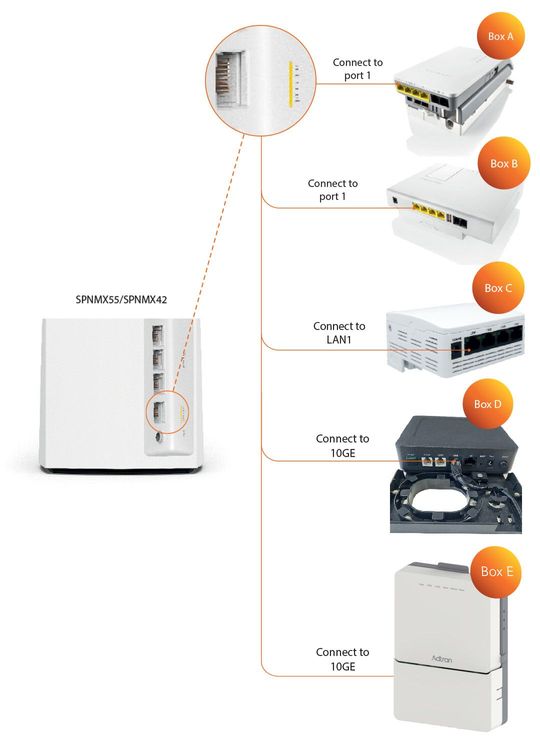
- The WAN Connection: Connect the provided Ethernet cable to the yellow or blue port on the back of the Linksys router (labeled “Internet” or “WAN”). Plug the other end into the Ethernet port of your modem.
- Power Cycle: Plug the modem back in and wait approximately two minutes for it to fully boot and sync with the ISP. Once the modem’s lights are stable, connect the power adapter to your Linksys router and plug it into a wall outlet.
Strategic Router Placement
Wi-Fi signals are radio waves that propagate outward and downward. For optimal coverage, the router should be placed in a central, elevated location. Avoid placing the device inside cabinets, behind television sets, or near large metallic objects, as these can significantly attenuate the signal. Furthermore, keep the router away from 2.4GHz interference sources such as microwave ovens, cordless phones, and baby monitors to maintain a clean signal-to-noise ratio.
2. Initial Configuration: App-Based vs. Web Interface Setup
Linksys has streamlined the setup process by offering two primary paths: the Linksys Smart Wi-Fi mobile application and the traditional browser-based GUI (Graphical User Interface). While the app offers convenience, the web interface provides granular control for power users.
Method A: The Linksys Smart Wi-Fi App
For most users, the Linksys app (available on iOS and Android) is the most efficient route.
- Detection: Once the router’s LED indicates it is ready for setup (usually a blinking purple or blue light), open the app. It will use Bluetooth or a temporary Wi-Fi signal to detect the new hardware.
- Account Creation: You will be prompted to create a Linksys Smart Wi-Fi account. This cloud-based service allows you to manage your home network remotely, adjust parental controls, or reboot the router from anywhere in the world.
- Automated Updates: During this process, the app will check for the latest firmware. It is critical to allow these updates to install immediately, as they often contain security patches for newly discovered vulnerabilities.
Method B: The Manual Web Interface
If you prefer not to use a mobile device, or if you are configuring the router as an access point or bridge, the web interface is the standard.
- Connection: Connect a computer to one of the router’s LAN ports via Ethernet, or connect to the default Wi-Fi name printed on the sticker at the bottom of the device.
- Accessing the Gateway: Open a web browser and enter the default gateway IP address:
192.168.1.1. - The Setup Wizard: Linksys routers typically launch “Smart Setup” automatically. If prompted for a password, the default is usually “admin,” though the setup wizard will force you to change this immediately for security purposes.
3. Optimizing Network Settings for Speed and Security
Once the basic connection is established, the next phase involves tailoring the internal settings to suit your specific environment. This is where you transform a standard connection into a high-performance network.
Configuring SSIDs and Band Steering
Modern Linksys routers are at least dual-band, meaning they broadcast on both 2.4GHz and 5GHz frequencies.
- 2.4GHz Band: Offers greater range but slower speeds. It is ideal for smart home sensors and legacy devices.
- 5GHz Band: Provides significantly higher data throughput and is less prone to interference but has a shorter range. Use this for gaming consoles, PCs, and streaming devices.
- Band Steering: Most Linksys routers offer a “Single SSID” feature. This allows the router to intelligently assign devices to the best available band. For advanced users, separating the SSIDs (e.g., “HomeNetwork2.4″ and “HomeNetwork5″) allows for manual control over device traffic.
Implementing Robust Security Protocols
Security should never be secondary. During setup, ensure you are utilizing the highest level of encryption available.
- WPA3 vs. WPA2: If your Linksys router supports WPA3, enable it. It provides better protection against “brute force” password-cracking attempts. If you have older devices that are incompatible, WPA2/WPA3 mixed mode is a viable compromise.
- Guest Networking: This is a vital feature for security. It creates a separate “sandbox” network for visitors. This ensures that guests can access the internet but cannot interact with your private devices, such as network-attached storage (NAS) or local printers.
4. Advanced Management and Maintenance
To keep your Linksys router functioning at peak performance over the long term, you must engage in periodic maintenance and utilize the advanced features provided in the Linksys Smart Wi-Fi dashboard.
Device Prioritization (Quality of Service)
In a household with multiple users, bandwidth contention is inevitable. The Linksys “Device Prioritization” (QoS) feature allows you to select up to three devices that will receive preferential treatment. For example, by prioritizing a work-from-home laptop or a gaming console, the router ensures these devices receive the necessary bandwidth even if another device starts a large background download.
Firmware Management
The firmware is the operating system of your router. Manufacturers frequently release updates to improve hardware stability and patch security exploits. While Linksys routers can be set to “Auto-Update,” it is good practice to log in once a quarter to verify that your firmware is current. A corrupted or outdated firmware is one of the leading causes of intermittent connection drops.
Troubleshooting Common Setup Issues
If you encounter “No Internet Access” during the installation, the issue is often a MAC address mismatch or a DHCP conflict.
- MAC Address Cloning: Some ISPs lock the internet connection to the MAC address of the first device connected to the modem. In the Linksys settings, look for “MAC Address Clone” to mirror your PC’s address, which can often resolve authentication issues.
- The 30-30-30 Reset: If the setup stalls or you lose access to the admin panel, a factory reset may be required. Press and hold the reset button for 30 seconds, unplug the power for 30 seconds (while still holding the button), and then plug it back in for another 30 seconds before releasing. This clears all NVRAM settings and returns the device to a “blank slate” state.

Conclusion
Installing a Linksys router is a straightforward process, but the transition from a “working” network to an “optimized” one requires attention to detail. By focusing on physical placement, choosing the right configuration method, and leveraging advanced security and prioritization features, you ensure that your digital infrastructure is capable of supporting the high-bandwidth demands of the future.
Whether you are a casual user or a tech enthusiast, taking the time to properly configure your Linksys router is an investment in your digital productivity and security. With the hardware properly positioned and the software finely tuned, you can enjoy a seamless, high-speed internet experience across all your connected devices.
aViewFromTheCave is a participant in the Amazon Services LLC Associates Program, an affiliate advertising program designed to provide a means for sites to earn advertising fees by advertising and linking to Amazon.com. Amazon, the Amazon logo, AmazonSupply, and the AmazonSupply logo are trademarks of Amazon.com, Inc. or its affiliates. As an Amazon Associate we earn affiliate commissions from qualifying purchases.