
In the intricate world of software and technology, where a myriad of file formats dictates how applications and data are packaged and executed, the .jar file stands as a cornerstone for Java-based applications. For anyone diving into Java development, utilizing Java-based tools, or simply trying to run a specific piece of software, understanding “how to install JAR files” is an essential skill. This comprehensive guide aims to demystify the process, offering clear, step-by-step instructions, troubleshooting tips, and crucial security considerations to ensure you can confidently run any JAR file.
As part of a website focused on Tech tutorials, software insights, and digital productivity, this article provides invaluable knowledge for developers, students, and everyday users alike. Whether you’re a seasoned programmer or just beginning your journey into the vast landscape of software, mastering JAR file installation is a fundamental step towards leveraging the power and versatility of Java applications.

Understanding JAR Files: The Core of Java Applications
Before we dive into the “how-to,” it’s vital to grasp what a JAR file truly is and why it holds such significance within the Java ecosystem.
What is a JAR File?
JAR stands for Java ARchive. At its heart, a JAR file is essentially a package file format used to aggregate many Java class files, associated metadata, and resources (text, images, etc.) into a single file for distribution. Think of it like a .zip file, but specifically tailored for Java applications.
The primary purpose of a JAR file is efficiency. Instead of distributing dozens or even hundreds of individual .class files and resource files, all components of a Java application can be bundled into one convenient package. This makes deployment, distribution, and execution much simpler. Inside a JAR, you’ll find:
.classfiles: These are compiled Java bytecode files, the machine-readable instructions that the Java Virtual Machine (JVM) executes.- Resources: This can include images, audio files, configuration files, and any other data the application needs.
- Manifest file (
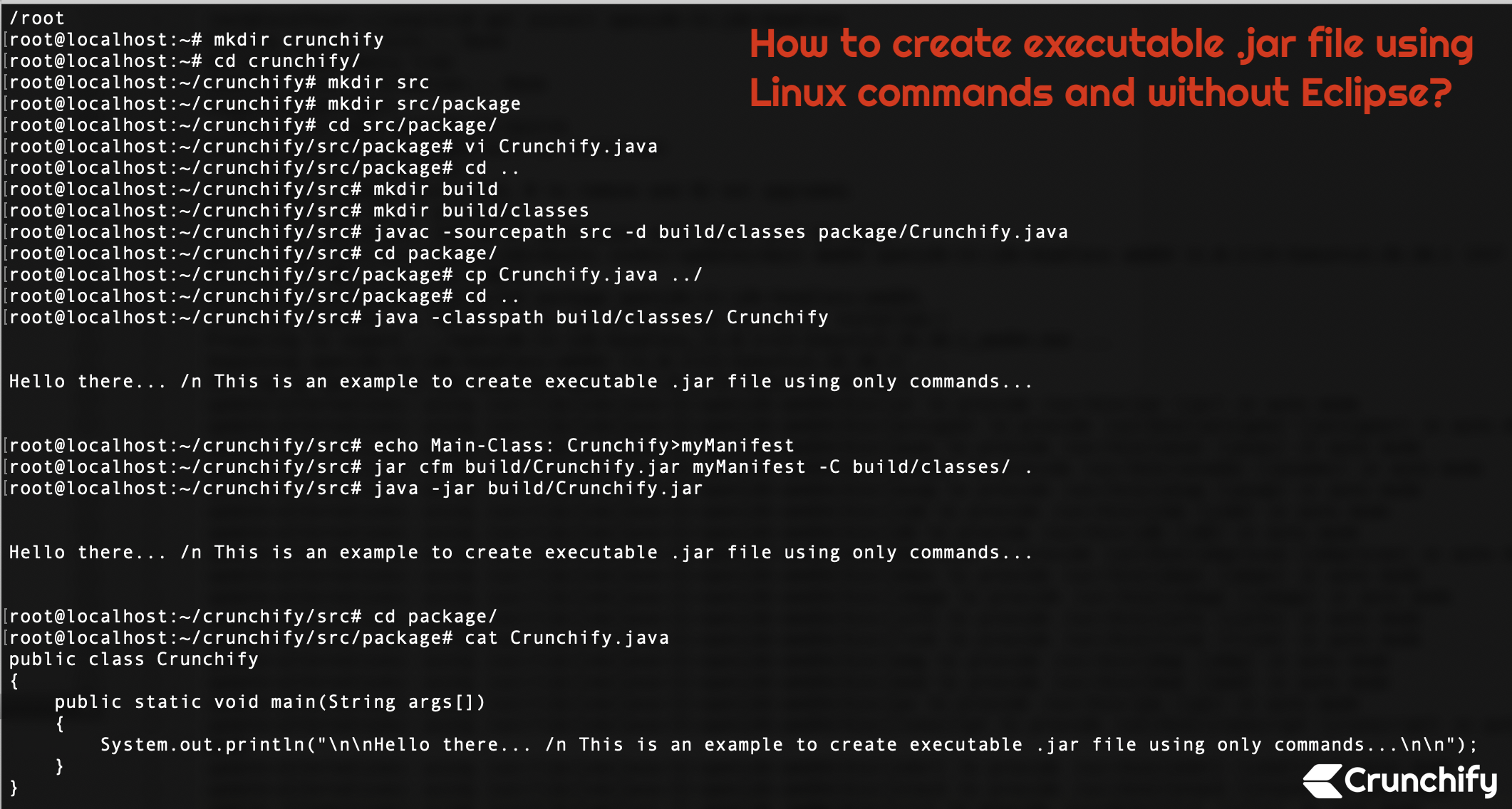
META-INF/MANIFEST.MF): This special file contains vital metadata about the JAR, such as the version information, main class (the entry point for the application), classpath entries, and other extension-related data. It’s the manifest that tells the Java Runtime Environment (JRE) how to execute the application contained within.
Why are JAR Files Used?
JAR files serve several critical functions in the Java development and deployment cycle:
- Deployment and Distribution: They provide a standardized way to package and distribute Java applications, making it easy for users to download and run software without needing to manually assemble dependencies.
- Portability: A key principle of Java is “Write Once, Run Anywhere.” JAR files embody this by being executable on any operating system (Windows, macOS, Linux) that has a compatible Java Runtime Environment installed.
- Security: JAR files can be digitally signed. This signature allows users to verify the origin of the JAR file and ensure that it hasn’t been tampered with since it was signed, adding a layer of trust and security.
- Version Control and Dependency Management: The manifest file can specify dependencies and versioning information, helping to manage complex projects and ensure that the correct libraries are used.
- Reusable Libraries: Many Java libraries and frameworks are distributed as JAR files, allowing developers to easily incorporate existing functionalities into their own projects.
In essence, if you’re interacting with a Java application outside of a development environment, there’s a very high probability you’ll be dealing with a JAR file.
Prerequisites for Running JAR Files: Getting Your System Ready
Before you can successfully “install” (or more accurately, run) a JAR file, your system needs to have the foundational software in place: the Java Runtime Environment (JRE). Without it, your operating system simply won’t know how to interpret and execute the Java bytecode within the JAR.
Java Runtime Environment (JRE) vs. Java Development Kit (JDK)
It’s important to distinguish between JRE and JDK:
- JRE (Java Runtime Environment): This is what you need to run Java applications. It contains the Java Virtual Machine (JVM), core classes, and supporting files. If your goal is purely to execute JAR files, the JRE is sufficient.
- JDK (Java Development Kit): This is what Java developers use. It includes everything in the JRE, plus development tools like the Java compiler (
javac), debugger, and other utilities necessary for writing and compiling Java code. If you plan to develop Java applications, you’ll need the JDK. For simply running JARs, it’s overkill but will certainly work.
For the purpose of this guide, we’ll focus on ensuring you have at least a JRE installed.
How to Check if Java is Installed
Before you rush to download Java, check if it’s already on your system.
- Open your Command Prompt (Windows) or Terminal (macOS/Linux):
- Windows: Press
Win + R, typecmd, and press Enter. - macOS: Open Finder, go to Applications > Utilities > Terminal.
- Linux: Press
Ctrl + Alt + Tor search for “Terminal.”
- Windows: Press
- Type the command:
java -version - Press Enter.
- If Java is installed: You will see output similar to this:
openjdk version "17.0.2" 2022-01-18

OpenJDK Runtime Environment (build 17.0.2+8-86)

OpenJDK 64-Bit Server VM (build 17.0.2+8-86, mixed mode, sharing)
The version number (e.g., “17.0.2”) indicates which version of Java you have. Many JAR files are compatible with various Java versions, but some might require a specific minimum version. - If Java is not installed or not configured correctly: You might see an error message like:
'java' is not recognized as an internal or external command, operable program or batch file.
or similar messages indicating the command was not found. If this is the case, you need to install Java.
Installing Java (JRE)
The installation process varies slightly depending on your operating system. Always download Java from a trusted source, such as Oracle (for Oracle JDK/JRE) or Adoptium (for OpenJDK builds). OpenJDK is the open-source reference implementation of Java and is widely used.
For Windows:
- Download the JRE installer:
- Go to the official Oracle Java download page (search “Java download” or “Oracle JRE”) or Adoptium (adoptium.net) for OpenJDK.
- Choose the appropriate installer for your Windows architecture (x64 for most modern PCs). Look for the “JRE” or “Runtime” package if available, otherwise, the “JDK” will suffice.
- Run the installer: Double-click the downloaded
.exefile. - Follow the on-screen prompts: The installation wizard is straightforward. You can usually accept the default installation path.
- Verify installation: Open Command Prompt and type
java -versionagain. If it shows the version, you’re good to go. If not, you might need to restart your computer or manually add Java to your system’s PATH environment variable (though the installer usually handles this).
For macOS:
- Download the JRE/JDK installer:
- Go to Oracle Java download page or Adoptium (adoptium.net).
- Download the
.dmginstaller for macOS.
- Run the installer: Double-click the downloaded
.dmgfile to open it. Then, double-click the.pkgfile inside to start the installation. - Follow the on-screen prompts: Enter your administrator password if prompted.
- Verify installation: Open Terminal and type
java -version.
For Linux (Ubuntu/Debian-based):
- Open your Terminal.
- Update package lists:
sudo apt update - Install OpenJDK JRE:
- For the latest default JRE:
sudo apt install default-jre - For a specific version (e.g., Java 17):
sudo apt install openjdk-17-jre
- For the latest default JRE:
- Verify installation:
java -version
For Linux (CentOS/Fedora-based):
- Open your Terminal.
- Install OpenJDK JRE:
- For the latest default JRE:
sudo dnf install java-latest-openjdk-jre - For a specific version (e.g., Java 17):
sudo dnf install java-17-openjdk-jre
- For the latest default JRE:
- Verify installation:
java -version
Once Java is successfully installed and recognized by your system, you are ready to run JAR files.
Step-by-Step Guide to Installing and Running JAR Files
With Java installed, running a JAR file is typically a straightforward process. There are a few methods you can employ, depending on your comfort level and the specific behavior of the JAR file.
Method 1: Double-Clicking the JAR File (Graphical User Interface)
This is the simplest and most common method for users. When Java is correctly installed, most operating systems will automatically associate .jar files with the Java Runtime Environment, allowing them to be launched with a simple double-click.
- Locate the JAR file: Navigate to the folder where your
.jarfile is saved using your file explorer (e.g., Windows Explorer, macOS Finder, Linux File Manager). - Double-click the JAR file: Simply double-click on the
.jarfile icon.
- Expected outcome: The Java application contained within the JAR should launch. This might open a new window, a console window, or perform an action in the background, depending on what the JAR file is designed to do.
- Troubleshooting: If nothing happens, or an error message appears, it usually indicates that the file association is broken, Java is not installed, or there’s an issue with the JAR file itself. Refer to the “Common Issues” section below.
Method 2: Running from the Command Line (Advanced Control)
Using the command line offers more control, especially for troubleshooting, running JARs that produce console output, or if the double-click method fails. This method is universal across all operating systems once Java is in your system’s PATH.
- Open your Command Prompt (Windows) or Terminal (macOS/Linux): (Refer to “How to Check if Java is Installed” for instructions).
- Navigate to the directory containing the JAR file: Use the
cd(change directory) command.- Example: If your JAR file is in
C:UsersYourUserDownloads(Windows) or/home/youruser/downloads(Linux/macOS), type:cd C:UsersYourUserDownloads(Windows)cd ~/downloads(Linux/macOS)
- Example: If your JAR file is in
- Execute the JAR file using the
java -jarcommand:- Type:
java -jar YourFileName.jar(ReplaceYourFileName.jarwith the actual name of your JAR file). - If your JAR file’s name contains spaces, enclose it in quotes:
java -jar "Your File Name.jar"
- Type:
- Press Enter.
- Expected outcome: The Java application will run. Any output generated by the application will typically be displayed directly in the console window. This is particularly useful for applications without a graphical user interface.
- Benefits: This method ensures that the correct Java executable is being used and provides direct feedback in case of errors, making it easier to diagnose problems.
Method 3: Associating JAR Files with Java (Troubleshooting Default Behavior)
Sometimes, even with Java installed, .jar files might not open by double-clicking because another program has taken over the file association, or no association has been set.
For Windows:
- Right-click on the
.jarfile. - Select “Open with”.
- Click “Choose another app” or “Choose default program.”
- In the list, look for “Java(TM) Platform SE Binary” or “Java Web Start Launcher”.
- Check the box that says “Always use this app to open .jar files.”
- Click “OK” or “Apply.”
If you don’t see Java in the list, you might need to click “Look for another app on this PC” and navigate to your Java installation directory (e.g., C:Program FilesJavajre-X.X.Xbinjavaw.exe for the JRE, or C:Program FilesJavajdk-X.X.Xbinjavaw.exe for the JDK). The javaw.exe executable runs Java applications without a console window. If you want a console window, use java.exe.
For macOS:
- Right-click (or Ctrl-click) on the
.jarfile. - Select “Get Info.”
- In the “Open with:” section, select “Java Launcher” from the dropdown menu.
- Click “Change All…” to apply this setting to all
.jarfiles. - Confirm the change.
For Linux (Varies by Desktop Environment):
The process can differ slightly depending on your desktop environment (GNOME, KDE, XFCE, etc.), but the general idea is similar:
- Right-click on the
.jarfile. - Select “Open With” or “Properties” -> “Open With” tab.
- Look for “OpenJDK Java Runtime”, “Java Runtime”, or similar options.
- If not found, you might need to click “Add” or “Custom Command” and enter the path to your Java executable (e.g.,
/usr/bin/javaor/usr/lib/jvm/java-XX-openjdk/bin/java). - Set it as the default if desired.
By ensuring the correct association, double-clicking JAR files will reliably launch your Java applications.
Common Issues and Troubleshooting
Even with careful preparation, you might encounter issues when trying to run a JAR file. Here are some common problems and their solutions.
“Java not found” or “Cannot find the main class”
These errors typically indicate that either Java isn’t properly installed or configured, or the JAR file itself is malformed.
- “java is not recognized…” / “command not found”: This means your system cannot find the
javaexecutable.- Solution: Re-verify Java installation (
java -version). If it’s installed but not recognized, you may need to add Java’sbindirectory to your system’s PATH environment variable. The process varies by OS, but a quick web search for “add Java to PATH [your OS]” will provide detailed instructions.
- Solution: Re-verify Java installation (
- “Error: Could not find or load main class [ClassName]”: This means the JAR file is missing its
Main-Classentry in theMETA-INF/MANIFEST.MFfile, or the specified class doesn’t exist within the JAR.- Solution: This is often an issue with how the JAR file was created by the developer. If you developed it, ensure your manifest file is correct and the main class path is accurate. If you downloaded it, you might need to contact the provider or try to run it with a specific main class manually (e.g.,
java -cp YourFileName.jar YourMainClass).
- Solution: This is often an issue with how the JAR file was created by the developer. If you developed it, ensure your manifest file is correct and the main class path is accurate. If you downloaded it, you might need to contact the provider or try to run it with a specific main class manually (e.g.,
JAR File Not Opening After Double-Click
If double-clicking does nothing, and there’s no error message, it usually points to a file association problem or a silent error.
- Solution 1: Check File Associations: Follow Method 3 above to ensure
.jarfiles are correctly associated with the Java Runtime Environment. - Solution 2: Try Command Line: Run the JAR from the command line (
java -jar YourFileName.jar). This will often reveal any hidden errors that aren’t displayed when double-clicking. The error messages in the console will be invaluable for further diagnosis. - Solution 3: Check Task Manager/Activity Monitor: Sometimes, a Java process might start and immediately crash in the background. Check your system’s process monitor (Task Manager on Windows, Activity Monitor on macOS,
htoportopon Linux) to see if ajava.exeorjavaprocess briefly appears and disappears.
Permission Issues
Operating system security settings can sometimes prevent JAR files from running, especially if they are downloaded from the internet.
- Windows: You might encounter a “Windows protected your PC” or “Publisher unknown” warning.
- Solution: Click “More info” and then “Run anyway.” If you trust the source, this is generally safe. For more persistent issues, right-click the JAR file, go to “Properties,” and click the “Unblock” button if it appears under the “General” tab.
- macOS: “Cannot be opened because the developer cannot be verified.”
- Solution: Go to System Settings (or System Preferences) > Privacy & Security. You should see a message stating the JAR was blocked. Click “Open Anyway.” For future runs, you might need to right-click (or Ctrl-click) the JAR and select “Open” from the context menu the first time, then click “Open” in the subsequent dialog.
- Linux: Make sure the JAR file has execute permissions.
- Solution: In Terminal, navigate to the JAR file’s directory and run
chmod +x YourFileName.jar. This makes the file executable.
- Solution: In Terminal, navigate to the JAR file’s directory and run
Corrupted JAR Files
A JAR file might be damaged during download or transfer, leading to execution errors.
- Solution: Redownload the JAR file from its source. Ensure your internet connection is stable during the download. If downloading from a repository, check for any reported issues or alternative download links.
Multiple Java Versions Installed
Having multiple JRE/JDK versions installed can sometimes cause confusion, especially if the PATH variable points to an older or incorrect version.
- Solution:
- Check which Java version is active using
java -version. - If you need a specific version, you can explicitly call it from the command line:
"/path/to/specific/java/bin/java" -jar YourFileName.jar. - Consider uninstalling older or unused Java versions to simplify your environment.
- Check which Java version is active using
Security Considerations When Running JAR Files
While JAR files are powerful and convenient, it’s crucial to approach them with a mindful perspective regarding security. Because JARs are executable files, they can potentially carry malicious code just like any other executable.
Trusting the Source
The golden rule of running any executable file, including JARs, is to only run files from sources you explicitly trust.
- Legitimate Sources: Download JAR files from official project websites, well-known software repositories (like Maven Central for developers), or direct links provided by reputable developers.
- Avoid Unknown Sources: Be extremely cautious with JAR files received via email attachments from unknown senders, downloaded from suspicious websites, or shared through untrusted channels. These could contain malware, viruses, or other harmful code.
- Digital Signatures: If a JAR file is digitally signed, the system might display information about the publisher. While a signature doesn’t guarantee the software is benign, it does verify the integrity of the file and its origin, confirming it hasn’t been altered since the developer signed it. Always verify the publisher’s identity if a signature is present.
Sandboxing and Permissions
The Java security model traditionally employs sandboxing, which aims to isolate potentially malicious code and limit its access to system resources. However, over the years, the strictness of this sandbox has evolved, and users should not solely rely on it for protection against untrusted JARs.
- Local JARs are “Trusted” by Default: When you run a JAR file from your local file system, the Java Runtime Environment generally grants it extensive permissions, assuming you, the user, have deemed it trustworthy. This means a malicious JAR can potentially read, write, and delete files on your system, access network resources, and perform other sensitive operations.
- Web Start (JNLP) and Applets (Legacy): Older methods of distributing Java applications (Java Web Start via JNLP files, and browser Applets) had more robust sandboxing mechanisms, often requiring explicit user permission for elevated access. However, these technologies have largely been deprecated due to security concerns and changes in browser support. Modern Java applications are typically distributed as standalone JARs.
- Antivirus and Anti-Malware Software: Always keep your antivirus and anti-malware software up to date. While not foolproof, these tools can provide an additional layer of defense by scanning JAR files for known threats before they are executed.
In summary, treat JAR files like any other executable program (.exe, .app, .sh). Exercise diligence and common sense. If you are unsure about the origin or purpose of a JAR file, it’s best to err on the side of caution and avoid running it.
Advanced Tips and Best Practices
For those who want to delve a little deeper or encounter more specific scenarios, here are a few advanced tips.
Specifying Java Options at Runtime
When running from the command line, you can pass various options to the Java Virtual Machine to control its behavior.
- Memory Allocation: If a JAR application requires more memory, you can allocate it using the
-Xmxflag:
java -Xmx1G -jar YourFileName.jar(Allocates 1 Gigabyte of maximum heap memory) - System Properties: You can pass system properties to the Java application using the
-Dflag:
java -Dmy.property=value -jar YourFileName.jar(The application can then read this property usingSystem.getProperty("my.property"))
Executable JARs vs. Library JARs
It’s important to differentiate between JARs that are meant to be run directly and those that are libraries to be included in other projects.
- Executable JARs: These contain a
Main-Classentry in their manifest, allowing them to be run directly usingjava -jar. They are self-contained applications. - Library JARs: These typically do not have a
Main-Classand are intended to be placed on the classpath of another Java application. You wouldn’t runjava -jar library.jar; instead, you’d include it in your project’s build path or run an application that uses it:java -cp library.jar:YourApp.jar YourMainClass.
Using IDEs for Java Development
If you’re developing Java applications, Integrated Development Environments (IDEs) like IntelliJ IDEA, Eclipse, or NetBeans simplify the process of creating, compiling, and running JAR files. They handle classpath management, manifest creation, and dependency bundling, often allowing you to generate executable JARs with just a few clicks. While beyond the scope of this “how to install” guide, understanding their role is crucial for developers.

Conclusion
Mastering the installation and execution of JAR files is an indispensable skill in the modern digital landscape, especially given the prevalence of Java-based software across various platforms. From understanding their core structure as Java Archives to preparing your system with the necessary Java Runtime Environment, and finally navigating the different execution methods, you are now equipped with a robust set of knowledge.
Whether you prefer the simplicity of a double-click or the control offered by the command line, this guide has provided you with the pathways to confidently run your Java applications. Moreover, by addressing common troubleshooting scenarios and emphasizing critical security considerations, we aim to empower you not just to make JAR files work, but to do so safely and efficiently.
As technology continues to evolve, the fundamental principles of software execution remain constant. By understanding how to properly handle JAR files, you’re not just installing a piece of software; you’re gaining a deeper insight into the underlying mechanisms of one of the world’s most enduring programming languages, enhancing your digital security posture, and boosting your overall tech productivity. Keep exploring, keep learning, and may your Java applications always run smoothly!
aViewFromTheCave is a participant in the Amazon Services LLC Associates Program, an affiliate advertising program designed to provide a means for sites to earn advertising fees by advertising and linking to Amazon.com. Amazon, the Amazon logo, AmazonSupply, and the AmazonSupply logo are trademarks of Amazon.com, Inc. or its affiliates. As an Amazon Associate we earn affiliate commissions from qualifying purchases.