
Understanding IPA Files
IPA files, short for “iOS App Store Package,” are essentially the container format for iOS applications. Think of them as compressed archives, similar to ZIP files, that hold all the necessary code, resources, and assets required for an app to run on your iPhone or iPad. While the vast majority of users will install apps directly from Apple’s App Store, there are legitimate reasons why you might want to install IPA files outside of this official channel. This could include developers testing their own applications, users wanting to install older versions of apps, or even exploring apps that are not available in specific regions.

Why Install IPA Files Manually?
The primary and most common method of installing apps on an iPhone is through the official App Store. Apple’s curated platform offers a secure and straightforward way to discover, download, and update applications. However, the App Store, while convenient, has its limitations. For instance, certain apps might be geographically restricted, meaning they are not available for download in your region. In such cases, manually installing an IPA file can provide access to these otherwise inaccessible applications.
Beyond regional restrictions, developers often need to test their applications thoroughly before releasing them to the public. This testing phase frequently involves installing beta versions or pre-release builds of their apps, which are distributed as IPA files. Similarly, if you’re a user who prefers a specific older version of an app that has been updated with features you dislike or bugs you find problematic, you might seek out and install an older IPA file.
Another scenario involves sideloading, a process where you install an app from a source other than the official app store. This can be particularly useful for enterprise applications designed for internal use within a company, or for specialized tools that aren’t distributed through mainstream channels. While the methods for sideloading have evolved, understanding the underlying process of installing IPA files is crucial for these more advanced use cases.
It’s important to note that Apple’s ecosystem is designed with security and stability as paramount concerns. Therefore, installing IPA files from unofficial or untrusted sources carries inherent risks. Malware and viruses can be embedded within malicious IPA files, potentially compromising your device’s security and your personal data. As such, this guide will focus on legitimate and safe methods for installing IPA files, emphasizing caution and responsible practices.
Methods for Installing IPA Files
There are several ways to install IPA files on your iPhone, each with its own requirements and complexity. The most common and recommended methods involve using a computer and specific software, as direct installation on the iPhone itself is generally not supported without jailbreaking, which is a process that voids your warranty and introduces significant security risks.
Method 1: Using Cydia Impactor (Recommended for Most Users)
Cydia Impactor is a popular graphical tool that allows you to sideload IPA files onto your iOS device. It’s a relatively user-friendly application that works on Windows, macOS, and Linux, making it accessible to a wide range of users. The primary advantage of Cydia Impactor is that it doesn’t require your iPhone to be jailbroken. It utilizes your Apple ID to sign the IPA file, which then allows your device to install and run it.
Prerequisites:
- A Computer: You’ll need a Windows, macOS, or Linux computer.
- iTunes Installed: For Windows users, iTunes must be installed on your computer. Mac users typically have it pre-installed or can download it.
- USB Cable: A reliable USB cable to connect your iPhone to your computer.
- The IPA File: The application file you wish to install.
- Apple ID: A valid Apple ID is required to sign the application.
Steps:
- Download Cydia Impactor: Visit the official Cydia Impactor website and download the version compatible with your operating system. Extract the downloaded archive.
- Connect Your iPhone: Connect your iPhone to your computer using the USB cable. If prompted on your iPhone, tap “Trust This Computer” and enter your passcode.
- Launch Cydia Impactor: Open the Cydia Impactor application on your computer. It should automatically detect your connected iPhone.
- Drag and Drop the IPA: Drag the IPA file you want to install and drop it into the Cydia Impactor window.
- Enter Your Apple ID: Cydia Impactor will prompt you to enter your Apple ID email address and password. This is used to generate a temporary signing certificate for the app. Note: Apple has recently implemented additional security measures for app signing. You might need to generate an “App-Specific Password” from your Apple ID account settings if you have two-factor authentication enabled.
- Wait for Installation: Cydia Impactor will now sign and install the IPA file onto your iPhone. This process can take a few minutes.
- Trust the Developer: Once the installation is complete, go to your iPhone’s Settings > General > Device Management (or Profiles & Device Management). You will see your Apple ID listed. Tap on it and then tap “Trust” to allow apps signed with your Apple ID to run.
- Launch the App: You should now find the installed app on your iPhone’s home screen. Open it to use it.
Important Considerations for Cydia Impactor:
- Certificate Expiration: Apps signed with a free Apple ID through Cydia Impactor are typically valid for seven days. After this period, the app will stop working, and you’ll need to re-sign and reinstall it using Cydia Impactor.
- Developer Accounts: If you have a paid Apple Developer account, the certificates you generate are valid for one year, eliminating the need for frequent re-signing.
- Revoked Certificates: Apple occasionally revokes certificates used for sideloading, which can cause apps to stop working. If this happens, you might need to wait for an updated version of Cydia Impactor or a new signing method.
Method 2: Using Xcode (For Developers)
Xcode is Apple’s integrated development environment (IDE) for creating applications for all Apple platforms. If you are an app developer, Xcode provides a direct and robust way to build, test, and deploy your applications, including installing IPA files. This method is generally more complex than Cydia Impactor and is primarily intended for those with an Apple Developer account and a need for in-depth development and testing.
Prerequisites:
- Mac Computer: Xcode is only available on macOS.
- Xcode Installed: Download Xcode from the Mac App Store.
- Apple Developer Account: A free or paid Apple Developer account is required.
- USB Cable: To connect your iPhone to your Mac.
- The IPA File: The application file you wish to install.
Steps:
- Open Xcode: Launch Xcode on your Mac.
- Create a New Project (or Open an Existing One): Even if you’re just installing an IPA, Xcode often requires a dummy project to initiate the signing and installation process. You can create a new “Single View App” project.
- Configure Signing: In your project settings, navigate to the “Signing & Capabilities” tab. Ensure your Apple Developer account is selected. Xcode will attempt to provision a development certificate for your device.
- Connect Your iPhone: Connect your iPhone to your Mac using the USB cable. Select your iPhone as the build target in Xcode.
- Build and Run the Project: Click the “Product” menu and select “Build” or “Run.” This process will install the basic project onto your device and establish a connection for further operations.
- Install the IPA: This is where the process can vary slightly depending on your Xcode version.
- Drag and Drop: In some Xcode versions, you might be able to drag the IPA file directly into the Xcode project navigator or a specific area within the project.
- Using the “Devices and Simulators” Window: Go to “Window” > “Devices and Simulators.” Select your connected iPhone, then click the “+” button under the “Installed Apps” section. Browse to and select your IPA file.
- Wait for Installation: Xcode will then sign and install the IPA file onto your iPhone.
- Trust the Developer (if necessary): Similar to Cydia Impactor, you might need to trust the developer profile on your iPhone in Settings > General > Device Management.
Advantages of using Xcode:
- More Control: Offers greater control over the signing and installation process.
- Debugging Capabilities: Integrates seamlessly with debugging tools for app development.
- Longer Certificate Validity (with paid account): Paid developer accounts allow for longer-lasting certificates.
Method 3: Using Third-Party Tools (Use with Caution)
Beyond Cydia Impactor and Xcode, there are other third-party applications and online services that claim to help you install IPA files. These tools can range from desktop applications to web-based services that allow you to upload an IPA.
Examples include:
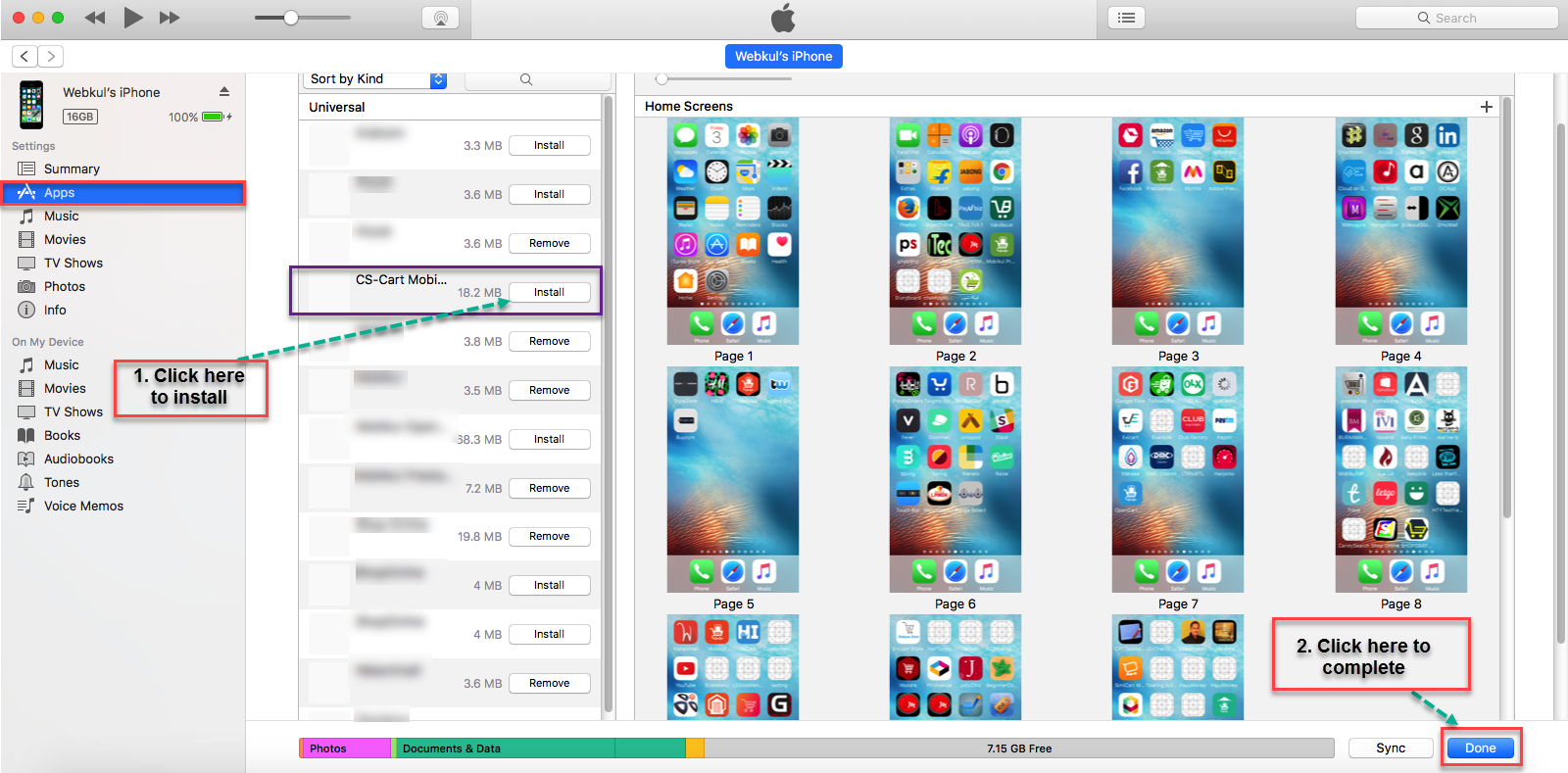
- AltStore: A popular alternative to Cydia Impactor that offers a slightly different approach to signing and installing apps, allowing for automatic refreshing of apps.
- iMazing: A comprehensive iOS management tool that can also be used for sideloading IPA files.
- Online IPA Installers: Various websites that allow you to upload an IPA and provide a link to install it directly onto your device.
Caveats for Third-Party Tools:
- Security Risks: This is the most crucial point. Many third-party tools, especially online services, can be unreliable or even malicious. They might collect your Apple ID information, embed malware, or install unwanted software on your device. It is highly recommended to use these tools with extreme caution and only if you fully trust the source.
- Reliability: The effectiveness and reliability of these tools can vary, and they might not always work as advertised.
- Terms of Service: Some tools might violate Apple’s terms of service, which could potentially lead to issues with your Apple ID or device.
Recommendation: If you choose to explore these options, thoroughly research the tool, read reviews, and ensure you understand the risks involved. Stick to well-known and reputable tools like AltStore if you need alternatives to Cydia Impactor.
Troubleshooting Common Issues
Even with the best intentions, you might encounter problems when trying to install IPA files. Here are some common issues and their potential solutions:
“Apple ID Authentication Failed” or “Invalid Signature” Errors
- Incorrect Apple ID Credentials: Double-check that you are entering your Apple ID email and password correctly.
- Two-Factor Authentication (2FA): If you have 2FA enabled on your Apple ID, you likely need to generate an “App-Specific Password” from your Apple ID account settings page. Use this app-specific password in Cydia Impactor or other tools instead of your regular password.
- Expired Certificate: For free Apple IDs, certificates expire every seven days. If the app suddenly stops working, it’s likely due to an expired certificate. Re-sign and reinstall the IPA.
- Internet Connection: Ensure you have a stable internet connection during the signing process.
App Crashes Immediately After Opening
- Corrupted IPA File: The IPA file itself might be corrupted or incomplete. Try downloading it again from a trusted source.
- Incompatible iOS Version: The app might not be compatible with your iPhone’s current iOS version. Check the app’s requirements.
- Device Compatibility: Some apps are designed for specific iPhone models or architectures (e.g., 64-bit only). Ensure your device is compatible.
- Incorrect Signing: The signing process might have failed, or the certificate used might not be valid for your device. Try re-signing the IPA.
“Could Not Install Application” or “Provisioning Profile Errors”
- Developer Profile Not Trusted: After installation, you must trust the developer profile on your iPhone. Go to Settings > General > Device Management (or Profiles & Device Management), tap on your Apple ID, and then tap “Trust.”
- Too Many Apps Signed: Free Apple IDs have a limit on the number of apps you can have signed and installed simultaneously. Try removing some existing sideloaded apps.
- Xcode Issues (if using Xcode): Ensure Xcode is properly set up with your Apple Developer account and that your iPhone is recognized by Xcode.
Device Not Recognized by Computer
- Faulty USB Cable or Port: Try using a different USB cable or a different USB port on your computer.
- iTunes Not Installed/Updated (Windows): Ensure iTunes is installed and updated to the latest version on Windows.
- “Trust This Computer” Prompt: If you see the “Trust This Computer” prompt on your iPhone, make sure to tap “Trust” and enter your passcode.
- Driver Issues (Windows): Sometimes, Windows might have driver issues. Try reinstalling Apple Mobile Device USB Driver.
By understanding these methods and common troubleshooting steps, you can navigate the process of installing IPA files on your iPhone more effectively. Remember to always prioritize security and only use IPA files from trusted sources.
Digital Security and Responsible Sideloading
While the ability to install IPA files offers flexibility and access to a wider range of applications, it’s crucial to approach this practice with a strong emphasis on digital security. The very nature of sideloading bypasses Apple’s rigorous App Store review process, which is designed to protect users from malware and malicious apps. Therefore, a heightened level of caution is necessary.
Risks Associated with Unofficial IPA Files
- Malware and Viruses: The most significant risk is the potential for IPA files to contain malicious code. These could be designed to steal your personal information (passwords, credit card details), track your activity, install adware, or even take control of your device.
- Data Theft: Malicious apps can gain access to your contacts, photos, messages, and other sensitive data.
- Device Compromise: In severe cases, malware can compromise the security of your entire device, making it vulnerable to further attacks.
- Privacy Violations: Apps may collect more data than they disclose or use your data in ways you wouldn’t consent to.
- Instability and Performance Issues: Even non-malicious but poorly developed or incompatible IPA files can cause your iPhone to become unstable, crash frequently, or experience performance degradation.
- Voiding Warranty: While simply installing an IPA file doesn’t typically void your warranty, if you resort to jailbreaking to facilitate the process, your Apple warranty will be invalidated.
Best Practices for Safe IPA Installation
To mitigate these risks and ensure a safer experience, adhere to the following best practices:
-
Source Verification: This is paramount. Only download IPA files from sources you absolutely trust.
- Developer’s Official Channels: If you’re installing a beta from a developer, ensure you’re getting it directly from their official website or a trusted developer portal.
- Reputable Community Forums (with caution): Some developer communities might share IPA files for testing. However, always verify the uploader’s reputation and look for consensus on the file’s safety.
- Avoid Random Websites: Steer clear of websites that offer vast libraries of cracked or pirated apps. These are prime sources of malware.
-
Use Trusted Sideloading Tools: As discussed earlier, Cydia Impactor and Xcode are generally considered safe. If using third-party tools, thoroughly research their reputation and security practices. AltStore is a well-regarded alternative for those needing more frequent refreshes.
-
Enable Two-Factor Authentication (2FA) and Use App-Specific Passwords: This is a crucial security layer for your Apple ID. When using tools like Cydia Impactor, always generate and use an app-specific password. This prevents the tool from having access to your primary Apple ID password, which is used for more sensitive actions.
-
Regularly Update Your Software: Keep your iPhone’s iOS, your computer’s operating system, and any sideloading software (like Cydia Impactor or Xcode) updated. Updates often include security patches that protect against newly discovered vulnerabilities.
-
Review App Permissions: Before launching a sideloaded app for the first time, pay close attention to the permissions it requests. If an app asks for access to your contacts, photos, or location when it doesn’t seem necessary for its functionality, be suspicious. You can manage app permissions in your iPhone’s Settings.
-
Monitor Your Device: Be vigilant for any unusual behavior on your iPhone, such as:
- Unexpected battery drain
- Slow performance
- Pop-up ads appearing outside of apps
- Apps you didn’t install appearing
- Unusual network activity
-
Keep Sideloaded Apps to a Minimum: Only install IPA files that you genuinely need. The fewer sideloaded apps you have, the smaller your attack surface.
-
Understand Certificate Expiration: Be aware that free Apple ID certificates expire every seven days. If an app stops working, it’s likely due to this. Re-signing and reinstalling with a trusted tool is the solution.
By integrating these security principles into your process, you can enjoy the benefits of installing IPA files while significantly reducing the potential risks. It’s a balance between convenience and robust digital hygiene.
aViewFromTheCave is a participant in the Amazon Services LLC Associates Program, an affiliate advertising program designed to provide a means for sites to earn advertising fees by advertising and linking to Amazon.com. Amazon, the Amazon logo, AmazonSupply, and the AmazonSupply logo are trademarks of Amazon.com, Inc. or its affiliates. As an Amazon Associate we earn affiliate commissions from qualifying purchases.