
The Nintendo Wii U, though often overshadowed by its successor, the Switch, holds a special place in the hearts of many gamers. Its unique GamePad controller and a library of captivating first-party titles provided a distinct gaming experience. As the console ages and official support dwindles, the dedicated community of enthusiasts has found innovative ways to extend its lifespan and unlock its full potential through custom firmware (CFW). Among these advancements, Aroma custom firmware stands out as a modern, user-friendly solution, breathing new life into the console.
This comprehensive guide is designed for those who have already ventured into the world of Wii U modding with Aroma and are now eager to expand their game library. We’ll walk you through the process of installing various types of games, from official Wii U titles to Virtual Console classics and even Wii games, directly onto your modded system. Our aim is to empower you to rediscover the joy of your Wii U, transforming it into a versatile entertainment hub capable of playing a vast array of digital content. While the technical aspects might seem daunting at first, this guide will demystify the process, offering clear, step-by-step instructions to ensure a smooth and successful installation. Get ready to revitalize your console and dive back into a treasure trove of gaming experiences.
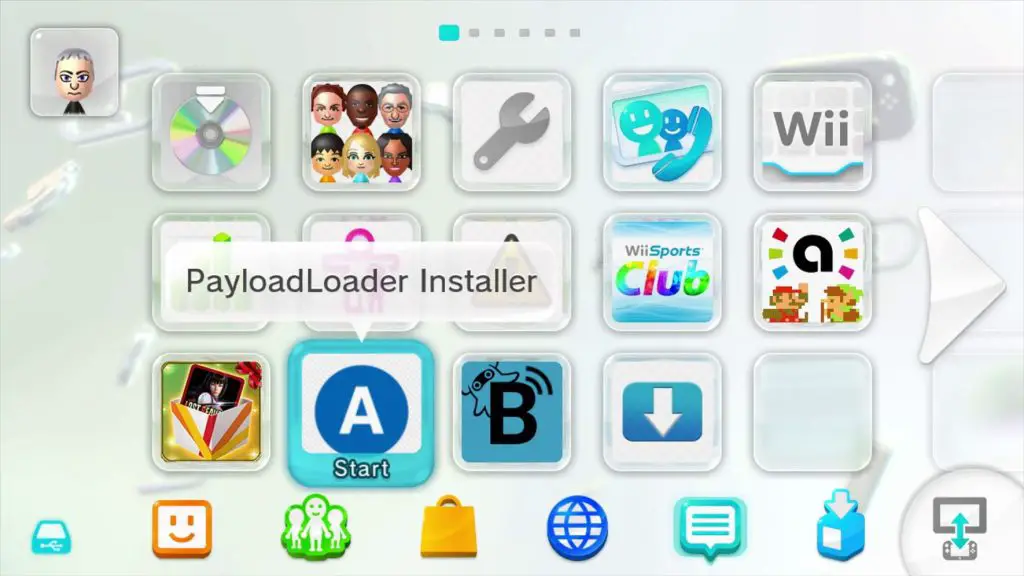
Understanding Aroma and the Modding Landscape
Before we delve into the mechanics of game installation, it’s crucial to grasp what Aroma custom firmware is and why modding a Wii U has become such a popular endeavor among tech-savvy gamers. This foundational understanding will illuminate the capabilities of your modded console and underscore the value of the methods we’ll explore.
What is Aroma Custom Firmware?
Aroma is a modern custom firmware (CFW) for the Nintendo Wii U, representing a significant leap forward in the console’s homebrew scene. Unlike older modding solutions that often relied on exploits or complex patching mechanisms, Aroma aims for a more integrated and user-friendly experience. It operates as a persistent custom firmware, meaning once installed, it seamlessly loads alongside the console’s official system software, offering enhanced capabilities without constant re-launching.
At its core, Aroma provides a robust framework for running unofficial software, commonly known as “homebrew applications.” These applications unlock a wealth of functionalities, ranging from file managers and system tools to emulators and game loaders. For users, Aroma translates to greater control over their console, allowing for customization, system modifications, and, critically for this guide, the ability to install and play games from various sources. Its modular design and active development community make it a preferred choice for those looking to maximize their Wii U’s potential, providing a stable and feature-rich environment for all their homebrew needs.
Why Mod Your Wii U? The Appeal of Preservation and Customization
The decision to mod a console like the Wii U extends beyond mere technical curiosity; it’s driven by a powerful blend of game preservation, cost-effectiveness, and the desire for customization. As official support wanes for older platforms, many digital-only titles become inaccessible, effectively disappearing from history. Modding provides a vital lifeline, allowing enthusiasts to back up and play games that might otherwise be lost forever. This act of digital preservation ensures that future generations can experience the rich tapestry of gaming history.
From a financial perspective, modding offers significant savings. The digital storefronts for older consoles often feature games at prices that don’t reflect their age, and physical copies can become rare and expensive collector’s items. By enabling the installation of game backups, modding provides an economical way to access a vast library without breaking the bank. Furthermore, it empowers users with unparalleled customization options. Imagine booting directly into your favorite game, using alternative controllers, or enhancing your console’s aesthetic with custom themes. Modding transforms the Wii U from a closed system into an open, versatile entertainment machine, tailored precisely to your preferences. It’s about extending the life of your hardware, taking control of your digital entertainment, and becoming part of a passionate community dedicated to exploring the full capabilities of their beloved consoles.
Essential Prerequisites Before You Begin
Embarking on the journey of installing games onto your Aroma-modded Wii U requires some preliminary setup and a collection of necessary tools. It’s crucial to understand that this guide assumes your Wii U is already successfully modded with Aroma custom firmware. If you haven’t completed that step, you’ll need to consult a dedicated Aroma installation guide first. Once your console is ready, gathering the right components will ensure a smooth and frustration-free experience.
What You’ll Need:
- An Aroma-Modded Wii U Console: This is the absolute foundation. Your console must have Aroma CFW correctly installed and functioning. This guide does not cover the initial modding process.
- SD Card (formatted to FAT32): A high-quality SD card is indispensable. It will be used to store homebrew applications, game files, and other critical data.
- Size: At least 32GB is recommended, but larger cards (up to 2TB) are supported. The faster the read/write speed (Class 10 or U1/U3), the better your experience will be.
- Formatting: Ensure it’s formatted to FAT32. For cards larger than 32GB, you might need a third-party formatting tool (like Rufus or guiformat) as Windows’ built-in utility often restricts FAT32 formatting to smaller capacities.
- A Computer (Windows/Mac/Linux): You’ll need a computer to download game files, transfer them to your SD card or USB drive, and manage your console’s data.
- Internet Connection: Required for downloading necessary tools, game files, and for some direct-to-console installation methods like NUSspli.
- USB External Hard Drive (Optional but Highly Recommended): For serious gamers, the Wii U’s internal storage (8GB or 32GB) is quickly exhausted. A USB external hard drive (up to 2TB) is highly recommended for storing a large game library.
- Power: Always use a Y-cable or a self-powered drive to ensure sufficient power, as the Wii U’s USB ports provide limited current.
- Formatting: The Wii U will format the drive to its proprietary format, rendering it unreadable by a computer.
- Essential Homebrew Applications (already on your SD card via Aroma):
- Homebrew Launcher (HBL): The gateway to all your homebrew apps.
- WUP Installer GX2: The primary tool for installing Wii U game packages (.WUP files).
- FTPD (FTP Server for Wii U): Allows you to wirelessly transfer files to and from your Wii U’s SD card or USB drive over your network, bypassing the need to constantly remove the SD card.
- NUSspli: A direct-to-console downloader and installer for Wii U titles and DLC, requiring an internet connection.
Verifying Your Aroma Setup:
Before proceeding, it’s wise to perform a quick check to ensure your Aroma setup is stable:
- Launch Homebrew Launcher: Power on your Wii U. If Aroma is correctly installed, you should be able to launch the Homebrew Launcher either directly from the Wii U menu or through your preferred entry point (e.g., through a specific game exploit, or if you have a persistent coldboot setup).
- Confirm Homebrew Access: Once in the Homebrew Launcher, ensure you can see and launch a few basic applications (like FTPD or WUP Installer GX2 if they’re already present). This confirms that Aroma is actively loading and allowing homebrew execution.
- Check System Updates: While Aroma itself should be up-to-date, ensure your system firmware is not too new if you’ve done something outside the normal modding flow, as very new updates could potentially interfere (though Aroma is generally robust). Stick to the recommended firmware versions for modding.
With these prerequisites met and your Aroma setup verified, you’re now ready to explore the exciting methods of installing games onto your revitalized Wii U.
Methods for Installing Games on Your Aroma Wii U
Installing games onto your Aroma-modded Wii U can be approached through several methods, each suited for different types of content and offering varying levels of convenience. We’ll detail the most common and effective techniques, focusing on the primary method for Wii U titles, alongside options for Virtual Console and direct-to-console downloads.
Method 1: Installing Wii U Titles with WUP Installer GX2 (The Primary Method)
This is the go-to method for installing standard Wii U games, DLC, and updates that come in the form of .WUP packages. It’s robust, reliable, and gives you direct control over the installation process.
-
Obtaining Wii U Game Files (.WUP Packages):
- Wii U game files are typically distributed as
.WUPpackages. These packages contain all the necessary data for a game, its updates, or DLC. - Ethical Consideration: Always prioritize acquiring games you legally own or backups of your own physical copies. The use of illegally obtained game files is against the terms of service and can carry legal implications.
- Once obtained, these files will usually be contained within folders that mimic the Wii U’s file structure (e.g.,
title,code,content,metafolders, or directly within a folder named after the game).
- Wii U game files are typically distributed as
-
Preparing Your SD/USB Storage:
- On your SD card (or USB drive, if you plan to install directly from it), create a folder named
install. - Inside the
installfolder, place the complete game package folders. Each game, update, or DLC should reside in its own subfolder withininstall. For example:sd:/install/MyCoolGame_v1/(containing all the .WUP files for the base game)sd:/install/MyCoolGame_Update_v2/(containing all the .WUP files for the update)sd:/install/MyCoolGame_DLC_Pack1/(containing all the .WUP files for the DLC)
- Ensure there are no extra nested folders that could confuse the installer. The
.WUPfiles themselves should be directly inside the game-specific subfolder.
- On your SD card (or USB drive, if you plan to install directly from it), create a folder named
-
Transferring Files to SD/USB via PC:
- SD Card: Remove the SD card from your Wii U, insert it into your computer, and copy the
installfolder with all game packages onto the root of the SD card. - USB Drive: If you plan to install from a USB drive, it must be formatted by the Wii U, meaning your computer cannot directly read it. In this scenario, you would typically use FTPD (File Transfer Protocol Daemon) on your Wii U to transfer files wirelessly from your computer to the USB drive once it’s connected to the Wii U. For an initial setup, SD card is simpler.
- SD Card: Remove the SD card from your Wii U, insert it into your computer, and copy the
-
Launching WUP Installer GX2:
- Insert the prepared SD card back into your Wii U.
- Power on your Wii U and navigate to the Homebrew Launcher.
- Select and launch the “WUP Installer GX2” application.
-
Step-by-Step Installation:
- WUP Installer GX2 will scan your SD card (and any connected USB drive) for valid
.WUPpackages within theinstallfolder. - You’ll see a list of detected game titles, updates, or DLC. Select the ones you wish to install.
- Choose Installation Location: The installer will prompt you to choose where to install the content:
- NAND: Installs to the Wii U’s internal memory (limited space, generally not recommended for full games).
- USB: Installs to an attached USB external hard drive (recommended for most games due to larger capacity).
- Confirm Installation: Review your selections and confirm the installation. The process can take anywhere from a few minutes to over an hour, depending on the game size and your storage speed. Do not power off the console or remove storage during this process.
- Post-Installation: Once complete, exit WUP Installer GX2. The newly installed game, update, or DLC should appear on your Wii U’s home menu. You might need to refresh the menu by returning to the Homebrew Launcher and then back to the Wii U menu, or restarting the console.
- WUP Installer GX2 will scan your SD card (and any connected USB drive) for valid
Method 2: Injecting Virtual Console and Wii Games (The Wrapper Approach)
For non-Wii U native games like classic Virtual Console titles (NES, SNES, N64, GBA, DS) or even Wii games, the “injection” method allows them to appear as standard Wii U titles on your home menu, launching seamlessly.
- What is Injection? It involves creating a “wrapper” Wii U application around the original game ROM/ISO. This wrapper makes the older game compatible with the Wii U environment, allowing it to be installed and launched just like any other Wii U title.
- Tools Involved: You’ll typically use a PC-based tool like “UWUVCI” or “TeconMoon’s WiiVC Injector” (for Virtual Console titles) or specific “Wii to Wii U Forwarder” tools for Wii games. These tools take the original ROM/ISO, add necessary emulation files and metadata, and output a standard
.WUPpackage. - Process Overview:
- Obtain ROM/ISO: Get the game ROM (e.g., a SNES .sfc file) or Wii ISO/WBFS file.
- Use Injector Tool: On your PC, open the appropriate injector tool. Select your ROM/ISO, configure options (e.g., screen aspect ratio, controller settings), and let the tool generate a
.WUPpackage. - Install with WUP Installer GX2: The generated
.WUPpackage is then installed onto your Wii U using WUP Installer GX2, exactly like a native Wii U game (Method 1).
- Benefits: This method offers a streamlined experience, integrating your classic game library directly into the Wii U menu, making it feel like a unified gaming platform.
Method 3: Using NUSspli for Direct Download and Installation (Convenience Method)
NUSspli is a popular homebrew application that allows you to directly download and install Wii U games, updates, and DLC from online repositories onto your console, without needing a PC for file transfer.
- What is NUSspli? It’s an on-console utility that connects to various content servers (often Ninty’s own servers for official titles or community-maintained archives), downloads the necessary game files, and then automates the installation process, similar to how the eShop functions.
- Pros: Incredible convenience. You don’t need to manually transfer files via SD card or FTP, making it ideal for adding new games on the fly.
- Cons: Requires a stable internet connection for downloads. Download speeds are limited by your network and the server’s bandwidth. You are dependent on the availability of titles on the configured servers.
- Brief Steps:
- Launch NUSspli from your Homebrew Launcher.
- Browse through the available categories (Wii U Games, DLC, Updates, Virtual Console, etc.).
- Select the title you wish to install.
- Choose your installation location (NAND or USB).
- Confirm the download and installation. NUSspli will handle the entire process.
By mastering these methods, you’ll gain the ability to populate your Aroma-modded Wii U with a vast and diverse library of games, ensuring countless hours of entertainment and a truly personalized gaming experience.
Troubleshooting Common Issues and Best Practices
Even with a well-prepared setup and clear instructions, you might encounter minor hiccups when installing games on your modded Wii U. Knowing how to troubleshoot common problems and adhering to best practices can save you time and frustration, ensuring a smooth and stable gaming experience.
Common Installation Problems:
-
“Missing Required Files” or Installation Failure:
- Cause: This usually indicates a corrupted game download, incomplete files, or an incorrect folder structure for WUP Installer GX2.
- Solution:
- Re-download: Try downloading the game package again from a reliable source. Ensure the download completes fully.
- Verify Folder Structure: Double-check that your
.WUPfiles are insd:/install/GAMENAME/and not nested in additional folders. - SD Card Integrity: Test your SD card for errors using a PC utility. A failing SD card can cause data corruption.
- Specific for NUSspli: If using NUSspli, ensure your internet connection is stable and try the download again. Server issues can sometimes lead to incomplete downloads.
-
“Not Enough Space” Error:
- Cause: You’re attempting to install a game larger than the available storage on the chosen location (NAND or USB). The Wii U’s internal NAND storage is very limited.
- Solution:
- Install to USB: Always prioritize installing large games to an external USB hard drive.
- Free Up Space: If installing to NAND, delete any unused applications, games, or save data. If your USB drive is full, you’ll need to offload or delete some content.
- Check Estimated Size: Before installing, note the game’s size and compare it to your available storage.
-
Game Not Appearing on Home Menu After Installation:
- Cause: The Wii U menu sometimes needs a refresh to display newly installed titles, or there might have been a minor installation glitch.
- Solution:
- Exit and Re-enter Homebrew Launcher: Go back to the Homebrew Launcher, then return to the Wii U Home Menu. This often triggers a refresh.
- Reboot Console: Perform a full power cycle of your Wii U.
- Verify Installation Location: Ensure you installed to the correct location (NAND or USB) and are looking for the game in the right place.
- Check System Settings: Go to
System Settings > Data Management > Wii U > Data Managementto confirm the game is listed there. If it is, but not on the home menu, rebooting should fix it.
-
Slow Downloads or Transfers (FTPD/NUSspli):
- Cause: Network congestion, slow Wi-Fi signal, or server limitations (for NUSspli).
- Solution:
- Wired Connection: If possible, connect your Wii U to your router via an Ethernet adapter for faster and more stable network transfers.
- Minimize Network Use: During large transfers, avoid other high-bandwidth activities on your network.
- Use SD Card: For very large transfers from your PC, removing the SD card and copying directly is often faster than FTPD over Wi-Fi.
Maintaining Your Modded Console: Best Practices
-
Regular Backups (Especially NAND Backup):
- Why: A NAND backup is a complete snapshot of your Wii U’s internal memory. It’s your ultimate safeguard against bricking the console.
- How: Use a dedicated homebrew application (like
BootMiiordumpsterwithin the Aroma environment, if available and configured) to create and store a copy of your NAND on your SD card. Store this backup safely on your computer.
-
Keep Aroma and Homebrew Apps Updated:
- Why: Developers frequently release updates for Aroma and homebrew applications, bringing new features, bug fixes, and compatibility improvements.
- How: Regularly check reputable homebrew communities (e.g., GBATemp, official Aroma GitHub) for update notifications and instructions. Always follow the official update procedures to avoid issues.
-
Use Reputable Sources for Game Files:
- Why: Poorly sourced or modified game files can be corrupted, incomplete, or even contain malicious code.
- How: Stick to well-known and trusted community archives, and consider verifying file integrity (e.g., using checksums if provided) whenever possible.
-
Ensure Stable Power During Installation:
- Why: Interrupting power during an installation or file transfer can lead to data corruption or even a bricked console.
- How: Always ensure your Wii U is connected to a stable power source. Avoid installations during power outages or if your power supply is unreliable. If using a USB drive, ensure it has sufficient power (self-powered or Y-cable).
-
Understand Legal and Ethical Considerations:
- Why: Modding operates in a legal gray area. While installing custom firmware itself isn’t illegal, downloading and playing copyrighted games you don’t own definitely is.
- How: Use your modded console responsibly. Focus on game preservation for titles you own, homebrew development, and legitimate customization.
By being mindful of these troubleshooting tips and adopting these best practices, you can enjoy a stable, highly customized, and expansive gaming library on your Aroma-modded Wii U for years to come.
The Broader Implications: Tech, Brand, and Money
The act of modding a Wii U, or any console, extends far beyond simply playing games. It touches upon significant themes in technology, brand perception, and personal finance, offering a fascinating case study in how users interact with and reshape their digital worlds.
From a Technology perspective, modding is a testament to the power of open-source development and hardware hacking. It showcases how dedicated communities can reverse-engineer complex systems, identify vulnerabilities, and build upon proprietary foundations to unlock new functionalities. Aroma CFW, for instance, represents a sophisticated piece of software engineering that enhances and extends the console’s original capabilities. This movement is fundamentally about extending the lifecycle of “obsolete” technology, preventing electronic waste, and pushing the boundaries of what a device can do beyond its manufacturer’s initial vision. It’s a grassroots innovation pipeline that drives new tools, emulators, and user experiences, demonstrating the enduring potential within consumer electronics.
The Brand implications are equally compelling. For Nintendo, the Wii U, despite its critical acclaim for some titles, struggled commercially. Yet, the modding community gives the “Wii U” brand a second life, transforming it from a niche commercial product into a versatile platform for retro gaming and homebrew innovation. This community-driven revival often acts as a form of organic, albeit unofficial, brand revitalization, fostering a sense of loyalty and engagement long after official support ends. For individuals, participating in this community and creating guides or tools can contribute to their “personal branding” within the tech sphere, establishing them as knowledgeable and helpful experts. The tension between a company’s strict control over its intellectual property and the community’s desire for preservation and customization also highlights ongoing debates about digital ownership and the rights of consumers to modify their purchased hardware.
Finally, the Money aspect is a significant driver. In an era where digital games are often ephemeral and physical media are becoming scarce, modding offers a cost-effective solution for gamers. It enables access to a vast library of games without continuous repurchasing or exorbitant collector prices, effectively reducing the lifetime cost of entertainment. This DIY approach to digital content allows users to save money on games, transforming their existing hardware into a more valuable and versatile asset. Furthermore, the ability to play backups of legally owned games prevents users from having to buy the same title multiple times across different generations or platforms. This economic empowerment resonates with consumers seeking to maximize the value of their investments and control their personal finances in the realm of digital media. Ultimately, modding is a prime example of how user ingenuity can intersect with technological capabilities to create significant personal and communal value, extending the utility and enjoyment of devices far beyond their intended commercial lifespan.

Conclusion
Reinvigorating your Aroma-modded Wii U by installing a diverse library of games is a deeply rewarding experience. This journey from a stock console to a personalized entertainment hub, brimming with Wii U classics, Virtual Console gems, and even original Wii titles, is a testament to the power of custom firmware and the vibrant homebrew community. We’ve explored the foundational understanding of Aroma, walked through the essential prerequisites, and detailed the various methods for installing games – from the primary WUP Installer GX2 for native Wii U titles to the sophisticated injection techniques for retro games and the convenient direct downloads via NUSspli.
By carefully following these steps and adhering to the best practices for troubleshooting and maintenance, you’re not just installing games; you’re actively preserving gaming history, extending the life of your hardware, and customizing your console to perfectly suit your preferences. Your modded Wii U transforms into more than just a gaming device; it becomes a powerful statement on technological empowerment, responsible consumption, and the enduring value of community-driven innovation.
Remember to always proceed with caution, back up your console’s NAND, and use reputable sources for all your files. The future of the Wii U, in many ways, now rests in the hands of its dedicated modding community. So, embrace the possibilities, explore the vast libraries available, and enjoy countless hours of gaming on your truly unique and customized Aroma-modded Wii U. Happy gaming!
aViewFromTheCave is a participant in the Amazon Services LLC Associates Program, an affiliate advertising program designed to provide a means for sites to earn advertising fees by advertising and linking to Amazon.com. Amazon, the Amazon logo, AmazonSupply, and the AmazonSupply logo are trademarks of Amazon.com, Inc. or its affiliates. As an Amazon Associate we earn affiliate commissions from qualifying purchases.