
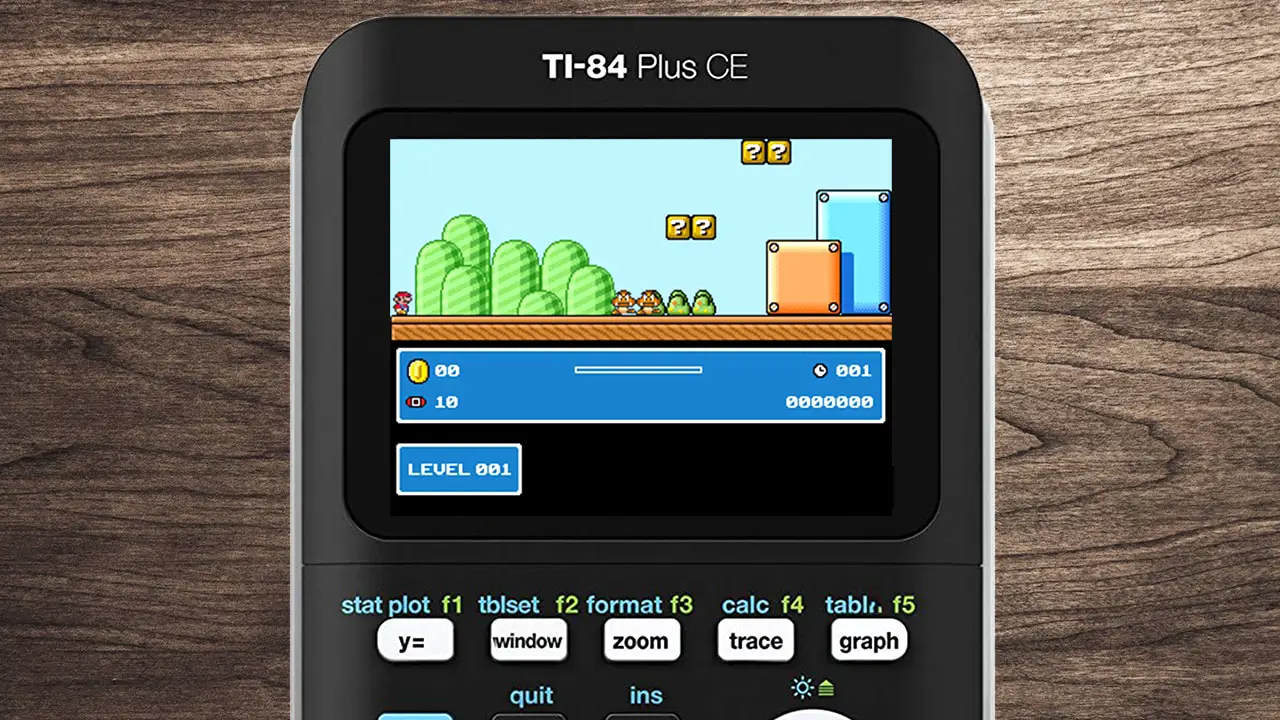
The TI-84 Plus CE graphing calculator has long been an indispensable tool for students and professionals alike, navigating the complex worlds of algebra, calculus, and statistics. Renowned for its robust functionality and user-friendly interface, it’s a staple in high school and college classrooms. However, beyond its academic prowess, many users discover a hidden dimension to their trusty device: the ability to run games. Far from being a mere distraction, turning your TI-84 Plus CE into a portable gaming console offers a fascinating glimpse into its programming capabilities and provides a well-deserved break from intense study sessions. This comprehensive guide will walk you through every step of installing games on your TI-84 Plus CE, transforming it from a purely academic instrument into a versatile entertainment hub.
The Allure of Gaming on Your Calculator
In an era dominated by high-definition graphics and immersive open-world experiences on smartphones and dedicated gaming consoles, the concept of playing games on a monochrome (or in the case of the CE, color-enabled) graphing calculator might seem quaint. Yet, there’s a unique charm and challenge to it. For many, it’s about reclaiming a device, pushing its boundaries beyond its intended educational purpose. It’s also a testament to the ingenuity of the calculator programming community, which has created a surprising array of engaging titles.
Why the TI-84 Plus CE?
The TI-84 Plus CE stands out from its predecessors and many competitors due to its color screen, faster processor, and increased memory. These enhancements make it particularly well-suited for running more sophisticated games, offering a vastly improved visual experience compared to older models. The CE’s vibrant display brings a new dimension to classic arcade-style games, puzzles, and even some surprisingly complex RPGs. Furthermore, its widespread adoption means there’s a large, active community dedicated to developing and sharing new programs and games, ensuring a steady stream of content for eager users. For students, having a familiar device that can seamlessly transition from solving equations to a quick game of Tetris during a study break is incredibly appealing and convenient.
What Kinds of Games Can You Play?
The world of TI-84 Plus CE games is surprisingly diverse. While you won’t find graphically intensive 3D adventures, the creativity within the community has led to hundreds of well-crafted titles.
You can expect to find:
- Arcade Classics: Remakes of beloved games like Tetris, Snake, Space Invaders, Pac-Man, and Frogger are hugely popular, offering nostalgic fun with simplified graphics.
- Puzzle Games: Logic puzzles, Sudoku, chess, and various memory games are common, leveraging the calculator’s grid-based display effectively.
- RPGs and Adventure Games: While text-heavy, some impressive role-playing games exist, offering intricate storylines, character progression, and turn-based combat, all within the calculator’s limitations.
- Platformers: Simple side-scrolling platformers, though basic, provide engaging challenges.
- Productivity Tools & Novelties: Beyond games, the community also creates useful utilities like unit converters, periodic tables, and even rudimentary drawing programs, showcasing the calculator’s versatility.
These games are typically small in file size, quick to load, and designed to be played in short bursts, making them perfect for those brief moments of downtime between classes or during study breaks.
Essential Preparations: Gathering Your Tools
Before you can dive into the exciting world of calculator gaming, a few essential items and software installations are required. Think of this as setting up your workstation – having everything in place ensures a smooth and frustration-free installation process.
Your Calculator and its OS
First and foremost, you’ll need your TI-84 Plus CE calculator. Ensure it’s fully charged to avoid any interruptions during the transfer process. It’s also crucial to check your calculator’s operating system (OS) version. Newer games and programs are often optimized for the latest OS, and an outdated OS might lead to compatibility issues or prevent games from running altogether.
To check your OS version:
- Press the
[2ND]key. - Then press
[MEM](above[+]). - Select option
1:About.
Your OS version will be displayed (e.g., 5.x.x). If your OS is outdated, you’ll want to update it. This process also uses TI-Connect CE, and you can usually find the latest OS file on the Texas Instruments website. Updating your OS is a good practice for general performance and security updates as well.
The Right Cable: Mini-USB to USB-A
To connect your calculator to your computer, you’ll need the correct USB cable. For the TI-84 Plus CE, this is a Mini-USB to USB-A cable. This is the same cable that typically comes with your calculator for charging and connecting to computers. Make sure you’re using the correct cable; a Micro-USB cable (common for older smartphones) will not fit, nor will a USB-C cable. A reliable, good-quality cable is important to ensure stable data transfer.
Your Computer and TI-Connect CE Software
You’ll need a personal computer (Windows PC or Mac) to act as the intermediary for transferring files. The most critical piece of software for this process is TI-Connect CE. This official software from Texas Instruments is specifically designed to facilitate communication between your computer and your TI-84 Plus CE calculator.
How to get TI-Connect CE:
- Go to the official Texas Instruments education website (education.ti.com).
- Navigate to the “Downloads” or “Software” section.
- Locate “TI Connect CE Software” and select the version compatible with your operating system (Windows or macOS).
- Download and install the software. Follow the on-screen instructions, accepting the terms and conditions.
TI-Connect CE is user-friendly and provides a graphical interface for managing your calculator’s files, updating its OS, and transferring programs, including games. Ensure you download it from the official source to avoid any security risks.
Sourcing Your Games
Now for the fun part: finding games! Several reputable websites serve as hubs for TI-84 Plus CE programs and games. It’s crucial to download games from trusted sources to avoid corrupted files or malicious code (though calculator viruses are rare, it’s always best to be safe).
Popular and reliable communities/websites include:
- TI-Planet: A major international hub with a vast collection of programs, tutorials, and forums.
- CalcGAMES: Dedicated specifically to calculator games, offering a wide selection and reviews.
- TI-Basic Developer (TBD): Another community-driven site with a focus on programming and sharing.
When browsing for games:
- Look for
.8xpor.8xgfiles: These are the common file extensions for executable programs and game files on the TI-84 Plus CE. - Read descriptions and reviews: This will give you an idea of the game’s quality, instructions, and any specific requirements.
- Start with popular, well-regarded titles: These are often the most stable and enjoyable.
- Download to a specific folder: Create a dedicated folder on your computer (e.g., “TI-84 Games”) to keep your downloaded
.8xpfiles organized. This will make them easy to find when you’re ready to transfer.
Downloading a variety of games – from simple puzzles to more complex adventures – will help you discover what you enjoy most on your calculator. Remember to respect copyright where applicable, though most calculator programs are freely distributed by hobbyist developers.
Step-by-Step Guide: Transferring Games to Your TI-84 Plus CE
With all your preparations complete, you’re ready to begin the actual transfer process. This section provides a detailed, step-by-step walkthrough to ensure your games land successfully on your calculator.
Connecting Your Calculator to Your Computer
The first physical step is establishing a connection between your calculator and your computer.
- Power On Your Calculator: Ensure your TI-84 Plus CE is turned on and fully charged.
- Connect the Cable:
- Plug the Mini-USB end of your cable into the Mini-USB port on the top edge of your calculator.
- Plug the standard USB-A end of the cable into an available USB port on your computer.
- Confirmation: Your computer should recognize the calculator. On a Windows PC, you might hear a chime or see a notification indicating a new USB device has been connected. On the calculator itself, you might see a “Receiving…” or “TI Connect CE” message appear briefly.
Launching TI-Connect CE and Navigating the Interface
Once connected, it’s time to fire up the transfer software.
- Launch TI-Connect CE: Open the TI-Connect CE application on your computer.
- Verify Connection: The software should automatically detect your connected calculator. In the TI-Connect CE interface, you’ll typically see an image of your calculator, along with its name and possibly its OS version, indicating a successful connection. If it doesn’t connect, try a different USB port, a different cable, or restart both the software and your calculator.
- Explore the Interface: TI-Connect CE has a straightforward layout. On the left sidebar, you’ll usually see options like “Calculator Explorer,” “Screenshot,” “Program Editor,” etc. For transferring files, “Calculator Explorer” is your primary tool. This view shows the files currently stored on your calculator.

Selecting and Sending Your Game Files
This is where you’ll choose the games you downloaded and initiate their transfer.
- Open Calculator Explorer: Click on “Calculator Explorer” in the TI-Connect CE sidebar. This will display a list of folders and files already on your calculator.
- Locate Your Game Files: On your computer, open the folder where you saved your downloaded
.8xpor.8xggame files (e.g., “TI-84 Games”). - Select Files to Transfer:
- You can drag and drop selected game files directly from your computer’s folder into the TI-Connect CE “Calculator Explorer” window.
- Alternatively, you can use the “Send to Calculator” button or menu option within TI-Connect CE (often represented by an arrow pointing to the calculator icon). This will open a file browser window, allowing you to navigate to your game files.
- Select one or multiple
.8xpor.8xgfiles.
- Initiate Transfer: Once you’ve selected your files, click “Send” or confirm the drag-and-drop action.
- Monitor Progress: TI-Connect CE will display a progress bar or status message indicating the transfer of files. On your calculator, you might see a “Receiving…” message again. This process is usually very quick for calculator game files, which are typically small.
- Important Note on Archiving: When transferring, TI-Connect CE might ask if you want to archive the program. Archiving (
Archivememory) saves the program in a protected area of memory, preventing it from being accidentally deleted and ensuring it persists even if the RAM is cleared. For games you want to keep, it’s generally a good idea to archive them. However, remember that archived programs cannot be directly edited, and there’s a limited amount of archive memory. Programs inRAMare faster to access and edit but are vulnerable to deletion if RAM is reset. For games, choose “Archive” unless you have specific reasons not to.
Verifying Successful Transfer
After the transfer completes, it’s a good practice to confirm that the games have indeed landed on your calculator.
- Check Calculator Explorer: In TI-Connect CE, the newly transferred files should now appear in the list of files under “Calculator Explorer.”
- Check on Calculator:
- On your TI-84 Plus CE, press the
[PRGM]key. - This will bring up a list of all programs currently stored on your calculator. Scroll through the list. You should see the names of the games you just transferred.
- If they are listed, the transfer was successful!
- On your TI-84 Plus CE, press the
If you don’t see the files, retrace your steps. Ensure the cable is secure, TI-Connect CE is connected, and you selected the correct file types. Sometimes, restarting TI-Connect CE and reconnecting the calculator can resolve minor glitches.
Playing and Managing Games on Your Calculator
Now that your games are installed, it’s time to enjoy them! This section will guide you on how to access, play, and manage your new calculator entertainment library.
Accessing Your Newly Installed Games
Playing a game on your TI-84 Plus CE is straightforward once it’s on the device.
- Open the Program Menu: Press the
[PRGM]key on your calculator. This opens the “EXEC” menu, listing all executable programs stored on your calculator. - Select Your Game: Use the arrow keys (
[UP],[DOWN]) to scroll through the list of programs until you find the name of the game you want to play. - Execute the Game: Press
[ENTER]once the game name is highlighted. The calculator will display the program’s name on the home screen, followed by a colon (e.g.,GAMENAME:). - Start Playing: Press
[ENTER]again to execute the program. The game should now load and begin.
Most games will have on-screen instructions or a title screen explaining the controls. Typically, the arrow keys are used for movement, and keys like [ENTER], [2ND], [ALPHA], or specific function keys ([F1], [F2], etc., if applicable) might serve as action buttons.
Tips for Optimal Gameplay
While calculator games are simpler, a few tips can enhance your experience:
- Read Instructions: Many games come with
.txtor.pdfinstruction files when you download them. It’s highly recommended to read these on your computer before playing, as calculator games often have unique control schemes. - Adjust Brightness/Contrast: The TI-84 Plus CE’s color screen benefits from proper brightness settings. Adjust it for clarity and comfort, especially in different lighting conditions.
- Battery Life: Games consume more power than standard calculations. Keep an eye on your battery indicator, especially during extended play sessions.
- Save Progress: If a game supports saving, make sure to utilize it. Calculator memory can be cleared, leading to lost progress if you don’t save.
- Exit Games Properly: To exit a game, most programs will have an exit option within the game itself. If not, pressing
[ON]can usually interrupt a running program. If it asks “Quit program?”, select1:Yes.
Managing Calculator Memory and Removing Games
Your TI-84 Plus CE has limited memory, so managing your installed games and programs is important, especially if you download many.
- Check Memory Usage:
- Press
[2ND]then[MEM](above[+]). - Select
2:Mem Management/Del.... - This menu shows you memory usage by category. Navigate to
7:Prgm(or6:App/Prgmon some OS versions) to see a list of your programs and games and how much memory each occupies.
- Press
- Delete Programs/Games:
- From the “Mem Management/Del” menu, select
7:Prgm. - Scroll to the program or game you wish to delete.
- Press
[DEL]. - The calculator will ask for confirmation (“Delete [Program Name]?”). Select
2:Yes. - Be cautious when deleting, as this action is irreversible.
- From the “Mem Management/Del” menu, select
- Archiving vs. RAM: Remember the distinction between
RAM(Random Access Memory) andArchivememory. Games stored inArchivememory are more secure and won’t be lost if your RAM is cleared (e.g., after a battery reset). However,Archivememory is slower to access and more limited. It’s generally best to keep frequently played games or larger programs inArchiveand smaller, less critical ones inRAMif you’re experimenting. TI-Connect CE defaults to archiving, which is usually the safer choice for games. - Backup Important Files: Before performing major memory cleanups or OS updates, consider backing up essential programs or notes to your computer using TI-Connect CE. This safeguards against accidental data loss.
Effective memory management ensures that your calculator runs smoothly and you always have space for new games or academic programs when needed.
Troubleshooting Common Issues
Even with careful preparation, you might encounter issues during the installation or gameplay process. Here are some common problems and their solutions.
Connection Problems
- Calculator Not Detected by TI-Connect CE:
- Check Cable: Ensure the Mini-USB cable is securely plugged into both the calculator and the computer. Try a different USB port on your computer, or even a different cable if you have one, to rule out hardware issues.
- Restart Software/Calculator: Close TI-Connect CE, unplug your calculator, restart your calculator, then replug and reopen TI-Connect CE.
- Driver Issues: On Windows, sometimes USB device drivers can become corrupted. Go to Device Manager, find the “Texas Instruments Calculator” (or similar) under USB devices, right-click, and choose “Uninstall device,” then replug the calculator to allow Windows to reinstall the drivers.
- Computer Restart: A classic solution, often effective for transient software glitches.
- “Error: USB Cable Not Found” or “No Calculator Connected”:
- This usually indicates a physical connection problem or a driver issue. Follow the steps above.
- Ensure your calculator is powered on.
Game File Errors
- “Error: Syntax” or “Error: Archiving” when running a game:
- Corrupted File: The downloaded game file (
.8xpor.8xg) might be corrupted. Try downloading it again from a different, reputable source. - Incorrect File Type: Ensure you’re downloading files specifically for the TI-84 Plus CE. Files for older models (like
.83por.8xpfor non-CE calculators) might not be compatible. - OS Compatibility: Some older games might not run perfectly on newer OS versions, or vice versa. Check if the game explicitly states OS requirements. Updating your OS is generally recommended for compatibility with newer games.
- Corrupted File: The downloaded game file (
- Game Freezes or Crashes:
- Resource Conflict: The game might be trying to use more memory or resources than available. Try clearing your RAM (though this will delete any un-archived programs and variables) by going to
[2ND][MEM],7:Reset,1:All RAM,2:Reset. Warning: This deletes ALL data in RAM. - Buggy Game: Some homebrew games might have bugs. Try a different game to see if the problem persists.
- Calculator OS Glitch: Occasionally, the calculator’s OS can run into issues. A full reset (again, be aware of data loss) might be necessary, or an OS reinstall.
- Resource Conflict: The game might be trying to use more memory or resources than available. Try clearing your RAM (though this will delete any un-archived programs and variables) by going to
“Out of Memory” Alerts
- Insufficient Available Memory: This is a common issue if you install many large programs or have a lot of variables stored.
- Delete Unused Programs/Games: Use the memory management tool (
[2ND][MEM],2:Mem Management/Del...,7:Prgm) to delete games you no longer play or programs you don’t need. - Clear Variables: Go to
[2ND][MEM],2:Mem Management/Del..., then select4:Realor5:Cplxto delete unused variables. Be careful not to delete important data. - Archive vs. RAM: If games are stored in RAM, consider moving less-played ones to Archive memory (or delete them if space is critical).
- Backup and Reset: As a last resort, back up all critical data to your computer using TI-Connect CE, then perform a full memory reset (
[2ND][MEM],7:Reset,1:All RAM,2:Reset).
- Delete Unused Programs/Games: Use the memory management tool (
Outdated TI-Connect CE or Calculator OS
- Software Mismatch: If you’re using an old version of TI-Connect CE with a new calculator OS, or vice versa, compatibility issues can arise.
- Update TI-Connect CE: Always ensure you have the latest version of TI-Connect CE installed from the official Texas Instruments website.
- Update Calculator OS: Similarly, check for the latest calculator OS (
[2ND][MEM],1:About) and update it if necessary. OS updates often include bug fixes and improved stability, which can resolve many underlying issues. The OS update process also uses TI-Connect CE and an OS file downloaded from TI’s website.
By systematically going through these troubleshooting steps, you should be able to resolve most issues that arise during your calculator gaming journey. The key is patience and methodical problem-solving.

Unleashing Your Calculator’s Entertainment Potential
The TI-84 Plus CE, while primarily designed as an educational tool, harbors a surprising capacity for entertainment. Installing games on your calculator is more than just a way to pass the time; it’s an exploration of its capabilities, a dive into a vibrant programming community, and a practical exercise in digital file management and troubleshooting. From classic arcade remakes to intricate puzzle games and even text-based RPGs, the world of calculator gaming offers a unique blend of nostalgia, challenge, and convenience.
By following the steps outlined in this guide – from gathering your essential tools and understanding the nuances of TI-Connect CE, to carefully transferring and managing your game files – you can confidently transform your academic workhorse into a personal handheld arcade. Remember to source your games from reputable websites, keep your software and calculator OS updated, and practice good memory management to ensure a smooth and enjoyable experience.
So, go ahead, give your brain a break from those complex equations. With a few simple steps, your TI-84 Plus CE is ready to deliver a different kind of challenge, proving that even the most serious tech can have a playful side. Happy gaming!
aViewFromTheCave is a participant in the Amazon Services LLC Associates Program, an affiliate advertising program designed to provide a means for sites to earn advertising fees by advertising and linking to Amazon.com. Amazon, the Amazon logo, AmazonSupply, and the AmazonSupply logo are trademarks of Amazon.com, Inc. or its affiliates. As an Amazon Associate we earn affiliate commissions from qualifying purchases.