
In the ever-evolving landscape of mobile technology, the Android operating system stands out for its flexibility and openness. While the Google Play Store serves as the primary gateway for millions of applications, there’s a powerful alternative that grants users even greater control: installing apps directly from APK files. An APK (Android Package Kit) file is essentially the program file for an Android application, akin to a .exe file on Windows. This guide will delve deep into the world of APK installation, exploring its benefits, inherent risks, step-by-step procedures, and crucial security considerations, empowering you to navigate this advanced feature with confidence and responsibility.

I. Understanding the Android Package Kit (APK): What and Why?
The journey into sideloading begins with a fundamental understanding of what an APK file is and why one might choose to install applications outside the conventional app store ecosystem. This section will demystify the APK format, highlight the compelling reasons for its use, and shine a light on the critical risks involved.
A. What Exactly is an APK File?
At its core, an APK file is the packaging format used by the Android operating system for the distribution and installation of mobile applications. Every app you download from the Google Play Store is first packaged into an APK file, which is then downloaded to your device and installed. These files contain all the elements an app needs to properly install on your device, including the program’s code, resources, assets, certificates, and manifest file. Think of it as a complete blueprint and construction kit for an Android application.
From a technological standpoint, the APK format is a variant of the JAR (Java Archive) format, which is based on the ZIP format. This structure allows developers to bundle all necessary components into a single, compressed file, making app distribution efficient. Understanding this technical aspect helps users appreciate the self-contained nature of an APK, which contributes both to its convenience and its potential security implications.
B. Why Sideload? The Advantages of Installing from APKs
The ability to install applications directly from APK files, often referred to as “sideloading,” opens up a realm of possibilities beyond what the Google Play Store offers. For many tech enthusiasts and power users, these advantages are compelling:
- Access to Region-Restricted Apps: Some applications are not available in all countries due to licensing agreements or regional market strategies. APKs offer a way to bypass these geographical restrictions and access content that might otherwise be unavailable to you. This can be particularly useful for global users interested in niche apps or specific services launched only in certain markets.
- Downloading Unlisted or Beta Apps: Developers sometimes release beta versions of their apps or experimental features to a select group of users via APKs before a public launch. Sideloading allows early access to these cutting-edge features, providing a peek into future developments. Similarly, some independent developers might choose not to list their apps on the Play Store, making APKs the only route to acquisition.
- Installing Older Versions of Apps: App updates often bring new features, but sometimes they remove beloved functionalities or introduce unwanted changes. With APKs, users can find and install older versions of applications, preserving the features or interfaces they prefer. This control over app versions is a significant productivity advantage for users reliant on specific app behaviors.
- Restoring Apps on Devices Without Google Play Services: Some Android devices, particularly those sold in certain regions or specialized hardware, may not come with Google Play Services pre-installed. APKs become the only viable method to install applications on such devices, making them functional and usable for a wider range of software.
- Bypassing App Store Restrictions (with caution): In some cases, app stores might have policies that prevent certain types of apps from being listed. Sideloading can be a way to install apps that fall into these categories, though users must exercise extreme caution to ensure such apps are legitimate and safe.
These advantages highlight how sideloading, while requiring a deeper technical understanding, empowers users with greater autonomy over their mobile experience.
C. Navigating the Risks: The Dark Side of Sideloading
While the benefits of APK installation are clear, it’s crucial to acknowledge the significant risks involved. The very openness that grants flexibility also creates vulnerabilities that malicious actors can exploit. Ignoring these risks can lead to severe consequences for your device, data, and even your financial security.
- Malware and Viruses: The most significant risk comes from downloading APKs from untrusted sources. These files can be tampered with to include malware, ransomware, spyware, or viruses. Once installed, these malicious applications can steal personal data, corrupt your device, display intrusive ads, or even lock you out of your phone until a ransom is paid. The immediate digital security threat is paramount.
- Security Vulnerabilities: Even if an APK isn’t overtly malicious, it might contain security flaws that could be exploited by other apps or attackers. Unlike apps from the Google Play Store, which undergo some level of vetting, sideloaded apps often bypass these checks.
- No Automatic Updates: Apps installed via APKs typically do not receive automatic updates from the Google Play Store. This means you’ll miss out on crucial security patches, bug fixes, and new features unless you manually seek out and install updated APKs. This manual process is cumbersome and significantly degrades the long-term digital security and productivity of the app.
- Compatibility Issues: Not all APKs are universally compatible with all Android devices or versions. Installing an incompatible APK can lead to app crashes, device instability, or simply a non-functional application, wasting your time and potentially impacting device performance.
- Illegal and Copyright Infringement: While not a direct security risk, obtaining paid apps for free via unofficial APKs is illegal and constitutes copyright infringement. Engaging in such practices not only harms developers but also often exposes you to risky sources more likely to distribute malware. From a brand perspective, associating your device with illicit software can have indirect negative consequences.
- Potential Financial Loss: As mentioned, malware can lead to financial theft (e.g., banking credentials), ransomware demands, or unauthorized premium SMS charges. The “money” aspect here is a direct threat that users must be acutely aware of.
Understanding these risks is not meant to deter you but to equip you with the knowledge to proceed with extreme caution and implement robust security practices.
II. Preparing Your Device: Essential Steps Before Installation
Before you can successfully install an APK file, your Android device requires a few crucial adjustments. These preparatory steps are vital not only for enabling the installation process but also for safeguarding your device against potential threats.
A. Enabling “Install Unknown Apps” or “Unknown Sources”
Android’s default security settings prevent the installation of applications from sources other than the Google Play Store. To sideload an APK, you must temporarily override this setting. The specific naming and location of this option can vary slightly depending on your Android version:
- Modern Android Versions (Android 8.0 Oreo and later):
- Go to your device’s Settings.
- Navigate to Apps & notifications (or just “Apps”).
- Tap on Special app access.
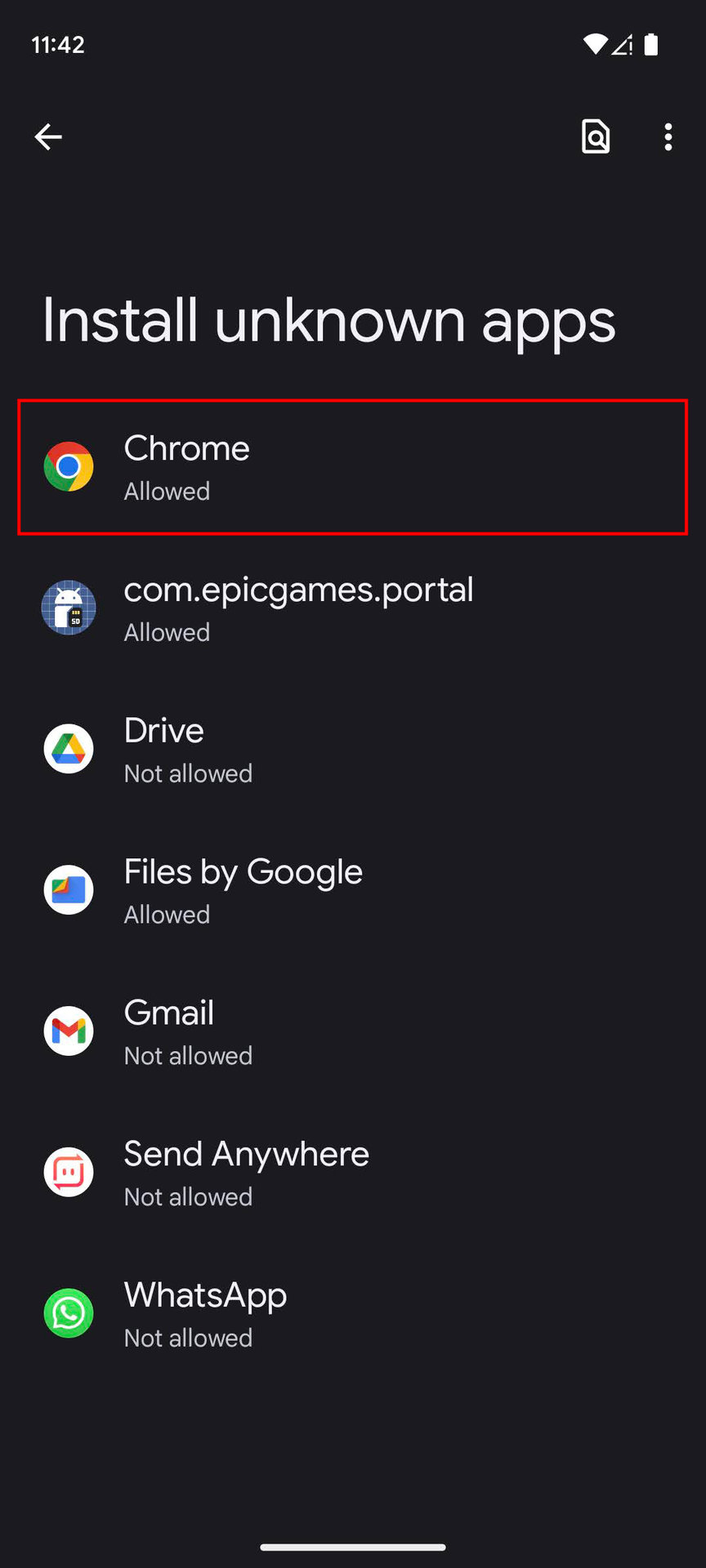
- Find and tap Install unknown apps.
- Here, you’ll see a list of apps (e.g., your web browser like Chrome, your file manager, or specific messaging apps). You must grant permission to the specific app that you will use to download or open the APK file. For instance, if you download the APK using Chrome, you’ll need to enable “Allow from this source” for Chrome.
- Older Android Versions (Android 7.0 Nougat and earlier):
- Go to your device’s Settings.
- Tap on Security (or sometimes “Lock screen & security”).
- Look for and enable the Unknown Sources checkbox. You will likely receive a warning message about the risks; acknowledge and proceed.
Critical Security Practice: It is highly recommended to disable this setting immediately after you have successfully installed your desired APK. Leaving it enabled indefinitely makes your device perpetually vulnerable to potentially malicious apps installing themselves without your explicit consent, which is a significant digital security oversight.
B. Choosing a Trustworthy Source for Your APK Files
The integrity of your device hinges on the trustworthiness of your APK source. This is perhaps the most critical decision in the entire sideloading process. Downloading from dubious websites is akin to inviting malware onto your phone. When considering third-party app stores or APK repositories, the brand reputation and community trust are paramount.
Here are some highly recommended and generally safe sources for APKs:
- APKMirror: Widely regarded as one of the safest sources. APKMirror verifies the cryptographic signatures of all APKs against official versions to ensure they haven’t been tampered with. They focus on legitimate, free apps and official updates, avoiding pirated or modified content. This adherence to official branding and verification makes it a top choice for tech-savvy users.
- Aptoide: An independent Android app store that offers a vast collection of apps, including those not available on the Play Store. Aptoide features a robust community and a system where users can “trust” stores, which helps in identifying reliable sources. While generally safe, always be mindful of which individual “stores” within Aptoide you’re downloading from.
- F-Droid: Specializes in Free and Open Source Software (FOSS) for Android. F-Droid guarantees that all apps within its repository are open-source, promoting transparency and community auditing. If you prioritize privacy and open-source principles, F-Droid is an excellent choice.
- Official Developer Websites: The safest source, if available, is always the original developer’s website. Many developers offer direct downloads of their APKs for beta testing or for users in regions where their app isn’t officially available. This directly leverages the brand trust of the developer.
Always verify the legitimacy of the source, and if possible, cross-reference information about the APK on forums or trusted tech news sites.
C. Essential Security Considerations Before Downloading
Beyond enabling “Unknown Sources” and choosing a reputable source, proactive security measures are crucial to mitigate risks and ensure a smooth, safe installation process.
- Antivirus/Anti-Malware Scan: Before installing an APK, especially if downloaded from a less-known source, it’s wise to scan the downloaded file with a reputable Android antivirus or anti-malware application. Many security apps offer real-time protection and file scanning capabilities. This adds an extra layer of digital security.
- Check App Permissions: During the installation process (or sometimes before if you use certain file managers), you will be prompted to review the permissions the app requests. Be extremely cautious if an app asks for permissions that seem unrelated to its core functionality (e.g., a simple calculator app asking for access to your contacts or camera). Overly broad permissions are a common red flag for malicious intent.
- Read Reviews and Community Feedback: If you’re considering an app from a less mainstream source, search for reviews or discussions about it on tech forums, Reddit, or review sites. Community feedback can often highlight potential issues or confirm the legitimacy of an app. This aligns with understanding the “brand” and reputation of an unknown app.
- Backup Important Data: Before experimenting with any new or potentially risky software, it’s always a good practice to back up your critical data. This ensures that in the unlikely event of data corruption or a device malfunction, your important information remains safe. This is a fundamental productivity and security practice.
By meticulously following these preparatory steps, you significantly reduce the chances of encountering issues and enhance the overall security posture of your Android device.
III. Step-by-Step Guide: How to Install an APK File on Android
Once your device is prepared and you’ve secured a trustworthy APK file, the installation process itself is straightforward. This section walks you through each step, ensuring you can confidently get your desired app up and running.
A. Downloading the APK File
The first step is to obtain the APK file itself. This typically involves using your device’s web browser or a dedicated third-party app store client.
-
Using a Web Browser:
- Open your preferred web browser (e.g., Chrome, Firefox) on your Android device.
- Navigate to the trusted website where you wish to download the APK (e.g., APKMirror.com).
- Locate the APK file you want to download. Ensure you select the correct version for your Android OS and device architecture (if multiple options are presented).
- Tap the download link. Your browser may prompt you with a warning, such as “This type of file can harm your device. Do you want to keep [filename].apk anyway?” This is a standard warning for any non-Play Store download; confirm by tapping “OK” or “Download” if you trust your source.
- The file will begin downloading to your device’s “Downloads” folder or a location specified in your browser settings. You can usually monitor the download progress in your notification shade.
-
Using a Third-Party App Store Client:
- If you’re using an alternative app store like Aptoide or F-Droid, you would first install their client app (often from their website via an APK itself, if not available on Play Store).
- Once the client app is installed, open it, search for your desired application, and tap “Install.” The client app will handle the download and initiate the installation process directly, leveraging the “Install unknown apps” permission you granted to it.
B. Locating and Launching the APK File

After the APK file has been downloaded, you need to find it on your device to initiate the installation.
-
Using a File Manager:
- Open your device’s file manager app (e.g., “Files,” “My Files,” “Google Files Go,” or a third-party file manager like “FX File Explorer”).
- Navigate to the “Downloads” folder, which is the default location for most downloaded files.
- Locate the
.apkfile you just downloaded. It will have the app’s name, often with a version number (e.g.,MyApp-v1.2.3.apk). - Tap on the APK file.
-
From Browser Notifications:
- After the download completes, most browsers will display a “Download complete” notification. Tapping this notification will usually open the APK file directly, bypassing the need to navigate through a file manager.
C. Completing the Installation Process
Once you tap the APK file, the Android system will guide you through the final steps:
- Permission Check: A screen will appear listing the permissions the app requires (e.g., access to storage, camera, contacts). Review these carefully. If they seem excessive or unrelated to the app’s function, consider canceling the installation and re-evaluating the app’s legitimacy. This is a critical security checkpoint.
- Confirmation to Install: After reviewing permissions, you’ll see an “Install” button at the bottom of the screen. Tap it to begin the installation.
- Installation Progress: The system will display a progress bar as the app installs. This usually takes only a few seconds.
- Installation Complete: Once finished, you’ll receive a notification stating “App installed.” You’ll then have two options:
- “Done”: This closes the installer, and you can find the new app icon in your app drawer.
- “Open”: This immediately launches the newly installed application.
Important Post-Installation Step: As reiterated earlier, it is crucial for your digital security to disable “Install unknown apps” for the source you used (your browser or file manager) immediately after successful installation. This minimizes your exposure to future unintended installations. Go back to Settings > Apps & notifications > Special app access > Install unknown apps and toggle off the permission for the specific app you previously enabled. This simple step significantly bolsters your device’s security against future threats and ensures responsible use of this advanced tech feature.
IV. Post-Installation and Advanced Considerations
Installing an APK is just the first step. To truly master the use of sideloaded apps and ensure long-term productivity and security, it’s essential to understand how to manage them, troubleshoot issues, and integrate them effectively into your digital workflow.
A. Managing APK-Installed Apps and Updates
Unlike Google Play Store apps that receive automatic updates, sideloaded apps require a more hands-on approach to management. This ties directly into the ‘Tech’ and ‘Productivity’ aspects of managing your digital tools.
- Manual Updates: To update an APK-installed app, you typically need to visit the original trusted source (e.g., APKMirror, F-Droid) where you downloaded it. Check for a newer version, download the updated APK, and install it following the same steps as the initial installation. The new APK will usually install over the old one, preserving your data (though backing up is always a good idea). This manual process underscores the importance of regularly checking for updates, especially for critical security patches.
- App Permissions Review: Even after installation, it’s wise to periodically review the permissions granted to all your apps, especially those sideloaded. Go to
Settings > Apps > [App Name] > Permissionsto manage individual permissions. Revoke any that seem unnecessary or intrusive. - Uninstalling Apps: If you need to remove an APK-installed app, the process is the same as for any other Android app:
- Long-press the app icon on your home screen or app drawer and drag it to “Uninstall.”
- Alternatively, go to
Settings > Apps > [App Name]and tap “Uninstall.”
Effective management ensures your apps remain secure, functional, and aligned with your personal digital security protocols.
B. Troubleshooting Common APK Installation Issues
While the process is generally smooth, you might occasionally encounter issues. Knowing how to troubleshoot them can save you time and frustration, maintaining your productivity.
- “App not installed” Error:
- Corrupted APK File: The downloaded file might be incomplete or corrupted. Try downloading it again from your trusted source.
- Insufficient Storage: Your device might not have enough free space. Clear some unnecessary files or apps.
- Incompatible Version: The APK might be built for a different Android version or device architecture (e.g., 32-bit vs. 64-bit). Ensure you’re downloading the correct version for your specific device.
- Conflicting App Signatures: If you’re trying to install an update or a different version of an app you already have, the signature of the new APK might not match the existing one. Uninstall the old version completely before attempting to install the new one.
- “Parsing error” or “There was a problem parsing the package”:
- This usually indicates that the APK file is corrupted, incomplete, or not fully compatible with your device’s Android version or hardware. Redownload the APK, ensuring it’s for your specific device and OS.
- Installation Stuck or Freezing:
- Clear Cache: Go to
Settings > Apps > [File Manager or Browser used to install] > Storage > Clear Cache. - Restart Device: A simple reboot can often resolve temporary system glitches.
- Disable Security Apps (Temporarily): Rarely, an overzealous antivirus app might interfere with the installation. Try temporarily disabling it, then re-enable immediately after installation.
- Clear Cache: Go to
- “Security Policy Prevents Installation”:
- This typically means you haven’t correctly enabled “Install unknown apps” for the specific source application. Revisit Section II.A and ensure the correct permissions are granted.
By addressing these common issues systematically, you can overcome most installation hurdles and quickly get back to using your apps.
C. Integrating APKs into Your Digital Productivity Workflow
For many tech-savvy users, APKs are more than just a workaround; they are a tool for enhancing productivity and customizing their Android experience.
- Access to Niche Tools: Some highly specialized tools or utilities, particularly open-source ones, might only be available as APKs. Integrating these into your workflow can significantly boost efficiency in specific tasks, from advanced file management to network diagnostics.
- Customization and Theming: Many custom launchers, icon packs, and system-level customization tools are often distributed as APKs, allowing users to deeply personalize their Android interface beyond what stock options provide. This ability to tailor the user experience is a key part of leveraging Android’s open nature for personal productivity and aesthetic preference.
- Beta Testing for Feedback: If you’re a developer or a keen enthusiast, installing beta APKs allows you to provide early feedback to developers, influencing the future direction of software. This collaborative aspect contributes to the broader tech ecosystem.
- Offline Access to Essential Apps: In situations with limited internet connectivity, having a library of trusted APKs for essential apps (e.g., a specific PDF viewer, a mapping app) can be invaluable for ensuring continuous productivity.
However, the key to successful integration is discipline in maintaining security and managing updates. Without a systematic approach, the benefits of flexibility can quickly be overshadowed by security vulnerabilities and outdated software.
V. Beyond Installation: Security, Brand, and Financial Implications
The act of installing an APK extends beyond a simple technical process; it touches upon critical aspects of digital security, brand reputation, and personal finance. Understanding these broader implications is vital for a holistic and responsible approach to mobile technology.
A. The Importance of Digital Security in the APK Ecosystem
Digital security is the cornerstone of safe APK installation. Every decision, from choosing a download source to reviewing permissions, has direct implications for your device’s integrity and your personal data.
- Proactive Threat Mitigation: Relying on strong antivirus software, regularly scanning your device, and keeping your Android OS updated are fundamental steps. These form a multi-layered defense against the evolving threats in the wild.
- Data Privacy: Malicious APKs are often designed to steal personal identifiable information (PII), banking credentials, or other sensitive data. Adhering to strict digital security practices, such as never downloading from untrusted sources and scrutinizing app permissions, is your best defense against data breaches and identity theft.
- System Integrity: An infected APK can compromise the entire operating system, leading to performance degradation, crashes, or even bricking the device. Ensuring the authenticity of APKs helps maintain the long-term health and functionality of your Android phone or tablet.
In the tech world, vigilance is not just recommended; it’s a necessity. The freedom offered by APKs comes with the responsibility of safeguarding your digital life.
B. Brand Reputation and Trust in Third-Party App Stores
The “Brand” aspect is highly relevant when discussing APKs. When you deviate from the Google Play Store, you are essentially placing your trust in alternative app distributors or individual developers.
- The Value of Verified Brands: Google Play Store benefits from the strong brand reputation of Google, offering a perceived (and often real) level of security and vetting. When you opt for a third-party APK source, you are substituting Google’s brand for theirs. Reputable sources like APKMirror have built their own brand of trust through consistent security practices and user verification.
- Developer Brand Integrity: For smaller developers, distributing directly via APK can be a way to establish their brand and reach users without the overhead of app store commissions. However, users must verify the developer’s reputation through community reviews and official channels to ensure they are trustworthy.
- Warning Signs of Untrustworthy Brands: Websites or app stores that promise “free paid apps” or offer vastly modified versions of popular software often operate outside ethical and legal boundaries. These are red flags for potential malware distribution, and their brand reputation (or lack thereof) should deter users from engaging.
Understanding the role of brand reputation – both of the source and the app developer – is crucial for making informed decisions that protect your digital assets.
C. Financial Risks and Benefits: A Balanced Perspective
The “Money” aspect is intrinsically linked to APK installation, presenting both potential financial benefits and considerable risks.
- Cost Savings (with major caveats): For users in regions where certain apps are paid or subscriptions are expensive, the allure of finding a free APK can be strong. However, obtaining paid apps for free via unofficial channels is illegal, unethical, and frequently results in downloading malware. The short-term “saving” can lead to significant financial loss through data theft, ransomware, or unexpected charges.
- Avoiding Geo-Restriction Fees: Some services might have different pricing tiers or availability based on region. Installing an APK for a service from a region with more favorable pricing, if legitimately allowed by the service provider, could represent a financial benefit. However, this must be done within legal and ethical boundaries.
- Impact of Malware on Finances: The financial risks associated with malware are substantial. They include:
- Theft of Banking Credentials: Malware can log your keystrokes or phish for your banking details, leading to direct financial theft.
- Ransomware: Your device or data could be locked, with a demand for payment (cryptocurrency often) to regain access.
- Premium SMS Scams: Malicious apps can subscribe you to expensive premium SMS services without your knowledge.
- Data Usage Charges: Malware running in the background can consume vast amounts of mobile data, leading to unexpected charges from your carrier.
- Cost of Device Repair/Replacement: In extreme cases, malware could render your device unusable, incurring repair or replacement costs.
Therefore, while the initial thought might be about saving money, the potential financial downsides of reckless APK installation far outweigh any perceived benefits. A responsible approach prioritizes security and legality over dubious cost savings.
Conclusion
Installing applications from APK files on Android devices offers unparalleled flexibility and access to a wider range of software, making it a powerful tool for the tech-savvy user. From accessing region-restricted content to leveraging older app versions, the advantages are clear. However, this power comes with significant responsibilities. By understanding what an APK is, meticulously preparing your device, sourcing files from reputable brands, and following a secure installation process, you can navigate the world of sideloading with confidence. Always prioritize digital security, be wary of unknown sources, and remember that the convenience of an APK should never come at the expense of your data, device integrity, or financial well-being. With this comprehensive guide, you are now equipped to master APK installation, transforming your Android device into an even more personalized and productive tool.
aViewFromTheCave is a participant in the Amazon Services LLC Associates Program, an affiliate advertising program designed to provide a means for sites to earn advertising fees by advertising and linking to Amazon.com. Amazon, the Amazon logo, AmazonSupply, and the AmazonSupply logo are trademarks of Amazon.com, Inc. or its affiliates. As an Amazon Associate we earn affiliate commissions from qualifying purchases.