
The landscape of mobile gaming underwent a seismic shift in August 2020 when Epic Games’ flagship title, Fortnite, was removed from the Apple App Store. For years, this created a technical vacuum for millions of iOS users who viewed their iPhones as their primary gaming devices. What began as a dispute over payment systems evolved into a landmark legal battle that redefined digital ecosystems and software distribution.
Today, the answer to “how to install Fortnite on iPhone” is no longer a simple click of a “Get” button. It involves navigating cloud computing infrastructures, understanding the nuances of regional software regulations, and utilizing third-party application marketplaces. This guide provides a deep dive into the technical methods currently available to bring Fortnite back to your iOS device, ensuring security and performance optimization.
The Legal and Technical Landscape of Fortnite on iOS
To understand the current installation methods, one must first grasp the technical barriers installed by Apple’s “walled garden” ecosystem. For nearly four years, the only way to run Fortnite on an iPhone was through complex workarounds or by having the app previously installed before the ban. However, recent shifts in global technology policy, specifically within the European Union, have fundamentally altered how software is distributed on iOS.
The App Store Ban and the Epic-Apple Dispute
The disappearance of Fortnite from the App Store was the result of Epic Games implementing a direct payment system that bypassed Apple’s 30% commission. Apple viewed this as a breach of the Developer Program License Agreement and subsequently terminated Epic’s developer account. From a technical standpoint, this meant that the app’s signing certificate was revoked for new users, making it impossible to download through official Apple channels. While the software remained on devices that already had it, updates—essential for a live-service game like Fortnite—were halted, rendering the legacy app eventually unplayable.
How the Digital Markets Act (DMA) Changed the Game
The most significant breakthrough in mobile software freedom came with the European Union’s Digital Markets Act (DMA). This regulation forced Apple to allow “sideloading” and third-party app stores on iOS within EU member states. For the first time, the technical restriction on software sources was lifted, allowing Epic Games to develop its own mobile marketplace. This shift represents a major trend in technology: the move toward open ecosystems and the reduction of monopolistic control over software distribution.
Method 1: Installing Fortnite via Alternative App Marketplaces (EU Only)
For users residing in the European Union, the process of installing Fortnite is now native, albeit through a non-Apple storefront. This method utilizes the new iOS frameworks that support alternative distribution.
Setting Up the Epic Games Store for iOS
Epic Games has launched its own dedicated store for iOS. To install Fortnite this way, users must navigate to the Epic Games website via Safari. Because Apple requires a multi-step “notarization” process for security, the installation involves several system prompts.
- Approval: You must go into your iPhone Settings to “Allow” the installation of marketplaces from Epic Games.
- Installation: Once approved, the Epic Games Store app is installed on your home screen.
- Deployment: Open the Epic Games Store, locate Fortnite, and tap “Install.”
This method is technically superior to others because the game runs natively on the iPhone’s hardware (A-series chips), utilizing the Metal graphics API for maximum performance and lowest latency.
Using AltStore PAL to Access Epic Content
Another technical avenue within the EU is AltStore PAL, an authorized third-party app marketplace. AltStore has long been a staple for power users and developers, but it now operates legally under the DMA. By subscribing to AltStore PAL, users can add the Epic Games “source” and download Fortnite. This method is particularly popular among tech enthusiasts who prefer a decentralized approach to app management and want to explore other homebrew or niche software alongside Fortnite.

Method 2: Cloud Gaming Solutions (Global)
For those outside the European Union, including users in the United States, Canada, and the UK, native installation remains restricted. However, cloud gaming technology has matured enough to provide a high-fidelity experience that bypasses the App Store entirely by running the game on remote servers and streaming the video feed to your iPhone.
Leveraging Xbox Cloud Gaming (Beta)
Microsoft’s Xbox Cloud Gaming (part of Xbox Game Pass, though Fortnite is free-to-play) is perhaps the most stable method for global users.
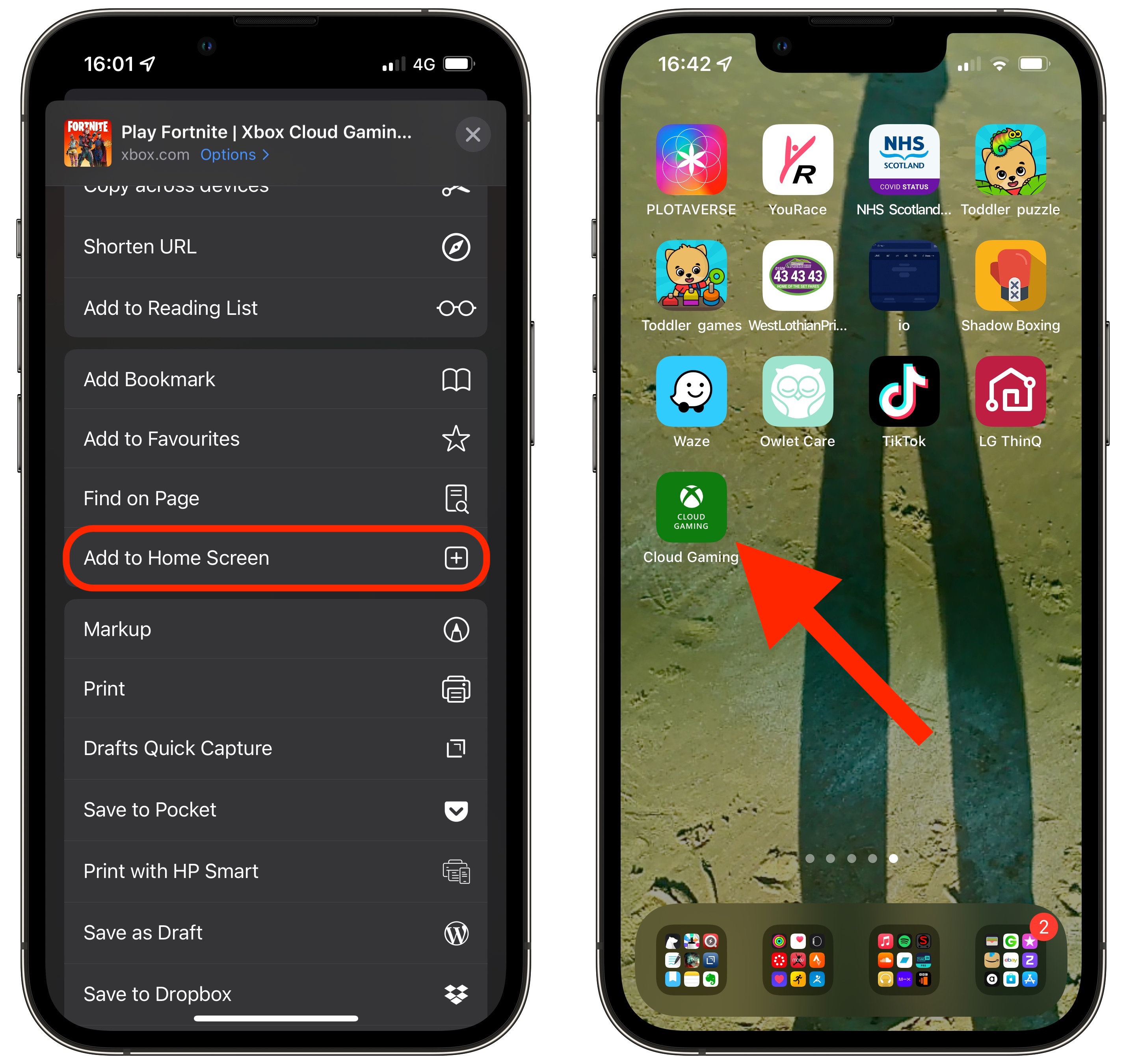
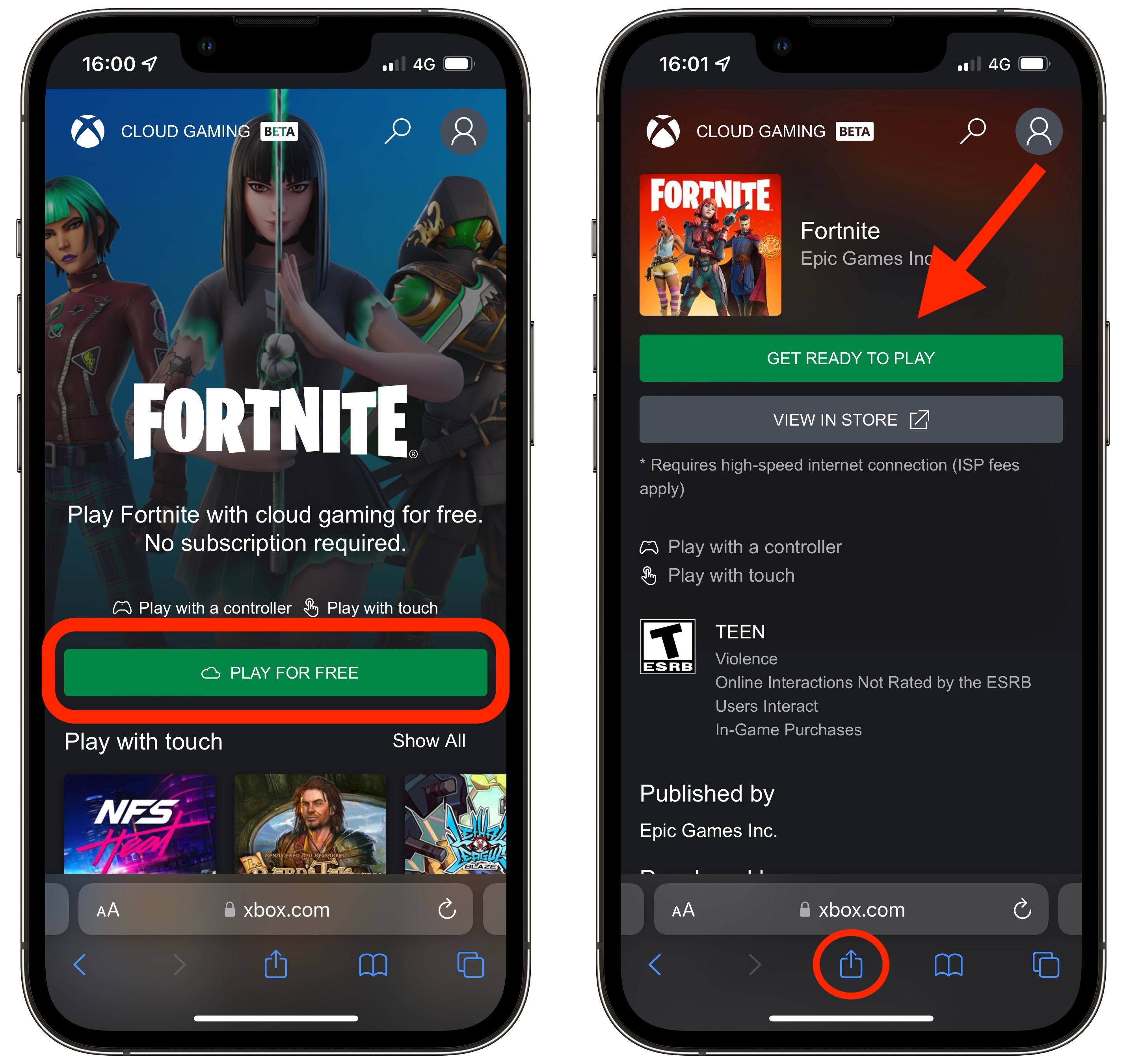
- The Technical Process: You do not download the game. Instead, you visit the Xbox Play website in Safari and “Add to Home Screen.” This creates a Progressive Web App (PWA).
- Functionality: When you launch the PWA, it initiates a low-latency stream from a custom-built Xbox Series X server blade.
- Hardware Integration: The PWA supports iOS-compatible controllers (like the Backbone One or PlayStation DualSense) and touch controls, providing a near-native feel despite the game technically running hundreds of miles away.
Streaming via NVIDIA GeForce NOW
For users who prioritize frame rates and graphical fidelity, NVIDIA GeForce NOW is the gold standard.
- The Tech: GeForce NOW utilizes NVIDIA’s RTX-powered servers. Like the Xbox method, this works through a Safari-based PWA to circumvent App Store restrictions.
- Performance: If you have a premium subscription, you can stream Fortnite at up to 120 FPS on supported iPhone models (those with ProMotion displays). This requires a robust internet connection, as the software must decode high-bitrate video streams in real-time while sending input data back to the server with minimal jitter.
Amazon Luna: A Third Cloud Alternative
Amazon Luna is another player in the cloud space, integrated deeply with the Amazon Prime ecosystem. Using the Luna web app on iOS, players can link their Epic Games account and stream Fortnite. This service uses a specialized “Luna Controller” that connects directly to the cloud via Wi-Fi (rather than Bluetooth to the phone) to shave precious milliseconds off input lag—a critical technical advantage for competitive gaming.
Optimizing Your Mobile Gaming Experience
Regardless of which method you choose, running a high-intensity title like Fortnite on a mobile device requires specific technical configurations to ensure stability and protect your hardware.
Hardware Requirements and Internet Stability
If you are using the native EU installation, your iPhone’s thermal management is the primary concern. Modern iPhones will throttle the CPU/GPU if they become too hot. Playing in a cool environment or removing bulky cases can maintain higher frame rates.
For cloud gaming users, the network is the most critical component.
- Frequency: Always use a 5GHz or 6GHz Wi-Fi band. The 2.4GHz band is too congested and lacks the bandwidth for smooth game streaming.
- Latency (Ping): A ping of under 30ms to the cloud server is ideal. Anything over 60ms will result in “input lag,” where your actions on the screen feel delayed.
- Data Usage: Be aware that cloud gaming is data-intensive, often consuming 2GB to 3GB per hour. Ensure you are not on a metered connection to avoid significant overage charges.
Digital Security and Avoiding Malicious APKs
In the pursuit of Fortnite, many users encounter websites promising “Fortnite iOS IPA downloads” or “hacked App Store installers.” From a digital security standpoint, these are incredibly dangerous.
- The Risk: Unlike the official Epic Games Store or verified cloud services, these third-party files often contain malware, spyware, or phishing scripts designed to steal Apple ID credentials.
- The Rule: Never “Jailbreak” your device or install unverified profiles to get Fortnite. The risk to your personal data and the integrity of the iOS sandbox is not worth the reward. Stick to the verified methods (DMA-authorized stores or established cloud providers like Microsoft, NVIDIA, and Amazon).
The Future of Mobile Software Distribution
The saga of Fortnite on iPhone is more than just a story about a game; it is a case study in the evolution of software distribution and the power of regulatory intervention in tech. As the DMA influence spreads beyond Europe, we may see more regions demanding the ability to install software from diverse sources.
Technologically, the success of cloud gaming workarounds has proven that the browser is becoming a powerful application platform in its own right, capable of bypassing the gatekeeping of OS manufacturers. Whether through the direct installation allowed in the EU or the sophisticated streaming technologies used globally, the return of Fortnite to the iPhone marks a new era of user agency in the digital age. By following these professional technical steps, players can once again drop into the Island, regardless of the political or legal battles happening behind the scenes.
aViewFromTheCave is a participant in the Amazon Services LLC Associates Program, an affiliate advertising program designed to provide a means for sites to earn advertising fees by advertising and linking to Amazon.com. Amazon, the Amazon logo, AmazonSupply, and the AmazonSupply logo are trademarks of Amazon.com, Inc. or its affiliates. As an Amazon Associate we earn affiliate commissions from qualifying purchases.