
In an era where streaming dominates the entertainment landscape, devices like the Amazon Firestick have become indispensable tools for accessing a vast array of content. While the Firestick offers a robust selection of apps through its official Appstore, many users seek to expand their horizons even further by installing third-party applications, often referred to as sideloading. One such application gaining traction among cinephiles and TV show enthusiasts is Flix Vision. This guide will walk you through the comprehensive process of installing Flix Vision on your Firestick, transforming your device into a powerful gateway to an extended universe of entertainment.
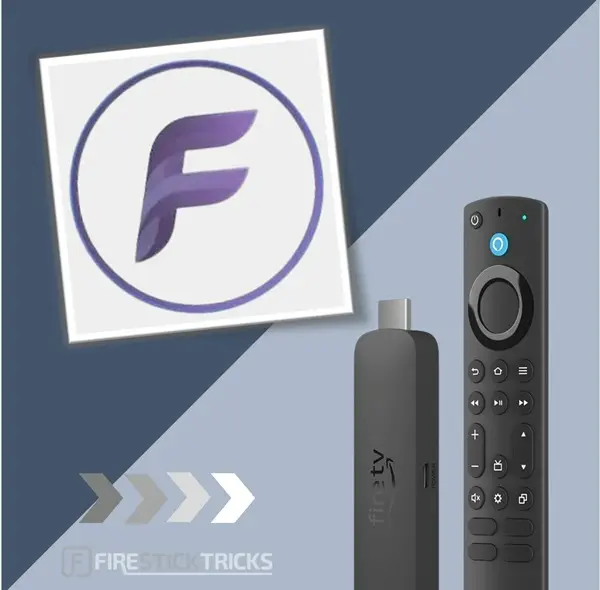
Flix Vision, like many similar applications, promises a treasure trove of movies, TV series, and other multimedia content, often aggregating links from various sources across the internet. Its appeal lies in its potential to offer a diverse content library that might not be readily available on mainstream streaming platforms, all accessible from the convenience of your living room. However, installing such applications requires a few preliminary steps and a good understanding of your Firestick’s capabilities, as it involves venturing beyond the official app ecosystem.
This tutorial is designed to be your comprehensive companion, covering everything from the initial setup of your Firestick to the final launch of Flix Vision. We’ll delve into the necessary security precautions, optimize your device for performance, and address common troubleshooting scenarios to ensure a smooth and enjoyable streaming experience. By the end of this guide, you’ll not only have Flix Vision running on your Firestick but also a deeper understanding of sideloading best practices, empowering you to explore the full potential of your streaming device.
Understanding Flix Vision and Why Firestick is Its Perfect Companion
Before diving into the technicalities of installation, it’s crucial to understand what Flix Vision offers and why the Amazon Firestick is an ideal platform for this particular application. This context will not only clarify the benefits but also underscore the importance of each step in the installation process.
What is Flix Vision? Exploring Its Features and Appeal
Flix Vision typically functions as a content aggregator, a type of application designed to scour the internet for streaming links to movies, TV shows, and sometimes live TV channels. Unlike subscription-based services like Netflix or Hulu, these applications often provide access to a broader, and sometimes more current, selection of content without a monthly fee. This “free-to-access” model is a significant draw for many users looking to supplement their existing streaming subscriptions or explore alternative entertainment options.
Key features often found in applications like Flix Vision include:
- Extensive Content Library: A vast collection of movies and TV series, ranging from classic blockbusters to the latest releases.
- Categorization and Search: Content is usually well-organized by genre, year, popularity, and includes a robust search function to help users find specific titles quickly.
- User-Friendly Interface: While not always as polished as commercial apps, most aggregators strive for an intuitive interface that makes navigation straightforward, especially with a Firestick remote.
- Multiple Link Sources: Flix Vision often presents multiple streaming links for a single title, allowing users to choose the best quality or most reliable source.
- Subtitle Support: Essential for non-native speakers or those with hearing impairments, subtitle options are usually integrated.
The appeal of Flix Vision primarily stems from its promise of a rich, diverse, and often free entertainment experience. For cord-cutters or those seeking to reduce their monthly entertainment expenses, it represents an attractive alternative or addition to their streaming repertoire.
The Synergy: Why Firestick Enhances Your Flix Vision Experience
The Amazon Firestick, a compact HDMI dongle, has become one of the most popular streaming devices globally, and for good reason. Its Android-based operating system (Fire OS), ease of use, affordable price point, and integration with Amazon’s ecosystem make it a powerful contender. When paired with an application like Flix Vision, the Firestick truly shines:
- Dedicated Streaming Device: The Firestick is purpose-built for streaming, ensuring optimal performance and a smooth user experience that might not be possible on a phone or tablet casting to a TV.
- Remote Control Integration: Navigating Flix Vision with the Firestick’s remote control is far more comfortable and intuitive than using a touchscreen or keyboard, providing a traditional TV viewing experience.
- TV Optimization: Applications installed on Firestick are designed for large screens, offering a visually engaging interface that looks great on your HDTV.
- Portability: The Firestick’s small form factor means you can take your entire Flix Vision library with you, plugging it into any compatible TV with an HDMI port – perfect for travel or moving between rooms.
- Sideloading Capability: Crucially, the Firestick’s open nature, rooted in Android, allows users to sideload applications (install apps from outside the official Appstore). This flexibility is paramount for installing apps like Flix Vision.
Together, Flix Vision and the Firestick create a powerful combination, offering an expansive entertainment library within a convenient, user-friendly, and TV-optimized environment.
Essential Preparations: Configuring Your Firestick for Third-Party Apps
Installing Flix Vision requires a few critical preparatory steps on your Firestick. These steps are necessary to enable the device to download and install applications from sources other than Amazon’s official Appstore, a process commonly known as “sideloading.”
Step 1: Enabling “Apps from Unknown Sources”
The most fundamental step in sideloading any application onto your Firestick is to enable the “Apps from Unknown Sources” setting. By default, this option is disabled for security reasons, preventing unauthorized or potentially malicious applications from being installed without your explicit permission.
Here’s how to enable it:
- Navigate to Firestick Settings: From your Firestick’s home screen, go to the top menu bar and select the “Settings” icon (it looks like a gear).
- Access “My Fire TV”: Scroll right and select “My Fire TV” (or “Device & Software” on older Fire OS versions).
- Go to “Developer Options”: Within “My Fire TV,” select “Developer Options.”
- Note: If you don’t see “Developer Options,” you’ll need to enable it first. Go to “About” -> “Fire TV Stick” (or whatever your device model is) and click the select button on your remote seven times rapidly. A message will appear saying “You are now a developer!” Then, go back to “My Fire TV,” and “Developer Options” will now be visible.
- Enable “Apps from Unknown Sources”: Inside “Developer Options,” you’ll find “Apps from Unknown Sources.” Toggle this setting to “ON.”
- Confirm the Warning: A warning message will pop up, explaining the potential risks of installing apps from unknown sources. Read it carefully and then select “Turn On.” It’s essential to understand that by enabling this, you are taking responsibility for the applications you choose to install. Only download APKs from trusted sources.
Step 2: Installing the Downloader App
With “Apps from Unknown Sources” enabled, your Firestick is now ready to install external applications. However, you still need a way to download the Flix Vision APK (Android Package Kit) file onto your device. Since Firestick doesn’t come with a standard web browser that allows direct file downloads, a dedicated application called “Downloader” is essential. Downloader acts as both a web browser and a file manager, specifically designed for sideloading on Firestick devices.
Follow these steps to install the Downloader app:
- Return to Firestick Home Screen: Press the Home button on your remote.
- Access Search Function: Go to the “Find” tab in the main navigation menu and select “Search.”
- Search for “Downloader”: Type “Downloader” using the on-screen keyboard. As you type, suggestions will appear. Select “Downloader” from the list.
- Select the Downloader App: You’ll see the Downloader app icon (usually an orange icon with a download arrow) in the search results. Select it.
- Download and Install: Click the “Download” or “Get” button. The app will download and then automatically install.
- Open Downloader: Once installed, you can either select “Open” directly or find it later in your “Apps & Games” library.
- Grant Permissions: The first time you open Downloader, it will ask for permission to access photos, media, and files on your device. Select “Allow” for it to function correctly.
- Dismiss Quick Start Guide: A quick start guide might pop up. You can read it or simply select “OK” to dismiss it.
Optional: Preparing for Optimal Performance and Security
While not strictly required for installation, taking these optional steps can significantly enhance your streaming experience and bolster your digital security.
- Clear Cache and Data: Periodically clearing the cache and data of your Firestick apps can free up space and improve performance. Go to Settings > Applications > Manage Installed Applications, select an app, and choose “Clear Cache” and “Clear Data.”
- Check Storage Space: Ensure you have enough free storage on your Firestick for the Flix Vision app and any temporary download files. You can check this under Settings > My Fire TV > About > Storage.
- Consider a Virtual Private Network (VPN): A VPN is highly recommended, especially when streaming content from third-party sources. It encrypts your internet connection, hides your IP address, and can bypass geo-restrictions, enhancing your privacy and security. We’ll delve deeper into VPN benefits later.
With these preparations complete, your Firestick is now fully equipped to download and install Flix Vision.

Step-by-Step Guide: Installing Flix Vision APK on Your Firestick
Now that your Firestick is configured and the Downloader app is ready, we can proceed with the core process of installing Flix Vision. This involves finding the correct APK file, downloading it, and then initiating the installation.
Navigating Downloader and Entering the URL
The Downloader app is your gateway to installing third-party applications. It allows you to enter URLs (web addresses) directly to download APK files.
- Launch the Downloader App: From your Firestick’s home screen, navigate to “Apps & Games” and open the Downloader app.
- Access the URL Field: By default, Downloader opens to the “Home” tab, which presents a URL input field.
- Enter the Flix Vision APK URL: This is the most critical step. You’ll need to find a reliable source for the Flix Vision APK. For the purpose of this guide, let’s assume a hypothetical URL (you would replace this with an actual, verified URL for Flix Vision):
https://www.example.com/flixvision.apk- Important Note: Always exercise caution when downloading APKs from third-party websites. Stick to reputable sources to minimize security risks. A quick web search for “Flix Vision APK download” might reveal several options, but prioritize tech blogs or trusted APK repositories.
- Confirm the URL: Double-check the URL for any typos. Even a small mistake can lead to a failed download or the download of an incorrect file.
- Click “Go”: Once the URL is accurately entered, click the “Go” button (or the large ‘Go’ button on the Downloader interface).
Downloading and Executing the Installation File
After entering the URL, Downloader will initiate the download process.
- Monitor the Download: Downloader will connect to the specified URL and begin downloading the Flix Vision APK file. A progress bar will indicate the download status. The download time will vary depending on your internet speed and the size of the APK.
- Automatic Installation Prompt: Once the download is complete, Downloader will automatically prompt you to install the application. A window will appear with the Flix Vision icon and the “Install” button.
- Initiate Installation: Select the “Install” button. Your Firestick will then begin the installation process.
- “App Installed” Confirmation: After a brief moment, you’ll see a message confirming “App installed.” This indicates that Flix Vision has been successfully installed on your Firestick.
Post-Installation Cleanup and First Launch
With the installation complete, there are a couple of recommended steps to take before launching Flix Vision for the first time.
- Delete the APK File: After the “App installed” message, you’ll be given two options: “Done” or “Open.” It’s highly recommended to select “Done” first. This will return you to the Downloader interface, where you’ll be prompted to delete the APK file. Select “Delete.”
- Why delete? The APK file is essentially the installer package. Once the app is installed, this file is no longer needed and merely occupies valuable storage space on your Firestick. Deleting it helps keep your device tidy and prevents unnecessary clutter. Confirm the deletion when prompted.
- Locate and Launch Flix Vision:
- Go back to your Firestick’s home screen.
- Flix Vision might not immediately appear on the main app row. To find it, navigate to your “Apps & Games” library. You can do this by holding down the Home button on your remote for a few seconds and selecting “Apps,” or by navigating to the “Apps” icon on your home screen.
- Scroll down until you find the Flix Vision icon. It will likely be at the very bottom of your installed apps list.
- Select the Flix Vision icon to launch the application for the first time.
- Initial Setup (if any): Upon its first launch, Flix Vision might require some initial setup, such as granting permissions, updating its internal database, or logging in if it offers that feature. Follow any on-screen instructions.
Congratulations! You have successfully installed Flix Vision on your Amazon Firestick. You are now ready to explore its content library.
Optimizing Your Flix Vision Experience and Addressing Common Issues
Installing Flix Vision is just the first step. To truly enjoy an uninterrupted and secure streaming experience, it’s crucial to understand how to optimize its performance and troubleshoot any problems that may arise. Furthermore, being aware of the broader implications of using third-party streaming apps is paramount for digital security and responsible usage.
Enhancing Privacy and Security with a VPN
Using a Virtual Private Network (VPN) is not just an optional accessory; it’s a vital component for anyone using third-party streaming applications like Flix Vision. Given that these apps often source content from various, sometimes unofficial, corners of the internet, your online activities can become vulnerable.
Here’s why a VPN is crucial:
- Protecting Your Privacy: When you stream content, your Internet Service Provider (ISP) can see your online activity. If you’re accessing content that might be copyrighted or from dubious sources, your ISP could potentially throttle your connection, send warnings, or even report activity. A VPN encrypts your internet traffic, making it unreadable to your ISP and other third parties, thus protecting your privacy.
- Bypassing Geo-Restrictions: Many streaming services, and even certain content within aggregators, are geographically restricted. A VPN allows you to virtually change your location by connecting to a server in a different country, effectively bypassing these restrictions and unlocking a wider range of content.
- Preventing ISP Throttling: Some ISPs might intentionally slow down (throttle) your internet speed when they detect high-bandwidth activities like streaming, especially from unapproved sources. By encrypting your traffic, a VPN makes it difficult for your ISP to identify and throttle your streaming activity, potentially leading to smoother playback.
- Digital Security: While a VPN doesn’t protect you from malicious APKs themselves, it adds a layer of security by protecting your data from interception on unsecured networks and enhancing your overall anonymity online.
How to get a VPN on Firestick:
Most reputable VPN providers offer dedicated apps for Firestick. You can typically find them in the Amazon Appstore. Once installed, log in with your subscription details, connect to a server of your choice, and then launch Flix Vision.
Troubleshooting Flix Vision Installation and Performance
Even with careful preparation, you might encounter issues. Here are common problems and their solutions:
- “App Not Installed” Error:
- Cause: This usually means the APK file is corrupted, incomplete, or incompatible with your Firestick’s operating system. It can also occur if there’s insufficient storage space.
- Solution:
- Ensure you have enough free space (delete old apps, clear cache).
- Try downloading the APK again from a different, reputable source. The link you used might be broken or outdated.
- Restart your Firestick (Settings > My Fire TV > Restart).
- “Parsing Error” / “There was a problem parsing the package”:
- Cause: Similar to “App Not Installed,” this often points to a corrupted or incomplete APK, or one designed for a different Android version.
- Solution: Redownload the APK from a trusted source, ensuring it’s specifically for Android TV or Fire OS compatible devices.
- Buffering Issues:
- Cause: Slow internet connection, congested network, server issues with the streaming source, or insufficient Firestick resources.
- Solution:
- Check your internet speed (you can download a speed test app on Firestick).
- Move your Firestick closer to your Wi-Fi router or consider a wired Ethernet adapter.
- Close other background apps on your Firestick.
- Clear the cache of Flix Vision (Settings > Applications > Manage Installed Applications > Flix Vision > Clear Cache).
- Within Flix Vision, try selecting a different streaming link for the content, as some sources are more stable than others.
- If using a VPN, try connecting to a different server location.
- App Crashing or Freezing:
- Cause: Software bug, low memory, or incompatible update.
- Solution:
- Force stop Flix Vision (Settings > Applications > Manage Installed Applications > Flix Vision > Force Stop). Then relaunch.
- Clear Flix Vision’s cache and data (note: clearing data will log you out and reset settings).
- Check for updates to Flix Vision (some apps have an internal update mechanism; otherwise, you might need to reinstall a newer APK).
- Restart your Firestick.
- Flix Vision Not Showing Content:
- Cause: Internet connection issue, server problems with the app’s content sources, or the app needs an update.
- Solution:
- Verify your internet connection.
- Try again later, as server issues can be temporary.
- Check if there’s a newer version of Flix Vision available.
Navigating the Legal and Ethical Landscape of Third-Party Streaming
It’s important to approach third-party streaming applications with an understanding of the legal and ethical considerations. While the act of installing an APK is generally legal, the content you access through it might not always be.
- Copyright Infringement: Many third-party apps provide access to copyrighted content without proper licensing. Streaming such content can constitute copyright infringement, varying in legal consequences by jurisdiction.
- Source Reliability: The sources aggregated by Flix Vision can vary wildly in reliability and legality. Some might be legitimate public domain or open-source content, while others might be unauthorized reproductions.
- User Responsibility: Ultimately, it is the user’s responsibility to understand and comply with the laws in their region regarding content consumption. This is another reason why a VPN is recommended, as it adds a layer of privacy by masking your online activity.
- Security Risks: Unofficial apps from unknown sources can sometimes contain malware or expose your device to vulnerabilities. Always ensure you download APKs from trusted, well-vetted sources.
By being mindful of these considerations, you can use Flix Vision and other third-party apps more responsibly and with greater awareness of potential risks.
Conclusion: Unlocking a New Dimension of Entertainment
The journey of installing Flix Vision on your Amazon Firestick is more than just a technical procedure; it’s about unlocking a new dimension of entertainment possibilities. By following this detailed guide, you’ve successfully navigated the process of configuring your Firestick for sideloading, installed the essential Downloader app, and brought Flix Vision to life on your big screen. This newfound capability empowers you to explore a diverse array of movies and TV shows, expanding beyond the confines of official app stores and traditional streaming subscriptions.
We’ve covered the crucial steps, from enabling “Apps from Unknown Sources” and utilizing the Downloader app to the actual installation of the Flix Vision APK. More importantly, we’ve emphasized the significance of optimizing your experience through the use of a VPN for enhanced privacy and security, and equipped you with the knowledge to troubleshoot common issues like buffering or installation errors. Understanding the legal and ethical aspects of third-party streaming ensures you approach this expanded content library responsibly and with due diligence.
The Amazon Firestick, with its robust operating system and user-friendly interface, proves to be an ideal partner for applications like Flix Vision, transforming your television into a powerful media hub. You now possess the skills to not only enjoy Flix Vision but also to confidently explore other third-party applications, further customizing your streaming experience. Dive into the world of Flix Vision, discover new favorites, and enjoy the wealth of content at your fingertips, all while maintaining a secure and optimized streaming environment. Happy streaming!
aViewFromTheCave is a participant in the Amazon Services LLC Associates Program, an affiliate advertising program designed to provide a means for sites to earn advertising fees by advertising and linking to Amazon.com. Amazon, the Amazon logo, AmazonSupply, and the AmazonSupply logo are trademarks of Amazon.com, Inc. or its affiliates. As an Amazon Associate we earn affiliate commissions from qualifying purchases.