
In today’s digitally driven world, the ability to manipulate and convert multimedia files is an increasingly valuable skill. Whether you’re a content creator, a video editor, a developer working with media, or simply someone who needs to change the format of a video or audio file, you’ve likely encountered the need for a powerful and versatile tool. Enter FFmpeg – a free and open-source project that forms the backbone of many multimedia applications. It’s a command-line utility capable of handling a vast array of audio and video codecs, formats, and protocols, making it an indispensable tool for professionals and hobbyists alike.

While FFmpeg is incredibly powerful, its command-line nature can initially seem daunting, especially for Windows users accustomed to graphical interfaces. However, the process of installing and getting FFmpeg up and running on your Windows machine is far more straightforward than you might imagine. This guide will walk you through each step, demystifying the installation and configuration process so you can start leveraging FFmpeg’s capabilities for your projects.
We’ll cover everything from understanding what FFmpeg is and why you might need it, to downloading the correct version, setting up environment variables, and finally, testing your installation. By the end of this tutorial, you’ll be equipped to confidently use FFmpeg on your Windows system, opening up a world of possibilities for multimedia management.
Understanding FFmpeg and Its Importance
Before we dive into the installation process, it’s crucial to understand what FFmpeg is and why it’s such a vital tool in the tech landscape.
What is FFmpeg?
FFmpeg is a comprehensive, cross-platform solution for handling multimedia data. At its core, it’s a collection of libraries and programs designed for processing audio and video. This includes:
- Decoding and Encoding: Converting media files from one format to another (e.g., MP4 to AVI, MP3 to AAC).
- Transcoding: Changing the codec, bitrate, resolution, or frame rate of media files.
- Muxing and Demuxing: Combining multiple audio, video, and subtitle streams into a single container file (muxing), or separating them (demuxing).
- Streaming: Facilitating the transmission of multimedia content over networks.
- Filtering: Applying various effects and transformations to audio and video streams, such as resizing, cropping, adding watermarks, or adjusting audio levels.
The “ffmpeg” executable is the primary command-line tool, but the FFmpeg project also includes other essential utilities like ffplay (a simple media player) and ffprobe (a tool for analyzing media files).
Why You Might Need FFmpeg
The applications of FFmpeg are vast and touch upon many areas within the tech and creative industries. Here are a few common scenarios where FFmpeg becomes indispensable:
- Content Creators & Video Editors: For converting raw footage to formats suitable for editing software, creating social media-ready videos with specific aspect ratios and codecs, or batch processing large volumes of media.
- Developers: For integrating multimedia processing capabilities into applications, automating video encoding for web platforms, or building custom media workflows.
- Web Developers: To prepare videos for web streaming, ensuring compatibility across different browsers and devices.
- System Administrators: For managing media server content, performing bulk conversions, or archiving video files.
- Anyone Needing Format Conversion: If you’ve ever received a video file that won’t play on your device or in your software, FFmpeg is often the quickest and most efficient solution to convert it to a compatible format.
Its open-source nature means it’s constantly being updated and improved by a global community, ensuring it stays at the forefront of multimedia technology. While other GUI-based tools exist, FFmpeg offers unparalleled flexibility, speed, and control, especially when dealing with complex or automated tasks.
Installing FFmpeg on Windows
The installation of FFmpeg on Windows primarily involves downloading the appropriate build and then configuring your system’s environment variables so that the command-line executable can be found and run from any directory.
Downloading the FFmpeg Build
Unlike many Windows applications that come with a standard installer, FFmpeg is distributed as pre-compiled binaries. This means you download a ZIP archive containing the executable files and supporting libraries.
Step 1: Visit the Official FFmpeg Website
Navigate to the official FFmpeg download page. You can usually find this by searching for “FFmpeg download” or directly visiting ffmpeg.org.
Step 2: Select the Windows Build
On the download page, look for the section dedicated to Windows. You will typically find links to builds provided by third-party distributors. Common and recommended options include:
- For Windows 64-bit: You’ll often see links labeled “Windows 64-bit builds” or similar.
- Build Types: You might encounter different build types. For general use, a “release” build is usually sufficient. Sometimes, you’ll see options like “essentials,” “full,” or builds with specific features enabled. For most users, the standard release build is the best starting point.
Important Note on Build Providers: FFmpeg itself doesn’t directly provide Windows installers. Instead, it relies on community members or organizations to compile and distribute builds. Reputable sources include gyan.dev or BtbN (often linked from the official FFmpeg site).
Step 3: Download the ZIP File
Click on the download link for your preferred build (e.g., the latest stable release for 64-bit Windows). This will download a ZIP file. Do not extract it to a temporary location.
Step 4: Choose an Installation Directory
You need to decide where to permanently store the FFmpeg files. It’s best to choose a stable location that you won’t accidentally delete. Common choices include:
C:Program Files(though this can sometimes lead to permission issues if not handled carefully).- A dedicated directory like
C:ffmpegorD:toolsffmpeg.
For this guide, let’s assume you’ll create a folder named ffmpeg directly on your C: drive, so the full path will be C:ffmpeg.
Step 5: Extract FFmpeg to the Chosen Directory
-
Locate the downloaded ZIP file.
-
Right-click on the ZIP file and select “Extract All…” or use your preferred archiving software (like 7-Zip or WinRAR).
-
In the extraction dialog, specify the chosen installation directory (e.g.,
C:ffmpeg). -
Ensure that the extraction process places the
binfolder (containingffmpeg.exe,ffplay.exe, andffprobe.exe) directly inside your chosen directory. For example, if you extracted toC:ffmpeg, you should end up with a structure likeC:ffmpegffmpeg-VERSION-win64-staticbin.Self-Correction/Refinement: It’s common for the extracted folder to have a version number and architecture in its name (e.g.,
ffmpeg-release-full-6.0-x64). To simplify the path for environment variables, it’s highly recommended to rename this folder to something simpler, likeffmpeg, so the final structure isC:ffmpegbin.So, after extraction, your
binfolder should be atC:ffmpegbin(after renaming the extracted parent folder).
Configuring Environment Variables
This is the most crucial step for using FFmpeg from any command prompt window. Environment variables tell your operating system where to find executable files when you type a command.
Step 1: Open System Properties
- Press the
Windows key + Rto open the Run dialog. - Type
sysdm.cpland press Enter. This will open the System Properties window.
Step 2: Navigate to Environment Variables
- In the System Properties window, go to the “Advanced” tab.
- Click the “Environment Variables…” button at the bottom.
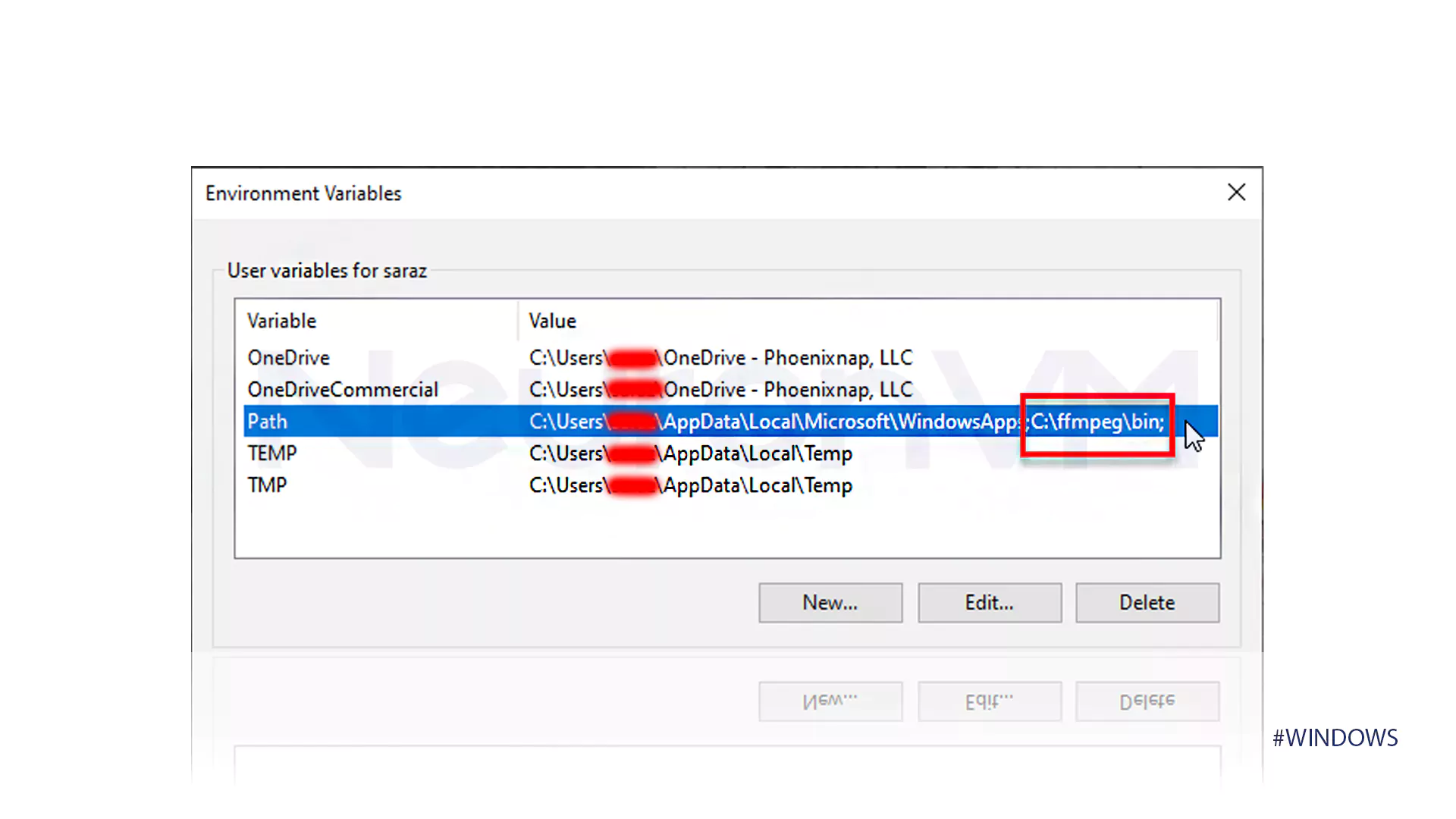
Step 3: Edit the PATH Variable
The Environment Variables window is divided into “User variables” and “System variables.”
- User variables: Affect only your current user account.
- System variables: Affect all users on the computer.
For FFmpeg, it’s generally recommended to add it to the “System variables” so it’s available to everyone.
- In the “System variables” section, find the variable named
Path(orPATH). - Select it and click the “Edit…” button.
Step 4: Add FFmpeg to the Path
The “Edit environment variable” window will show a list of directories.
-
Click the “New” button.
-
A new line will appear. Type the full path to the
bindirectory of your FFmpeg installation. Based on our previous example, this would be:
C:ffmpegbinImportant: Make sure to include the trailing backslash (
) if your system requires it, although modern Windows versions are usually forgiving. The key is to point to the directory containingffmpeg.exe. -
Crucially, move this new entry to the top of the list (or near the top). This ensures that your FFmpeg installation is found before any other potentially conflicting versions or executables with the same name that might be located elsewhere on your system. Use the “Move Up” button for this.
Step 5: Confirm Changes
- Click “OK” on the “Edit environment variable” window.
- Click “OK” on the “Environment Variables” window.
- Click “OK” on the “System Properties” window.
You may be prompted to restart your computer for the changes to take full effect, though often opening a new Command Prompt window is sufficient.
Verifying the FFmpeg Installation
After setting up the environment variables, it’s essential to confirm that FFmpeg is correctly installed and accessible from the command line.
Testing from the Command Prompt
Step 1: Open a New Command Prompt Window
If you had a Command Prompt window open before modifying the environment variables, close it and open a new one. This is necessary to load the updated environment settings.
- Press
Windows key + R, typecmd, and press Enter.
Step 2: Run the FFmpeg Version Command
In the Command Prompt window, type the following command and press Enter:
ffmpeg -version
Step 3: Interpret the Output
If the installation was successful and the environment variables are set correctly, you will see output similar to this:
ffmpeg version N-123456-gabcdef123-unknown Copyright (c) 2000-2023 the FFmpeg developers
built with gcc x.x.x (GCC)
configuration: ... (various configuration options) ...
libavutil      58. 20.100 / 58. 20.100
libavcodec     60. 30.100 / 60. 30.100
libavformat    60. 10.100 / 60. 10.100
libavdevice    60.  3.100 / 60.  3.100
libavfilter     9. 10.100 /  9. 10.100
libswscale      7.  3.100 /  7.  3.100
libswresample   4. 11.100 /  4. 11.100
libpostproc    57.  2.100 / 57.  2.100
The specific version numbers and build details will vary depending on the FFmpeg build you downloaded. The key is that you see this information instead of an error message like:
'ffmpeg' is not recognized as an internal or external command, operable program or batch file.
This error indicates that your system cannot find the ffmpeg.exe executable, most likely due to an incorrect PATH environment variable.
Running Basic FFmpeg Commands
Once ffmpeg -version works, you can try a simple command to ensure the executables are functional.
Example: Checking a Media File (using ffprobe)
First, make sure you have a media file (e.g., a .mp4 or .mp3 file) accessible from your command prompt. For this example, let’s assume you have a file named myvideo.mp4 in your Documents folder.
-
Open Command Prompt and navigate to the directory containing your video file:
cd C:UsersYourUsernameDocuments(Replace
YourUsernamewith your actual Windows username). -
Use
ffprobeto get information about the file:ffprobe myvideo.mp4This command should output detailed information about the video and audio streams within
myvideo.mp4.
Example: Simple Conversion (using ffmpeg)
Let’s try a very basic conversion. If you have an audio file named mysong.wav, you can convert it to MP3:
- Ensure you are in the same directory as your audio file or provide the full path.
- Run the following command:
bash

ffmpeg -i mysong.wav output.mp3
FFmpeg will process the file and createoutput.mp3in the same directory. You should see progress indicators in the command prompt.
If these basic commands execute without errors, your FFmpeg installation is complete and ready for more advanced use.
Troubleshooting Common Installation Issues
While the installation process is generally straightforward, occasional issues can arise. Here are a few common problems and their solutions.
‘ffmpeg’ is not recognized error
This is the most frequent issue.
- Cause: The
Pathenvironment variable is not set correctly, or the system hasn’t recognized the changes. - Solution:
- Double-check the Path: Carefully review the
Pathvariable in System Properties. Ensure the path you entered exactly matches the directory containingffmpeg.exe(e.g.,C:ffmpegbin). Typos are common. - Restart Command Prompt: Always open a new Command Prompt window after changing environment variables.
- Restart Your Computer: In rare cases, a full system restart is needed for all services to pick up the new environment settings.
- Check for Duplicate Paths: Ensure you haven’t accidentally added the same path multiple times or that no other conflicting paths are listed higher up that might be interfering.
- Permissions: If you installed FFmpeg in
C:Program Filesor a similar protected directory, ensure your user account has the necessary read and execute permissions. Installing inC:orD:usually avoids this.
- Double-check the Path: Carefully review the
Incorrect FFmpeg Version or Missing Features
You might be seeing an older version or encountering errors related to missing codecs.
- Cause: You downloaded an outdated build, a build with specific features disabled, or a conflicting version is installed elsewhere.
- Solution:
- Re-download: Go back to the official FFmpeg download page and ensure you are downloading the latest stable release from a reputable provider.
- Check the Build Type: Some builds are “full” and include all codecs, while others are more minimal. If you need specific codecs, make sure your chosen build includes them.
- Clean Up Old Installations: Search your system for any other instances of FFmpeg (look in
Program Files,Program Files (x86), user directories, etc.) and uninstall or remove them. Ensure yourPathvariable only points to your intended, correct installation.
Permission Denied when Running Commands
When trying to process files, you might encounter permission errors.
- Cause: The FFmpeg executable or the files you are trying to process are in a directory where your user account lacks sufficient permissions.
- Solution:
- Run Command Prompt as Administrator: Right-click on the Command Prompt shortcut and select “Run as administrator.” This gives FFmpeg elevated privileges. Use this cautiously, and only when necessary.
- Move Files/Install FFmpeg to Accessible Locations: As mentioned earlier, installing FFmpeg in
C:ffmpegand placing your source/output files in your user’s Documents or Desktop folder are generally safe and accessible locations. Avoid system directories or network drives without proper permissions.
By following these troubleshooting steps, you should be able to resolve most common issues and get FFmpeg running smoothly on your Windows system. With FFmpeg installed, you now possess a powerful command-line tool ready to tackle a wide range of multimedia tasks.
aViewFromTheCave is a participant in the Amazon Services LLC Associates Program, an affiliate advertising program designed to provide a means for sites to earn advertising fees by advertising and linking to Amazon.com. Amazon, the Amazon logo, AmazonSupply, and the AmazonSupply logo are trademarks of Amazon.com, Inc. or its affiliates. As an Amazon Associate we earn affiliate commissions from qualifying purchases.