
Fallout 4, a sprawling post-apocalyptic RPG, offers a rich and immersive world filled with exploration, combat, and intriguing lore. However, for many dedicated players, the vanilla experience, while substantial, is merely a canvas for even greater customization and depth. This is where the Fallout 4 Script Extender, or F4SE, enters the picture. F4SE is an indispensable tool for anyone looking to delve into the world of advanced modding, unlocking possibilities that go far beyond what the base game natively supports.
If you’re a seasoned Fallout 4 player, or even a newcomer eager to unlock the full potential of the game, you’ve likely stumbled upon the acronym F4SE. It’s a common gateway to some of the most transformative mods available, often being a prerequisite for essential gameplay overhauls, visual enhancements, and complex new questlines. This article aims to demystify the process of installing F4SE, ensuring you can seamlessly integrate this powerful tool into your gaming setup and embark on a truly personalized journey through the Commonwealth.

We will guide you through each step, from understanding what F4SE is and why it’s crucial for modding, to the practicalities of downloading, installing, and launching Fallout 4 with F4SE. Whether you’re a beginner venturing into modding for the first time or an experienced user looking for a clear refresher, this guide will equip you with the knowledge to get F4SE up and running.
Understanding the Importance of F4SE
Before diving into the installation process, it’s vital to understand what F4SE is and why it’s become a cornerstone of the Fallout 4 modding community. At its core, F4SE is a utility that expands the scripting capabilities of Fallout 4. The game’s engine, while powerful, has limitations on the complexity and functionality that can be implemented through its built-in scripting system. F4SE effectively bypasses these limitations, allowing mod creators to develop more sophisticated and ambitious mods.
What is F4SE?
F4SE stands for Fallout 4 Script Extender. It’s a free, open-source program developed by the modding community for the modding community. It doesn’t alter the game’s executable files in a way that would be considered a “cheat” or that would prevent you from playing the game online (though playing online with mods is generally not recommended for stability). Instead, it acts as an intermediary, providing additional functions and parameters that mods can call upon. Think of it as a bridge that allows mods to communicate with the game on a deeper level.
Why is F4SE Essential for Advanced Modding?
The vast majority of popular and impactful Fallout 4 mods, especially those that introduce significant changes to gameplay mechanics, add new features, or require intricate logic, rely on F4SE. Without it, these mods simply wouldn’t function. This includes:
- Complex Gameplay Overhauls: Mods that drastically alter combat, survival mechanics, AI, or character progression often require F4SE to implement their intricate systems.
- New Content and Quests: Large quest mods, new companions, or significant additions to the world often leverage F4SE for advanced scripting needs.
- Visual Enhancements and ENBs: While some visual mods might work without F4SE, many advanced ones that dynamically alter lighting, weather, or post-processing effects benefit from or require its extended scripting capabilities.
- User Interface (UI) Modifications: Many UI overhauls that add new menus, information displays, or customize the HUD utilize F4SE.
- Creation Kit Extensions: Even some tools and utilities that assist in mod creation or management may depend on F4SE.
In essence, if you plan to mod Fallout 4 beyond simple texture replacements or minor adjustments, F4SE is not an option – it’s a necessity. It unlocks a universe of possibilities that would otherwise remain inaccessible.
Preparing for Installation: Essential Prerequisites
Before you begin the installation process, it’s crucial to ensure your game and system are properly prepared. This section will cover the key prerequisites that will guarantee a smooth and successful F4SE installation.
Verifying Your Fallout 4 Installation
The first and most critical step is to ensure you have a legitimate and correctly installed version of Fallout 4. F4SE is designed to work with specific versions of the game’s executable. The most common issue players encounter is attempting to install F4SE on a pirated or incompatible version of the game.
- Legitimate Copy: Ensure you own a legal copy of Fallout 4, preferably purchased through Steam, GOG, or another reputable digital storefront.
- Game Location: Know the installation directory of your Fallout 4 game. This is typically something like
C:Program Files (x86)SteamsteamappscommonFallout 4for Steam users. - Game Updates: F4SE is generally released with updates that correspond to official or unofficial patches of Fallout 4. It’s advisable to have your game fully updated to the latest stable version. However, be aware that sometimes the very latest game updates might have a slight delay before an F4SE update is available. Check the F4SE download page for compatibility information.
Understanding Mod Managers
While F4SE can be installed manually, many players prefer using mod managers. Mod managers automate the installation, uninstallation, and management of mods, significantly simplifying the process and reducing the risk of conflicts. If you plan to use mods, it’s highly recommended to install a mod manager before F4SE.
- Popular Mod Managers: The two most popular and recommended mod managers for Fallout 4 are:
- Vortex: Developed by Nexus Mods, Vortex is a modern and user-friendly mod manager that offers a lot of automation.
- Mod Organizer 2 (MO2): MO2 is a more advanced and powerful mod manager, known for its virtual file system that keeps your game directory clean.
- Choosing a Mod Manager: For beginners, Vortex is often easier to get started with. For those who want more control and are comfortable with more complex interfaces, MO2 is an excellent choice.
- Installation Order: It’s generally recommended to install your chosen mod manager before installing F4SE, as some mod managers can even help manage F4SE installation and updates. However, if you’ve already installed F4SE manually, most mod managers will detect it.
Step-by-Step Installation Guide for F4SE
This section will walk you through the precise steps required to download and install F4SE. Following these instructions carefully will ensure a successful installation.
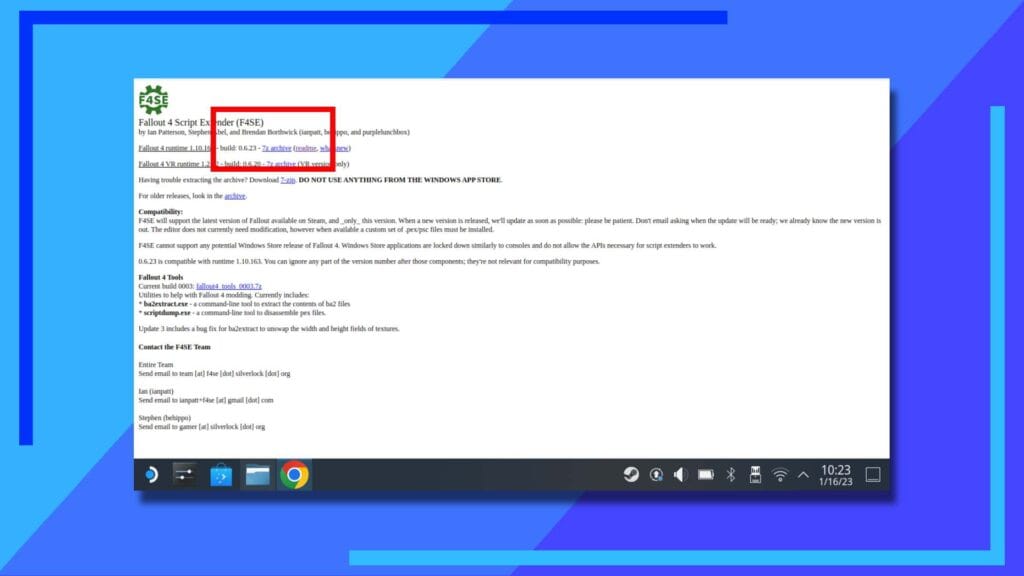
Downloading F4SE
The official and safest place to download F4SE is from its official source. Never download F4SE from unofficial or suspicious websites, as these can contain malware or outdated versions that could corrupt your game.
- Navigate to the Official F4SE Website: Open your web browser and go to the official Fallout 4 Script Extender website. A quick search for “Fallout 4 Script Extender download” will usually lead you to the correct Nexus Mods page or the dedicated F4SE site.
- Locate the Latest Version: On the download page, you will find links to the latest stable version of F4SE. Look for a section that clearly indicates the latest release.
- Download the Archive: Click on the download link for the latest version. This will typically download a compressed archive file (e.g., a
.7zor.zipfile). You will need an extraction tool like 7-Zip or WinRAR to open these archives.
Installing F4SE Files
Once you have downloaded the F4SE archive, the installation involves extracting specific files into your Fallout 4 game directory.
-
Extract the Archive: Open the downloaded F4SE archive using your preferred extraction software. You will see several files and folders within.
-
Locate Your Fallout 4 Game Folder: Navigate to the main directory where Fallout 4 is installed on your computer. This is the folder containing
Fallout4.exe. -
Copy and Paste the Contents:
- From the F4SE archive, locate the
f4se_loader.exe,f4se_1_10_163.dll(the version number may vary), andf4se_steam_loader.dllfiles. - Drag and drop these files directly into your Fallout 4 game folder. Do not copy the entire folder structure from the archive. You should be placing these files alongside your
Fallout4.exe. - You will also find a
Datafolder within the F4SE archive. Copy thisDatafolder and merge it with your existingDatafolder in the Fallout 4 installation directory. This ensures that any necessary F4SE data files are correctly placed.
Important: If you are using a mod manager like Mod Organizer 2 or Vortex, the process might differ slightly, as they often have their own methods for integrating F4SE. Refer to your mod manager’s documentation for specific instructions. However, the core principle of placing F4SE files in the root game directory remains the same.
- From the F4SE archive, locate the
Launching Fallout 4 with F4SE
After successfully copying the F4SE files, you need to ensure that you launch the game through the F4SE loader, not through the standard Fallout4.exe or Steam.
- Locate
f4se_loader.exe: In your Fallout 4 game directory, you should now see thef4se_loader.exefile. - Create a Shortcut (Recommended): To make launching F4SE easier, right-click on
f4se_loader.exeand select “Create shortcut.” You can then move this shortcut to your desktop or pin it to your taskbar for quick access. - Launch the Game: Double-click the
f4se_loader.exefile (or the shortcut you created). If installed correctly, a small command prompt window might briefly appear, followed by the normal Fallout 4 launcher or the game itself.
Troubleshooting Launching:
- Command Prompt Errors: If you encounter error messages in the command prompt window, it usually indicates an issue with the installation or game version compatibility. Double-check that you copied the files to the correct directory and that your Fallout 4 version is supported by the F4SE version you downloaded.
- Game Not Launching: Ensure you are exclusively launching the game via
f4se_loader.exe. Launching through Steam, the regularFallout4.exe, or other launchers will not load F4SE and will prevent your mods from working.
Integrating F4SE with Mod Managers
For a streamlined and manageable modding experience, integrating F4SE with a mod manager is highly recommended. This section will briefly touch upon how to achieve this with the most popular managers.
Using F4SE with Vortex
Vortex, being a modern and user-friendly manager, often detects F4SE automatically or provides a straightforward way to integrate it.
- Manual Installation (if not detected): If Vortex doesn’t automatically recognize F4SE, you might need to manually tell it where the
f4se_loader.exeis.- Go to Vortex’s “Dashboard” and look for “Executable” settings.
- Add
f4se_loader.exeas a new executable. Point it to the correct file within your Fallout 4 game directory. - You can then launch F4SE directly from Vortex.
- Mod Manager Installation: Some versions of F4SE might even be available to download directly through Nexus Mods and managed by Vortex as a regular mod. Check Nexus Mods for the F4SE entry and install it via Vortex.

Using F4SE with Mod Organizer 2 (MO2)
MO2 is renowned for its powerful virtual file system, which is ideal for managing F4SE and its associated mods.
- Manual Installation (Recommended for MO2):
- Download F4SE as described previously.
- Instead of copying files directly into the game folder, create a new mod in MO2.
- Create a new folder structure within MO2’s mod directory (e.g.,
My ModsF4SE). - Inside this folder, recreate the structure of the F4SE archive: place
f4se_loader.exe,f4se_*.dllfiles, and theDatafolder. - Install this newly created folder as a mod in MO2.
- In MO2’s “Executables” section, add
f4se_loader.exeas a new executable. - Ensure that F4SE is enabled and prioritized correctly in MO2’s mod list.
- Launch Through MO2: Always launch Fallout 4 through MO2’s F4SE executable. MO2 will then load all your installed mods, including those that rely on F4SE.
By integrating F4SE with your chosen mod manager, you gain the benefits of easier management, conflict resolution, and clean uninstallation of F4SE and any mods that depend on it. This robust approach to modding will significantly enhance your Fallout 4 experience and prevent potential headaches down the line.
In conclusion, installing F4SE is a fundamental step for any Fallout 4 player looking to explore the depths of its modding potential. By following this guide, you can confidently set up this essential tool and unlock a universe of new content, features, and gameplay experiences, transforming your journey through the irradiated wasteland of the Commonwealth.