
World of Warcraft (WoW) is a game that thrives on customization. While the default user interface (UI) has improved over the years, many players seek a more streamlined, information-rich, and aesthetically pleasing experience. This is where ElvUI shines. ElvUI is a comprehensive UI addon that completely overhauls the default WoW interface, offering a wealth of customization options to suit any playstyle. From optimizing raid frames for crucial raid calls to decluttering your screen for better situational awareness in PvP, ElvUI empowers you to tailor your game exactly how you want it.
However, like many powerful tools, the initial setup and configuration of ElvUI can seem daunting to newcomers. This guide aims to demystify the process, providing a step-by-step walkthrough for installing and configuring ElvUI, ensuring you can harness its full potential without feeling overwhelmed. We’ll cover everything from obtaining the addon to making those crucial first adjustments.
Getting Started with ElvUI: The Foundation of Your New Interface
Before you can dive into the intricate details of ElvUI’s customization, you need to ensure it’s properly installed and accessible within World of Warcraft. This involves downloading the addon, placing it in the correct game directory, and enabling it.
Downloading ElvUI: Your First Step to a Revamped UI
ElvUI is a community-developed addon, and the safest and most reliable way to obtain it is through reputable addon managers or the official ElvUI website.
-
Using an Addon Manager (Recommended): The easiest and most recommended method for installing and managing ElvUI, as well as other WoW addons, is by using a dedicated addon manager. These programs automate the download, installation, and update process, saving you significant time and effort. The most popular options include:
- CurseForge App: This is the officially recognized addon manager by Blizzard and is widely used by the WoW community. It provides a user-friendly interface to search, download, and update thousands of addons, including ElvUI. Simply install the CurseForge app, select World of Warcraft, and search for “ElvUI.” The app will then guide you through the installation process.
- WowUp: Another excellent open-source addon manager that supports multiple game clients. Similar to CurseForge, WowUp allows you to easily find, install, and manage your addons.
-
Manual Download from the Official Website: If you prefer a manual approach or encounter issues with addon managers, you can download ElvUI directly from its official website.
- Navigate to the official ElvUI website (a quick search for “ElvUI official” will lead you there).
- Look for the download section. You will typically find a link to download the latest stable version of ElvUI.
- Download the ZIP file.
Installing ElvUI: Placing the Files Correctly
Once you have downloaded ElvUI, either through an addon manager or manually, the next step is to ensure it’s in the correct location within your World of Warcraft installation folder.
-
If you used an Addon Manager: The addon manager will handle this step for you. It automatically downloads and places the ElvUI files into the correct
InterfaceAddOnsfolder. You can typically find this folder within your World of Warcraft installation directory. The exact path varies depending on your operating system and where you installed WoW, but it generally looks like this:- Windows:
C:Program Files (x86)World of Warcraft_retail_InterfaceAddOns(for the retail version) orC:Program Files (x86)World of Warcraft_classic_InterfaceAddOns(for Classic versions). - macOS:
/Applications/World of Warcraft/_retail_/Interface/AddOnsor/Applications/World of Warcraft/_classic_/Interface/AddOns.
- Windows:
-
If you downloaded Manually:
- Locate the downloaded ZIP file.
- Extract the contents of the ZIP file. You should see a folder named “ElvUI” and possibly another named “ElvUI_Config” or similar.
- Navigate to your World of Warcraft installation directory.
- Open the
Interfacefolder, and then theAddOnsfolder. - Copy the extracted “ElvUI” folder (and any associated folders like “ElvUI_Config”) directly into this
AddOnsfolder. Ensure you are not copying the ZIP file itself or the folder that contains the ZIP file. You should end up with.../World of Warcraft/_retail_/Interface/AddOns/ElvUIand.../World of Warcraft/_retail_/Interface/AddOns/ElvUI_Config.
Enabling ElvUI in World of Warcraft: The Final Installation Step
With ElvUI’s files in place, you need to tell the game to load it.
- Launch World of Warcraft.
- On the character selection screen, before you log in to your character, look for a button usually labeled “AddOns” or “Addon List” in the bottom-left corner. Click this button.
- You will see a list of all loaded addons. Scroll through the list and ensure that “ElvUI” and “ElvUI_Config” are checked (enabled).
- If they are not checked, click on them to enable them.
- Click “OK” or “Done” to close the Addon List.
- Now, log in to your character.
Upon logging in, you will be greeted by ElvUI’s initial setup screen. This is where the real customization begins.
ElvUI’s Initial Setup: Getting Your Core Interface Right
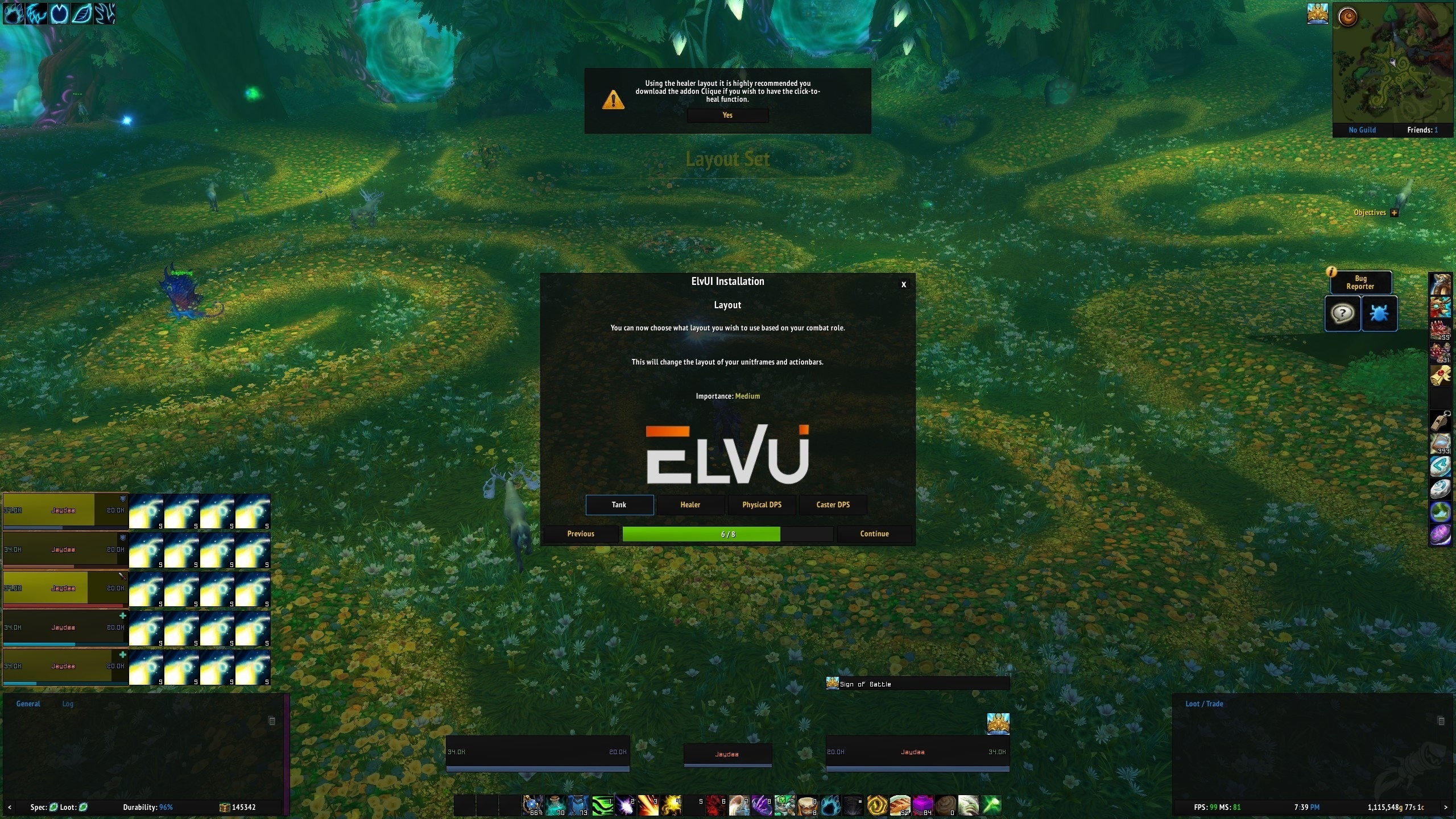
The first time you log in with ElvUI enabled, it presents a wizard to help you with the basic setup. This wizard is designed to get you up and running quickly by configuring some of the most impactful aspects of your UI. Paying attention during this stage can save you a lot of time later.
The ElvUI Setup Wizard: Your First Configuration Steps
The ElvUI setup wizard will typically guide you through the following key areas:
-
Profile Selection: ElvUI allows you to create and save different profiles for different characters or roles. For your first setup, you can choose to copy settings from an existing profile (if you have any from previous ElvUI installations) or start with a default ElvUI profile. It’s usually best to start with a default and customize from there.
-
Resolution and Aspect Ratio: ElvUI will attempt to detect your screen resolution and aspect ratio. Ensure these are set correctly to avoid UI elements appearing stretched or distorted.
-
Unit Frames: This is a critical part of ElvUI. The wizard will ask you to configure the layout and scale of your unit frames, which include your player frame, target frame, and focus frame. You’ll typically have options to:
- Enable/Disable: Decide which frames you want to see.
- Scale: Adjust the size of the frames.
- Position: While the wizard offers basic positioning, fine-tuning will be done later.
- Information Display: Choose what information is shown on your frames (e.g., health, mana, buffs, debuffs).
-
Raid Frames: For PvE content, raid frames are paramount. The wizard will prompt you to configure their appearance, size, and positioning. Key settings include:
- Show Raid Frames: Enable if you plan to do group content.
- Number of Columns/Rows: How the frames are arranged.
- Size and Spacing: How large each individual frame is and how much space is between them.
- Layout: Options for how raid members are sorted.
-
Buffs and Debuffs: ElvUI offers extensive control over how buffs and debuffs are displayed. The wizard may offer some initial presets for showing important buffs on your player frame or debuffs on target frames.
-
Action Bars: This section allows you to configure the look and layout of your action bars – the primary way you cast spells and use abilities. You can adjust:
- Number of Bars: How many action bars are visible.
- Rows and Columns: How these bars are arranged.
- Size and Spacing: The dimensions of the buttons.
- Visibility: Some bars might be set to only appear when in combat or when your mouse hovers over them.
-
Chat and Bags: ElvUI also touches on the appearance of your chat windows and bag frames. You might get options to:
- Consolidate Bags: Combine all your bags into a single grid.
- Chat Tabs: Configure the appearance and layout of your chat tabs.
Important Note: The ElvUI setup wizard is a starting point. Most of these settings can be further refined and customized later through ElvUI’s extensive configuration panel. Don’t feel pressured to get everything perfect here; focus on making broad decisions that align with your general preferences.
Diving Deeper: Advanced Configuration with the ElvUI Interface
Once the initial setup wizard is complete, you’ll likely want to fine-tune every aspect of your UI. ElvUI’s strength lies in its granular control, and this is accessed through its dedicated configuration panel.
Accessing and Navigating the ElvUI Configuration Panel
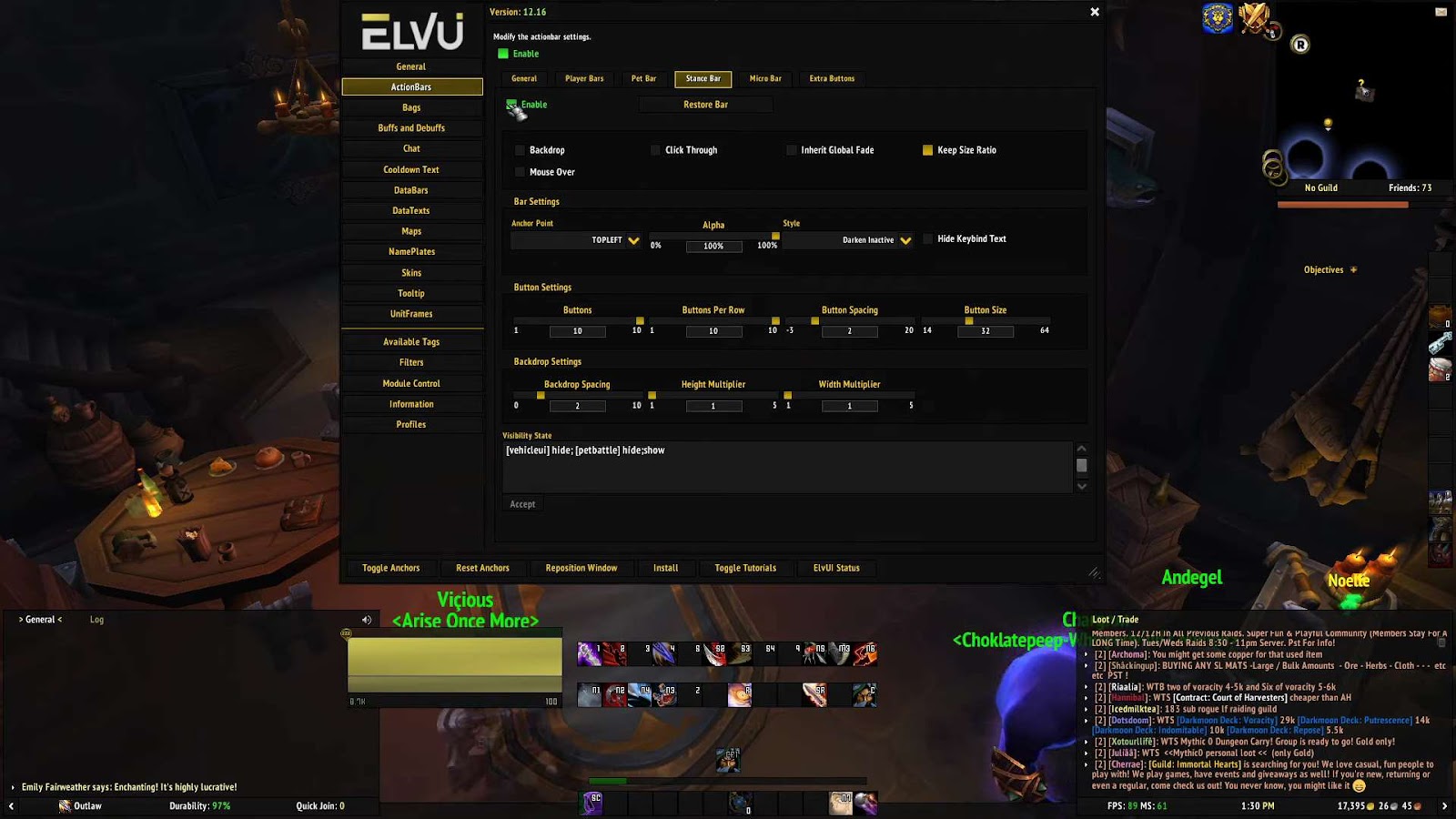
To access the ElvUI configuration panel, simply type /elvui or /ec in your WoW chat window and press Enter. This will open a multi-tabbed interface, each dedicated to a specific aspect of the UI.

-
Core/General: This section contains overarching settings, such as profile management, auto-scale options, and general UI behavior.
-
ActionBars: Here you’ll find the most detailed control over your action bars. You can set up multiple bars, customize their grids, choose which spells go where, and define their visibility rules. This is where you’ll spend a lot of time if you’re a spellcaster who uses many abilities.
-
UnitFrames: This is where you’ll spend significant time if you want to optimize your player, target, and party/raid frames. You can adjust:
- Frame Layout: The precise positioning of each frame.
- Size and Padding: Fine-tune dimensions and spacing.
- Information Display: What text (health percentage, name, cast bar, etc.) appears on each frame.
- Auras: How buffs and debuffs are displayed, including their size, position, and filtering.
- Specialized Frames: Configure frames for boss units, pet units, and target of target.
-
Datatext: ElvUI allows you to display various pieces of information (e.g., FPS, latency, durability, experience gained) in text panels. This section lets you configure what information is shown, where it’s displayed, and its appearance.
-
Bags: Customize your bag layout, sorting options, and how item information is displayed.
-
Chat: Fine-tune your chat windows, including their size, transparency, font, and the content displayed in each tab.
-
Nameplates: Configure the appearance and behavior of enemy and friendly nameplates that float above characters’ heads. This is crucial for combat awareness.
-
Skins: ElvUI offers visual skins for various game elements, such as the spellbook, guild bank, and vendor windows, giving them a more cohesive look.
-
Tooltip: Customize the appearance and content of your tooltips.
-
Grouping: This is a powerful section that allows you to create custom groups of UI elements and control their visibility based on various conditions (e.g., in combat, in a raid, on a mount). This is invaluable for tailoring your UI for specific situations.
Tailoring Unit Frames for Optimal Performance
Unit frames are the backbone of any WoW UI. ElvUI’s unit frame customization is incredibly powerful, allowing you to create an interface that provides critical information at a glance.
-
Player and Target Frames: Ensure your player frame clearly displays your health, resources (mana, rage, energy, etc.), and any important buffs or debuffs. Your target frame should similarly show their health, resources, and any hostile effects you need to react to. Positioning these frames in your central vision, without obscuring critical game elements, is key.
-
Raid and Party Frames: For healers and raid leaders, these are paramount. You can configure them to show:
- Health and Mana Bars: With clear indicators for low health or mana.
- Debuffs: Especially important for healers to track dispellable debuffs. You can set filters to only show specific types of debuffs or set thresholds for their size and color.
- Buffs: Crucial for raid leaders to ensure important raid buffs are active.
- Incoming Heals: For healers, seeing who is about to receive a heal from you is vital.
- Layout and Sorting: Arrange frames by role, aggro status, or class.
-
Focus Frames and Target of Target: These can be invaluable in PvP or for tracking specific enemies. A focus frame allows you to target an enemy and keep them in a dedicated frame without actually targeting them, useful for crowd control. Target of Target (ToT) shows you who your current target is targeting, which can be very useful in raids to see who a boss is about to attack.
By spending time in the UnitFrames section, adjusting sizes, positions, and the information displayed, you can create a UI that significantly enhances your situational awareness and reaction time in any game scenario.
Beyond the Basics: Advanced ElvUI Features and Customization Tips
ElvUI isn’t just about moving frames; it offers a wealth of features that can dramatically improve your gameplay experience, from enhancing combat information to streamlining your inventory management.
Maximizing Your Combat Awareness with ElvUI
Effective combat relies on quickly processing information. ElvUI provides tools to ensure you never miss a beat.
-
Nameplates: Beyond their basic display, ElvUI allows you to customize nameplates extensively. You can change their size, add health percentages, display class icons, show debuffs, and even configure their color based on threat levels. Properly configured nameplates can make it significantly easier to track your targets and identify dangerous enemies in chaotic encounters.
-
Cast Bars: Both your cast bar and your target’s cast bar can be customized. You can enlarge them, add text information (like cast time remaining), and even set warnings for dangerous casts.
-
Auras and Buff/Debuff Management: ElvUI’s aura management is a cornerstone of its power. You can create custom filters for buffs and debuffs on your unit frames, nameplates, and even as standalone elements on your screen. This allows you to prioritize what information is most important to you. For example, a healer might want to see all dispellable debuffs on raid members, while a tank might want to see specific boss debuffs.
-
Combat Text: While ElvUI doesn’t replace dedicated combat text addons, it offers basic options for displaying damage numbers, critical hits, and other combat events. You can toggle these on or off and adjust their appearance.
Streamlining Your Gameplay with Datatext and Grouping
-
Datatext Panels: These customizable text displays can provide a constant stream of useful information. Common uses include tracking your current FPS and latency, durability of your gear, current reputation gains, or even a mini-map with extra information. You can create multiple datatext panels and assign different information to each.
-
Grouping: This advanced feature allows you to create custom UI elements or groups of elements and control their visibility based on specific conditions. For instance, you might have a special “cooldown tracker” group of action bars that only appears when you are in combat, or a set of extra frames that only shows when you are in a raid. This allows for an incredibly dynamic and efficient UI that adapts to your current situation.
Tips for a Smooth ElvUI Experience
-
Start with a Clean Slate: If you’re having trouble with existing ElvUI settings or want to start fresh, you can reset ElvUI by typing
/ecand going to the “General” tab, then clicking “Reset All Settings.” Be aware this will remove all your customizations. -
Use Profiles: ElvUI’s profile system is essential. Create a “default” profile for general use and then duplicate it for specific characters or roles (e.g., a healing profile, a tanking profile, a PvP profile). This allows you to switch between highly customized UI setups with a single command.
-
Explore Community Resources: The ElvUI community is vast. Many players share their ElvUI profiles and settings online. Websites like Wago.io are excellent resources for finding pre-made ElvUI profiles tailored for specific classes, specs, or playstyles. You can often import these profiles directly into your ElvUI configuration.
-
Don’t Be Afraid to Experiment: ElvUI’s strength is its customizability. Spend time clicking through the different options, experimenting with settings, and seeing how they affect your UI. You’ll likely discover many ways to optimize your interface that you hadn’t considered.
-
Keep ElvUI Updated: Like all addons, ElvUI is regularly updated to keep pace with game patches and bug fixes. Use your addon manager to ensure you always have the latest version installed.
Installing and configuring ElvUI is a journey, not a destination. It requires an initial investment of time and effort, but the rewards – a clean, informative, and personalized interface – are well worth it. By following this guide, you’ll be well on your way to mastering ElvUI and enhancing your World of Warcraft experience to its fullest potential.
aViewFromTheCave is a participant in the Amazon Services LLC Associates Program, an affiliate advertising program designed to provide a means for sites to earn advertising fees by advertising and linking to Amazon.com. Amazon, the Amazon logo, AmazonSupply, and the AmazonSupply logo are trademarks of Amazon.com, Inc. or its affiliates. As an Amazon Associate we earn affiliate commissions from qualifying purchases.