
In the complex ecosystem of modern computing, where hardware and software constantly interact, drivers serve as the crucial interpreters, ensuring seamless communication. For Windows 10 users, understanding how to effectively install, update, and manage these digital translators is paramount for maintaining system stability, unlocking peak performance, and ensuring a secure computing environment. Without correctly installed drivers, your cutting-edge graphics card might render visuals like a relic, your high-speed SSD could operate at a snail’s pace, or your network adapter might simply refuse to connect to the internet.

This comprehensive guide delves into the essential methods for installing and managing drivers on Windows 10, catering to both novice users and seasoned tech enthusiasts. We’ll explore automatic solutions, manual interventions, and best practices that not only keep your system running smoothly but also protect your digital assets and maximize your productivity. Embracing proactive driver management is a cornerstone of responsible technology ownership, directly impacting everything from your daily workflow to your system’s long-term health and security.
Understanding Drivers: The Unsung Heroes of Your PC
Before diving into the “how-to,” it’s vital to grasp the fundamental role drivers play within your computer. Often overlooked until something goes wrong, these small software packages are the linchpins connecting your operating system to your hardware components.
What Exactly Are Device Drivers?
Imagine your computer’s operating system (Windows 10, in this case) as a highly organized manager. It knows how to manage files, run programs, and display information. However, it doesn’t inherently understand the intricate language spoken by a graphics card, a printer, a webcam, or a Wi-Fi adapter. This is where drivers come in.
A device driver is a specific type of software that contains instructions for your operating system on how to interact with a particular piece of hardware. It translates the generic commands from Windows into a language the hardware understands, and vice versa. Each piece of hardware, from your CPU’s chipset to your mouse, requires a driver to function correctly. These drivers are specific to both the hardware model and the operating system version. This is why a driver for a Windows 7 machine won’t work on Windows 10, and a driver for an NVIDIA GPU won’t work for an AMD GPU. They are precision-engineered to facilitate a harmonious dialogue between disparate digital and physical components.
Why Keeping Your Drivers Updated Matters
The importance of keeping your drivers updated extends far beyond simply making your hardware work. It’s a critical aspect of system maintenance that touches upon performance, stability, security, and even the financial implications of your tech investments.
Firstly, performance enhancements are a primary motivator. Hardware manufacturers constantly refine their drivers to extract more power and efficiency from their products. A new graphics driver, for instance, can unlock significant frame rate improvements in games or accelerate video rendering tasks. For professionals using powerful software, updated drivers can translate directly into saved time and increased output, effectively boosting their digital productivity.
Secondly, system stability is heavily reliant on up-to-date drivers. Outdated or corrupted drivers are a common culprit behind crashes, freezing, and the dreaded Blue Screen of Death (BSOD). Ensuring your drivers are current minimizes these frustrating interruptions, leading to a more reliable and enjoyable user experience. This stability also translates into less downtime, which, in a professional context, can prevent financial losses associated with system failures.
Thirdly, security vulnerabilities are increasingly addressed through driver updates. Just like your operating system, drivers can have flaws that hackers can exploit. Manufacturers regularly release patches to close these loopholes, safeguarding your system from potential threats. Neglecting driver updates leaves your system exposed, making it a potential target for malware and data breaches, which can have significant financial and reputational consequences.
Finally, new features and compatibility are often introduced via driver updates. A new driver might enable previously unavailable functionalities for your hardware or ensure compatibility with the latest software applications. For instance, a printer driver update might add support for new paper types or printing modes. By keeping drivers current, you ensure your hardware remains future-proofed and capable of supporting evolving software landscapes. In essence, neglecting driver updates is akin to buying a high-performance sports car and never changing the oil – it will run, but not optimally, and eventually, it will break down.
Essential Methods for Installing and Updating Drivers on Windows 10
Windows 10 offers several robust methods for installing and updating drivers, each suited to different scenarios. Understanding these approaches empowers you to choose the most effective strategy for your specific needs, ensuring your system runs efficiently and reliably.
Method 1: Harnessing Windows Update for Automatic Driver Management
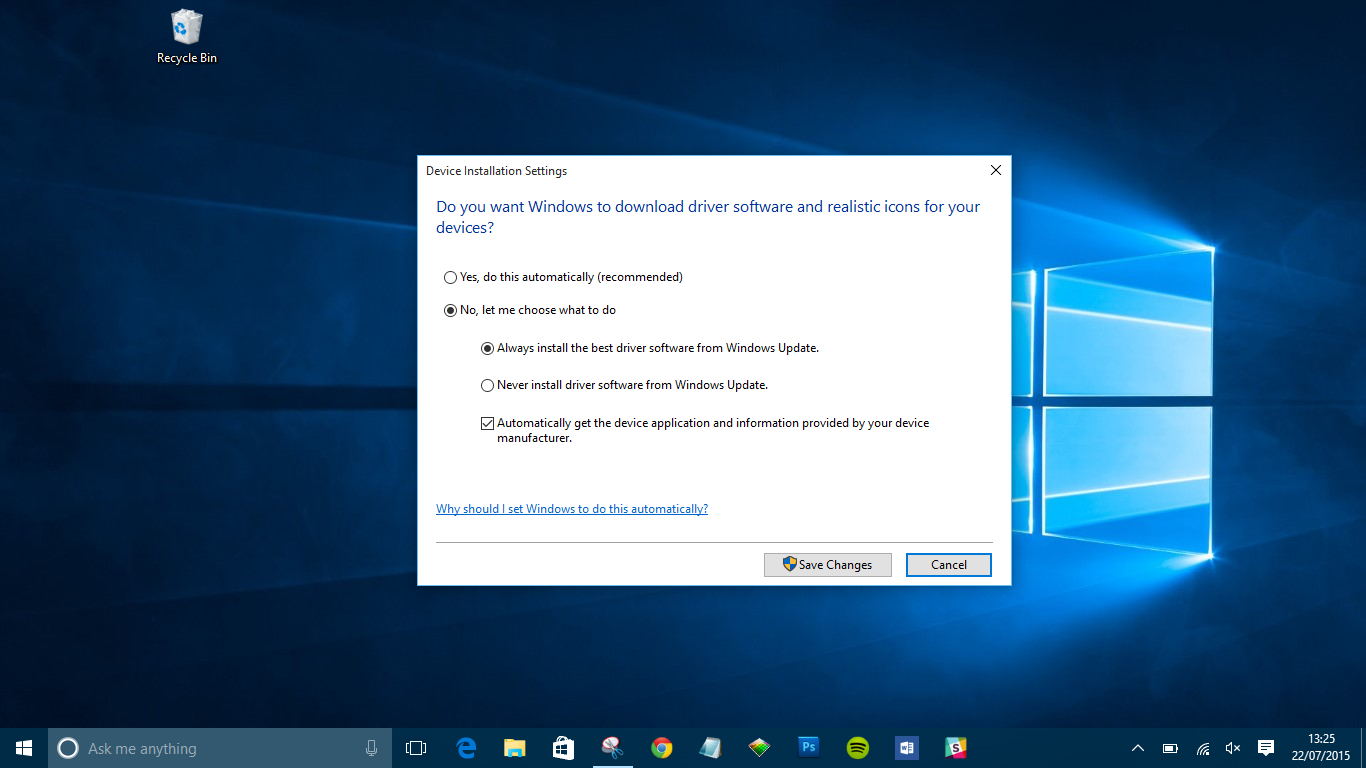
For many common devices and basic functionalities, Windows Update is your first and often most convenient line of defense. Microsoft works closely with hardware manufacturers to deliver signed and tested drivers directly through its update service. This method is generally the safest and easiest, requiring minimal user intervention.
To check for driver updates via Windows Update:
- Open Settings: Click the Start button, then the gear icon, or press
Windows key + I. - Navigate to Update & Security: Select this option.
- Go to Windows Update: In the left-hand pane, click ‘Windows Update’.
- Check for updates: Click the ‘Check for updates’ button. Windows will then scan for both operating system updates and available driver updates.
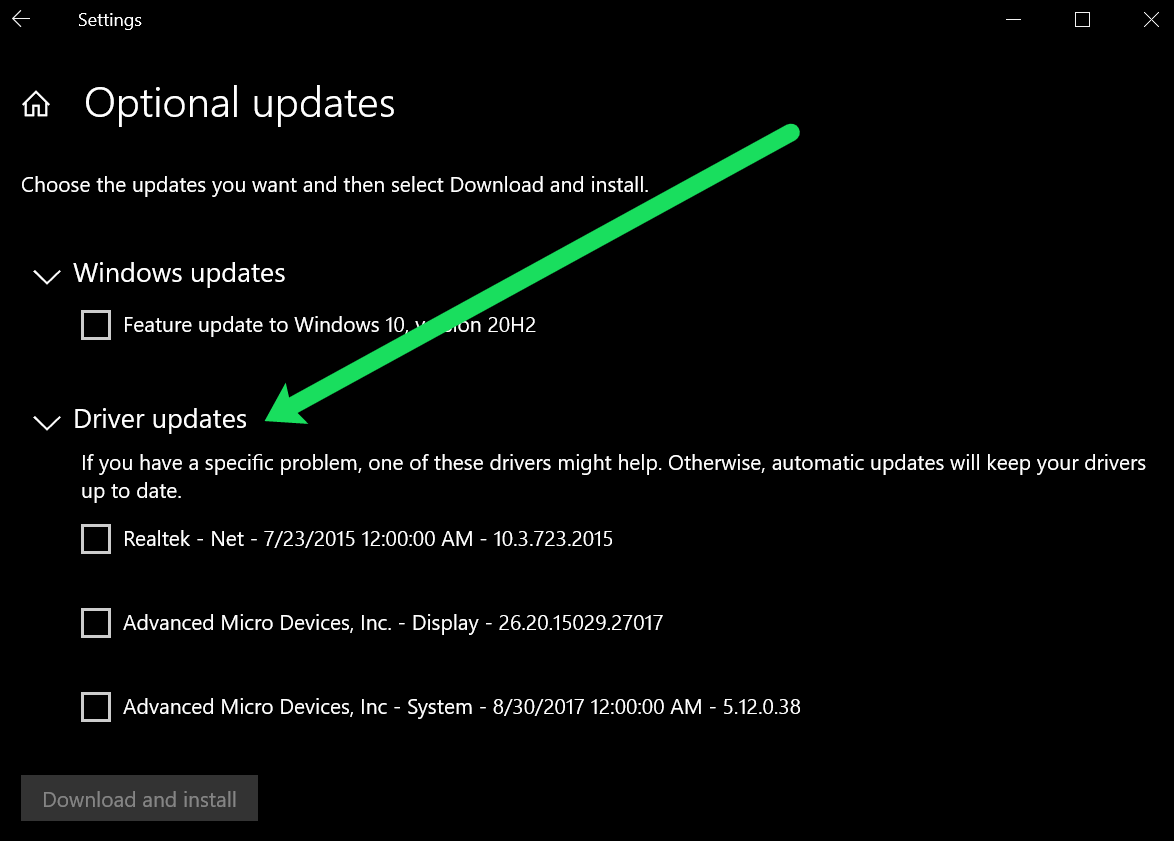
- Review Optional Updates: Sometimes, more specialized drivers (like newer graphics drivers) might be listed under “View optional updates.” Click this link and select any driver updates you wish to install.
Advantages:
- Ease of Use: Mostly automatic, requiring little technical knowledge.
- Reliability: Drivers delivered via Windows Update are typically well-tested and digitally signed by Microsoft, ensuring compatibility and stability.
- Security: Reduces the risk of downloading malicious or incorrect drivers from untrusted sources.
Disadvantages:
- Not Always the Latest: While reliable, Windows Update drivers might not always be the very newest versions available directly from the manufacturer, especially for graphics cards where bleeding-edge performance is crucial for gamers or creative professionals.
- Generic Drivers: For some niche hardware, Windows Update might only provide a generic driver that offers basic functionality but not the full feature set.
This method is ideal for general system maintenance and ensuring core components are functioning correctly. It’s an excellent starting point for any driver-related issue.
Method 2: Manual Driver Updates via Device Manager
When Windows Update doesn’t resolve a driver issue, or if you need to update a specific device, the Device Manager is your go-to tool. It provides a granular view of all hardware connected to your system and allows you to manage their drivers individually. This method is particularly useful when troubleshooting a non-functioning device or after installing new hardware.
To update a driver using Device Manager:
- Open Device Manager: Right-click the Start button and select ‘Device Manager’ from the context menu.
- Locate the Device: Expand the categories (e.g., ‘Display adapters,’ ‘Sound, video and game controllers,’ ‘Network adapters’) to find the specific hardware component you wish to update. Devices with issues are often marked with a yellow exclamation mark.
- Right-click and Update: Right-click on the device and select ‘Update driver’.
- Choose Your Search Method:
- “Search automatically for drivers”: Windows will attempt to find the best available driver on your computer and online. This is similar to what Windows Update does, but focused on a single device.
- “Browse my computer for driver software”: This option is for when you have already downloaded a driver package (e.g., from a manufacturer’s website) to a specific location on your hard drive. You’ll need to navigate to the folder containing the driver files.
- “Let me pick from a list of available drivers on my computer”: This is useful if Windows found multiple drivers, or if you want to try an older, known-working driver. It allows you to select from a list of drivers Windows already has or has previously installed.
When to Use “Browse my computer for driver software”:
This option is crucial when you’ve obtained a driver package directly from the hardware manufacturer. After downloading, you often need to extract the files into a recognizable folder. When browsing, point Device Manager to this folder. It will then scan the folder for .inf files (information files) that contain the driver installation instructions.
Advantages:
- Granular Control: Allows you to target specific devices for updates or troubleshooting.
- Local Installation: Essential for installing drivers downloaded directly from manufacturers.
- Rollback Option: Device Manager also allows you to ‘Roll Back Driver’ if a new driver causes problems (more on this later).
Disadvantages:
- Requires More Knowledge: You need to identify the correct device and potentially locate the driver files yourself.
- Risk of Incorrect Driver: If you manually browse for drivers, ensure you point to the correct, legitimate driver files to avoid system instability.
Method 3: Direct Downloads from Manufacturer Websites for Precision and Performance
For critical components like graphics cards, motherboards (chipset drivers), and high-performance peripherals (gaming mice, specialized audio interfaces), obtaining drivers directly from the manufacturer’s official website is often the preferred method. These drivers are typically the most current, optimized, and offer the full range of features for your hardware. For gamers and content creators, the performance gains from manufacturer-specific graphics drivers can be substantial.
Steps to Download and Install from a Manufacturer’s Website:
- Identify Your Hardware: This is the most crucial step. You need to know the exact model number of your device.
- For graphics cards: Check the card itself, the original packaging, or use a tool like GPU-Z or even Device Manager (under Display adapters, right-click, Properties, Details tab, Hardware Ids).
- For motherboards: Use
dxdiag(typedxdiagin Windows Search and press Enter) or a third-party utility like CPU-Z, or check the motherboard itself. - For laptops/pre-built desktops: Go to the PC manufacturer’s support website (e.g., Dell Support, HP Support) and enter your service tag or serial number.
- Navigate to the Official Support Website: Go directly to the manufacturer’s official support or downloads section (e.g., NVIDIA Drivers, AMD Drivers, Intel Download Center, Asus Support, Logitech Support). Beware of third-party driver download sites, as they can often host outdated or even malicious software. This reinforces the ‘Brand’ aspect: trusting reputable brands for your driver downloads is critical for digital security and system integrity.
- Locate the Correct Driver: Use the search function on the manufacturer’s site. Select your operating system (Windows 10, 64-bit), and the exact model of your hardware. Download the latest recommended driver package.
- Install the Driver: Most downloaded driver packages come as an executable file (
.exe). Double-click it and follow the on-screen instructions. Often, you’ll need to restart your computer after installation.
Advantages:
- Latest Versions: Access to the most recent drivers, offering maximum performance, features, and security patches.
- Full Feature Set: Manufacturer drivers often include additional control panels and utilities (e.g., NVIDIA Control Panel, AMD Adrenalin Software) that allow for advanced customization and optimization.
- Optimal Performance: Especially vital for GPUs, chipsets, and high-end peripherals where every ounce of performance matters.
Disadvantages:
- Requires Manual Effort: You need to accurately identify your hardware and navigate support websites.
- Potential for Issues: Occasionally, a newly released “beta” or very recent driver might introduce unforeseen bugs. It’s often wise to wait a few days after a major release before updating, or check community forums for feedback.
This method is indispensable for ensuring your high-performance hardware delivers its full potential. It’s an investment in your system’s capabilities that pays off in enhanced productivity and a superior user experience.
Troubleshooting Common Driver-Related Issues and Best Practices
Even with the best intentions, driver issues can occasionally arise. Understanding how to troubleshoot these problems and adopting proactive best practices can save you significant time and frustration.
When Drivers Go Wrong: Common Problems and Solutions
Driver-related problems can manifest in various ways, from minor annoyances to critical system failures. Recognizing the symptoms is the first step toward a solution.
- Device Not Recognized: If a device is not appearing in Device Manager or isn’t functioning at all, it’s often a missing or severely corrupted driver. Solution: Try installing the driver manually via Device Manager or from the manufacturer’s website.
- Poor Performance/Lag: Especially common with graphics cards or network adapters. If your games are stuttering or your internet connection is unusually slow, an outdated or incorrect driver might be the cause. Solution: Update the driver to the latest version from the manufacturer.
- Blue Screen of Death (BSOD): Many BSOD errors point to specific driver files as the culprit. If you’ve recently installed new hardware or updated a driver, and suddenly you’re getting BSODs, the new driver is highly suspect. Solution: Roll back the driver or uninstall it.
- Intermittent Functionality: A device might work sometimes but not others (e.g., sound cutting out, Wi-Fi dropping). This could indicate a conflict or a partially corrupted driver. Solution: Reinstall the driver clean.
Rolling Back a Driver: Your Safety Net
One of Windows 10’s most valuable troubleshooting features is the ability to roll back a driver to its previous version. This is your immediate safety net if a new driver update causes instability or performance issues.
To roll back a driver:
- Open Device Manager: Right-click the Start button and select ‘Device Manager’.
- Locate the Device: Find the device that’s causing problems.
- Open Properties: Right-click on the device and select ‘Properties’.
- Go to the Driver Tab: In the Properties window, click on the ‘Driver’ tab.
- Click ‘Roll Back Driver’: If this button is enabled, it means Windows has a previous driver version stored. Click it and follow the prompts. You’ll typically be asked why you’re rolling back.
- Restart Your PC: After the rollback, restart your computer for the changes to take effect.
Note: The ‘Roll Back Driver’ button will be grayed out if there is no previous driver version to revert to. In such cases, your options are to uninstall the current driver and let Windows reinstall a generic one, or install an older driver version downloaded from the manufacturer’s website.
Driver Best Practices: A Proactive Approach to System Health
Adopting a proactive approach to driver management is crucial for long-term system health and security.
- Regular Checks: Periodically check for driver updates, especially for critical components like your graphics card, chipset, and network adapter. Aim for quarterly checks, or more frequently if you’re experiencing issues or if major hardware updates are released.
- System Restore Points: Before installing major driver updates (especially for critical components like graphics or chipset), consider creating a system restore point. This allows you to revert your entire system to a previous working state if a driver update causes irreparable issues. This is an excellent financial precaution, as it can prevent costly data recovery or repair services.
- Only Official Sources: Absolutely crucial for security. Always download drivers directly from the hardware manufacturer’s official website or through Windows Update. Avoid third-party “driver updater” software that promises to find and install all your drivers automatically. While some reputable tools exist, many are dubious and can install incorrect, outdated, or even malicious software. Investing a few minutes to verify the source can prevent significant security risks and potential data loss. This reinforces the ‘Brand’ aspect: relying on trusted brands for your software downloads.
- Understand Driver Signing: Windows 10 usually requires drivers to be digitally signed, meaning they’ve been verified by Microsoft or a trusted certificate authority. This is a security measure. While it’s possible to disable driver signature enforcement, it’s generally not recommended for average users as it significantly lowers your system’s security posture.
- Clean Installations: When installing major graphics driver updates, many manufacturers offer a “clean installation” option. This uninstalls the old driver completely before installing the new one, preventing potential conflicts and ensuring a fresh start. This attention to detail contributes to a more stable and high-performing system.
Beyond Installation: Maintaining a Healthy Driver Ecosystem
Successfully installing drivers is only one part of the equation. Sustained optimal performance and robust security require ongoing vigilance and smart maintenance strategies.
Why Regular Driver Maintenance Boosts Productivity and Security
A well-maintained driver ecosystem directly translates into tangible benefits for both your productivity and digital security. For individuals and businesses alike, a smoothly operating computer means less downtime, fewer errors, and a more efficient workflow. Every minute lost to a system crash or a malfunctioning peripheral is a minute taken away from productive work. By ensuring drivers are current, you minimize these disruptions, directly contributing to personal and professional productivity goals.
From a security perspective, regular driver maintenance acts as a proactive shield against vulnerabilities. As mentioned, outdated drivers can harbor security flaws that cybercriminals exploit. By promptly applying manufacturer updates, you close these potential backdoors, protecting your sensitive data, personal information, and financial assets from unauthorized access. This practice aligns perfectly with broader digital security strategies, emphasizing layers of protection to safeguard against ever-evolving threats. Think of it as investing in your system’s long-term health and stability – an investment that pays dividends in reliability and peace of mind.
The Future of Driver Management
The landscape of driver management is continually evolving, driven by advancements in technology and user demands. We’re seeing a trend towards more streamlined and automated processes. Modern operating systems are becoming more intelligent, leveraging cloud-based solutions and AI to better identify, download, and even predict driver needs. Tools like Windows Update are becoming more sophisticated in their ability to deliver not just generic drivers but also highly optimized, manufacturer-specific updates directly to users.
Furthermore, some hardware manufacturers are developing more comprehensive, user-friendly control centers that integrate driver management with performance tuning, diagnostics, and security features. These all-in-one solutions aim to simplify the process, moving away from fragmented downloads and towards a more cohesive user experience. As AI tools become more prevalent, we can anticipate systems that can diagnose driver conflicts more accurately and even suggest optimal driver versions based on usage patterns and hardware configurations. Staying informed about these technological trends will empower users to leverage the latest advancements for even more efficient and secure driver management in the future.
In conclusion, understanding and actively managing your drivers on Windows 10 is not merely a technical chore; it’s a foundational aspect of responsible computing. It underpins your system’s performance, stability, and security, directly impacting your digital experience and productivity. By utilizing Windows Update, the Device Manager, and official manufacturer websites, you gain the control needed to keep your hardware communicating effectively with your software. Adopt these practices, and you’ll ensure your Windows 10 machine remains a reliable, high-performing, and secure tool for all your endeavors.
aViewFromTheCave is a participant in the Amazon Services LLC Associates Program, an affiliate advertising program designed to provide a means for sites to earn advertising fees by advertising and linking to Amazon.com. Amazon, the Amazon logo, AmazonSupply, and the AmazonSupply logo are trademarks of Amazon.com, Inc. or its affiliates. As an Amazon Associate we earn affiliate commissions from qualifying purchases.