
In today’s interconnected world, our devices are extensions of ourselves, facilitating everything from communication and entertainment to productivity and creative endeavors. From the sleekest smartphone to the most powerful desktop, the seamless operation of these gadgets hinges on a critical, often overlooked, component: the device driver. Think of a device driver as the translator between your hardware and your operating system. Without it, your computer wouldn’t know how to communicate with your graphics card, your printer would remain a useless paperweight, and your Wi-Fi adapter would be unable to connect you to the digital realm. Understanding how to install and manage device drivers is therefore an essential skill for any tech-savvy individual, ensuring your technology functions optimally and efficiently.
This guide will walk you through the process of installing device drivers, demystifying what they are, why they are important, and the various methods you can employ to get them up and running. Whether you’re setting up a new peripheral, troubleshooting a performance issue, or simply looking to keep your system up-to-date, this comprehensive walkthrough will empower you to confidently manage your device drivers.
Understanding Device Drivers: The Essential Bridge Between Hardware and Software
Before diving into the installation process, it’s crucial to grasp the fundamental role of a device driver. At its core, a device driver is a specialized piece of software that allows your operating system (like Windows, macOS, or Linux) to interact with a specific piece of hardware. Each component in your computer – from your motherboard and CPU to your graphics card, sound card, network adapter, and even external peripherals like printers and webcams – requires a unique driver to function correctly.
Imagine you have a brand-new, high-resolution monitor, but your computer only has the most basic display capabilities built into its operating system. Without the correct graphics driver, your monitor might display a generic, low-resolution image, or worse, not display anything at all. The graphics driver acts as the intermediary, translating the commands from your operating system (e.g., “draw a window here”) into instructions that your graphics card can understand and execute, thereby producing the visual output you see on your screen.
Why are Device Drivers So Important?
The importance of device drivers cannot be overstated. They are the unsung heroes behind the smooth performance and full functionality of your devices. Here’s why they matter:
- Enabling Hardware Functionality: The most obvious reason is that drivers enable hardware to work. Without them, your devices are essentially inert.
- Optimizing Performance: Manufacturers constantly develop new drivers that refine performance, improve efficiency, and fix bugs. An up-to-date driver can significantly boost the speed and responsiveness of your hardware. For instance, updated graphics drivers are vital for gamers, often unlocking better frame rates and graphical fidelity.
- Ensuring Compatibility: Drivers ensure that your hardware components are compatible with your operating system. As operating systems evolve, drivers are updated to maintain this compatibility.
- Accessing Advanced Features: Many hardware devices come with advanced features that can only be accessed through their specific drivers. This could include special settings for your mouse, detailed control over your audio equalizer, or advanced configuration options for your network adapter.
- Troubleshooting and Stability: Outdated or corrupt drivers are a common cause of system instability, crashes, and unexpected errors. Installing the correct drivers, or updating existing ones, can resolve these frustrating issues and lead to a more stable computing experience.
- Security Updates: In some cases, drivers can contain security vulnerabilities. Manufacturers release driver updates to patch these security holes, protecting your system from potential threats.
Methods for Installing Device Drivers: A Step-by-Step Approach
There are several ways to install device drivers, ranging from automatic updates managed by your operating system to manual installations from manufacturer websites. The best method for you will depend on the specific hardware, your operating system, and your comfort level with technology.
1. Automatic Installation via Windows Update or Operating System Tools
For most common hardware components, especially those integrated directly into your computer (like your motherboard’s chipset, audio, or network adapters), your operating system is designed to handle driver installation automatically.
Windows Update:
Windows Update is a powerful tool that not only delivers operating system updates but also often includes driver updates for your hardware.
- How it works: When you connect a new piece of hardware or when your system checks for updates, Windows will scan for compatible drivers online. If it finds a suitable driver, it will download and install it automatically.
- Advantages: This is the easiest and most convenient method. It’s ideal for users who want a “set it and forget it” approach to driver management. It generally provides stable and tested drivers.
- Disadvantages: Windows Update may not always provide the very latest drivers. Manufacturers often release newer versions on their own websites before they are pushed through Windows Update. It also might not cover all third-party peripherals.
- Steps (Windows):
- Connect your new device to your computer.
- Go to Settings > Update & Security (or Windows Update in Windows 11).
- Click Check for updates.
- If drivers are available, they will be listed under “Optional updates” or downloaded and installed automatically. You might need to restart your computer after installation.
Device Manager (Windows):
The Device Manager is a built-in Windows utility that allows you to view and control the hardware attached to your computer. You can use it to update, disable, or uninstall device drivers.
- How it works: You can use Device Manager to manually scan for driver updates for a specific device.
- Advantages: Offers more granular control than Windows Update, allowing you to target specific devices. Useful for troubleshooting when a device is not recognized or not functioning correctly.
- Disadvantages: Still relies on Windows’ driver repository or can sometimes find drivers online, but might not always have the absolute latest from the manufacturer.
- Steps (Windows):
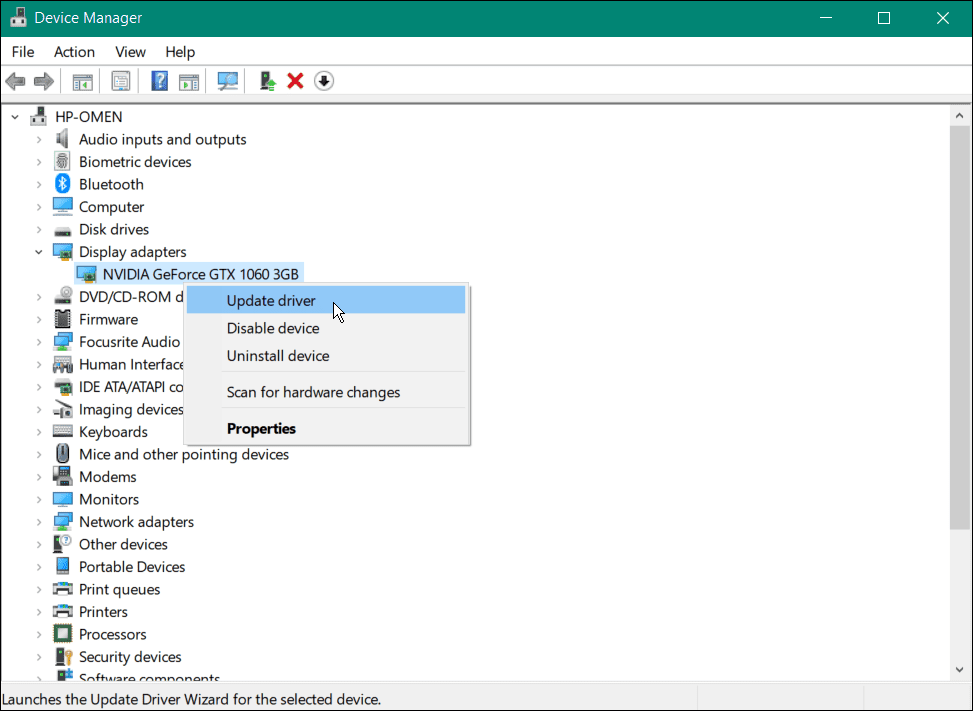
- Right-click the Start button and select Device Manager.
- Expand the category for the device you want to update (e.g., “Display adapters,” “Sound, video and game controllers”).
- Right-click on the specific device and select Update driver.
- Choose Search automatically for drivers. Windows will then search your computer and the internet for the best available driver.
- Follow the on-screen prompts. If a new driver is found, it will be installed. You may need to restart your computer.
2. Manual Installation from Manufacturer’s Website (Recommended for Latest Features and Performance)
For the most up-to-date drivers, especially for critical components like graphics cards, network adapters, or specialized peripherals, downloading directly from the manufacturer’s website is often the best approach. This ensures you get the latest performance enhancements, bug fixes, and new features.
Identifying Your Hardware:
Before you can download a driver, you need to know exactly what hardware you have.
- For built-in components: Use Device Manager (as described above) to identify the exact model and manufacturer of your components.
- For external peripherals: The device itself, its packaging, or its manual should clearly state the manufacturer and model number. You can also often find this information on the manufacturer’s website by looking up the product.
Downloading the Driver:
Once you’ve identified your hardware, navigate to the manufacturer’s official website. Look for a “Support,” “Downloads,” or “Drivers” section.
- Steps:
- Visit the manufacturer’s website (e.g., NVIDIA, AMD, Intel, HP, Canon, Logitech).
- Navigate to their support or download section.
- You will typically be prompted to enter your product model, serial number, or to select your operating system and architecture (e.g., Windows 10 64-bit).
- Locate the latest driver for your specific device. Pay attention to the release date and version number.
- Download the driver installer file. It will usually be an executable file (.exe) for Windows.
Installing the Driver Manually:
After downloading the driver installer:
- Steps:
- Locate the downloaded installer file (usually in your “Downloads” folder).
- Important: It’s often a good practice to uninstall any existing drivers for that device before installing a new one. You can do this through Device Manager by right-clicking the device, selecting “Uninstall device,” and checking the box to “Delete the driver software for this device” if prompted.
- Double-click the downloaded driver installer file to run it.
- Follow the on-screen instructions. This process can vary depending on the manufacturer. Some installers have a quick setup, while others might present you with custom installation options.
- You will likely be prompted to restart your computer after the installation is complete. This is crucial for the new driver to take effect properly.
3. Using Manufacturer-Specific Software or Utilities
Many hardware manufacturers provide their own software suites or utilities that manage driver updates and offer additional features for their products.
- Examples: NVIDIA’s GeForce Experience, AMD’s Radeon Software, Intel’s Driver & Support Assistant, HP Support Assistant, Dell Update.
- How it works: These applications often run in the background or can be launched manually to scan for, download, and install driver updates specifically for that manufacturer’s hardware. They can also offer system diagnostics and optimization tools.
- Advantages: Convenient for users with multiple devices from the same manufacturer. Often provides the most optimized drivers for that specific hardware. Can offer features beyond just driver updates.
- Disadvantages: Requires installing additional software. May not cover all hardware if you use components from multiple manufacturers.
- Steps:
- If you have a device from a major manufacturer (like a graphics card or motherboard), check if they offer a dedicated utility.
- Download and install the utility from the manufacturer’s official website.
- Launch the utility and look for an option to “Check for updates” or “Scan for drivers.”
- Follow the prompts to download and install any recommended driver updates.
- Restart your computer if prompted.
Troubleshooting Common Driver Issues
Even with the best intentions, you might encounter problems when installing or using device drivers. Here are some common issues and how to address them:
1. Device Not Recognized or Showing an Error
- Symptom: The device appears with a yellow exclamation mark in Device Manager, or it’s not listed at all.
- Solution:
- Reinstall the Driver: Uninstall the existing driver (if any) and then try installing the latest version from the manufacturer’s website again.
- Check Device Manager: Ensure the device is enabled in Device Manager.
- Check Physical Connection: Make sure the device is properly plugged in. Try a different USB port or cable.
- System Restore: If the issue started recently, consider using System Restore to revert your system to a point before the problem occurred.
- Hardware Failure: In rare cases, the device itself might be faulty.
2. System Crashing or Blue Screen Errors (BSOD) After Driver Installation
- Symptom: Your computer crashes or displays a blue screen, often accompanied by error messages that mention a driver file.
- Solution:
- Roll Back Driver: In Device Manager, right-click the problematic device, select Properties, go to the Driver tab, and click Roll Back Driver (if available).
- Uninstall and Reinstall: Uninstall the driver completely and reinstall a slightly older, stable version if the latest one is causing issues.
- Check for Conflicting Software: Sometimes, other software can interfere with drivers.
- Safe Mode: Boot into Safe Mode to uninstall the driver.
3. Performance Issues (Slowdowns, Glitches)
- Symptom: Your device is not performing as expected – graphics are laggy, audio is choppy, or network speeds are slow.
- Solution:
- Update to the Latest Driver: This is often the quickest fix, as manufacturers frequently release performance optimizations.
- Clean Installation: When installing drivers, especially for graphics cards, opt for a “clean installation” if the installer provides the option. This removes all previous driver files and settings before installing the new ones.
- Check Manufacturer’s Support: Look for troubleshooting guides or forums on the manufacturer’s website for specific performance tips related to your hardware.

Best Practices for Device Driver Management
Maintaining your device drivers is an ongoing process that contributes to a healthy and efficient computing environment.
- Regularly Check for Updates: Make it a habit to check for driver updates for your critical hardware (graphics card, network adapter, chipset) at least once every few months, or whenever a new game or major software application is released.
- Use Official Sources: Always download drivers directly from the hardware manufacturer’s official website. Avoid third-party driver update tools, as they can sometimes install incorrect or even malicious drivers.
- Note Down Driver Versions: Keep a record of the driver versions you have installed, especially for critical components. This can be helpful if you need to roll back to a previous version.
- Create a System Restore Point: Before installing any significant driver updates, it’s a wise precaution to create a System Restore point. This gives you an easy way to revert your system if something goes wrong.
- Understand Your Hardware: Knowing the exact model and manufacturer of your hardware is essential for finding the correct drivers.
- Restart After Installation: Always restart your computer after installing or updating drivers to ensure they are loaded correctly.
By following these guidelines and understanding the principles behind device drivers, you can ensure that your technology operates at its best, providing a smooth, stable, and feature-rich experience. Whether you’re a casual user, a creative professional, or a hardcore gamer, mastering device driver installation is a fundamental step towards unlocking the full potential of your digital world.
aViewFromTheCave is a participant in the Amazon Services LLC Associates Program, an affiliate advertising program designed to provide a means for sites to earn advertising fees by advertising and linking to Amazon.com. Amazon, the Amazon logo, AmazonSupply, and the AmazonSupply logo are trademarks of Amazon.com, Inc. or its affiliates. As an Amazon Associate we earn affiliate commissions from qualifying purchases.