
In an increasingly digital world, the choice of an operating system significantly impacts productivity, security, and even financial strategy. While proprietary systems dominate the consumer market, a powerful, flexible, and free alternative has been a cornerstone of the computing landscape for decades: Linux. Among its myriad distributions, Debian stands out as a beacon of stability, reliability, and an unwavering commitment to open-source principles.
This comprehensive guide will walk you through the process of installing Debian Linux, transforming your machine into a robust platform that caters to everything from cutting-edge development to everyday computing. Whether you’re a seasoned tech enthusiast looking for a new daily driver, a professional aiming for enhanced digital security, or simply curious about the benefits of an open-source ecosystem, understanding how to install Debian is a foundational step. Beyond the technical specifics, we’ll explore how embracing Debian aligns with broader trends in technology, personal branding, and even astute financial planning, making it an invaluable asset in your digital toolkit.

Embracing Debian: Why This Linux Powerhouse Matters for Tech, Brand, and Money
Debian isn’t just another Linux distribution; it’s a philosophy embodied in software. Known for its rigorous testing, unwavering commitment to free software, and a massive community-driven development model, Debian serves as the bedrock for many other popular distributions, including Ubuntu. But what makes Debian a compelling choice in today’s landscape, particularly when considering its impact on technology, personal and corporate branding, and even financial prudence?
The Technological Edge: Stability, Security, and Software Freedom
From a purely technological standpoint, Debian excels in several critical areas. Its reputation for stability is legendary, making it an ideal choice for servers, development workstations, and any environment where reliability is paramount. This stability translates directly into less downtime, fewer unexpected issues, and a more predictable computing experience. For developers, sysadmins, and power users, this means more time spent creating and less time troubleshooting.
Security is another cornerstone of the Debian project. Its stringent package management system and prompt security updates help safeguard your digital assets against evolving threats. In an era where digital security is a top concern for individuals and organizations alike, running a secure operating system like Debian is a proactive measure against data breaches and system compromises. Furthermore, Debian adheres strictly to the Free Software Guidelines, ensuring users have the freedom to run, study, distribute, and modify their software. This empowers users with unparalleled control and transparency over their computing environment, fostering innovation and fostering a deeper understanding of the tools they use daily. The vast repositories, housing tens of thousands of software packages, mean that almost any tool you need for development, productivity, or creativity is just a command away, constantly updated and maintained by a global community.
Building Your Digital Brand with Debian: Reliability and Expertise
In today’s interconnected world, your digital tools and choices contribute to your personal and professional brand. Opting for Debian, a system revered for its robustness and open-source ethics, implicitly communicates certain values. It suggests a user who prioritizes control, efficiency, security, and an understanding of underlying technology. For IT professionals, developers, or even tech-savvy individuals, demonstrating proficiency with Debian can significantly enhance their professional standing and credibility.
For businesses, especially those in tech-heavy sectors, deploying Debian-based solutions can reflect a brand committed to open standards, cost-effectiveness, and a robust infrastructure. This choice can be a subtle yet powerful statement about a company’s technical acumen and its dedication to sustainable, community-driven technologies. Using Debian for servers or internal systems can contribute to a corporate identity built on reliability and foresight, reinforcing trust with clients and partners.
Financial Prudence: Maximizing Value and Minimizing Costs
One of Debian’s most significant, yet often overlooked, advantages lies in its financial implications. Being entirely free and open-source, Debian eliminates the significant upfront and recurring licensing costs associated with proprietary operating systems. This cost-saving is particularly impactful for startups, educational institutions, non-profits, or individuals on a budget, allowing them to allocate resources to other critical areas.
Beyond the initial savings, Debian’s stability and minimal resource requirements often mean that older hardware can be repurposed and run efficiently for longer periods. This extends the life cycle of computers, reducing the need for frequent hardware upgrades and thus saving money on capital expenditure. For those interested in online income or side hustles, Debian provides a cost-free, powerful platform for web development, server management, data analysis, and many other tasks that can generate revenue. Its robust ecosystem supports a wide array of financial tools, development environments, and secure browsing capabilities, making it an ideal choice for managing personal finances, investing, or building the infrastructure for an online business without incurring licensing fees.
Preparing for Your Debian Installation: The Essential Pre-flight Checklist
Before embarking on the installation journey, a bit of preparation can save a lot of headaches. This section covers the essential steps to ensure a smooth and successful Debian installation, from understanding hardware requirements to preparing your installation media.
System Requirements and Backup Strategies
Debian is remarkably efficient and can run on a wide range of hardware, from aging machines to cutting-edge systems. For a basic graphical desktop environment, a modern processor, at least 2GB of RAM (4GB or more recommended for comfortable use), and 20GB of disk space (100GB or more recommended) are typically sufficient. However, these are minimums, and more resources will naturally lead to a snappier experience. For server installations without a graphical interface, even less RAM and disk space may suffice.
Crucial Step: Backup Your Data! If you are installing Debian on a machine that already contains valuable data (especially if you plan to dual-boot or overwrite an existing OS), it is absolutely imperative to back up all important files to an external drive, cloud storage, or another secure location. While the installation process is generally safe, unexpected issues can occur, and losing data is a risk you simply cannot afford. This emphasis on data security aligns perfectly with sound digital security practices, which are paramount for any tech-savvy individual or business.
Obtaining the Debian Installation Media
The first step is to download the Debian installation image. You’ll typically find these on the official Debian website (www.debian.org).
- Choose Your Architecture: Most modern computers are 64-bit, so you’ll likely want the
amd64architecture. - Select an Image Type:
- “Netinstall” (small CD image): This is a minimal image that downloads most packages from the internet during installation. It’s great if you have a reliable internet connection and want the freshest packages.
- “DVD” images: These are larger images that contain a significant portion of the Debian archive, allowing for an offline installation (or mostly offline). Recommended if your internet is slow or unreliable.
- “Live” images: These allow you to try Debian without installing it, booting directly from the USB drive. They also offer an installer option once you’re ready. For beginners, a Live image can be a great way to test hardware compatibility before committing.
Download the .iso file to a location you can easily find. Ensure you download from a mirror close to you for faster speeds.
Creating a Bootable USB Drive
Once you have the .iso file, you need to write it to a USB flash drive, making it bootable. The USB drive should be at least 4GB (8GB or more for DVD or Live images) and will be completely erased in the process.
Several tools can accomplish this:
- Balena Etcher (Windows, macOS, Linux): This is a highly recommended, user-friendly tool. Download it, select your
.isofile, select your USB drive, and click “Flash!” It handles the rest. - Rufus (Windows): Another popular choice for Windows users. Select your
.iso, choose your USB drive, and configure the boot options (usually “MBR” partition scheme for BIOS or “GPT” for UEFI, but Rufus often makes good defaults). ddcommand (Linux/macOS): For command-line enthusiasts:
sudo dd if=/path/to/debian.iso of=/dev/sdX bs=4M status=progress
Caution: Replace/dev/sdXwith the correct device name for your USB drive (e.g.,/dev/sdb), not a partition number (e.g.,/dev/sdb1). Using the wrong device can erase your main hard drive! Uselsblkorfdisk -lto identify your USB drive correctly.
After creation, safely eject the USB drive. Your installation media is now ready.
The Step-by-Step Debian Installation Process: Your Gateway to Open Source
With your bootable USB drive in hand, you’re ready to begin the installation. The process generally involves booting from the USB, configuring basic system settings, partitioning your disk, and installing the core system and selected software.
Booting from the Installation Media
- Insert the USB drive: Plug your bootable Debian USB into your computer.
- Access your BIOS/UEFI settings: Restart your computer. As it starts up, repeatedly press the designated key to enter the BIOS/UEFI setup. Common keys include
Del,F2,F10,F12, orEsc. - Change Boot Order: Navigate to the “Boot” or “Startup” section within the BIOS/UEFI settings. Change the boot order to prioritize your USB drive (it might be listed under “USB-HDD” or the brand name of your USB drive).
- Save and Exit: Save your changes and exit. The computer should now reboot and boot from the Debian USB.
You’ll be presented with the Debian boot menu. For graphical installations, choose “Graphical install.” For command-line enthusiasts or minimal server setups, “Install” or “Advanced options” are available.
Initial Configuration: Language, Location, and Keyboard
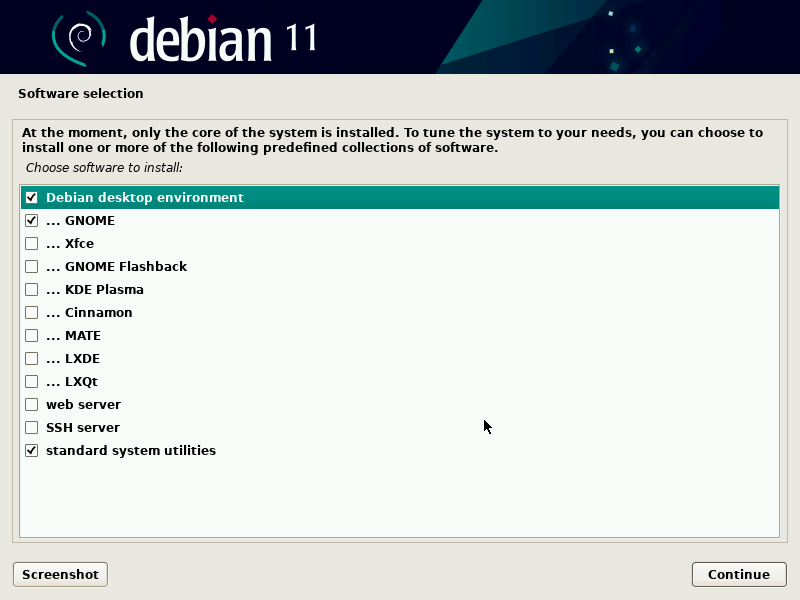
The installer will guide you through the initial setup steps:
- Language: Select your preferred language for the installation process and the installed system.
- Location: Choose your country/territory. This helps set the correct time zone and locale settings.
- Keyboard Layout: Select your keyboard layout (e.g., “English (US),” “German”). You might be given an option to test it.
Network Configuration
The installer will attempt to automatically configure your network using DHCP. If successful, you’ll be prompted to enter a hostname for your system (e.g., mydebianpc) and a domain name (optional, e.g., localdomain). If you’re on a static IP network or need specific configurations, you’ll have options to manually configure your network settings. A stable network connection is crucial, especially for netinstall images, as most packages will be downloaded during this phase.
Setting Up Users and Passwords
This is a critical security step, vital for protecting your system.
- Root Password: You’ll be asked to set a password for the “root” user. Root is the superuser account with full administrative privileges. Choose a strong, complex password. Many modern Debian installations, by default, disable direct root login and instead rely on
sudofor administrative tasks, which is generally a safer approach. - New User Account: Create a standard user account. Provide your full name, a username (e.g.,
johnsmith), and a strong password. This will be your primary account for daily use.
Disk Partitioning Explained: Navigating Your Storage
This is arguably the most critical and potentially intimidating step. Proper disk partitioning ensures your system is organized and efficient.
-
Partitioning Methods:
- “Guided – use entire disk”: This is the simplest option. The installer will automatically create partitions (root, swap, home) using the entire selected disk. Ideal for single-OS setups where you’re dedicating the whole drive to Debian.
- “Guided – use entire disk and set up encrypted LVM”: Similar to the above but adds Full Disk Encryption (FDE) using LVM (Logical Volume Management), significantly enhancing digital security. Highly recommended for laptops or systems containing sensitive data.
- “Guided – use largest available continuous free space”: Useful for dual-booting, as it will install Debian alongside an existing OS without overwriting it, utilizing unallocated space.
- “Manual”: Offers complete control to create, resize, and delete partitions. This is for experienced users who need specific layouts (e.g., separate
/var,/usr, custom LVM setups, RAID).
-
Recommended Partitions (for “Guided – use entire disk”):
/(root partition): This is where the operating system files reside. A minimum of 15-20GB is generally good, but 30-50GB is safer for a desktop system.swap(swap space): Used as virtual RAM when physical RAM is exhausted. A general rule of thumb is 1-1.5 times your RAM, or simply 4-8GB for modern systems with plenty of RAM./home(home partition): This is where user data (documents, pictures, settings) is stored. Separating/homeallows you to reinstall the OS without losing your personal files. Allocate the majority of your remaining disk space here.
Review the proposed partitioning scheme carefully. Once satisfied, confirm to write changes to disk. This is the point of no return where your disk will be modified.
Selecting Software and Desktop Environment
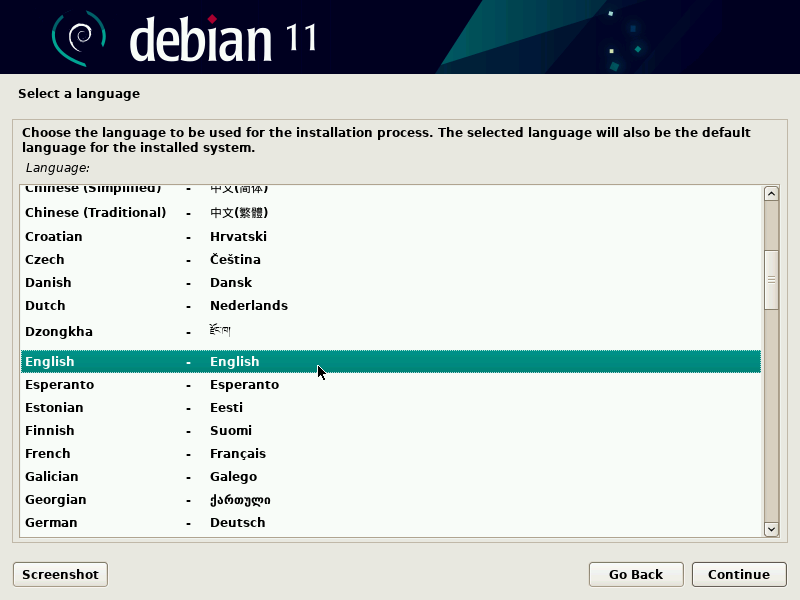
After partitioning, the base system will be installed. You’ll then be prompted to select software to install.
- Desktop Environment: Debian offers various desktop environments (DEs). Popular choices include:
- GNOME: Modern, user-friendly, feature-rich (default for many distros).
- KDE Plasma: Highly customizable, powerful, aesthetically pleasing.
- Xfce: Lightweight, fast, and resource-efficient.
- LXQt: Even lighter, ideal for older hardware.
- MATE / Cinnamon: Traditional desktop experiences.
Choose one that suits your preferences and hardware capabilities.
- Other Software: You’ll also see options for a “web server,” “SSH server,” “print server,” etc. Select these based on your needs. For a typical desktop user, just the chosen desktop environment and “standard system utilities” are sufficient. If you plan to remotely access your system, definitely select “SSH server.”
The installer will then download and install all selected packages. This can take a considerable amount of time depending on your internet speed and the number of packages chosen.
Installing the GRUB Bootloader
Finally, you’ll be asked to install the GRUB bootloader. GRUB (Grand Unified Bootloader) is essential for your computer to find and start Debian (and any other operating systems you might have).
- Install GRUB to the master boot record (MBR) or UEFI partition: Generally, you’ll want to install GRUB to the primary drive (e.g.,
/dev/sdaor the drive Debian is installed on). The installer usually makes a good suggestion. Do not choose a specific partition (e.g.,/dev/sda1), but rather the entire disk device.
Once GRUB is installed, the installation is complete. Remove your USB drive when prompted, and restart your system.
Post-Installation Essentials and Embracing the Debian Ecosystem
Congratulations! You’ve successfully installed Debian Linux. Your journey into the stable and secure world of open-source computing has just begun. But the installation is just the first step. A few post-installation tasks will ensure your system is fully updated, personalized, and ready for action.
First Boot and System Updates
Upon rebooting, you should see the GRUB menu, allowing you to select Debian. After logging in with your user account, the first order of business is to update your system. This ensures you have the latest security patches and software versions.
- Open a Terminal: You can usually find a terminal application in your desktop environment’s applications menu.
- Update Package Lists:
sudo apt update
Enter your user password when prompted. This command fetches the latest package information from the Debian repositories. - Upgrade Installed Packages:
sudo apt full-upgrade
This command upgrades all installed packages to their newest available versions, handling dependencies appropriately. It’s crucial for security and performance. You might be prompted to confirm the installation of new packages or removal of old ones. - Reboot (if kernel updated): If the
full-upgradecommand updated your kernel, it’s a good idea to reboot your system for the changes to take effect:
sudo reboot
Essential Software and Customization
With your system updated, you can start installing essential applications and customizing your environment.
- Web Browser: Debian comes with Firefox-ESR (Extended Support Release) by default, which is stable but not always the absolute latest version. You might want to install the regular Firefox or Google Chrome:
sudo apt install firefox(for the regular Firefox)
For Chrome, you’ll typically need to download the.debpackage from Google’s website and install it manually or add Google’s repository. - Office Suite: LibreOffice is the default and a powerful, free alternative to Microsoft Office.
- Media Players: VLC is a versatile media player that can handle almost any format:
sudo apt install vlc - Productivity Tools: Explore the vast Debian repositories for tools that boost your productivity. From IDEs for developers (VS Code, Sublime Text), to graphic design software (GIMP, Inkscape), to communication apps (Discord, Telegram), almost everything is available.
- Customization: Dive into your desktop environment’s settings to personalize themes, icons, fonts, and wallpapers. Linux offers an unparalleled level of customization, allowing you to tailor your digital workspace to perfectly match your brand and workflow preferences.
Embracing the Debian Ecosystem and Beyond
Installing Debian is not just about getting an operating system; it’s about joining a vibrant community and adopting a powerful ecosystem.
- Community Support: The Debian community is vast and helpful. Forums, mailing lists, and wikis are excellent resources for troubleshooting, learning, and sharing knowledge. This collaborative spirit is a hallmark of the open-source movement and a valuable asset for any user.
- Learning and Growth: Debian provides an excellent platform for learning about Linux internals, shell scripting, and server management. For those looking to pivot careers into IT, development, or digital security, Debian offers a robust, free-to-use lab environment. This directly ties into personal development and can open doors to new income streams or career opportunities.
- Digital Security and Privacy: Continue to prioritize security. Learn about firewalls (UFW), VPNs, and best practices for password management. Debian’s inherent security benefits are amplified by an informed user.
- Contribution: As you become more comfortable, consider contributing back to the Debian project or other open-source projects. This could be through bug reports, documentation, or even code. Such contributions not only benefit the community but also enhance your professional portfolio and demonstrate expertise, further strengthening your personal brand.
Conclusion: Debian – Your Foundation for a Smarter Digital Future
Installing Debian Linux is more than just a technical exercise; it’s an investment in a robust, secure, and flexible computing future. By choosing Debian, you’re not only leveraging cutting-edge technology but also aligning with principles of open-source freedom, community collaboration, and sound financial stewardship.
From its unparalleled stability and stringent security measures to the significant cost savings and the powerful platform it offers for development and productivity, Debian empowers users to take control of their digital lives. It provides a reliable foundation that supports a stronger personal or corporate brand, reflecting a commitment to efficiency and technical excellence. Moreover, by removing proprietary software costs and extending hardware longevity, Debian offers tangible financial benefits, freeing up resources for innovation and growth.
Whether you’re building a secure server, crafting a development workstation, or simply seeking a reliable everyday operating system, Debian Linux stands ready to be your steadfast companion. Embrace the power of open source, install Debian today, and unlock a world of possibilities that will serve your technological needs, bolster your digital brand, and wisely manage your financial resources for years to come. The journey starts now.
aViewFromTheCave is a participant in the Amazon Services LLC Associates Program, an affiliate advertising program designed to provide a means for sites to earn advertising fees by advertising and linking to Amazon.com. Amazon, the Amazon logo, AmazonSupply, and the AmazonSupply logo are trademarks of Amazon.com, Inc. or its affiliates. As an Amazon Associate we earn affiliate commissions from qualifying purchases.