
For many Linux users, the command line is an indispensable tool. It offers a powerful and efficient way to manage your system, automate tasks, and even install applications. While graphical interfaces are convenient, mastering terminal commands can unlock a new level of control and speed. One common task that many Linux users might want to perform from the terminal is installing Google Chrome. This article will guide you through the straightforward process of getting Chrome up and running on your Linux distribution using only the terminal.
Understanding the Terminal and Package Management
Before diving into the installation process, it’s beneficial to understand what the terminal is and how package management works on Linux.

The Linux Terminal: A Gateway to System Control
The terminal, also known as the command line interface (CLI), is a text-based interface that allows you to interact directly with your operating system’s kernel. Instead of clicking icons and menus, you type commands, and the system executes them. This method offers several advantages:
- Efficiency: For repetitive tasks, commands can be much faster than navigating through graphical menus.
- Automation: Scripts can be written to automate complex sequences of commands, saving significant time.
- Power and Flexibility: The terminal provides access to a vast array of system tools and configurations not always exposed in GUI applications.
- Resource Lightweight: Many terminal applications use fewer system resources than their graphical counterparts.
While it might seem daunting at first, learning basic terminal commands is a valuable skill for any Linux user, especially when dealing with software installation.
Package Management: The Backbone of Linux Software Installation
Linux distributions rely on package managers to handle the installation, updating, and removal of software. These managers automate the process of downloading software, resolving dependencies (other software that the application needs to run), and configuring it correctly. The most common package management systems are:
- Debian-based distributions (e.g., Ubuntu, Debian, Linux Mint): Use
dpkgas the low-level tool andapt(Advanced Package Tool) as the higher-level command-line interface. - Red Hat-based distributions (e.g., Fedora, CentOS, RHEL): Use
rpmas the low-level tool andyumordnf(Dandified YUM) as the higher-level command-line interface.
Google Chrome is not typically included in the default repositories of most Linux distributions due to licensing reasons. Therefore, we need to manually add Google’s official repository to our system before we can install Chrome using the package manager.
Installing Chrome on Debian-Based Systems (Ubuntu, Mint, etc.)
For users of Debian-based Linux distributions, the process involves downloading the Chrome .deb package and then using apt to install it, along with adding the official Google repository for future updates.
Step 1: Update Your Package Lists
It’s always a good practice to ensure your system’s package lists are up-to-date before installing new software. This ensures you’re aware of the latest available versions and security patches.
Open your terminal and run the following command:
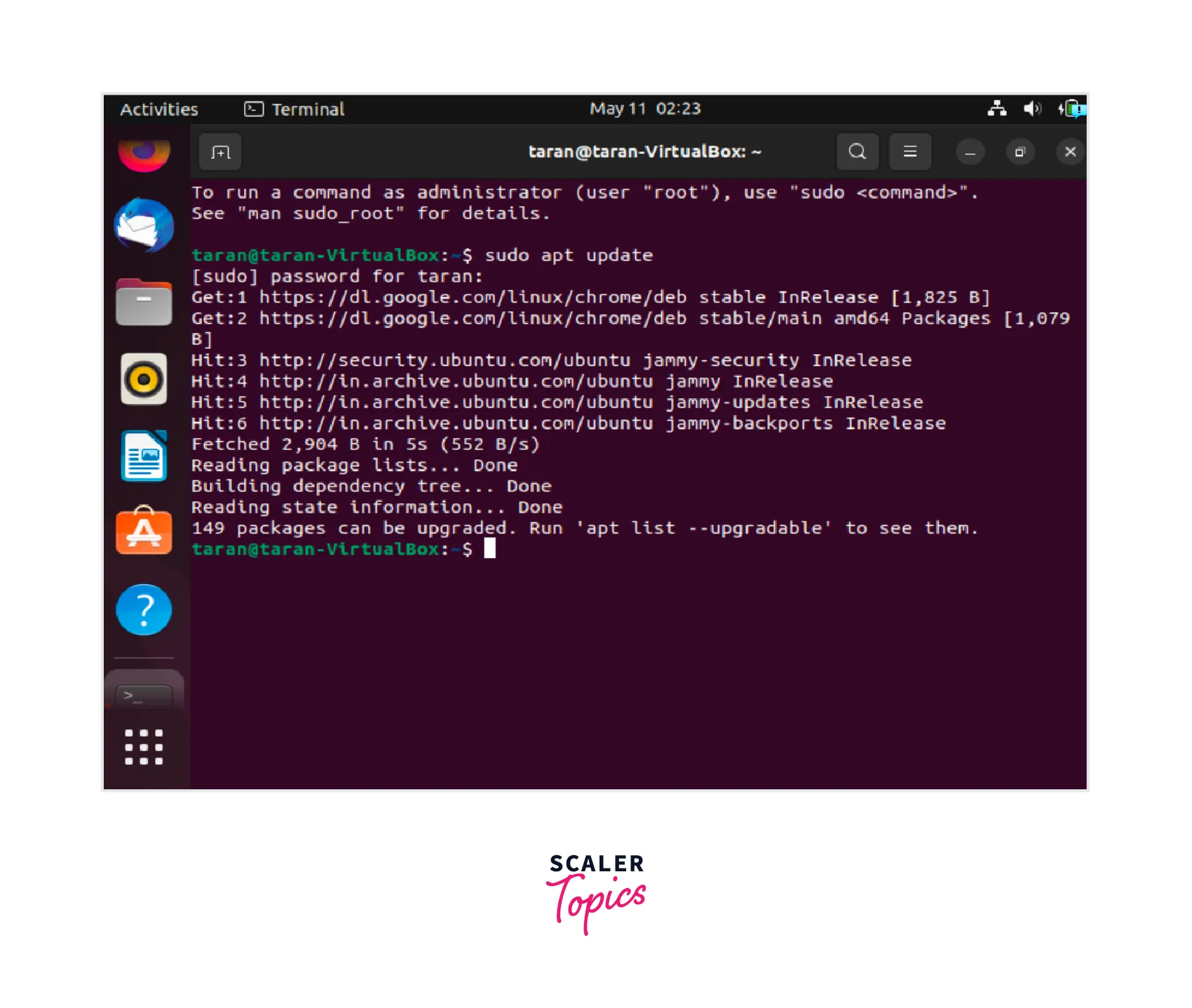
sudo apt update
This command synchronizes your local package index files with those from the repositories configured on your system. sudo is used to execute the command with superuser (administrator) privileges, which are required for system-level operations like updating package lists.
Step 2: Install Necessary Packages for Adding Repositories
Before adding external repositories, it’s good practice to ensure you have the wget or curl tool installed, which are essential for downloading files from the internet. You’ll also need gnupg to handle GPG keys for repository verification.
Run this command to install them if they are not already present:
sudo apt install wget gnupg
Step 3: Download and Add the Google Chrome Repository Key
To verify the authenticity of the Google Chrome packages, we need to import Google’s public signing key. This key is used by apt to ensure that the packages you download haven’t been tampered with.
First, download the key:
wget -q -O - https://dl.google.com/linux/linux_signing_key.pub | sudo apt-key add -
Let’s break down this command:
wget -q -O -: This part downloads the file from the specified URL.-q(quiet) suppresses most ofwget‘s output.-O -directs the downloaded content to standard output instead of saving it to a file.
|: This is a pipe. It takes the output of the command on the left (wget) and uses it as the input for the command on the right (sudo apt-key add -).sudo apt-key add -: This command adds a new public key to APT’s list of trusted keys. The-tellsapt-keyto read the key from standard input, which is why we piped the output fromwget.
Step 4: Add the Google Chrome Repository
Now that the key is added, we can add the official Google Chrome repository to your system’s apt sources. This tells your package manager where to find Chrome packages.
echo "deb [arch=amd64] http://dl.google.com/linux/chrome/deb/ stable main" | sudo tee /etc/apt/sources.list.d/google-chrome.list
Explanation:
echo "deb [arch=amd64] http://dl.google.com/linux/chrome/deb/ stable main": This command prints the repository line to standard output.deb: Specifies that this is a Debian-style repository.[arch=amd64]: This is an important inclusion, specifying that we are interested in the 64-bit (amd64) architecture, which is standard for most modern Linux systems.http://dl.google.com/linux/chrome/deb/: The URL of the Google Chrome repository.stable main: These are the distribution and component names within the repository.
|: The pipe character again redirects the output ofechoto the next command.sudo tee /etc/apt/sources.list.d/google-chrome.list: Theteecommand reads from standard input and writes to both standard output and one or more files. In this case, it writes the repository line to the specified file (/etc/apt/sources.list.d/google-chrome.list) and also displays it on your terminal (which you can ignore). This file is whereaptlooks for additional software sources.sudois required because you are writing to a system directory.
Step 5: Update Package Lists Again
After adding a new repository, it’s crucial to update your package lists again so that apt is aware of the new software sources available.
sudo apt update
Step 6: Install Google Chrome
Now that the repository is set up and your package lists are updated, you can install Google Chrome.
sudo apt install google-chrome-stable
This command will download and install the latest stable version of Google Chrome along with all its necessary dependencies. You’ll be prompted to confirm the installation by typing ‘Y’ and pressing Enter.
Step 7: Launching Chrome
Once the installation is complete, you can launch Google Chrome from your terminal by typing:
google-chrome-stable
Alternatively, you can find Google Chrome in your application menu, just like any other graphical application.
Installing Chrome on Red Hat-Based Systems (Fedora, CentOS, RHEL)
For users of Red Hat-based distributions, the process is similar, but it uses the dnf (or yum on older systems) package manager and works with .rpm packages.
Step 1: Update Your System
First, update your system to ensure all packages are current.
For Fedora and newer RHEL/CentOS:
sudo dnf update
For older RHEL/CentOS versions that still use yum:
sudo yum update
Step 2: Download the Google Chrome RPM Package
Google provides an official .rpm package for Chrome. You can download it using wget.
wget https://dl.google.com/linux/direct/google-chrome-stable_current_x86_64.rpm
This command downloads the latest stable 64-bit version of Google Chrome directly into your current directory.
Step 3: Install the RPM Package
Once the .rpm file is downloaded, you can install it using dnf or yum. The package manager will automatically handle dependencies.
For Fedora and newer RHEL/CentOS:
sudo dnf install google-chrome-stable_current_x86_64.rpm
For older RHEL/CentOS versions:
sudo yum install google-chrome-stable_current_x86_64.rpm
If dnf or yum prompts you to accept a GPG key, you can generally accept it by typing ‘y’ and pressing Enter.
Step 4: Clean Up the Downloaded File (Optional)
After the installation is successful, you can remove the downloaded .rpm file to save disk space.
rm google-chrome-stable_current_x86_64.rpm
Step 5: Launching Chrome
You can launch Chrome from the terminal using:
google-chrome-stable
Or find it in your application menu.
Troubleshooting Common Issues
While the installation process is generally smooth, you might encounter a few minor issues.
Dependency Errors
If you encounter errors related to missing dependencies, first ensure your package lists are fully updated (sudo apt update or sudo dnf update). Sometimes, a specific version of a library might be required. If the issue persists, try running sudo apt --fix-broken install on Debian-based systems after the initial failed installation.
No Internet Connection
Ensure your system has a stable internet connection. The commands require access to Google’s servers to download packages and repository information.
Incorrect Architecture
Make sure you are downloading and installing the correct architecture for your system. Most modern desktops are 64-bit (amd64 for Debian, x86_64 for Red Hat). If you are on a rare 32-bit system, you would need to find appropriate packages, though Chrome has largely dropped 32-bit support.

Conclusion
Installing Google Chrome from the Linux terminal is a straightforward process that highlights the power and efficiency of command-line package management. By following the steps outlined for your specific distribution, you can quickly add one of the most popular web browsers to your system without ever needing to navigate a graphical software center. This method not only saves time but also builds valuable skills for managing your Linux environment. Whether you’re a seasoned Linux user or just beginning your journey, mastering these terminal commands will undoubtedly enhance your computing experience.
aViewFromTheCave is a participant in the Amazon Services LLC Associates Program, an affiliate advertising program designed to provide a means for sites to earn advertising fees by advertising and linking to Amazon.com. Amazon, the Amazon logo, AmazonSupply, and the AmazonSupply logo are trademarks of Amazon.com, Inc. or its affiliates. As an Amazon Associate we earn affiliate commissions from qualifying purchases.