
Google Chrome’s extensibility is one of its most powerful features, allowing users to customize their browsing experience, automate workflows, and enhance productivity. While the Chrome Web Store is the primary hub for discovering and installing these tools, there are many scenarios where a user or developer might need to install an extension manually from a ZIP file. This process, often referred to as “sideloading” or “loading an unpacked extension,” is a critical skill for developers testing their code, power users trying out beta features, or individuals using specialized tools not hosted on the official store.
In this guide, we will explore the technical nuances of manual extension installation, the security considerations involved, and a step-by-step walkthrough to ensure your custom extensions run smoothly.
Understanding the Architecture of Chrome Extensions
Before diving into the installation process, it is essential to understand what a Chrome extension actually is. At its core, an extension is a collection of web technologies—HTML, CSS, and JavaScript—packaged together to add functionality to the browser.
The Role of the Manifest File
Every Chrome extension, whether it comes from the Web Store or a ZIP file, must contain a file named manifest.json. This is the blueprint of the extension. It tells the browser the extension’s name, version, permissions required (such as access to your tabs or specific websites), and which scripts to run in the background. If you attempt to install a ZIP file that lacks a valid manifest.json, Chrome will reject the installation immediately.
Why Install from a ZIP File?
There are several technical reasons why you might bypass the Chrome Web Store:
- Development and Testing: Developers need to see how their code behaves in a real browser environment before submitting it for review.
- Using Open-Source Tools: Many developers host their tools on platforms like GitHub. These may not always be published to the Web Store due to listing fees or niche use cases.
- Custom Internal Tools: Corporations often build proprietary extensions for internal use that they do not wish to make public.
- Legacy Support: Occasionally, a user may need an older version of an extension that is no longer available officially.
The Step-by-Step Process to Manually Install a ZIP-Based Extension
Installing an extension from a ZIP file is not as simple as double-clicking the file. Because this bypasses Google’s automated security checks, Chrome requires you to enable “Developer Mode” to proceed.
Step 1: Prepare the Extension Folder
Chrome cannot read the contents of a compressed ZIP file directly for installation.
- Locate the ZIP file on your computer.
- Right-click the file and select “Extract All” (or use a tool like 7-Zip or WinRAR).
- Ensure all the files (the manifest, icons, and scripts) are in a dedicated folder. Note the location of this folder, as Chrome will need to link to it.
Step 2: Access the Extensions Management Page
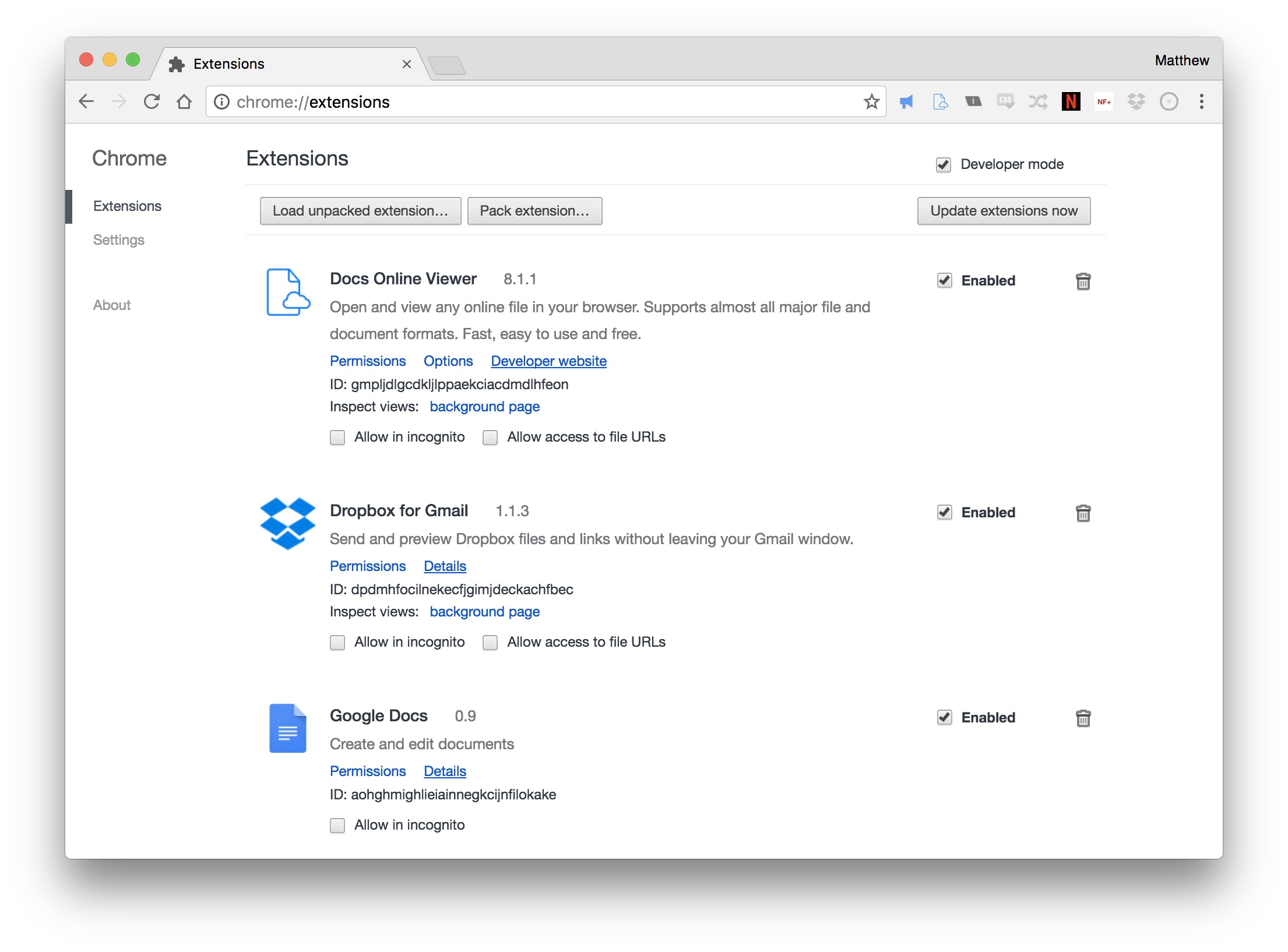
Open your Chrome browser and navigate to the extensions management interface. You can do this in two ways:
- Type
chrome://extensions/into the address bar and press Enter. - Alternatively, click the three-dot menu in the top-right corner, hover over “Extensions,” and select “Manage Extensions.”
Step 3: Enable Developer Mode
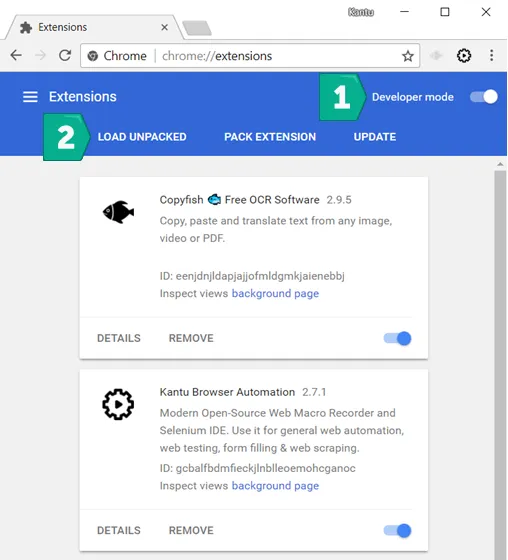
In the top-right corner of the Extensions page, you will see a toggle switch labeled Developer Mode.
- Flip this switch to the “On” position.
- Enabling this mode reveals three new options: “Load unpacked,” “Pack extension,” and “Update.”
Step 4: Load the Unpacked Extension
Now that Developer Mode is active:
- Click the Load unpacked button.
- A file explorer window will appear. Navigate to the folder you extracted in Step 1.
- Select the folder (the folder containing the
manifest.jsonfile) and click “Select Folder” or “Open.”
Once selected, the extension will appear in your list of installed extensions just like any other tool. You will see its icon, version number, and the specific permissions it has been granted.
Managing and Troubleshooting Unpacked Extensions
When you install an extension manually, it behaves slightly differently than one installed from the Web Store. Understanding these differences is key to maintaining a stable browser environment.
Refreshing and Updating Code
If you are a developer or if you have manually edited a script within the extension folder, you don’t need to reinstall the extension to see the changes. On the chrome://extensions page, each manually loaded extension has a “Reload” icon (a circular arrow). Clicking this will force Chrome to re-read the folder and apply any updates made to the code.
Addressing the “Manifest Version” Error
Google is currently transitioning from Manifest V2 to Manifest V3 to improve security and performance. If you try to install an older ZIP file, you might see a warning or error stating that the extension is no longer supported. While some V2 extensions still work, Chrome may eventually disable them. In such cases, you would need to find a V3-compliant version of the software.
The “Disable Developer Mode” Warning
For security reasons, Chrome will occasionally show a popup warning you that you are running extensions in Developer Mode. This is a safety feature designed to prevent malicious software from silently installing extensions that track your data. While annoying, this is normal behavior for sideloaded extensions. Do not click “Disable” unless you want to turn off your manually installed tools.
Handling Missing Files
If Chrome throws an error during the “Load unpacked” phase, it is usually because the manifest.json file is missing or improperly formatted. Ensure that you didn’t select a subfolder by mistake. The folder you select must be the direct parent of the manifest file.
Security Implications and Best Practices for Manual Installation
Installing software from outside official channels always carries a degree of risk. Because ZIP-based extensions haven’t been vetted by Google’s security team, you must exercise due diligence.
The Risk of Malicious Code
Extensions have deep access to your browser. They can read the content of the pages you visit, capture keystrokes, or redirect your web traffic. Only install ZIP files from sources you trust implicitly, such as reputable open-source repositories or your own development environment. Avoid downloading “cracked” versions of premium extensions, as these are frequently bundled with malware or data-stealing scripts.
Auditing Permissions
When you load an unpacked extension, Chrome will display the permissions it requires. Take a moment to review these. If a simple calculator extension asks for permission to “Read and change all your data on all websites,” that is a significant red flag. You can manage these permissions by clicking “Details” on the extension card in the chrome://extensions page.
Keeping Your Environment Clean
Unpacked extensions remain linked to the folder on your hard drive. If you move or delete that folder, the extension will stop working. To keep your system organized:
- Create a dedicated directory (e.g.,
C:/Users/Name/Documents/ChromeExtensions) to store all your manually loaded tools. - Regularly audit your extensions list and remove anything you no longer use by clicking the “Remove” button. This reduces the attack surface of your browser and can help maintain optimal performance.
The Importance of the “Unpacked” State
Unlike .crx files (which are the packaged versions of extensions), “unpacked” extensions are live. This means any changes to the files in that folder are reflected in the browser upon reloading. While this is perfect for development, it means you should not edit these files unless you know what you are doing, as a syntax error in the JavaScript could cause the extension—or even your browser tabs—to crash.
Conclusion
Manually installing a Chrome extension from a ZIP file is a straightforward yet powerful capability that bridges the gap between standard web browsing and software development. By leveraging Developer Mode and the “Load unpacked” feature, users can unlock a new level of browser customization and utility.
However, with this power comes the responsibility of maintaining digital security. By ensuring your sources are trustworthy, staying mindful of manifest versions, and organizing your local extension folders, you can safely navigate the world of custom Chrome tools. Whether you are debugging a new AI-powered plugin or simply using a niche productivity tool from GitHub, mastering the ZIP installation process is an essential component of a modern technical toolkit.
aViewFromTheCave is a participant in the Amazon Services LLC Associates Program, an affiliate advertising program designed to provide a means for sites to earn advertising fees by advertising and linking to Amazon.com. Amazon, the Amazon logo, AmazonSupply, and the AmazonSupply logo are trademarks of Amazon.com, Inc. or its affiliates. As an Amazon Associate we earn affiliate commissions from qualifying purchases.