
In the era of digital consumption, the way we organize, convert, and read our literature has shifted from physical shelves to sophisticated software databases. For Linux users, there is no tool more synonymous with digital reading than Calibre. Often described as the “Swiss Army Knife” of e-books, Calibre is a powerful, open-source management suite that allows users to do everything from syncing with e-readers to editing book metadata and converting file formats.
However, because Linux distributions vary significantly in how they handle software packages, installing Calibre can range from a one-click process to a more nuanced command-line operation. This guide provides an in-depth exploration of the best methods to install Calibre on Linux, ensuring you have the most up-to-date features while maintaining system stability.
Why Calibre is Essential for the Linux Ecosystem
Before diving into the technical installation steps, it is important to understand why Calibre remains a staple for the Linux community. Unlike proprietary alternatives, Calibre aligns with the open-source philosophy of user control and privacy.
Comprehensive E-book Management and Conversion
Calibre is much more than a simple e-reader. Its core strength lies in its database capabilities. It allows users to sort thousands of books by author, date, series, and custom tags. Furthermore, its conversion engine is peerless. Whether you need to turn a PDF into an EPUB for better flow on a mobile device or convert an EPUB to AZW3 for a Kindle, Calibre handles the CSS and formatting nuances with surgical precision. For a Linux user who values interoperability, this flexibility is indispensable.
The Power of Open Source Software
Written primarily in Python and C++, Calibre has been maintained by Kovid Goyal and a dedicated community for over a decade. In the Tech niche, “open source” isn’t just a buzzword; it represents a commitment to transparency and longevity. Because Calibre does not rely on a centralized cloud server to function, your library remains yours. This “local-first” approach ensures that even if a service provider goes out of business, your digital library remains accessible on your Linux machine.
Preparing Your Linux System for Installation
While Calibre is designed to be highly compatible, preparing your environment ensures a smooth installation and prevents common dependency errors.
Checking Dependencies and Python Versions
Modern versions of Calibre (specifically version 5.0 and above) have transitioned to Python 3. Because Calibre is a complex application that relies on various libraries for rendering text and managing databases, you should ensure your system is updated. Most modern distributions like Ubuntu 22.04+, Fedora, or Arch Linux come pre-equipped with the necessary components. However, ensuring you have wget, curl, and xz-utils installed is a critical first step, as these are used by the official installer to decompress the software binaries.
Choosing Between Official and Repository Versions
One of the most common mistakes Linux users make is installing Calibre directly from their distribution’s default software repository (e.g., using sudo apt install calibre). While this is the easiest method, Linux repositories—especially “Stable” or “LTS” versions—often host outdated versions of Calibre. Given that Calibre is updated almost weekly to support new e-reader hardware and fix bugs, using an outdated version can lead to compatibility issues with the latest Kindle or Kobo devices. For the best experience, the official binary installation is the tech-professional’s choice.
Step-by-Step Installation Methods
There are several ways to get Calibre running on your machine. We will explore the three most effective methods: the official binary script, the Flatpak container, and native package managers.
The Recommended Method: Official Binary Installation
The developer of Calibre recommends using a specific command-line string to install the latest version directly from the official source. This method bypasses the limitations of distribution repositories while ensuring all dependencies are bundled correctly.
To perform this installation, open your terminal and paste the following command:
sudo -v && wget -nv -O- https://download.calibre-ebook.com/linux-installer.sh | sudo sh /dev/stdin
Why this works:
sudo -v: This refreshes your sudo credentials so the script doesn’t time out halfway through.wget: This fetches the installation script directly from the Calibre servers.sudo sh /dev/stdin: This executes the script with administrative privileges, allowing it to place the binaries in/opt/calibre.
This method is distribution-agnostic, meaning it works whether you are on Mint, Manjaro, or Debian. It also includes an automatic uninstaller should you ever choose to remove the software.
Using Flatpak and Flathub for Sandboxed Environments
For users who prefer to keep their core system “clean” and isolated from third-party binaries, Flatpak is an excellent alternative. Flatpaks run applications in a sandbox, meaning Calibre brings its own set of libraries and won’t interfere with your system’s Python installation.
To install Calibre via Flatpak, ensure you have the Flatpak framework installed and the Flathub repository enabled. Then, run:
flatpak install flathub com.calibre_ebook.calibre
The primary advantage here is security and ease of updates. However, some users note that Flatpaks can sometimes have difficulty “seeing” external e-readers connected via USB without manual permission adjustments via tools like Flatseal.
Native Package Managers (APT, DNF, and Pacman)
If you prioritize system integration over having the absolute latest version, your native package manager is the fastest route.
- Ubuntu/Debian:
sudo apt update && sudo apt install calibre - Fedora:
sudo dnf install calibre - Arch Linux:
sudo pacman -S calibre
On Arch Linux, the repositories are “rolling,” meaning the version in the official repo is usually very close to the one on the Calibre website. For Ubuntu users, however, this version might be months or even years old.
Post-Installation Configuration and Best Practices
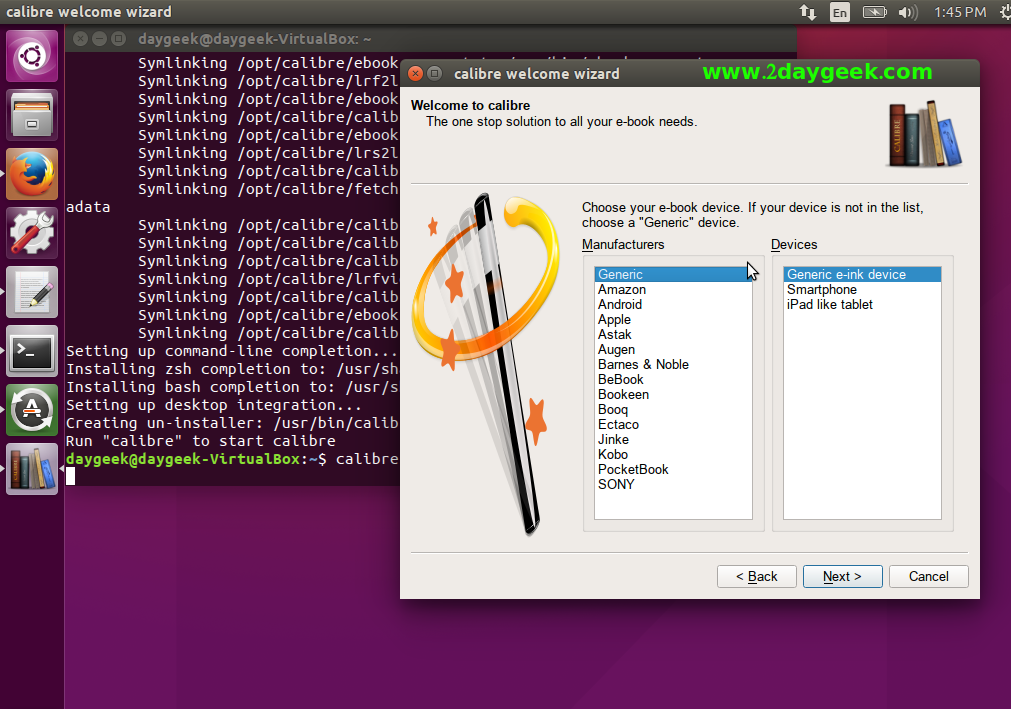
Once the installation is complete, the first launch of Calibre will prompt a “Welcome Wizard.” This is where the magic of organization begins.
Setting Up Your Library and Metadata
The first step is choosing a location for your Calibre library. It is highly recommended to keep this on a local drive rather than a network share or a cloud-synced folder (like Dropbox) while Calibre is running. Calibre uses a SQLite database to manage books; if a cloud service tries to sync the database while Calibre is writing to it, the library can become corrupted.
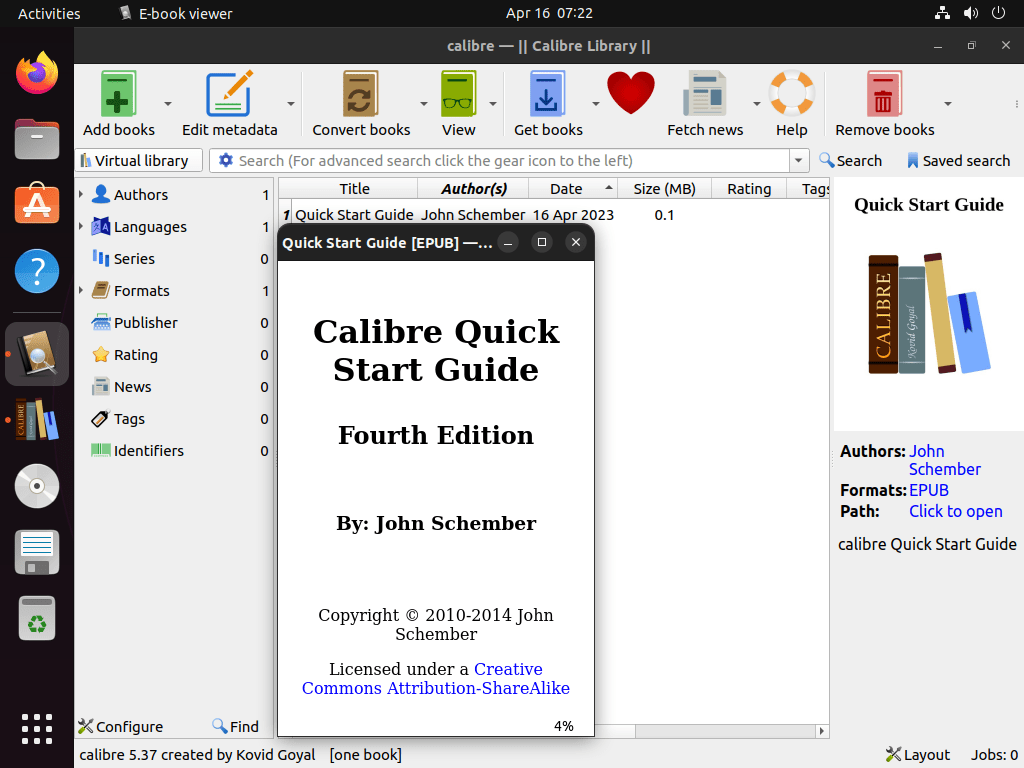
After the folder is set, utilize the “Download Metadata” feature. By right-clicking a book and selecting “Edit Metadata,” you can pull high-resolution covers, summaries, and tags from Google Books or Amazon. This transforms a cluttered list of filenames into a beautiful, searchable digital gallery.
Enabling the Content Server for Remote Access
One of the most “tech-forward” features of Calibre is the built-in Content Server. This turns your Linux machine into a local e-book server. By navigating to the “Connect/share” tab and starting the Content Server, you can access your entire library from any device with a web browser (like a tablet or smartphone) on the same Wi-Fi network. This eliminates the need for cables entirely, allowing you to “stream” your books to your preferred reading device.
Troubleshooting Common Installation Hurdles
Even on a robust system like Linux, software installation can occasionally hit a snag. Understanding how to troubleshoot these issues is part of mastering the Tech landscape.
Resolving GLIBC and Library Errors
If you use the official binary installer on a very old Linux distribution, you might encounter an error regarding GLIBC. This happens because Calibre binaries are compiled against modern versions of the GNU C Library. If you see this error, it is a sign that your OS is too outdated for the latest Calibre. The solution is either to upgrade your distribution or to use the Flatpak version, which carries its own compatible libraries.
Fixing Missing Icon and Desktop Integration Issues
Sometimes, after a manual binary installation, the Calibre icon might not appear in your application menu. This is usually due to a permissions issue or a failure to update the desktop database. You can manually trigger the integration by running:
sudo /usr/bin/calibre-debug --with-library /path/to/your/library
Or, more effectively, ensure that the installer had the rights to write to /usr/share/applications. Re-running the official script usually fixes any broken symlinks or missing desktop entries.
Conclusion
Installing Calibre on Linux is a rite of passage for any bibliophile who values the freedom of the open-source ecosystem. Whether you choose the cutting-edge binary installer or the secure isolation of a Flatpak, you are equipping your Linux machine with the most powerful literacy tool ever created. By following this guide, you have moved beyond being a mere consumer of digital content to becoming a curator of your own private, optimized, and highly functional digital library. In the world of technology, ownership of your data is the ultimate goal—and with Calibre on Linux, that ownership is absolute.
aViewFromTheCave is a participant in the Amazon Services LLC Associates Program, an affiliate advertising program designed to provide a means for sites to earn advertising fees by advertising and linking to Amazon.com. Amazon, the Amazon logo, AmazonSupply, and the AmazonSupply logo are trademarks of Amazon.com, Inc. or its affiliates. As an Amazon Associate we earn affiliate commissions from qualifying purchases.