
In the modern digital landscape, seamless connectivity is no longer a luxury but a fundamental necessity. Bluetooth technology stands at the forefront of this need, offering a convenient, cable-free way to link your Windows 11 PC with a myriad of peripheral devices, from wireless headphones and speakers to mice, keyboards, game controllers, and even other computers and smartphones. Whether you’re enhancing your productivity with a clutter-free desk setup, immersing yourself in high-fidelity audio, or simply enjoying the freedom of movement, Bluetooth is an indispensable feature for any contemporary Windows 11 user.
Windows 11, Microsoft’s latest operating system, has refined the user experience, making device management and connectivity more intuitive than ever. However, like any technology, getting Bluetooth up and running can sometimes present a few hurdles, especially if you’re dealing with a new system, an older PC upgraded to Windows 11, or encountering unexpected issues. This comprehensive guide will walk you through every step of the process, from verifying your system’s Bluetooth capabilities and enabling the feature to pairing new devices and expertly troubleshooting common problems. We’ll also cover scenarios where your PC might lack built-in Bluetooth and how to easily add this functionality. By the end of this article, you’ll be well-equipped to unlock the full potential of wireless connectivity on your Windows 11 machine, ensuring a smooth, efficient, and enjoyable digital experience.
Verifying Your Bluetooth Status and Enabling It
Before attempting to install or troubleshoot Bluetooth, the first crucial step is to determine if your Windows 11 PC already has Bluetooth hardware and if it’s currently enabled. Many modern laptops and some desktops come with integrated Bluetooth, but it might be turned off by default or disabled due to a previous setting change.
Quick Check via Action Center and Settings
The quickest way to check and enable Bluetooth on Windows 11 is through the Action Center and the Settings app.
-
Using the Action Center:
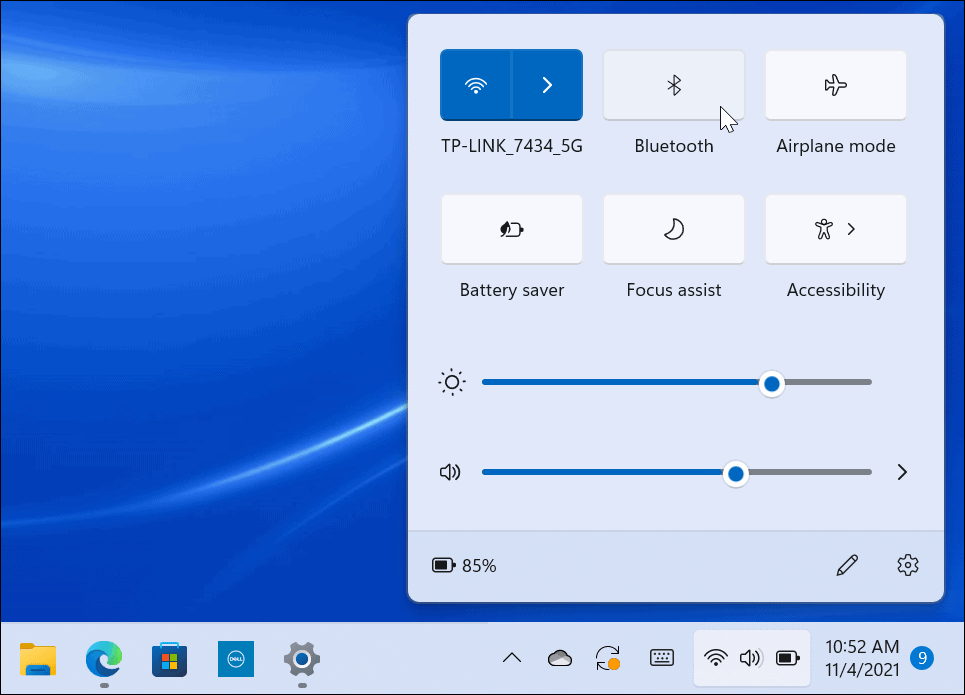
- Click on the network, volume, or battery icon in the bottom-right corner of your taskbar, or press
Win + A. This will open the Quick Settings panel (formerly Action Center). - Look for a tile labeled “Bluetooth.” If it’s present, it means your system likely has Bluetooth hardware.
- If the tile is greyed out, click on it once to enable Bluetooth. It should turn blue, indicating that Bluetooth is now active and discoverable.
- If you don’t see the Bluetooth tile at all, click the pencil icon (“Edit quick settings”) and then “Add” to see if Bluetooth is an available option to add to your Quick Settings. If it’s not listed even there, it might indicate a driver issue or lack of hardware.
- Click on the network, volume, or battery icon in the bottom-right corner of your taskbar, or press
-
Using the Settings App:
- Right-click on the Start button and select “Settings,” or press
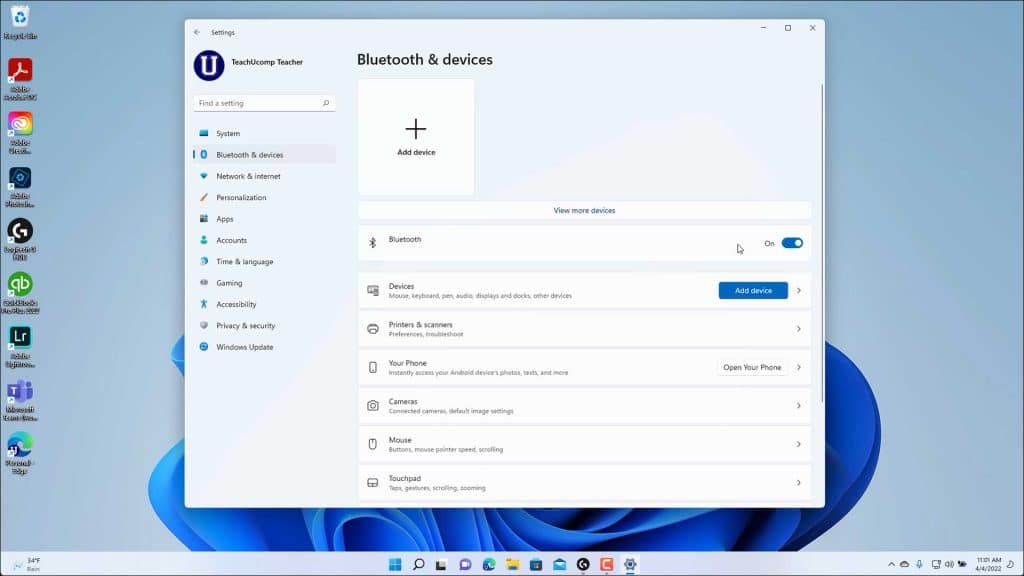
Win + I. - In the Settings window, navigate to “Bluetooth & devices” in the left-hand sidebar.
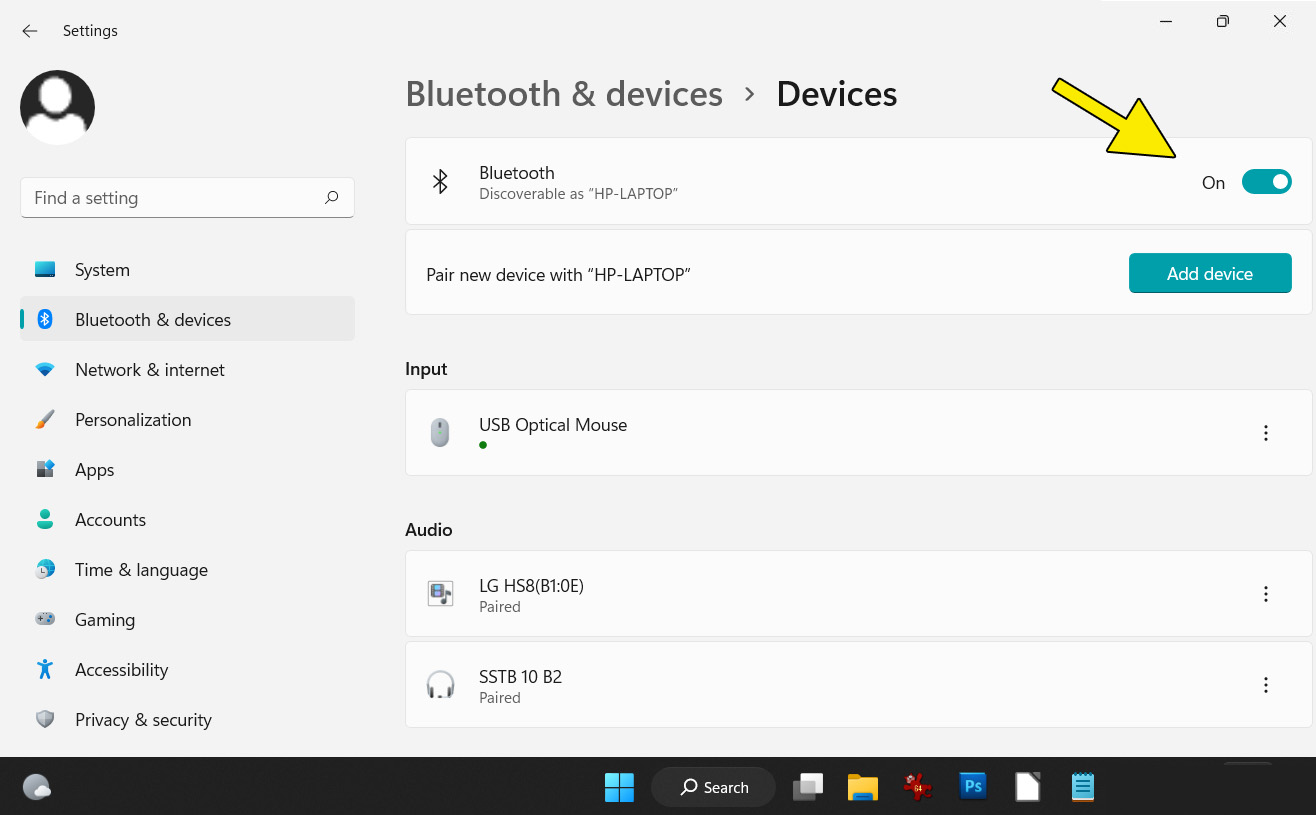
- On the right pane, you should see a toggle switch for “Bluetooth.” If it’s off, simply flip the switch to “On.”
- Below the toggle, you’ll see a list of “Devices.” If Bluetooth is enabled, your PC will start searching for discoverable devices in the vicinity, and previously paired devices will be listed here.
- Right-click on the Start button and select “Settings,” or press
If you can find the Bluetooth toggle in either the Action Center or the Settings app and successfully turn it on, congratulations! Your PC has functioning Bluetooth, and you can proceed to pair your devices. If not, or if you encounter issues, the next step involves a deeper dive into the Device Manager.
Deep Dive with Device Manager
The Device Manager is the central hub for managing all hardware connected to your Windows 11 system, including Bluetooth adapters. It can reveal whether your Bluetooth hardware is present, correctly installed, and if its drivers are functioning properly.
-
Accessing Device Manager:
- Right-click on the Start button and select “Device Manager” from the power user menu.
- Alternatively, press
Win + Rto open the Run dialog, typedevmgmt.msc, and press Enter.
-
Locating Bluetooth Adapters:
- In the Device Manager window, look for a category labeled “Bluetooth.” Expand this category by clicking the arrow next to it.
- Under “Bluetooth,” you should see entries like “Intel(R) Wireless Bluetooth(R),” “Realtek Bluetooth Adapter,” or similar. The exact name will vary depending on your hardware manufacturer.
- If you see the “Bluetooth” category and entries within it, it confirms your PC has Bluetooth hardware.
- Check for Issues: Look for any yellow exclamation marks or red ‘X’ symbols next to your Bluetooth device.
- A yellow exclamation mark typically indicates a driver issue (missing, outdated, or corrupted).
- A red ‘X’ usually means the device is disabled. Right-click on it and select “Enable device” if this is the case.
-
If Bluetooth Category is Missing:
- If you don’t see the “Bluetooth” category at all, it could mean one of three things:
- Your PC does not have built-in Bluetooth hardware.
- The Bluetooth hardware is physically disabled (e.g., via a BIOS setting or a hardware switch on older laptops).
- The drivers are so severely corrupted or missing that Windows doesn’t even recognize the hardware’s presence.
- In such cases, you might need to consider installing a USB Bluetooth adapter, which we will cover later in this guide.
- If you don’t see the “Bluetooth” category at all, it could mean one of three things:
The Core Process: Pairing New Bluetooth Devices
Once you’ve confirmed that Bluetooth is enabled and functioning on your Windows 11 PC, the next step is to connect your peripheral devices. The pairing process involves making your Bluetooth device discoverable and then adding it to your computer.
Preparing Your Device for Pairing
Before you even touch your Windows 11 PC, ensure the Bluetooth device you wish to connect is ready for pairing. The exact method varies by device, but here are general guidelines:
- Power On the Device: Make sure your Bluetooth device (headphones, mouse, keyboard, etc.) is fully charged and powered on.
- Activate Pairing Mode: This is the most critical step. Most Bluetooth devices have a dedicated button or a specific sequence of button presses to enter “pairing mode” or “discovery mode.”
- Headphones/Speakers: Often, you’ll press and hold the power button or a specific Bluetooth button until an LED indicator flashes rapidly, usually in blue or white. This indicates it’s actively searching for a connection.
- Mice/Keyboards: Look for a small button on the bottom or side, sometimes labeled with a Bluetooth symbol. Press and hold it.
- Other Devices: Consult your device’s manual for precise instructions. Some devices automatically enter pairing mode when powered on for the first time or if they haven’t been paired previously.
- Proximity: Keep the device relatively close to your Windows 11 PC (within a few feet) during the pairing process to ensure a strong signal.
Connecting Through Windows 11 Settings
With your Bluetooth device in pairing mode, you can now add it to your Windows 11 system.
-
Open Bluetooth & devices Settings:
- Go to “Settings” (
Win + I) and select “Bluetooth & devices” from the left-hand menu. - Ensure the main “Bluetooth” toggle is set to “On.”
- Go to “Settings” (
-
Add a New Device:
- At the top of the “Bluetooth & devices” pane, click the “Add device” button, which has a plus (+) icon.
- A small “Add a device” window will appear. Select “Bluetooth” as the device type (for mice, keyboards, pens, audio devices, etc.).
-
Select Your Device:
- Windows 11 will begin scanning for discoverable Bluetooth devices. After a few moments, your device’s name should appear in the list.
- Click on your device’s name to initiate the connection.
- Follow Prompts:
- For some devices (like keyboards), you might be prompted to enter a PIN displayed on your screen into the Bluetooth device and press Enter.
- For others, a simple “Connect” confirmation might appear.
- Most audio devices will simply connect directly.
- Once connected, the device’s status will change to “Connected,” and you’ll typically hear an audible confirmation from the device (e.g., “Connected,” “Paired”).
-
Verify Connection:
- The newly paired device will now appear under the “Devices” list in the “Bluetooth & devices” settings page.
- You can manage its settings, disconnect, or remove it from here by clicking on the three dots next to its name.
- For audio devices, you might need to select it as the default output device. Click on the speaker icon in the taskbar or go to “Settings > System > Sound” to choose your Bluetooth headphones/speakers.
Troubleshooting Common Bluetooth Woes on Windows 11
Even with the best intentions and the latest software, Bluetooth can sometimes be finicky. Here’s how to diagnose and resolve some of the most common issues you might encounter on Windows 11.
Driver Management: Update, Reinstall, Roll Back
Drivers are the software that allows your operating system to communicate with your hardware. Outdated, corrupted, or incompatible Bluetooth drivers are a frequent cause of connectivity problems.
-
Update Bluetooth Drivers:
- Open “Device Manager” (
Win + X> Device Manager). - Expand the “Bluetooth” category.
- Right-click on your Bluetooth adapter (e.g., “Intel(R) Wireless Bluetooth(R)”) and select “Update driver.”
- Choose “Search automatically for drivers.” Windows will try to find the latest driver online.
- If Windows reports that the best drivers are already installed, you might need to visit your PC manufacturer’s website (e.g., Dell, HP, Lenovo) or the Bluetooth adapter manufacturer’s website (e.g., Intel, Realtek) directly. Download the latest Windows 11 compatible Bluetooth driver for your specific model and install it manually.
- Open “Device Manager” (
-
Reinstall Bluetooth Drivers:
- If updating doesn’t work, uninstalling and reinstalling the driver can often resolve deep-seated issues.
- In Device Manager, right-click on your Bluetooth adapter and select “Uninstall device.”
- Important: If prompted, check the box “Attempt to remove the driver for this device” (this isn’t always available).
- After uninstallation, restart your PC. Windows 11 will typically detect the hardware upon reboot and automatically reinstall the generic drivers. You can then try updating to the latest specific driver as described above.
-
Roll Back Bluetooth Drivers:
- Sometimes, a newly installed driver (perhaps through a Windows Update) might be the cause of the problem.
- In Device Manager, right-click on your Bluetooth adapter, go to “Properties,” and then select the “Driver” tab.
- If available, click “Roll Back Driver.” This will revert to the previous version of the driver. If the option is greyed out, a previous driver version isn’t available.
Checking Bluetooth Services
Windows services are background processes essential for various system functions. If the Bluetooth Support Service isn’t running, Bluetooth won’t work.
-
Access Services:
- Press
Win + R, typeservices.msc, and press Enter.
- Press
-
Verify Bluetooth Services:
- In the Services window, scroll down and find “Bluetooth Support Service.”
- Check its “Status.” It should ideally be “Running.”
- Check its “Startup type.” It should typically be “Manual” or “Automatic.”
- If the service is not running, right-click on it and select “Start.”
- If it’s already running but you’re still facing issues, right-click and select “Restart.”
- Also, ensure “Bluetooth Audio Gateway Service” and “Bluetooth User Support Service” are present and configured correctly (manual or automatic startup type, running status).
Addressing Hardware and Interference Issues
Sometimes, the problem isn’t software-related but stems from the physical hardware or the environment.
-
USB Bluetooth Dongle Issues:
- If you’re using an external USB Bluetooth adapter, try unplugging it, waiting a few seconds, and plugging it back into a different USB port.
- Test the dongle on another computer if possible to rule out a faulty adapter.
-
Interference:
- Bluetooth operates on the 2.4 GHz frequency band, which is also used by Wi-Fi, cordless phones, microwaves, and other devices.
- Try moving your PC and Bluetooth devices away from other electronics that might cause interference.
- Ensure your PC’s Wi-Fi antenna isn’t obstructing the Bluetooth signal (they often share the same module).
-
Device Compatibility:
- While Bluetooth is generally backward compatible, very old Bluetooth devices might have limited functionality or struggle to connect reliably with newer Windows 11 Bluetooth versions (e.g., Bluetooth 5.0 vs. Bluetooth 2.1).
-
Restart Your Devices:
- It sounds simple, but a full restart of your Windows 11 PC and the Bluetooth peripheral often resolves temporary glitches.
Installing Bluetooth on PCs Without Built-in Support
What if your Windows 11 PC, particularly an older desktop or a specialized build, simply doesn’t have Bluetooth hardware? Fear not, adding Bluetooth functionality is straightforward and cost-effective.
Choosing and Installing a USB Bluetooth Adapter
The easiest and most common solution for PCs without built-in Bluetooth is a USB Bluetooth adapter, often called a “Bluetooth dongle.” These small devices plug into any available USB port and provide full Bluetooth capabilities.
-
Choosing an Adapter:
- Bluetooth Version: Look for adapters that support the latest Bluetooth standard, ideally Bluetooth 5.0 or higher. Newer versions offer improved range, speed, and energy efficiency compared to older standards like 4.0 or 4.2.
- Operating System Compatibility: Ensure the adapter explicitly states compatibility with Windows 11.
- Brand Reputation: Stick with reputable brands (e.g., TP-Link, ASUS, UGREEN, Zexmte) to ensure driver support and reliability.
- Size: Dongles come in various sizes, from tiny “nano” adapters that sit almost flush with the USB port to slightly larger ones. Choose based on your preference and whether you intend to leave it plugged in permanently.
-
Physical Installation:
- Simply plug the USB Bluetooth adapter into an open USB port on your Windows 11 PC. For desktops, using a rear USB port (directly connected to the motherboard) is often recommended over front ports which can sometimes be less stable.
Driver Installation for External Adapters
Once the dongle is plugged in, Windows 11 will usually attempt to install generic drivers automatically.
-
Automatic Driver Installation:
- After plugging in the adapter, wait a few moments. Windows 11 should display a notification indicating “Setting up a device” or “Installing device driver software.”
- After successful installation, you should see the “Bluetooth” toggle appear in the Quick Settings and “Bluetooth & devices” in the Settings app. You can then proceed with pairing devices as described earlier.
-
Manual Driver Installation (if needed):
- Sometimes, Windows might not install the best drivers automatically, or you might encounter issues. In such cases, you’ll need to install drivers manually.
- Check Manufacturer’s Website: Visit the website of your USB Bluetooth adapter’s manufacturer. Locate the support or downloads section for your specific model.
- Download Drivers: Download the latest Windows 11 compatible drivers.
- Install Drivers: Run the installer program you downloaded. Follow the on-screen instructions. You might need to restart your PC after installation.
- Verify in Device Manager: After installation (automatic or manual), open Device Manager (
Win + X> Device Manager) and confirm that the “Bluetooth” category is present and your new adapter is listed without any error symbols.
With a USB Bluetooth adapter, your PC will effectively gain the same wireless capabilities as one with built-in Bluetooth, opening up a world of cable-free convenience.
Maximizing Your Bluetooth Experience and Security
Beyond simply getting Bluetooth to work, understanding how to manage your devices effectively and practice good security habits can significantly enhance your overall experience on Windows 11.
Managing Paired Devices and Security Best Practices
As you accumulate more Bluetooth devices, managing them becomes important. Furthermore, while Bluetooth is generally secure, awareness of potential vulnerabilities is key.
-
Managing Paired Devices:
- In “Settings > Bluetooth & devices,” you’ll find a list of all devices currently paired with your PC.
- Clicking on the three dots next to a device’s name will reveal options like “Disconnect” (to temporarily break the connection) or “Remove device” (to unpair it completely). Removing a device is useful if you no longer use it, if you’re experiencing persistent connection issues, or if you’re giving away the device.
- Renaming devices can also be helpful for identification, especially if you have multiple devices of the same type.
-
Security Considerations:
- Public Visibility: When your Bluetooth is on and in pairing mode, your PC is discoverable by other Bluetooth devices. While this is necessary for pairing, it’s generally good practice to turn off Bluetooth when not in use, especially in public places like airports or cafes, to reduce exposure to potential eavesdropping or unauthorized connection attempts.
- Pairing Confirmation: Always pay attention to pairing requests and PIN codes. Ensure the PIN displayed on your PC matches the one on your device before confirming. This “Man-in-the-Middle” protection helps prevent unintended pairings.
- Firmware Updates: For more complex Bluetooth peripherals (like advanced headphones or speakers), periodically check the manufacturer’s website or companion app for firmware updates. These often include security patches and performance improvements.
- Strong Passwords (for some devices): While not typical for standard Bluetooth peripherals, some advanced Bluetooth-enabled smart devices or IoT gadgets might require passwords or have companion apps. Ensure you use strong, unique passwords for these.
Optimizing Connection Stability and Range
Even with Bluetooth installed, optimizing its performance ensures a smooth and uninterrupted wireless experience.
- Proximity: The closer your Bluetooth device is to your PC, the stronger and more stable the connection will be. While Bluetooth 5.0 boasts ranges up to 240 meters (line-of-sight), practical indoor ranges are much shorter, usually around 10-20 meters, decreasing with obstacles.
- Line of Sight: Try to maintain a clear line of sight between your PC and the Bluetooth device. Walls, furniture, and even your own body can attenuate the signal.
- USB Port Placement: If using a USB dongle, consider plugging it into a front-facing or easily accessible USB port on your desktop, or use a short USB extension cable to bring it closer and clearer of obstructions at the back of your PC.
- Avoid Interference: As mentioned in troubleshooting, minimize sources of 2.4 GHz interference. If your Wi-Fi router is nearby, consider using a 5 GHz Wi-Fi band for your PC if supported, to free up the 2.4 GHz spectrum for Bluetooth.
- Battery Life: Ensure your Bluetooth devices have sufficient battery charge. Low battery levels can sometimes lead to intermittent connections or reduced range.
- Windows Updates: Keep your Windows 11 operating system up to date. Microsoft frequently releases updates that include improvements to Bluetooth drivers and overall system stability, which can positively impact your wireless connectivity.
Conclusion
Bluetooth technology has revolutionized how we interact with our digital devices, offering unparalleled freedom and convenience. On Windows 11, integrating and managing Bluetooth devices is designed to be a straightforward process, empowering users to create a truly wireless and efficient workspace or entertainment setup. From ensuring your system’s Bluetooth hardware is recognized and enabled to seamlessly pairing your favorite peripherals and skillfully troubleshooting any hiccups along the way, this guide has provided you with all the necessary knowledge.
Whether you’re enjoying crystal-clear audio from wireless headphones, navigating with a sleek Bluetooth mouse, or streamlining your input with a wireless keyboard, the ability to connect without cables significantly enhances productivity and user experience. For those systems lacking built-in capabilities, the readily available and affordable USB Bluetooth adapters offer a perfect solution, bringing modern connectivity to any Windows 11 PC.
By following the steps outlined here, you can confidently install, configure, and maintain your Bluetooth ecosystem, unlocking a world of possibilities for an uncluttered, responsive, and connected digital life. Embrace the freedom of wireless on Windows 11 and make connectivity challenges a thing of the past.
aViewFromTheCave is a participant in the Amazon Services LLC Associates Program, an affiliate advertising program designed to provide a means for sites to earn advertising fees by advertising and linking to Amazon.com. Amazon, the Amazon logo, AmazonSupply, and the AmazonSupply logo are trademarks of Amazon.com, Inc. or its affiliates. As an Amazon Associate we earn affiliate commissions from qualifying purchases.