
In the dynamic world of PC gaming, the ability to customize and enhance your favorite titles through modding can completely transform your experience. From adding new content and quality-of-life improvements to fixing bugs and extending replayability, mods breathe new life into games. At the heart of many modding communities, particularly for games built on the Unity engine, lies a powerful and versatile framework called BepInEx. If you’ve ever wanted to dive into the rich ecosystem of game modifications but felt daunted by the technical steps, this guide is for you.
This comprehensive tutorial will walk you through everything you need to know about installing BepInEx, ensuring a smooth setup process so you can unlock the full potential of your games. We’ll cover what BepInEx is, why it’s an essential tool for modders, the necessary preparations, a detailed step-by-step installation guide, how to verify your setup, and common troubleshooting tips. Get ready to embark on a journey that will revolutionize your gaming sessions.
Understanding BepInEx: The Gateway to Game Modding
Before we jump into the installation process, it’s crucial to understand what BepInEx is and why it has become an indispensable tool for countless gamers and mod developers. Think of it as a universal loader and framework designed primarily for games developed using the Unity engine, though its versatility extends to other .NET-based applications.
What is BepInEx?
BepInEx, short for “BepInEx Pack,” is a powerful, open-source modding framework. Its core function is to allow developers and users to load plugins (mods) into a game’s process without directly modifying the game’s original files. This non-invasive approach is key to its popularity, as it minimizes the risk of breaking the game and simplifies mod management.
At a technical level, BepInEx acts as a “plugin injector.” When a game starts, BepInEx intercepts its loading process and injects its own code. This injected code then takes control, allowing BepInEx to load additional .NET assemblies (your mods) into the game’s memory space. These mods can then interact with the game’s internal functions, modify its behavior, add new features, or even introduce entirely new content. It provides a robust API (Application Programming Interface) that modders can use to write their plugins, making it easier to create sophisticated modifications.
Why Mod Your Games with BepInEx?
The reasons for using BepInEx for game modding are numerous and compelling, offering benefits for both the casual player and the dedicated enthusiast:
- Enhanced Gameplay Experience: Mods can introduce new characters, items, quests, mechanics, or even entirely new game modes, vastly extending the life and enjoyment of your favorite titles.
- Quality-of-Life Improvements: Many mods focus on improving the user interface, optimizing performance, fixing minor bugs the developers might have overlooked, or adding convenient features that enhance the overall playability.
- Personalization: BepInEx allows for deep customization, letting you tailor your gaming experience precisely to your preferences, from visual overhauls to gameplay tweaks.
- Community-Driven Innovation: With an active modding community, games often receive updates, content, and fixes long after official support has ended, keeping them fresh and relevant for years.
- Safety and Simplicity: BepInEx’s design ensures that mods are loaded externally, meaning your original game files remain untouched. This makes it safer to experiment with mods and easier to uninstall them without corrupting your game installation.
- Broad Compatibility: Given Unity’s widespread use in game development, BepInEx supports a vast array of popular titles, making it a go-to framework for many modding communities.
By enabling a world of custom content and improvements, BepInEx transforms games from static products into dynamic, community-driven experiences.
Before You Begin: Essential Preparations
A successful BepInEx installation hinges on a few crucial preliminary steps. Taking the time to prepare correctly will save you headaches down the line and ensure compatibility with your specific game.
Identifying Your Game’s Architecture
The vast majority of modern PC games are 64-bit (x64), but some older titles or indie games might still be 32-bit (x86). BepInEx packages are specifically built for one architecture or the other, and installing the wrong version will lead to failure.
To determine your game’s architecture:
- Locate the game’s executable file (.exe): Navigate to your game’s installation directory (e.g.,
C:Program Files (x86)Steamsteamappscommon[Game Name]). - Check its properties: Right-click on the
.exefile, select “Properties,” then go to the “Details” tab. Look for “Type” or “Architecture.” If it doesn’t explicitly state “64-bit,” it’s likely 32-bit. - Use Task Manager: Launch the game, then open Task Manager (Ctrl+Shift+Esc). Go to the “Details” tab. Find your game’s process. If it says
(32-bit)next to its name, it’s a 32-bit application. If nothing is specified, it’s 64-bit.
This step is critical for downloading the correct BepInEx version.
Locating Your Game’s Installation Directory
Knowing the exact location of your game’s installation directory is fundamental. This is where you will place the BepInEx files.
For Steam games:
- Open your Steam Library.
- Right-click on the game.
- Select “Manage” -> “Browse local files.”
This will directly open the game’s root directory.
For Epic Games Store games:
- Open the Epic Games Launcher.
- Go to your Library.
- Find the game, click the three dots (
...) next to its title. - Select “Manage” and then click the folder icon next to “Installation.”
For GOG GALAXY games:
- Open GOG GALAXY.
- Find the game in your Library.
- Click the “More” button (usually next to “Play”).
- Select “Manage installation” -> “Show folder.”
For standalone games:
Navigate to the folder where you installed the game manually (e.g., C:Program Files[Game Name]). The root directory is typically the one containing the game’s main executable file (.exe).
Downloading the Correct BepInEx Version
With your game’s architecture identified and its directory located, you can now download BepInEx.
- Visit the official BepInEx GitHub releases page: Search for “BepInEx GitHub” or go directly to
https://github.com/BepInEx/BepInEx/releases. - Identify the latest stable release: Look for a release labeled “Latest” or “Stable.” Avoid pre-releases or development builds unless you have a specific reason to use them.
- Choose the correct package:
- BepInExx64[version].zip: For 64-bit games. This is the most common choice.
- BepInExx86[version].zip: For 32-bit games.
- BepInEx.Unity.Mono.[architecture].[version].zip or BepInEx.Unity.IL2CPP.[architecture].[version].zip: Some games use different backend Unity versions (Mono or IL2CPP). If you know your game uses IL2CPP, download that version. Otherwise, stick to Mono (the more common one). For most users, the standard
BepInEx_x64or_x86packages work well, as they often include what’s needed for Mono. If your game fails to launch, you might need to investigate its Unity backend further.
- Download the ZIP file: Click on the appropriate
.zipfile to download it to your computer.
Always download BepInEx from the official GitHub page to ensure you’re getting a legitimate and up-to-date version, free from malware.
Step-by-Step Installation Guide
With the preparations complete, we can now proceed with the actual installation of BepInEx. The manual method is generally the most reliable and applicable across a wide range of games.
Manual Installation for Most Games
This method involves extracting the downloaded BepInEx files directly into your game’s root directory.
- Locate the downloaded BepInEx ZIP file: It will usually be in your “Downloads” folder.
- Extract the contents: Right-click the
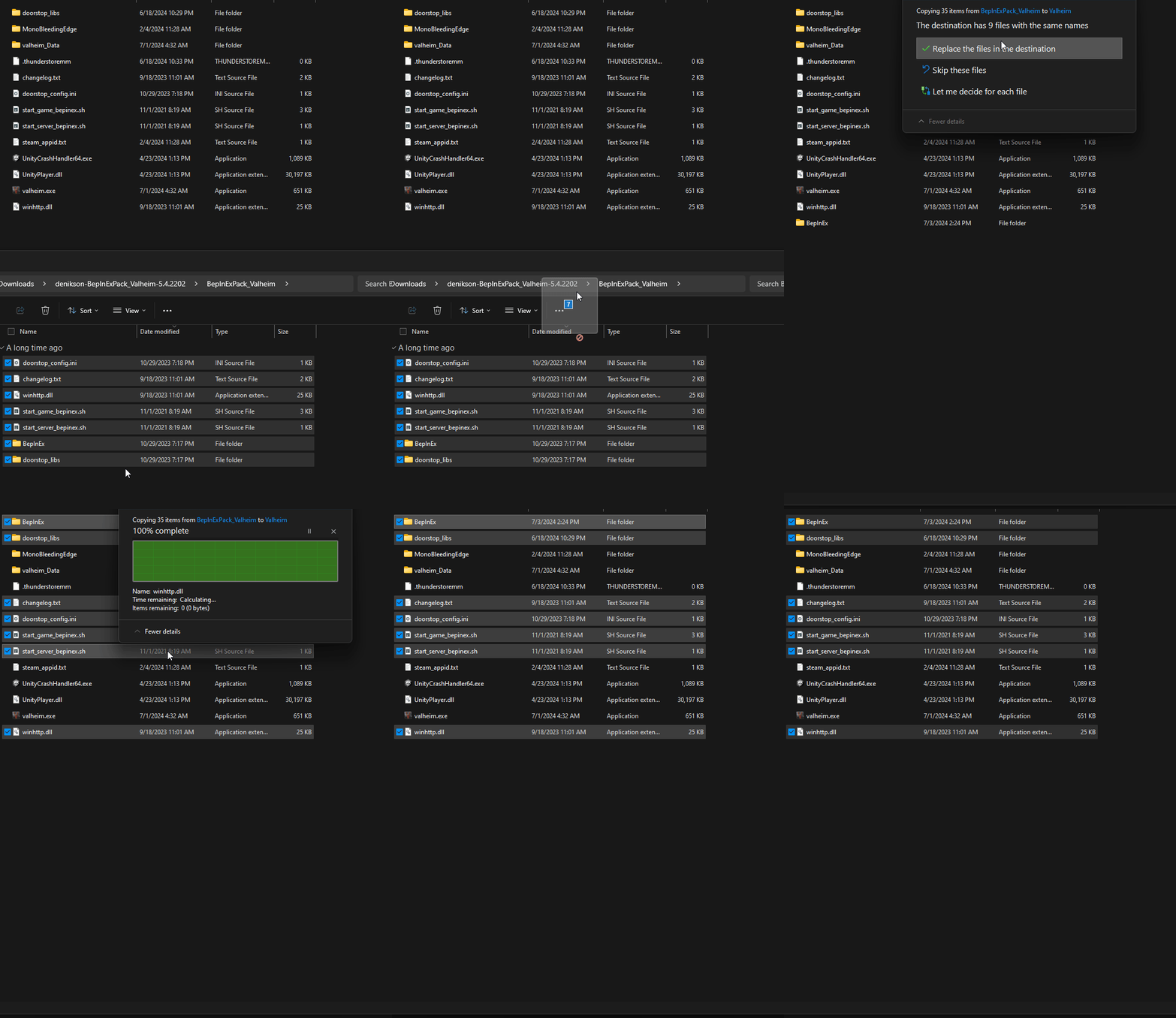
.zipfile and select “Extract All…” (Windows) or use a program like 7-Zip or WinRAR. Extract the contents to a temporary folder, not directly into your game directory yet. This step is important to ensure you see the internal folder structure correctly. - Navigate inside the extracted folder: After extraction, you should find a folder named
BepInExPackor similar, which contains the actual BepInEx files and folders. Inside this folder, you will see:- A
BepInExfolder doorstop_config.iniwinhttp.dll(or sometimesdinput.dll,version.dll,dxgi.dll, etc. – this is the “doorstop” entrypoint file)
- A
- Copy the BepInEx files to your game’s root directory: Select the
BepInExfolder,doorstop_config.ini, and thewinhttp.dll(or equivalent) file. Copy these three items. - Paste them into your game’s root directory: Go to the game’s installation folder you identified earlier (the one containing the game’s main
.exefile). Paste the copied files and folder directly into this directory. Do not put them inside any subfolders.- Crucial check: After pasting, your game’s root directory should now contain:
- Your game’s
.exefile (e.g.,Game.exe) - The newly pasted
BepInExfolder - The newly pasted
doorstop_config.inifile - The newly pasted
winhttp.dll(or equivalent) file
- Your game’s
- Crucial check: After pasting, your game’s root directory should now contain:
- Run the game once: Launch your game normally. BepInEx will now initialize. You might see a console window pop up briefly before the game launches. This is BepInEx at work. The first run is crucial because BepInEx will generate its own
configfolder and other necessary files within theBepInExfolder. - Exit the game: Once the game has loaded to the main menu or you’ve played for a moment, you can exit.
Congratulations! BepInEx is now installed and ready to load plugins.
Special Cases and Considerations
While the manual installation covers most scenarios, some games or platforms might have specific nuances.
- Antivirus Software: Your antivirus program might flag
winhttp.dll(or similar injection libraries) as suspicious because it hooks into another application. If you encounter issues, temporarily disable your antivirus during installation and the first launch, or add an exclusion for your game’s folder. Remember to re-enable it afterward. - Permissions: If you’ve installed your game in a protected directory (like
Program Files), you might need to run the game as an administrator for BepInEx to properly write its configuration files. Right-click the game’s.exeand select “Run as administrator.” - Mod Managers: For certain popular games (e.g., Valheim, Lethal Company), dedicated mod managers like Thunderstore Mod Manager or r2modman exist. These tools automate the BepInEx installation and mod management process, making it significantly easier. If a mod manager is available for your game, it’s often the recommended method for ease of use. However, understanding the manual process is still valuable for troubleshooting or for games not supported by specific managers.
- Existing BepInEx Installations: If you’re updating BepInEx or have a previous installation, it’s often best practice to delete the old
BepInExfolder,doorstop_config.ini, andwinhttp.dll(or equivalent) from your game’s root directory before performing a clean install of the new version.
Verifying Your Installation and First Steps with Mods
After installation, it’s important to confirm that BepInEx is working correctly before you start adding mods.
Confirming BepInEx is Working
There are a few ways to verify a successful installation:
- Check for the BepInEx Console: When you launch the game, you might briefly see a console window appear before the game loads. This is the BepInEx console, showing its initialization messages. If it appears, BepInEx has successfully loaded.
- Inspect the
BepInExfolder: After launching the game at least once, navigate back to your game’s root directory and open theBepInExfolder. You should now see additional subfolders that BepInEx created on its first run:config: Contains configuration files for BepInEx itself and some plugins.plugins: This is where you will place your mod files (.dlls).log_output.txt(or similar log file): This file records BepInEx’s activity, including any errors or plugins loaded. Opening this file and seeing BepInEx messages confirms it’s active.
If these elements are present, BepInEx is correctly installed.
Installing Your First Mod
Now that BepInEx is operational, you can start adding mods. The process is straightforward:
- Download your desired mod: Most mods for BepInEx will be distributed as
.zipfiles containing.dllfiles (the actual plugins) and sometimes configuration files or asset bundles. Always download mods from reputable sources (e.g., Thunderstore, Nexus Mods, official GitHub repositories) to ensure safety and compatibility. - Extract the mod’s contents: Unzip the downloaded mod file.
- Place the mod files into the
BepInEx/pluginsfolder:- Typically, you’ll find a
.dllfile (e.g.,MyAwesomeMod.dll) within the mod’s extracted folder. Copy this.dllfile. - Navigate to your game’s root directory, then into the
BepInExfolder, and finally into thepluginsfolder (i.e.,[Game Root Directory]BepInExplugins). - Paste the mod’s
.dllfile here. - Some mods might come with their own dedicated folders containing assets or additional configuration files. In such cases, the mod’s instructions will usually tell you to place the entire mod folder into
BepInEx/pluginsor sometimesBepInEx/patchersor even directly into the game’s root. Always read the mod author’s installation instructions carefully.
- Typically, you’ll find a
- Launch the game: Start your game as you normally would. BepInEx will detect and load the new plugin. You might see messages related to the mod appearing in the BepInEx console window (if it’s enabled).
- Verify the mod’s functionality: Check within the game if the mod’s features are present and working as expected.
Remember that each mod is unique, and some might require specific configuration or dependencies (other mods or frameworks) to function correctly. Always refer to the mod’s documentation.
Troubleshooting Common BepInEx Issues
Even with careful installation, you might encounter issues. Here are solutions to some common problems:
Game Crashing on Startup
This is a frequent issue and usually indicates a problem with the BepInEx installation itself or a conflicting mod.
- Incorrect BepInEx Version: Ensure you downloaded the correct 32-bit (x86) or 64-bit (x64) version that matches your game’s architecture. An incorrect version is a primary cause of crashes.
- Wrong Installation Location: Double-check that
BepInExfolder,doorstop_config.ini, andwinhttp.dllare directly in the game’s root directory, alongside the game’s main executable. Not in a subfolder. - Conflicting Mods: If the game crashes only after you’ve added mods, remove all recently added mods from
BepInEx/plugins. Re-add them one by one, launching the game after each addition, to identify the culprit. - Antivirus Interference: Temporarily disable your antivirus or add an exclusion for the game’s folder, then try launching.
- Corrupted Download: Re-download BepInEx from the official GitHub page, ensuring the download completes without interruption.
- Outdated/Incompatible BepInEx: For specific games, an older or newer version of BepInEx might be required by certain mods. Check the mod’s requirements.
- Unity Version Mismatch (IL2CPP/Mono): While less common for the default BepInEx packages, if your game uses IL2CPP and you’ve installed the Mono version (or vice-versa), it can cause crashes. Re-download the specific Unity backend version if you suspect this.
Check the log_output.txt file inside your BepInEx folder for error messages. This log is an invaluable debugging tool.
Mods Not Loading
If BepInEx starts but your mods aren’t appearing in-game, consider these points:
- Incorrect Mod Placement: Ensure the mod’s
.dllfile(s) are correctly placed inside theBepInEx/pluginsfolder, or as specified by the mod author. - Missing Dependencies: Many mods rely on other mods or libraries to function. Read the mod’s description carefully for any listed dependencies and install them first.
- Mod Configuration: Some mods require initial configuration in their
.cfgfile (found inBepInEx/configafter the first launch with the mod) to enable their features. - Disabled Mod: Check the mod’s configuration file (if it has one) to ensure it hasn’t been accidentally disabled.
- Incompatible Mod Version: The mod might be outdated or incompatible with your game’s current version or your BepInEx version.
- Corrupted Mod File: Re-download the mod to ensure the file isn’t corrupted.
Again, consult the log_output.txt file for any messages indicating that BepInEx tried to load the mod but failed.
Incorrect BepInEx Version
As mentioned, downloading the wrong x64 vs. x86 version or Mono vs. IL2CPP can be a critical error. Always double-check your game’s architecture and, if necessary, research its Unity backend. If unsure, start with the standard x64 or x86 package for Mono.
When troubleshooting, don’t hesitate to consult the specific game’s modding community (e.g., Discord servers, Reddit, Nexus Mods forums). They often have highly specific solutions for known issues.
Advanced Tips and Best Practices
Once you’re comfortable with the basics, these tips can help you manage your BepInEx environment more effectively.
Managing BepInEx Configurations
BepInEx itself and many mods come with configuration files that allow you to tweak their behavior.
BepInEx.cfg: Located in[Game Root Directory]BepInExconfig, this file controls BepInEx’s core settings, such as whether the console window appears, logging levels, and hotkeys. You can edit this with any text editor (like Notepad). For instance, setting[Logging.Console]>Enabled = falsewill prevent the console window from appearing, though it’s recommended to keep it enabled during troubleshooting.- Mod-Specific
.cfgfiles: Many mods generate their own.cfgfiles in theBepInEx/configfolder after their first run. These files allow you to customize mod features, enable/disable components, or adjust values. Always refer to the mod’s documentation for details on its configuration options. - Configuration Managers: For some games, dedicated config managers (often separate tools or integrated into mod managers) provide a user-friendly graphical interface to manage mod settings, making it easier than manual text editing.
Keeping BepInEx Up-to-Date
While BepInEx is generally stable, updates are released to improve compatibility, add features, and fix bugs.
- Check for Updates Regularly: Periodically visit the official BepInEx GitHub releases page to see if new stable versions are available.
- Updating Process: To update BepInEx:
- Backup: It’s always a good idea to back up your
BepInExfolder, especially thepluginsandconfigsubfolders, just in case. - Delete Old Files: Delete the
BepInExfolder,doorstop_config.ini, andwinhttp.dll(or equivalent) from your game’s root directory. - Perform a Clean Installation: Follow the “Step-by-Step Installation Guide” using the newly downloaded BepInEx version.
- Restore Plugins/Config: If you backed them up, copy your
pluginsandconfigfolders back into the newly installedBepInExfolder.
- Backup: It’s always a good idea to back up your
- Mod Compatibility with Updates: Be aware that updating BepInEx might sometimes cause older mods to become incompatible. Check mod pages or community forums for information on mod compatibility with new BepInEx versions.
By staying updated and understanding configuration, you ensure a smoother, more stable, and more customized modding experience.

Conclusion: Unleashing Your Game’s Full Potential
Installing BepInEx might seem like a technical hurdle at first, but by following this comprehensive guide, you now possess the knowledge and confidence to set up this powerful modding framework. From understanding its purpose and making essential preparations to executing the step-by-step installation and troubleshooting common issues, you’re well-equipped to dive into the exciting world of game modification.
BepInEx opens up a universe of possibilities, allowing you to transform your favorite games, extend their longevity, and tailor them precisely to your liking. Whether you’re enhancing visuals, introducing new gameplay mechanics, or simply fixing annoyances, the modding community constantly provides innovative solutions that breathe new life into digital worlds. Embrace the power of customization, explore the vast libraries of BepInEx-compatible mods, and truly unleash the full potential of your gaming library. Happy modding!
aViewFromTheCave is a participant in the Amazon Services LLC Associates Program, an affiliate advertising program designed to provide a means for sites to earn advertising fees by advertising and linking to Amazon.com. Amazon, the Amazon logo, AmazonSupply, and the AmazonSupply logo are trademarks of Amazon.com, Inc. or its affiliates. As an Amazon Associate we earn affiliate commissions from qualifying purchases.