
In the vast, interconnected landscape of the internet, an incredible wealth of information resides within websites. From product prices and news headlines to research data and weather forecasts, this data is often publicly accessible but not always in a readily usable format. This is where the power of web scraping comes into play, transforming unstructured web content into organized, actionable data. At the heart of many Python-based web scraping projects lies a remarkable library called Beautiful Soup.
Beautiful Soup is a Python package designed for parsing HTML and XML documents, making it incredibly easy to extract data from them. Think of it as a sophisticated librarian for the web, capable of sifting through the chaotic structure of a webpage and finding precisely the information you’re looking for, whether it’s a specific headline, a table of data, or a list of links. If you’re looking to automate data collection, build a monitoring tool, or simply explore the structure of a website, learning to install and use Beautiful Soup is an essential step in your technological journey.

This comprehensive guide will walk you through the entire process of installing Beautiful Soup, from preparing your Python environment to verifying its installation and even running a basic scraping example. We’ll also delve into best practices like virtual environments, discuss different parsers, and offer troubleshooting tips to ensure a smooth experience. By the end of this article, you’ll be well-equipped to embark on your own web scraping adventures.
Unveiling Beautiful Soup: Your Gateway to Web Data
Before we dive into the nitty-gritty of installation, let’s take a moment to truly understand what Beautiful Soup is and why it has become an indispensable tool for developers and data enthusiasts alike.
What is Beautiful Soup?
Beautiful Soup is a Python library built specifically for pulling data out of HTML and XML files. It sits atop an HTML/XML parser (like lxml or Python’s built-in html.parser), providing Pythonic idioms for iterating, searching, and modifying the parse tree. This means that instead of battling with complex regular expressions or intricate string manipulation to find a piece of text within a messy HTML document, Beautiful Soup allows you to navigate the document as if it were a nested structure of Python objects.
Imagine a webpage as a book. While you could read every single word to find a specific phrase, Beautiful Soup lets you quickly go to Chapter 3, then look for the second paragraph on page 50, and extract only the bolded text. It understands the hierarchical nature of HTML tags (like <div>, <p>, <a>, <span>), allowing you to target specific elements based on their tag name, attributes (like id or class), or even their position relative to other elements.
This elegant abstraction makes it significantly easier to extract data that resides within specific HTML tags, attributes, or text content. Whether you’re trying to gather all the links from an article, pull out product names and prices from an e-commerce site, or track changes in government publications, Beautiful Soup streamlines the process, making complex tasks feel manageable.
Why Beautiful Soup Stands Out for Web Scraping
While other methods exist for parsing web content, Beautiful Soup offers several distinct advantages that cement its place as a top choice for web scraping:
-
Robustness: HTML on the web is often imperfect. Browsers are incredibly forgiving, rendering even poorly formatted HTML without a hitch. Beautiful Soup is designed with this reality in mind. It can parse malformed HTML documents gracefully, making it highly reliable for real-world web scraping where perfect HTML is a rarity. This resilience is a huge time-saver, as you won’t constantly be debugging parser errors caused by minor HTML quirks.
-
Ease of Use: Beautiful Soup provides an intuitive and Pythonic API. Its methods for searching and navigating the parse tree are straightforward and easy to learn, even for beginners. You can use methods like
find(),find_all(), and CSS selectors (select()) to pinpoint elements with remarkable precision. This user-friendliness drastically reduces the learning curve compared to, say, crafting complex regular expressions for every data point. -
Flexibility: It doesn’t force you into a single parsing strategy. You can navigate the document tree by tag name, attributes, string content, or even combine these methods. It also supports different underlying parsers (like
lxmlfor speed orhtml5libfor extreme forgiveness), allowing you to choose the best tool for your specific needs. This adaptability means it can handle a wide variety of website structures. -
Extensive Documentation and Community Support: Beautiful Soup boasts excellent documentation, filled with clear examples and explanations. Furthermore, as a popular library, it has a large and active community. This means that if you run into an issue, there’s a high chance someone else has encountered it before, and a solution or helpful advice is readily available through forums, Stack Overflow, and other online resources.
-
Integration with
requests: While Beautiful Soup excels at parsing HTML, it doesn’t fetch web pages itself. It’s most commonly paired with therequestslibrary, another incredibly popular Python library for making HTTP requests. Together,requestsfetches the raw HTML content, and Beautiful Soup parses it, creating a powerful and synergistic web scraping duo.
Ethical and Legal Considerations in Web Scraping
Before diving headfirst into web scraping, it’s crucial to understand the ethical and legal landscape. Web scraping, while a powerful tool, must be used responsibly.
robots.txt: Always check a website’srobots.txtfile (e.g.,www.example.com/robots.txt). This file provides guidelines from the website owner about which parts of their site should not be crawled or scraped. Respecting these directives is a sign of good faith and professionalism.- Terms of Service (ToS): Many websites explicitly state their policies regarding automated access or data collection in their terms of service. Violating these terms could lead to your IP address being blocked or, in some cases, legal action.
- Rate Limiting: Be considerate of the website’s servers. Sending too many requests too quickly can overwhelm a server, degrade performance for other users, and lead to your IP being blocked. Implement delays between requests (
time.sleep()) to mimic human browsing behavior and avoid being flagged as a bot. - Data Usage: Be mindful of how you use the data you collect. Personal data, copyrighted material, or proprietary business information should be handled with extreme care and respect for privacy and intellectual property laws.
- API First: Always check if a website offers a public API (Application Programming Interface). APIs are designed for structured data access and are the preferred, most respectful, and often most efficient way to get data from a website, as they bypass the need for scraping HTML entirely.
Understanding and adhering to these principles ensures that your web scraping activities are both effective and ethical.
Setting Up Your Python Environment for Success
The foundation of installing Beautiful Soup, or any Python library, is a properly configured Python environment. This involves having Python itself and pip, Python’s package installer, ready to go.
Verifying Your Python and pip Installation
Most modern operating systems come with Python pre-installed, or it’s readily available through package managers. pip is usually bundled with Python versions 3.4 and higher. Let’s check if you already have them:
-
Open your Terminal or Command Prompt:
- Windows: Search for “Command Prompt” or “PowerShell” in the Start menu.
- macOS/Linux: Open the “Terminal” application (usually found in Applications/Utilities on macOS).
-
Check Python Version:
Type the following command and press Enter:python3 --versionor simply
python --versionIf Python is installed, you should see an output like
Python 3.9.7or similar. If you seepythoncommand not found, trypython3. If neither works, Python is not installed or not added to your system’s PATH. -
Check pip Version:
Type the following command and press Enter:
bash

pip3 --version
or
bash

pip --version
You should see an output likepip 21.2.4 from /path/to/python/lib/python3.9/site-packages/pip (python 3.9). Ifpipis installed, this indicates its version and the Python installation it’s associated with. Ifpipis not found, you’ll need to install it.
Installing Python and pip (If Necessary)
If you found that Python or pip is missing, here’s how to get them set up:
-
For Windows:
- Go to the official Python website: python.org/downloads/windows/
- Download the latest stable Python 3 installer (e.g., “Windows installer (64-bit)”).
- Run the installer. Crucially, ensure you check the box that says “Add Python X.Y to PATH” during installation. This step is vital for running Python and pip commands directly from your command prompt.
- Follow the on-screen prompts to complete the installation.
- After installation, open a new Command Prompt or PowerShell window and verify with
python --versionandpip --version.
-
For macOS:
macOS often comes with an older version of Python 2. We recommend installing Python 3 using Homebrew for a cleaner and more manageable setup.- Install Homebrew (if you don’t have it): Open Terminal and paste the command from brew.sh.
- Install Python 3: Once Homebrew is installed, run:
bash

brew install python
- Homebrew will install Python 3 and
pip3. Verify withpython3 --versionandpip3 --version.
-
For Linux (Debian/Ubuntu-based systems):
Most modern Linux distributions come with Python 3. If not, or if you need to update:
bash

sudo apt update

sudo apt install python3 python3-pip
Verify withpython3 --versionandpip3 --version. For other Linux distributions, use their respective package managers (e.g.,dnf install python3on Fedora,pacman -S pythonon Arch).
The Indispensable Role of Virtual Environments
While you could install Beautiful Soup directly into your system’s global Python environment, this is generally not recommended for serious development. Virtual environments are isolated Python environments that allow you to manage dependencies for different projects separately. This prevents conflicts where one project requires an older version of a library while another needs a newer one.
Think of it like having separate toolboxes for different types of DIY projects. You wouldn’t want to mix all your plumbing tools with your electrical tools, right? Virtual environments provide this level of separation for your Python projects.
Why use virtual environments?
- Dependency Isolation: Each project can have its own set of libraries and specific versions without interfering with others.
- Cleaner Global Environment: Your system’s global Python installation remains pristine, only containing essential packages.
- Reproducibility: You can easily share your project’s
requirements.txtfile, allowing others (or your future self) to recreate the exact environment. - Avoids Permission Issues: Installing packages globally sometimes requires
sudoor administrator privileges, which can lead to permission problems. Virtual environments typically avoid this.
How to Create and Activate a Virtual Environment (venv module):
Python 3.3 and later include the venv module, making virtual environment management straightforward.
-
Navigate to your Project Directory:
Open your terminal/command prompt andcdinto the folder where you want to store your web scraping project. If the folder doesn’t exist, create it:mkdir my_scraper_project cd my_scraper_project -
Create the Virtual Environment:
Inside your project directory, run:python3 -m venv venvThis creates a new folder named
venv(you can name it anything, butvenvis common) inside your project directory. This folder contains a private copy of the Python interpreter and associated files. -
Activate the Virtual Environment:
- macOS/Linux:
bash

source venv/bin/activate
- Windows (Command Prompt):
bash

venvScriptsactivate
- Windows (PowerShell):
bash

.venvScriptsActivate.ps1
Once activated, your terminal prompt will usually change to indicate the active virtual environment (e.g.,(venv) my_scraper_project $). Now, any packages you install will go into this environment, not your global Python installation.
- macOS/Linux:
-
Deactivate the Virtual Environment:
When you’re done working on your project, simply typedeactivatein your terminal.
bash

deactivate
From now on, all installation steps will assume you have activated your virtual environment.
The Core Installation: Bringing Beautiful Soup Aboard
With your Python environment squared away and a virtual environment activated, you’re ready to install Beautiful Soup itself. This is usually the easiest part of the process.
Step-by-Step Installation Using pip
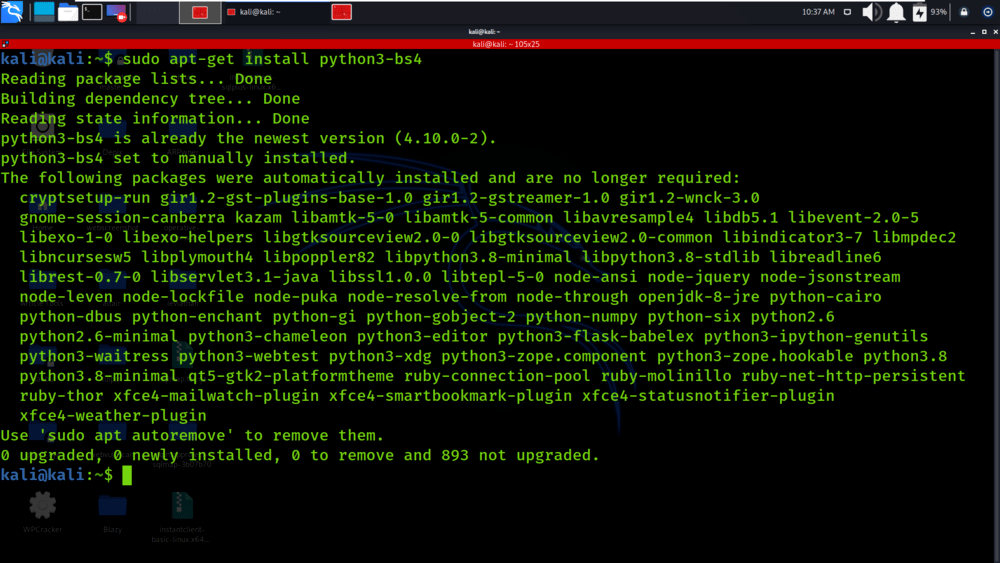
Beautiful Soup is distributed as the beautifulsoup4 package on PyPI (the Python Package Index). The bs4 module, which you’ll import into your Python scripts, is part of this beautifulsoup4 package.
- Ensure Virtual Environment is Active:
Double-check that your virtual environment is activated (you should see(venv)or a similar indicator in your terminal prompt).
-
Install Beautiful Soup:
In your activated terminal/command prompt, run the following command:pip install beautifulsoup4This command tells
pipto download thebeautifulsoup4package and all its dependencies from PyPI and install them into your active virtual environment.You should see output similar to this, indicating successful installation:
Collecting beautifulsoup4
  Downloading beautifulsoup4-4.12.2-py3-none-any.whl (142 kB)
Collecting soupsieve>1.2
  Downloading soupsieve-2.5-py3-none-any.whl (36 kB)
Installing collected packages: soupsieve, beautifulsoup4
Successfully installed beautifulsoup4-4.12.2 soupsieve-2.5
The
soupsievepackage is a dependency that Beautiful Soup uses for CSS selector support, which is a powerful way to find elements in HTML.
Verifying Your Beautiful Soup Installation
After installation, it’s always a good idea to quickly verify that the library can be imported correctly.
-
Open Python Interactive Interpreter:
With your virtual environment still active, typepython(orpython3on some systems) in your terminal and press Enter. This will open the Python interactive shell.(venv) my_scraper_project $ python Python 3.9.7 (default, Sep 3 2023, 15:47:00) [Clang 12.0.0 (clang-1200.0.32.29)] on darwin Type "help", "copyright", "credits" or "license" for more information. >>> -
Import Beautiful Soup:
At the>>>prompt, type the following and press Enter:from bs4 import BeautifulSoupIf you see no error messages and the prompt returns
>>>, then Beautiful Soup has been successfully installed and is ready to use! If you encounter anModuleNotFoundError: No module named 'bs4', double-check that your virtual environment is activated and thatpip install beautifulsoup4completed without errors. -
Exit the Interpreter:
To exit the Python interactive shell, typeexit()and press Enter.
python

>>> exit()

(venv) my_scraper_project $
Congratulations! Beautiful Soup is now installed and verified within your project’s isolated environment.
Taking Beautiful Soup for a Spin: A First Scraping Project
Now that Beautiful Soup is installed, let’s build a minimal web scraper to see it in action. As mentioned earlier, Beautiful Soup is excellent at parsing HTML, but it doesn’t fetch the HTML itself. For that, we’ll use the requests library.
Installing the ‘requests’ Library
The requests library is a de facto standard for making HTTP requests in Python. It’s incredibly user-friendly and handles much of the complexity of web communication.
- Install
requests:
Make sure your virtual environment is still active, then run:
bash

pip install requests
You should see a successful installation message forrequestsand its dependencies (charset-normalizer,idna,urllib3,certifi).
Crafting Your First Web Scraper
Let’s create a simple script to fetch a webpage and extract its title. We’ll use a public domain website like Project Gutenberg for this example, which is generally amenable to polite scraping.
-
Create a Python File:
Inside yourmy_scraper_projectdirectory, create a new file namedfirst_scraper.pyusing your favorite text editor or IDE (e.g., VS Code, Sublime Text, Notepad++). -
Add the Code:
Paste the following code intofirst_scraper.py:import requests from bs4 import BeautifulSoup # 1. Define the URL of the page you want to scrape url = "https://www.gutenberg.org/files/1342/1342-h/1342-h.htm" # Pride and Prejudice try: # 2. Send an HTTP GET request to the URL # We also add a User-Agent header to mimic a real browser, which is good practice. headers = { 'User-Agent': 'Mozilla/5.0 (Windows NT 10.0; Win64; x64) AppleWebKit/537.36 (KHTML, like Gecko) Chrome/91.0.4472.124 Safari/537.36' } response = requests.get(url, headers=headers) response.raise_for_status() # Raise an HTTPError for bad responses (4xx or 5xx)# 3. Parse the HTML content using Beautiful Soup # We specify 'html.parser' as the parser. soup = BeautifulSoup(response.text, 'html.parser') # 4. Find the title of the webpage # The <title> tag is usually nested directly inside the <head> tag. title_tag = soup.find('title') # Find the first <title> tag if title_tag: print(f"Webpage Title: {title_tag.text}") else: print("Title tag not found.") # 5. Find all paragraphs and print the first few paragraphs = soup.find_all('p') # Find all <p> tags if paragraphs: print("nFirst 3 Paragraphs:") for i, p in enumerate(paragraphs[:3]): print(f"- {p.text.strip()}") else: print("No paragraph tags found.")except requests.exceptions.RequestException as e:
print(f"An error occurred while fetching the page: {e}")
except Exception as e:
print(f"An unexpected error occurred: {e}")
-
Run Your Scraper:
Save thefirst_scraper.pyfile. Go back to your terminal (with the virtual environment active) and run the script:(venv) my_scraper_project $ python first_scraper.pyYou should see output similar to this:
Webpage Title: Pride and Prejudice, by Jane Austen

First 3 Paragraphs:
- Produced by Marcia Brooking, Fred Basnett and the Online Distributed Proofreading Team at http://www.pgdp.net
- PRIDE AND PREJUDICE
- By Jane Austen
This simple script demonstrates the core workflow:
- Request: Use
requests.get()to fetch the HTML content of the URL. - Parse: Pass the HTML content (
response.text) toBeautifulSoup()to create a parse tree. - Find: Use Beautiful Soup’s methods (
find(),find_all()) to locate specific elements. - Extract: Access the text or attributes of the found elements.
Understanding Different HTML Parsers
In our example, we explicitly used html.parser when creating the BeautifulSoup object: BeautifulSoup(response.text, 'html.parser'). This tells Beautiful Soup which underlying parser to use. There are three main options in Python:
-
html.parser(Built-in):- Pros: It’s built into Python, so no extra installation is required. It’s generally stable and sufficient for many tasks.
- Cons: Slower than
lxml. Less tolerant of malformed HTML compared tohtml5lib.
-
lxml(Recommended for Speed):- Pros: Extremely fast and robust. Often preferred for performance-critical scraping.
- Cons: Requires an additional installation.
- Installation:
pip install lxml
-
html5lib(Recommended for Malformed HTML):- Pros: Parses HTML in the same way a web browser does, making it exceptionally tolerant of messy, broken, or non-standard HTML.
- Cons: Slower than
lxmlandhtml.parser. Requires an additional installation. - Installation:
pip install html5lib
When to choose which parser:
html.parser: Good default if you don’t want extra dependencies and the HTML is reasonably well-formed.lxml: Best choice for speed when dealing with large volumes of data or when parsing well-structured HTML.html5lib: Your go-to if you’re consistently encountering HTML thathtml.parserorlxmlstruggle with, often due to significant malformation.
To use lxml or html5lib, simply install them (e.g., pip install lxml) and then specify them when creating your BeautifulSoup object:
# For lxml
soup = BeautifulSoup(response.text, 'lxml')

# For html5lib
soup = BeautifulSoup(response.text, 'html5lib')
For most everyday tasks, html.parser is a perfectly fine starting point, but lxml is often the preferred choice for production-level scraping due to its speed.
Troubleshooting Common Issues and Further Resources
Even with clear instructions, you might encounter issues. Here’s how to address some common problems and where to go next.
Addressing Installation and Module Not Found Errors
'python' is not recognized as an internal or external command(Windows) orcommand not found: python(macOS/Linux):- Cause: Python is either not installed or not added to your system’s PATH environment variable.
- Solution: Reinstall Python (especially on Windows, ensuring “Add Python to PATH” is checked). On macOS/Linux, ensure you’re using
python3ifpythonpoints to an older version or is missing.
'pip' is not recognized...orcommand not found: pip:- Cause:
pipis not installed or not in PATH. - Solution: For Python 3.4+,
pipcomes with Python. Reinstall Python. If on Linux, you might need to installpython3-pipspecifically.
- Cause:
ModuleNotFoundError: No module named 'bs4'orNo module named 'requests':- Cause: The package was not installed, or you’re trying to run your script outside of the virtual environment where it was installed.
- Solution:
- Activate your virtual environment: Crucial step! Ensure your terminal prompt shows
(venv)or similar. - Install the package: Run
pip install beautifulsoup4(andpip install requests) again while the virtual environment is active. - Check spelling: Make sure
from bs4 import BeautifulSoupis correct.
- Activate your virtual environment: Crucial step! Ensure your terminal prompt shows
- Proxy Issues:
- Cause: Your network might be behind a proxy server that prevents
pipfrom accessing PyPI orrequestsfrom accessing websites. - Solution: Configure proxy settings for
pip(e.g.,pip install --proxy http://user:pass@host:port beautifulsoup4) and forrequests(by passing aproxiesdictionary torequests.get()). Consult your network administrator for proxy details.
- Cause: Your network might be behind a proxy server that prevents
- SSL Certificate Errors:
- Cause: Problems verifying SSL certificates, often in corporate environments or on older systems.
- Solution: Ensure your system’s root certificates are up to date. Sometimes, it might be necessary (though generally discouraged for security reasons) to disable SSL verification in
requests:requests.get(url, verify=False).
Optimizing Your Scraping Workflow
Beyond basic installation, consider these tips for more robust and efficient scraping:
- Error Handling: Implement
try-exceptblocks to gracefully handle network issues, missing elements, or other unexpected problems. - Rate Limiting: Use
time.sleep()between requests to avoid overwhelming the server and getting your IP blocked. - User-Agent: Always set a
User-Agentheader in yourrequestscalls to mimic a real browser. Some websites block requests without one. - Caching: For complex scraping tasks or frequently accessed data, consider caching responses to reduce network requests and speed up development.
- Logging: Use Python’s
loggingmodule to keep track of your scraper’s activity, successful extractions, and errors.
Next Steps in Your Web Scraping Journey
You’ve successfully installed Beautiful Soup and run your first scraper. This is just the beginning! Here are some areas to explore next:
- Advanced Beautiful Soup Methods:
select(): Use CSS selectors, which are incredibly powerful for targeting elements.get_text(),get(): Learn more about extracting text and attributes.- Navigating the parse tree: Explore
.parent,.next_sibling,.children, etc.
- Storing Data:
- Learn to save the extracted data into CSV, JSON, or a database (e.g., SQLite).
- Handling Pagination:
- Most websites break content across multiple pages. Learn how to loop through pages to scrape all data.
- Dynamic Websites (JavaScript-heavy):
- For websites that load content dynamically using JavaScript, Beautiful Soup alone isn’t enough. Explore tools like
SeleniumorPlaywrightthat can control a web browser programmatically.
- For websites that load content dynamically using JavaScript, Beautiful Soup alone isn’t enough. Explore tools like
- Advanced Ethical Practices:
- Delve deeper into
robots.txtparsing, creating polite scrapers, and understanding different types of API keys.
- Delve deeper into
Beautiful Soup opens up a world of possibilities for data collection and analysis. By mastering its installation and fundamental usage, you’ve taken a significant step toward harnessing the vast data resources of the web. Keep experimenting, keep learning, and happy scraping!
aViewFromTheCave is a participant in the Amazon Services LLC Associates Program, an affiliate advertising program designed to provide a means for sites to earn advertising fees by advertising and linking to Amazon.com. Amazon, the Amazon logo, AmazonSupply, and the AmazonSupply logo are trademarks of Amazon.com, Inc. or its affiliates. As an Amazon Associate we earn affiliate commissions from qualifying purchases.