
In the competitive world of online gaming, fair play is paramount. Cheaters not only ruin the experience for legitimate players but also undermine the integrity of the game itself. This is where anti-cheat systems like BattlEye step in. Widely adopted by popular titles such as PUBG, Rainbow Six Siege, ARK: Survival Evolved, and many others, BattlEye is a crucial component that ensures a level playing field. If you’ve ever wondered what BattlEye is, how it works, or, more importantly, how to install and troubleshoot it, you’ve come to the right place. This comprehensive guide will walk you through everything you need to know, ensuring your gaming sessions are secure and enjoyable.

Understanding BattlEye and Its Role in Gaming
Before diving into the installation process, it’s essential to grasp what BattlEye is and why it’s so critical for modern online gaming. As part of a website focusing on Tech, understanding the underlying technology helps us appreciate its value.
What is BattlEye?
BattlEye is a proactive anti-cheat system designed to detect and prevent cheating in online multiplayer games. Developed by a German company, it operates as a sophisticated layer of security that monitors your game client and system for any unauthorized modifications, scripts, or programs that could give a player an unfair advantage. Unlike some reactive anti-cheat systems that only ban cheaters after they’ve been reported, BattlEye aims to stop them in their tracks, often before they can even enter a game.
How BattlEye Works
BattlEye integrates directly with the game and your operating system at a kernel level, allowing it to have a deep understanding of what’s running on your machine while the game is active. Its methods include:
- Real-time scanning: Constantly scans your system for known cheat signatures, memory injections, and other common hacking techniques.
- Behavioral analysis: Monitors player behavior and game states for anomalies that might indicate the use of illicit software.
- Encryption and obfuscation: Protects the game client from tampering and reverse engineering attempts by cheaters.
- Dynamic updates: BattlEye’s database of known cheats is regularly updated, allowing it to adapt to new cheating methods as they emerge. This dynamic nature is key to its effectiveness in an ever-evolving landscape of exploits.
It’s important to note that while BattlEye operates at a deep level, it is designed with privacy in mind. It typically only monitors processes directly related to the game and does not collect personal data unrelated to cheating activities. Its primary goal is to maintain game integrity, not to surveil your general computer usage.
Why You Need BattlEye
For most online multiplayer games that implement BattlEye, it’s not an option – it’s a requirement. Here’s why it’s indispensable:
- Fair Play: The most obvious reason. It prevents cheaters from using aimbots, wallhacks, speed hacks, and other exploits that ruin the competitive balance.
- Enhanced Experience: Knowing that an effective anti-cheat is in place allows legitimate players to focus on enjoying the game, strategizing, and honing their skills without the constant frustration of encountering cheaters.
- Game Integrity and Longevity: By protecting the game from rampant cheating, BattlEye helps maintain its player base and reputation, contributing to its long-term success. Developers invest significant resources in their games, and anti-cheat systems protect that investment by preserving a healthy community.
- Security: While its primary role isn’t general digital security, by preventing malicious software designed for cheating from running on your system, it indirectly contributes to a safer computing environment while gaming.
Automatic Installation: The Most Common Scenario
For the vast majority of gamers, installing BattlEye isn’t a separate manual process. It’s usually handled seamlessly when you install a game that utilizes it. This streamlined approach aligns with the “Productivity” aspect of our website, making the user experience as smooth as possible.
Bundled with Your Games
When you purchase and install a game that uses BattlEye (e.g., via Steam, Epic Games Store, or a direct launcher), the anti-cheat system is almost always included as part of the game’s installation package. The game client’s installer will detect that BattlEye is required and automatically install the necessary components alongside the game files.
During this initial setup, you might see a pop-up window or a line of text indicating that BattlEye is being installed. It typically installs a service and specific files within the game’s directory. This process requires administrator privileges, which your game launcher usually requests or already possesses during the main game installation.
Verifying Automatic Installation
After your game has finished installing, you can verify that BattlEye is correctly set up:
- Launch the Game: The most straightforward way. If BattlEye is installed and working correctly, the game should launch without any anti-cheat-related errors. You might even see a small BattlEye splash screen or message during the game’s startup sequence.
- Check Task Manager (Windows):
- Press
Ctrl + Shift + Escto open Task Manager. - Go to the “Details” tab.
- Look for a process named
BEService.exeorBEClient.dll(the BattlEye service) when the game is running. Its presence usually indicates BattlEye is active.
- Press
- Inspect Game Directory:
- Navigate to your game’s installation folder (e.g.,
C:Program Files (x86)Steamsteamappscommon[Your Game Name]). - Inside, you should find a subfolder named
BattlEyeor files likeBEService_x64.exe,BEClient.dll, andBELauncher.exe. The existence of these files confirms BattlEye’s presence. - Some games have a
BattlEyefolder directly in the game’s root directory, while others might have it inside aBinariesorEnginefolder.
- Navigate to your game’s installation folder (e.g.,
If you encounter errors related to BattlEye upon launching the game, it indicates an issue with the automatic installation, and you’ll likely need to proceed with manual troubleshooting or reinstallation.
Manual Installation and Reinstallation of BattlEye
While automatic installation is the norm, there are situations where manual intervention becomes necessary. This section guides you through those less common but crucial scenarios.
When Manual Intervention is Needed
You might need to manually install or reinstall BattlEye in the following circumstances:
- Installation Errors: The automatic installation failed, resulting in “BattlEye service not running,” “Failed to initialize BattlEye,” or similar error messages when launching your game.
- Corrupted Files: BattlEye files might become corrupted due to disk errors, power outages, or aggressive antivirus software, requiring a fresh installation.
- Troubleshooting: As part of a broader troubleshooting process for game crashes or performance issues, reinstalling BattlEye can sometimes resolve underlying conflicts.
- Specific Game Updates: Rarely, a game update might require a BattlEye reinstallation if there are significant changes to its integration.
- Operating System Issues: After a major OS update or repair, BattlEye’s service might need to be re-registered.
Step-by-Step Manual Installation Guide
The process for manual installation/reinstallation often involves using a dedicated BattlEye installer located within your game’s directory.
-
Locating the Game Directory:
- Steam: Open Steam, right-click on the game in your Library, select “Manage,” then “Browse local files.” This will open the game’s root directory.
- Epic Games Store: Open Epic Games Launcher, go to your Library, click the three dots next to the game, and select “Manage.” Then, click the folder icon next to “Installation” to open the game’s directory.
- Other Launchers: For games with their own launchers, there’s usually an option within the launcher settings or context menu to “Open Game Folder” or “Locate Files.”
-
Running the BattlEye Installer/Uninstaller:
-
Once in the game’s root directory, look for a folder usually named
BattlEye. -
Inside this folder, you will typically find executable files:
Install_BattlEye.bat(batch file)Uninstall_BattlEye.bat(batch file)BEService.exe(BattlEye Service executable)BELauncher.exe(BattlEye Launcher executable)- Or, a game-specific installer, e.g.,
Install_BattlEye_PUBG.batorBEInstaller.exe.
-
To Install/Reinstall:
- Right-click on the
Install_BattlEye.bat(or similar install script) and select “Run as administrator.” A command prompt window will briefly appear, performing the installation. - If there’s no
.batfile, sometimes simply runningBEService.exeorBELauncher.exewill attempt to register the service. However, running the specific install script is usually the most reliable method.
- Right-click on the
-
To Uninstall (before reinstalling):
- It’s often good practice to first uninstall BattlEye if you’re experiencing issues before reinstalling.
- Right-click on
Uninstall_BattlEye.bat(or similar uninstall script) and select “Run as administrator.” Confirm any prompts.
-
-
Dealing with Specific Game Installations:
- Some games might have the BattlEye executable directly in the root folder, or under a
Binaries->Win64subdirectory. The key is to find the dedicated BattlEye installation script or executable. - If you can’t find a batch file, you might need to try running the game’s main launcher or verifying game files through your game client (Steam/Epic), which often triggers a BattlEye repair/reinstall automatically.
- Some games might have the BattlEye executable directly in the root folder, or under a
Reinstalling BattlEye
If you’re facing persistent issues, a full reinstallation is often the best course of action:
- Uninstall BattlEye: Use the
Uninstall_BattlEye.batfile as described above. - Verify Game Files:
- Steam: Right-click the game > Properties > Installed Files > Verify integrity of game files.
- Epic Games: Library > Click three dots next to game > Manage > Verify.
This process will re-download any missing or corrupted BattlEye files along with game files.
- Restart PC: A fresh restart can clear any lingering processes or corrupted memory.
- Launch Game: The game launcher should now attempt to reinstall BattlEye automatically with the verified files. If not, manually run the
Install_BattlEye.batagain.
Troubleshooting Common BattlEye Installation Issues
Even with the best instructions, problems can arise. Here, we address common issues that might hinder BattlEye installation or operation, offering practical solutions relevant to “Digital Security” and “Productivity” on our website.
Permissions and Administrator Rights
- Issue: BattlEye requires administrator privileges to install and run its service. If it doesn’t have these, it cannot function.
- Solution: Always “Run as administrator” when executing the BattlEye installation/uninstallation scripts (
.batfiles) or the game launcher itself if issues persist.- Right-click the executable or shortcut > “Run as administrator.”
- You can also set the game’s executable to always run as administrator: Right-click game executable > Properties > Compatibility tab > Check “Run this program as an administrator.” Apply changes.
Antivirus and Firewall Interference
- Issue: Aggressive antivirus software or Windows Defender/Firewall can sometimes incorrectly flag BattlEye components as malicious or block its network communications, preventing installation or operation.
- Solution:
- Temporarily Disable: Temporarily disable your antivirus and firewall, then attempt to install/launch the game. If it works, you’ve found the culprit.
- Add Exceptions: Re-enable your security software and add exceptions for:
- The entire game installation folder.
- The BattlEye folder within the game directory.
- The
BEService.exeprocess (check your Task Manager for its exact location, oftenC:Program Files (x86)Common FilesBattlEye).
- Check Firewall Rules: Ensure that your Windows Firewall or third-party firewall is not blocking the game’s executable or BattlEye’s network traffic. You might need to add specific inbound/outbound rules.
Corrupted Files and Verifying Game Integrity
- Issue: If game files, including BattlEye components, become corrupted, the anti-cheat system won’t work.
- Solution: Use your game launcher’s built-in “Verify integrity of game files” (Steam) or “Verify” (Epic Games) function. This will scan your game installation, identify any missing or damaged files, and automatically download fresh copies. This is often the first step in resolving most game-related issues.
Operating System Compatibility
- Issue: Very old or highly modified operating systems might conflict with BattlEye. BattlEye officially supports Windows 7, 8.1, 10, and 11 (64-bit versions).
- Solution:
- Update OS: Ensure your Windows installation is fully updated. Go to Settings > Update & Security > Windows Update.
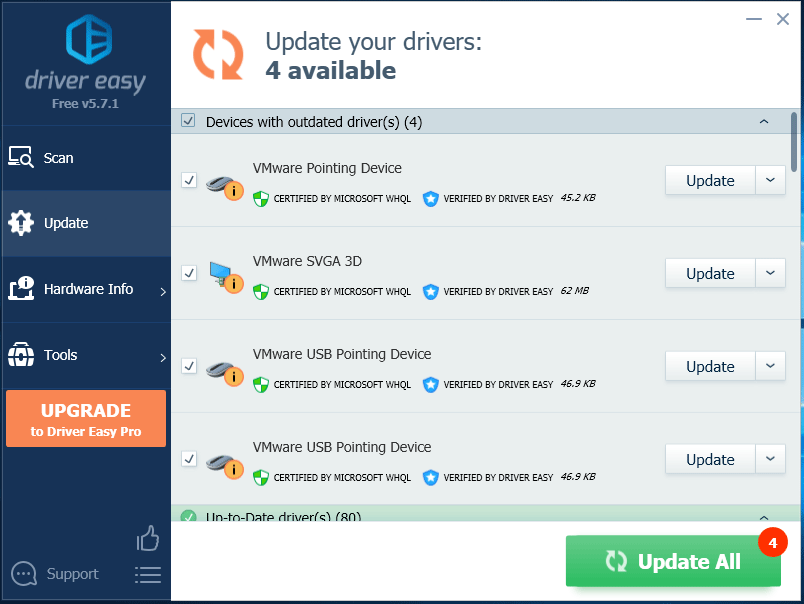
- Check Drivers: Ensure all your device drivers (especially graphics card drivers) are up to date. Outdated drivers can sometimes cause system instability that indirectly affects anti-cheat operation.
Network Connectivity Issues
- Issue: BattlEye needs to communicate with its servers to perform checks and updates. Poor or restricted network connectivity can prevent this.
- Solution:
- Stable Connection: Ensure you have a stable internet connection.
- VPN/Proxy: If you’re using a VPN or proxy, try disabling it temporarily. Some VPNs can interfere with anti-cheat systems.
- Router Settings: Check your router’s firewall settings or parental controls, as these might inadvertently block BattlEye’s traffic. A quick router restart can sometimes resolve temporary network glitches.
Contacting BattlEye Support
- Issue: If all else fails and you’ve exhausted common troubleshooting steps, you might have a unique problem.
- Solution: Visit the official BattlEye website (www.battleye.com) and navigate to their support section. They have an FAQ and often a way to submit support tickets, providing them with log files from your BattlEye folder (e.g.,
Launcher.log,BEService.log) can help them diagnose the problem more effectively. Remember to provide as much detail as possible about your system and the error you’re encountering.
Maintaining a Healthy BattlEye Environment
Prevention is always better than cure. By taking a few proactive steps, you can minimize the chances of running into BattlEye-related issues.
Keeping Your Game and OS Updated
Regular updates for your game and operating system are crucial. Game patches often include updates to the BattlEye integration, fixing bugs or improving compatibility. Similarly, Windows updates address security vulnerabilities and improve overall system stability, creating a better environment for all software, including anti-cheat systems. Make it a habit to check for updates regularly.
Regular System Scans
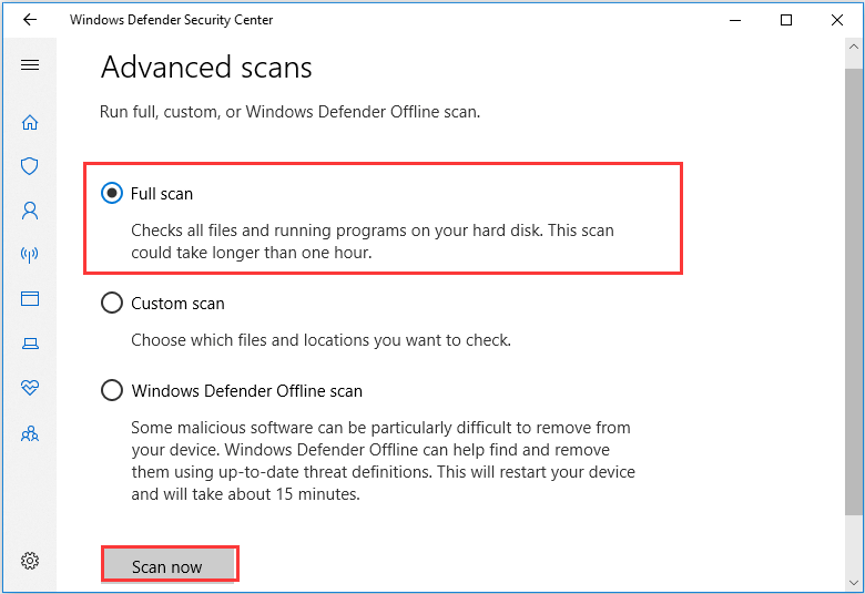
While BattlEye focuses on game integrity, ensuring your system is generally clean from malware or viruses is good digital hygiene. Run full system scans with reputable antivirus software periodically. A clean system is less likely to suffer from conflicts or performance issues that might indirectly impact BattlEye’s operation.
Uninstalling BattlEye (Optional)
While generally not recommended unless you are uninstalling the game that uses it, there might be rare cases where you wish to remove BattlEye manually.
When to Uninstall
- Game Uninstallation: The most common scenario. When you uninstall a game that uses BattlEye, the anti-cheat system is typically removed automatically alongside the game files.
- Persistent Conflicts: In very rare cases where BattlEye is definitively identified as causing system-wide issues (after thorough troubleshooting and consulting support), you might choose to manually uninstall it.
- Freeing Up Space: While BattlEye itself is very small, removing unused components can be part of a general system cleanup strategy.
The Uninstallation Process
- Locate the Uninstaller: Navigate to the game’s BattlEye folder (as described in the manual installation section).
- Run as Administrator: Right-click on
Uninstall_BattlEye.bat(or the equivalent uninstall script for your specific game) and select “Run as administrator.” - Confirm: Follow any prompts to confirm the uninstallation. The command prompt window will indicate when the process is complete.
- Verify Removal (Optional): Check your Task Manager for
BEService.exe(it should not be running) and the game directory for the BattlEye folder (it should be gone or empty). You can also checkC:Program Files (x86)Common FilesBattlEyefor any lingering files and manually delete the folder if present.
Important Note: If you uninstall BattlEye and then try to launch a game that requires it, the game will either fail to launch, prompt you to reinstall BattlEye, or attempt to reinstall it automatically. It’s an essential component for any game that implements it.
Conclusion
BattlEye is a critical technological layer that upholds the principles of fair play in online gaming. While its installation is typically a seamless, automated process, understanding its function and knowing how to troubleshoot potential issues is invaluable for any dedicated gamer. By following the steps outlined in this guide – from verifying automatic installations to performing manual reinstallations and navigating common errors – you can ensure a smooth, secure, and most importantly, fair gaming experience. For our readers interested in Tech, this guide not only provides a practical solution but also highlights the ongoing battle developers wage against cheating, ensuring the integrity and longevity of the games we love. Keep your systems updated, understand your anti-cheat, and enjoy the competitive world of online gaming with confidence.
aViewFromTheCave is a participant in the Amazon Services LLC Associates Program, an affiliate advertising program designed to provide a means for sites to earn advertising fees by advertising and linking to Amazon.com. Amazon, the Amazon logo, AmazonSupply, and the AmazonSupply logo are trademarks of Amazon.com, Inc. or its affiliates. As an Amazon Associate we earn affiliate commissions from qualifying purchases.