
Battlefield V, DICE’s critically acclaimed first-person shooter set in World War II, continues to capt captivate players with its immersive campaigns, expansive multiplayer battles, and stunning visuals. For PC gamers, the prospect of diving into this epic conflict is even more enticing thanks to services like PC Game Pass. Combining the vast library of Game Pass with the robust offerings of EA Play, which is bundled with PC Game Pass, makes Battlefield V readily accessible. This comprehensive guide will walk you through every step of installing Battlefield V on your PC using your Game Pass subscription, ensuring a smooth and optimized gaming experience.

At its core, PC Game Pass is Microsoft’s subscription service offering access to hundreds of high-quality PC games for a single monthly fee. Its appeal lies not just in the sheer volume of titles, but also in the inclusion of day-one releases and, crucially for Battlefield V, a built-in EA Play membership. EA Play, Electronic Arts’ own subscription service, grants access to a collection of popular EA titles, including gems like Battlefield V, alongside exclusive in-game challenges and rewards. This powerful synergy means that with an active PC Game Pass subscription, you effectively unlock Battlefield V and a treasure trove of other games without additional purchases.
Navigating the installation process, however, can sometimes be a bit intricate, especially when multiple platforms like the Xbox App and the EA App need to interact seamlessly. This guide aims to demystify that process, providing clear, actionable steps for both seasoned PC users and newcomers to the Game Pass ecosystem. We’ll cover everything from confirming your subscription and preparing your system to troubleshooting common issues, ensuring you spend less time fiddling with settings and more time storming the beaches of Normandy or defending the deserts of North Africa.
Preparing for Installation: Essential Prerequisites
Before you embark on your journey to the battlefields of World War II, a few crucial preliminary steps are necessary. Ensuring your system is ready, your subscriptions are active, and the right software is in place will prevent potential headaches and streamline the installation process.
Confirming Your PC Game Pass Subscription
The foundation of accessing Battlefield V through this method is an active PC Game Pass subscription. While this might seem obvious, it’s worth double-checking to avoid any last-minute surprises.
- Verify Subscription Status: Log in to your Microsoft account on the official Xbox website or check the “Subscriptions” section within the Xbox App. Ensure your PC Game Pass subscription is active and not pending renewal or payment. Remember, there are different tiers of Game Pass; you need the “PC Game Pass” or “Xbox Game Pass Ultimate” (which includes PC Game Pass) to access PC titles.
- Understanding EA Play Integration: Confirm that your PC Game Pass subscription includes EA Play. For most PC Game Pass and Game Pass Ultimate subscribers, EA Play is automatically bundled. This integration is critical as Battlefield V is an EA Play title, requiring the EA App for installation and launching, even when accessed via Game Pass. This synergy represents a significant value proposition, bringing a vast catalog of Electronic Arts games directly to Game Pass subscribers without additional cost. This seamless integration often goes unnoticed, but it’s the invisible bridge connecting your Microsoft subscription to EA’s library.
Meeting System Requirements for Battlefield V
While Battlefield V has been out for a while, it still demands a respectable amount of hardware to run smoothly, especially if you aim for higher graphical settings. Checking your PC’s specifications against the game’s requirements is a vital tech check to ensure a satisfactory experience.
-
Minimum Specifications:
- OS: Windows 7/8.1/10 (64-bit)
- Processor (AMD): AMD FX-8350 or equivalent
- Processor (Intel): Core i5 6600K or equivalent
- Memory: 8 GB RAM
- Graphics card (NVIDIA): NVIDIA GeForce GTX 1050 / NVIDIA GeForce GTX 660 2GB
- Graphics card (AMD): AMD Radeon RX 560 / HD 7850 2GB
- DirectX: Version 11.0 Compatible video card or equivalent
- Online Connection Requirements: 512 KBPS or faster Internet connection
- Hard-drive space: 50 GB
-
Recommended Specifications:
- OS: Windows 10 (64-bit)
- Processor (AMD): AMD Ryzen 3 1300X or equivalent
- Processor (Intel): Intel Core i7 4790 or equivalent
- Memory: 16 GB RAM
- Graphics card (NVIDIA): NVIDIA GeForce GTX 1060 6GB
- Graphics card (AMD): AMD Radeon RX 580 8GB
- DirectX: Version 11.0 Compatible video card or equivalent
- Online Connection Requirements: 512 KBPS or faster Internet connection
- Hard-drive space: 50 GB
-
How to Check Your PC’s Specs:
- Windows 10/11: Right-click on the Start button, select “System.” This will show you your CPU, RAM, and Windows version. For your GPU, right-click on your desktop, select “Display settings,” then “Advanced display settings,” and finally “Display adapter properties.” Alternatively, type “dxdiag” into the Windows search bar and press Enter for a comprehensive report.
Ensuring your PC meets at least the minimum requirements will prevent performance issues, crashes, or unplayable frame rates. For the best experience, aiming for the recommended specifications is always advisable. This foresight ensures not just playability, but also enjoyment, as a game that constantly stutters can quickly diminish the immersive quality of Battlefield V’s intense battles.
Installing and Updating Necessary Applications
To bridge the gap between your Game Pass subscription and EA’s game library, two primary applications are required: the Xbox App and the EA App. Both are essential for a seamless installation.
- The Xbox App for Windows: This is your primary portal to PC Game Pass.
- Installation: If you don’t have it already, download it from the Microsoft Store or the official Xbox website.
- Updating: Once installed, open the Xbox App and ensure it’s updated to the latest version. Outdated versions can lead to connectivity issues or problems recognizing your Game Pass subscription. Go to “Settings” then “About” to check for updates or let the app update itself upon launch.
- The EA App (formerly Origin): This is where Battlefield V will ultimately reside and launch from.
- Installation: While the Xbox App will often prompt you to install it, it’s good practice to have it ready. Download it from the official EA website.
- Updating: Just like the Xbox App, ensure the EA App is fully updated. Open the app, and it will typically check for updates automatically. You may also find an update option within its settings.
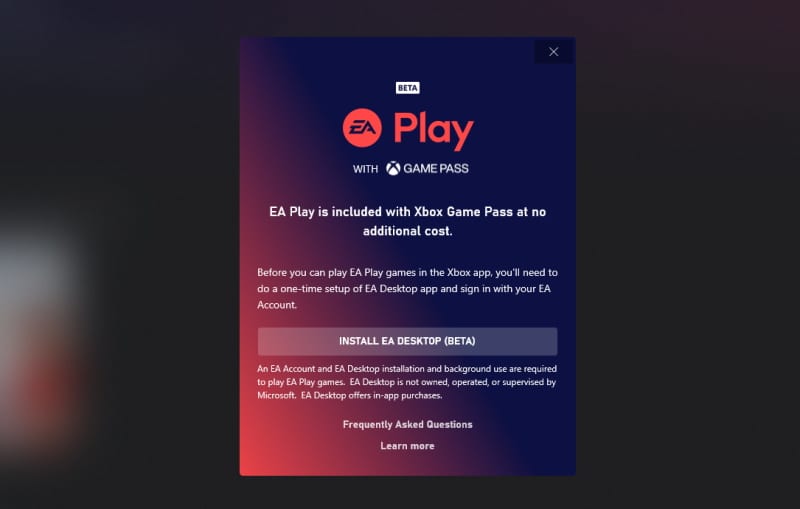
- Account Linking: This is a crucial step for the “Tech” aspect of this guide. You’ll need an EA account. If you don’t have one, create it. The Xbox App will guide you through linking your Microsoft account to your EA account. This link allows Game Pass to verify your EA Play access, which in turn grants you the right to download and play Battlefield V. Ensure you use the correct EA account, as unlinking and relinking can be a cumbersome process. This account linking is a one-time process, but critical for the ecosystem to function.
With these prerequisites handled, your system is now primed for the actual installation of Battlefield V. The interplay between Microsoft and EA’s platforms is a testament to modern gaming’s interconnected nature, requiring users to navigate multiple interfaces but ultimately delivering a vast library of games.
Step-by-Step Guide: Installing Battlefield V
Now that your groundwork is laid, let’s dive into the core process of getting Battlefield V onto your PC. The steps involve navigating the Xbox App, initiating the download, and ensuring the EA App handles the game files correctly.
Navigating the Xbox App to Find Battlefield V
The Xbox App is your gateway to the Game Pass library. Here’s how to locate Battlefield V:
- Open the Xbox App: Launch the Xbox App on your Windows PC. Make sure you are logged in with the Microsoft account that holds your active PC Game Pass subscription.
- Search for Battlefield V: In the search bar typically located at the top-right of the Xbox App interface, type “Battlefield V” and press Enter. The game’s listing should appear in the search results.
- Access the Game Page: Click on the Battlefield V game tile to open its dedicated page. Here, you’ll see details about the game, screenshots, trailers, and, most importantly, the installation options. You should also notice a banner indicating that the game is included with EA Play (and thus with your PC Game Pass). This is your confirmation that the game is accessible through your subscription.
- Initiate Installation: On the game’s page, you will see a prominent “Install” button. Click this button to begin the process.
Initiating the Download and Linking Accounts
This is often where the Xbox App hands off the process to the EA App, necessitating account integration if it hasn’t been done already.
- The “Install” Prompt: After clicking “Install” in the Xbox App, a pop-up might appear, asking you to confirm the installation location or providing additional information about the EA Play requirement.
- EA App Integration: If your Microsoft account and EA account are not yet linked, or if the EA App isn’t open, the Xbox App will likely prompt you to do one of the following:
- Sign in to EA App: If the EA App is installed but not logged in, it will ask you to sign in.
- Install EA App: If the EA App is not installed, it will direct you to install it.
- Link Accounts: Crucially, it will ask you to “Link your EA Account.” Click this option. A browser window or a prompt within the EA App will open, asking you to sign in with your EA account credentials. Carefully enter your EA ID and password. This step is critical for authenticating your EA Play access through Game Pass.
- Confirmation: Once linked, you’ll usually receive a confirmation message. This linkage is a one-time operation, establishing a permanent connection between your Xbox/Microsoft profile and your EA profile for Game Pass titles. For “Digital Security” aspects, always ensure you’re logging into legitimate EA and Microsoft sites/apps during this process and use strong, unique passwords for both accounts.
- EA App Takes Over: After successful account linking and confirmation, the EA App should automatically launch (or come to the foreground) and begin the download process for Battlefield V. The “Install” button in the Xbox App will typically change to “Launch Game” or show the download progress.
Monitoring and Managing Your Download
Battlefield V is a substantial game, typically requiring around 50 GB of storage. Managing this download efficiently is key.
- Monitor Progress in EA App: The primary download progress will be shown within the EA App. Navigate to the “Downloads” or “My Library” section to view the real-time status, download speed, and estimated time remaining. The EA App usually provides a more granular view of the download compared to the Xbox App for EA Play titles.
- Pause and Resume: Both the Xbox App (sometimes) and definitely the EA App allow you to pause and resume downloads. This is useful if you need to free up bandwidth for other tasks or shut down your PC temporarily.
- Change Installation Location (Optional): During the initial installation prompt in the EA App, you usually get an option to choose the installation directory. If you have multiple drives, it’s often recommended to install large games like Battlefield V on an SSD (Solid State Drive) for faster loading times and overall performance. If you need to change it after the download starts, you might have to cancel and restart the installation, so it’s best to decide upfront.
- Troubleshooting Slow Downloads:
- Internet Connection: Ensure your internet connection is stable and fast. Consider a wired Ethernet connection over Wi-Fi for better speeds.
- Bandwidth Hogs: Close other applications that might be consuming bandwidth (streaming services, other downloads).
- Server Load: Sometimes EA or Xbox servers can be busy. Try again during off-peak hours.
- Firewall/Antivirus: Temporarily disable your firewall or antivirus to see if it’s interfering, then re-enable it.
- Restart Apps: Closing and reopening both the Xbox App and EA App can sometimes refresh the connection and improve download speeds.
Once the download is complete, the EA App will finalize the installation, and the game will be ready to launch. This seamless handover from the Xbox App to the EA App, while potentially confusing at first, is a streamlined process once the initial account linking is established.
Launching and Optimizing Your Battlefield V Experience
With Battlefield V successfully installed, the next step is to launch the game and fine-tune its settings for the best possible experience. This section focuses on initial startup, graphical optimizations, and tackling common issues that might arise.
First Launch and Game Settings
Getting the game running and adjusting its core settings are critical for enjoying the experience that Battlefield V offers.
- Launching the Game:
- From Xbox App: Once installed, the “Install” button on Battlefield V’s page in the Xbox App will change to “Play” or “Launch.” Clicking this will typically launch the game via the EA App.
- From EA App: Alternatively, you can launch the EA App, navigate to “My Library,” find Battlefield V, and click the “Play” button there. Both methods should work interchangeably once the game is installed.
- Initial Setup and Graphics Settings:
- First-Time Configuration: On its very first launch, Battlefield V might prompt you for initial configurations, such as accepting user agreements or adjusting basic display settings.
- Graphics Menu: Once in the main menu, navigate to the “Options” or “Settings” menu, then look for “Video” or “Graphics.” This is where you’ll spend some time optimizing your visual experience.
- Key Settings to Consider:
- Resolution: Always aim for your monitor’s native resolution for the sharpest image.
- Full Screen Mode: Use exclusive fullscreen for best performance.
- Graphics Quality Preset: Battlefield V often offers presets like “Low,” “Medium,” “High,” and “Ultra.” Start with a preset that matches your PC’s capabilities (refer to the system requirements).
- Individual Settings:
- Texture Quality: Impacts how sharp surfaces look. Higher settings require more VRAM.
- Render Quality/Scaling: Can significantly impact performance. Set to 100% for native resolution.
- Draw Distance/Mesh Quality: Affects how far objects are rendered.
- Post-Process Quality: Controls effects like depth of field, motion blur.
- Anti-Aliasing: Smooths jagged edges. TAA is often a good balance.
- DXR (Ray Tracing): If your GPU supports it (RTX 20-series or newer, RX 6000-series or newer), Battlefield V supports DXR. While visually stunning, it’s extremely performance-intensive. Only enable if you have a powerful GPU and are willing to sacrifice some frame rate.
- Optimizing for Performance vs. Visuals: The goal is to find a balance where the game looks good and runs smoothly (e.g., 60+ FPS in multiplayer). Start with a recommended preset and then tweak individual settings. Lower shadows, post-processing, and ambient occlusion often yield significant FPS gains with minimal visual impact. Higher textures and mesh quality usually make the biggest visual difference without crippling performance as much as shadows or DXR. Test different settings in-game, perhaps in a quiet area or during a less intensive part of a match, to gauge their impact.
Common Installation and Launch Troubleshooting
Despite careful preparation, issues can sometimes arise. Here’s how to address some common problems when installing or launching Battlefield V via PC Game Pass.
- Game Not Starting / Crashing on Launch:
- Update Graphics Drivers: Outdated GPU drivers are a frequent culprit. Visit NVIDIA, AMD, or Intel’s website to download and install the latest drivers for your graphics card. This is a paramount “Tech” step for any PC gamer.
- Verify Game Files: Both the EA App and the Xbox App usually have an option to “Verify” or “Repair” game files. This checks for corrupted or missing files and redownloads them. In the EA App, find Battlefield V in “My Library,” click the three dots, and look for “Repair.”
- Run as Administrator: Try running both the EA App and Battlefield V executable as an administrator. Right-click the shortcut and select “Run as administrator.”
- Antivirus/Firewall Interference: Your antivirus software or Windows Firewall might be blocking the game or the EA App. Temporarily disable them (with caution) and try launching. If it works, add exceptions for Battlefield V and the EA App in your security software.
- Overlays: Disable in-game overlays from other applications (e.g., Discord, GeForce Experience, Xbox Game Bar) as they can sometimes conflict with games.
- “EA App Required” or “EA Play Not Detected” Loops:
- Account Linking Issue: This almost always points to an issue with your Microsoft and EA account linking. Go back to the Xbox App, find Battlefield V, and look for an option to manage your EA account link. Try unlinking and relinking your accounts carefully.
- Log Out/In: Log out of both the Xbox App and EA App, then restart your PC and log back into both.
- Reinstall EA App: As a last resort, uninstall and reinstall the EA App entirely.
- Slow Performance / Stuttering:
- Lower Graphics Settings: Revisit the graphics settings and reduce demanding options like DXR, shadows, reflections, and post-processing effects.
- Close Background Applications: Ensure no other demanding programs are running in the background.
- Check Task Manager: Use Task Manager (Ctrl+Shift+Esc) to see if any process is consuming excessive CPU, RAM, or Disk usage.
- Disk Space: Ensure you have ample free space on the drive where Battlefield V is installed (at least 15-20 GB beyond the game’s size for temporary files and updates).
- Power Plan: Make sure your Windows Power Plan is set to “High Performance.”
- Connection Issues in Multiplayer:
- Internet Stability: Ensure your internet connection is stable.
- Router Restart: Restart your router and modem.
- Firewall: Double-check firewall settings.
- Region: Ensure you are connecting to servers in your geographical region for lower ping.
Maximizing Your PC Game Pass Value (Beyond Battlefield V)
While Battlefield V offers countless hours of intense gameplay, remember that your PC Game Pass subscription opens the door to an entire universe of gaming possibilities. Beyond EA Play titles, Game Pass itself hosts a revolving library of hundreds of games, from indie darlings to AAA blockbusters, including day-one releases from Xbox Game Studios.
Take some time to explore the Xbox App’s “All Games” or “Coming Soon” sections. You might discover new favorites across various genres – from expansive RPGs like Starfield, to strategic experiences like Age of Empires, or even unique indie adventures. Many of these games also offer cloud gaming capabilities with Game Pass Ultimate, allowing you to stream them on other devices. This breadth of choice represents an exceptional “Money” value, as the subscription cost covers access to a diverse and continuously updated library that would cost thousands of dollars to purchase individually. It’s a prime example of a service delivering consistent value, making it a compelling “Tech” investment for any serious PC gamer looking to broaden their horizons.
Conclusion
Installing Battlefield V with PC Game Pass is a straightforward process once you understand the necessary steps and the interplay between Microsoft’s Xbox App and EA’s EA App. By confirming your subscription, ensuring your system meets the requirements, installing the necessary software, and following the clear installation guide, you’ll be ready to jump into the visceral battles of World War II in no time.
PC Game Pass continues to redefine value in the gaming industry, providing a vast and ever-expanding library of games, including premium titles like Battlefield V, for a single monthly fee. Its integration with EA Play further amplifies this value, making it an indispensable service for PC gamers. Whether you’re a veteran of the Battlefield series or a newcomer eager to experience its historical accuracy and intense action, the combination of PC Game Pass and Battlefield V offers an unbeatable gaming proposition. Now that your game is installed and optimized, it’s time to load up your weapon, join your squad, and make your mark on the battlefield. Enjoy the fight!
aViewFromTheCave is a participant in the Amazon Services LLC Associates Program, an affiliate advertising program designed to provide a means for sites to earn advertising fees by advertising and linking to Amazon.com. Amazon, the Amazon logo, AmazonSupply, and the AmazonSupply logo are trademarks of Amazon.com, Inc. or its affiliates. As an Amazon Associate we earn affiliate commissions from qualifying purchases.