
Arch Linux is renowned for its minimalism, flexibility, and the principle of user control. While its official repositories offer a vast selection of software, there’s an even larger universe of applications available through the Arch User Repository, or AUR. The AUR is a community-driven repository that hosts package descriptions (PKGBUILDs) that allow users to compile software from source or retrieve pre-compiled binaries from various sources. This guide will walk you through everything you need to know about installing AUR packages, from understanding its fundamentals to utilizing convenient helper tools, ensuring you can access a truly expansive software ecosystem on your Arch system.

Understanding the Arch User Repository (AUR)
Before diving into the mechanics of installation, it’s crucial to grasp what the AUR is, why it exists, and how it functions. This foundational knowledge empowers you to use it effectively and securely.
What is the AUR and Why is it Important?
The Arch User Repository (AUR) is not a conventional repository in the same vein as Arch’s official core, extra, or community repositories. Instead, it’s a collection of PKGBUILD scripts submitted and maintained by the Arch Linux user community. These PKGBUILDs are shell scripts that contain the necessary instructions for makepkg (Arch’s package building utility) to download source code, compile it, and create a pacman-compatible package (.pkg.tar.zst file).
The primary importance of the AUR lies in its sheer breadth of software. Many applications, especially newer, niche, or development versions, are not yet (or may never be) included in the official repositories. The AUR fills this gap, providing Arch users with access to an immense array of software, ranging from bleeding-edge applications and obscure utilities to proprietary software (often referred to as ‘AUR helpers’) that cannot be redistributed directly. It embodies the “do-it-yourself” spirit of Arch Linux, allowing users to build and manage their software with precise control. For a tech-savvy user looking to maximize their system’s capabilities, the AUR is an indispensable resource.
The Role of PKGBUILDs and makepkg
At the heart of the AUR lies the PKGBUILD file. This plain text file is essentially a blueprint for building a package. It specifies:
pkgname: The name of the package.pkgver: The package version.pkgrel: The package release (for Arch-specific changes).pkgdesc: A brief description of the package.arch: The architectures it supports (e.g.,x86_64).url: The upstream URL for the software.license: The software’s license.depends: Other packages that must be installed before this one.makedepends: Dependencies required only for building the package.source: The URL(s) from which to download the source code or pre-compiled binaries.md5sums,sha256sums, etc.: Checksums to verify the integrity of downloaded files.build()function: Commands to compile the software.package()function: Commands to install the compiled software into a temporary directory, ready for packaging.
The makepkg utility then uses this PKGBUILD to automate the entire process. It downloads the source, verifies its integrity, builds the software, and finally bundles it into an installable .pkg.tar.zst package. This package can then be installed using pacman -U. Understanding this workflow is key to safely and effectively managing AUR software, as it highlights the importance of inspecting PKGBUILDs before execution.
Preparing Your System for AUR Package Installation
Before you can build and install packages from the AUR, your Arch Linux system needs to be equipped with a few essential tools. These tools provide the environment for downloading source code, compiling it, and creating the final installable package.
Essential Prerequisites and Build Tools
The primary requirement for building packages from source is the base-devel group of packages. This group contains crucial development tools like:
make: The GNU Make utility, used to control the generation of executables and other non-source files from the program’s source files.gcc: The GNU Compiler Collection, including C, C++, and other compilers.binutils: A set of programming tools for creating and managing binary programs, including a linker, assembler, and other utilities.fakeroot: A utility that allows programs to behave as if running with root privileges, even when they are not. This is critical formakepkgto build packages as a normal user.
To install the base-devel group, open your terminal and run:
sudo pacman -S --needed base-devel
The --needed flag prevents pacman from reinstalling packages that are already up-to-date.
Additionally, most AUR packages require git to clone their respective PKGBUILD repositories. If you don’t have it installed, you can get it with:
sudo pacman -S git
With these tools in place, your system is ready to interact with the AUR.
Setting Up a Secure Build Environment (Optional but Recommended)
While makepkg is designed to run as a non-root user, enhancing security is always a good practice, especially when dealing with community-contributed scripts like PKGBUILDs. One recommended approach is to build AUR packages in a dedicated, isolated environment.
1. Create a dedicated build directory:
Instead of cluttering your home directory, create a specific folder for AUR builds.
mkdir ~/AUR
cd ~/AUR
2. Consider a chroot environment or container (Advanced):
For maximum security, some users opt to build AUR packages within a chroot environment or a container like systemd-nspawn or Docker. This completely isolates the build process from your main system, meaning any malicious code in a PKGBUILD would be contained within that environment. This is an advanced topic and beyond the scope of a basic tutorial, but it’s worth noting for those prioritizing security. For most users, inspecting the PKGBUILD and building as a non-root user in a dedicated directory is sufficient.
By adhering to these preparatory steps, you ensure that your system has all the necessary tools and that you approach AUR installations with an awareness of best practices for security and organization.
Manual Installation of AUR Packages: The Traditional Way
Understanding the manual process of installing AUR packages is fundamental. Even if you plan to use an AUR helper, knowing the underlying steps provides invaluable insight into how the AUR works, crucial for debugging and security.
Step-by-Step Guide to Manual Installation
The manual installation process involves several distinct steps, starting from finding the package on the AUR website to finally installing it on your system.
1. Search for the package on the AUR website:
Navigate to aur.archlinux.org. Use the search bar to find the package you wish to install. For example, if you want to install spotify, search for “spotify”. Once found, click on the package name to view its details page. This page contains important information like dependencies, comments, and the “Git Clone URL.”
2. Clone the PKGBUILD repository:
On the package’s AUR page, locate the “Git Clone URL.” Copy this URL. Then, open your terminal and navigate to your chosen build directory (e.g., ~/AUR). Use git to clone the repository:
git clone https://aur.archlinux.org/spotify.git
Replace spotify.git with the actual name of the package you’re installing. This command will download a directory named spotify (or the package name) containing the PKGBUILD file and any other necessary scripts.
3. Navigate into the package directory:
Change your current directory to the newly cloned package directory:
cd spotify
4. Inspect the PKGBUILD for security (CRUCIAL STEP):
Before building anything, it is absolutely essential to examine the PKGBUILD file and any associated .install or other scripts. Remember, these scripts are written by community members and are not officially vetted. While the vast majority are safe, a malicious PKGBUILD could potentially harm your system.
Open the PKGBUILD file with a text editor (e.g., nano, vim, less):
less PKGBUILD
Look for:
- Unusual
dependsormakedepends: Dependencies that seem unrelated to the software. - Suspicious
sourceURLs: Are the sources coming from official or reputable sites? - Unnecessary
installorpost-installcommands: Commands that seem to do more than just install the software. - Any
sudocommands within thebuild()orpackage()functions:makepkgshould never requiresudoduring the build process; it runs as a normal user. The only timesudois needed is for the finalpacman -Ustep.
If anything looks suspicious or you don’t understand a command, do not proceed. Ask in the AUR comments section or on the Arch forums for clarification.
Compiling and Installing with makepkg
Once you’re satisfied that the PKGBUILD is safe, you can proceed to build and install the package.
1. Resolve dependencies:
The PKGBUILD specifies depends and makedepends. You must ensure all these dependencies are installed on your system before running makepkg. If you’re unsure, makepkg will usually tell you which dependencies are missing. You can install them using pacman:
sudo pacman -S dependency1 dependency2
For example, a common dependency is base-devel, which you should have already installed.
2. Build the package:
In the package directory (e.g., ~/AUR/spotify), run makepkg. The -s flag tells makepkg to resolve and install any missing runtime dependencies from the official repositories using pacman (it will prompt for sudo if needed). The -i flag tells it to install the package after building it.
makepkg -si
makepkg: Executes the instructions inPKGBUILD.-s(--syncdeps): Installs missing dependencies from official repositories viapacman.-i(--install): Installs the generated package usingpacman -Uafter a successful build (this will prompt for yoursudopassword).
If you prefer to build the package first and then install it separately (e.g., to manually inspect the .pkg.tar.zst file), you can run:
makepkg -s
This will create a .pkg.tar.zst file in your current directory. Then, install it with pacman:
sudo pacman -U package_name-version.pkg.tar.zst
makepkg will download sources, verify checksums, compile the software, and package it. This process can take a significant amount of time depending on the size and complexity of the software and your system’s specifications.

Upon successful completion, the package will be installed on your system, just like any other pacman-installed package, and its files will be placed in the appropriate system directories. You can now typically launch the application from your application launcher or by typing its name in the terminal.
Streamlining Installation with AUR Helpers
While manual installation provides a deep understanding of the AUR, it can be tedious for users who frequently install or update multiple AUR packages. This is where AUR helpers come into play.
What are AUR Helpers and Why Use Them?
AUR helpers are command-line tools designed to automate and simplify the process of interacting with the Arch User Repository. They essentially act as wrappers around makepkg and pacman, handling many of the manual steps described above.
The main benefits of using an AUR helper include:
- Automated dependency resolution: Helpers automatically identify and install both official and AUR dependencies.
- One-command installation: Install AUR packages with a single, straightforward command, similar to
pacman -S. - Simplified updating: Update all your AUR packages with a single command, often combined with official repository updates.
- Built-in search functionality: Easily search for AUR packages from the terminal.
- PKGBUILD inspection prompt: Most helpers will prompt you to review the PKGBUILD before building, maintaining a critical security layer.
For efficiency and convenience, particularly for users with many AUR packages, helpers are invaluable.
Popular AUR Helpers: yay and paru
Among the numerous AUR helpers available, yay and paru are two of the most popular and actively maintained. Both are written in Go and Rust, respectively, offering speed and reliability.
yay(Yet another Yogurt – an AUR Helper): A long-standing favorite,yayis known for its user-friendliness, extensive feature set, andpacman-like syntax. It seamlessly handles both official repository and AUR packages.paru: Developed by one ofyay‘s original creators,paruis a spiritual successor toyay, written in Rust for potentially better performance and a slightly different feature set. It aims to be even morepacman-like in its operation and provides some advanced features for power users.
Both yay and paru are excellent choices, and the preference often comes down to minor differences in syntax or personal preference. For this guide, we’ll focus on yay as a representative example, but paru commands are often very similar.
Installing and Using yay (or paru)
Since AUR helpers themselves are typically found in the AUR, you’ll need to install your chosen helper manually first. This is usually the only time you’ll need to perform a manual AUR installation after setting up your system.
1. Install yay manually (the first and last manual AUR build):
# First, ensure git is installed:
sudo pacman -S --needed git base-devel

# Go to your AUR build directory
cd ~/AUR

# Clone yay's repository
git clone https://aur.archlinux.org/yay.git

# Navigate into the yay directory
cd yay

# Inspect the PKGBUILD (important even for helpers!)
less PKGBUILD

# Build and install yay
makepkg -si
After yay is installed, you can remove the yay build directory (rm -rf ~/AUR/yay) if you wish, as the helper is now fully integrated into your system.
2. Using yay to install AUR packages:
Now, instead of git clone, cd, makepkg -si, you can install packages with a single command:
yay -S package_name
For example, to install spotify using yay:
yay -S spotify
yay will:
- Search for the package on the AUR.
- Prompt you to select a package if multiple matches are found.
- Show you the
PKGBUILDfor review (always review!). - Resolve and install all official and AUR dependencies.
- Build the package.
- Install the package using
pacman.
3. Updating all packages with yay:
One of the most powerful features of an AUR helper is its ability to update both official repository packages and AUR packages with a single command:
yay -Syu
This command first syncs official repositories (pacman -Syu) and then checks for updates to all installed AUR packages.
4. Other common yay commands:
- Search for packages:
yay -Ss search_term - Remove packages (including dependencies if desired):
yay -R package_name(similar topacman -R) - Clean build cache:
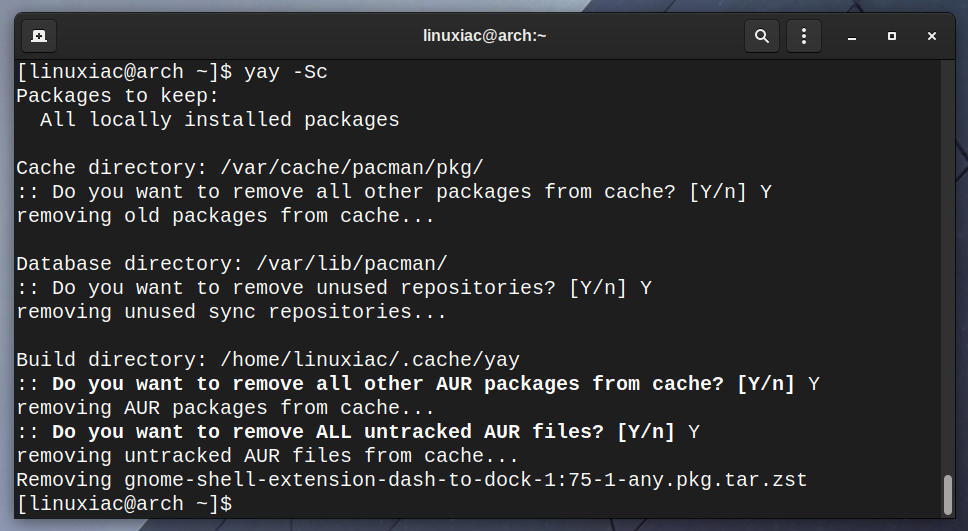
yay -Sc
Using an AUR helper dramatically simplifies package management for Arch Linux users, making the vast AUR ecosystem more accessible and convenient.
Maintaining and Updating Your AUR Packages
Installing packages is only half the battle; maintaining them is equally important. Outdated software can lead to security vulnerabilities or compatibility issues.
Keeping Manual Installations Up-to-Date
If you’ve installed AUR packages manually without an AUR helper, updating them requires a repetitive manual process for each package:
- Navigate to the package’s build directory:
cd ~/AUR/package_name - Pull the latest changes from the AUR Git repository:
git pull - Inspect the updated PKGBUILD:
less PKGBUILD(always important after agit pull) - Rebuild and reinstall the package:
makepkg -si
This manual process quickly becomes cumbersome if you have more than a few AUR packages.
Updating with AUR Helpers
This is where AUR helpers truly shine. They automate the entire update process for all your AUR packages.
To update all official packages and all AUR packages installed on your system using yay (or paru), simply run:
yay -Syu
The helper will first synchronize with the official repositories (pacman -Syu), then check for new versions of your installed AUR packages. It will prompt you to review the updated PKGBUILDs and then proceed to build and install the new versions. This single command streamlines your system maintenance, ensuring everything is kept current.
It’s generally a good practice to run yay -Syu regularly (e.g., daily or weekly) to keep your system and all its software up-to-date.
Best Practices and Troubleshooting Tips
While the AUR is a powerful resource, it comes with responsibilities. Following best practices and knowing how to troubleshoot common issues will ensure a smooth experience.
Security Considerations and Trusting PKGBUILDs
The most critical aspect of using the AUR is security. Unlike official repositories where packages are vetted by trusted Arch developers, AUR packages are community-contributed.
- Always inspect
PKGBUILDs: As emphasized, this is paramount. Before runningmakepkgor allowing an AUR helper to build, open thePKGBUILDand carefully review its contents. Pay attention to:- Source URLs: Are they from the official project or a reputable mirror?
dependsandmakedepends: Do they make sense for the software?- Build commands: Do they perform only necessary compilation and installation steps?
- Any
sudocommands: There should be none within thebuild()orpackage()functions.makepkgis designed to run as a normal user.
- Check AUR comments: The comments section on each AUR package page often contains valuable insights, warnings about issues, or discussions about the PKGBUILD’s safety.
- Prioritize official repositories: If a package is available in the official repositories, always prefer installing it from there rather than the AUR. Official packages are generally more stable, secure, and better integrated.
- Be cautious with foreign packages: Some AUR packages are merely “binary wrappers” that download pre-compiled binaries from external sources. While convenient, this bypasses the security of building from source. Ensure the source is trustworthy.
Common Issues and Solutions
Even with careful planning, you might encounter issues during AUR package installation. Here are some common problems and how to address them:
-
Missing Dependencies:
- Symptom:
makepkgor your AUR helper reports missing dependencies (e.g., “error: failed to prepare transaction (could not satisfy dependencies)”). - Solution: Manually install the missing dependencies using
sudo pacman -S dependency_name. If a dependency itself is an AUR package, you’ll need to install it (or let your helper handle it) first. Ensurebase-develis installed.
- Symptom:
-
Build Failures:
- Symptom:
makepkgstops with an error during thebuild()function, often related to compilation errors. - Solution:
- Check the error message: It often points to the missing build tool or a specific compilation issue.
- Verify
makedepends: Ensure allmakedependslisted in thePKGBUILDare installed. SomePKGBUILDs might be outdated and miss amakedependfor newer compiler versions. - Check for conflicting packages: Sometimes, another package on your system might conflict with a build dependency.
- Search AUR comments/forums: Others may have encountered and solved the same issue. The package maintainer might also provide guidance.
- Try a clean build: Remove the
src/andpkg/directories inside the package’s build folder and trymakepkg -siagain.
- Symptom:
-
GPG Key Issues:
- Symptom: “Error:
package_namePGP signature unknown or untrusted” whenmakepkgtries to verify source files. - Solution: You need to import the missing GPG key. The error message usually tells you the key ID.
bash

gpg --recv-keys KEY_ID

# Or, if that fails:

gpg --keyserver hkps://keyserver.ubuntu.com --recv-keys KEY_ID
Then, retrymakepkg -si.
- Symptom: “Error:
-
“package_name is not in sync with current system” error:
- Symptom:
pacmanor your AUR helper reports this when trying to update. - Solution: This typically means you need to fully update your official repositories first. Run
sudo pacman -Syu(oryay -Syu) to ensure all official packages are up-to-date before updating AUR packages. Never update AUR packages without updating official packages simultaneously.
- Symptom:
By understanding these common pitfalls and maintaining a diligent approach to security and maintenance, you can harness the full power of the Arch User Repository and keep your Arch Linux system robust and fully featured. The AUR is a testament to the Arch community’s strength, providing an unparalleled software selection for those willing to embrace its unique approach.
aViewFromTheCave is a participant in the Amazon Services LLC Associates Program, an affiliate advertising program designed to provide a means for sites to earn advertising fees by advertising and linking to Amazon.com. Amazon, the Amazon logo, AmazonSupply, and the AmazonSupply logo are trademarks of Amazon.com, Inc. or its affiliates. As an Amazon Associate we earn affiliate commissions from qualifying purchases.