
In an era where technology seamlessly integrates into every facet of our lives, the television has evolved far beyond a mere display device. Today’s Samsung Smart TVs are sophisticated entertainment hubs, productivity tools, and connectivity gateways, largely thanks to the vibrant ecosystem of applications they support. From streaming your favorite movies and shows to browsing the web, checking the weather, or even engaging in light fitness routines, apps unlock the true potential of your smart television.
For many, the sheer convenience and versatility offered by a well-equipped Smart TV can be transformative, shifting how we consume media and interact with digital content. This guide will walk you through everything you need to know about installing, managing, and optimizing apps on your Samsung Smart TV, ensuring you get the most out of your cutting-edge home entertainment system. We’ll delve into the essentials, provide step-by-step installation instructions, offer tips for organization, and troubleshoot common issues, making your Smart TV experience both intuitive and rewarding.
The Essentials: Before You Begin Your App Journey
Before you dive into the vast ocean of applications available for your Samsung Smart TV, a few foundational steps and understandings are crucial. These prerequisites ensure a smooth, secure, and enjoyable experience from the get-go, setting the stage for seamless app installation and usage.
Ensuring a Seamless Setup: Internet & Accounts
The “smart” in Smart TV fundamentally relies on its connection to the internet. Without a stable and robust internet connection, your TV cannot access the app store, download new applications, stream content, or perform vital updates.
- Stable Internet Connection: Ensure your Samsung Smart TV is connected to a reliable Wi-Fi network or, ideally, via an Ethernet cable for the most stable and fastest connection. A strong connection is paramount, especially when downloading larger apps or streaming high-definition content, preventing buffering and interruptions.
- Samsung Account: To fully utilize the app ecosystem on your Samsung Smart TV, you’ll need a Samsung Account. This account acts as your digital passport, enabling you to:
- Access the Samsung App Store: Download both free and paid applications.
- Personalize Your Experience: Sync settings and preferences across multiple Samsung devices.
- Track Purchases: Keep a record of any paid apps you acquire.
- Receive Updates: Ensure your apps are always up-to-date with the latest features and security patches.
If you don’t already have one, creating a Samsung Account is a straightforward process, often guided directly on your TV or via Samsung’s website. It requires a valid email address and the creation of a secure password, aligning with best practices for digital security.
Understanding Your Samsung Smart Hub
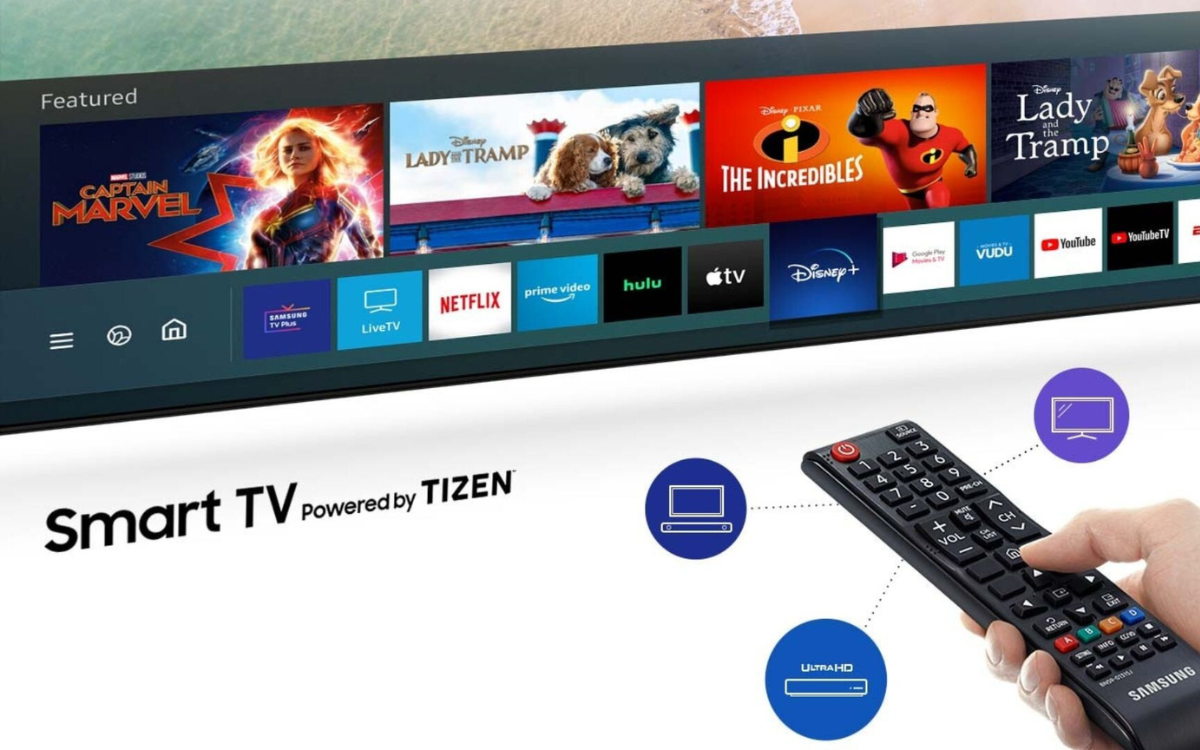
The Samsung Smart Hub is the central nervous system of your Smart TV. It’s the intuitive, user-friendly interface that aggregates all your content – live TV, streaming services, external devices, and most importantly, your apps – into one easily navigable dashboard. Familiarizing yourself with the Smart Hub is key to efficient app management.
When you press the Smart Hub button on your remote control (often represented by a colorful house icon or simply “Smart Hub”), you’ll be presented with a customizable bar or screen displaying recommended content, recently used apps, and access to the full app store. Its design prioritizes ease of access, allowing you to quickly switch between different forms of entertainment and information. Knowing how to navigate this hub is the first step towards taking full control of your TV’s capabilities.
Step-by-Step: Installing Apps on Your Samsung Smart TV
With your internet connection established and your Samsung Account logged in, you’re ready to embark on the exciting process of populating your Smart TV with applications that cater to your specific interests and needs. The process is designed to be user-friendly, guiding you seamlessly from discovery to enjoyment.
Navigating the Smart Hub and App Store
The journey to new apps begins in the Smart Hub:
- Access the Smart Hub: On your Samsung TV remote control, locate and press the “Smart Hub” button. This will bring up the Smart Hub interface, typically a horizontal bar at the bottom of the screen or a full-screen menu, depending on your TV model and year.
- Locate the Apps Section: Within the Smart Hub, look for an icon labeled “Apps” or a similar designation, often represented by a grid of squares or a general “Apps” store icon. Use the directional buttons on your remote to navigate to this section and select it. This will open the Samsung App Store.
Finding and Downloading Your Favorite Applications
Once inside the Samsung App Store, you’ll discover a curated selection of applications categorized for easy browsing:
- Browse or Search:
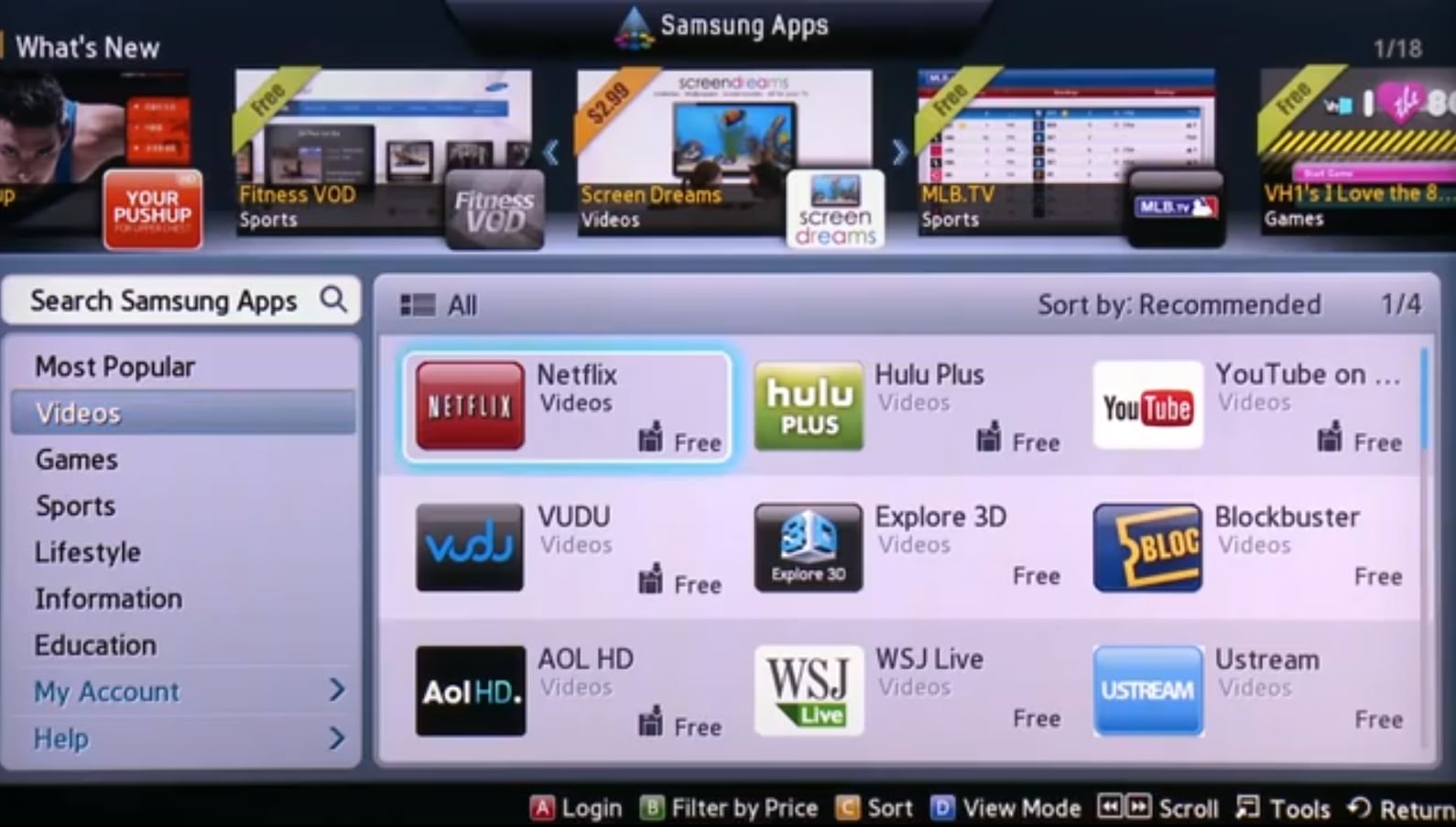
- Browse Categories: The App Store typically presents apps organized into categories such as “Video,” “Games,” “Lifestyle,” “Information,” and “Most Popular.” You can navigate through these categories using your remote’s directional buttons to discover new apps.
- Search Function: If you have a specific app in mind (e.g., Netflix, Disney+, YouTube, Spotify), use the “Search” icon (often a magnifying glass) usually found at the top or side of the App Store interface. Select it, and an on-screen keyboard will appear, allowing you to type in the name of the app.
- Select an App: Once you’ve found an app you’re interested in, select it to view its details page. This page usually provides a description of the app, user ratings, screenshots, and sometimes related apps.
- Install the App: On the app’s detail page, you’ll find an “Install” or “Download” button. Select this button. The TV will then begin downloading and installing the application. The duration of this process depends on the app’s size and your internet speed. During installation, you may be prompted to accept certain permissions for the app to function correctly. Always review these permissions to ensure they align with your expectations for the app’s functionality and your privacy preferences, contributing to your overall digital security.
- Completion Notification: Once the installation is complete, a notification will usually appear, confirming that the app has been successfully installed and is ready to use.
Launching and Enjoying Your New Apps
After installation, your new app is ready for action:
- Access from Smart Hub: The newly installed app will appear in your Smart Hub’s “Apps” section, usually towards the end of your list or in a “Recently Added” section.
- Launch the App: Navigate to the app icon using your remote and select it. The app will then launch, and you can proceed with any initial setup required (e.g., logging into your account for streaming services).
With these steps, you can effortlessly expand the capabilities of your Samsung Smart TV, transforming it into a personalized content powerhouse that caters to every member of your household.
Optimizing Your App Experience: Management and Customization
Simply installing apps is only half the battle; effectively managing and customizing your app library is essential for a truly streamlined and productive Smart TV experience. An organized Smart Hub not only enhances convenience but also contributes to the longevity and performance of your device.
Organizing Your App Library for Productivity
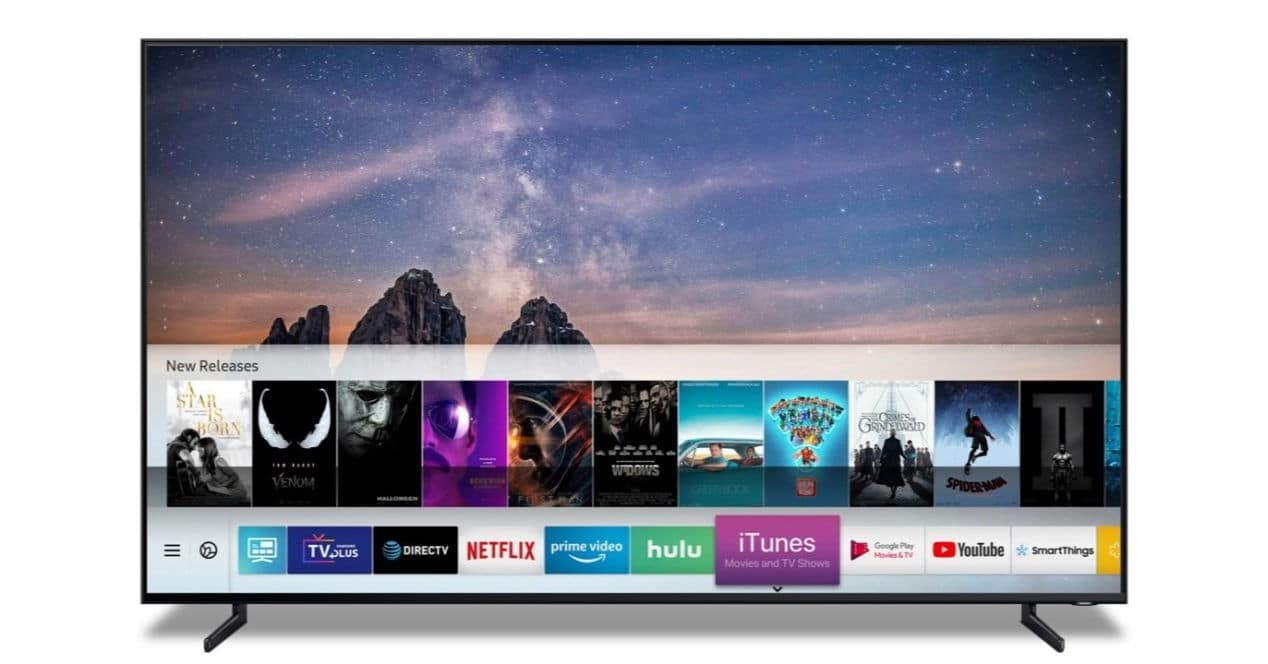
A cluttered Smart Hub can quickly become overwhelming, making it difficult to find the apps you use most frequently. Samsung Smart TVs offer various features to help you keep your app library organized:
- Rearranging Apps: You can typically move app icons around the Smart Hub to place your most used applications in prominent positions. This often involves highlighting an app, pressing and holding the “Enter” or “OK” button on your remote until an option to “Move” or “Edit” appears, and then dragging the app to your desired location. This simple act of customization significantly boosts your “productivity” by reducing search time.
- Creating Folders: Some Samsung Smart TV models allow you to group similar apps into folders (e.g., “Streaming,” “Games,” “News”). This is an excellent way to consolidate a large number of apps, keeping your main Smart Hub screen tidy and intuitive. To create a folder, you might need to move one app onto another, or select a “Create Folder” option within the app management menu.
- Pinning to Home Screen: For ultimate quick access, you can often pin your absolute favorite apps directly to the Smart Hub’s main bar, ensuring they are always just one click away.
By taking a few moments to organize your apps, you create a personalized interface that reflects your viewing habits and maximizes your enjoyment.
Freeing Up Space: Deleting Unwanted Apps
Just like any other digital device, your Samsung Smart TV has a finite amount of internal storage. While apps for TVs are generally smaller than those for smartphones or computers, accumulating too many unused applications can eventually lead to performance issues or prevent you from downloading new ones. Regularly reviewing and deleting unwanted apps is a good practice:
- Access App Management: Go to the Smart Hub and navigate to the “Apps” section. Look for an “Options” or “Settings” menu within the App Store, or an “App Management” section.
- Select and Delete: Highlight the app you wish to delete. There will typically be an option to “Delete” or “Uninstall.” Confirm your choice when prompted.
Deleting apps frees up valuable storage space, potentially improving your TV’s overall responsiveness and ensuring there’s always room for the next must-have application. It’s a key aspect of maintaining digital “productivity” and efficiency for your device.
Keeping Your Apps Current: Updates for Performance and Security
Software updates are critical for maintaining the optimal performance, functionality, and, importantly, the security of your apps and your TV itself.
- Automatic Updates: Most Samsung Smart TVs are set to update apps automatically when connected to the internet. This ensures you always have the latest versions without manual intervention, benefiting from new features, bug fixes, and enhanced “digital security” against vulnerabilities.
- Manual Updates: If you prefer more control or suspect an app isn’t updating, you can usually trigger a manual update check within the App Store settings or by selecting an individual app and looking for an “Update” option.
- TV Software Updates: Beyond individual apps, regularly updating your TV’s firmware is equally important. These updates often improve overall system stability, add new features, and patch critical “digital security” vulnerabilities, safeguarding your personal data and enhancing your TV’s long-term performance. You can usually find the TV software update option within the TV’s main “Settings” menu, under “Support” or “About This TV.”
By consistently managing and updating your apps and TV software, you not only ensure a smooth user experience but also protect your device from potential security threats and future-proof its capabilities.
Troubleshooting Common Issues and Advanced Tips
Even with the most intuitive technology, occasional hiccups can occur. Understanding how to troubleshoot common app installation and performance issues can save you time and frustration. For those looking to push the boundaries, a brief exploration of advanced concepts also offers perspective on the Smart TV ecosystem.
Resolving Connectivity and Installation Glitches
Most app-related problems stem from a few common culprits:
- Internet Connection Issues:
- Symptom: Apps won’t download, stream content buffers incessantly, or the Smart Hub fails to load.
- Solution: Check your TV’s network status in the “Settings” menu. Ensure your Wi-Fi is connected, or your Ethernet cable is properly plugged in. Restart your router and modem, then restart your TV. Sometimes, temporarily switching from Wi-Fi to a wired connection (if available) can help diagnose the problem.
- Insufficient Storage:
- Symptom: Apps fail to install with an error message about insufficient space.
- Solution: Follow the steps in the “Freeing Up Space: Deleting Unwanted Apps” section above. Uninstall apps you no longer use to make room for new ones.
- Temporary App Store Glitches:
- Symptom: The App Store appears empty, or apps fail to load/download without clear error messages.
- Solution: Restart your TV (a full power cycle, not just standby). Unplug it from the power outlet for 60 seconds, then plug it back in. This often resolves minor software glitches. Clearing the TV’s cache (if your model supports it, usually in “Device Care” settings) can also help.
- App-Specific Problems:
- Symptom: A particular app crashes, freezes, or doesn’t work correctly after installation.
- Solution: Try deleting and reinstalling the problematic app. Ensure the app is updated to its latest version. If the issue persists, check the app developer’s support page for known issues or contact their customer service.
When All Else Fails: Resetting Your Smart Hub
If you encounter persistent issues with apps or the Smart Hub that none of the above solutions resolve, a Smart Hub Reset can often fix deeper software conflicts.
- Access Reset Option: Go to your TV’s “Settings” menu, navigate to “Support,” and then look for “Device Care” or “Self Diagnosis.” Within this section, you should find an option for “Smart Hub Reset.”
- Understand the Implications: Performing a Smart Hub Reset will revert all Smart Hub settings to their factory defaults. This means you will need to re-login to all your apps (streaming services, etc.) and any custom app arrangements or settings will be lost. It will also require you to re-accept the Smart Hub’s terms and conditions.
- Enter PIN: You will be prompted to enter your TV’s PIN (default is usually 0000). After entering it, confirm the reset.
A Smart Hub Reset can be very effective in resolving stubborn app-related issues by providing a clean slate for the Smart TV’s operating system.
Exploring Beyond the Official Store: Sideloading (A Word of Caution)
While this guide primarily focuses on the secure and recommended method of installing apps via the official Samsung App Store, it’s worth briefly acknowledging an advanced concept known as “sideloading.” This involves installing applications from sources other than the official App Store, typically via a USB drive.
Important Caution: Sideloading is generally not recommended for the average user for several critical reasons:
- Digital Security Risks: Apps from unofficial sources are not vetted by Samsung and can potentially contain malware, viruses, or spyware, compromising your personal data and the security of your TV. This is a significant concern for “Digital Security.”
- Stability Issues: Unofficial apps may not be optimized for your specific TV model, leading to crashes, performance problems, or even bricking your device.
- Warranty Voidance: Attempting to install unauthorized software could void your TV’s warranty.
- Limited Support: You will not receive official support for issues arising from sideloaded apps.
For the vast majority of users, the Samsung App Store provides a rich and secure selection of applications that cater to nearly every need. Sticking to official channels ensures peace of mind, optimal performance, and robust “digital security.” Only users with advanced technical expertise, a full understanding of the risks, and a specific niche requirement should ever consider exploring sideloading.
Conclusion: Maximizing Your Smart TV Potential
Your Samsung Smart TV is a gateway to an expansive world of entertainment, information, and connectivity. By mastering the art of app installation and management, you transform a powerful piece of hardware into a truly personalized and efficient entertainment hub. From ensuring a stable internet connection and understanding the Smart Hub to strategically organizing your apps and keeping them updated, every step contributes to a seamless and secure user experience.
Embrace the ever-evolving “Technology Trends” by regularly exploring new apps, ensuring your digital security through timely updates, and optimizing your Smart TV for peak performance. With this comprehensive guide, you are now well-equipped to unlock the full potential of your Samsung Smart TV, turning it into the ultimate centerpiece of your modern home. Enjoy the journey of discovery and entertainment!
aViewFromTheCave is a participant in the Amazon Services LLC Associates Program, an affiliate advertising program designed to provide a means for sites to earn advertising fees by advertising and linking to Amazon.com. Amazon, the Amazon logo, AmazonSupply, and the AmazonSupply logo are trademarks of Amazon.com, Inc. or its affiliates. As an Amazon Associate we earn affiliate commissions from qualifying purchases.