
Smart TVs have fundamentally transformed the way we consume media, evolving from simple display units into sophisticated entertainment hubs. At the heart of this transformation lies the ability to install a myriad of applications, turning your living room screen into a personalized portal for streaming, gaming, news, productivity, and even smart home control. No longer are we tethered to rigid broadcast schedules; instead, we curate our own viewing experience, choosing what to watch, when to watch it, and how to interact with our digital world.
This guide delves deep into the world of smart TV apps, providing you with a comprehensive walkthrough on how to install them, troubleshoot common issues, and even explore advanced options. Whether you’re a tech novice or an experienced gadget enthusiast, understanding your smart TV’s app ecosystem is key to maximizing its potential. We’ll navigate the diverse operating systems, highlight crucial security considerations, and even touch upon the financial implications of app usage, ensuring you get the most out of your investment.
Understanding Your Smart TV’s Operating System: The Foundation of Your App Experience
Before you can dive into the exciting world of apps, it’s essential to understand the underlying platform that powers your smart TV. Just like smartphones run on iOS or Android, smart TVs operate on various proprietary and open-source operating systems, each with its own app store, interface, and unique features. The installation process, available apps, and overall user experience are largely dictated by this core software. Familiarizing yourself with your TV’s OS is the first critical step in becoming a smart TV power user.
The landscape of smart TV operating systems is diverse, reflecting a competitive market driven by innovation and user experience. Each platform strives to offer a seamless, intuitive interface, robust performance, and a comprehensive app library. Recognizing which OS your TV uses will empower you to follow the correct installation procedures and troubleshoot effectively.
The Major Smart TV Platforms: A Quick Overview
- Android TV / Google TV: Developed by Google, this platform is found on a wide range of TVs from brands like Sony, Philips, TCL, Hisense, and Chromecast with Google TV devices. It boasts access to the expansive Google Play Store, offering a vast selection of apps, games, and integration with Google services like Google Assistant. Google TV is a newer, more content-centric iteration of Android TV, offering a redesigned interface focused on personalized recommendations. Its strengths lie in its familiarity for Android phone users and deep integration with the Google ecosystem, including Chromecast built-in functionality.
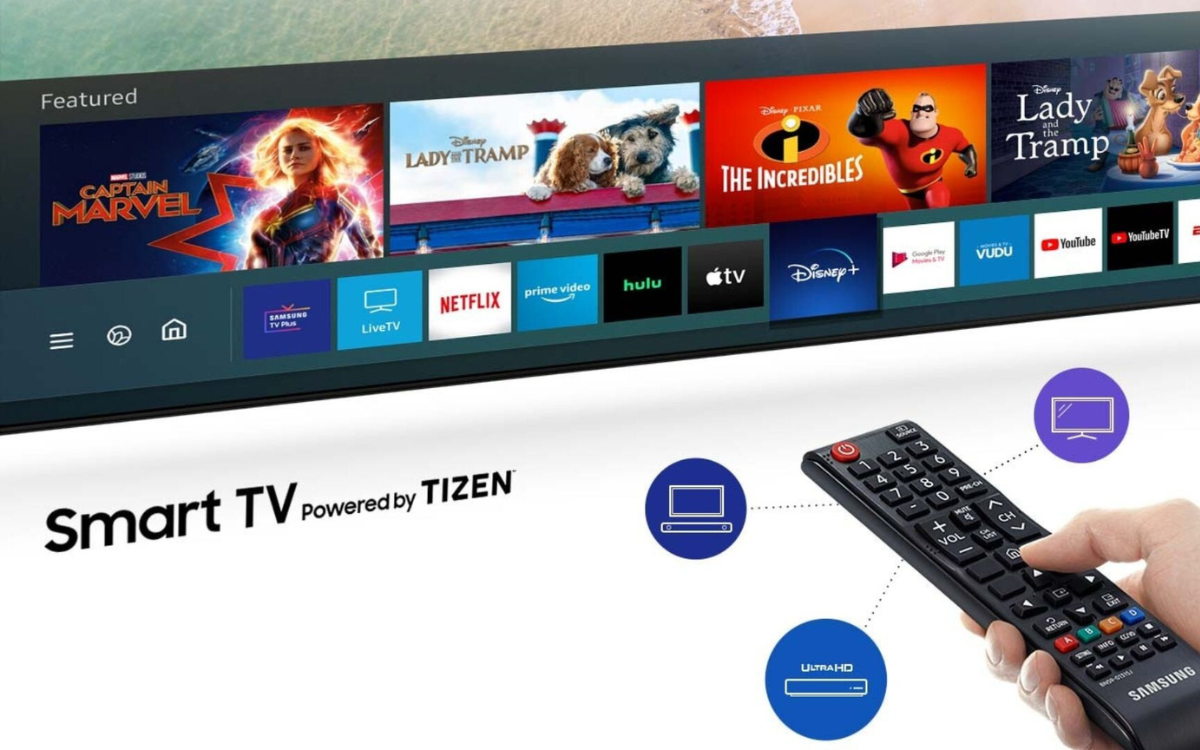
- Samsung Tizen OS: Samsung’s proprietary operating system powers its entire line of smart TVs. Known for its sleek, intuitive interface, the Tizen OS features a horizontal app bar for easy navigation and quick access to frequently used applications. Samsung maintains its own app store, which is well-stocked with popular streaming services, lifestyle apps, and exclusive content. Tizen is praised for its speed and responsiveness, often incorporating smart features like Bixby voice assistant and SmartThings integration for home automation.
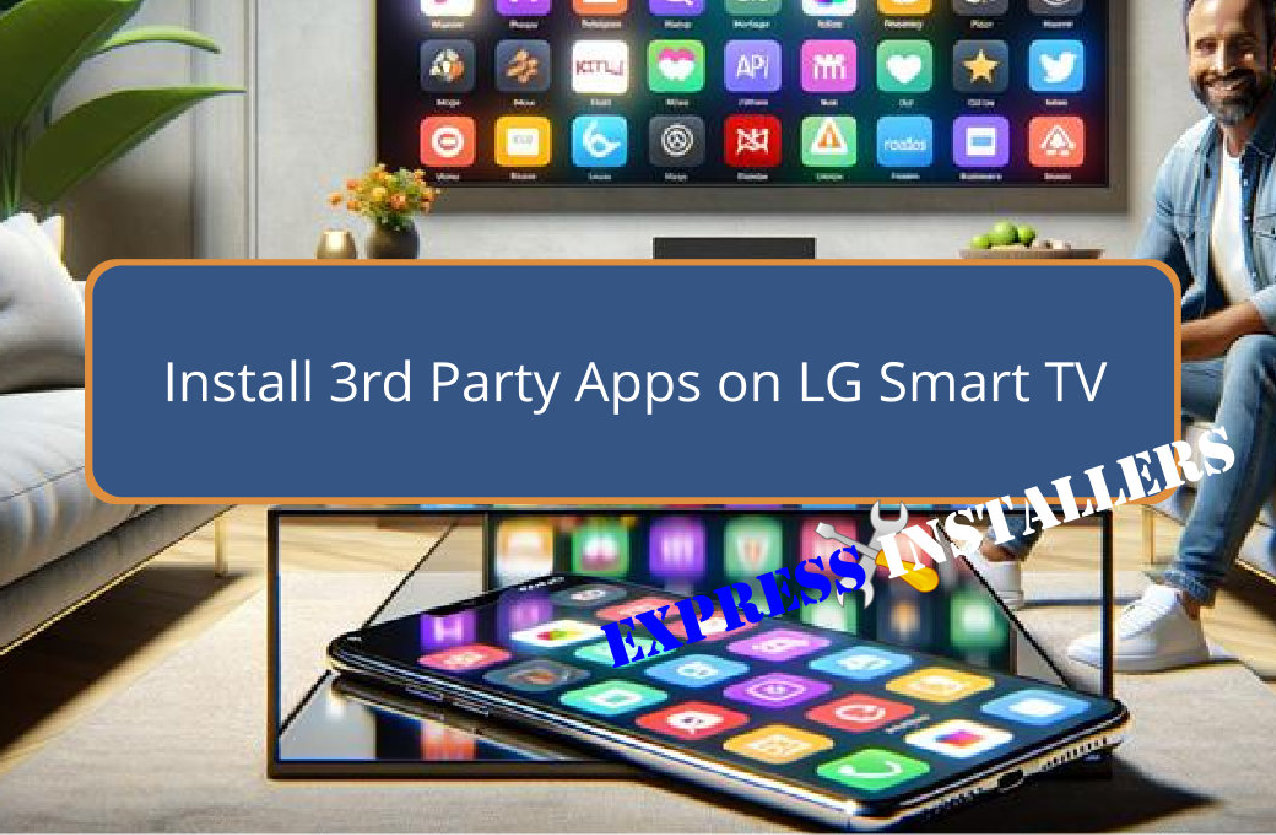
- LG webOS: LG’s webOS is another highly acclaimed smart TV platform, recognized for its vibrant, card-based interface that emphasizes ease of use. It also utilizes a horizontal launcher bar, allowing users to effortlessly switch between apps, live TV, and external inputs. LG’s Content Store is comprehensive, offering all the major streaming apps and a growing selection of niche content. WebOS is often highlighted for its Magic Remote functionality, which provides a pointer-based interaction akin to a mouse, making navigation particularly fluid. It also integrates LG ThinQ AI for voice control and smart home connectivity.
- Roku TV: While Roku is best known for its streaming sticks and boxes, Roku OS is also licensed to various TV manufacturers like TCL, Hisense, and Sharp. Roku TVs are celebrated for their simplicity and user-friendliness. The interface is clean, straightforward, and highly customizable, presenting all available “channels” (Roku’s term for apps) in a grid format. The Roku Channel Store offers thousands of apps, including virtually every major streaming service. Its strength lies in its no-frills approach, making it incredibly accessible for all users.
- Amazon Fire TV Edition: Similar to Roku TV, Amazon licenses its Fire TV OS to TV manufacturers such as Toshiba and Insignia. This platform provides a user experience consistent with Amazon’s Fire TV sticks and cubes, heavily integrating with Amazon Prime Video and other Amazon services. It features a content-forward interface with strong voice control capabilities via Alexa. The Amazon Appstore for Fire TV offers a robust selection of streaming, gaming, and utility apps, catering to users deeply embedded in the Amazon ecosystem.
Knowing which of these (or other less common ones like Vizio SmartCast, often relying on casting rather than native app installation) your TV uses is the first step in unlocking its full potential. You can usually find this information in your TV’s settings menu, under “About” or “System Information,” or by simply observing the interface when you turn it on.
Step-by-Step Guide to Installing Apps on Popular Smart TV Platforms
Once you’ve identified your smart TV’s operating system, installing apps becomes a straightforward process. While the general steps are similar – accessing an app store, searching, and installing – the specifics of navigation and interface elements will vary. Below, we provide detailed instructions for the most prevalent smart TV platforms.
1. Installing Apps on Android TV / Google TV
Android TV and Google TV devices offer a familiar experience for anyone accustomed to Android smartphones, leveraging the vast Google Play Store.
- Ensure Internet Connection: Your TV must be connected to the internet, either via Wi-Fi or Ethernet. Go to
Settings > Network & Internetto verify. - Access the Google Play Store:
- Android TV: From the home screen, navigate to the “Apps” section and select the “Google Play Store” icon. You might need to scroll right or down to find it.
- Google TV: On the home screen, scroll to the “Apps” tab at the top. You’ll see featured apps; scroll down and select “App library” or search directly from the main “Apps” tab.
- Search for Your App:
- Use the search icon (magnifying glass) at the top of the screen.
- Type the name of the app using the on-screen keyboard, or use voice search if your remote has a microphone button (highly recommended for speed).
- Select and Install:
- Once you find the desired app, select it.
- On the app’s page, you’ll see details, screenshots, and reviews. Select the “Install” button.
- Launch the App: After installation, the “Install” button will change to “Open.” Select “Open” to launch the app immediately, or find it later in your “Apps” section on the home screen.
- Tip for Android TV: If you’re missing an app, consider checking if an update for the Google Play Store or your Android TV OS is available via
Settings > Device Preferences > About > System update.
2. Installing Apps on Samsung Tizen OS Smart TVs
Samsung’s Tizen OS provides a sleek and responsive interface with its own “App Store.”
- Connect to the Internet: Ensure your Samsung TV is connected to the internet via
Settings > General > Network > Open Network Settings. - Access the Smart Hub / Apps Section:
- Press the “Home” button (usually shaped like a house) on your remote. This brings up the Smart Hub.
- Navigate to the “Apps” section. This is typically an icon with four squares or a clearly labeled “Apps” category.
- Browse or Search the App Store:
- Within the Apps screen, you’ll see featured apps, categories, and a “Search” icon (magnifying glass) at the top right.
- Use the search function to find specific apps, or browse categories like “Video,” “Games,” or “Lifestyle.”
- Select and Install:
- Choose the app you want to install.
- On the app’s detail page, select the “Install” button.
- Open the App: Once installed, select “Open” to launch it, or find it in your Smart Hub’s Apps section. You can also reorder apps in the Smart Hub for quicker access.
- Brand Integration: Samsung’s app store often highlights apps that integrate with other Samsung services or devices, aligning with their broader brand strategy for a connected ecosystem.
3. Installing Apps on LG webOS Smart TVs
LG’s webOS is known for its intuitive card-based interface and the LG Content Store.
- Confirm Internet Connection: Ensure your LG TV is connected to the internet via
Settings > All Settings > Network > Connection. - Open the LG Content Store:
- Press the “Home” button on your Magic Remote (the one with the house icon).
- Scroll through the launcher bar at the bottom of the screen until you find the “LG Content Store” icon (usually a shopping bag). Select it.
- Find Your App:
- Within the Content Store, you’ll find featured apps, categories (e.g., “Movies & TV,” “Games”), and a “Search” icon (magnifying glass) at the top.
- Use the search function (typing with the remote’s pointer or using voice via the Magic Remote) or browse by category.
- Install the App:
- Select the desired app.
- On the app’s page, select the “Install” button.
- Launch the App: Once installation is complete, you can select “Launch” or find the app in your home screen launcher bar. You can also customize the order of apps in the launcher bar.
- Tech Feature Highlight: The Magic Remote’s pointer function makes navigating the LG Content Store and typing much more efficient, showcasing how innovative gadget design enhances the user experience.
4. Installing Apps on Roku TV
Roku TVs prioritize simplicity with their “Channel Store.”
- Verify Network Connection: Check your internet connection via
Settings > Network > Set up connection. - Access the Channel Store:
- From the Roku TV home screen, scroll down to “Streaming Channels” or “Channel Store.” Select it.
- Search for Channels:
- The Channel Store allows you to browse “New & Notable,” “Featured,” and categories, or you can use the “Search Channels” option.
- Type the name of the app (channel) you’re looking for.
- Add Channel:
- Select the desired channel from the search results.
- On the channel’s information page, select “Add channel.”
- Go to Channel: After installation, you’ll see a confirmation. Select “Go to channel” to launch it, or find it added to the end of your channel list on the home screen. You can then move it to a preferred position.
- Productivity Tip: Roku’s focus on a simple grid of channels makes it incredibly easy to find and launch apps, improving user productivity by reducing navigation complexity.
5. Installing Apps on Amazon Fire TV Edition TVs
Fire TV Edition TVs integrate Amazon’s Fire OS, offering a content-rich interface.
- Ensure Internet Connectivity: Confirm your TV is connected to the internet via
Settings > Network. - Navigate to the Apps Section:
- From the Fire TV home screen, scroll up to the top menu and select “Apps.”
- Browse or Search for Apps:
- The Apps screen will display featured apps, categories, and a “Search” icon (magnifying glass).
- Use the search function (typing or voice search with your Alexa Voice Remote) or explore categories.
- Download and Get:
- Select the app you wish to install.
- On the app’s detail page, select “Get” or “Download.” If it’s a paid app, you’ll see the price and need to confirm your purchase.
- Open the App: Once downloaded and installed, select “Open.” You can also find it in your “Your Apps & Channels” list on the home screen.
- Money Aspect: While many apps are free, some Fire TV apps, particularly games or premium services, might require a purchase or subscription, touching on the ‘Money’ aspect of app usage.
Troubleshooting Common App Installation Issues
Even with clear instructions, you might encounter hiccups during app installation. Here’s a guide to common problems and their solutions, ensuring your smart TV experience remains smooth and frustration-free.
Internet Connectivity Problems
- Symptom: Apps won’t download, “No internet connection” error, slow loading.
- Solution:
- Check Wi-Fi/Ethernet: Go to your TV’s network settings and confirm it’s connected. Try disconnecting and reconnecting.
- Router Restart: Unplug your Wi-Fi router and modem for 30 seconds, then plug them back in.
- Signal Strength: Ensure your TV is close enough to your Wi-Fi router for a strong signal. Consider an Ethernet connection for reliability.
Insufficient Storage Space
- Symptom: “Storage full” or “Not enough space” error when trying to install a new app.
- Solution:
- Delete Unused Apps: Go to your TV’s
Settings > Apps(or similar section depending on OS) and uninstall apps you no longer use. Prioritize larger apps. - Clear Cache: Some platforms allow you to clear individual app caches, which can free up small amounts of space.
- External Storage (if supported): Some Android TV models and Fire TV devices allow for external USB storage to expand app storage.
- Delete Unused Apps: Go to your TV’s
App Not Found or Incompatible
- Symptom: You can’t find a specific app in the store, or it says “Not compatible with your device.”
- Solution:
- Region Restrictions: Some apps are only available in certain countries due to licensing.
- OS Version: Your TV’s operating system might be outdated for the app. Check for system updates (
Settings > About > Software Update). - Platform Specificity: The app might only be available on a different smart TV platform (e.g., a Samsung-exclusive app won’t be on an LG TV).
- App Availability: The app developer might not have released a version for smart TVs, or for your specific OS.
App Crashing or Not Launching
-
Symptom: App closes immediately after opening, freezes, or fails to launch.
-
Solution:
- Restart the TV: A simple power cycle (unplug from wall for 60 seconds) can often resolve temporary glitches.
- Clear App Data/Cache: Go to
Settings > Apps > [Problematic App] > Clear Data / Clear Cache. Be aware that clearing data will sign you out of the app. - Update the App: Check if there’s an update available for the app in your TV’s app store.
- Reinstall the App: Uninstall the app, restart your TV, and then reinstall it.
-
Digital Security Note: Regularly updating your apps and TV’s OS is crucial not just for new features and bug fixes, but also for security patches that protect against vulnerabilities.
Beyond the App Store: Sideloading and Advanced Considerations
While the official app stores offer a curated and generally safe selection, some users might seek to install apps not officially available. This process, known as “sideloading,” involves manually installing app packages (APKs for Android-based systems) and is typically reserved for power users. It’s important to approach sideloading with caution due to potential security risks.
Sideloading Apps (Primarily Android TV / Fire TV)
Sideloading is predominantly an option for Android TV and Amazon Fire TV devices, as they are based on the Android operating system.
- Enable Unknown Sources:
- Go to
Settings > Device Preferences > Security & Restrictions > Unknown Sources. - Enable this for the app you intend to use for sideloading (e.g., a file manager or a browser).
- Warning: Enabling this setting can make your device vulnerable to malicious software. Only enable it when necessary and for trusted sources.
- Go to
- Download an App/File Manager: Install a reputable file manager app (like “ES File Explorer” or “FX File Explorer”) and a web browser (like “Downloader” on Fire TV) from the official app store.
- Obtain the APK File: Use the browser or a computer to download the
.apkfile of the app you want to install from a trusted third-party source. Transfer it to your TV via USB, cloud storage, or direct download if using a browser on the TV. - Install the APK: Open your file manager, navigate to where the APK is stored, select it, and follow the on-screen prompts to install.
- Digital Security Implications: Sideloading bypasses the security checks of official app stores. Always verify the source of APKs and understand the permissions you’re granting. Malicious APKs can contain viruses, spyware, or other harmful software, jeopardizing your digital security and personal data.
Optimizing Smart TV Performance and Discovering New Apps
- Performance:
- Regular Updates: Keep your TV’s operating system and all installed apps updated. These updates often include performance enhancements and bug fixes.
- Manage Background Apps: Some smart TVs allow you to close background apps to free up RAM. Check your
Settings > Appsfor options to force stop or optimize. - Restart Regularly: A periodic restart (unplugging for a minute) can clear temporary files and refresh the system, improving overall responsiveness.
- App Discovery:
- Explore Categories: Don’t just stick to the search bar. Browse the various categories in your app store to find hidden gems.
- Recommendations: Most smart TV platforms offer personalized app recommendations based on your usage.
- Online Reviews and Tech Blogs: Tech websites (like the one hosting this article!) often review new and trending smart TV apps, offering insights into their features and utility. This links directly to the “Tech” aspect of our website.
The Financial and Brand Landscape of Smart TV Apps
While many essential apps are free to download, the ‘Money’ aspect of smart TV apps is significant:
- Subscription Services: A large portion of streaming apps require monthly or annual subscriptions (e.g., Netflix, Disney+, Hulu, HBO Max). Consider your budget and viewing habits.
- In-App Purchases: Some apps, especially games, offer in-app purchases for additional content or features.
- Paid Apps: A smaller segment of apps, particularly utilities or premium games, might require an upfront purchase.
From a ‘Brand’ perspective:
- Platform Branding: Each smart TV OS (Tizen, webOS, Android TV) is a brand in itself, heavily influencing user perception and loyalty. The design, responsiveness, and exclusive features become part of the TV’s overall brand identity.
- App Brand Recognition: The availability and prominence of major streaming brands (Netflix, Prime Video, YouTube) on a platform are critical for its success and user adoption. TV manufacturers often partner with these brands to ensure seamless integration.
- User Experience as a Brand Differentiator: The ease of installing apps, the intuitiveness of the interface, and the quality of the app ecosystem contribute to the brand experience of the smart TV, influencing consumer choices.

Conclusion: Your Smart TV, Your Entertainment Hub
Installing apps on your smart TV is a straightforward process once you understand your device’s operating system. By following the steps outlined for your specific platform, you can effortlessly transform your television into a personalized entertainment powerhouse, brimming with content tailored to your preferences. From the latest blockbuster movies and binge-worthy series to interactive games, educational tools, and productivity apps, the possibilities are virtually endless.
Remember to prioritize security by downloading apps from official stores, regularly updating your software, and exercising caution with any unofficial installations. Keep an eye on storage and optimize your TV’s performance for a consistently smooth experience. As technology continues to evolve, smart TVs will only become more integrated into our digital lives, offering increasingly sophisticated features and a richer array of applications. By mastering app installation today, you’re not just setting up your TV; you’re unlocking a world of future possibilities and ensuring your smart television remains at the cutting edge of home entertainment. Dive in, explore, and personalize your viewing experience like never before!